

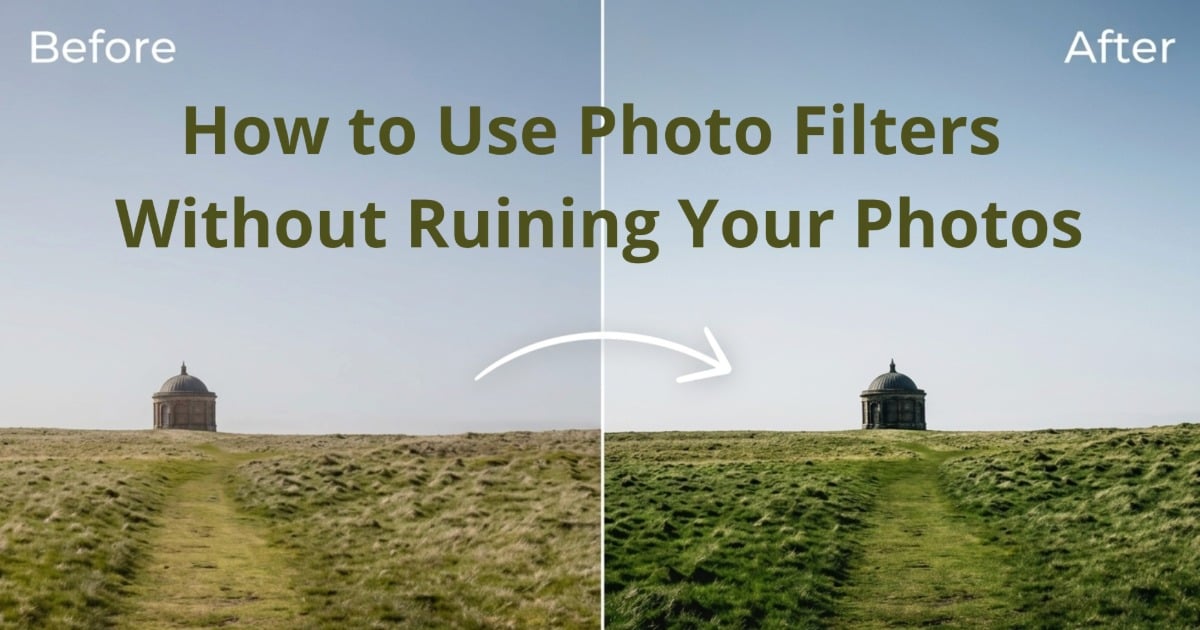
You can spend an hour on a portrait, get the light right, catch the expression, and still ruin the result in the last thirty seconds if the filter choice is wrong. Muddy skin, flat shadows, crushed blacks, and fake color usually do not come from the filter alone. They come from how the filter is applied.
This guide explains how to use photo filters with intention: when to use a filter, when a preset makes more sense, how to control intensity, and how to build a workflow that keeps your photos consistent without making them all look stamped from the same template.
TL;DR
- Filters add a look. Presets save actual adjustment settings.
- Never apply a filter at full strength by default.
- Choose the look based on the image and its destination, not just your personal taste.
- For batch work, use presets as a baseline and refine each image individually.
Why Most People Use Filters Wrong
Most filter mistakes come from treating a filter like a rescue tool instead of a finishing touch. A filter cannot fix bad exposure, sloppy white balance, weak composition, or poor skin tone. If the base image is off, a strong filter usually amplifies the problem rather than hiding it.
The second mistake is applying a filter at maximum intensity. That habit makes the edit look obvious before it makes it look good. A better question is, “Does this serve the image, or does it just make it look different?” Different is not the same as better.
Professional editors usually treat filters as the final layer, not the first move. Get exposure, white balance, crop, and contrast under control first—then add a look lightly. With Evoto, simple sliders make color adjustments quick and easy, and you can always choose a filter later when the image is ready.


Powerful AI Photo Editor
Digital Filters vs. Presets: What’s the Difference
These terms get mixed together all the time, but they are not the same thing.
Filters
A filter is a prebuilt color or tone overlay. It shifts the image in a fixed way, usually through hue, contrast, fade, grain, or overall mood. Most phone apps and social platforms rely on filters because they are fast and easy to apply.
Presets
A preset is a saved set of actual editing adjustments. That can include exposure, highlights, shadows, HSL changes, sharpening, noise reduction, and tone curve moves. Presets are more useful when you need control because you can apply the look, then keep adjusting the individual settings underneath it.
When to Use Which
Use filters when you want a quick look and do not need fine-grained control. Use presets when you are editing professionally, working in batches, or trying to build consistency across a body of work. A preset gives you a starting point. A filter often gives you a finished look whether it fits or not.
How to Use Photo Filters Step by Step (Without Overdoing It)
Step 1: Complete Your Base Edit First
Correct exposure, white balance, and contrast before applying any filter. A filter on a clean image looks intentional. A filter on a weak file looks like camouflage.
Step 2: Apply at Reduced Intensity
Start around 40 to 60 percent strength. Many filters are designed to look dramatic in the preview thumbnail because drama sells. Good editing usually needs less.
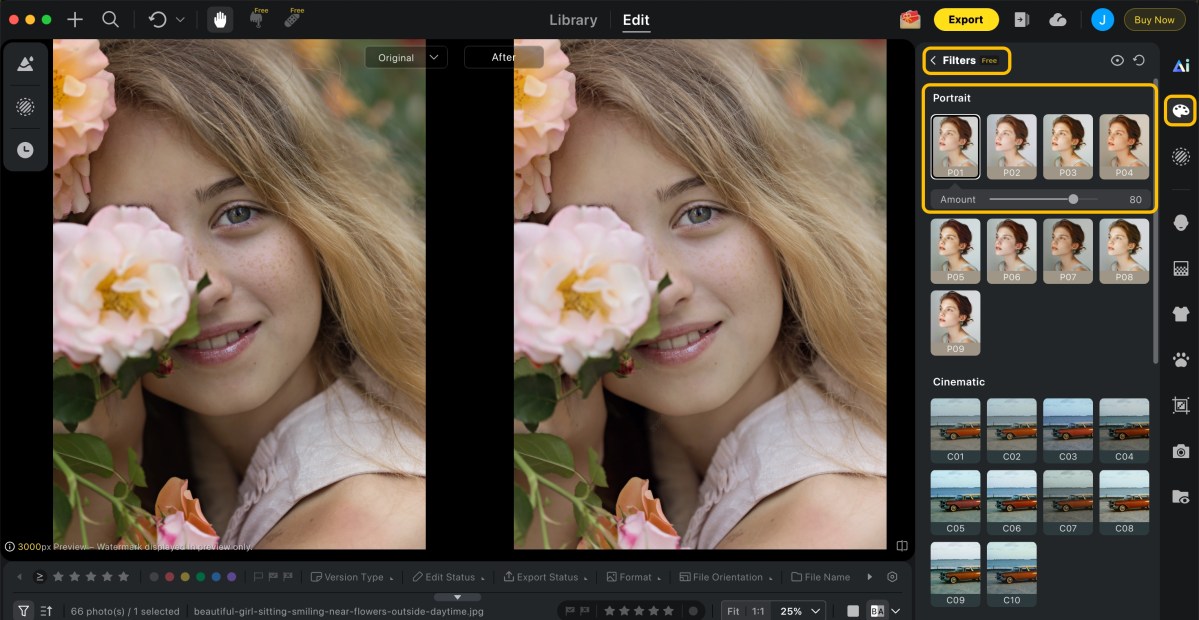
Step 3: Check Skin Tones and Neutrals
Skin is often the first place a bad filter reveals itself. If the skin turns orange, gray, or plastic, pull back or choose a different look. Check whites, grays, and blacks too. Unwanted color casts usually show up there first.
Step 4: Compare Before and After
Toggle the filter on and off. If the original looks cleaner or more believable, the filter is not helping. Not every photo needs a filter, and knowing when to skip one is part of editing maturity.
Step 5: Review on More Than One Screen
An edit that looks rich on one monitor can look radioactive on a phone. If the image matters, check it on at least one other screen before exporting or publishing.
Powerful AI Photo Editor
How to Choose the Right Filter for Your Photo’s Mood
Choosing a filter should match the intent of the image, not just the editor’s current mood.
Match the Filter to the Scene
- Warm tones work well for golden hour, lifestyle images, and nostalgic portraits.
- Cool tones work better for moody urban scenes, winter settings, and editorial work.
- Desaturated or matte looks fit documentary or understated work.
- High contrast or vivid looks fit commercial food, product, and branding images more naturally than soft portraits.
Consider the Destination
A filter that looks right for Instagram may not belong in a client gallery or printed portfolio. The destination should influence both style and intensity.
Build a Short List
Instead of scrolling through dozens of options every time, identify three to five looks that genuinely match your style. A smaller working set usually creates stronger consistency than having endless options.

Using Presets for Batch Consistency
When you are editing a large set of images, applying filters one by one is not a real workflow. Presets are more useful because they let you establish a baseline and then refine the batch image by image.
A practical preset workflow looks like this:
- Edit one strong image until it reflects the look you want.
- Save those settings as a preset.
- Apply the preset across the batch.
- Review each image and adjust exposure, white balance, crop, or local corrections where needed.
- Export only after checking that the look still fits each frame.
This gives you consistency without forcing every image into exactly the same conditions. If you work in high volume, tools like Evoto AI photo editor can support this kind of preset-driven workflow, especially when you need repetitive cleanup across many similar files.
Common Overediting Mistakes and How to Fix Them
Cranking Saturation
Oversaturation makes photos feel cheap quickly. If colors look neon or skin starts glowing unnaturally, reduce saturation or vibrance until the image looks believable again.
Crushing Blacks
Deep shadows can add mood, but fully crushed blacks remove information. If you lose all shadow detail, lift the blacks slightly so the image keeps depth without turning empty.
Over-Sharpening
Sharpening should be nearly invisible at normal viewing distance. If you see halos, crunchy pores, or exaggerated texture, back it off.
Applying the Same Filter to Every Image
Not every frame in a session has the same light, color temperature, or emotional tone. A filter that works on one portrait may ruin another from the same day. Batch consistency still requires individual judgment.
Ignoring the Histogram
If highlights are clipping or blacks are blocking up after the filter is applied, the look is doing damage. The histogram is a faster way to catch that than trusting your mood alone.
Building Your Own Preset Library
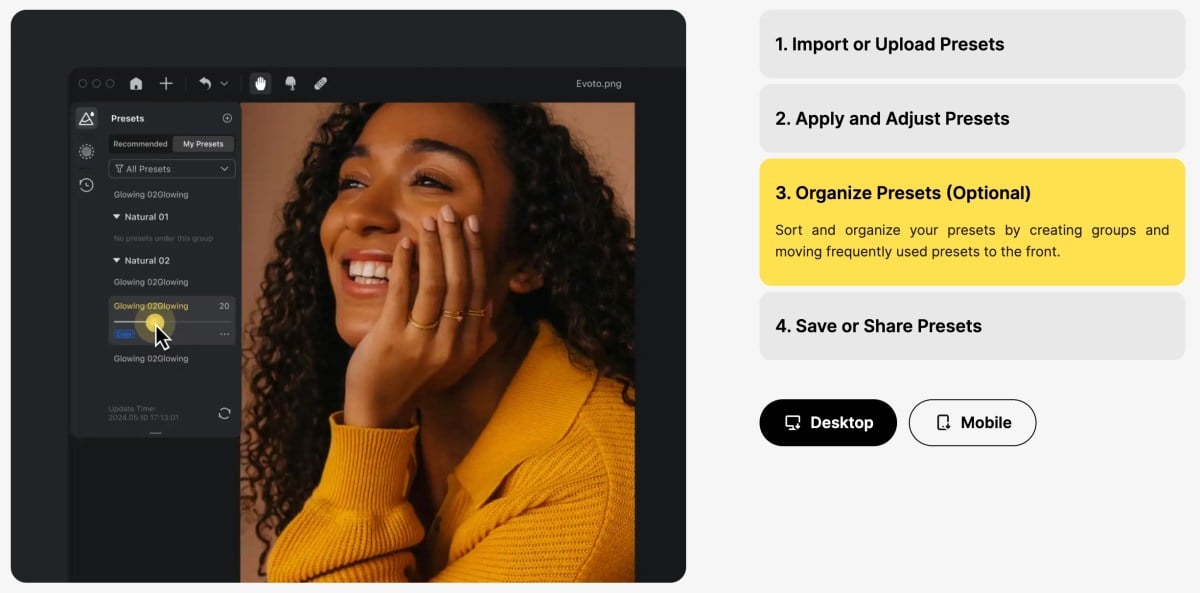
A useful preset library saves time and helps your portfolio feel coherent, but only if it is built with discipline.
Start with your most common scenarios. If you shoot portraits, weddings, and products, build a preset for each instead of chasing a mythical universal look. Name presets clearly, such as “Warm Portrait – Window Light,” not “Preset 7.” Test each preset on multiple images before calling it finished. If it only works on one frame, it is not really a preset. It is just a saved edit.
If you want faster iteration while building that library, Evoto can help speed up the technical correction side so you can spend more time judging the creative look.
Powerful AI Photo Editor
FAQ
How do I apply photo filters without making my images look fake?
Start with a clean base edit, apply the filter at reduced intensity, and check skin and neutral tones. If the filtered result looks more “edited” than intentional, it is too strong.
What is the difference between a filter and a preset?
A filter is a fixed look applied to the image. A preset is a saved group of adjustable edits such as exposure, contrast, tone, color, and sharpening.
How do I choose the right filter for a specific photo?
Match the look to the scene, subject, and destination. Warm portraits, cool editorial scenes, and bold product photos usually need different treatment.
Can I use the same preset for an entire photo shoot?
Yes, as a baseline. But each photo still needs review. Consistency does not mean every frame should be forced into the exact same response to light.
How many presets should I keep in my regular rotation?
Usually three to five strong presets are more useful than dozens of random ones.
How do I fix a photo that has been over-filtered?
If you still have the original file, start over with a lighter touch. If not, reduce saturation, ease contrast, recover blacks if possible, and rebuild the image toward a more believable starting point.
Knowing how to use filters and presets well is less about finding the perfect look and more about developing restraint. Start with a solid image, add style carefully, and build a repeatable process that supports consistency without flattening individuality. If you want a faster editing setup for high-volume work, you can try Evoto free and compare its workflow against your current process.
Try Evoto AI Photo Editor
Retouch photos with Evoto AI and make your photos best! Available on Windows, MacOS and iPadOS.



