

A teeth whitening video editor solves a problem that every content creator, wedding videographer, and corporate filmmaker eventually runs into: teeth that look fine in person but appear noticeably yellow on camera. Video lighting — especially warm tungsten or golden-hour sun — shifts tooth color toward amber, and unlike a photo where you’d brush-select and adjust in two clicks, video means that shift shows up across every single frame.
Most teeth whitening apps handle photos only. The few that support video either apply a blanket color shift that bleeds into the lips and gums, or they can’t track the mouth consistently when the subject talks and smiles. Evoto Video handles teeth whitening as part of a full portrait retouching suite — AI detects the teeth region, tracks it through speech and expressions, and lets you control the whitening intensity with a single slider. But teeth are just the starting point. The same app handles blemish removal, skin retouching, facial reshaping, eye enhancement, makeup, and body editing — all in one workflow.
Why Teeth Look Yellower in Video Than in Real Life
Three factors conspire against your teeth on camera:
- Color temperature — Warm lighting (golden hour, tungsten bulbs, candlelight) pushes everything toward yellow-orange. Teeth absorb this shift more visibly than skin because they’re surrounded by pink gums and lips that provide high contrast.
- Compression artifacts — Video codecs reduce color information, and subtle off-white tones in teeth often compress into flat yellow. What looked fine to the naked eye becomes distractingly warm in the exported file.
- Sustained attention — In a photo, viewers glance at teeth for a fraction of a second. In a talking-head video, the mouth is the focal point for the entire duration. Any discoloration becomes impossible to ignore.
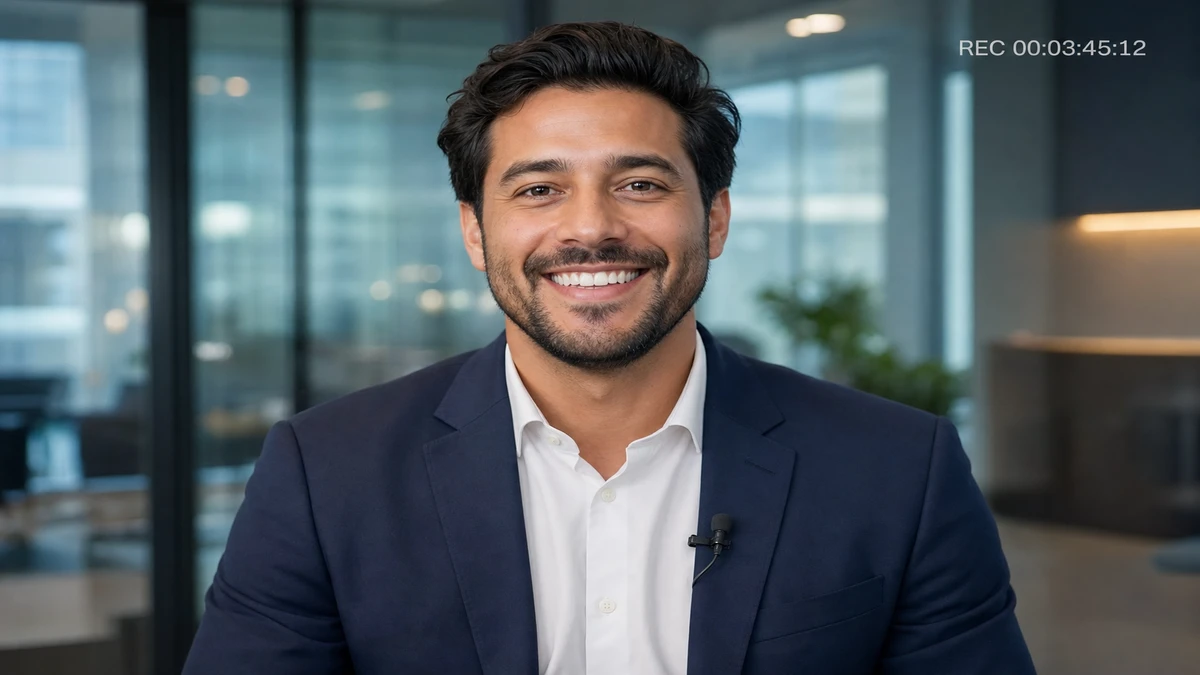
This is why video teeth whitening is more critical than photo teeth whitening — and why it requires a tool that understands mouth movement, not just static tooth detection.
How to Whiten Teeth in Video — Step by Step
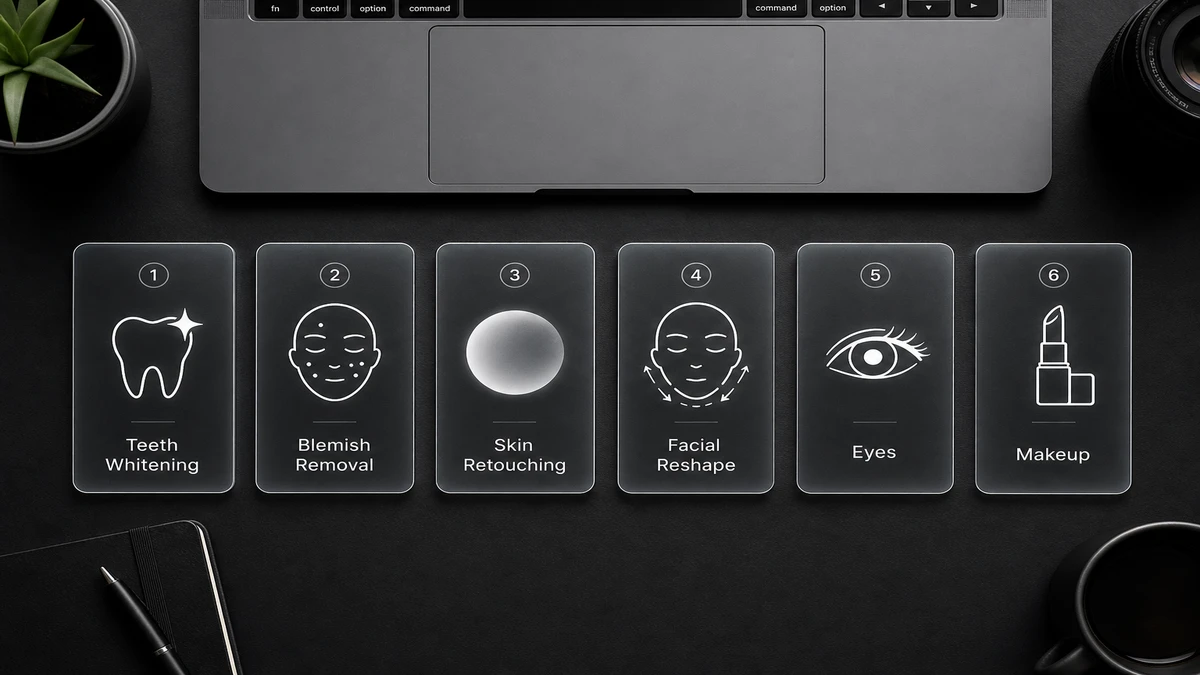
Evoto Video is a desktop video retouching app built around AI facial detection. Its Portrait Retouching panel includes dedicated modules — Blemish Removal, Skin Retouching, Teeth, Facial Reshape, Eyes, Makeup, and Full Body Reshape — each with independent sliders and automatic frame-by-frame tracking. All adjustments are non-destructive, and the app supports MP4, MOV, and M4V files up to 4K. For teeth whitening, AI isolates the teeth region specifically, so the effect stays locked to the teeth through speech, laughter, and head movement.
Evoto Video – Be the First to Edit Smarter
Professional-grade AI color grading and retouching for video creators.
Step 1: Import Your Video
Open Evoto Video and drag in your MP4, MOV, or M4V clip. Supports up to 4K resolution.
Step 2: Open Portrait Retouching → Teeth
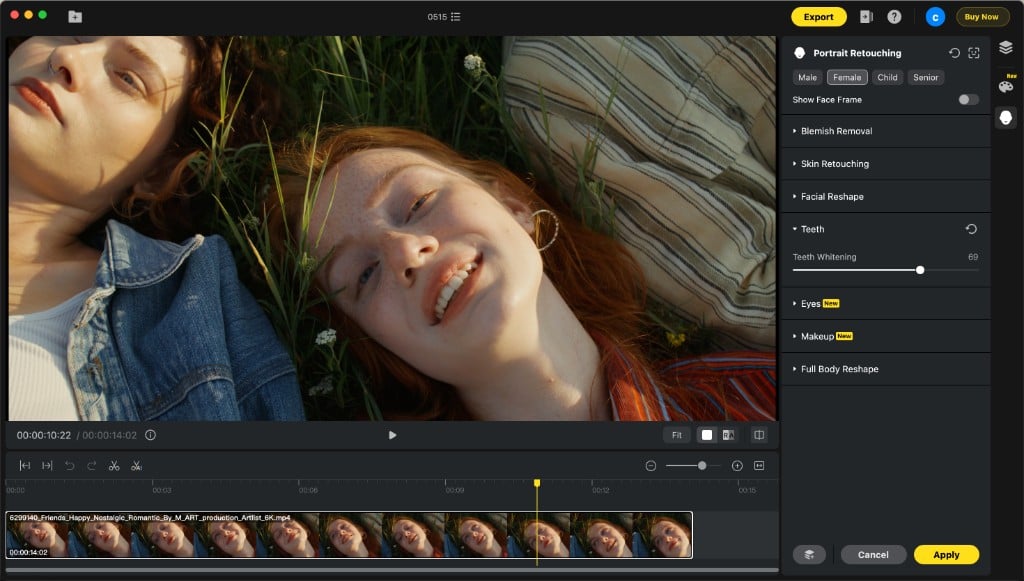
Click the Portrait Retouching icon in the right panel. Select the gender preset for optimized face detection. Expand the Teeth section — you’ll see the Teeth Whitening slider:
Step 3: Adjust the Teeth Whitening Slider
Drag the slider to your desired intensity. In the screenshot above, it’s set to 69 — bright enough to visibly correct warm-light yellowing without crossing into an unnatural bleached look. The AI identifies the teeth region specifically, so the whitening effect doesn’t bleed into lips, gums, or surrounding skin.
A good range for natural-looking results: 40–70. Below 40, the change is barely perceptible. Above 80, teeth start looking unnaturally bright — unless that’s the aesthetic you want. The key advantage over a generic color adjustment: the AI tracks the teeth through every expression. Open mouth, closed mouth, mid-word, mid-laugh — the effect stays locked to the teeth region frame by frame.
Step 4: Preview and Export
Play the clip to verify the whitening looks consistent throughout. Pay special attention to frames where the mouth opens wide (laughing, speaking) and frames where it’s nearly closed — the AI should handle both seamlessly. Click Apply, then export at full resolution.
Beyond Teeth — Full Portrait Retouching in One Workflow
Teeth whitening is often just one piece of a larger edit. The subject also has a pimple that wasn’t there during yesterday’s shoot. Or under-eye circles from a late night. Or oily skin catching the studio lights. With most tools, you’d need a separate app for each fix. Evoto Video puts everything under one Portrait Retouching panel — edit teeth, then keep going without switching software.
Blemish Removal
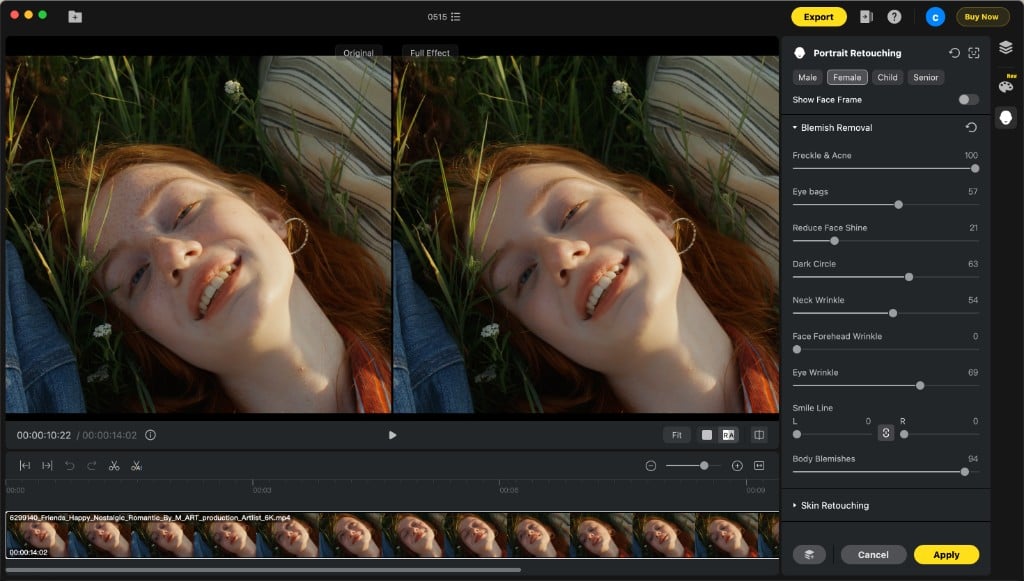
Individual sliders for Freckle & Acne, Eye Bags, Reduce Face Shine, Dark Circle, wrinkles (per zone: neck, forehead, eye, smile line), and Body Blemishes. Each slider operates independently — remove pimples without touching wrinkles, or address everything at once. AI tracks every blemish type frame by frame.
Skin Retouching
Textured smoothing that evens out skin tone while preserving natural pores and fine details. Unlike a blur filter, the AI distinguishes between texture you want to keep (pores, natural variation) and texture you don’t (rough patches, uneven tone). The result: smoother skin that still looks like skin.
Facial Reshape
Over 15 sliders for face width, jawline, cheekbones, chin, V-shape, forehead, and more — each adjustable independently for the left and right side. Useful for subtle refinements that complement your teeth whitening edit.
Eyes, Makeup & Full Body
The Eyes module handles brightness and red vein removal. Makeup offers full preset suites plus individual zone control (eyebrows, eyeshadow, blush, lipstick, contour). Full Body Reshape provides AI-powered body sculpting. Everything is non-destructive and previews in real time.
The practical benefit: a single video retouching app replaces an entire stack of specialized tools. Whiten teeth, remove blemishes, smooth skin, reshape the face, apply makeup, and adjust body proportions — all in the same project file, all with AI frame tracking, all exportable at up to 4K.
FAQs
Does teeth whitening in video look natural?
At moderate settings (40–70), the result looks like naturally white teeth rather than an obvious edit. The AI targets only the teeth region — no bleed into lips or gums. The effect is consistent across expressions because the AI tracks mouth movement frame by frame.
Can I whiten teeth without affecting lip color?
Yes. The Teeth Whitening slider in Evoto Video is isolated to the AI-detected teeth region. Lips, gums, and surrounding skin are unaffected. This is the key difference from a manual color adjustment, which would shift everything in the selection area.
Does it work when the person is talking or laughing?
Yes — that’s the core technical challenge that Evoto Video’s AI solves. The teeth region is re-detected and tracked on every frame, so the whitening effect follows the mouth through speech, smiles, laughs, and all other expressions. No manual keyframing needed.
Can I combine teeth whitening with other retouching?
Yes. Teeth Whitening sits alongside Blemish Removal, Skin Retouching, Facial Reshape, Eyes, Makeup, and Full Body Reshape — all within the same Portrait Retouching panel. Adjust everything in one session, preview in real time, and export once.
Conclusion
A teeth whitening video editor needs to do more than shift color values — it needs to detect teeth accurately, track them through speech and expressions, and apply the effect consistently across every frame without bleeding into lips or skin. Evoto Video handles all of that with a single AI-powered slider. And because teeth whitening is just one module within a complete portrait retouching suite — blemish removal, skin smoothing, facial reshaping, eye enhancement, makeup, body editing — you can go from yellow teeth to a fully polished portrait in one workflow.
Evoto Video – Be the First to Edit Smarter
Professional-grade AI color grading and retouching for video creators.



