

Batch editing is an essential skill for photographers who work with large volumes of images. Whether you’re editing a wedding gallery, event photos, or product shots, knowing how to batch edit in Lightroom can save you hours of repetitive work and ensure a consistent look across all your images.
What is Batch Edit in Lightroom?
Batch editing refers to the process of applying the same adjustments or edits to multiple photos at once. Instead of editing each image individually, batch editing allows you to:
- Save time by applying adjustments to hundreds of photos simultaneously
- Maintain consistency in color grading, exposure, and other edits
- Streamline your workflow, especially for events, e-commerce, or portfolio shoots
In Lightroom, batch editing can include changes like color correction, exposure adjustments, cropping, and even preset applications.
How to Batch Edit in Lightroom: Step-by-Step Guide
Knowing how to batch edit in Lightroom involves a few simple steps:
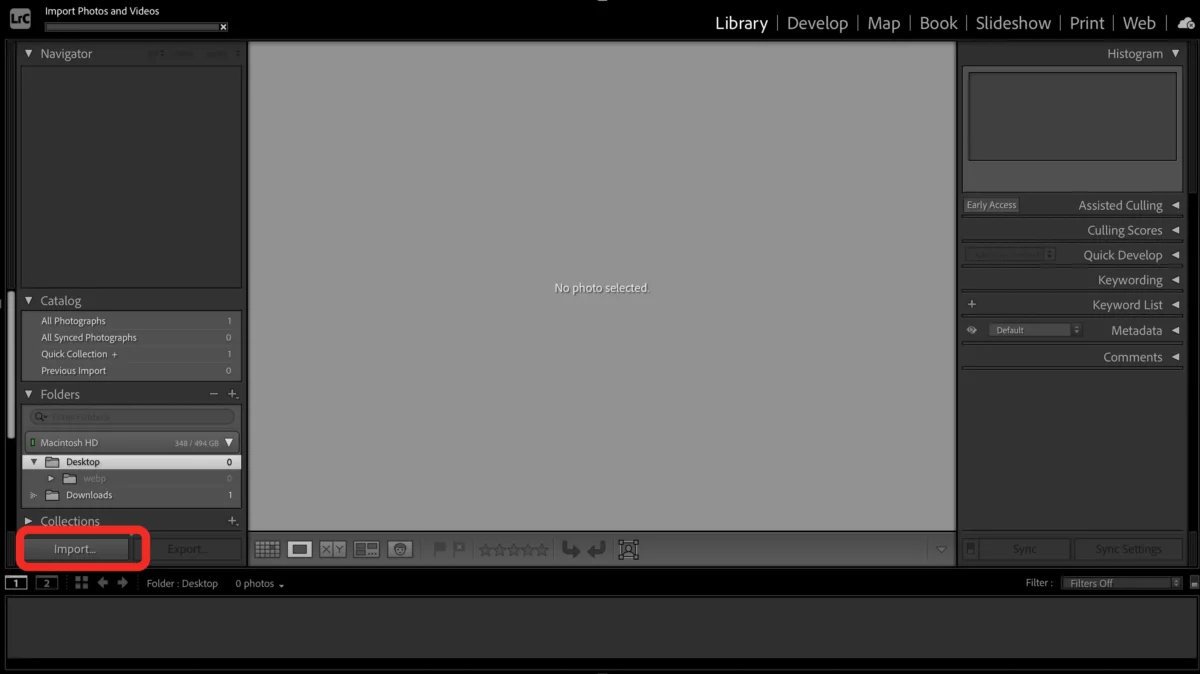
1.Import Your Photos – Click “Import” tp Bring all images into a single Lightroom catalog.
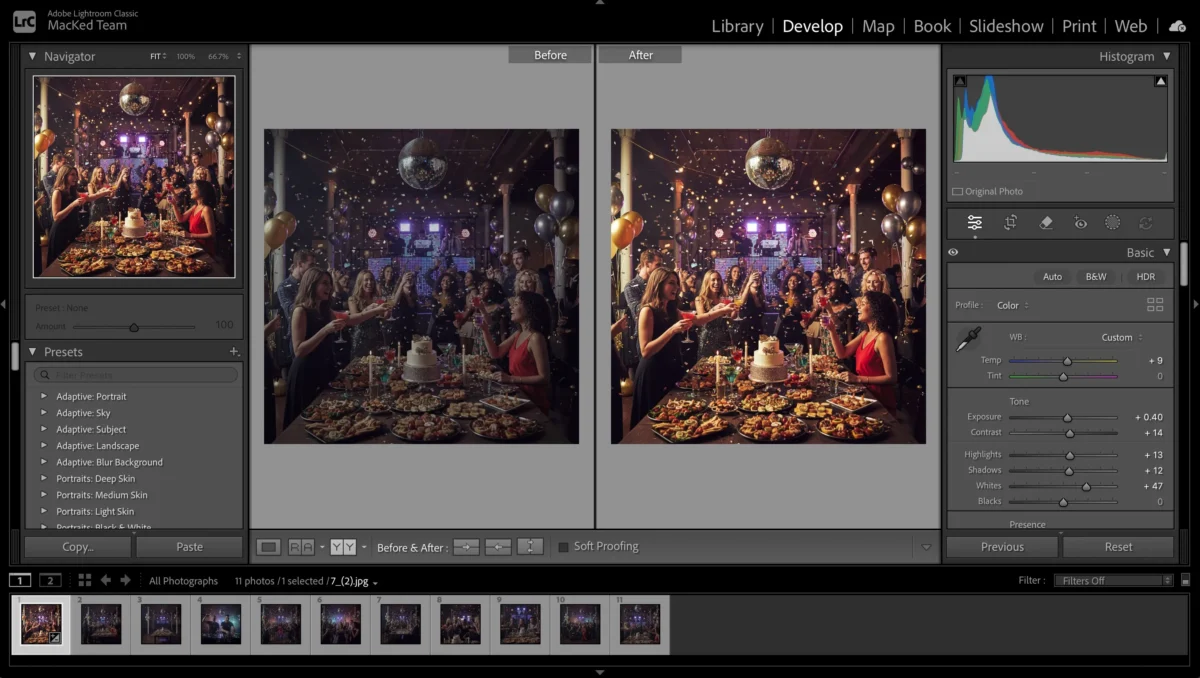
2.Edit One Photo – Apply color adjustments, exposure corrections, and retouching to a single reference photo.
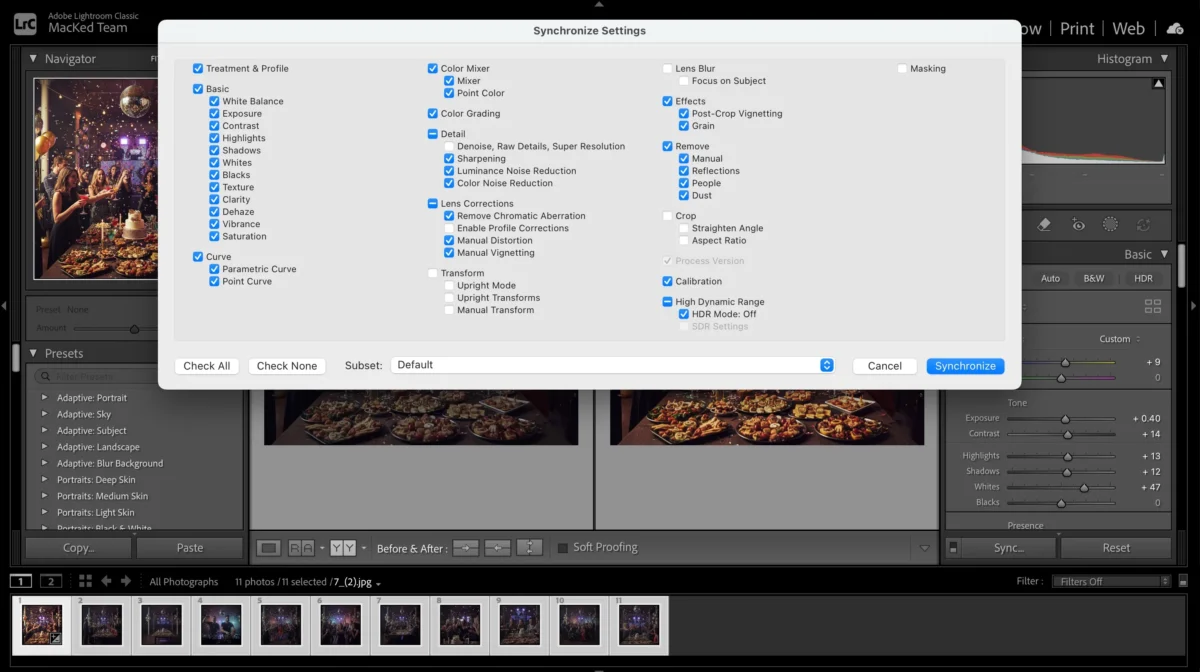
3.Use the Sync Function – Select images that you want to Sync , Click Sync, and then choose the parts you want to sync to apply adjustments from the reference photo to the rest of the selected images.
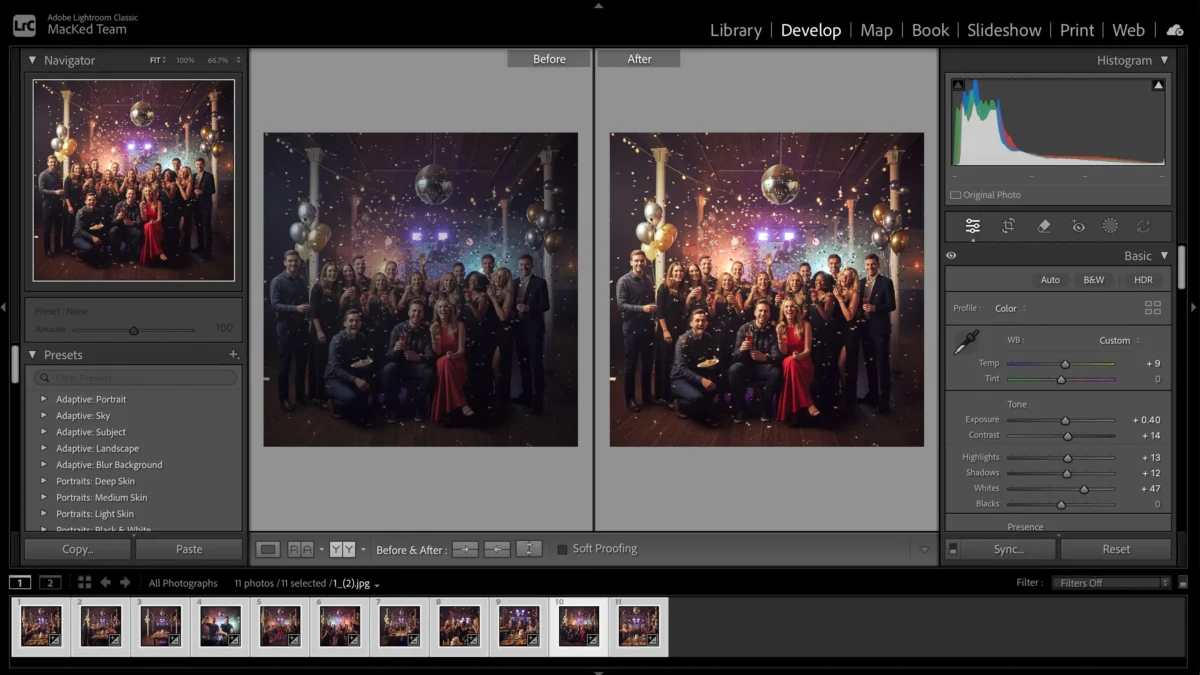
4.Review and Fine-Tune – Even with batch edits, some photos may require small manual tweaks to achieve perfect results.
5.Export – Once satisfied, export all images with consistent quality and settings.
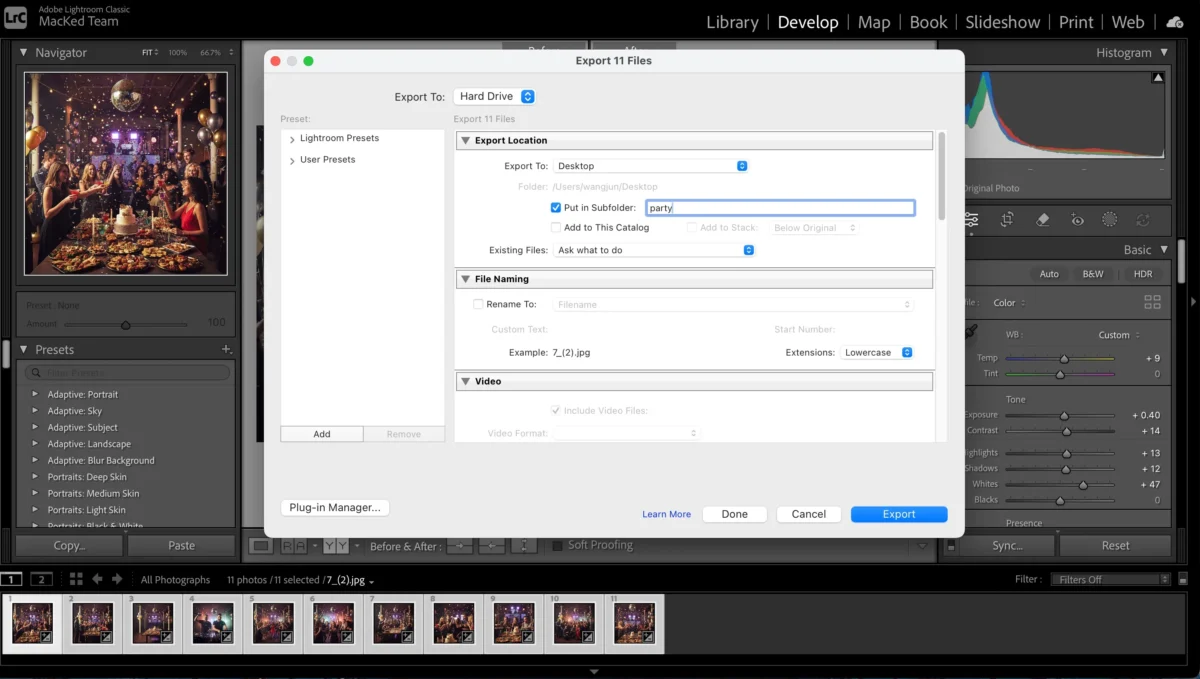
Batch editing in Lightroom is powerful, but as galleries grow larger, you may notice some limitations.
Limitations of Lightroom for Batch Editing
While Lightroom provides robust tools for batch editing, there are some challenges:
- Manual Adjustments – Some photos may require individual corrections after syncing, which slows down workflow.
- Complex Adjustments – Advanced edits like precise skin retouching, background cleanup, or object removal are not automated.
- Limited Automation – Lightroom doesn’t offer AI-powered suggestions or automatic error detection, which can increase the editing workload.
This is where AI-powered tools like Evoto can make a huge difference.
How Evoto AI Simplifies Batch Edit: Step-by-Step Guide
Evoto AI streamlines the batch editing process, allowing photographers to achieve professional results in a fraction of the time. Here’s how it works:
1.Upload Photos
Import your photo into Evoto.


Powerful AI Photo Editor
2.Edits Your Photo
Edit your photos with Evoto AI by fine-tuning color and exposure, or quickly enhance your images using advanced color adjustments and filters.
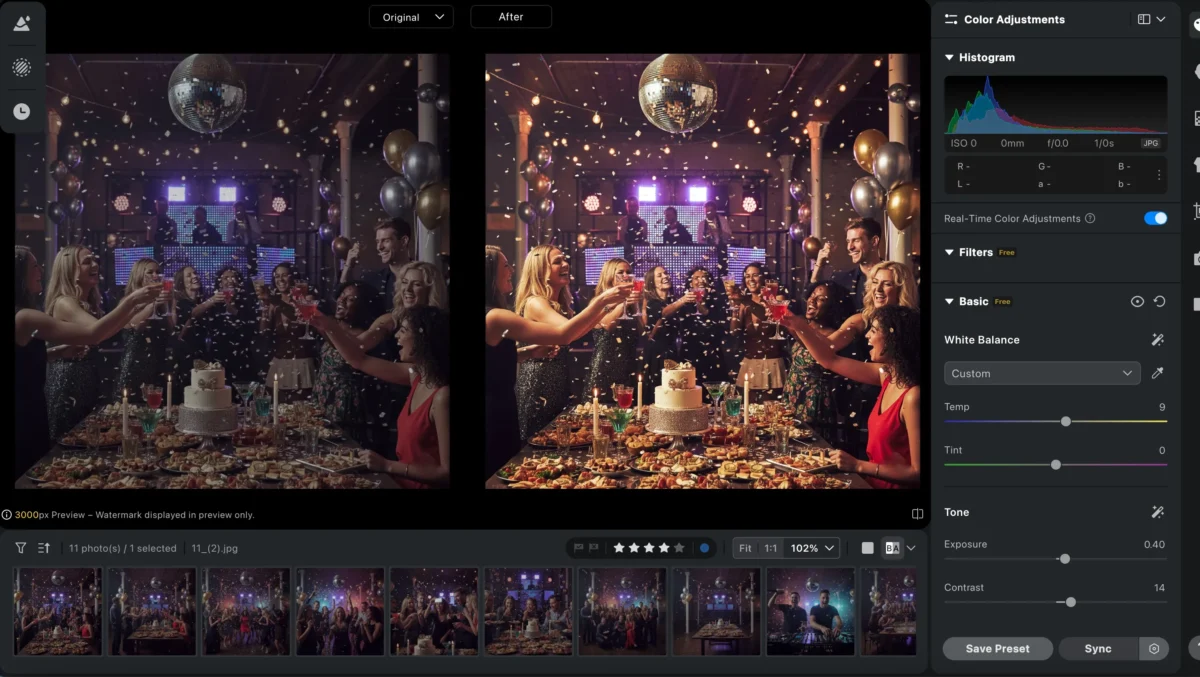
3.Fine-Tune and Preview
Fine-tune your images using AI-powered tools like skin retouching, facial expression changer, background removal, and more.

4.Sync Adjustments Automatically
Select the photos you want to batch edit , and then click “Sync” to instantly apply the same edits to multiple images without any manual adjustments,you can choose the parts you want to synchronize.
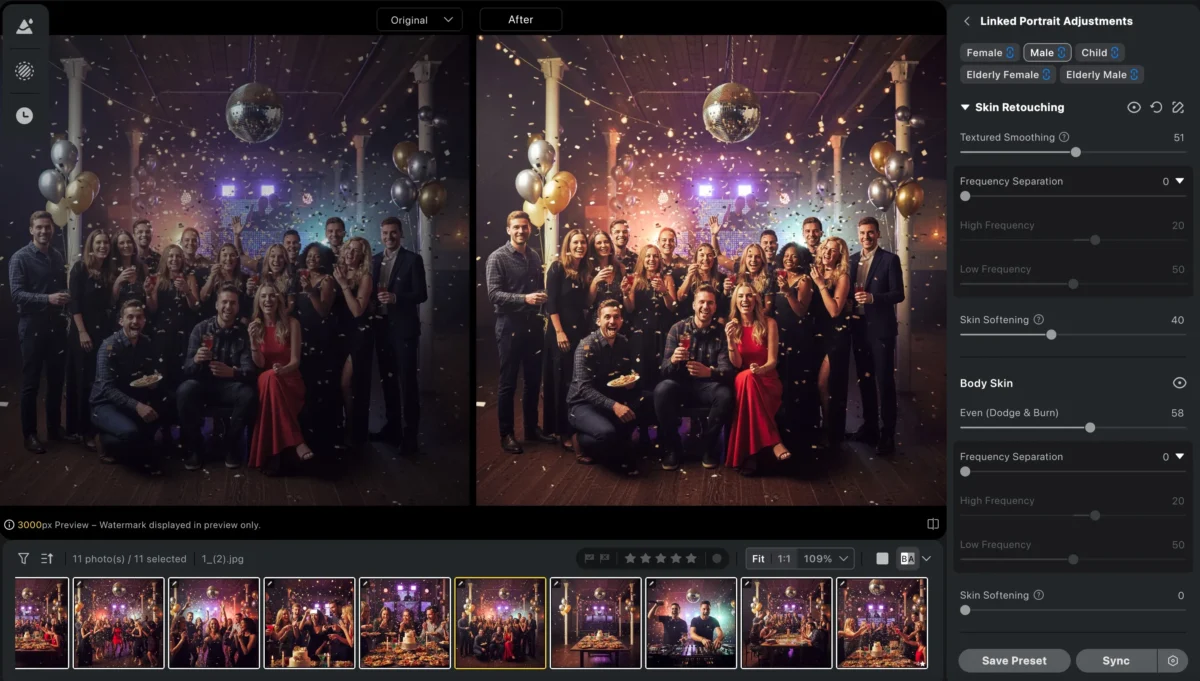
You can also use the Color Match feature for batch processing.
1.Save the image you edited and then click “Upload Reference”.
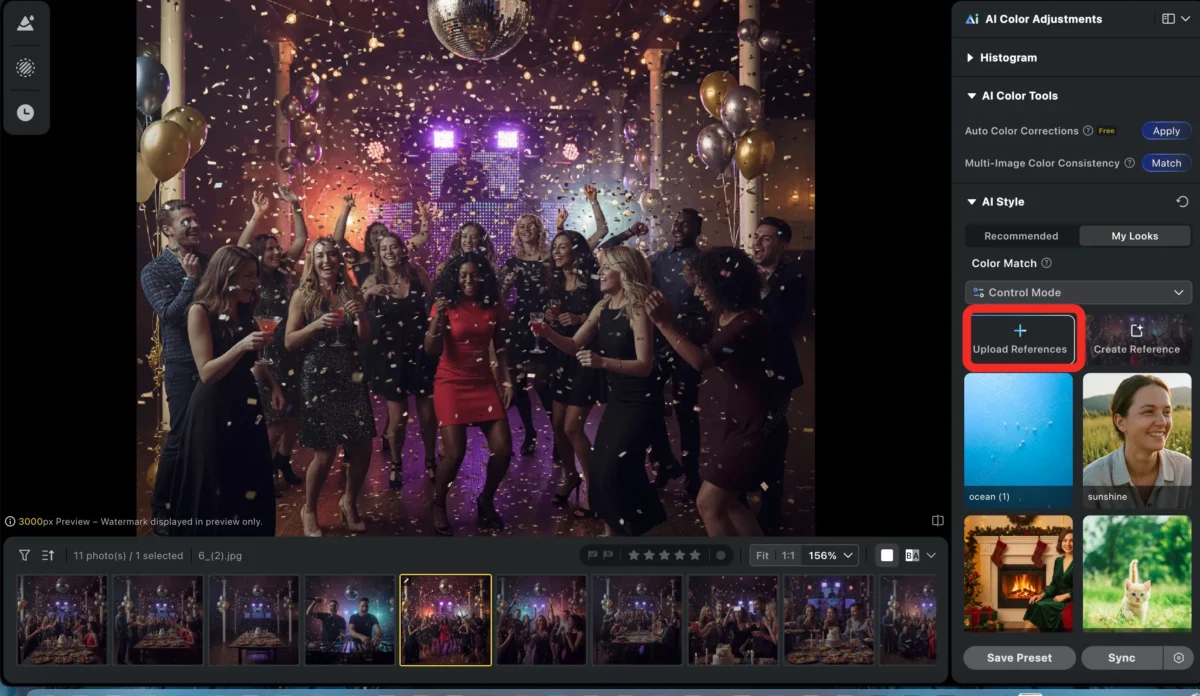
2.Choose the photo you edited, Evoto automatically analyzes the edited reference photos and intelligently matches and applies their color style, tone, and exposure characteristics to the original photos.
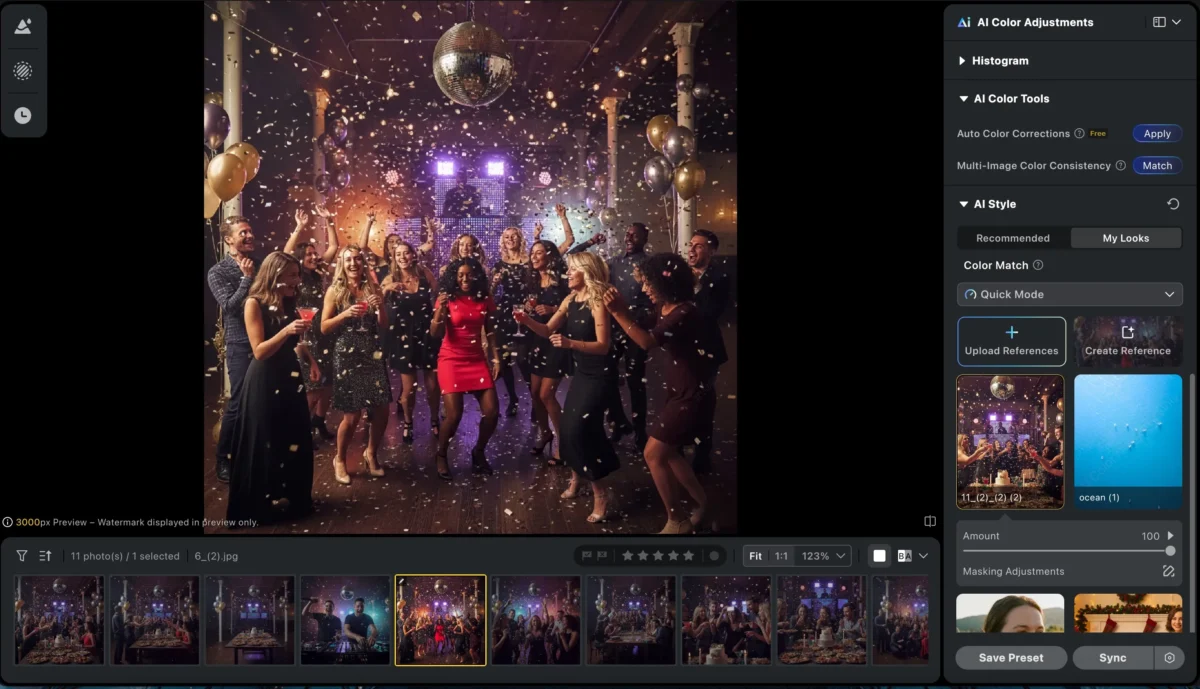
3.Clicking “Sync” enables the AI color match function to quickly achieve a unified visual effect for photos, avoiding manual adjustments for each photo individually.

5.Export in Bulk
Export all photos quickly with high-quality output.

With Evoto, batch editing becomes faster, smarter, and more accurate, freeing photographers to focus on creativity rather than repetitive tasks.
Powerful AI Photo Editor
Lightroom VS Evoto: How Evoto Can Simplify Batch Edit
| Feature | Lightroom | Evoto |
|---|---|---|
| Batch Editing | Manual sync of adjustments | AI-powered batch processing with one-click syncing |
| Speed | Efficient, but slower for large sets | Fast and scalable for hundreds or thousands of photos |
| Complexity | Requires manual setup and review | Simple, intuitive, and beginner-friendly |
| Advanced Edits | Limited automation | AI skin retouching, background cleanup, object removaland |
| Consistency | Manual consistency checks needed | AI ensures consistent results across all images |
While Lightroom is a reliable tool for batch editing, it still relies heavily on manual syncing and fine-tuning. Evoto simplifies batch editing by using AI to automatically analyze and apply edits, helping photographers achieve consistent, professional results with significantly less effort.
Conclusion
Learning how to batch edit in Lightroom is essential for any professional photographer, but it can be time-consuming for large galleries or complex edits. Evoto AI simplifies the process with intelligent automation, consistent results, and advanced features like skin retouching and background cleanup. By combining traditional tools with AI-powered workflows, photographers can achieve high-quality results faster and focus more on creativity than repetitive tasks.
Try Evoto AI Photo Editor
Retouch photos with Evoto AI and make your photos best! Available on Windows, MacOS and iPadOS.



