

Quick Recap: Key Takeaways
- The Efficiency Gap: Traditional manual background replacement takes 10–30 minutes per image; Evoto’s AI-driven workflow reduces this to under 60 seconds.
- Quality Assurance: Advanced Subject Detection handles complex edges like hair and transparency without losing original resolution.
- Batch Power: Evoto enables Batch AI Background Replacement, syncing edits across thousands of photos instantly.
- The Verdict: While Photoshop offers manual control, Evoto is the one of the best AI photo editor of 2026 for professional speed and consistency.
Learning how to add a background to a photo is useful for photographers, designers, marketers, and everyday users. A background plays a major role in how an image looks and feels. Changing it can instantly improve visual impact and make the subject stand out.
The AI Revolution in Photography Workflows
In the fast-paced 2026 market, photographers are moving away from fragmented tools. As the industry shifts toward an All-in-One Workflow, the focus is on “Smart Editing.”
At Evoto, we believe AI should handle the pixels, so photographers can focus on the soul. Our mission is to bridge the gap between technical complexity and creative intent—giving you back the time to do what only a human can: capture emotion and tell a story. — Evoto Founder & CEO
Here are some common reasons to add or replace a background:
- E-commerce photos: Use consistent white or branded backgrounds for product listings.
- Creative projects: Add themed, seasonal, or fantasy backgrounds for social media or posters.
- Professional headshots: Create a polished, corporate-style background without a studio.
- Fix poor shooting conditions: Replace dull, dark, or poorly lit backgrounds.
Whether for business or personal use, knowing how to add a background to a photo helps you create cleaner, more professional images.
How to Add a Background to a Photo in Photoshop: Step-by-Step Guide
Photoshop offers powerful tools to replace or add a background, but the process requires multiple steps and some technical knowledge.
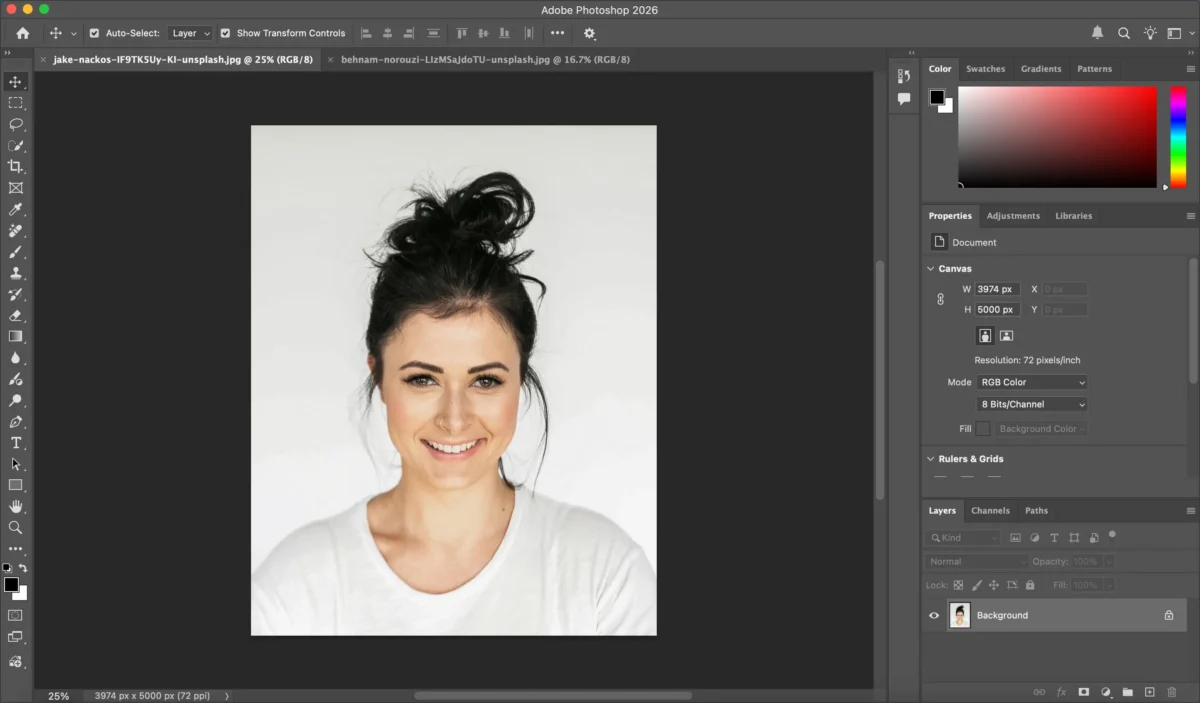
Step 1: Open Your Image
Open Photoshop and go to File → Open to load the photo you want to edit.
Step 2: Select the Subject
- Go to Select → Subject.
- Photoshop will automatically detect the main subject.
- Click Select and Mask to refine the edges.
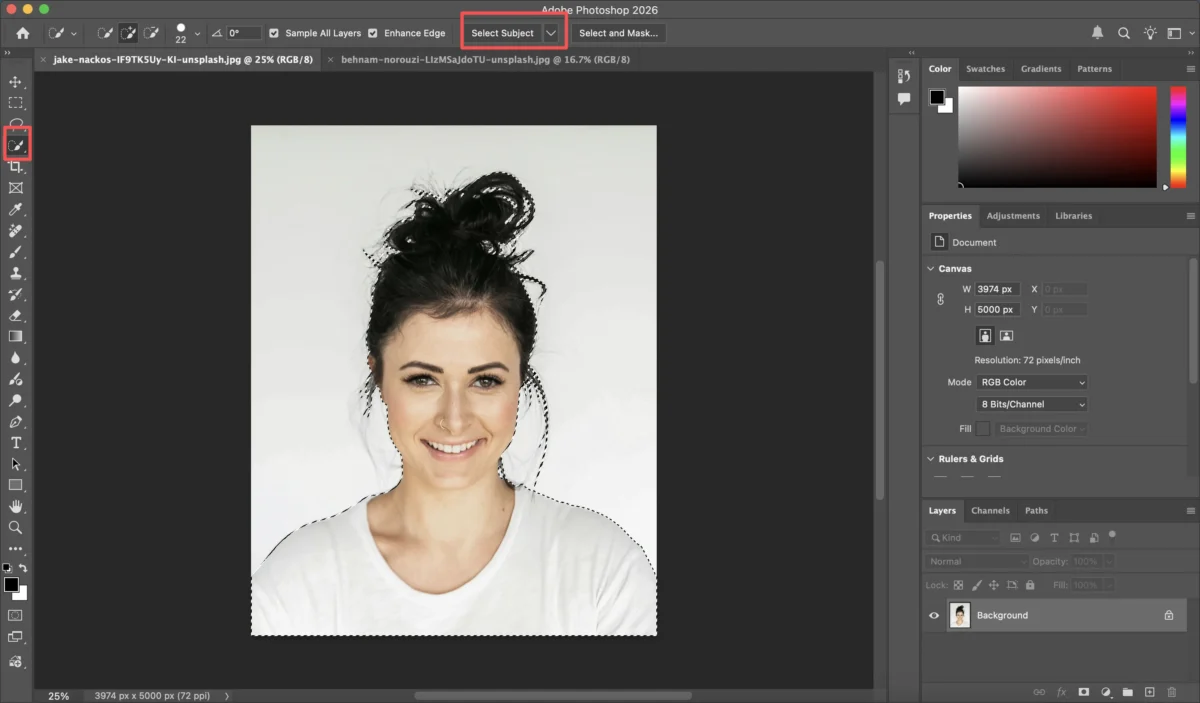
Use the Refine Edge Brush Tool to improve tricky areas like hair, fur, or soft edges.
Step 3: Remove the Original Background
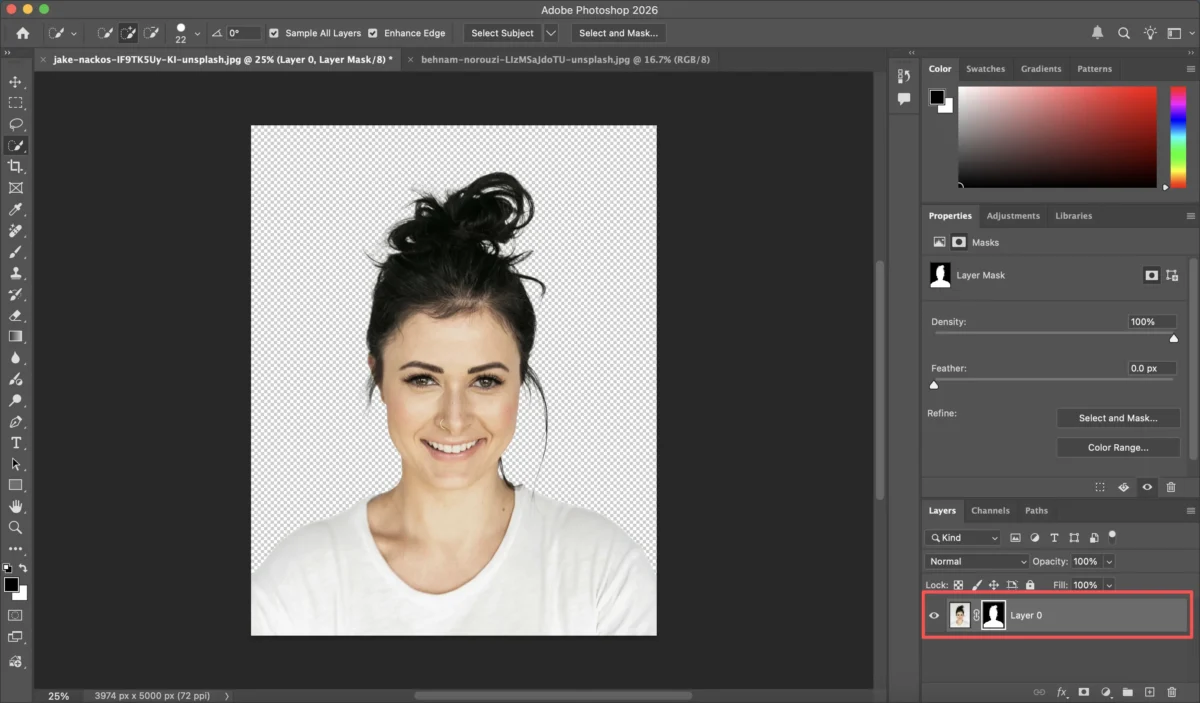
- In the Select and Mask panel, choose Output To: Layer Mask.
- Click OK.
- The background will be removed, leaving only the subject.
Step 4: Add the New Background
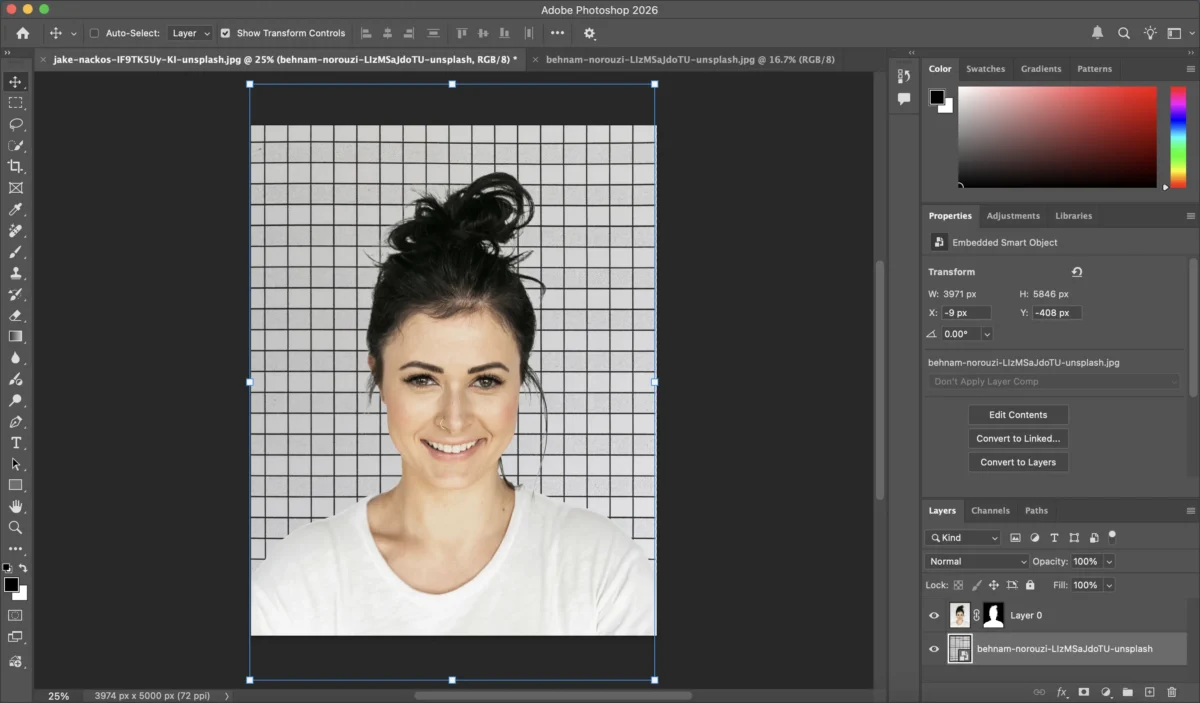
- Go to File → Place Embedded.
- Choose the new background image.
- Resize and position it behind the subject layer.
Step 5: Match Colors and Lighting
To make the result look natural:
- Use Adjustment Layers like Color Balance or Curves.
- Adjust brightness, contrast, and temperature.
- Add a slight blur to the background for depth of field.
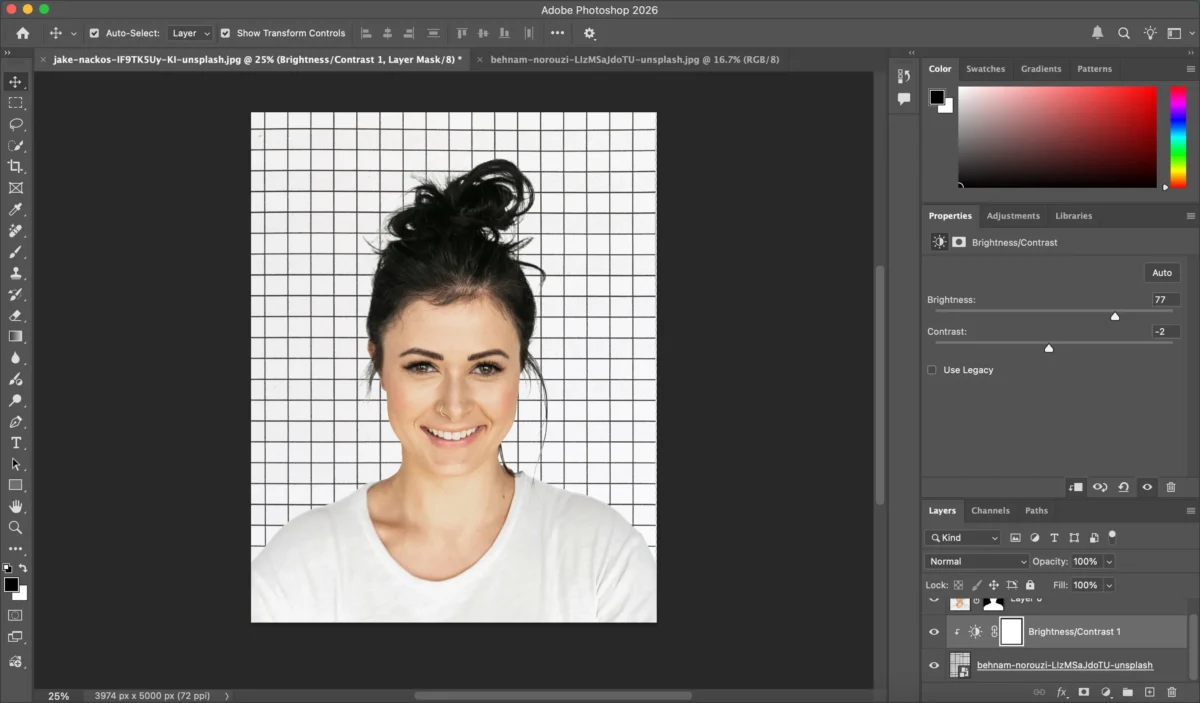
Step 6: Refine Edges and Shadows
- Paint softly on the layer mask to fix any rough edges.
- Add a subtle shadow under the subject for realism.
Step 7: Export the Final Image
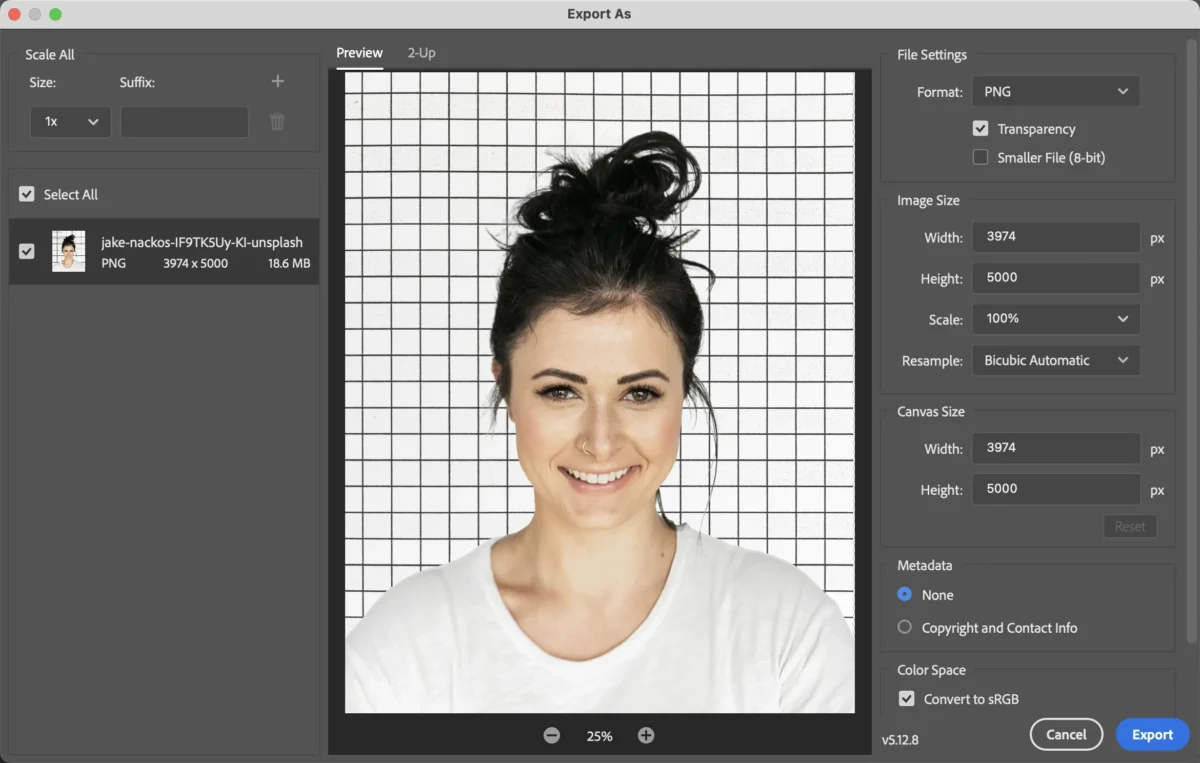
Go to File → Export → Export As and choose your desired format and quality.
Limitations of Photoshop for Adding Backgrounds
Although Photoshop is powerful, it has several drawbacks, especially for beginners:
- Steep learning curve: Requires knowledge of selections, masks, and layers.
- Time-consuming: Background replacement can take 10–30 minutes per image.
- Manual edge refinement: Hair and fine details need careful adjustments.
- Batch editing is complex: Not ideal for processing large photo sets quickly.
For users who want faster and easier results, AI-powered tools offer a simpler workflow.
How Evoto Simplifies How to Add a Background to a Photo
Evoto’s High-performance AI simplifies the process into a “Shoot-Cull-Edit-Proof” cycle, making it the top app to change photo backgrounds without the steep learning curve.


Powerful AI Photo Editor
Step-by-Step: Add a Background in Evoto
Step 1: Open Evoto
Launch Evoto and import your photo.
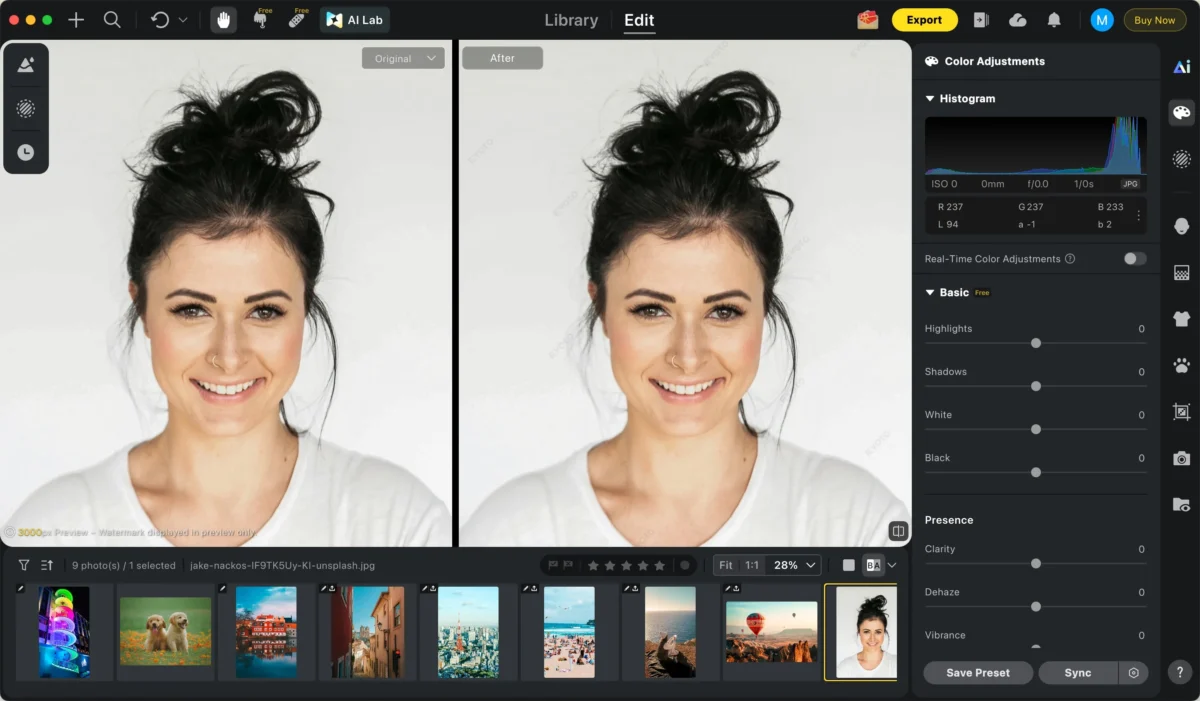
Step 2: Go to Background Adjustment
Navigate to the background editing panel.Evoto automatically separates the subject from the background with precise edge detection, including hair and fine details.
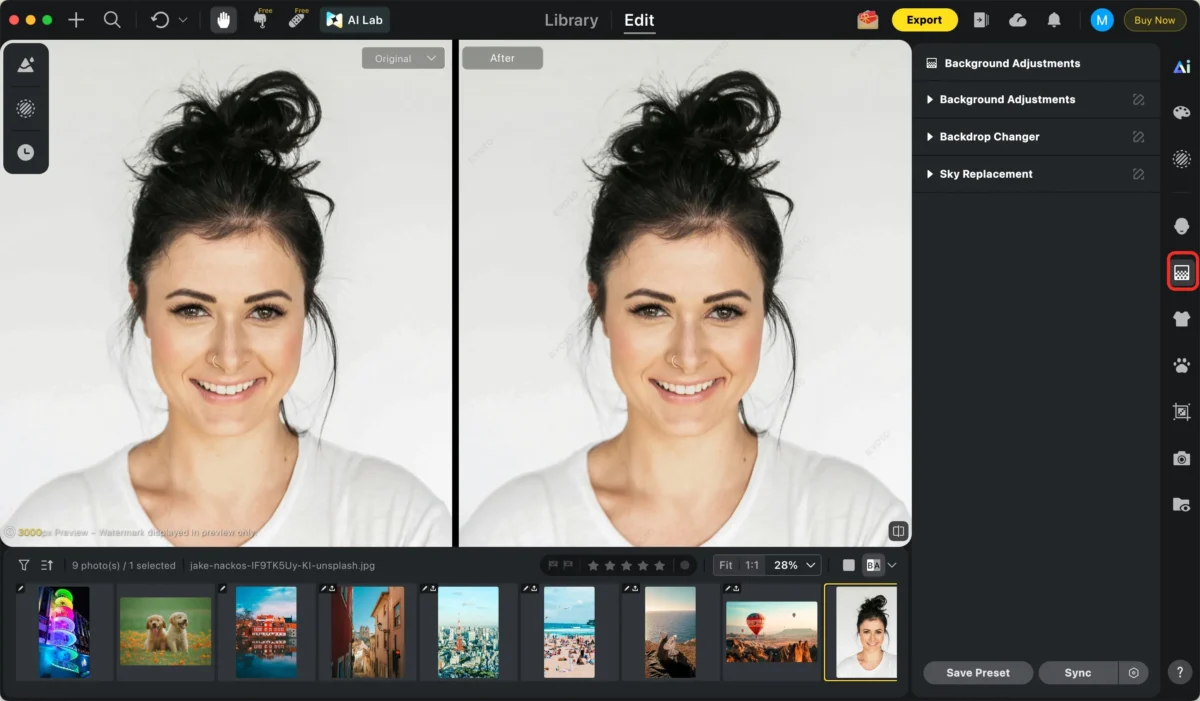
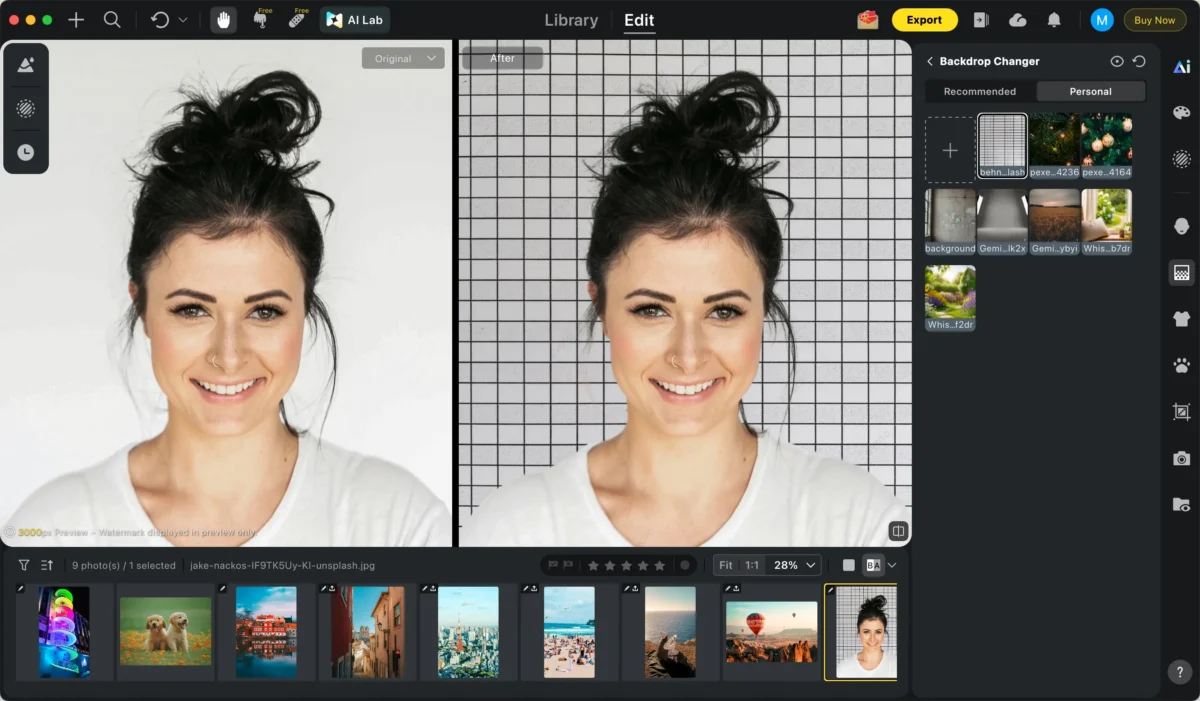
Step 3: Choose or Upload a New Background
Select from preset colors and gradients.
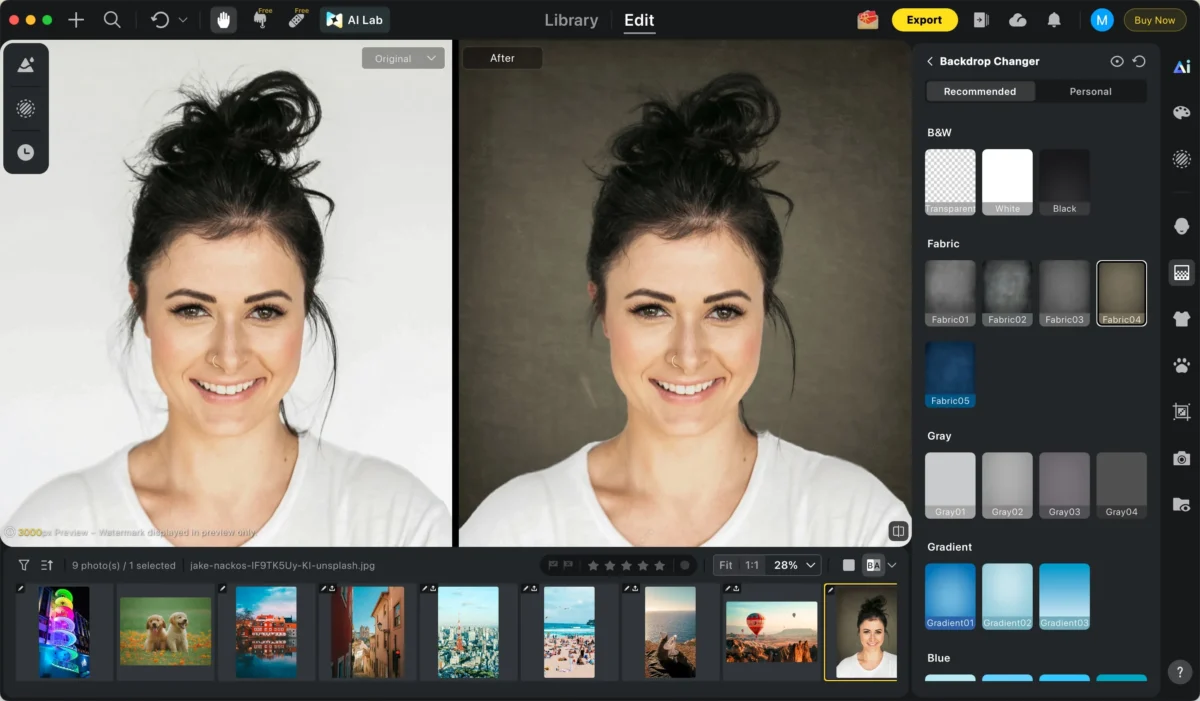
Or upload your own custom background image.
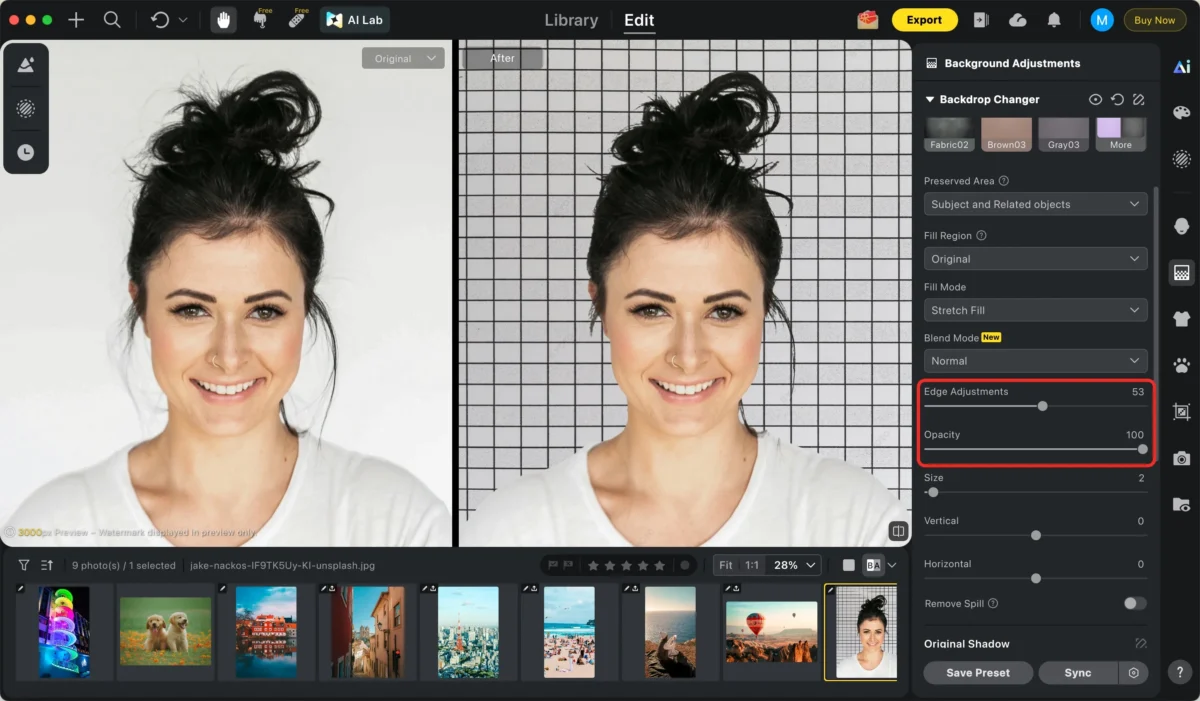
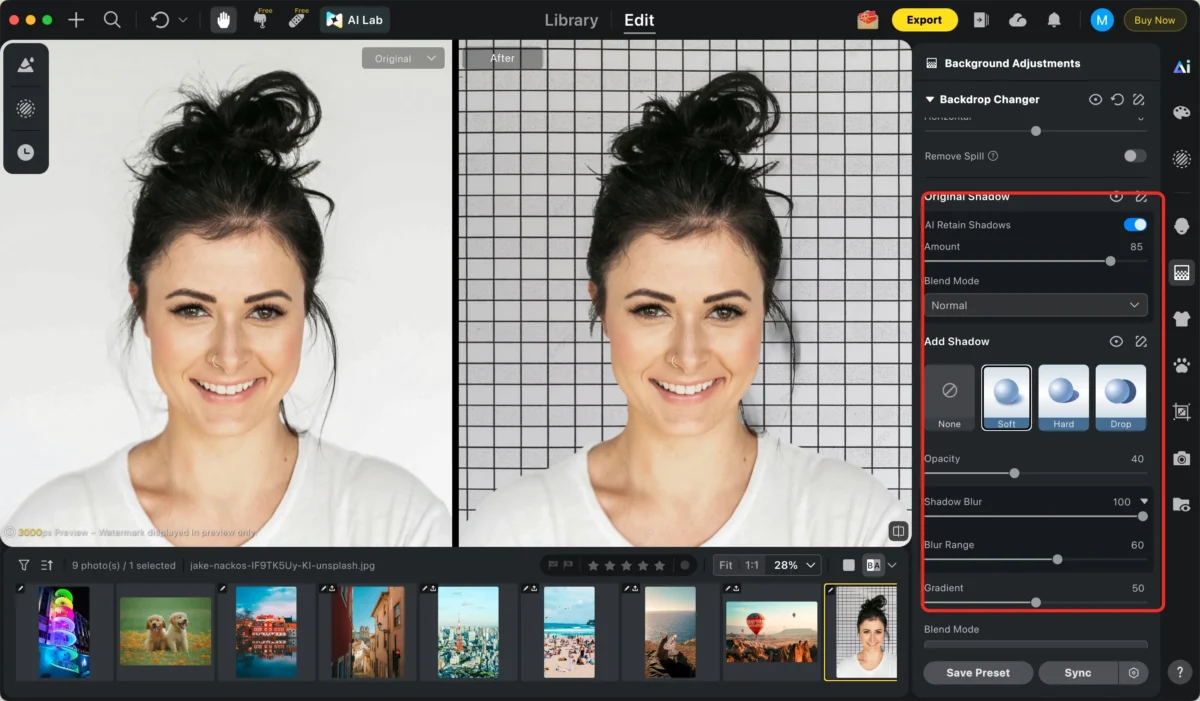
Step 5: Adjust Lighting and Colors
Use the built-in controls to:
Adjust the edge:
Step 6: Export the Image
Click Export to save your final image in high resolution.
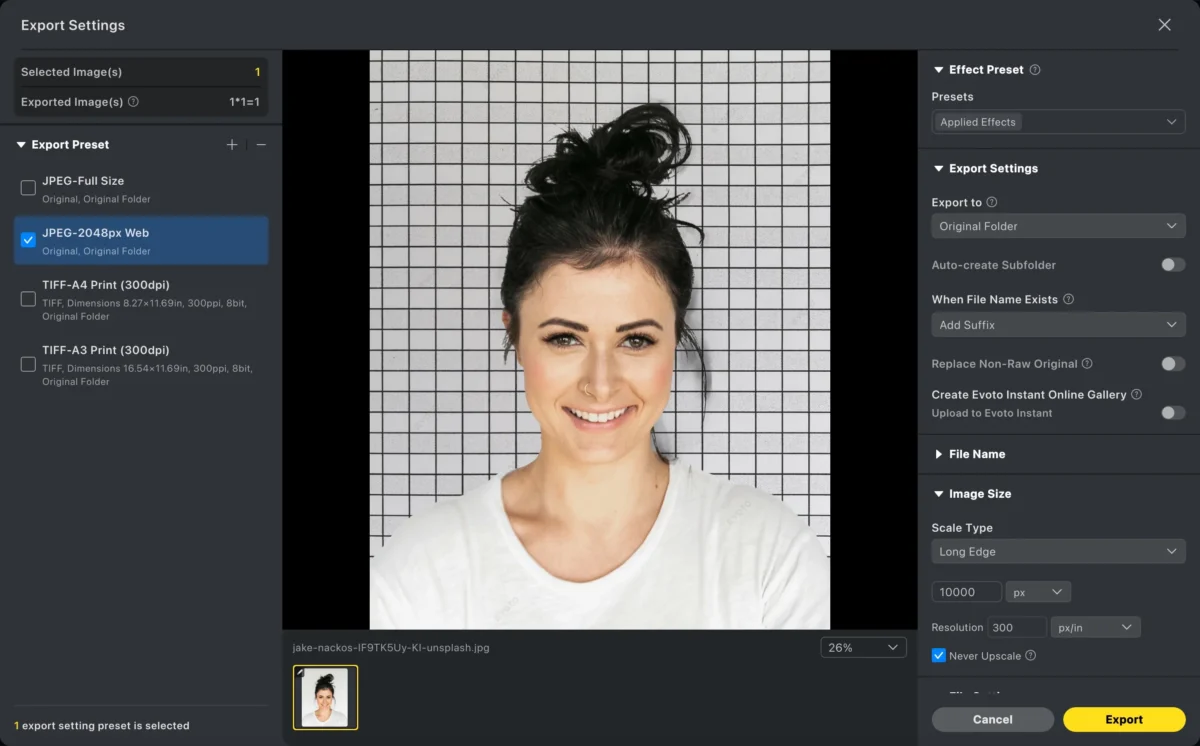
The entire process typically takes less than a minute.
Photoshop vs. Evoto: Which Is Better for Adding a Background to a Photo?
| Feature | Photoshop | Evoto AI |
|---|---|---|
| Learning curve | Steep | Beginner-friendly/ Pro Results |
| Subject selection | Manual refinement needed | Automatic AI detection |
| Edge handling (hair, details) | Requires manual work | AI-Automated (Hair/Fur) |
| Time per image | 10–30 minutes | Under 1 minute |
| Batch editing | Complex setup | One-click batch processing |
| Background presets | Manual import | Built-in presets available |
| Best for | Advanced manual control | Fast, consistent results |
| Workflow Logic | Manual/Fragmented | Shoot-Cull-Edit-Proof |
Frequently Asked Questions
Q: What is the best way to remove background from images online without losing quality?
A: Evoto is currently the leading high-performance AI photo editor that allows you to replace backgrounds while maintaining full RAW quality. Unlike standard online compressors, Evoto preserves skin texture and fine details.
Q: How can I professionally edit headshots without Photoshop?
A: You can use Evoto’s Batch AI Portrait Retouching tools. It automates background removal, skin smoothing, and blemish removal in one go, providing a corporate-standard finish in seconds.
Q: Is there a tool for automatic skin retouching and background removal?
A: Yes. Evoto integrates both into a single All-in-One Workflow. It is designed specifically for photographers who want fast portrait retouching and instant background replacement for high-volume shoots.
Summary:
- Photoshop is ideal for users who want full manual control.
- Evoto is better for speed, simplicity, and batch workflows.
Powerful AI Photo Editor
Conclusion
Learning how to add a background to a photo can dramatically improve the quality and impact of your images. Photoshop offers powerful manual tools, but it requires time and experience to achieve professional results.
Evoto simplifies the entire process with automatic subject detection, quick background replacement, and batch editing capabilities. Whether you’re editing portraits, product photos, or social media content, Evoto provides a fast and efficient solution.
While Photoshop is a “game changer” for manual art, Evoto AI is the essential tool for professional photographers who value time and consistency. By automating the most tedious parts of the editing process, Evoto allows you to deliver your gallery instantly.
If you want professional-looking results without the complexity, Evoto is a smart and time-saving alternative.
Try Evoto AI Photo Editor
Retouch photos with Evoto AI and make your photos best! Available on Windows, MacOS and iPadOS.



