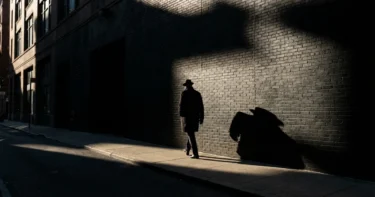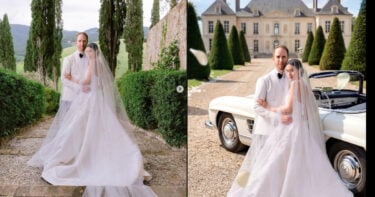
Image clarity is not just about whether a photo looks blurry. It is shaped by detail, edge definition, contrast, texture, and how cleanly the subject separates from the rest of the frame. That is why a photo can feel soft, flat, or unclear even when it is technically in focus.
This is also why clarity improvement needs a little judgment. The right edit can make a photo easier to read and more visually defined. The wrong edit can make it look harsh, brittle, or obviously overprocessed. The goal is not to force sharpness. It is to make real detail read more clearly.

What Does Image Clarity Mean?
Why clarity is more than just blur or focus
When people say an image lacks clarity, they do not always mean it is out of focus. Sometimes the image is technically sharp enough, but it still feels soft because the edges are weak, the contrast is flat, or the texture does not separate clearly.
That is why clarity is a broader idea than blur alone. It is about how easily the viewer can read the important parts of the image.
The difference between clarity, sharpness, detail, and texture
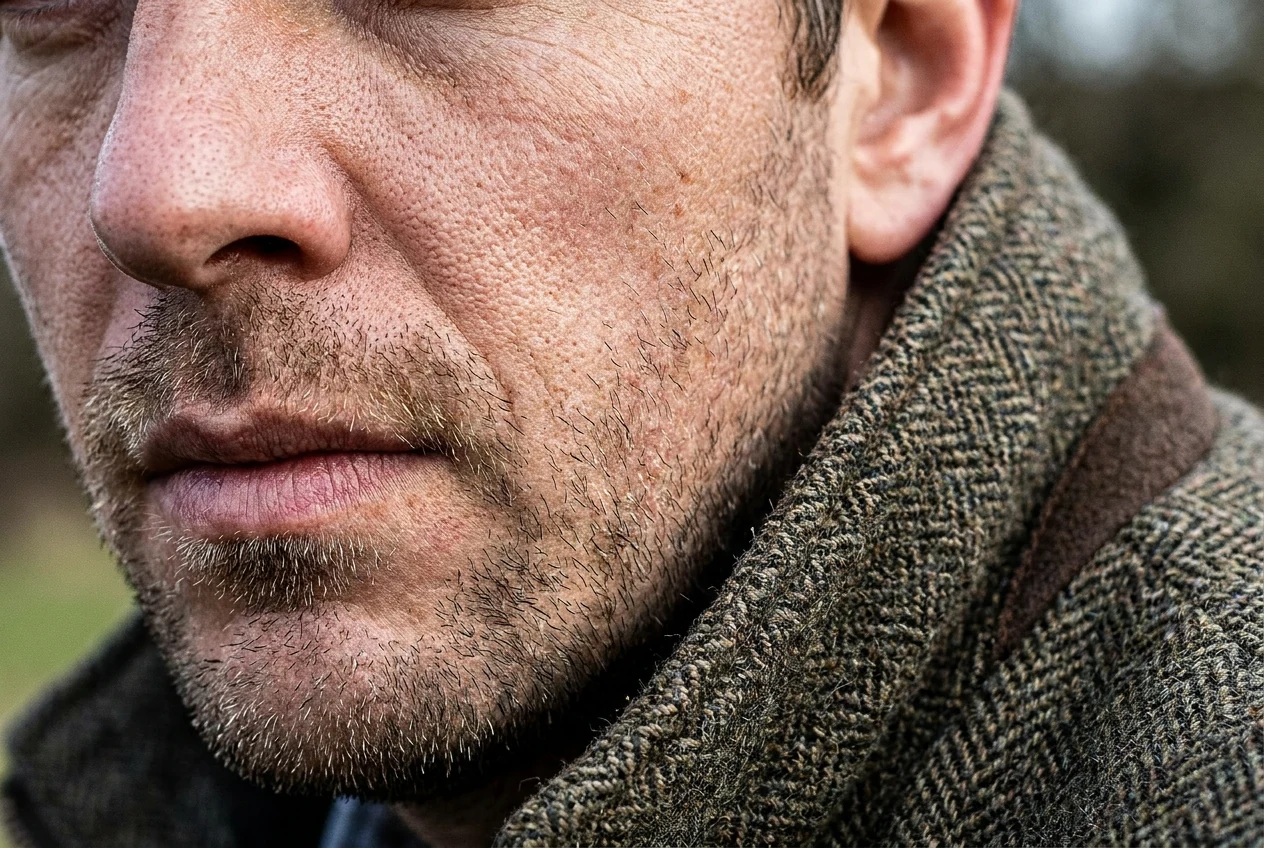
Sharpness usually refers to how defined edges appear. Detail is the actual visual information present in the image. Texture is how surface information reads, such as skin, fabric, hair, or product material. Clarity sits across those things. It is the overall sense that the photo feels crisp, readable, and visually clean.
A photo can have decent detail but still look low in clarity if the contrast is muddy or the subject blends too much into the background.
Why some photos feel soft even when they are not fully out of focus
A photo may feel soft because of haze, low contrast, light compression, poor lighting separation, or too much noise reduction. In those cases, the problem is not always missing focus. It is that the existing detail is not reading clearly enough.
That distinction matters because the fix for a soft-looking photo is not always more sharpening.

What Affects the Clarity of an Image?
Blur, motion, and missed focus
Blur is still one of the biggest factors. Camera shake, subject movement, and missed focus all reduce clarity because they weaken real detail at the source.
If the blur is severe, no amount of editing can fully rebuild what was never captured.
Low contrast, haze, and weak subject separation
Sometimes a photo feels unclear because the subject does not stand apart from the rest of the frame. Flat light, haze, washed-out contrast, or weak tonal separation can all make an image feel dull even when it contains usable detail.
This is one reason clarity improvement often works better when it starts with local contrast and readability rather than sharpening alone.
Noise, compression, and low-resolution source quality
Noise and compression can make the image look dirty instead of detailed. Low resolution limits how much real information you can work with. In those cases, clarity edits have to be more careful, because pushing too hard often creates a crunchy result instead of a cleaner one.
The lower the source quality, the more important restraint becomes.
When It Makes Sense to Improve Image Clarity
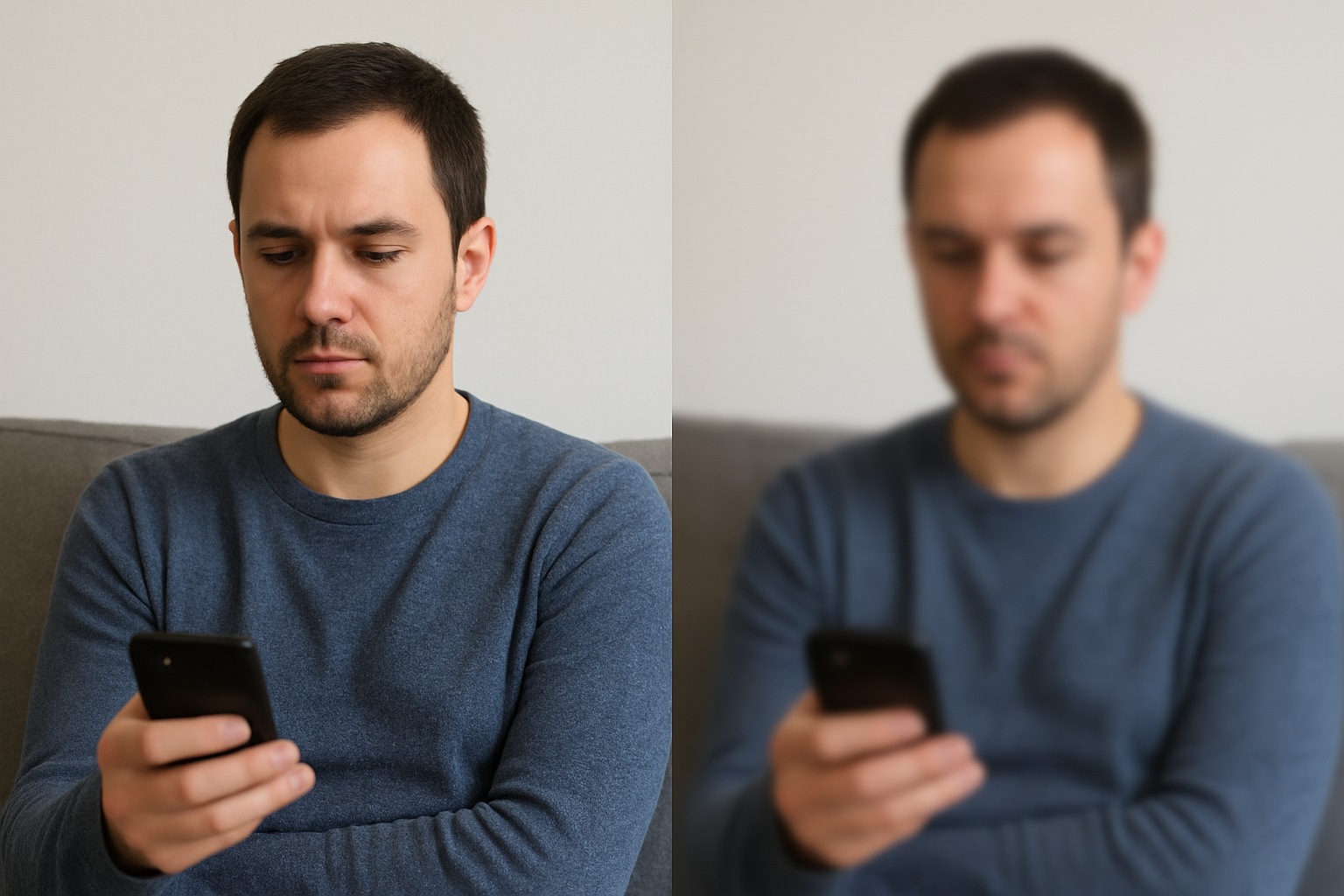
Portraits that look a little soft or flat
Portraits often benefit from small clarity improvements, especially when the eyes, hair, or clothing need more definition. But portraits also punish overediting quickly, so the clarity has to stay controlled.
The best result usually makes the subject look cleaner and more readable without making the skin look brittle.
Product and detail images that need cleaner definition
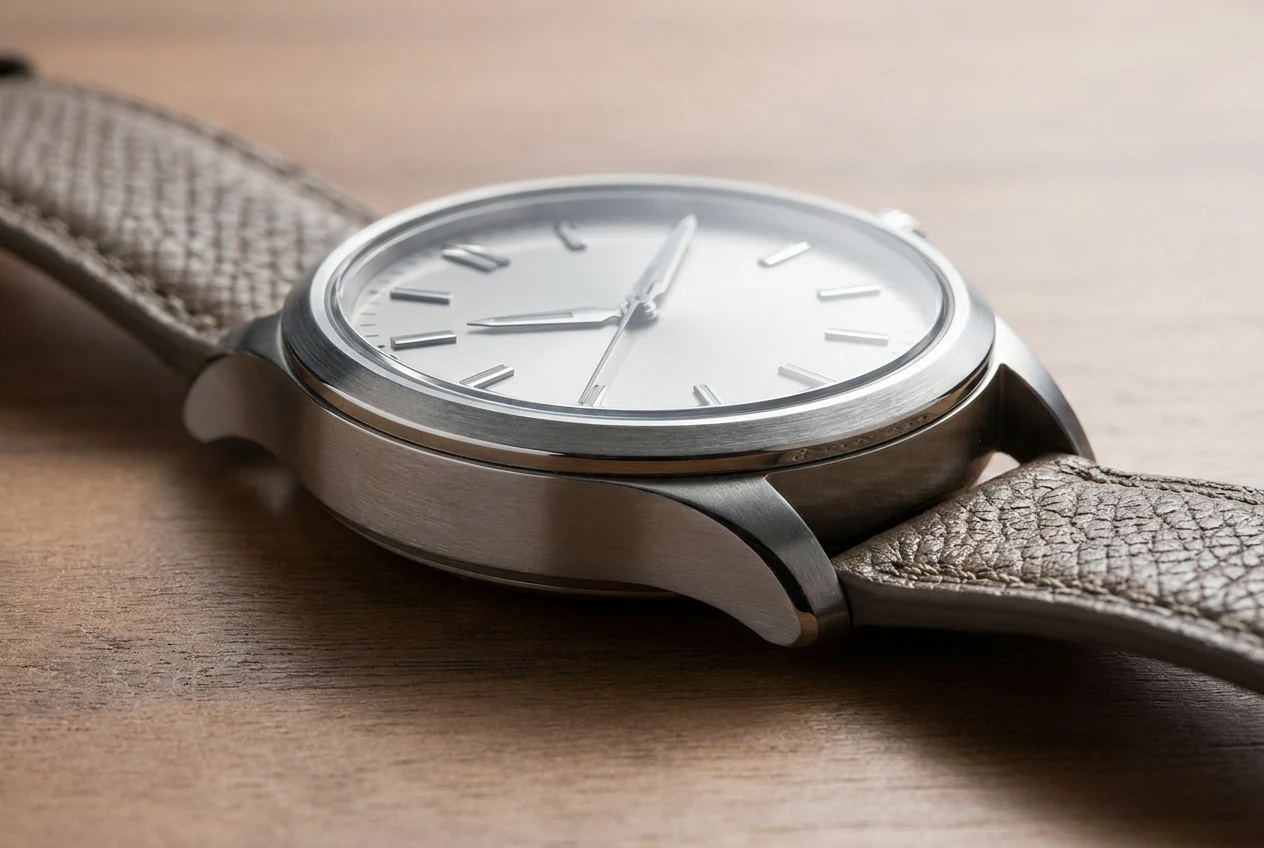
Product shots, close-ups, and texture-driven images often respond well to clarity enhancement because the viewer expects clean edge definition and material detail. If the image looks a little dull, improving clarity can help it feel more premium and intentional.
This is especially useful when the lighting or original file quality left the subject looking flatter than it should.
Older, compressed, or lightly damaged images that still have recoverable structure
Some older files or compressed images still contain enough usable structure to benefit from clarity work. If the edges are present, the shapes are readable, and the damage is not too severe, clarity enhancement can make the image easier to see and more pleasant to use.
The key is to treat these files as limited, not broken. You are improving readability, not inventing missing detail.
What Clarity Enhancement Can and Cannot Fix
What can often be improved: edge definition, local contrast, and readable detail
Clarity enhancement often helps with edge presence, local contrast, and the way texture or subject detail reads. It can make a dull image feel more alive and help important areas stand out more clearly.
This is where careful adjustment can make a meaningful difference.
What usually cannot be fully recovered: severe blur, missing detail, and broken source quality
If the image is heavily blurred, badly compressed, or truly low-resolution, there is only so much you can recover. A tool can sometimes make the image look cleaner, but it cannot fully reconstruct detail that is not there.
That is why realistic expectations matter in clarity editing.
Why overcorrecting clarity often makes an image look harsh or fake
Too much clarity often creates halos, rough edges, exaggerated pores, brittle hair, or unnatural fabric texture. Instead of making the photo look better, it starts advertising the edit itself.
A strong clarity edit should make the image easier to read without making the processing obvious.
How to Improve Clarity of an Image
Start by checking whether the real problem is blur, flatness, haze, or low detail
Before editing, identify what is actually making the photo feel unclear. If the image is soft because of haze or flatness, sharpening alone will not solve it. If the file is noisy, pushing clarity too early can make it worse.
The better your diagnosis, the cleaner your fix.
Improve local contrast and edge definition before pushing overall sharpness
A lot of clarity comes from better separation, not harder sharpening. Enhancing local contrast and making edges read more clearly often improves the image faster than pushing general sharpness across the whole frame.
This approach usually keeps the result more natural.
Reduce distractions like noise or haze so detail reads more cleanly
Noise, haze, and compression artifacts can hide the detail that is already present. Cleaning those distractions first often makes the image look clearer even before any stronger enhancement happens.
In many photos, clarity improves as much from removal of interference as from added definition.
Refine the subject area without making skin, fabric, or texture look brittle
Not every part of the image needs the same treatment. Faces, clothing, product surfaces, and backgrounds all respond differently. The most convincing clarity work usually protects sensitive textures while still improving the parts that need more definition.
That selective mindset is what keeps the result from looking overprocessed.
Tips for Cleaner Clarity Enhancement
Match the amount of clarity to the image type
A portrait, a product image, and an old scanned file all need different levels of clarity. Product shots can often take a little more. Portraits usually need more restraint. Older files need the most caution.
The right amount depends on what the image is trying to show.
Zoom out to judge realism, not just close-up detail
Clarity edits often look impressive when you zoom in, but the real test is how the whole image feels at normal viewing size. If the edit only looks good at 200 percent, it may already be too strong.
Zooming out helps you judge whether the image still feels believable.
Stop before the image starts looking crunchy, haloed, or overprocessed
The best stopping point is usually earlier than people think. Once you start seeing halos around edges, rough skin texture, or overly crisp fabric, the edit has already gone too far.
Cleaner clarity usually comes from moderation.
Manual Methods vs. A Faster AI Workflow
When manual adjustment makes sense Manual editing is best when the image has complex, mixed problems or when you need pixel-level control over different parts of the frame.
A faster option in Evoto: a simple step-by-step workflow
If the image is generally usable and you mainly want a cleaner, quicker clarity improvement, a faster workflow can make more sense. In Evoto, that path is most useful when the file still has readable structure and the goal is to improve clarity without building the whole result manually.
Step 1. Open the image
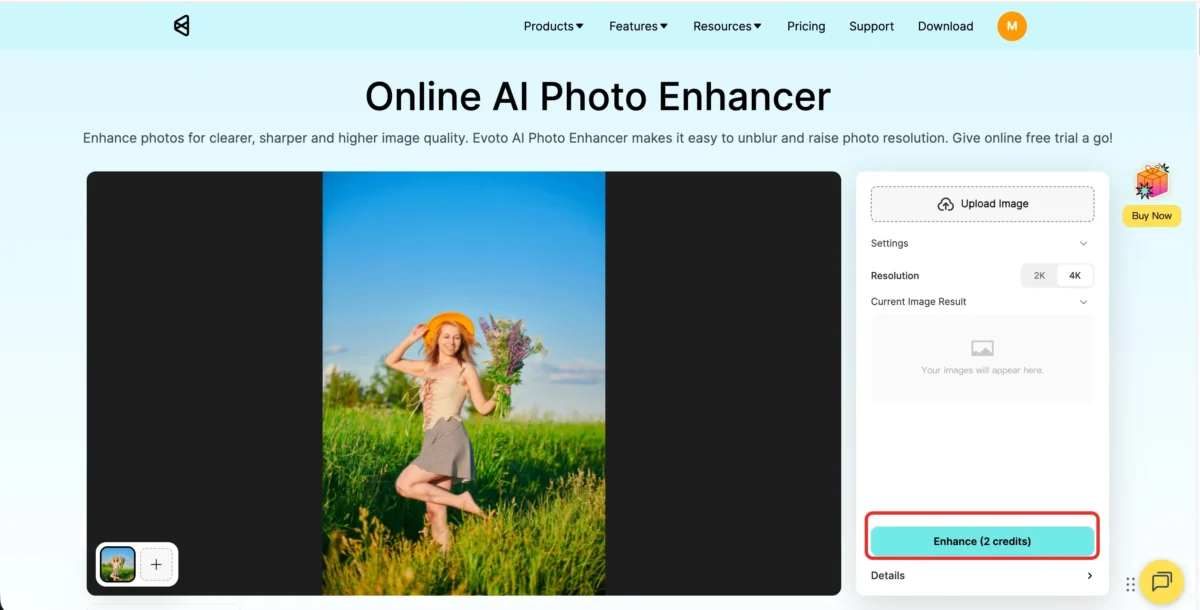
Import the photo into Evoto Photo Enhancer and look at the area that matters most first. If the face, object edge, or key texture still has some structure, the image is usually worth trying. If the subject is already badly smeared, set expectations early.

Step 2. Apply AI one-click enhancement
Choose the quality you want, then click Enhance. This is the fastest way to improve overall readability, edge definition, and visible detail without building the adjustment by hand.
Step 3. Export the clearer result
Check the image at normal viewing size, make sure the detail looks cleaner without turning brittle, then export the finished file.

Why the best result still depends on how much usable detail the source image contains
No workflow changes the basic limit of the file. If the source image still contains readable structure, clarity enhancement can help. If the file is too damaged or too blurry, even the fastest or smartest tool can only improve it so far.
That is why the best results still start with realistic expectations.
Final Thoughts
Better clarity comes from cleaner detail, not just stronger sharpening
Clarity is not the same as making everything harder or sharper. It comes from helping real detail read more clearly, improving separation, and reducing the things that make the image feel muddy.
That is why the best clarity edits usually look clean rather than aggressive.
The best edits make the image easier to read without making the processing obvious
A successful clarity edit does not call attention to itself. It simply makes the image feel more readable, more defined, and more visually resolved.
If the viewer notices the photo looks cleaner but not heavily processed, the edit usually did its job.
Try Evoto AI Photo Editor
Retouch photos with Evoto AI and make your photos best! Available on Windows, MacOS and iPadOS.