

Not every photo needs the same kind of watermark. A portfolio image usually needs something subtle. A social post may need a small visible name mark. A client proof often needs a more obvious watermark that discourages casual reuse. Product and catalog images may need a cleaner approach so the watermark does not fight the subject.
That is why adding a watermark works better when you start with the use case first. Decide where the image is going, how visible the watermark needs to be, and what kind of mark fits that job. Then add it in a few simple steps and adjust the placement so it stays useful without taking over the photo. If you are already editing in Evoto, you can keep that entire watermark step inside the same export workflow instead of jumping between apps at the last second.

When Do You Need a Watermark?
A watermark matters most when the image is likely to be shared, reposted, forwarded, screenshotted, or reused outside the place where you first posted it.
Portfolio images usually need the lightest touch. The goal is to keep your name attached to the work without hurting the presentation. Social media photos often need a slightly more visible mark because the image moves quickly and may be reposted without context. Client proofs are different again. They often need a stronger watermark because the priority is not polished presentation first. The priority is making sure unfinished or unpaid images are not casually reused. Product and catalog photos usually need the cleanest solution of all, because the watermark should not compete with the thing being shown.
The point is simple: a watermark is not one fixed setting. It should match the way the image will be seen.
Why Watermark Strength Should Change by Use Case
The more reusable the image is, the more visible the watermark may need to be.
A public-facing portfolio image often works best with a small, restrained mark in the corner. A proof gallery image may need something more obvious because the whole reason for the watermark is to slow down reuse. A product photo may need a mark so subtle that it feels almost secondary to the frame.
This is also why there is no universal rule for text versus logo watermarks. A simple text mark can be cleaner and easier to place. A logo watermark can work well if it is already recognizable and not too visually heavy. What matters is not which type sounds more professional. What matters is whether the mark stays useful without becoming the first thing people notice.
Before You Add a Watermark to a Photo
Before adding anything, decide what kind of watermark the image actually needs.
If the image is meant for a portfolio, a name watermark or simple logo usually works best. If the image is a proof or preview, you may need something more visible. If the image is going to a shop, product grid, or client-facing catalog, a quieter watermark usually makes more sense.
You should also finish the photo first. The crop, tone, retouching, and final framing should already be close to done before you place the watermark. Otherwise, you risk placing the mark correctly on a version of the image that later changes.
If you want a cleaner sense of what should be finished before watermarking, read Color Grading vs Color Correction.
Finally, keep the watermark readable but lighter than the image itself. If the watermark grabs attention before the subject does, it is too strong.
How to Add Watermark to Photos in Simple Steps


Powerful AI Photo Editor
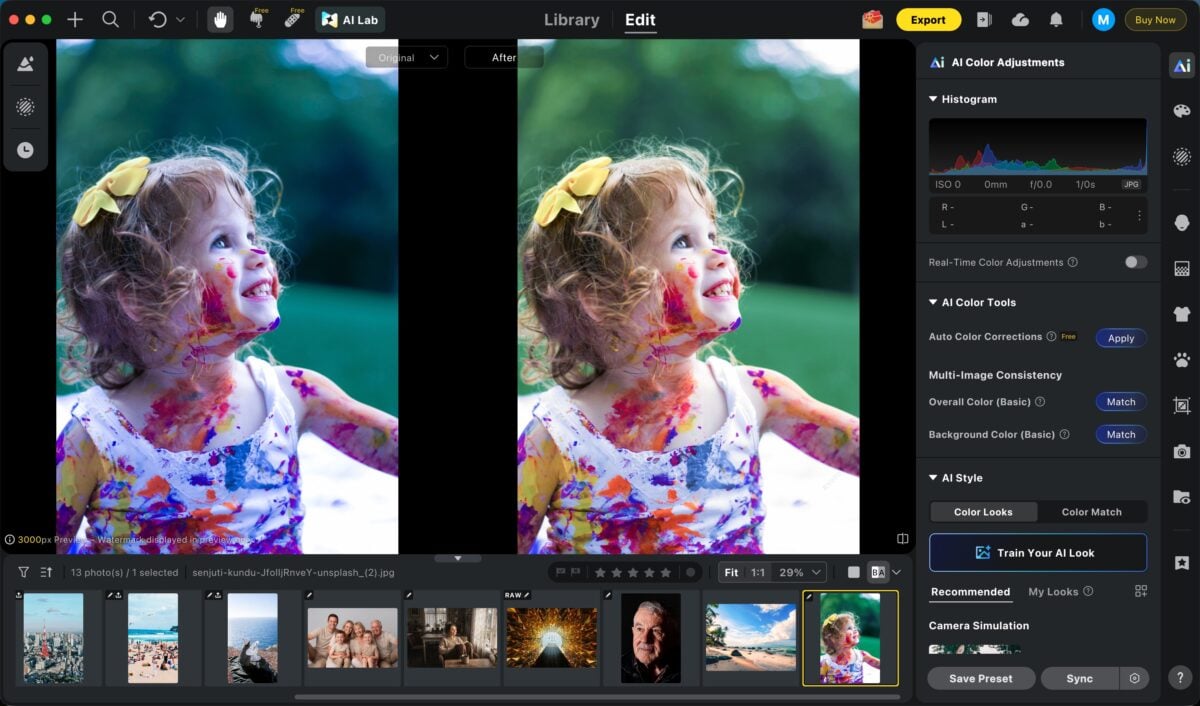
Step 1: Open your image or image set in Evoto and finish the photo first
Start with the version of the photo you actually plan to export inside Evoto. That means your crop, color, retouching, and final image adjustments should already be done before you add the watermark.
This matters because watermark placement only makes sense once the photo already looks finished. If you move the crop or rebalance the frame later, the watermark position can stop making sense.
Step 2: Go to the Export panel and enable the Watermark option
In Evoto, the watermark step belongs at export. Open the Export panel, turn on the Watermark option, and upload the logo watermark you want to use.
This is the practical advantage of using Evoto for the whole workflow. You can edit the still image, move straight into export, and apply the watermark in the same pass instead of exporting first and adding the mark somewhere else later.

Step 3: Adjust placement, size, and opacity, then export the image with the watermark applied
Once the logo watermark is loaded, adjust the placement, size, and opacity until it stays visible without taking over the frame. Most watermarks look better when they stay smaller and lighter than expected.
White, black, or a soft gray usually works better than a louder color unless the brand already depends on a very specific look. Check the result at the size people will actually see, then export the image with the watermark applied.
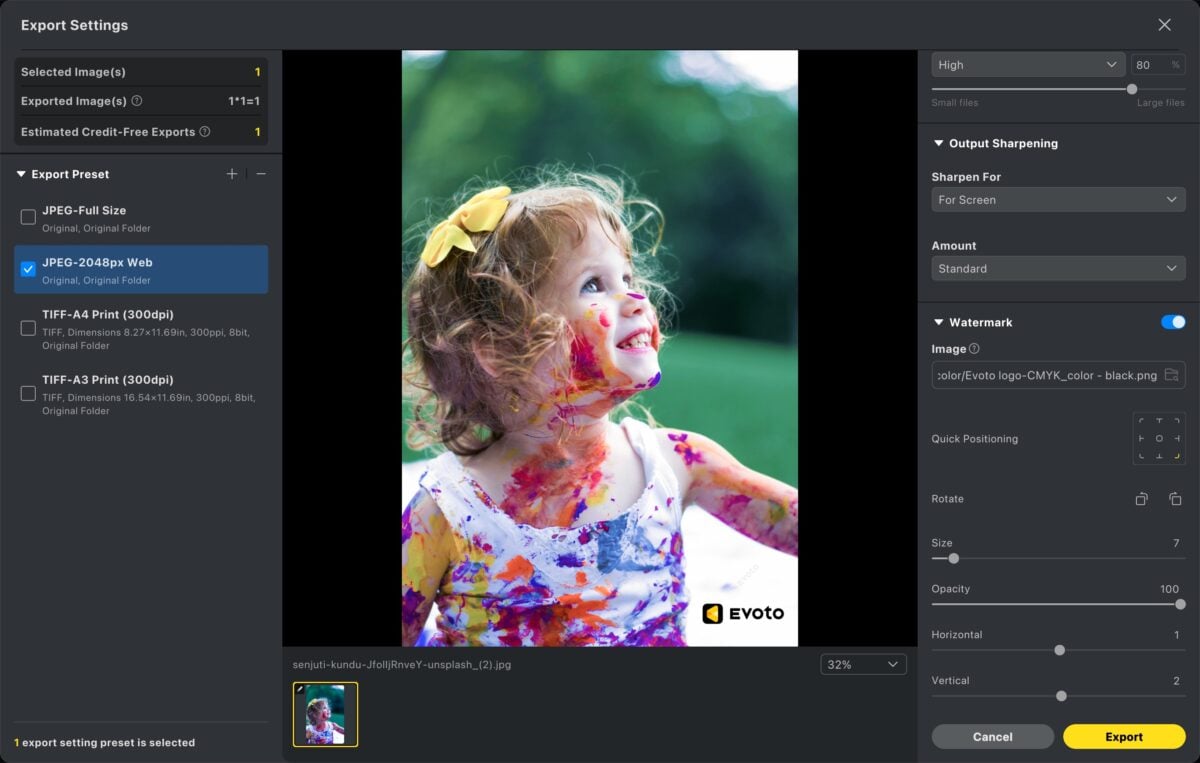
Before you export, check two things: whether the mark is still readable, and whether it blocks anything important in the frame. Once both are working, export the final image.
Where Should You Place a Watermark?
Corner placement is the safest choice for most images. It keeps the watermark visible without turning it into the main subject.
A more central placement makes sense when protection matters more than presentation. This is more common for client proofs, preview galleries, or images that are meant to be seen but not reused freely.

Placement should also change with the use case. Portfolio photos usually need the most restrained version. Social posts can handle a slightly more visible mark. Proof images often need the strongest placement. Product photos usually need the cleanest and least distracting option.
How to Keep a Watermark Clean on Different Photo Types
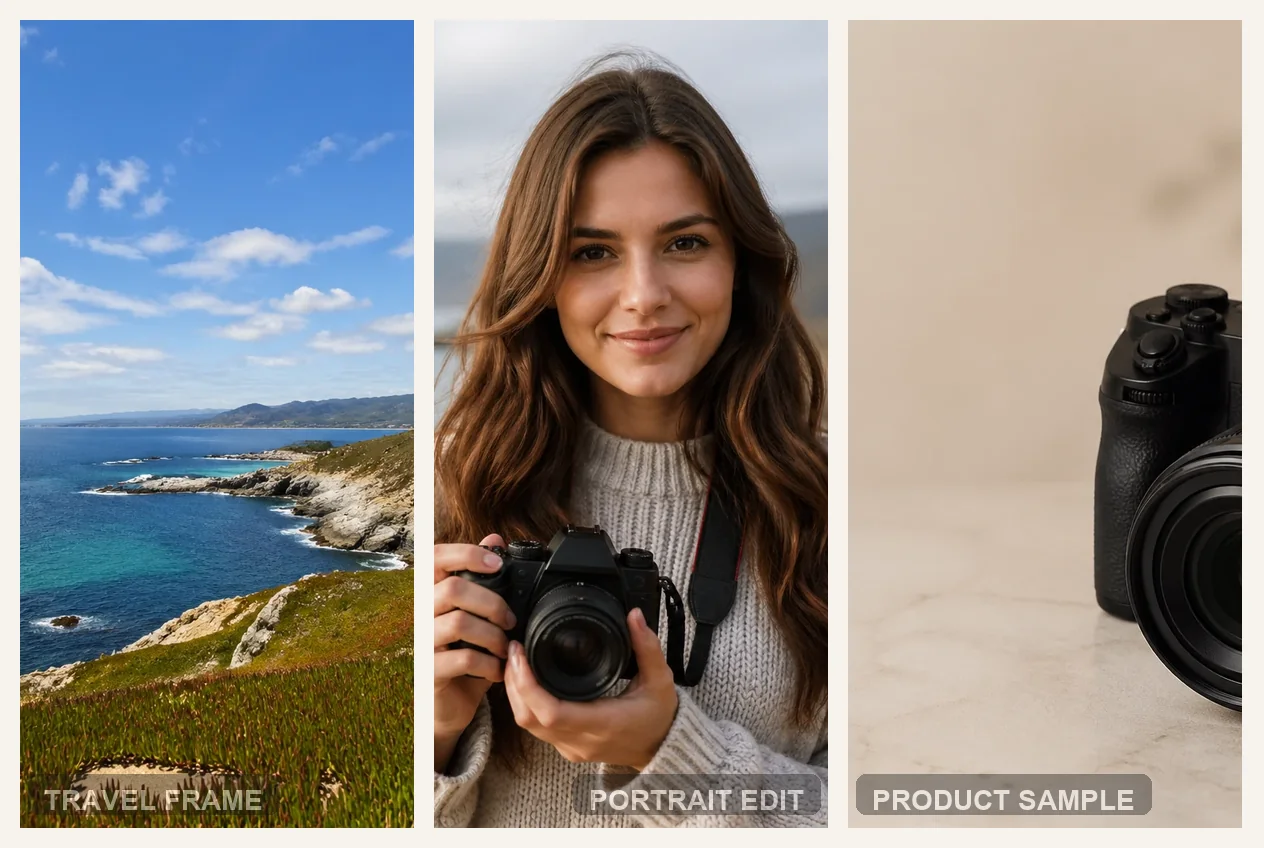
Portraits and people photos need extra care because viewers notice faces first. Keep the watermark away from eyes, expressions, hands, and clothing details that matter to the image.
Landscapes and travel images can be trickier than they look. Open skies, water, and negative space can make even a small watermark feel much louder than expected, so placement matters more than people think.
Product, event, and social-media photos depend more on how the image is being used. Product photos usually need a clean, quiet mark. Event previews can take a stronger watermark if reuse is the bigger concern. Social media images often work best with a small consistent mark that stays readable without dominating the frame.
Common Watermark Mistakes to Avoid
The most common mistake is making the watermark too large or too opaque. That usually makes the image look cheaper, not more protected.
Another mistake is using a font or logo style that fights the image. If the watermark feels more decorative than the photo itself, it starts pulling attention away from the work.
Bad placement is another easy miss. If the mark covers important visual detail or lands in the most active part of the frame, viewers will notice the watermark before the photo.
One more mistake is checking the watermark only while zoomed in. Always judge it at the export size and viewing context that real people will see.
If the bigger problem is not ownership but softness, fix that first with How to Unblur Image.
FAQs
Should I watermark every photo?
No. Some images benefit from a watermark much more than others. Portfolio work, proofs, public posts, and reusable client-facing images often justify one. Other images may not need it at all.
Is a text watermark better than a logo?
Not automatically. Text is often cleaner and easier to place. A logo works well when it is simple, recognizable, and does not overpower the image.
Where is the best place to put a watermark on a photo?
For most photos, a corner is the safest option. If protection matters more than subtlety, a more central placement can make sense.
Final Thoughts
The right watermark depends on where the image will be used, not just on how the watermark looks. A proof, a portfolio image, a social post, and a product photo do not need the same strength or placement.
If you keep the process simple, match the watermark to the use case, and judge it at final export size, it becomes much easier to add a watermark that feels useful instead of distracting.
If you already edit in Evoto, this is also the simplest place to keep the whole process together. You can finish the still image, move straight into the Export panel, enable the Watermark option, upload your logo watermark, adjust placement and opacity, and export without breaking the workflow. That is the real advantage: the watermark step stays part of the final delivery pass instead of becoming a separate cleanup task afterward.
Try Evoto AI Photo Editor
Retouch photos with Evoto AI and make your photos best! Available on Windows, MacOS and iPadOS.



