

A floor reflection can make a product shot, portrait, or cut-out image look cleaner and more polished, but it also turns fake quickly when the source image, alignment, or fade are off. That is why many beginners struggle with the effect in Photoshop. The idea sounds simple, but the result only works when the subject feels grounded and the reflection behaves like part of the same image.
This guide breaks the process down in a practical order. First, it explains what a floor reflection actually does in photo editing. Then it walks through how to create a floor reflection in photoshop ,shows where that method gets slow or awkward, and explains how Evoto simplifies the same effect with a faster background-and-reflection workflow.
What Is Floor Reflection in Photo Editing?
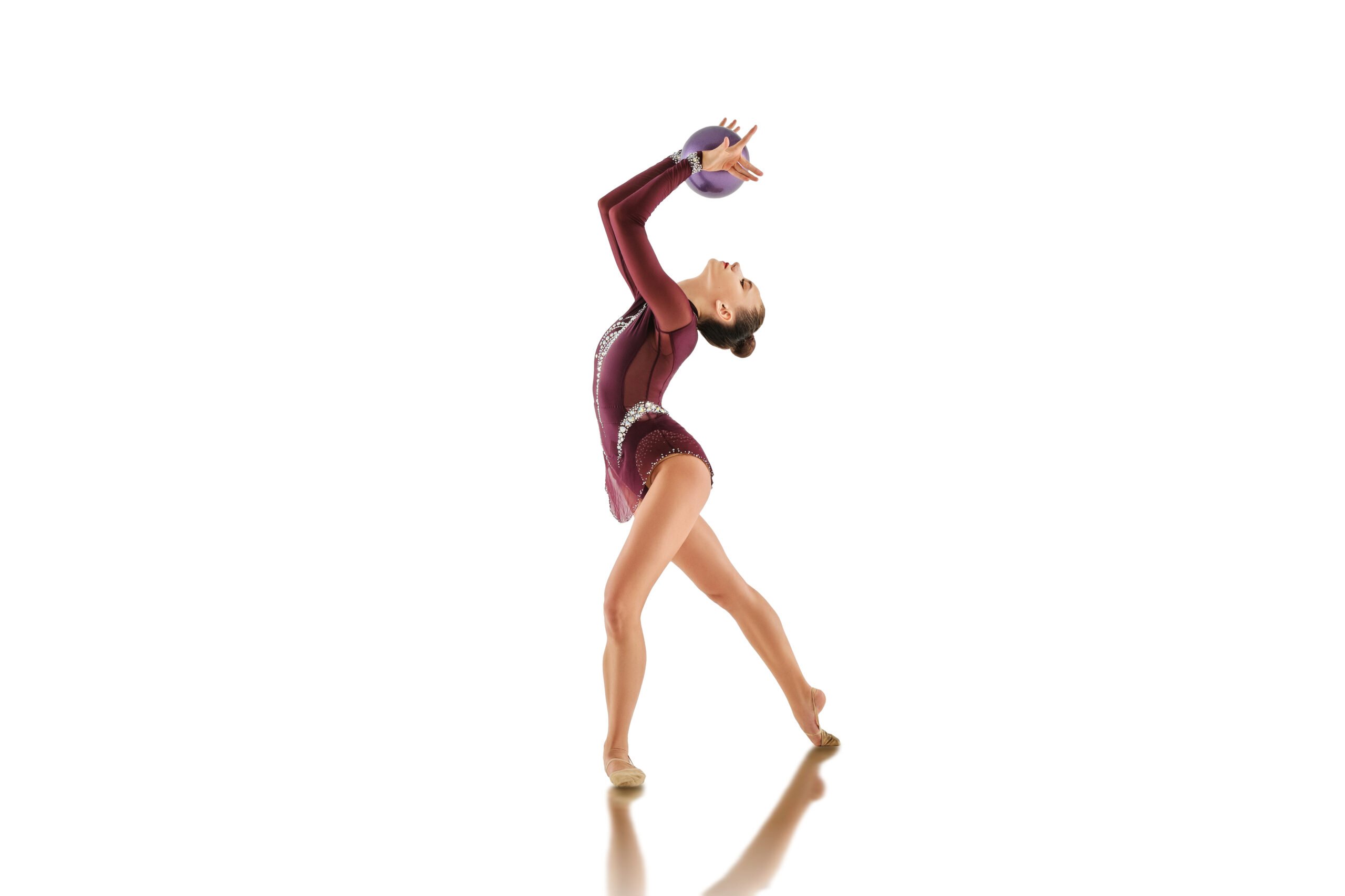
A floor reflection is a mirrored version of the subject placed below it to make the image feel more polished, grounded, or commercial. It is commonly used in product photography, e-commerce visuals, fashion cutouts, and simple portrait composites where the goal is a cleaner studio-style presentation.
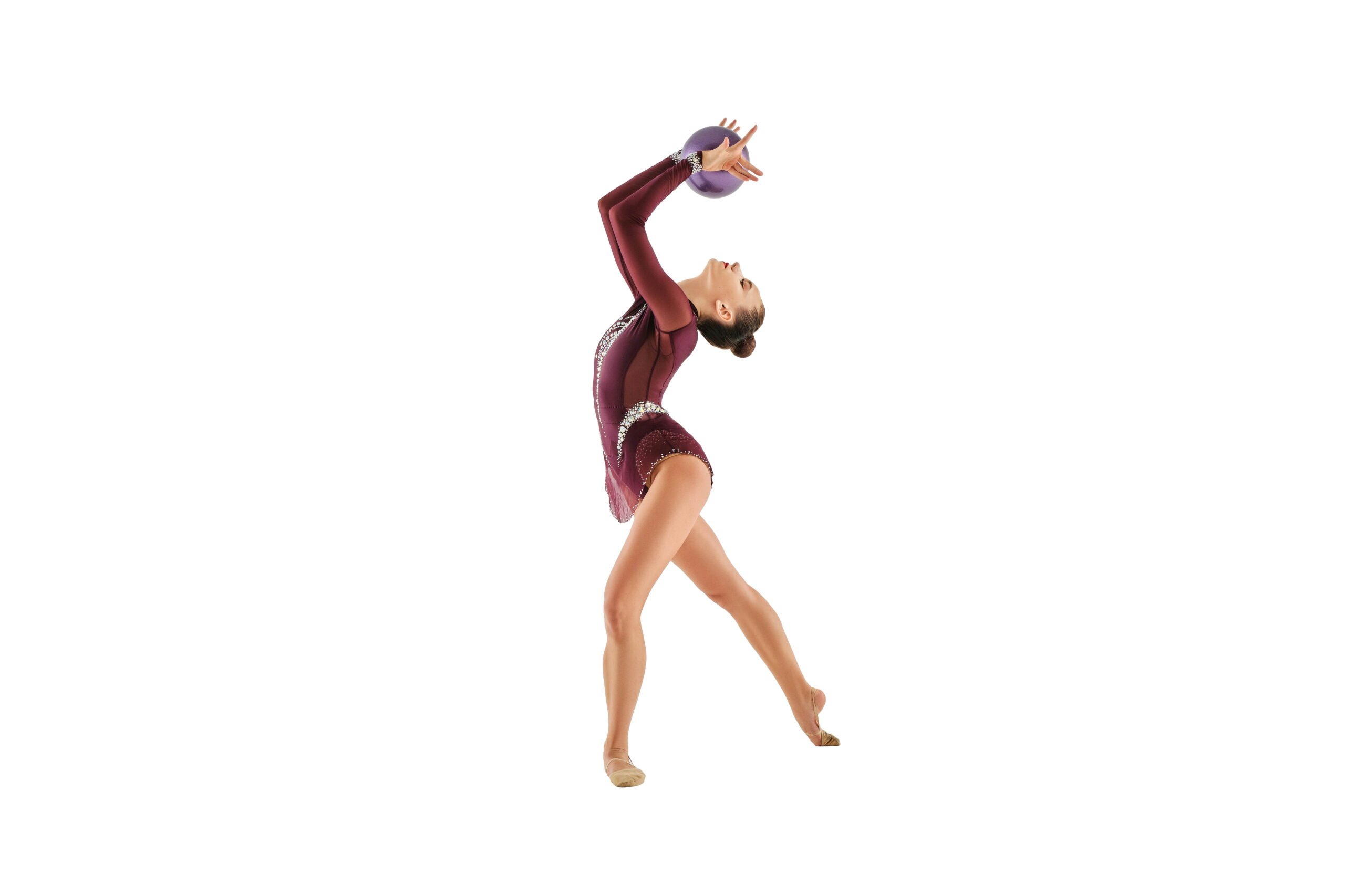
The effect works best when the image already supports it. A subject with a clean bottom edge, believable floor contact, and simple perspective is much easier to reflect convincingly. A subject that is floating, badly cut out, or tilted in a way that does not match the floor line usually produces a fake-looking result no matter which tool you use.
That is why floor reflection is not just a trick you drop onto any photo. It depends on the source image first, then on how carefully you build or adjust the reflection.
How to Create a Floor Reflection in Photoshop (Step-by-Step)
Step 1: Duplicate the subject layer
Start by duplicating your subject layer. This copy will become the base of the reflection.
Make sure your subject is already cleanly cut out, especially along the bottom edge. Any rough masking will become more noticeable once reflected.
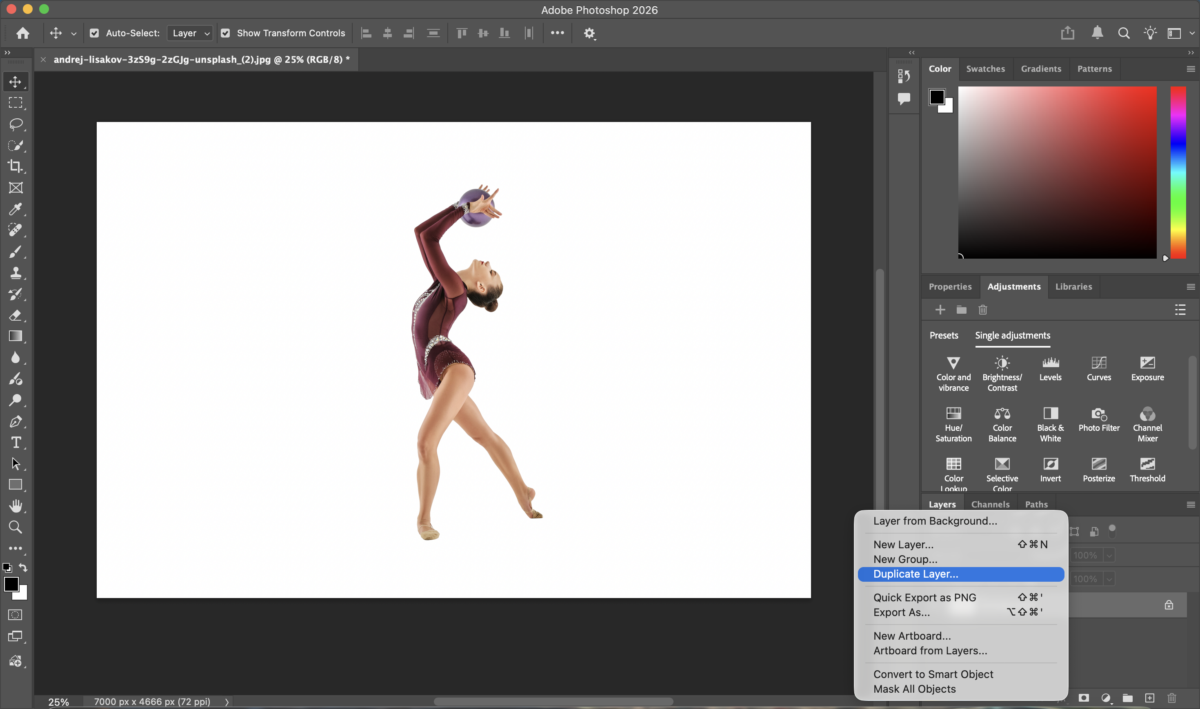
Step 2: Flip the duplicated layer vertically
Flip the duplicated layer vertically to create the reflection.
At this stage, don’t worry about realism yet—the goal is simply to create the mirrored version.
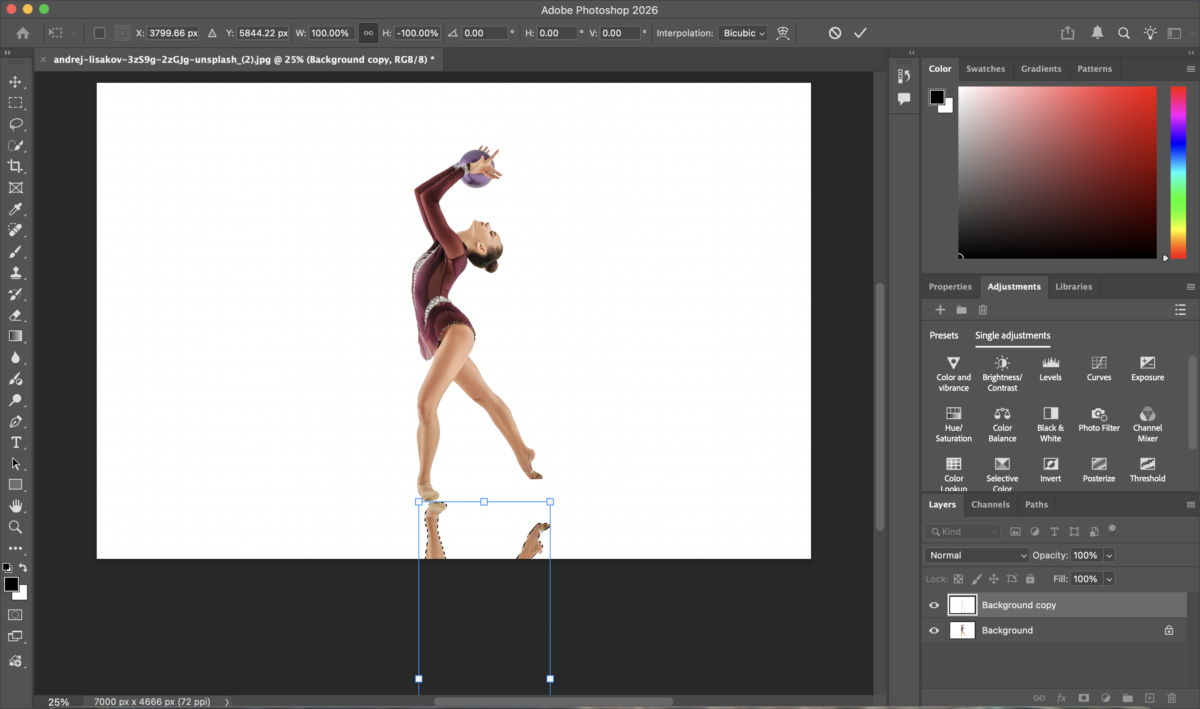
Step 3: Position the reflection at the base of the subject
Move the flipped layer downward until it aligns with the point where the subject touches the ground.
The reflection should begin exactly at this contact line. Even a small gap can make the subject feel like it’s floating, while too much overlap can blur the edge.
Step 4: Reduce opacity to make the reflection believable
Lower the opacity of the reflection layer so it no longer looks like a duplicate object.
This is where the image starts to feel more natural rather than artificially mirrored.
Step 5: Add a layer mask and fade the reflection
Apply a layer mask to the reflection and use a soft gradient to fade it out gradually.
The reflection should be strongest near the subject and fade as it moves downward. If it stays equally visible, it usually looks unrealistic.
Step 6: Refine with blur and final adjustments
Adjust the reflection’s sharpness, strength, and length. A slight blur often improves realism, especially for portraits or softer images.
Also take a moment to evaluate whether the subject feels grounded. A reflection works best when it supports an already believable base—not when it tries to fix a floating subject.
Step 7: Review at normal viewing size and export
Zoom out and check the image at normal viewing size. Reflections that look fine up close can feel too strong or too long when viewed as a whole.
Once everything feels balanced and natural, export the final image.
Limitations of Creating Floor Reflections in Photoshop
The Photoshop method works, but it gets slow faster than many beginners expect.
The first limitation is that everything depends on the quality of the cutout. If the mask is messy, the reflection duplicates the mess. The second limitation is perspective. If the subject angle and floor logic are even slightly off, the reflection can feel pasted on no matter how carefully you lower opacity and add fade.
It also becomes repetitive when you need to do the same style of reflection across multiple files. The manual process gives you control, but it also means rebuilding the same sequence again and again: duplicate, flip, align, fade, soften, check, and adjust.
That is why Photoshop is useful, but not always the fastest route when the goal is simply to build a clean floor reflection that looks polished and export-ready.
How Evoto Simplifies Floor Reflection Creation
Evoto simplifies the effect by turning it into a cleaner workflow instead of a fully manual build.


Powerful AI Photo Editor
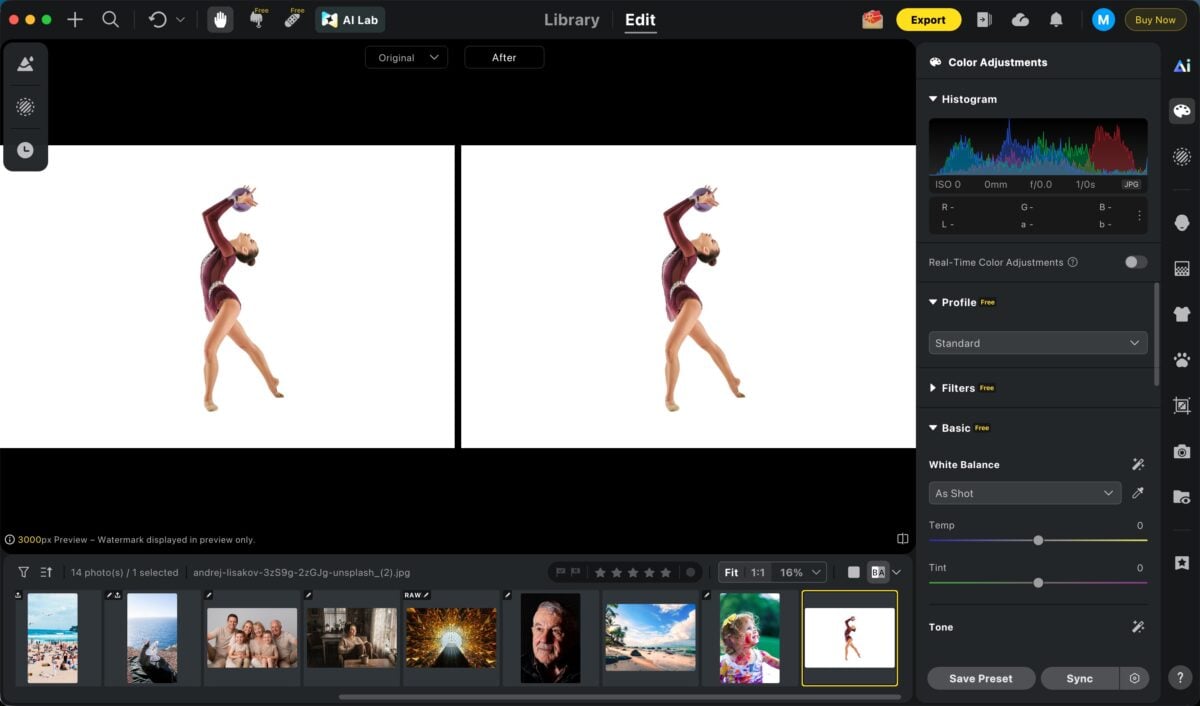
Step 1: Open the image
Start by opening the photo you want to edit.
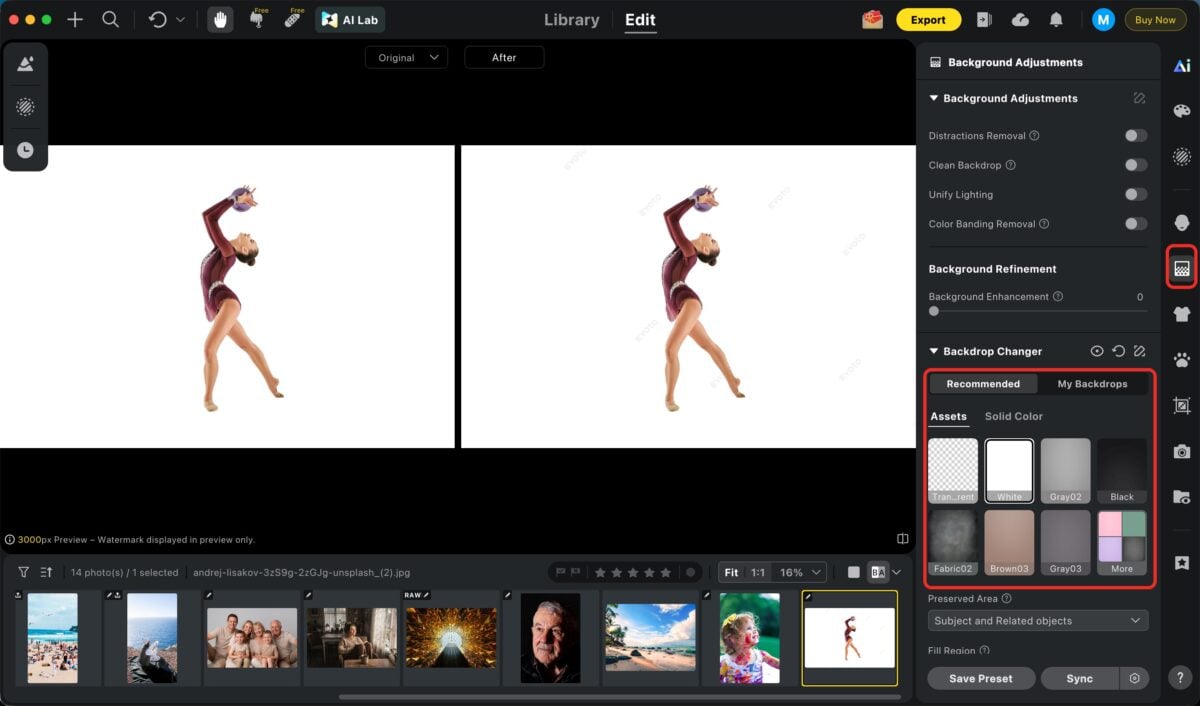
Step 2: Open the background replacement module and apply a background
Go into the background replacement module and apply a background that gives the subject a clean base to work from.
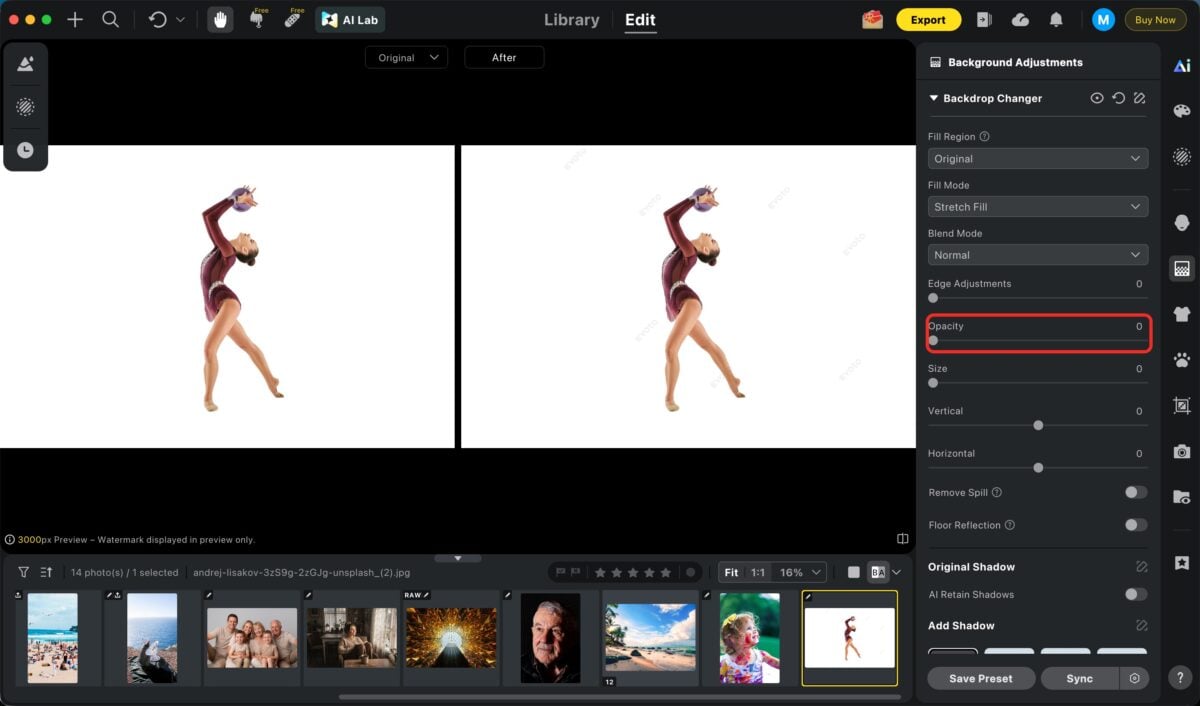
Step 3: Lower the background opacity to 0
Reduce the background opacity to 0 so the reflective floor effect can be built without leaving a visible replacement background behind.
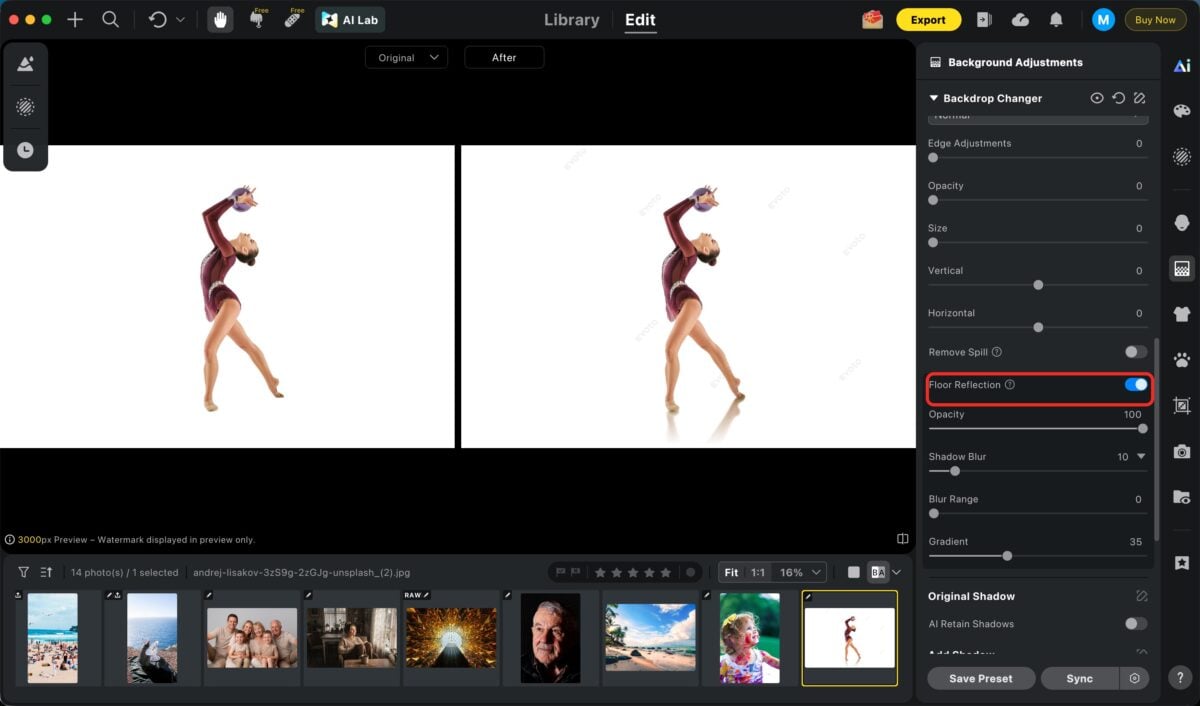
Step 4: Turn on floor reflection
Enable the floor reflection option. This gives you the reflected version of the subject without rebuilding it manually from duplicated layers.
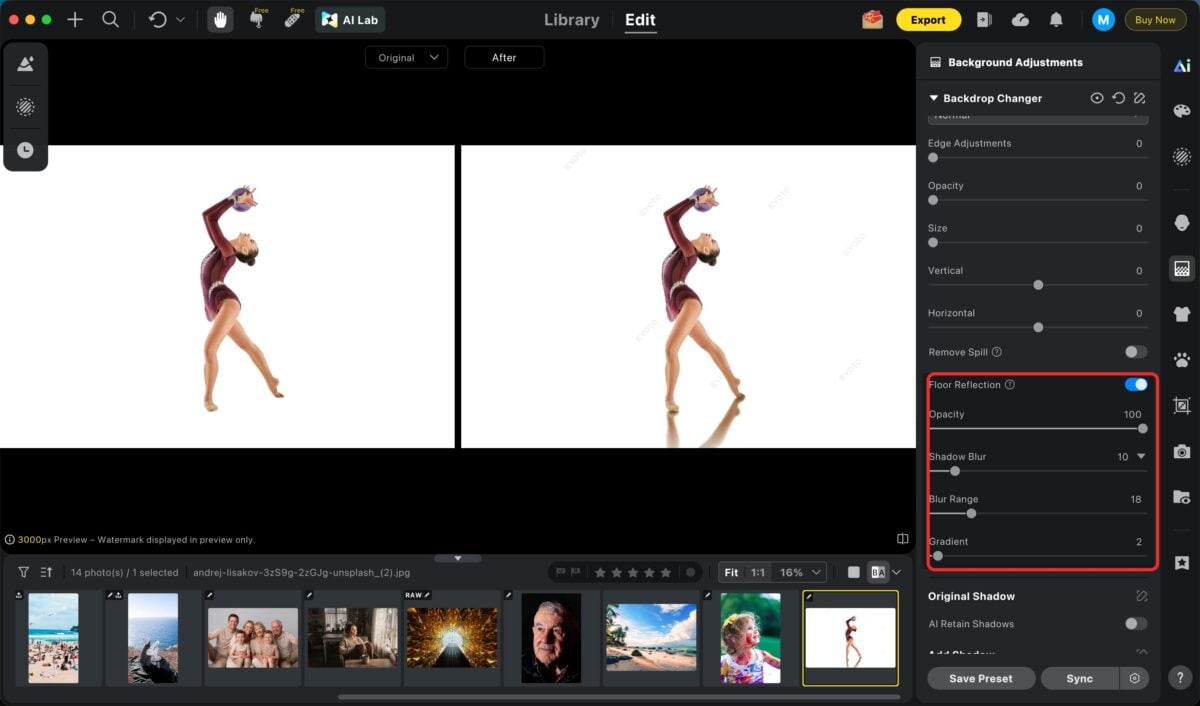
Step 5: Fine-tune the reflection
Adjust the reflection so it matches the image better. This is where you control how strong or soft the effect feels and make sure it does not overpower the subject.
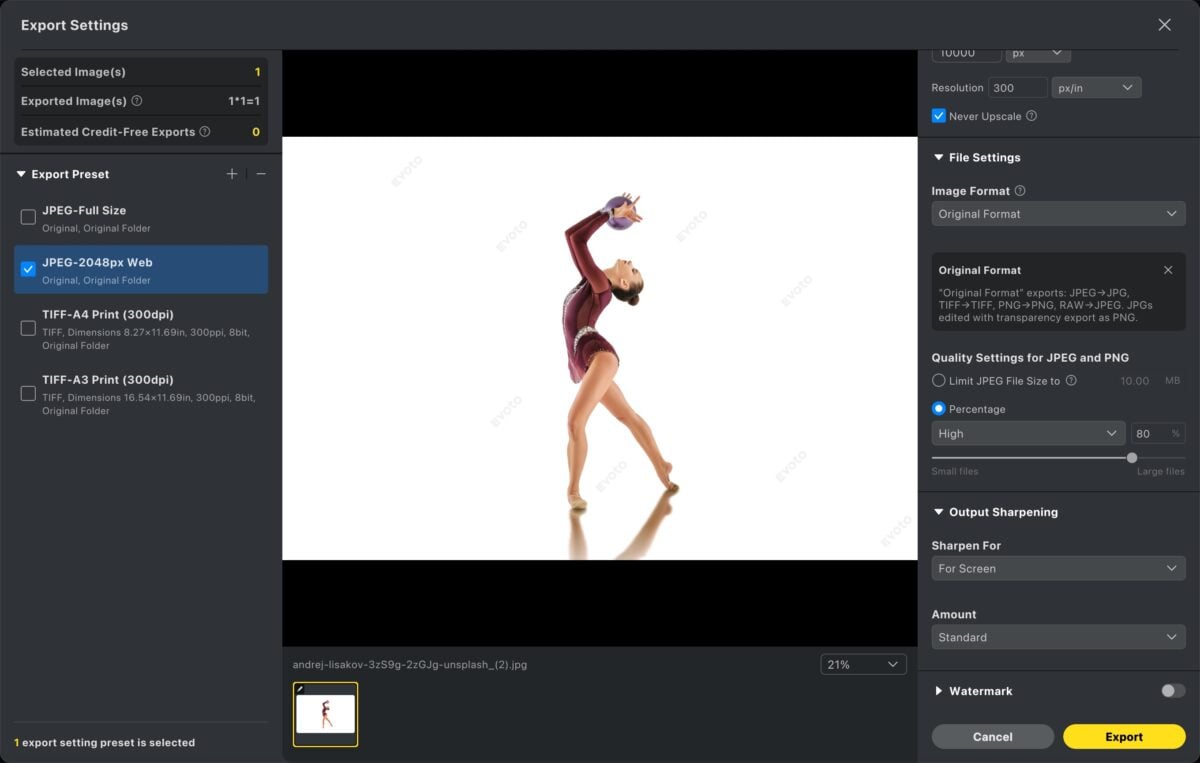
Step 6: Export the final image
Once the reflection looks right, export the image directly.
The advantage here is not that the effect becomes magically correct on every image. The advantage is that the workflow becomes much shorter when the source image is already a good candidate for a floor reflection.
Photoshop vs Evoto: Which Is Better for Floor Reflections?
Photoshop is better when you want manual control over every part of the reflection. If the image is tricky, if the mask needs a lot of care, or if you want to build the reflection from scratch with very specific fade and blur decisions, Photoshop gives you that freedom.
Evoto is better when you want a faster route to a clean export-ready reflection. You are not rebuilding the reflection by hand every time, which makes the process easier to repeat.
So the better option depends on what you need more: manual control or workflow speed. If the image is already suitable and the goal is efficient output, Evoto is often the easier choice. If the image needs custom correction at every stage, Photoshop still gives you more room to shape the effect manually.
Further Reading:A Guide to Remove Glare From Photos and Banish Reflection Blemishes
Conclusion
A good floor reflection depends on both the source image and the workflow you choose. If the cutout is clean, the subject already feels grounded, and the reflection fades naturally, the effect can make an image look much more polished.
Photoshop is still useful when you want full manual control. But if you want a faster way to build and export clean floor reflections, Evoto fits best once you already know the image is a strong candidate for the effect.
Try Evoto AI Photo Editor
Retouch photos with Evoto AI and make your photos best! Available on Windows, MacOS and iPadOS.



