

If you search “combine images online free”, you usually want speed and quality together. The problem is that many top results focus on simple merge mechanics, while portrait photographers need believable skin tone, stable depth, and consistent delivery. In other words, this is not just a tool query; it is a quality query for real client work.
Christmas sessions make this harder. Warm string lights, reflective ornaments, and mixed indoor light can expose every weak blend. A generic image combiner may output fast files, but those files often fail at the zoom level or print size clients actually use.
That is why experienced studios treat it as a controlled portrait pipeline, not a collage shortcut.
This guide is built as a practical studio playbook. You will see how to run a photographer-led AI image combiner workflow with concrete checks, not random one-click luck. Next, we separate basic image combining from portrait fusion that clients will actually pay for.
If your goal is dependable delivery, the workflow has to include process discipline from frame one and focus on controlled custom compositing rather than a quick collage export.
TL;DR
- Most pages ranking for combine images online free teach quick collage, not client-grade portrait fusion.
- For Christmas portraits, quality comes from four checks: edge cleanup, light-direction match, restrained overlays, and batch consistency.
- A reliable workflow is: pick one hero frame, build the look with control, then scale only after technical spot checks.
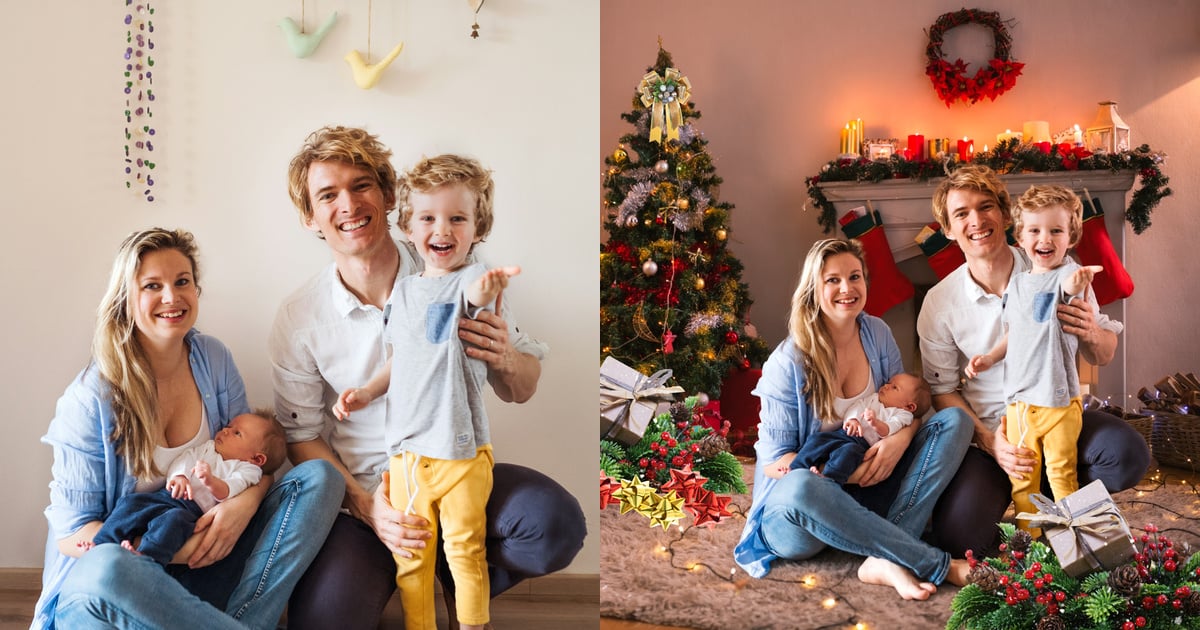
How SERPs for “Combine Images Online Free” Miss Holiday Portrait Reality
Most SERPs around combine images online free and photo combiner solve only layout-level needs. They usually give searchers speed-focused pages, not quality-focused methods.
- Join two files
- Create a collage or a subject combination
- Remove or swap the background quickly
For portrait delivery, that is only step zero. A usable Christmas composite must pass a mini technical checklist built on technical standards, not template effects:
- Edge integrity: no hair halo, no jacket cutout fringe, no ear clipping.
- Light coherence: subject shadows and scene key light point in the same direction.
- Depth logic: foreground props support depth, but never block eyes or expression.
- Skin credibility: skin hue should remain natural under warm holiday lighting.
Concrete example: a family portrait shot on a neutral gray backdrop, then merged into a warm fireplace scene. If the subject keeps cool studio skin while the room glows amber, clients often describe it as “sticker look,” even if they cannot explain why.
That mismatch is exactly what “free combine” pages rarely teach. In practice, this only works commercially when skin tone and scene tone are harmonized, with custom assets checked before any decorative styling.
Now let’s build a photographer-controlled process instead of one-click randomness. This is the point where the workflow shifts from generic editing to portrait craft.
Where Evoto AI Background Fusion Fits in This Workflow
In this article, Evoto is treated as a controllable editing workspace, not as a creativity replacement tool. For readers comparing options, this is how the workflow can stay both efficient and photographer-led while still mapping to repeatable quality checks.
Its practical role in this workflow is limited and clear:
- Enter “AI Lab” and open “AI Background Fusion”
- Upload your own JPG/PNG/WebP background assets and PNG-style foreground props in “Custom”
- Build a true three-layer composite (background + subject + foreground props) instead of flat cutout replacement
- Refine subject boundaries with “Edit Mask” before final generation when hair edges, veils, or accessories need cleanup
- Control foreground overlays with transform and z-order logic
- Adjust “Character Lighting” with an “Amount” slider to align ambient tone and shadow direction
- Review results and scale with batch-friendly workflow for high-volume studio delivery
Example: in a Christmas kids mini session, you can reuse the same custom room background and foreground prop set, then change only subject pose and small placement details across the set. That keeps the look consistent while avoiding the “every image has a different style” problem that hurts album cohesion.
That repeatability is a core reason studios approach this search with stricter expectations than casual users.


Powerful AI Photo Editor
The boundary is important: software helps execution speed, but composition intent, style restraint, and delivery judgment remain with the photographer.
Evoto can fit this workflow in two ways:
- Use the web version when you only need to test whether a Christmas background idea is worth pursuing, validate a rough before/after direction, or share a quick concept with a client.
- Move to the desktop app when you need tighter control: custom background/foreground uploads, edge cleanup, “Edit Mask”, “Character Lighting”, saved results, and batch consistency across a real mini-session.
With that role clarified, move into the exact Christmas step-by-step process.
For this demo, the original image is a casual indoor family portrait against a simple home wall. The target replacement is a warm Christmas living-room scene with a tree, fireplace mantel, glowing lamp, wrapped gifts, and seasonal foreground decorations.
The goal is not to make the photo look like a flat holiday card template. The goal is to place the family into a believable festive room, keep faces and skin tone natural under warmer ambient light, and use foreground props only to add depth near the lower frame without covering expressions or body edges.
Step-by-Step Christmas Fusion Workflow in Evoto
Step 1 – Enter AI Background Fusion and Pick a Hero Frame
Open the portrait, enter “AI Lab”, and choose “AI Background Fusion”. This opening step turns the workflow into a structured production process rather than a gimmick.
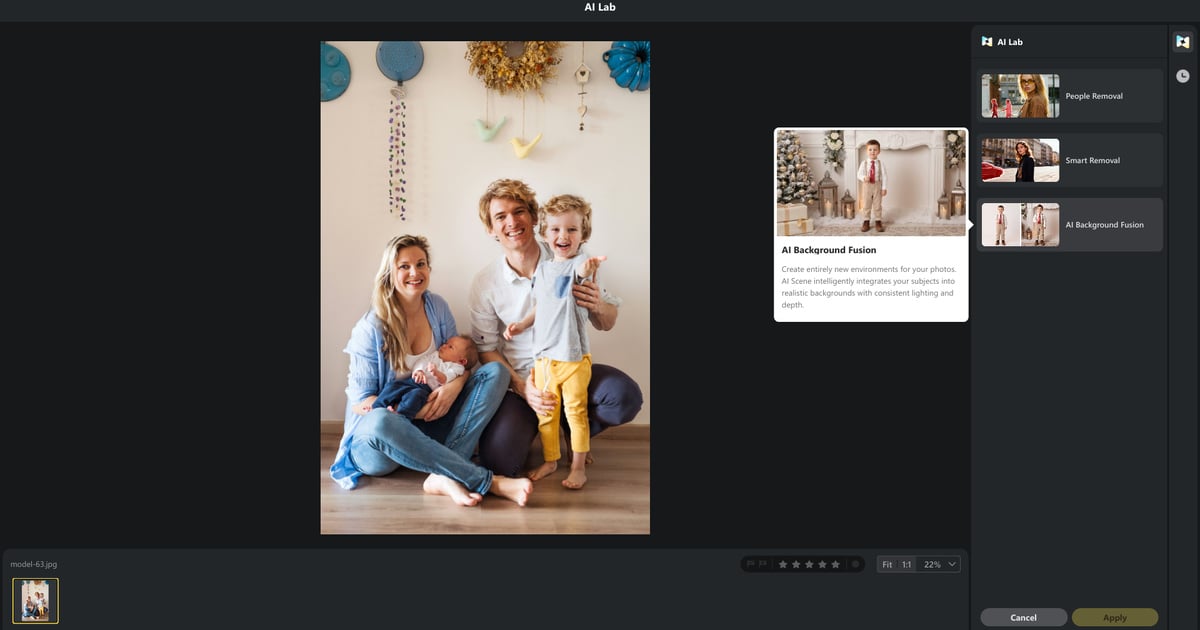
Do not start with “best-looking scene.” Start with one technically stable hero frame:
- Clean subject boundary (hairline and shoulder edge readable)
- Steady exposure (skin not near the clipping)
- Natural expression (this will be your batch anchor)
Why this matters: if the first frame already has weak edge separation, every later step amplifies the error. In client terms, this is where you decide whether the set scales smoothly or becomes manual rescue work, so the first pass should always start with a frame worth scaling.
Step 2 – Upload Custom Christmas Background and Foreground Assets
Move to the right panel, switch into the “Custom” workflow, and upload your own Christmas background first. Then upload matching foreground elements, such as warm bokeh lights, Christmas tree branches, snow overlays, or room-depth props.
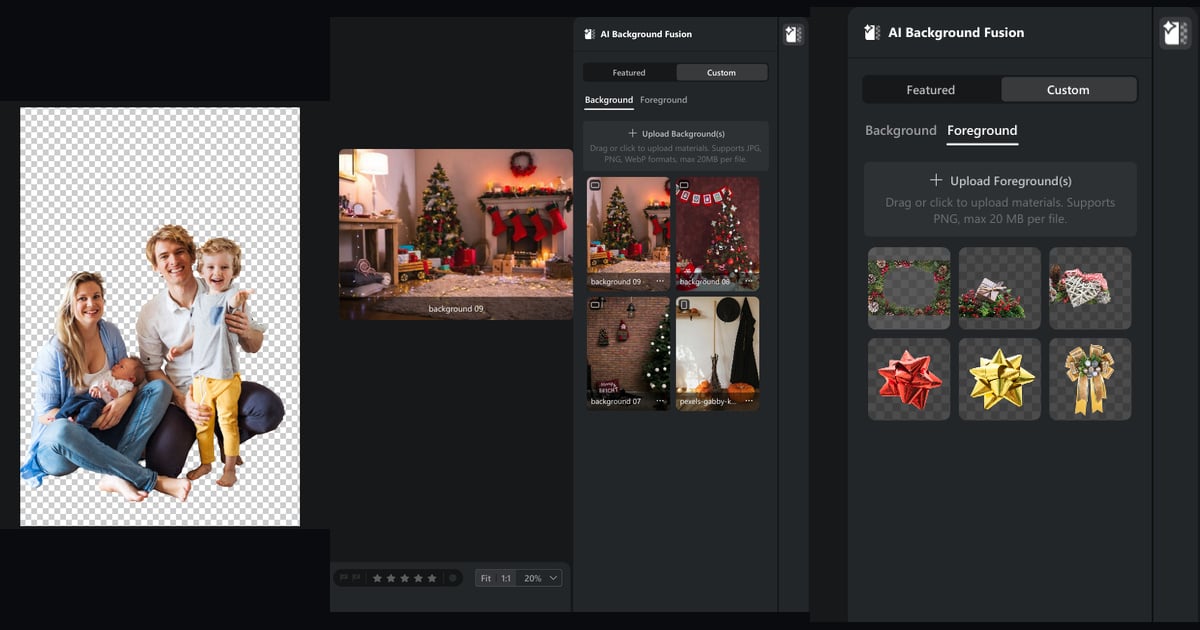
At this stage, success depends on asset matching, not filters, so the process must begin with perspective, file quality, and light logic.
- Use a background file with a camera height close to the original portrait
- Use foreground props with transparent edges or clean cutout boundaries
- Keep the background and foreground from the same lighting world when possible
For holiday portraits, prioritize perspective before decoration. A simple custom room with correct camera height often beats a “beautiful” fantasy scene with wrong depth.
A simple matching rule:
- If the subject was shot at eye level, avoid high-angle fantasy backgrounds
- If the floor shadow is soft, avoid hard directional background shadows
- If the lens perspective is medium (35-50mm look), avoid ultra-wide room distortion
- If the original portrait is softly front-lit, avoid harsh side-lit foreground props
Example: A family mini session shot with soft frontal key light usually blends better with a custom warm indoor background and gentle foreground bokeh than with a dramatic moonlit scene. Keep visual logic first, theme second, because attractive assets still fail when they do not share the same visual logic.
If your team needs a neutral technical check, validate scene fit with three fundamentals photographers already use in capture and retouch: tone distribution on the histogram, color temperature consistency, and depth cues in perspective. These are standard, verifiable concepts rather than tool-specific opinions (see Histogram (photography), Color temperature, and Perspective (graphical)).
Step 3 – Layer Subject and Foreground Props With Restraint
This is where overlay images and overlay edit decisions decide realism. Here, realism depends on layer discipline more than visual effects, and the hierarchy has to stay clear.
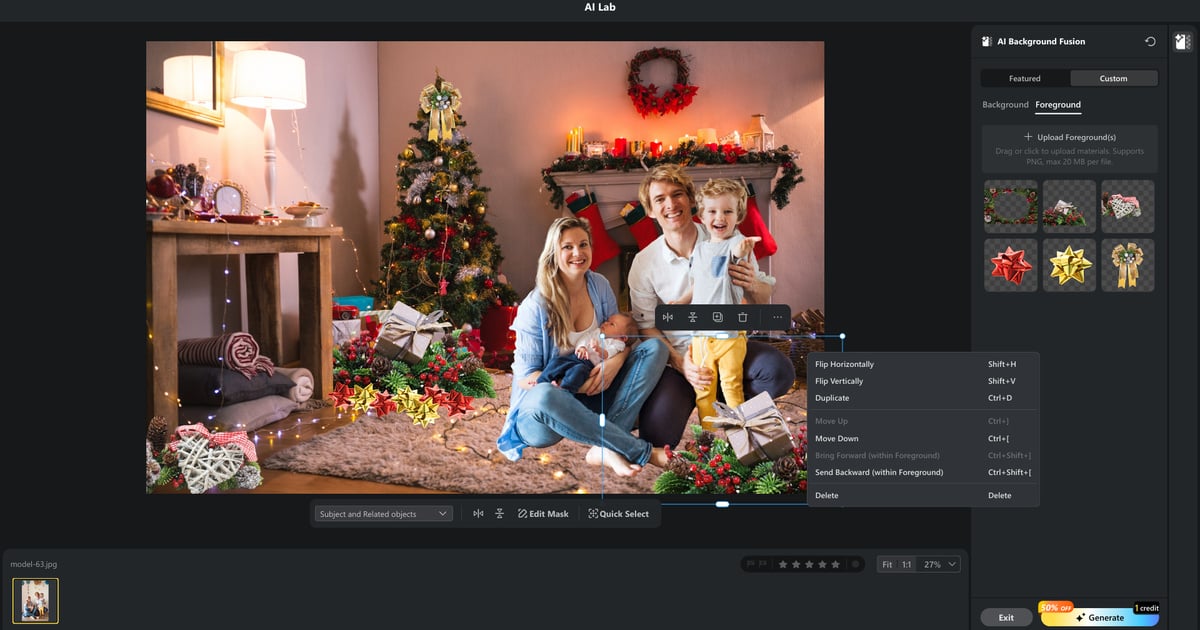
Recommended layering order:
- Lock subject scale and position first
- Add one hero foreground prop for depth
- Add at most one accent foreground element
- Check face visibility and storytelling clarity
Professional but easy rule: foreground is for depth cue, not decoration count. When three or four props compete near face level, viewer attention fragments and the portrait loses emotional center.
Case example: if you place a glowing ornament branch crossing the child’s cheek and a second prop near the eyes, the blend may still be “technically clean,” but client perception drops because eye contact is interrupted.
After custom upload, use the canvas controls to scale the subject into the background and position foreground props without covering faces. If hair edges, sleeves, or accessories look rough, use “Edit Mask” before final generation. After layer placement is verified, click “Generate” to apply the composite result. This is the correct checkpoint before lighting harmonization: you first lock scene/layer structure, then fine-tune light. Skipping that order makes the result feel random even when the source assets are strong.
Step 4 – Apply Character Lighting for Natural Blend
Once Step 3 is generated, open the result view and click “Character Lighting”. The most common “AI look” is light mismatch, not edge mismatch, so this stage aligns subject tone with the custom background and foreground without re-randomizing composition. Lighting has to be tuned after the structure is locked.
How to set “Amount” without overprocessing:
- Start in mid range (not 0, not 100)
- Check face highlight roll-off and jawline shadow transition
- Compare with the original preview
- Nudge in small increments until the skin still looks human
A practical benchmark from portrait retouch standards: skin specular highlights should stay textured, not waxy or flat.
In the prepared Christmas Character Lighting comparison:
- The “Before” frame keeps the subject feeling slightly separate from the warm room because skin and dress tones do not fully share the background ambience.
- The “After” frame looks more cohesive because the subject picks up warmer ambient color and the shadows sit closer to the scene, while the face still needs enough local contrast to avoid looking muddy.
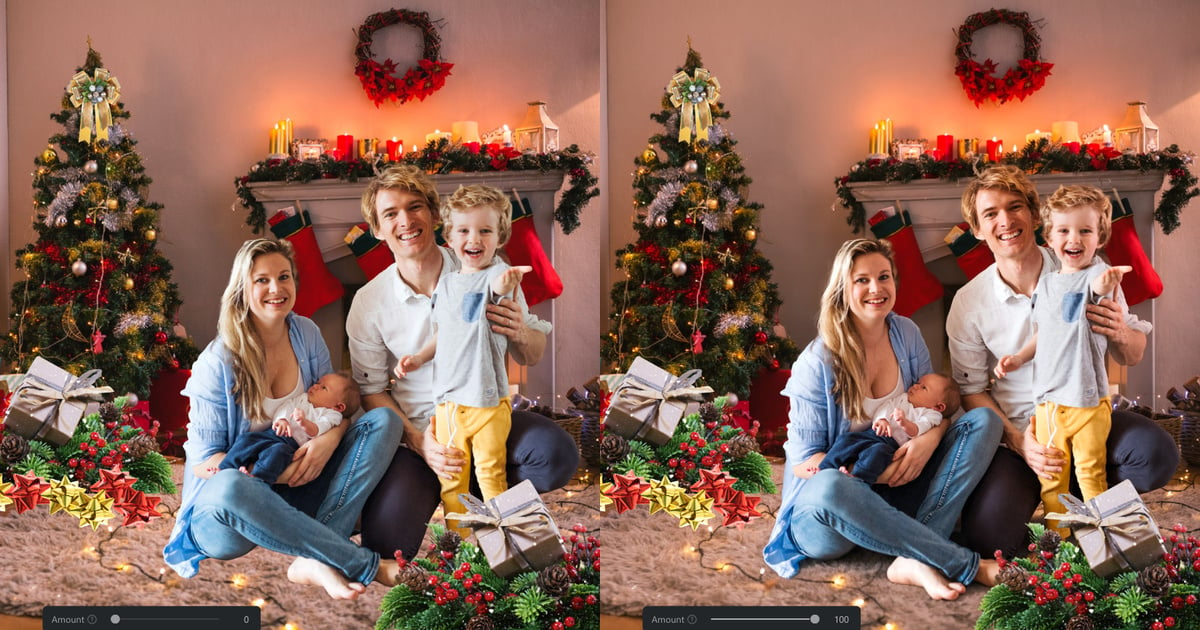
For a quick evidence-based sanity check during this step, compare histogram shape and skin highlight roll-off before and after adjustment instead of trusting display brightness alone. This avoids common review bias on different monitors and aligns with established exposure-reading practice (Histogram (photography)).
When the blend looks natural, click “Save” to store the generated composite that preserves your approved subject structure instead of introducing unpredictable subject changes. Saving at this checkpoint is what keeps the workflow predictable across revisions.
| Issue | Visible Symptom | Fix |
|---|---|---|
| Light mismatch | Subject looks pasted | Adjust Character Lighting and re-check skin highlights |
| Overlay overload | Subject loses focus | Keep one hero foreground prop + one accent |
| Perspective mismatch | Scene feels fake | Re-pick scene depth before re-generating |
After one approved hero frame, the real business value comes from repeatable batch delivery. For production scheduling, the workflow is judged by set-level stability, not one lucky frame.
Batch Delivery Without Creative Drift
One perfect frame does not guarantee a deliverable set. For batch photo background replacement for portrait studios, pre-group files before applying any look, because the workflow is only valuable when it scales across a session:
- Same pose direction
- Similar light direction
- Similar wardrobe reflectance (matte vs shiny fabric)
Then run this quick spot-check routine:
- 100% edge check on hairline and sleeves
- Skin tone check on 3-5 samples per group
- Highlight check on white clothing and ornaments
- Composition check after final crop ratio
This step is where commercial reliability happens. In real studio operations, consistency usually wins over one dramatic hero edit. Without batch checks, you can get one nice preview but an uneven gallery.
If you want to install once and keep this exact workflow for desktop or mobile handoff, use Download Evoto.
Powerful AI Photo Editor
Before export, avoid these common errors that ruin holiday sets.
Common Mistakes and Fast Fixes
Most “bad AI result” complaints in portrait studios are actually workflow-order mistakes. Here are the four most frequent ones, with real-world fixes. Many failed attempts blamed on the tool are really sequencing problems, so this should be reviewed like a delivery workflow, not a novelty effect.
1) Scene Style Changes Every Few Photos (Style Drift)
This usually happens when each uploaded background or foreground pack looks attractive on its own, so the editor keeps switching custom asset styles. The final gallery then feels like four different shoots mixed together.
Example: image 01 uses warm fireplace bokeh, image 02 uses cool snowy fantasy, image 03 jumps to golden lantern scene. Each frame is fine alone, but together they break client story continuity.
Fix it by locking one hero custom background/foreground set per batch group. Change only micro variables afterward: subject position, one foreground accent, and Character Lighting Amount. Without that discipline, the set turns into style chaos.
2) Warm Holiday Tones Turn Skin Muddy
Christmas scenes naturally carry amber or red-orange ambient tones. If you push Character Lighting too high on top of an already warm scene, skin can lose neutral balance and look “dirty.”
Example: cheeks become orange-brown while white teeth and eye whites shift yellow. Clients often say “the photo feels heavy” rather than naming a color cast.
Fix it with a neutral-zone check: after each adjustment, inspect forehead, cheek transition, and white clothing highlights. If those zones shift too warm, lower Amount and re-check. Color control like this is non-negotiable for portraits.
3) Foreground Props Compete With Faces
Editors often add props to increase festive atmosphere, but too many overlays near eye level break portrait focus.
Example: snowflake bokeh, branch ornament, and glow particles all cross the face area. Technically layered, but emotionally, the portrait loses expression and clarity.
Fix it using a portrait priority rule: one hero foreground prop + one subtle accent. If any prop crosses the eye line or mouth line, move or remove it first. Without subject-priority rules, the result can look busy instead of premium.
4) Approval Happens Only at Thumbnail Size
Small previews can hide the exact problems clients notice in delivery files, especially hair edges, dress texture, and specular highlights.
Example: at thumbnail size, edge cleanup looks fine; at export resolution, you see faint cutout halos near curls and shoulder seams.
Fix it by mandatory sample export before full batch: inspect at least 3-5 files at delivery size, then release the whole set only after those checks pass. That validation pass is what turns the workflow into a trustworthy delivery method.
Finally, let’s address control and trust concerns around AI tools.
Why Photographer Control Matters More Than One-Click AI
Many tools can combine files quickly, but output controllability is still the biggest risk:
- Subject’s face subtly shifts
- Style changes between similar frames
- Random foreground elements appear
- Pseudo-text artifacts show up in generated zones
A production-safe process puts the photographer in charge of scene, layer logic, and final approval. That is the practical difference between “AI made something” and “studio delivered a usable set.” In business terms, the workflow should reduce rework, not increase revisions.
For teams comparing capabilities, AI Photo Editor and AI Background Fusion feature page explain tool scope, while your own quality checklist should remain the decision standard.
For related reading on retouch workflows, this post provides a broader production context: Top Photo Editing Software for Professionals in 2026.
If this method fits your holiday workflow, start with Evoto, then apply it to one pilot client set before scaling. A pilot batch is the fastest way to test whether the workflow meets your studio’s standard and stays visually consistent.
Explore More High-Value Evoto Features for Portrait Delivery
If you want to evaluate long-term value beyond one Christmas workflow, focus on three capability groups that directly affect delivery quality:
- Portrait refinement: use AI Photo Editor workflows to keep skin, detail, and expression adjustments consistent across a set.
- Background control: use AI Background Fusion to manage custom backgrounds, foreground assets, overlays, and Character Lighting in one production path.
- Color consistency: use features in the Evoto Features library to align tone and style across mixed lighting conditions.
A simple trial path: run one real client mini-session from scene selection to final save, then compare revision rounds and delivery speed against your current process.
To test this workflow end-to-end, download Evoto here: Download Evoto.
Powerful AI Photo Editor
Conclusion
Searching combine images online free is a good start, but Christmas portrait delivery needs more than file merging. It needs controlled layering, believable lighting, and repeatable batch checks. At a professional level, it should mean controlled compositing rather than random generation.
When photographers keep control of scene choice, overlay restraint, and final review, AI becomes a production accelerator instead of a quality gamble. Done correctly, this kind of workflow can improve both turnaround speed and client confidence.
FAQ
1. What is the difference between combining images online for free and image combiner tools?
Most free pages focus on file merge or collage layout, while a portrait image combiner workflow must manage edge, light, and depth coherence for client delivery. Evoto AI Background Fusion is closer to the second case because it combines background, subject, foreground, and lighting decisions in one workflow.
2. Why do Christmas composites look fake so easily?
Because warm mixed lighting and reflective decorations quickly expose a mismatch between subject’s skin tone and the background light direction. In Evoto, the “Character Lighting” step helps reduce that mismatch after the custom background and foreground are already positioned.
3. How many overlay images are usually safe?
For portraits, one hero foreground prop plus one subtle accent is usually the safest balance.
4. How should I split the online trial and the desktop workflow?
Use the web version for quick Christmas concept validation, then run Evoto Desktop when you need custom uploads, “Edit Mask”, “Character Lighting”, saved results, and batch consistency.
5. How should studios talk about privacy to clients?
Use plain policy language and platform documentation, then keep client approval and file handling steps transparent in your workflow.



