

Every face is asymmetric — in a still photo that usually reads as character. On video, the same imbalance behaves differently: one eye sits a touch higher through a smile, the jaw drifts as the head turns, the mouth lifts more on one side mid-sentence. For creators, presenters, and on-camera talent, that small drift is the gap between a polished frame and a wonky one. To fix facial asymmetry in video properly, you need a tool built for moving footage — not a photo filter dropped onto a clip. Evoto Video is that tool: a purpose-built Face Symmetry Editor with L / R independent sliders across face shape, brows, eyes, nose, and mouth, plus a frame-consistent AI tracker that holds the correction steady from the first frame to the last.
Why Facial Asymmetry Shows Up More in Video Than in Photos
You can hold a pose for a portrait. You can’t hold one for a 30-second clip. That single difference is why faces that look balanced in photos can look uneven on screen, and it comes down to three things video does that photos don’t:
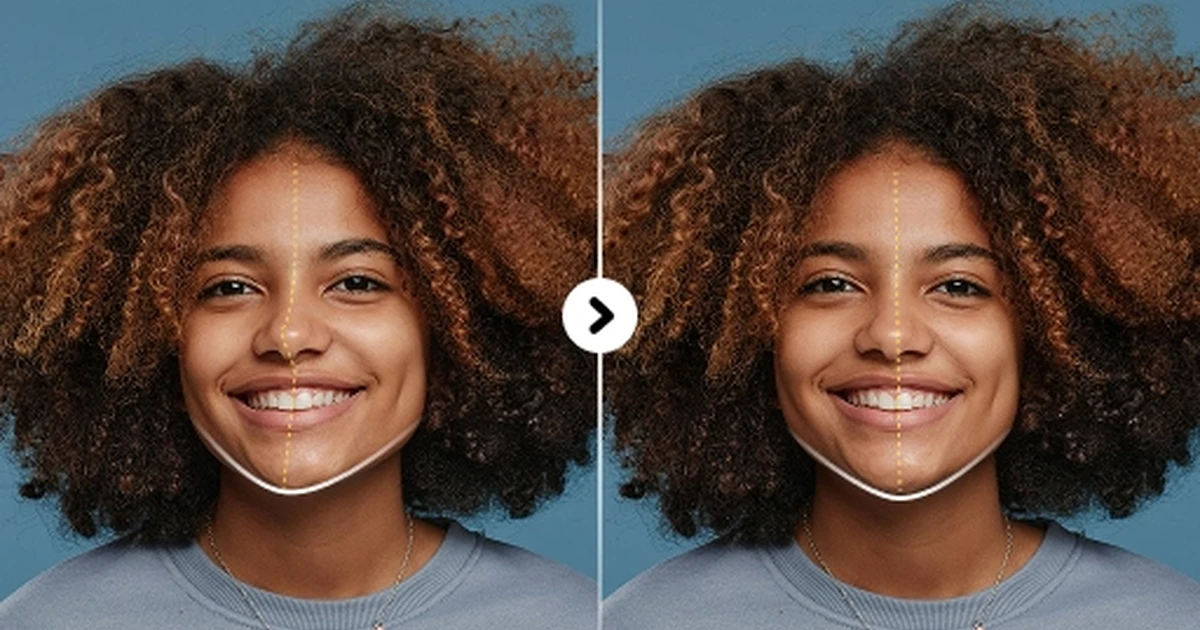
- Hundreds of frames, not one. A 15-second clip is roughly 360 frames. Any millimeter-level imbalance gets shown over and over, and the eye picks up on it.
- Expression and motion expose it. Smiles, brow raises, and head turns recruit muscles unevenly. A face that’s barely asymmetrical at rest can look noticeably uneven through a quick glance to camera.
- Lens perspective shifts every frame. Even a tiny movement changes which side the lens compresses. A static-mask video face editor can’t follow that — a real Face Symmetry Editor built for video has to.
Evoto Video: The Best Face Symmetry Editor for Video
Most video face apps fall into one of two traps. Heavy AI beauty filters blur and smooth everything until the person stops looking like themselves. Mask-based reshape tools push pixels around inside a fixed shape, then warp the background the moment the head moves. Evoto Video’s Face Symmetry Editor avoids both, with three pieces working together:
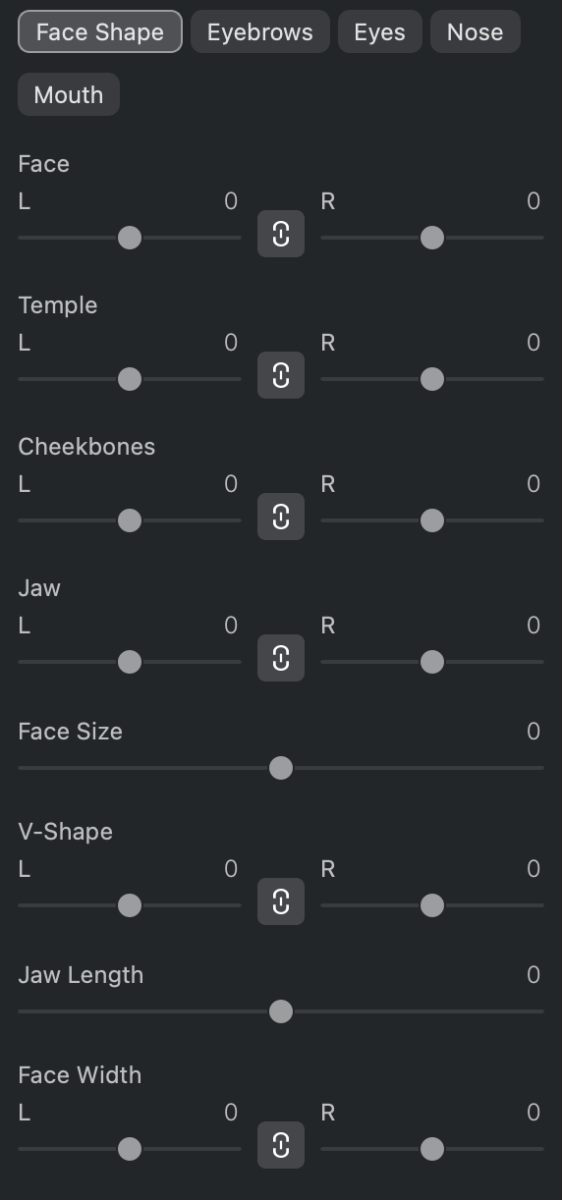
- L / R independent sliders on every key feature. Across Face Shape, Eyebrows, and Eyes, almost every control is split into a Left slider and a Right slider — lift just the left brow, narrow just the right jaw, open just the smaller eye. Nose and Mouth add directional sliders (Left / Right shift, Tilt) for the same precise asymmetry work.
- Show Face Frame overlay. A real-time on-screen landmark grid maps brows, eyes, nose, and mouth, so you can see exactly where the asymmetry is before you touch a slider — no more guessing whether the left eye is actually lower.
- Frame-consistent AI tracking. The correction follows the face through smiles, head turns, and lighting changes — no jitter, no popping. The slider you set on frame 1 is doing the same job on frame 360.
How to Fix Facial Asymmetry in Video with Evoto Video — Step-by-Step
The full workflow lives inside Evoto Video’s Portrait Retouching panel. A typical balancing pass on a one-minute clip takes about five to seven minutes, even on a first try.
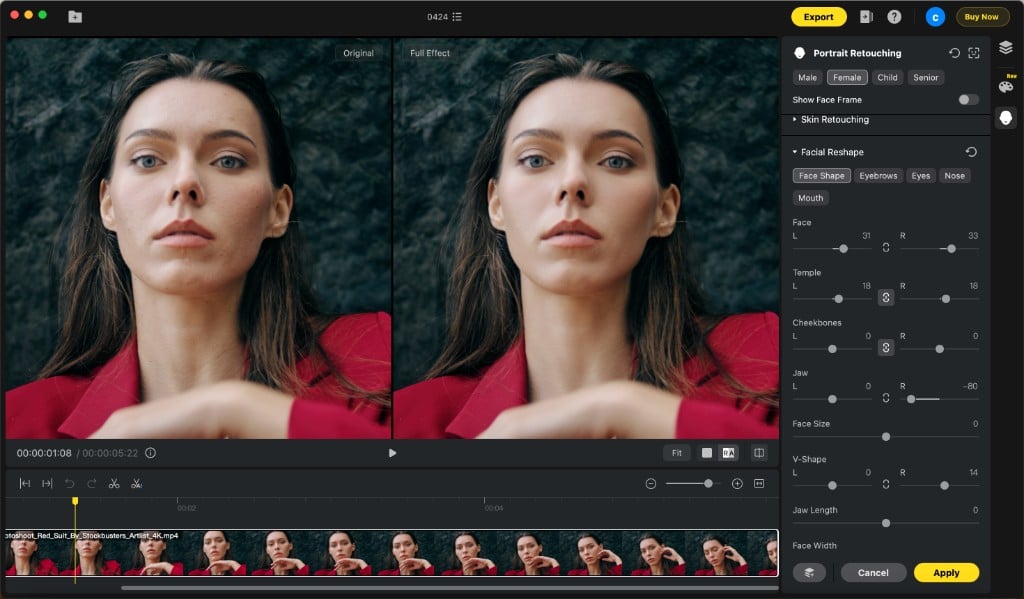
- Import your video. Open Evoto Video on Mac or Windows and drag in your clip — MP4, MOV, and most common formats work. The timeline loads with a side-by-side Original / Full Effect preview by default.
- Open Facial Reshape and turn on Show Face Frame. In the right-hand Portrait Retouching panel, expand Facial Reshape. Toggle Show Face Frame at the top — a landmark grid appears on the preview, mapping brows, eyes, nose, and mouth. Scrub to a frame that exposes the asymmetry most (often a smile or three-quarter angle) and use the grid as your reference.
- Face Shape — balance the bone structure. Open the Face Shape tab. Adjust Face, Temple, Cheekbones, and Jaw with their L / R sliders independently — pull only the side that’s wider or lower. Refine the overall silhouette with V-Shape, Face Width, Forehead, and Chin Length. Keep moves under ±20 unless the asymmetry is severe.
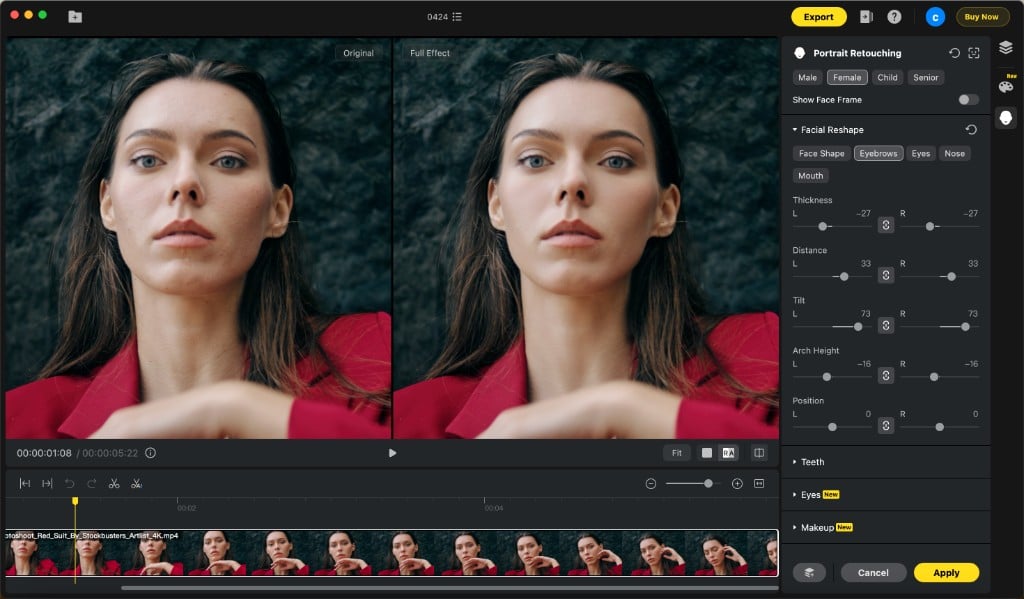
- Eyebrows — line up height, arch, and tilt. Switch to the Eyebrows tab. Use the L / R Thickness, Distance, Tilt, Arch Height, and Position sliders to bring both brows into matching height and shape. Brow asymmetry is one of the first things viewers notice on video — this step usually has the biggest payoff.
- Eyes — match size, position, and corners. In the Eyes tab, balance Full Eye Size, Eyeball Size, Height, Width, Inner Corner, Outer Corner, Tilt, and Position with their L / R pairs. Most common fix: lift the lower eye’s Position on the L side by 5–10 and match the Outer Corner lift.
- Nose — center and refine. The Nose tab uses single sliders. Left / Right shifts the nose horizontally to center on the face midline; Nose Bridge, Width, Length, and Tip refine the shape.
- Mouth — fix a crooked smile. Open the Mouth tab. Up / Down levels a corner that lifts higher; Left / Right centers the mouth under the nose; Tilt straightens a smile that pulls at an angle.
- Scrub key frames, then export. Drag the playhead to start, middle, and end frames and toggle the BA preview. The correction should look identical whether the subject is still, smiling, or turning. Click Apply, then Export — Evoto Video renders in the original resolution and frame rate.
More Than Symmetry — Other Portrait Retouching Tools in Evoto Video
Symmetry is one layer of how a face reads on screen. The same Portrait Retouching panel houses three more pro-grade tools you’ll reach for on almost every clip — and they all run on the same frame-consistent engine.
Blemish Removal — Clean Skin Without Touching Texture
The Blemish Removal module wipes out acne, scars, dark spots, and stray marks automatically. Unlike heavy retouch filters, it leaves pores and skin micro-texture intact, so the subject still looks like a person and not a wax figure. Great for vloggers, interview footage, and short-form social content where close-ups happen all the time.
Evoto Video – Be the First to Edit Smarter
Professional-grade AI color grading and retouching for video creators.
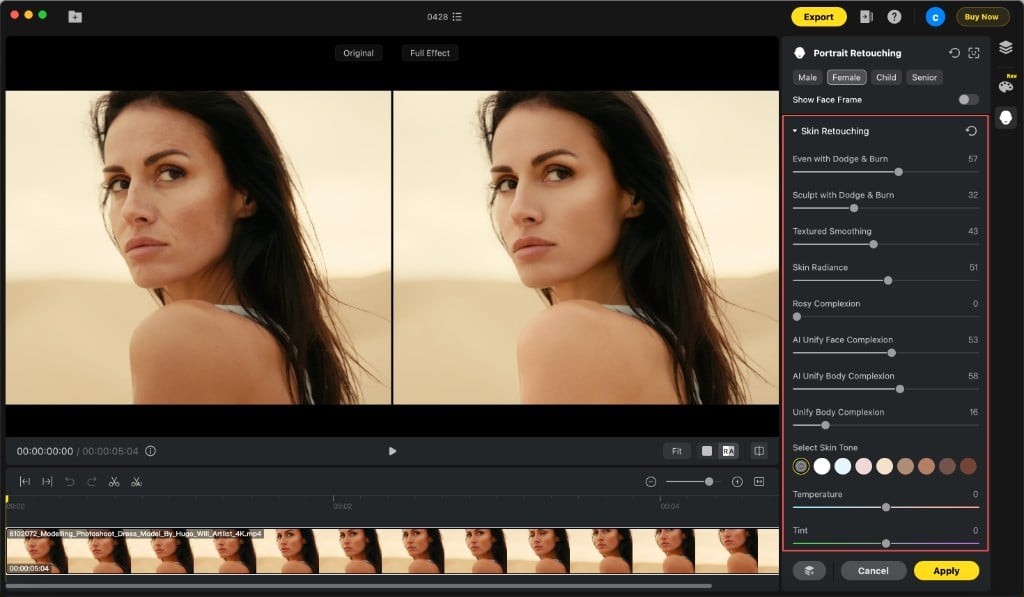
Skin Retouching — Pro-Grade Smoothing That Keeps Pores
Most apps smooth skin until it looks plastic. Skin Retouching in Evoto Video evens out tone, softens redness, and reduces shine while preserving the natural pore structure — the same technique professional retouchers use on commercial beauty shoots. Dial it from “barely there” for documentary work up to “polished editorial” for fashion.
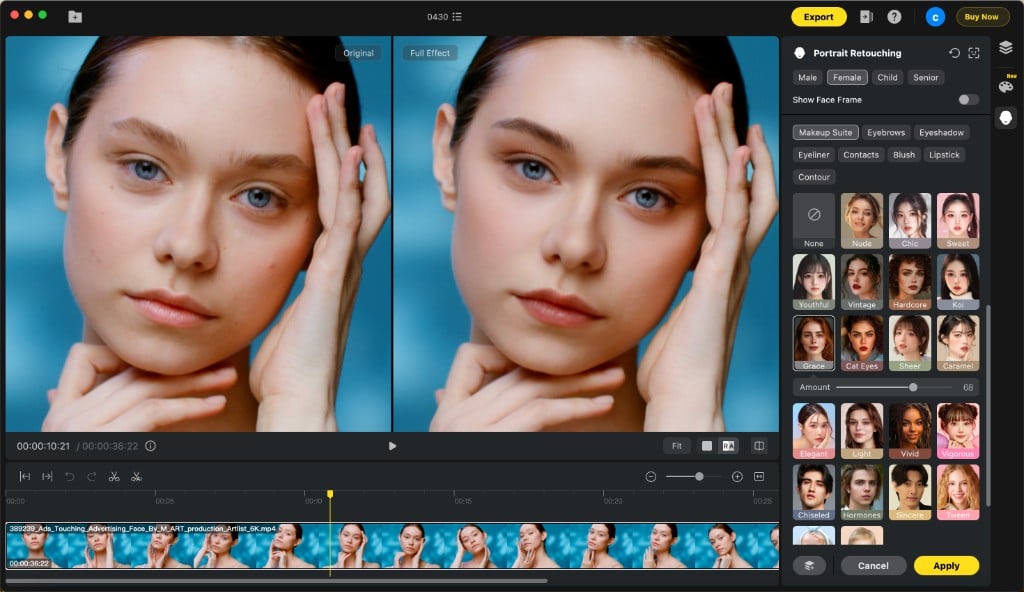
Makeup — Frame-Consistent Digital Makeup
The Makeup module adds lip color, blush, eyeshadow, eyeliner, and brow shaping that tracks the face through every frame. Because the makeup is applied per-feature (not as a flat overlay), it survives head turns, smiles, and dramatic lighting changes — exactly what trips up most mobile beauty filters.
FAQ
Will the background warp when I balance the face?
No. The Facial Reshape engine moves only the facial landmark mesh. Hair, ears, and the background behind the subject stay put even when you push a jaw or cheekbone slider hard.
Can Evoto Video handle clips with multiple people in frame?
Yes. The engine detects each face separately and lets you select which person to edit — balance the main subject without touching anyone else in the shot.
Will the correction stay consistent across every frame?
Yes — that’s the AI tracker’s core job. Once your L / R sliders are set, the same correction applies frame-by-frame on motion-tracked landmarks, with no jitter or drift.
Can I save my symmetry settings as a preset for batch use?
Yes. Save your slider combo as a preset and apply it across a batch of clips — a big time-saver when delivering a creator’s full series with the same on-camera talent.
Get Your Face on Camera, Symmetrically
If you’ve been chasing balanced features with a photo editor and watching the correction fall apart on the first head turn, you already know the limit. A purpose-built Face Symmetry Editor with L / R independent sliders and frame-consistent AI changes the math — clean balance, no warping, no babysitting. Drop a clip into Evoto Video, toggle Show Face Frame, and start with the brows. Most subjects look noticeably more balanced before you’ve touched anything else.



