

A dark photo can easily ruin an otherwise great shot. Whether it’s caused by poor lighting, incorrect exposure settings, or challenging shooting conditions, underexposed images are a common problem for photographers and everyday users alike.
In this guide, you’ll learn how to brighten photo effectively—from traditional Photoshop techniques to a faster AI-powered solution with Evoto AI.

Why Is My Image Too Dark?
Before learning how to brighten photo properly, it helps to understand why photos appear dark in the first place. Common reasons include:
- Low-light environments
- Incorrect camera exposure settings
- Strong backlighting
- Shadows overpowering highlights
- Improper white balance or contrast settings
Brightening an image isn’t just about increasing brightness—it’s about restoring details while keeping colors natural and balanced.
How to Brighten Photo in Photoshop
Photoshop offers powerful manual tools for adjusting exposure and brightness. Here’s a commonly used workflow for brightening photos in Photoshop:
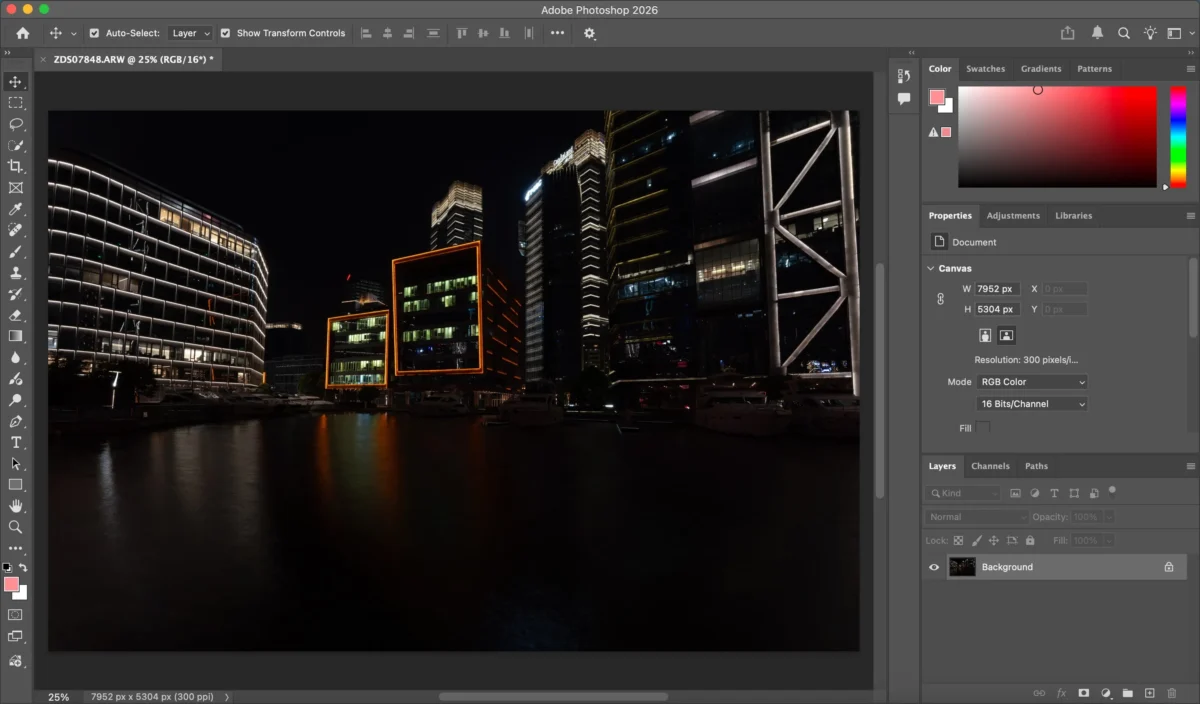
Step 1: Open Your Image
Launch Photoshop and open the photo you want to adjust.
Step 2: Brighten Your Photo(3 Ways)
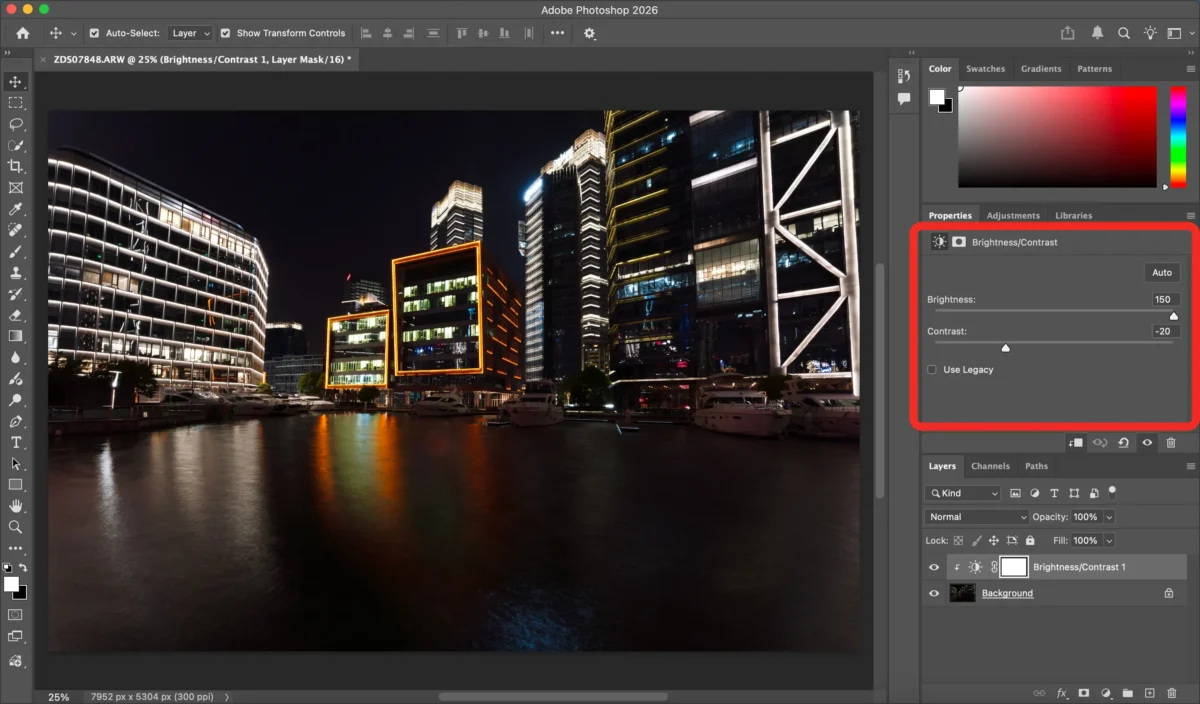
Way 1: Adjust Brightness and Contrast
Go to Image > Adjustments > Brightness/Contrast.
Increase brightness carefully while monitoring highlights to avoid overexposure.
Way 2:Use Levels or Curves
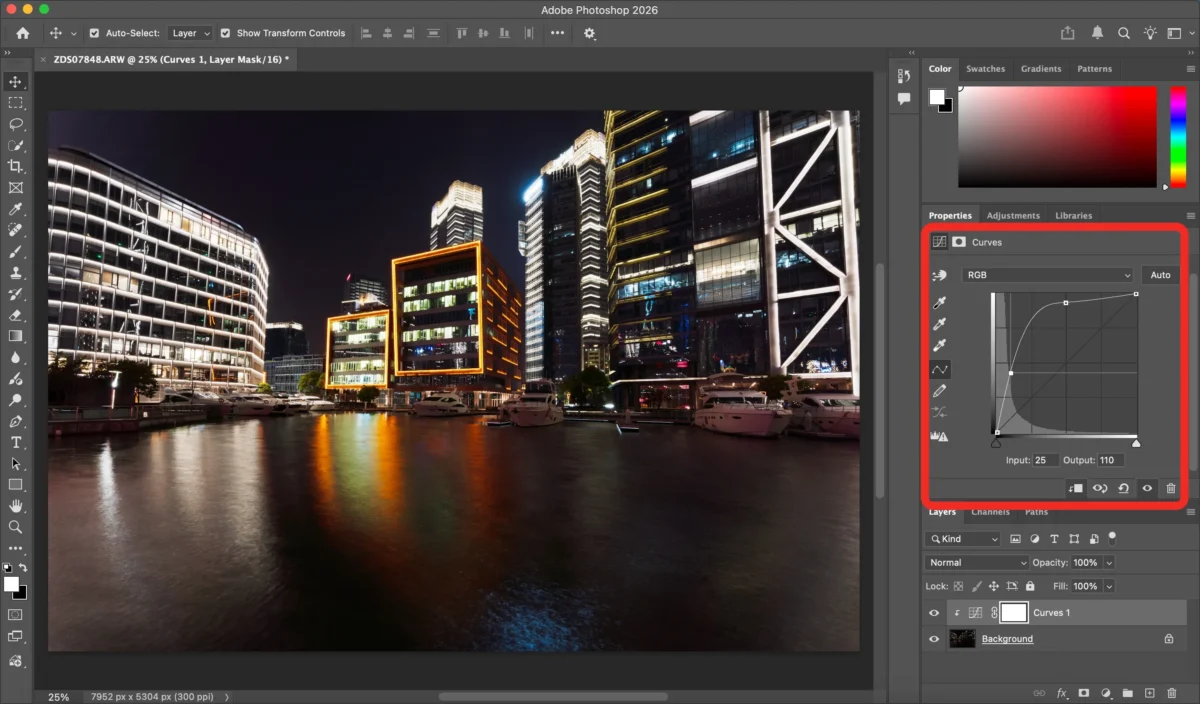
- Levels allow you to adjust shadows, midtones, and highlights independently.
- Curves give you finer control over tonal range and are ideal for professional results.
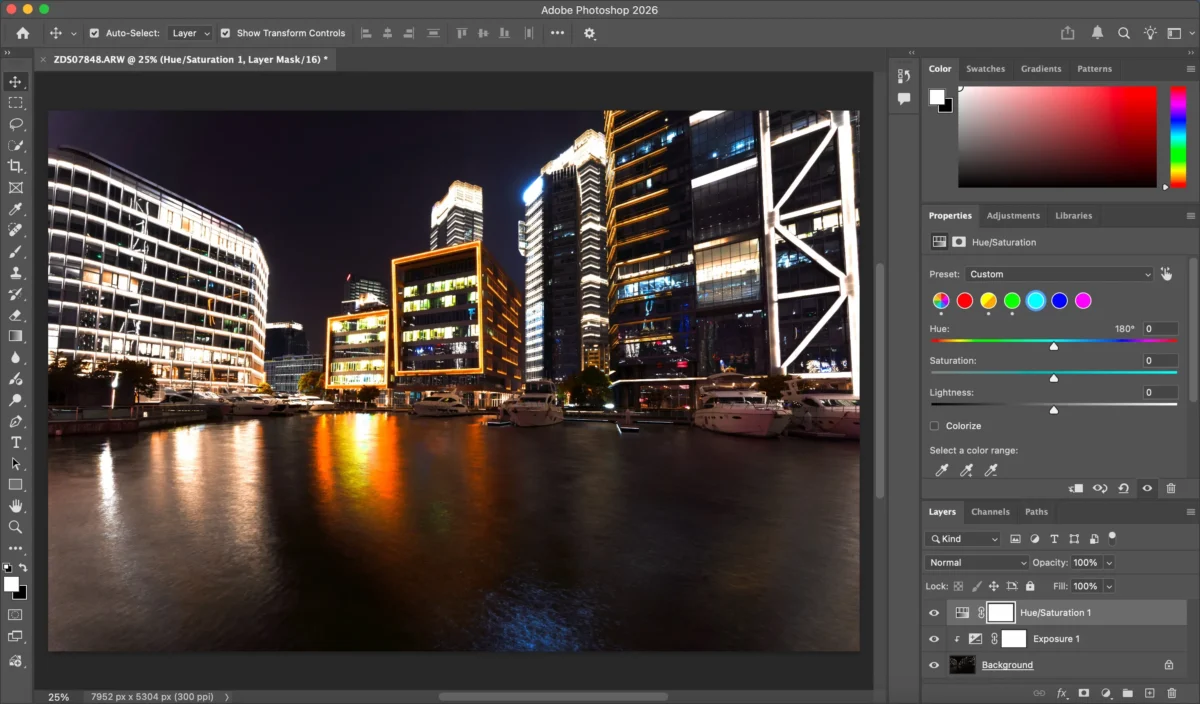
Way 3: Exposure Adjustment
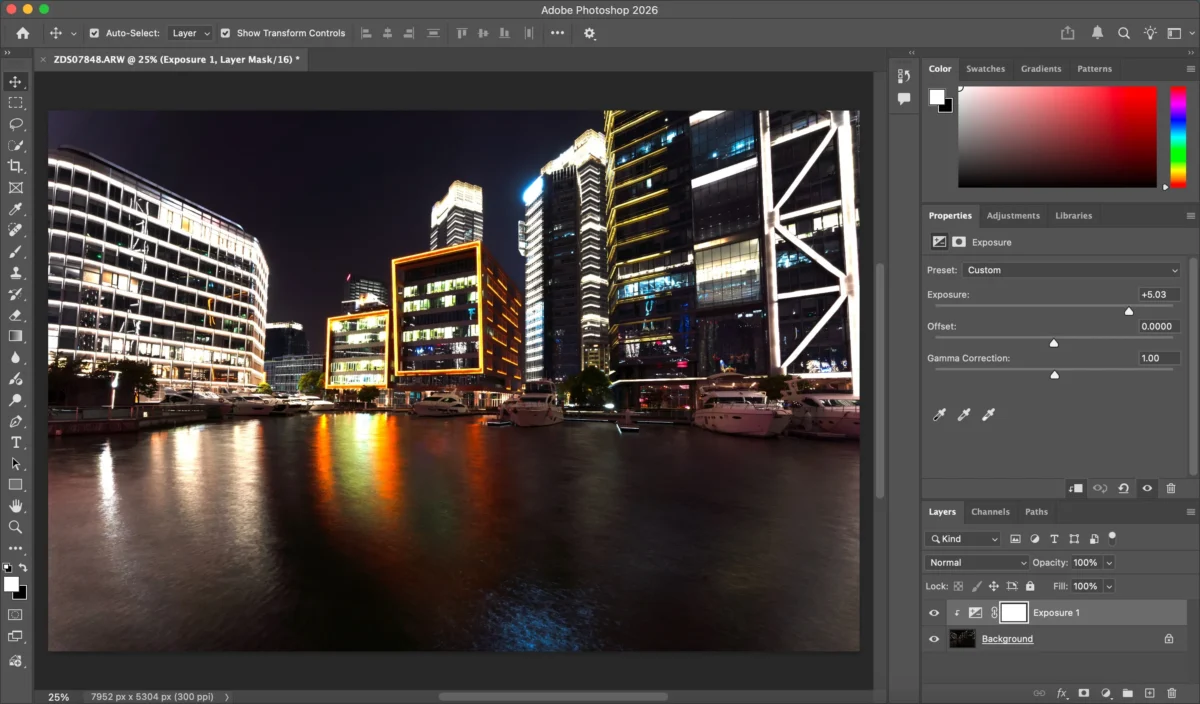
Use Image > Adjustments > Exposure to directly adjust the overall brightness.
Step 3: Fine-Tune Colors
After brightening, adjust saturation and white balance to prevent washed-out colors or unnatural skin tones.
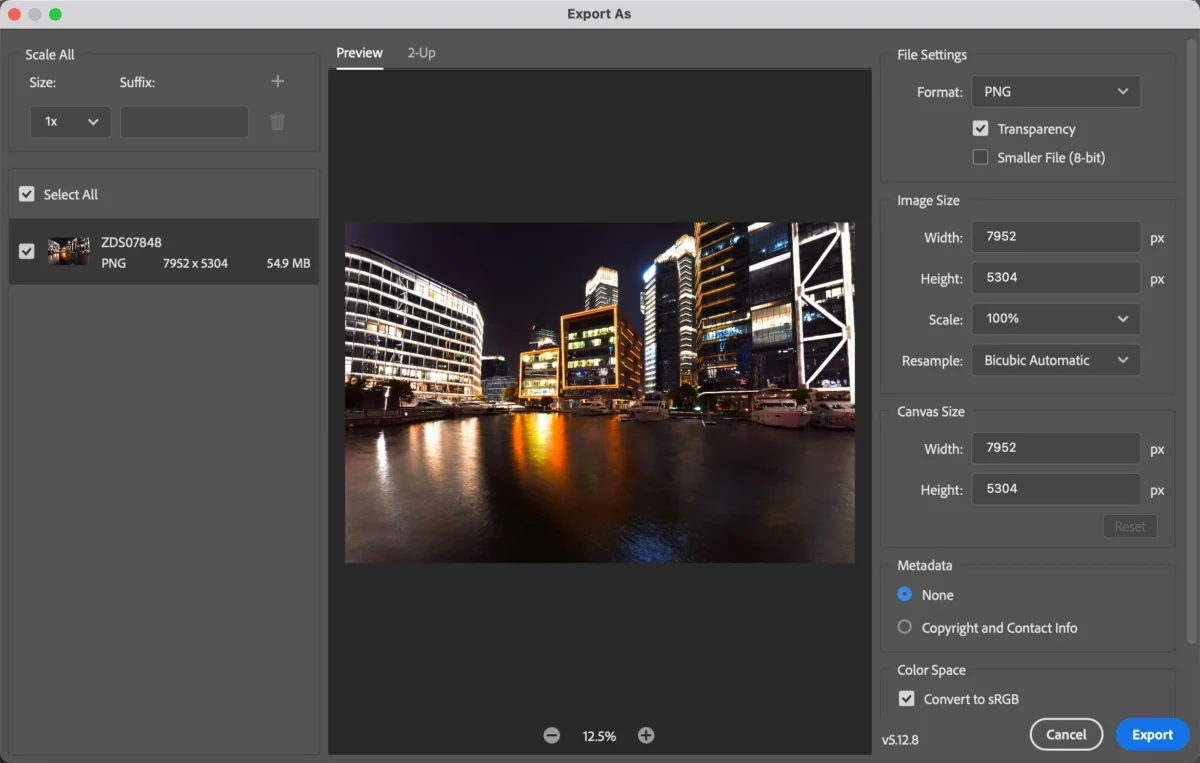
Step 4: Export
Export in your desired format.
Photoshop is effective—but it requires experience, patience, and time.
Limitations of Photoshop for Brighten Photo
While Photoshop is powerful, it’s not always the most efficient solution for brightening photos:
- Steep learning curve for beginners
- Time-consuming manual adjustments
- Risk of overexposure or color distortion
- Difficult to maintain consistency across photo batches
If you’re editing large volumes of photos or want faster results, manual workflows can become a bottleneck.
How Evoto AI Simplifies Brighten Photo
Evoto AI offers a faster, smarter way to brighten photo automatically while preserving natural details.


Powerful AI Photo Editor
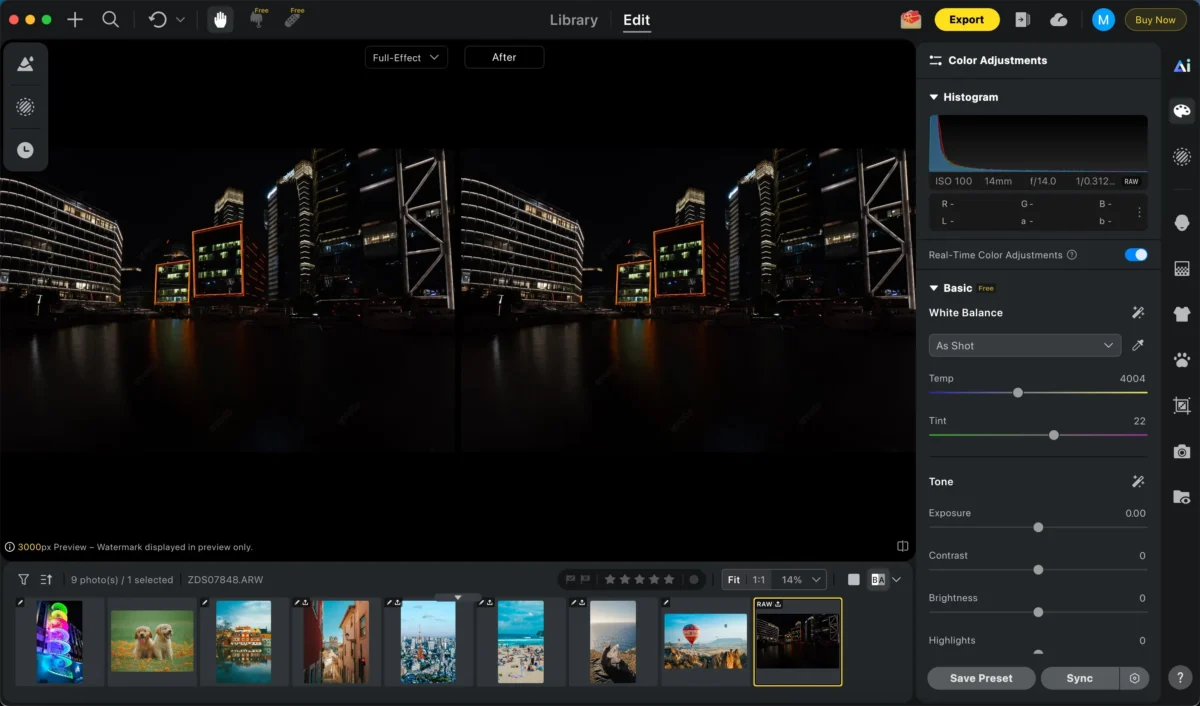
Step 1: Open the Image
Import your photo into Evoto AI with a single click.
Step 2: AI Exposure Adjustment
Activate AI Exposure Adjustment. Evoto instantly analyzes lighting, shadows, and highlights to brighten the image intelligently.
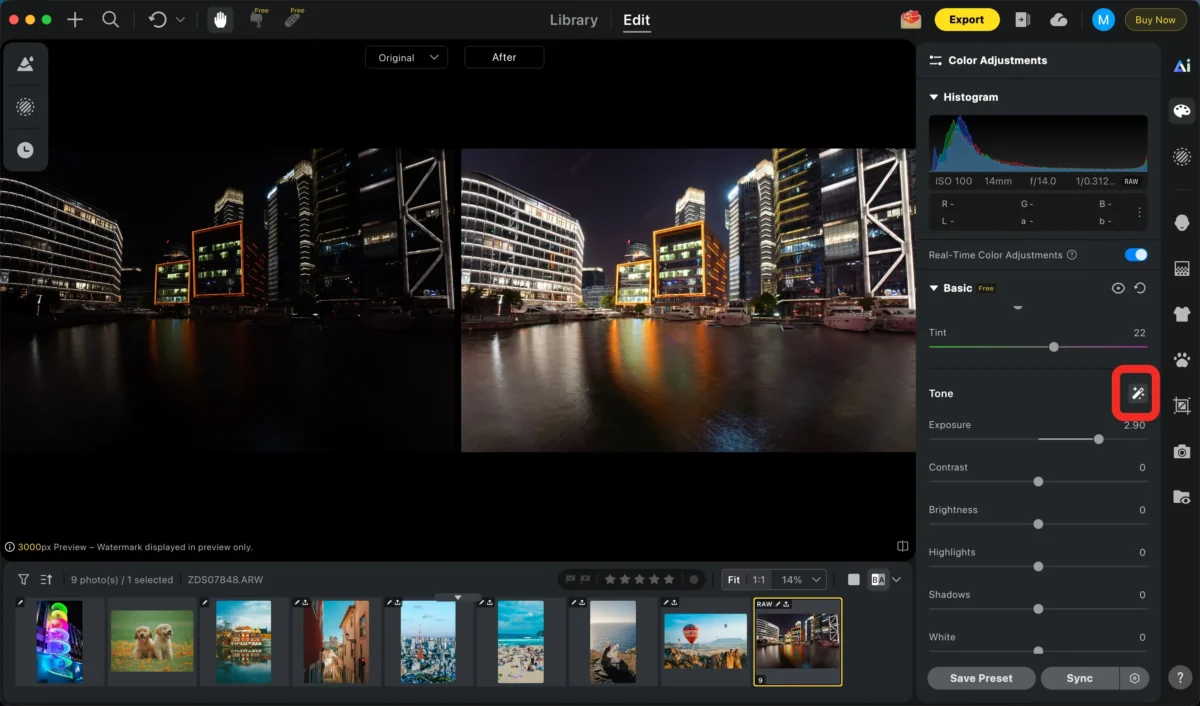
Step 3: Fine-Tune
Refine exposure, brightness, and contrast with simple sliders—no technical expertise required, and color can also be adjusted in the process.
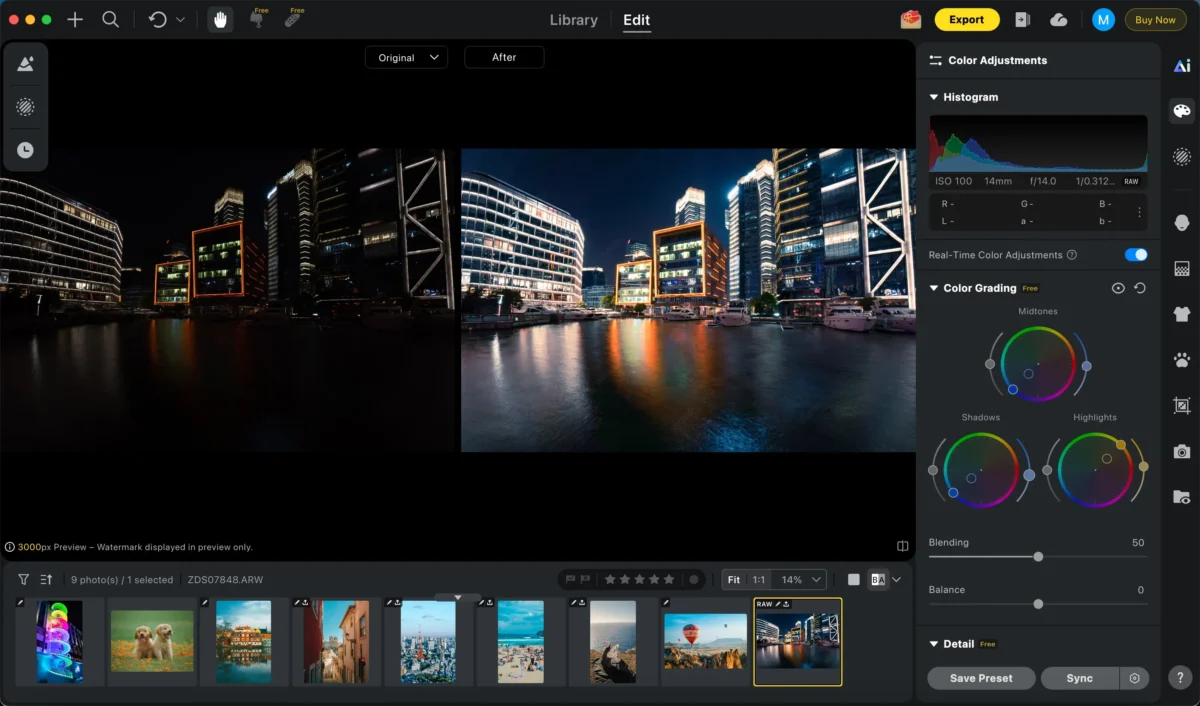
You can also use filters for one-click adjustments. Evoto offers many different filters to help you quickly get the perfect photo.
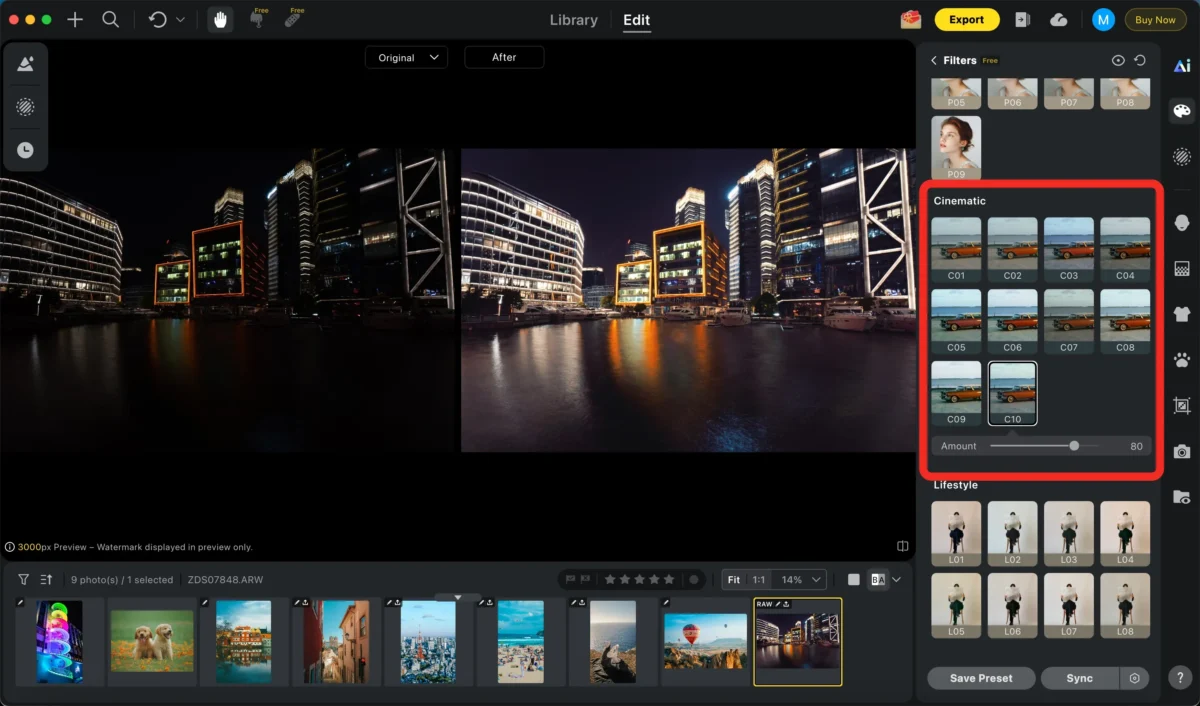
Step 4: Other Further Adjustments (Optional)
Perspective Correction, skin Retouching , background replacer, or apply additional AI retouching tools as needed.
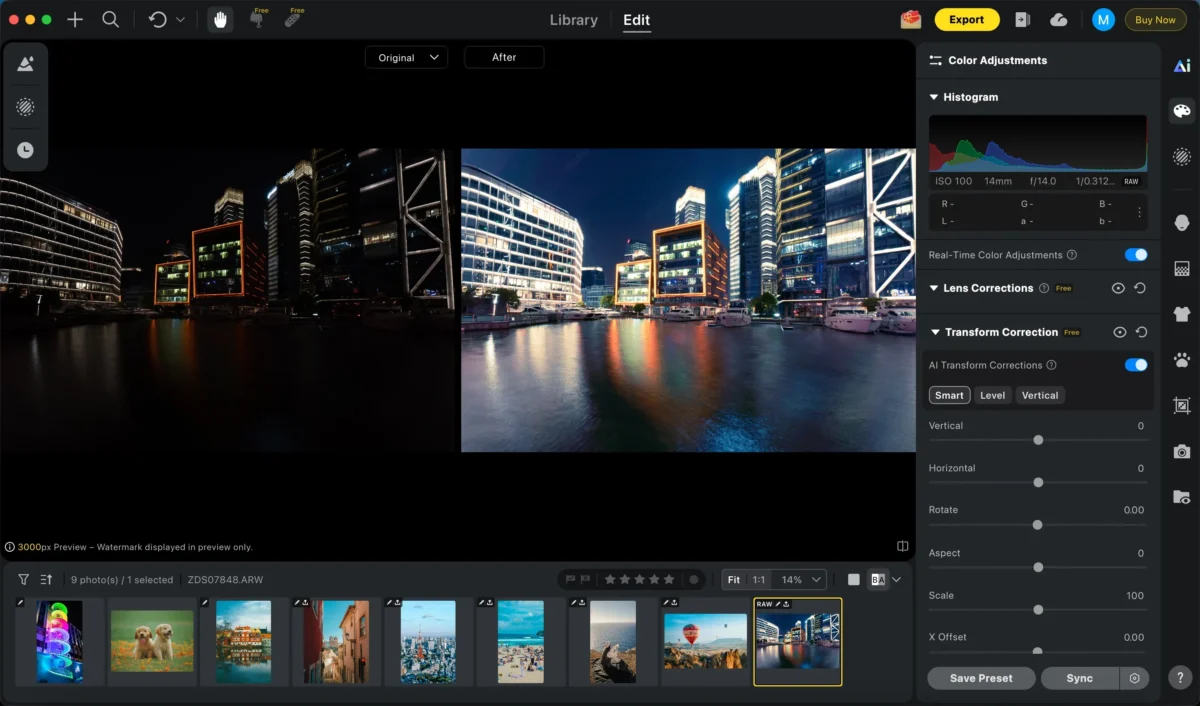
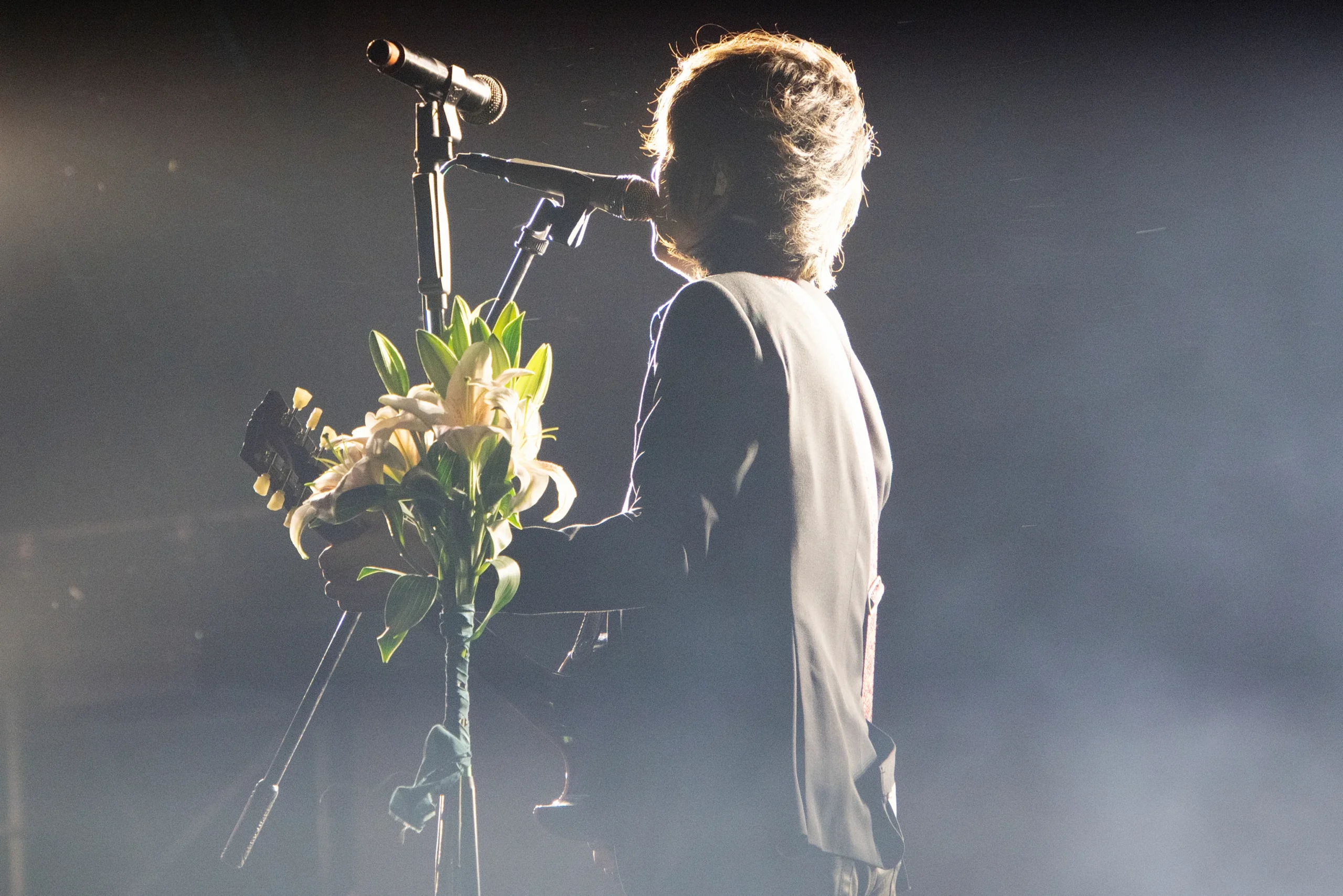
If there is too much noise, you can also use Evoto’s AI noise reduction function.
Evoto AI’s noise reduction works best on RAW files, intelligently cleaning noise while keeping important details sharp, making your photo look natural and crisp.
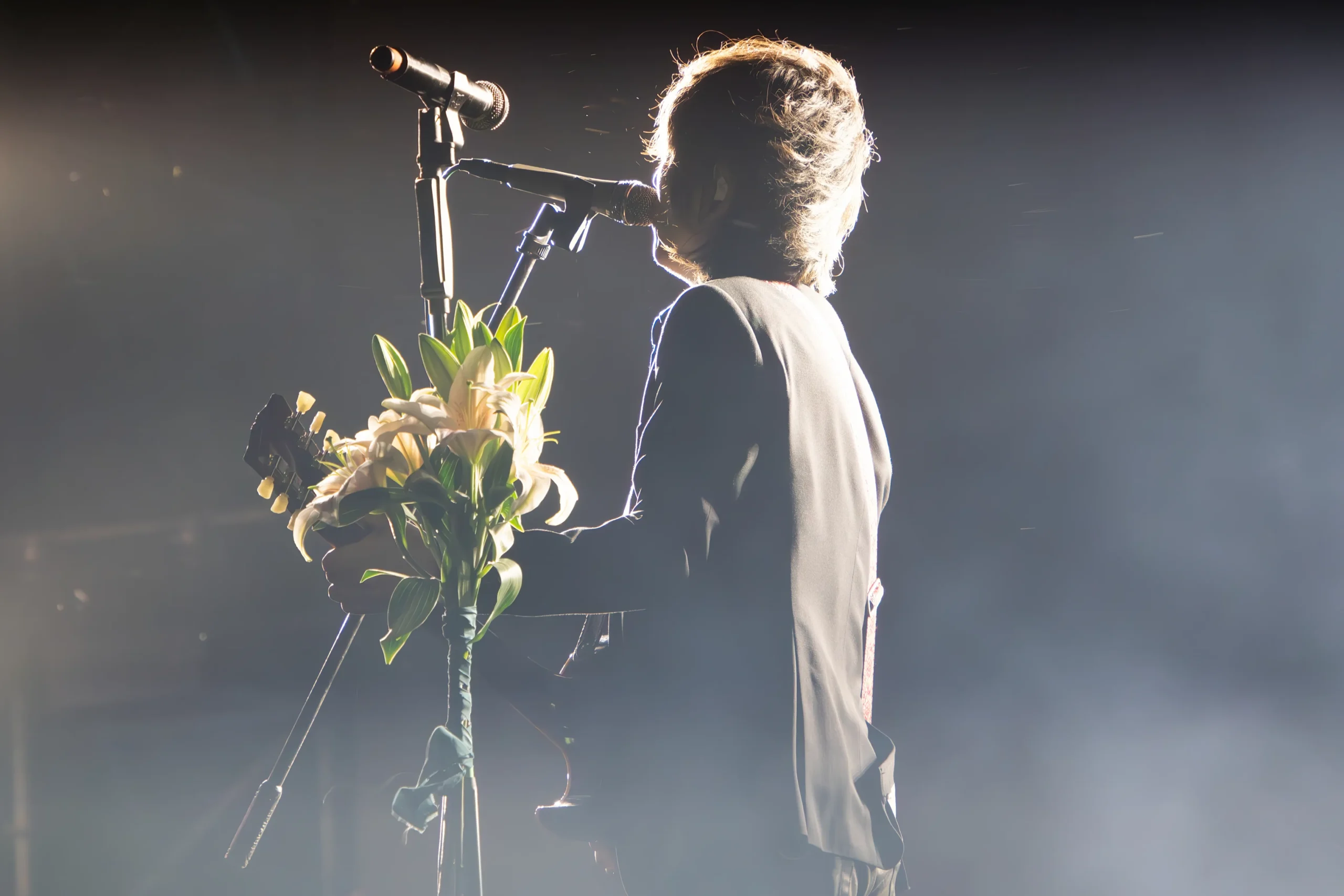
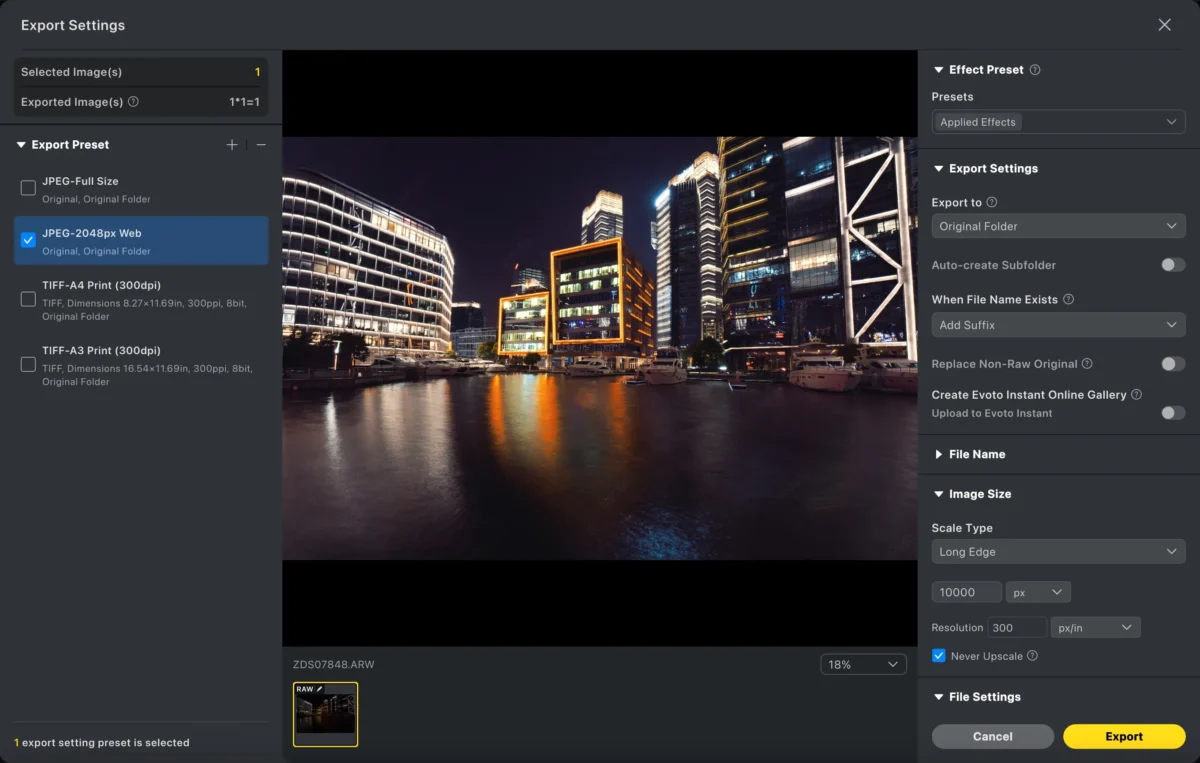
Step 5: Export
Export your brightened photo in high resolution, ready for web, print, or e-commerce use.
Evoto AI removes the guesswork from brightening photos, making professional-quality results accessible to everyone.
Photoshop vs Evoto
| Feature | Photoshop | Evoto AI |
|---|---|---|
| Learning curve | Steep | Beginner-friendly |
| Editing speed | Slow (manual) | Instant with AI |
| Batch processing | Limited | Highly efficient |
| Color preservation | Manual control | AI-optimized |
| Best for | Advanced editors | Fast, professional results |
If you want full manual control, Photoshop is still a solid choice. But if speed, consistency, and simplicity matter, Evoto AI is the clear winner.
Powerful AI Photo Editor
Conclusion
Learning how to brighten photo properly can transform dark, unusable images into clear and professional-looking visuals.
Photoshop provides deep manual control, but it comes with complexity and time costs. Evoto AI offers a faster, smarter alternative—perfect for photographers, content creators, and e-commerce sellers who need high-quality results without technical hassle.
If you want to brighten photos instantly without sacrificing detail or color accuracy, Evoto AI is worth trying.
Try Evoto AI Photo Editor
Retouch photos with Evoto AI and make your photos best! Available on Windows, MacOS and iPadOS.



