

For most photographers, Lightroom is simply where editing happens. It has earned that spot over more than a decade — it organizes thousands of RAW files, syncs adjustments across a shoot, and holds a preset library you’ve spent years refining. If you’re searching for photo editing without Lightroom, this isn’t going to be a piece that pretends Lightroom is bad. It isn’t.
But here’s the part worth being honest about: your “Lightroom workflow” is rarely just Lightroom.
The “Lightroom workflow” is really a stack of tools
Follow a typical portrait or wedding job from card to client and count the apps:
- Lightroom to import, cull, and color.
- Photoshop — or a pile of plugins — for the skin, eyes, and background work Lightroom can’t do.
- A separate culling app to get through thousands of frames faster.
- Increasingly, an AI color tool like Imagen bolted on top to speed up the grade.
That’s three or four subscriptions, three or four context switches, and a file bouncing between programs before a single image reaches the client. So when people ask about “editing without Lightroom,” what they usually want isn’t lower quality — it’s fewer moving parts. The real goal is collapsing that stack into one place.
That’s what a standalone editor is for.
Cull, color & retouch with Evoto — step by step
A standalone photo editor has to cover every stage Lightroom (and everything bolted to it) currently handles: import and culling, color, retouching, and export. Here’s how that whole pipeline runs in Evoto, no Lightroom required.
1. Import & cull
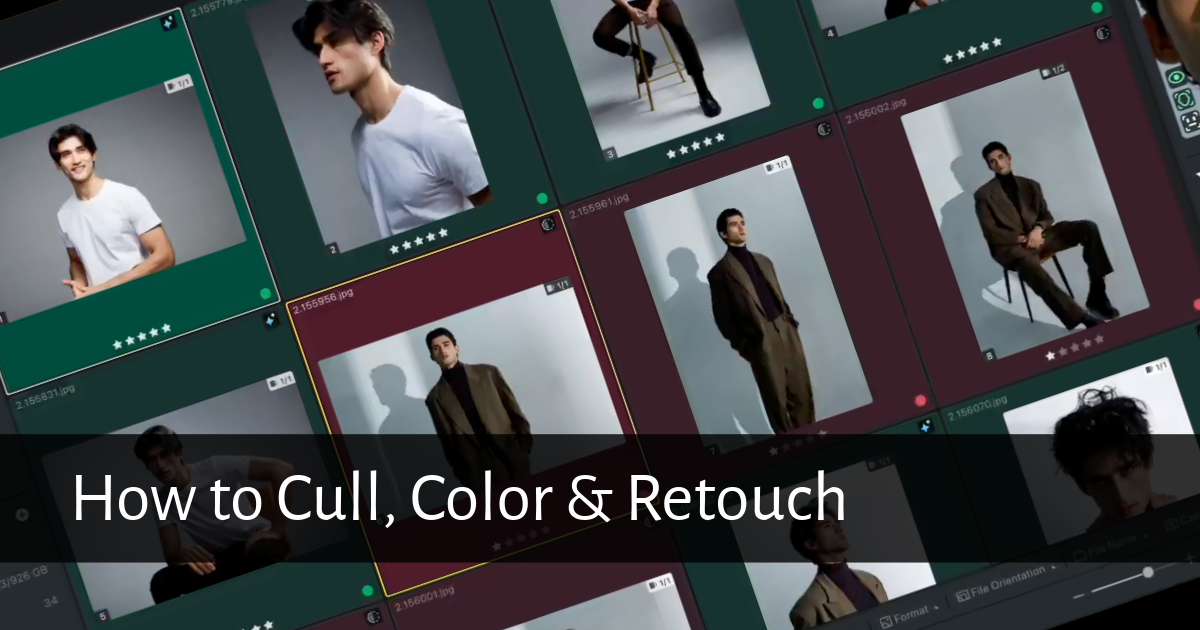
Bring in RAW files, folders, or a tethered camera. Smart Culling flags blur, closed eyes, exposure misses, and duplicates across the full set. You set a target count; Evoto hands you a clean selection to work from.
2. Color
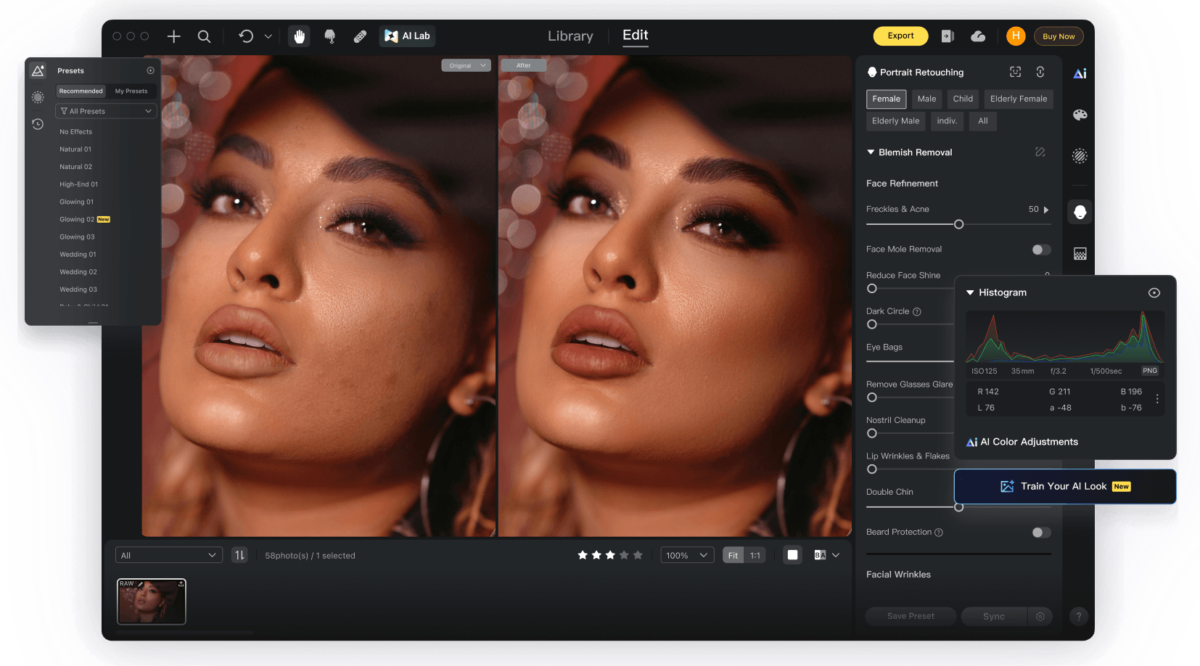
Apply your look with AI Color Looks, or drop in a reference image and let AI Color Match carry that color across the whole gallery. Want a repeatable signature grade? Train a Personalized AI Look from your own edited images and run it over every shoot.
3. Retouch
This is the step that normally sends you to Photoshop. In Evoto it stays in the same app: skin retouching that preserves texture, eyes and teeth, face and body reshape, makeup, hair, background replacement, and ID/headshot cropping — applied in batch, with slider control on every image.
4. Export
Sync your edits across the gallery and export at scale. Because you never left the app, there’s no round-trip, no re-import, and no “which version is final” confusion.
Four stages, one program. That’s the whole pitch of going standalone.


Powerful AI Photo Editor
Want to keep Lightroom? Evoto integrates with it
Going standalone isn’t all-or-nothing. If Lightroom is still your library of record, Evoto is built to work with Lightroom Classic — so you don’t have to abandon anything you’ve already built.
There are two ways to connect them:
- Single-image round-trip. Send one photo from Lightroom to Evoto for a retouch, then send it straight back to its original folder — ideal for a quick one-off edit.
- Full catalog integration. Import an entire .lrcat catalog directly into Evoto (via Import Lightroom Classic Catalog, or just drag and drop). You can pull in specific collections or filtered sets, and enabling Import Settings from .lrcat carries your basic Lightroom adjustments — Exposure, Temperature, Tint — into Evoto. When you’re done, export back out as a Lightroom-compatible .lrcat, either merged into the original catalog or as a new one.
A couple of honest limits worth knowing up front:
- RAW files can be imported through a catalog but not exported as RAW — other formats export normally.
- A few Lightroom adjustments don’t transfer, because the two apps use different rendering engines: Transform, Lens Correction, Lens Blur, and post-crop vignetting, among others.
None of that is a dealbreaker for most portrait work — but you should hear it from us, not discover it later.
Evoto or Imagen for a Lightroom-free workflow?
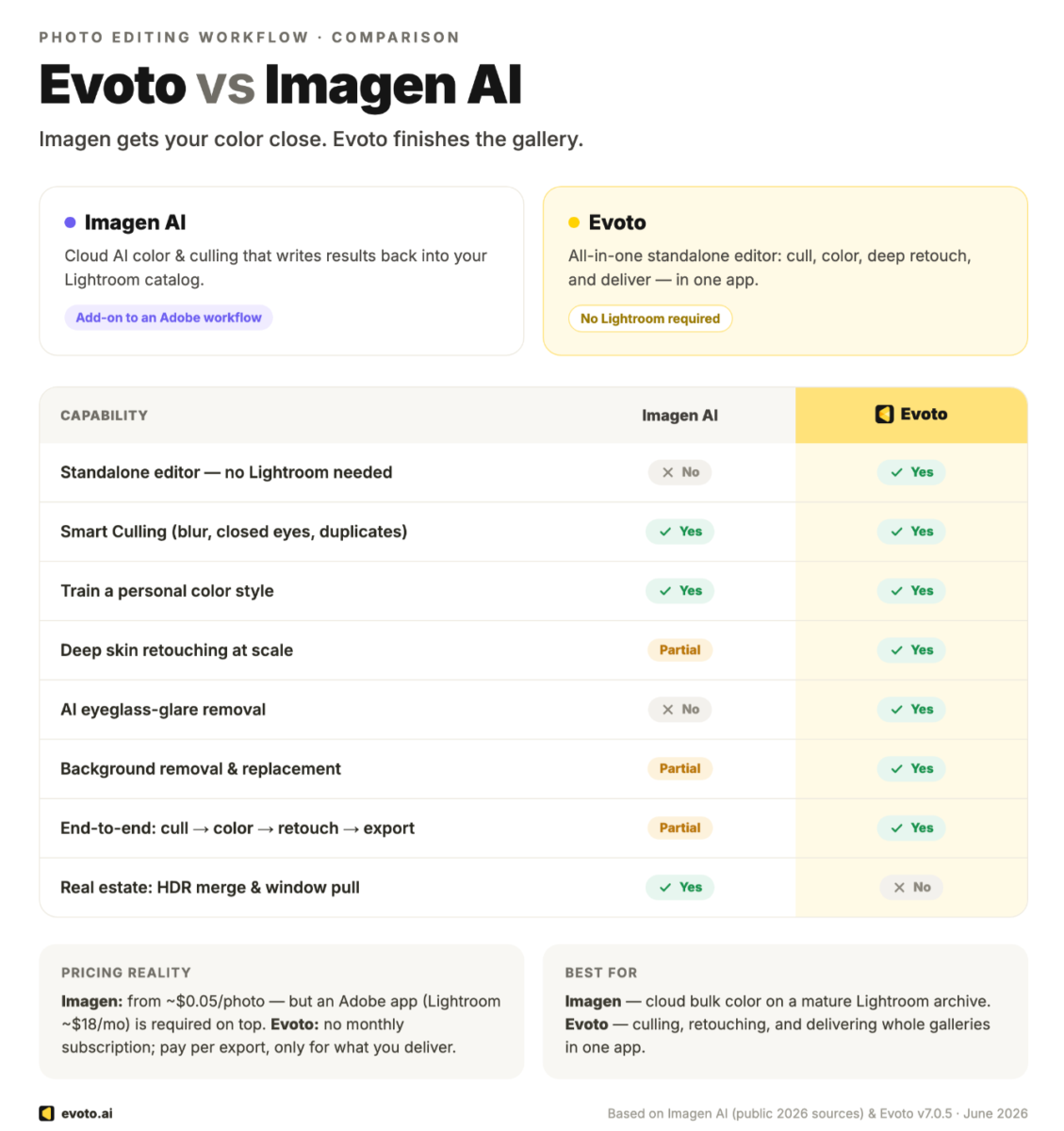
If you’re rethinking the Lightroom stack, you’ve probably also looked at Imagen — so it’s worth being clear about the difference, because the two solve the problem from opposite directions.
Imagen plugs into Adobe. It’s a cloud AI that culls and applies your editing style, then writes the edits back into your Lightroom Classic catalog (it also works through Photoshop or Bridge). It’s genuinely good at that — but you still need an Adobe app to view and export the results, and its retouching is limited to lighter, pay-as-you-go add-ons like Smooth Skin and Whiten Teeth, so deep skin and background work still tends to move to Photoshop. You’re speeding up a layer or two of the stack, not removing it.
Evoto can replace the stack — or integrate with it. Culling, color, and deep retouching live in one standalone app, and if you want to keep Lightroom in the loop, the .lrcat round-trip above lets you. So “Evoto or Imagen” really comes down to a single question: do you want to make your Lightroom workflow faster, or do you want the option to stop maintaining it?
One fair caveat: if your business runs on a massive Lightroom catalog, deep Adobe ecosystem integrations, or specialized technical work like HDR and panorama merges, Lightroom still earns its keep. Standalone makes the most sense when your day is dominated by culling, coloring, and finishing portraits.
The bottom line
You don’t need Lightroom to run a professional workflow — you need something that covers the whole job. Evoto culls, colors, and retouches a full gallery in one standalone app, and still imports your Lightroom catalog if you’d rather keep one foot in each world. Fewer tools, fewer subscriptions, one finished gallery.
Try Evoto free and run one real shoot through it, start to finish.
FAQs
Can I edit RAW photos without Lightroom?
Yes. Evoto imports RAW files directly (or through a Lightroom .lrcat catalog) and edits them in a standalone app — no Lightroom or subscription required. Note that RAW files imported via a catalog can’t be exported back out as RAW; other formats export normally.
Can Evoto import a Lightroom catalog (.lrcat)?
Yes. You can import an entire Lightroom Classic catalog into Evoto, choose specific collections, and optionally carry over basic color adjustments (Exposure, Temperature, Tint). When you’re finished, you can export back to a Lightroom-compatible .lrcat.
Is there a standalone Lightroom alternative that also retouches?
That’s exactly Evoto’s niche. Unlike tools that only handle color or only handle retouching, it covers culling, color, and full portrait retouching — skin, reshape, backgrounds — in one place, so the Photoshop step disappears.
Evoto or Imagen — which one actually replaces Lightroom?
Imagen works inside Adobe apps (usually Lightroom Classic, though Photoshop and Bridge also work) and still needs one to view and export, so it speeds up your existing workflow rather than replacing it. Evoto is a standalone editor that can replace the whole stack — and still integrate with Lightroom if you keep it.