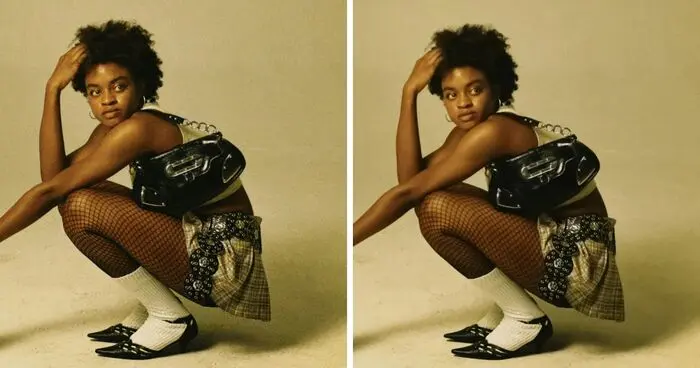
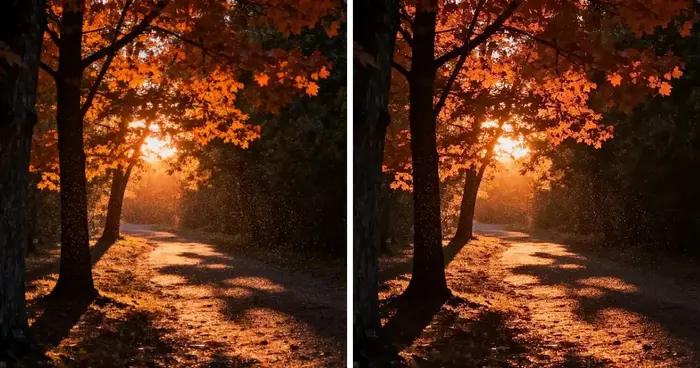
Noisy photos can ruin the quality and details of your images, leaving grainy textures, random color specks, or visible banding. Image noise is generally caused by technical limitations in cameras and shooting conditions, and removing it is essential for polished results.
This article will introduce how to denoise in Photoshop for photos with the best 3 methods. Also, a faster, automated alternative, AI Photo Editor for high-quality noise removal will be introduced.
What Are the Types and Causes of Image Noise?
Before stepping into how to denoise in Photoshop, it’s helpful to understand the type and cause of noise to choose the right denoising method.
Common Types of Image Noise
- Luminance noise: It appears as a grainy or speckled texture, mostly noticeable in shadows and dark areas of the photo, especially in high-ISO or low-light shots.
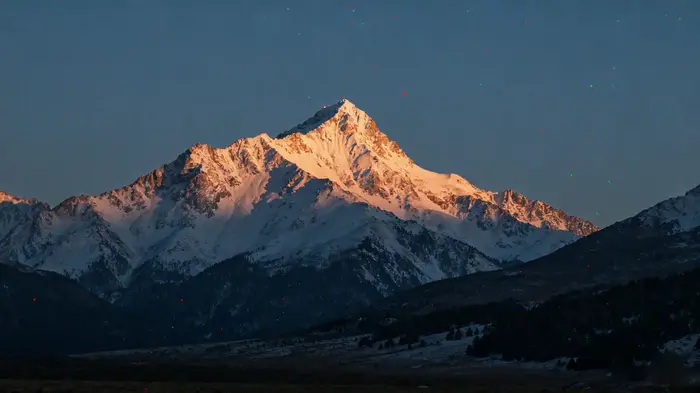
- Color (chroma) noise: It shows up as random red, green, or blue specks scattered across the image, particularly in uniform dark areas. It can distort skin tones or background colors.
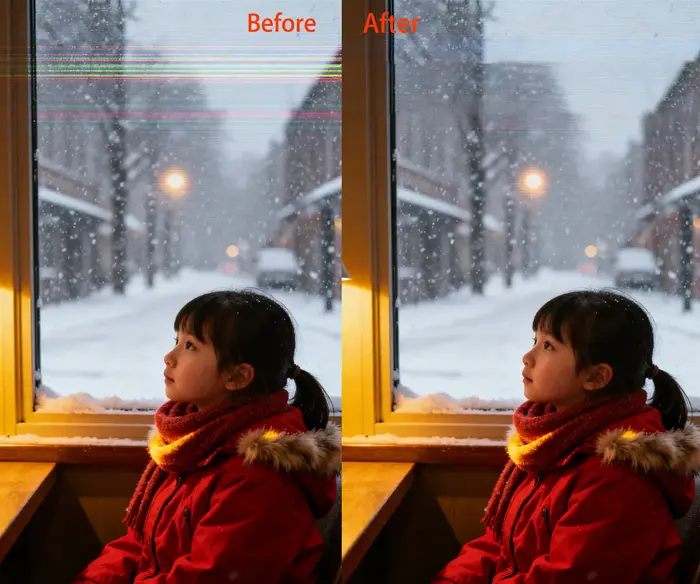
- Banding noise: It manifests as horizontal or vertical stripes, often in smooth gradients like skies, sunsets, or studio backgrounds. It usually results from compression, sensor limitations, or long exposure shots.
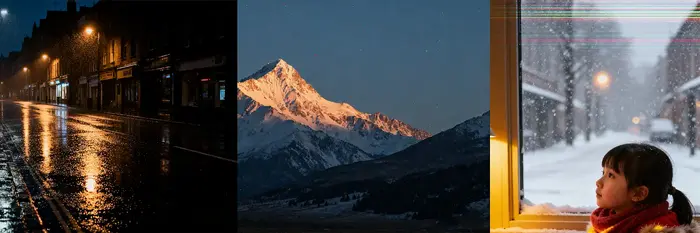
What Causes Noise in Photos
High ISO settings can amplify sensor noise, making images appear grainy. This effect is often worsened in low-light conditions, where cameras must boost brightness, sometimes creating unwanted artifacts. Additionally, cameras with small sensors or those prone to overheating tend to produce more visible grain. Long exposure shots can further contribute to noise, as thermal and readout interference accumulate over time.
Recognizing these factors helps photographers determine whether denoising in Photoshop or an AI image denoiser is more suitable.
Common Photo Denoisers & Their Principles
Before exploring how to denoise in Photoshop, let’s understand how traditional methods tackle image noise.
Traditional denoisers in Photoshop, such as Gaussian Blur and Median Filter, work by averaging or smoothing pixel values to reduce visible noise. While they can effectively minimize grain and speckles, they often blur fine details, soften textures, and reduce overall sharpness, requiring careful adjustment to avoid over-processing.
AI-based denoising tools, such as Evoto AI Photo Editor, use machine learning algorithms to detect noise patterns and differentiate them from actual details. AI denoisers deliver faster, more accurate results, preserving textures, skin tones, and important elements while reducing grain, color noise, and blur.
How to Denoise in Photoshop Step-by-Step
Photoshop’s photo denoiser features provide versatile tools to tackle different types of photo noise, allowing photographers to reduce grain, color specks, and banding while preserving important details. Below is a detailed step-by-step guide for each noise type.
How to Denoise in Photoshop – Luminance Noise Reduction
Luminance noise appears as a grainy texture in dark or shadow areas. Photoshop’s Camera Raw Filter is ideal for reducing this type of noise while retaining detail.
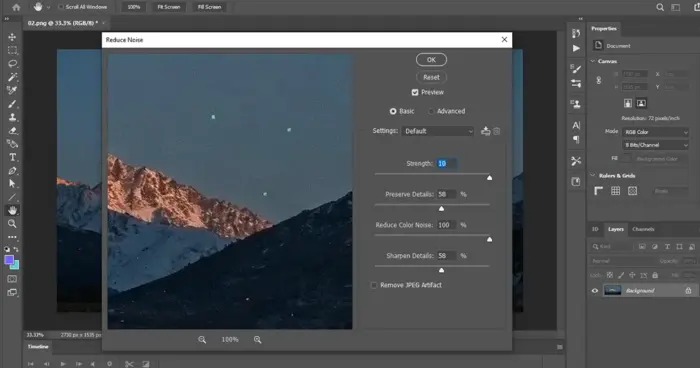
Steps:
- Open your image in Photoshop and go to Filter > Camera Raw Filter. This opens the nondestructive editing panel.
- Navigate to the Detail panel, which contains sliders for both sharpening and noise reduction.
- Adjust the Luminance slider to reduce brightness noise. Start with small increments (around 10–30) to avoid over-softening.
- Fine-tune the Detail slider to retain fine textures like fabric threads, hair, or foliage. Increasing Detail preserves edges while still reducing noise.
- Optionally, adjust the Contrast slider under the same panel to maintain tonal depth in shadows.
- Use Preview toggles to compare the original and edited versions.
Tip: This is how to denoise in Photoshop with luminance noise reduction. Note that you apply the adjustment selectively using the Adjustment Brush to avoid blurring areas that are already smooth.
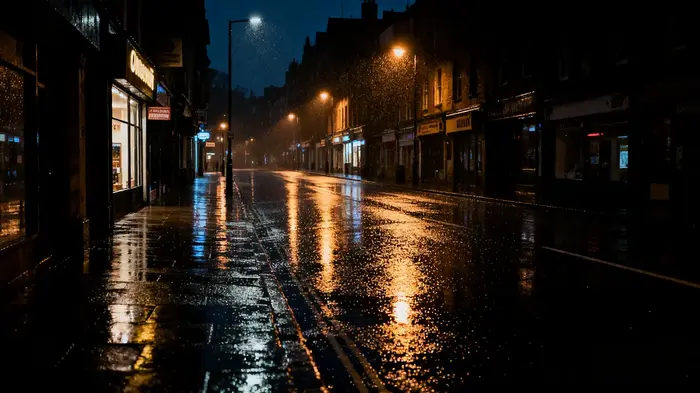
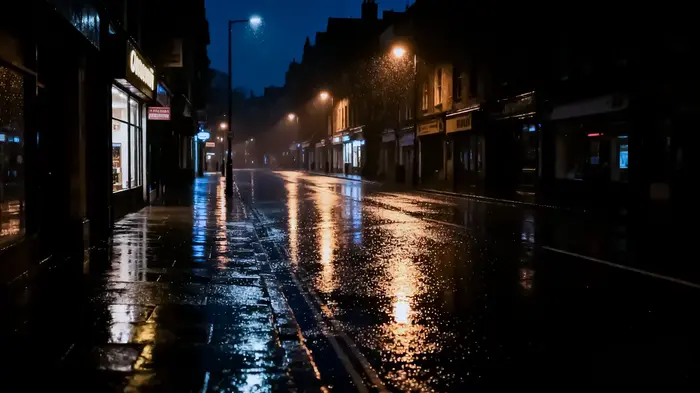
How to Denoise in Photoshop – Color Noise Reduction
Color noise manifests as random red, green, or blue specks, typically in low-light areas or uniform backgrounds. Photoshop provides multiple ways to reduce chroma noise without affecting skin tones or background colors.
Steps:
- Open Filter > Noise > Reduce Noise, or stay in Camera Raw and use the Color slider under the Detail panel.
- Increase the Color slider gradually to remove unwanted specks. Typical values range from 20 to 50, depending on the severity.
- Adjust Strength to balance between noise removal and maintaining natural color transitions.
- Use the Preserve Details slider (if available) to keep subtle textures like hair, foliage, or fabric intact.
- For targeted corrections, apply a layer mask and paint over problem areas to denoise selectively.
Tip: Avoid extreme color noise reduction, as it can desaturate the image or create unnatural skin tones.
How to Denoise in Photoshop – Banding Noise Fix
Banding noise appears as horizontal or vertical stripes in gradients, often caused by compression or sensor limitations. Photoshop offers several ways to fix it.
Steps:
- Create a new layer and apply a subtle gradient fill matching the background tones.
- Use Filter > Noise > Add Noise on the gradient layer, set to very low values, and switch the layer blend mode to Overlay or Soft Light to break up visible bands.
- For advanced users, apply frequency separation: separate high-frequency detail from low-frequency tones, smooth the low-frequency layer, and merge back carefully.
- Blend using layer masks or reduce opacity to maintain natural transitions and avoid flattening textures.
- Preview the image at 100% to ensure seamless integration.
That’s all about how to denoise in Photoshop. In this full guide, you can benefit from Photoshop’s layered and selective approach, which allows photographers to customize denoising for every noise type, giving full control over luminance, chroma, and banding corrections.
Combined with masks and selective brushes, this method ensures a polished, professional-quality image without losing texture or detail.
How to Denoise with AI Photo Editor
Instead of how to denoise in Photoshop, Evoto AI image denoiser has a simple noise reduction solution with one-click automation while maintaining detail.
Step 1. Download and Install Evoto
Download Evoto on your desktop device and import the noisy images in RAW, JPG, JPEG, PNG, or TIFF format.


Powerful AI Photo Editor
Step 2. Process Various Photo Noise Types
Go to the right-hand feature list and locate the Color Adjustment section.
- Luminance Noise Reduction
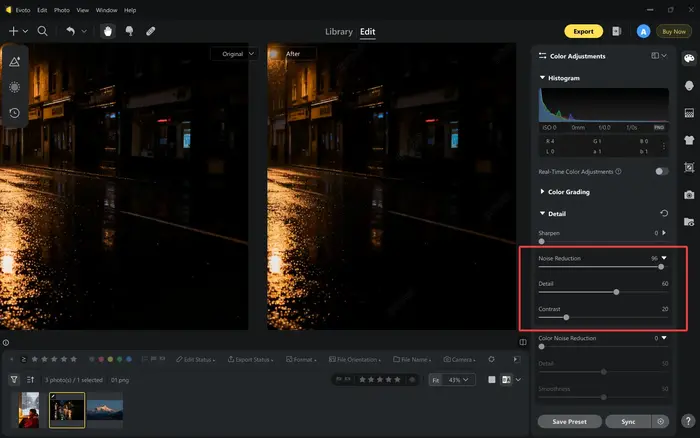
Here we start with an image that needs to have luminance noise reduced. Head to the Detail Adjustment and increase the value of Noise Reduction slider to the preferred result while checking the real-time preview.
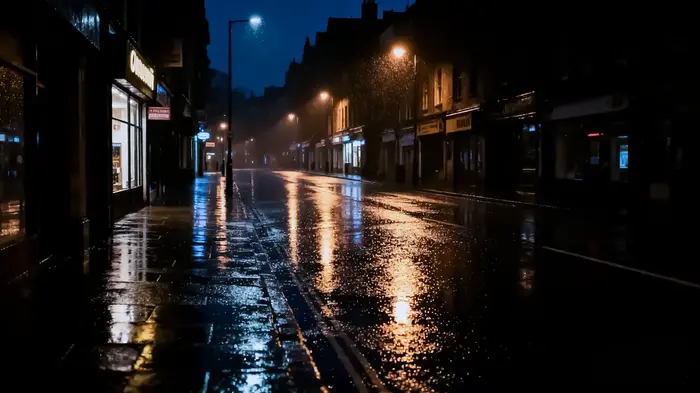
Then, move the slider of Detail to avoid over-editing. Also, fine-tune the contrast strength if needed.
- Color Noise Reduction
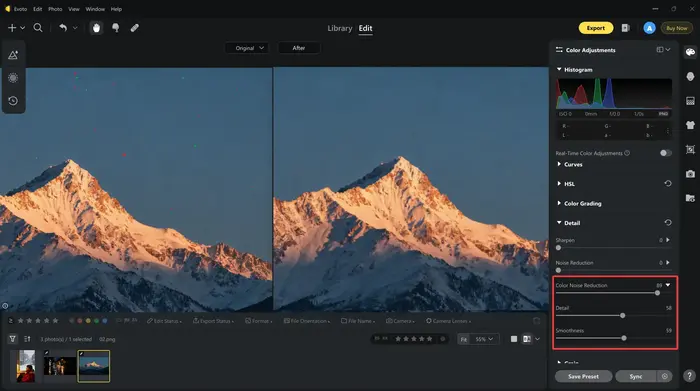
Next, we begin with an image that has obvious color noise. AI will auto-detect the color noise in photos. Still in the Detail, move the slider of Color Noise Reduction to a higher value.
Also, slightly adjust the Detail and Smoothness to retain details and clarity.
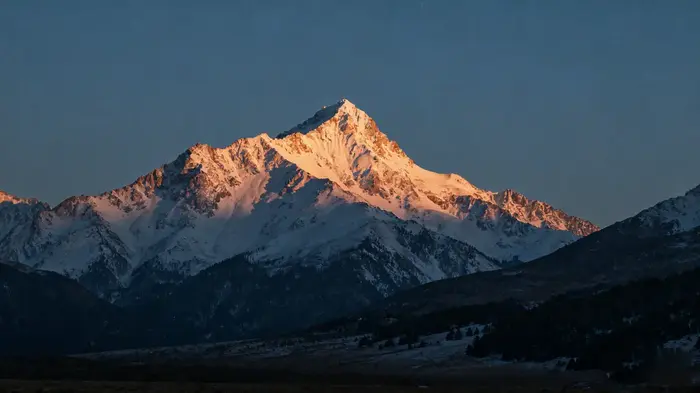
Step 3. Create Denoising Preset (Optional)
The AI noise remover also allows you to save the noise denoising edits as a preset.
Click on “Ctrl/Command + C” to copy the edits. Multi-select other grainy photos in the preview, and apply “Ctrl/Command + V” to bulk denoise the photos.
This is ideal for photographers handling large volumes quickly. Because it provides professional-quality denoising without manual adjustments.
Step 4. Export and Save the Denoising Result
Preview the results and output them in high quality.
Besides the image denoiser for Windows, macOS, and iPad OS, the AI noise remover is also available online for free:


Tips for Removing Noise in Photoshop
After mastering Photoshop’s denoising tools, applying best-practice tips ensures cleaner results without compromising image quality.
- Avoid over-denoising: Excessive photo noise reduction can blur fine details, making textures, hair, or fabrics appear unnatural.
- Use local adjustments: Apply masks or brushes to selectively target noisy areas, leaving already smooth regions untouched.
- Work on duplicate layers: Preserve the original image by applying noise reduction to a separate layer, allowing nondestructive edits and easy comparison.
- Balance noise reduction and sharpness: Adjust sliders carefully to remove noise while retaining edge clarity and fine detail, ensuring a natural, professional-looking result.
Powerful AI Photo Editor
Conclusion
This article mainly talks about how to denoise in Photoshop. Denoising photos enhances clarity, preserves detail, and improves overall quality. Photoshop offers precise control for selective noise reduction, while Evoto AI, the best AI noise remover, provides fast, intelligent solutions for batch editing. For professionals and enthusiasts, combining these tools ensures your images stay sharp, clean, and visually stunning.