

Have you ever looked at a photo and thought, “Why do I look fat in pictures?” You are not alone. Many people struggle with how their bodies appear on camera—even if they look great in the mirror.
Understanding the factors behind unflattering photos can help you take better pictures and feel confident about your image. In this guide, we’ll explore the common reasons you might look heavier in photos and share practical tips—including how to use Evoto to subtly retouch your images and enhance your best features.
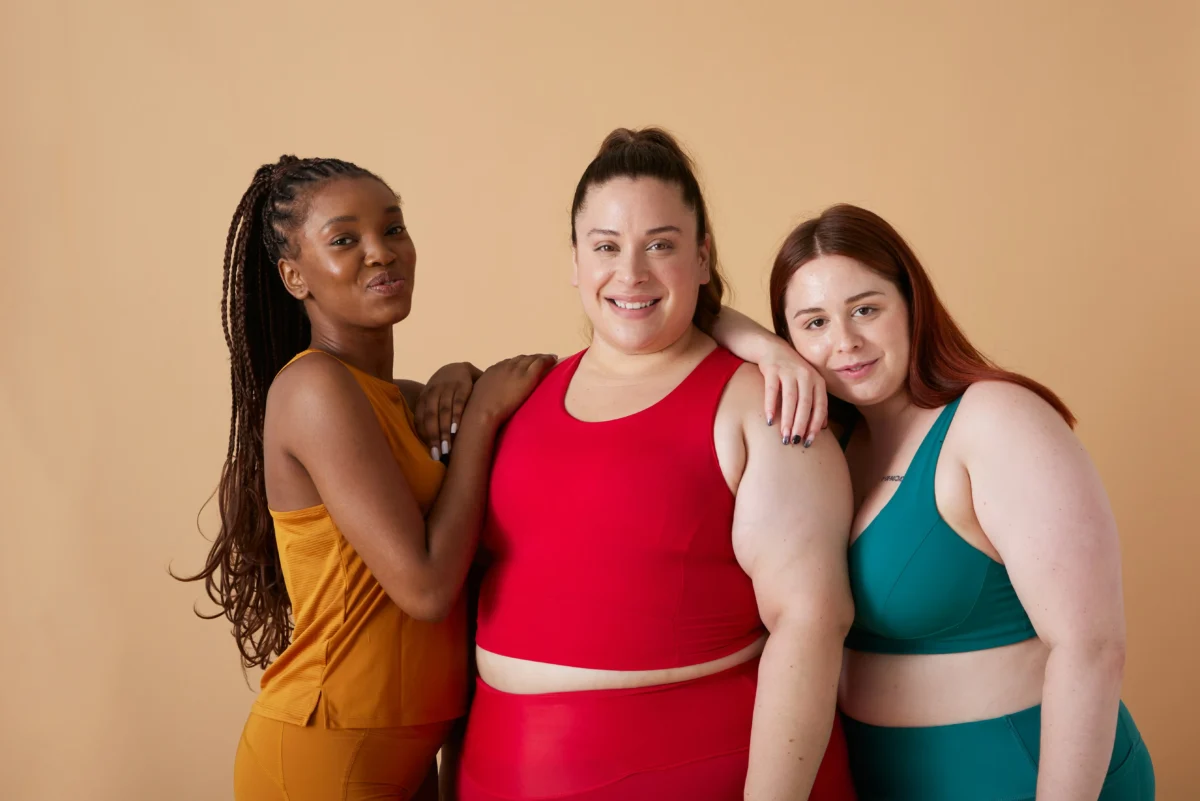
Why Do I Look Fat in Pictures?
There are several things that can make a person appear larger in photos than they actually are. Here are the main reasons:
📸 1. Camera Angle and Perspective
Low or straight-on angles can distort proportions and make the body look bigger than it really is. Higher angles tend to be more flattering.
💡 2. Lighting
Harsh lighting and shadows can highlight angles and create unflattering lines. Soft, even lighting usually produces smoother, more natural results.
👕 3. Clothing Choices
Certain clothes—like horizontal stripes or tight fabrics—can alter how your body is perceived in a photo. Darker colors and structured clothing often photograph better.
📷 4. Body Position and Posture
Standing with slouched shoulders or letting your arms rest flat against your body can make you appear wider. Angling your body slightly and elongating your neck can improve how you look in photos.
🔍 5. Lens Distortion
Wide-angle lenses are notorious for distorting proportions near the edges of the frame. This explains why some photos taken up close with phones may appear less flattering.
Tips to Look Better in Photos
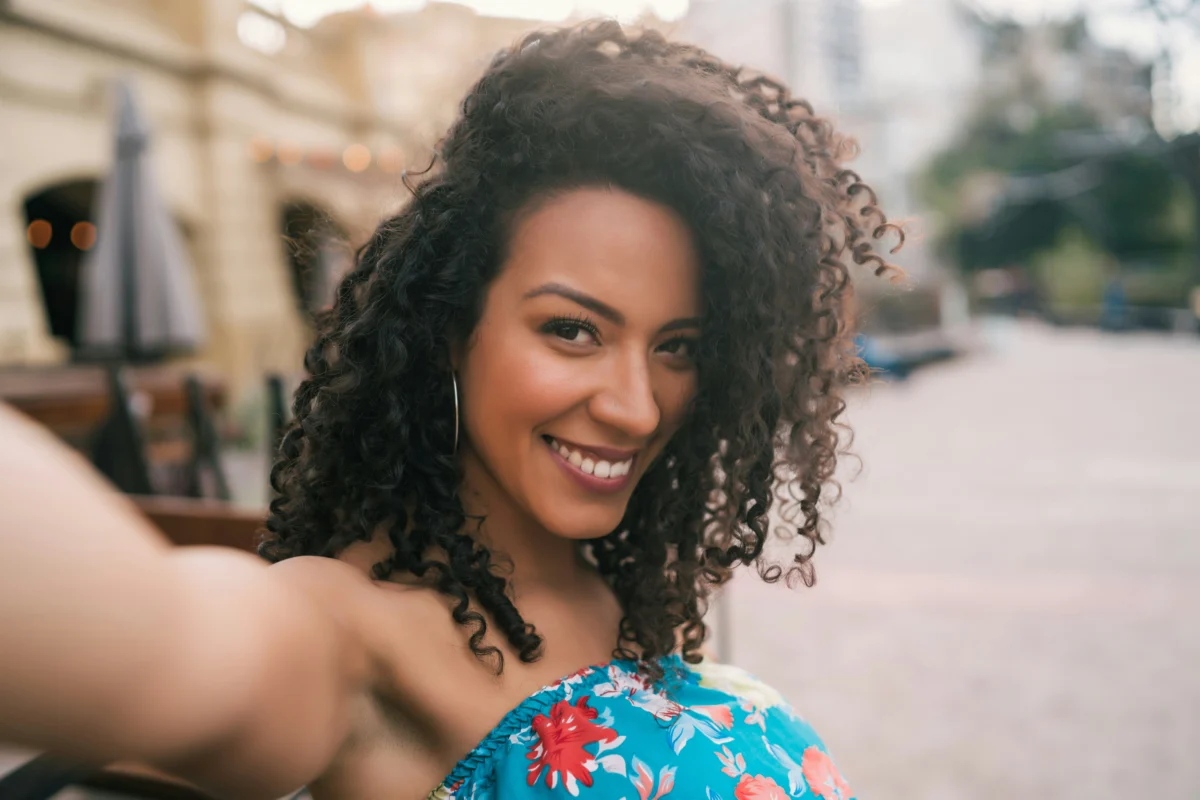
Now that you know the reasons behind unflattering photos, here are some practical tips to avoid them:
✔️ Choose a Better Camera Angle
Raise the camera slightly above eye level and look up toward it. This creates a more slimming perspective.
✔️ Improve Lighting
Soft, natural light (like near a window) is often the most flattering. Avoid direct overhead lighting that casts unflattering shadows.
✔️ Check Your Posture
Stand up straight, pull your shoulders back, and slightly angle your body to the camera. This creates a visually slimming effect.
✔️ Dress Smartly
Avoid overly baggy clothes or bold horizontal stripes. Choose outfits that define your waist and balance your proportions.
How to Fix Photos That Don’t Flatter You
Even with great posing and lighting, sometimes the photo still doesn’t reflect how great you looked in person. That’s where photo editing can help.
✨ Use Evoto to Enhance Your Photos
Evoto is a powerful photo editing tool that helps you refine images and highlight your best features—quickly and naturally. With features like body reshaping, background adjustment, and face refinement, Evoto lets you subtly improve your photos without losing authenticity.


Powerful AI Photo Editor
Here’s how Evoto can help:
✅ Reshape Your Body Naturally
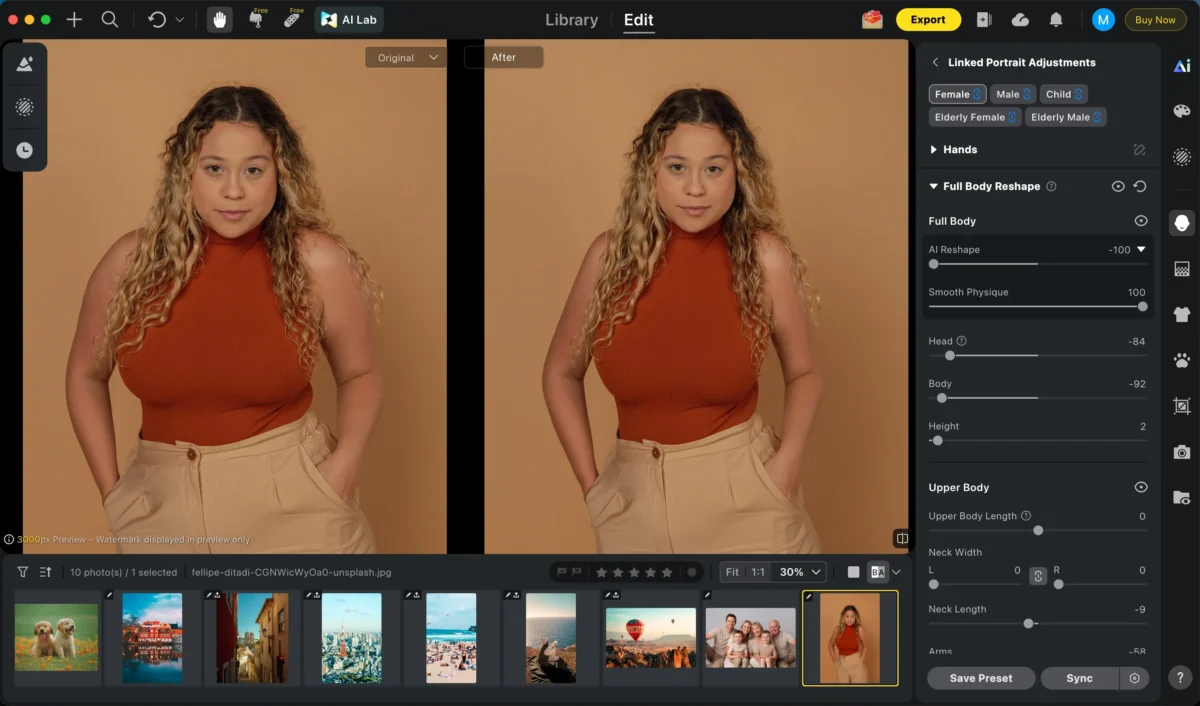
Use subtle shape adjustments to refine your proportions in photos. Evoto’s AI ensures it looks natural, not over-edited.
✅ Fix Posture and Proportions
If your stance made you look broader, try using Evoto’s posture refinement tools to gently correct alignment and make your body look more balanced.
✅ Enhance Your Skin
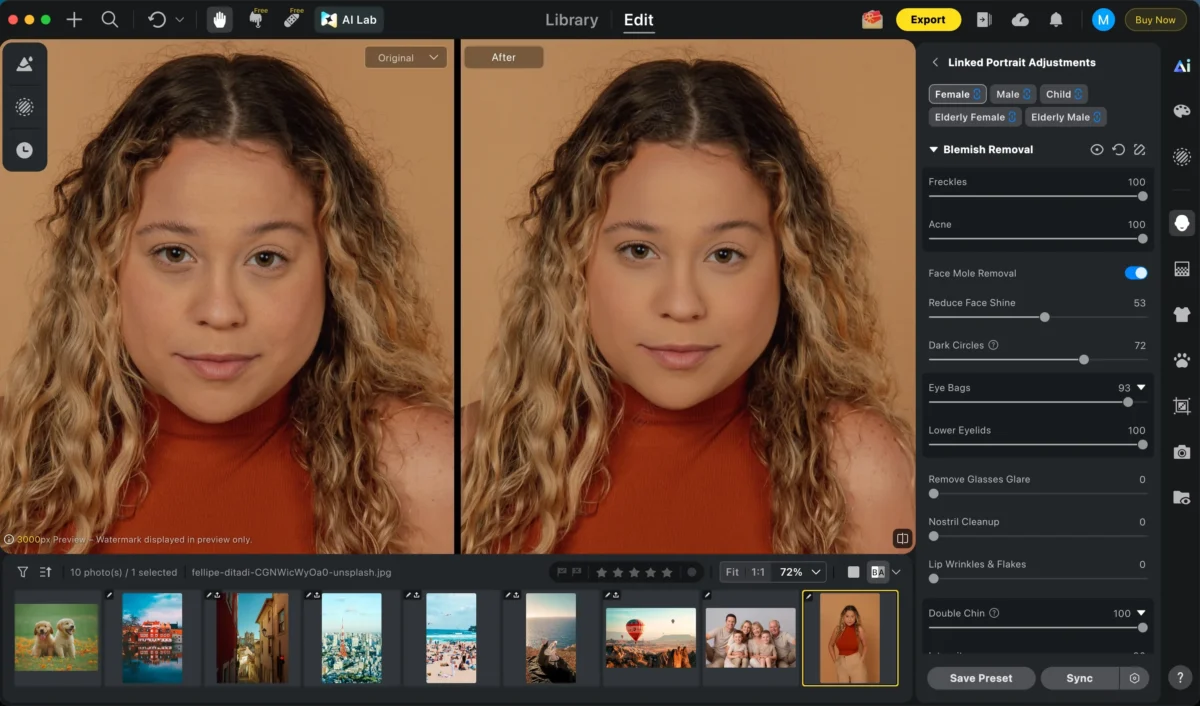
Focus enhancements on the face, eyes, and skin while allowing the body to remain natural. Evoto’s intelligent tools help keep the result realistic and flattering.
Step-by-Step: Using Evoto to Improve Your Portrait Photo
Here’s a quick workflow that anyone can follow:
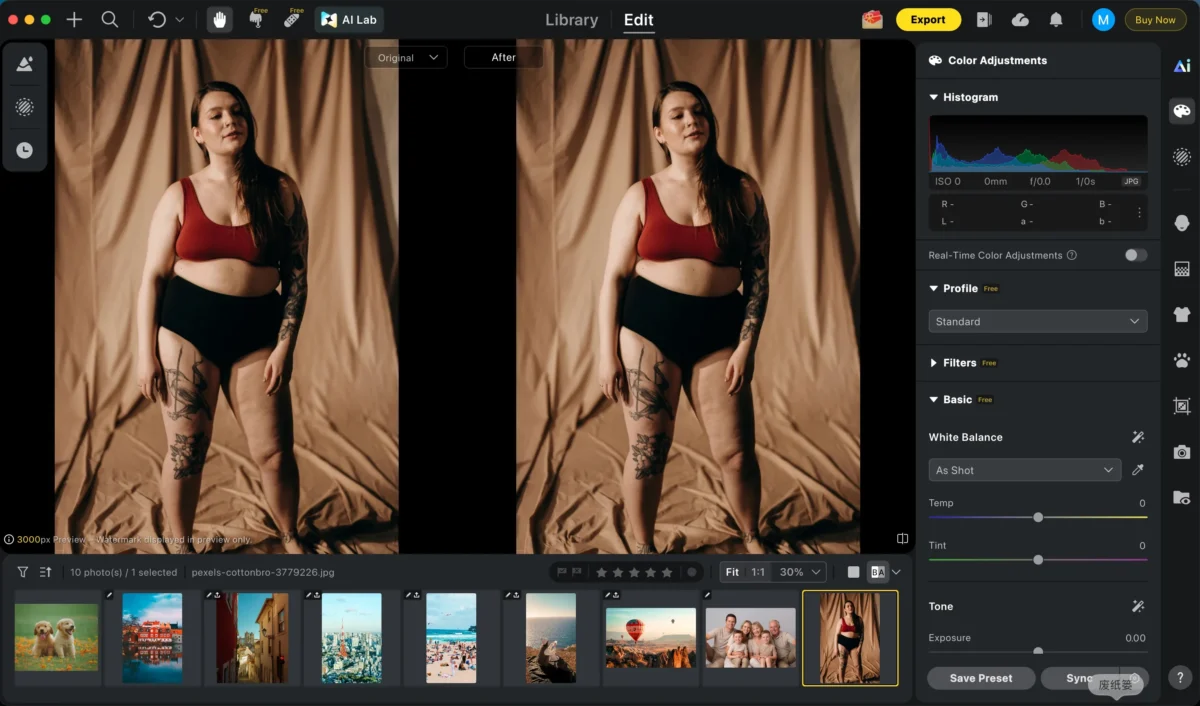
Step 1: Upload Your Photo
Open Evoto and upload your image.
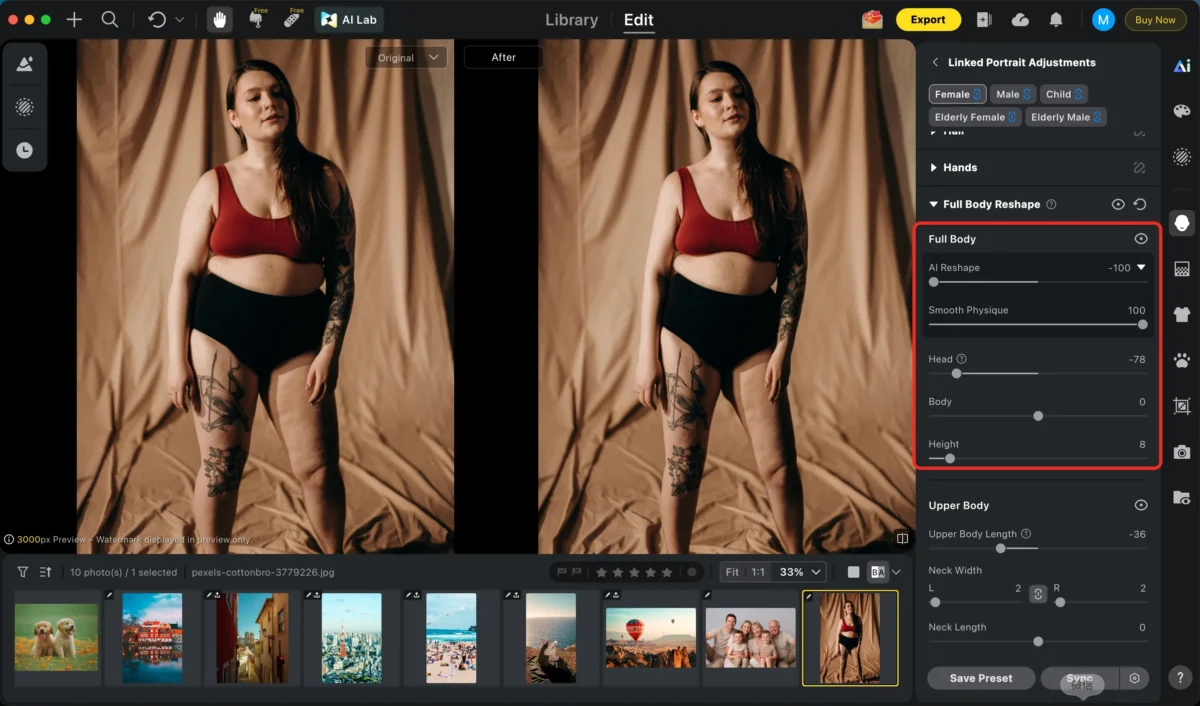
Step 2: Reshape Your Body
Use the Full Body Reshape tool to subtly refine proportions—waist, arms, legs, or overall silhouette—while keeping the image natural. AI-powered sliders make it easy to enhance balance and posture without affecting authentic details.
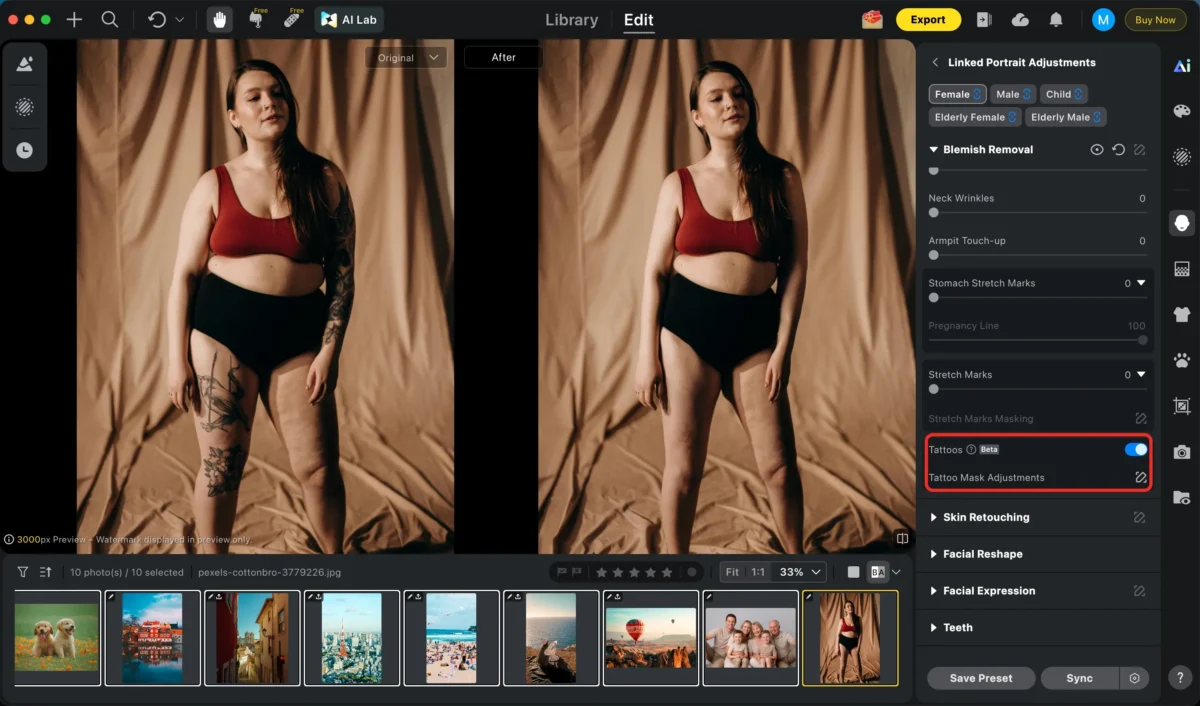
Step 3: Use Other Adjustment
Improve your portrait further with Evoto’s adjustment tools:
Tattoo Remover – Remove unwanted tattoos seamlessly.
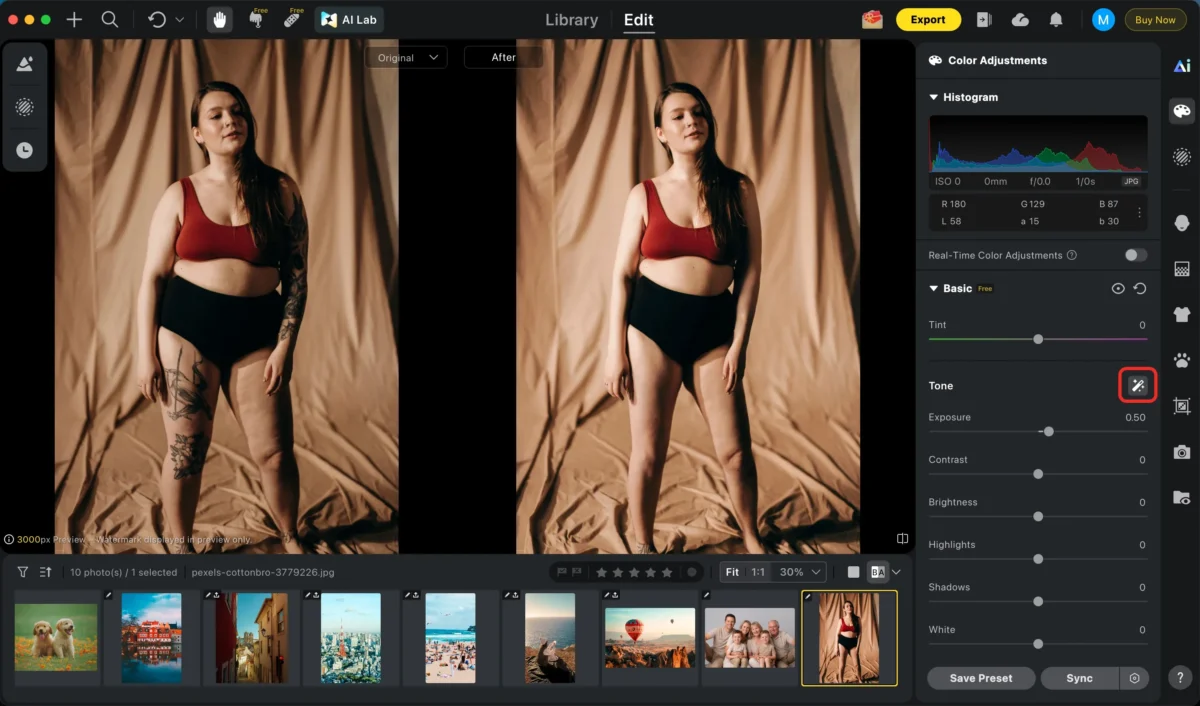
Auto Exposure Adjustment – Correct lighting and brightness for a polished, professional look.
Skin Retouching – Smooth skin, reduce blemishes, and enhance texture.
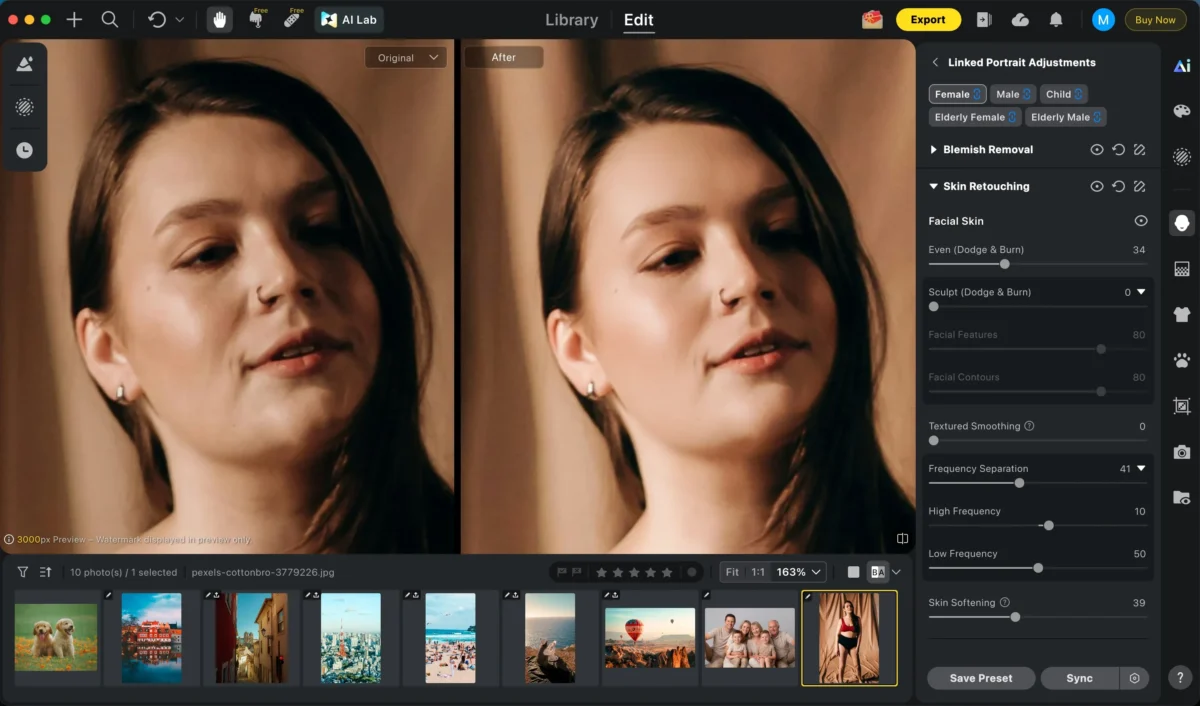
Step 4: Export Your Finished Image
Save your enhanced image and share it with confidence.
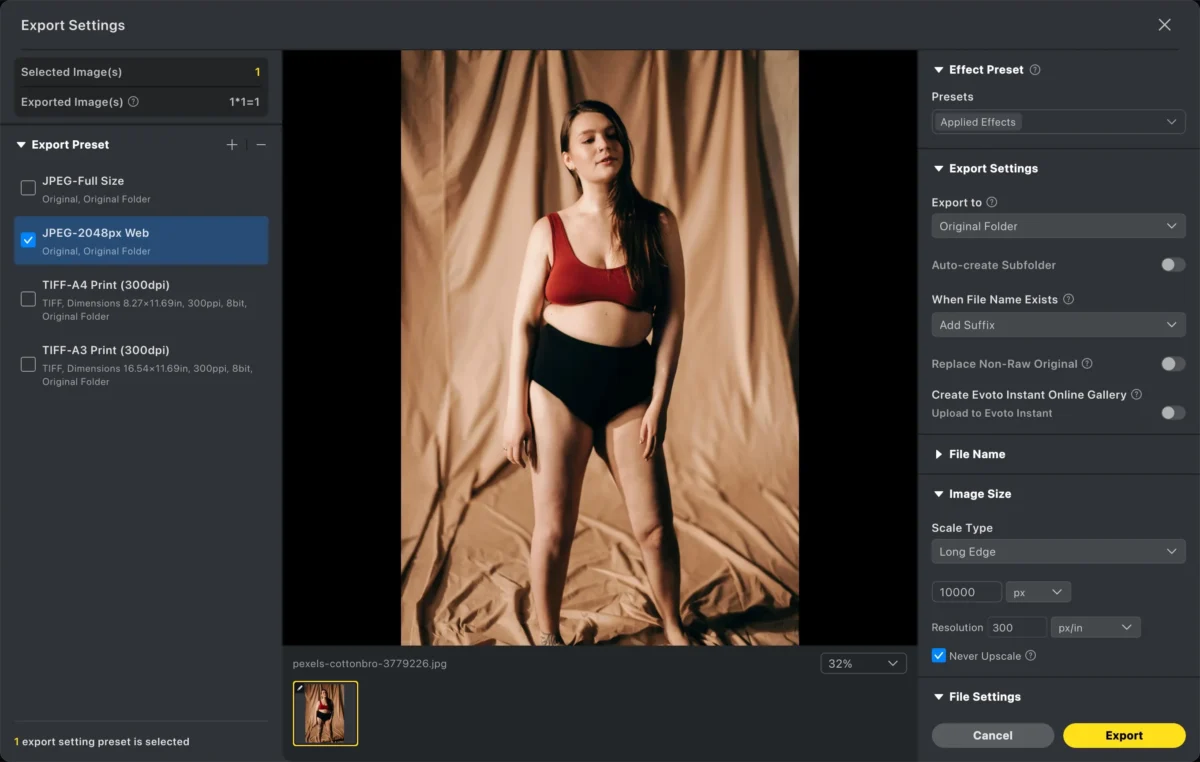
Evoto makes it easy, even if you’ve never edited photos before.
Common Mistakes to Avoid
While editing can help, here are some things to watch out for:
- Avoid over-editing: Too much smoothing or reshaping can make the image look fake.
- Keep proportions natural: Small adjustments create better results than drastic changes.
- Focus on confidence, not perfection: The goal is to look like your best self—not someone else.
Final Thoughts
Asking “Why do I look fat in pictures?” is normal—but it often has more to do with photography techniques and angles than your actual body. Knowing how to pose, use flattering light, and adjust posture can make a big difference.
And if you want to take your photos to the next level, tools like Evoto give you an easy way to refine your images, enhance your features, and feel confident in every shot.
Whether you’re posting on social media, updating your portfolio, or just capturing memories, a few simple adjustments can help you look and feel your best in photos.
Try Evoto AI Photo Editor
Retouch photos with Evoto AI and make your photos best! Available on Windows, MacOS and iPadOS.



