
Group chats run on reactions. If your friends already spam the same three faces (Mom’s “call me,” your roommate’s toast-burn stare, the office group’s Friday deadpan), it is time to learn how to make WhatsApp stickers from photos: your photos, your outline style, your pack name in the sticker drawer.
Wedding party threads, fantasy-football leagues, study groups, and long-distance couple chats all run on the same fuel: a tiny face that says what a paragraph cannot. Concert selfies you took yourself (Eras Tour night, Stray Kids D-1 countdown energy, your own cosplay) can join the pack; scanned official merch should not.
TL;DR
- Build a clean transparent sticker from your photo, export a normal PNG master (keep alpha), then resize to the WhatsApp canvas (commonly 512 by 512).
- After sizing, deliver as transparent WebP or whatever import path your phone currently offers. PNG is the creative export; WhatsApp owns the last-mile format.
- Ship a small matching pack, leave a safe margin, and test on light and dark wallpapers.
- Reuse the same master for Discord, Telegram, or Story décor with different pixel targets.
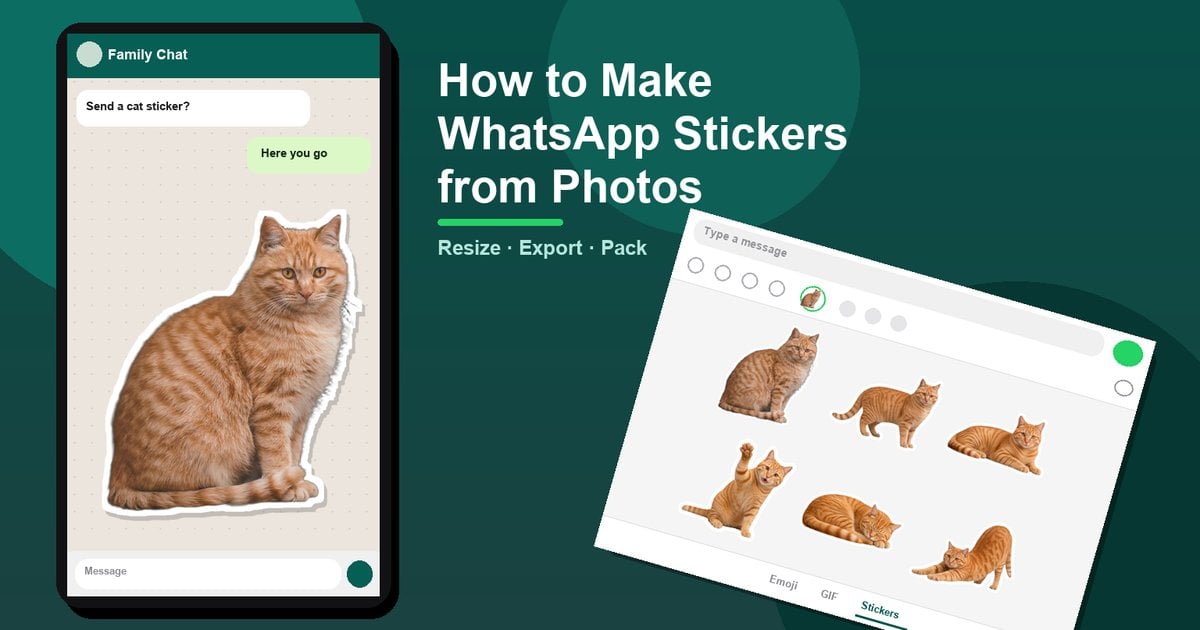
Evoto is the creative half of this relay: turn a selfie, a pet “tax” shot, or a clear group-chat expression into a paste-ready cut-out. Chat apps still own the final canvas rules, so treat sizing as a second, calmer sitting, not an afterthought while the aunties are already waiting for your reply.
Before the walkthrough, here is the short shopping list of jobs and tools. You will not need every row on day one.
Tools You Will Touch in This Workflow
| Stage | Tool | What it does here |
|---|---|---|
| Create sticker art | Evoto Photo to Sticker Maker | Photo → outlined sticker, transparent or gray square |
| Plain cutout only | Evoto PNG Maker | Transparency without sticker styling |
| Hit exact pixels/presets | Evoto Image Resizer | 512 WhatsApp canvas, Discord ~320, Story presets, batch |
| Optional cleanup first | Evoto AI Photo Editor | Skin or color polish before sticker conversion |
| Pack import/in-app create | WhatsApp (current UI) | Create or add stickers per Help Center |
| Optional convert assist | System preview / trusted local converter | When you need WebP and alpha still visible |
You can also tap WhatsApp’s built-in “create from gallery” path for a quick one-off. This article assumes you want a consistent pack: same outline weight, several moods. So the master-file route pays off.
When you are ready to make the artwork, open Evoto, or download Evoto for the desktop install, and keep this page nearby for the sizing half.
Start the creative pass in Evoto’s Photo to Sticker Maker. Export a transparent PNG master first; we will size it in the next beats.
Specs change more quietly than group-chat slang, so we will pin the numbers, then walk the steps without rushing the import screen.


Powerful AI Photo Editor
WhatsApp Sticker Specs Worth Checking Twice
Static sticker documentation publicly associated with WhatsApp commonly points to a 512 × 512 canvas and transparent WebP; always confirm the live file-size and pack limits in the official Help Center before you mass-export. UI labels and caps drift between Android and iOS builds. Read the WhatsApp Help article on creating custom stickers for the current wording. Packs usually want more than one sticker, and some flows ask for a small tray thumbnail.
If you are learning how to make WhatsApp stickers from photos for a family group tonight, pin those pixel numbers first. Then build the art.
Two honest entry ramps exist:
- In-app create from a gallery photo when you need one sticker in under a minute.
- External master when you care about matching outlines across a set and reusing files on Discord or Telegram later.
This guide stays on the second ramp.
How to Make WhatsApp Stickers from Photos
Step 1: Make the Cut-Out While the Photo Still Looks Like You
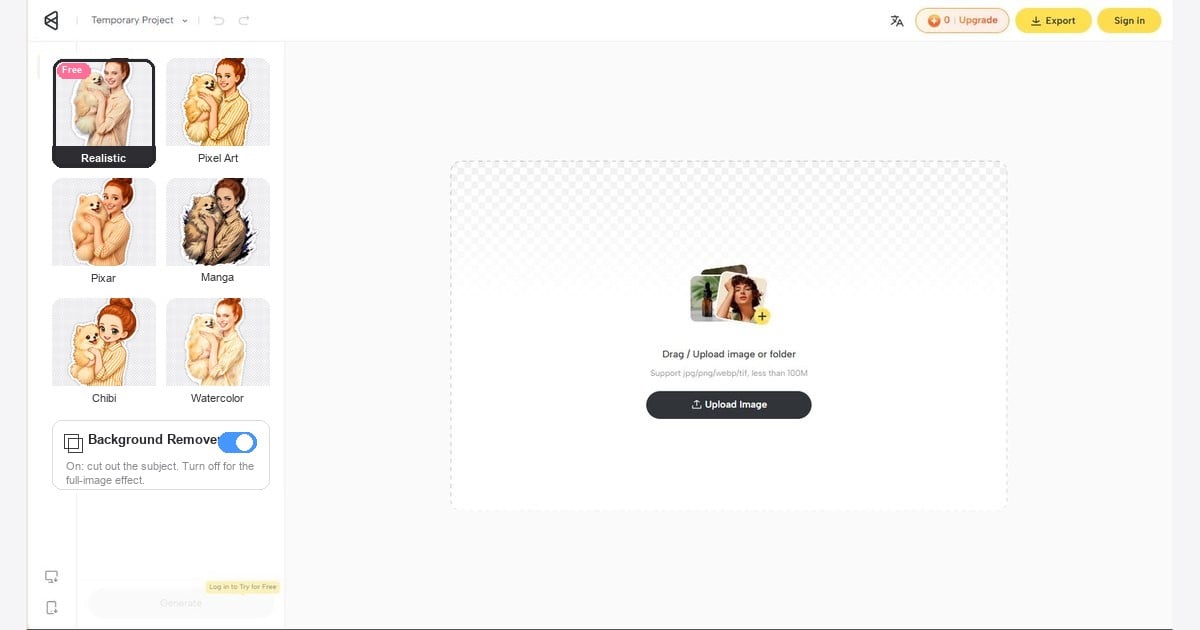
Upload a clear face or pet close-up to Evoto Sticker Maker, your brunch selfie, the dog that photobombs every FaceTime, the “I’m downstairs” couple shot, not a blurry arena panorama. Leave “Background Remover” on so the sticker can float on patterned wallpapers (floral auntie themes, dark gaming wallpapers, pastel couple chats).
Pick realistic if you want “this is literally me,” or a stylized look if the whole pack should feel graphic and matched, handy when a friend group wants anime-leaning reactions built from their real faces, not ripped character PNGs.
Click “Generate” once, then pinch-zoom your brain: would this still read as a bubble reply next to “On my way” or “LOL stop”? Soft edges and leftover background chunks are cheaper to fix now than after you have resized ten files.
If you want the slower browser tutorial for style picking and export habits, park How to Make Stickers from Photos in another tab for later, not required to finish a WhatsApp pack tonight.
Step 2: Export a PNG Master You Are Willing to Shrink
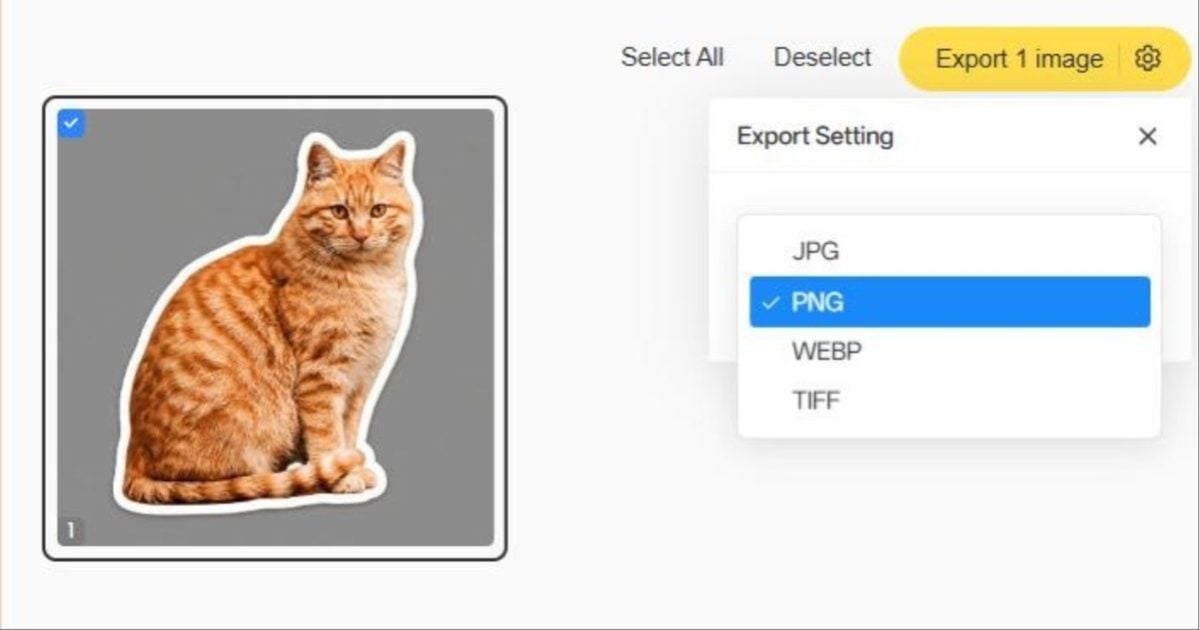
Use a normal “Export” as PNG so alpha survives. Transparent stickers are not a special format; everyday PNG is the right master. A sharp file (often in Evoto’s 2K resolution class) simply gives you room to land on 512 without inventing detail that was never there. JPEG is the classic way to invent a white box behind a cut-out; skip it when transparency matters.
Some stylized “Generate” options may sit behind a paid plan or in-app balance; whatever the editor shows, finish the PNG “Export” before you open the resizer. Creative file first, canvas math second.
Step 3: Set the Canvas in Image Resizer (Pixels, Not Vibes)
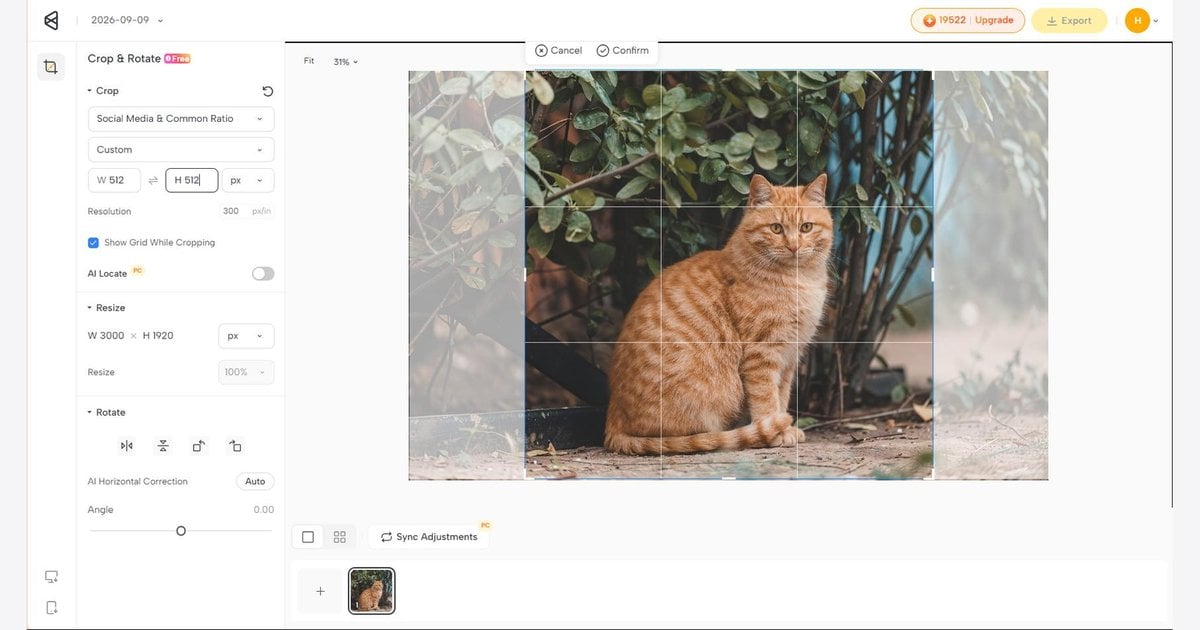
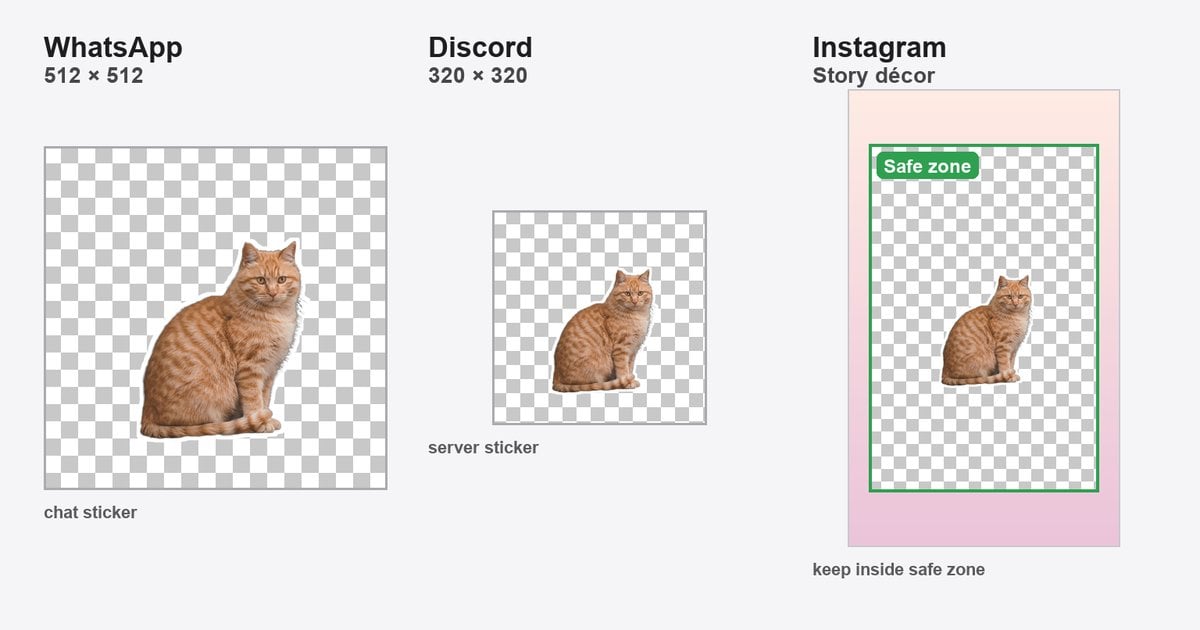
Open Evoto’s Image Resizer. Use the pixel fields to target 512 × 512 when that matches current WhatsApp static guidance. Center the artwork and leave a transparent margin so faces are not clipped by the sticker frame; a small padding habit inside the square helps on patterned wallpapers.
Batch resize when you export a whole mood set. Mixed sizes (500, 512, 540) create import headaches that feel personal but are usually just inconsistent canvases.
Step 4: Land the Format Your Phone Actually Accepts
You already used “Export” as PNG from Evoto. Static WhatsApp stickers are commonly exchanged as transparent WebP after that, so treat WebP as the delivery wrap, not the creative master. If your download options include WebP after resizing, use it while alpha still shows on a checkerboard. Otherwise, convert with a trusted local method and preview transparency before you import.
Then follow WhatsApp’s current create or pack-import prompts. Button names move; the job does not: get the sized sticker into a named pack your friends can open.
Step 5: Build a Small Pack People Will Actually Tap
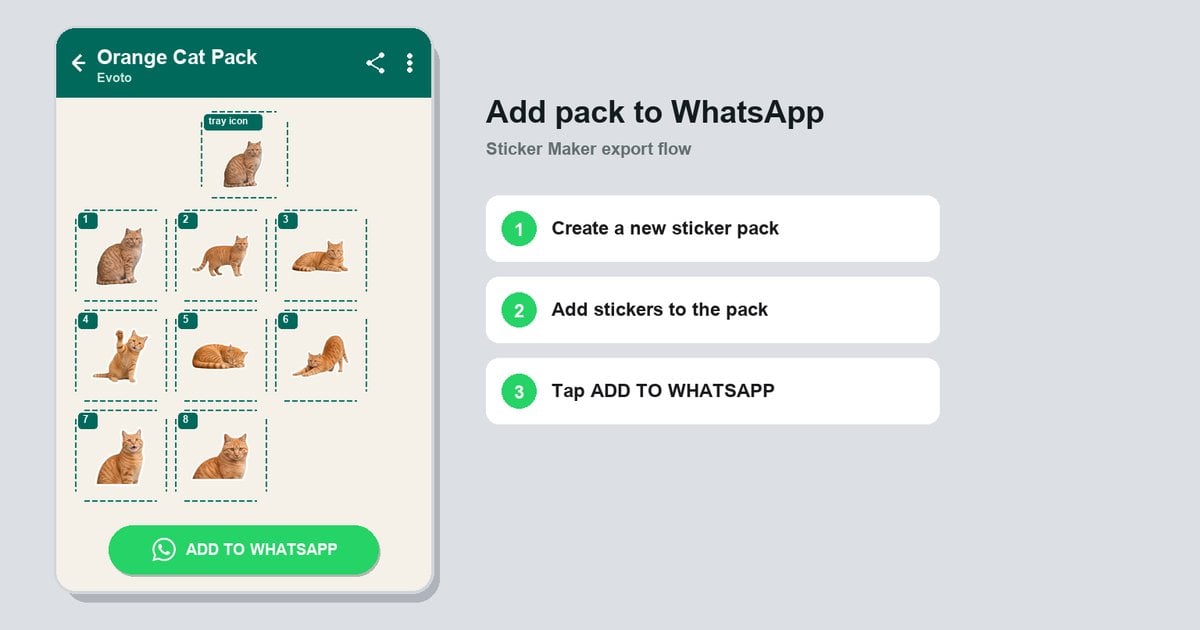
One sticker is a novelty. Six to twelve matching moods become a language: laugh, deadpan, heart, facepalm, hype, goodnight. Keep outline weight and color temperature consistent so the pack feels designed, not scavenged.
Name it something searchable in a crowded drawer. “Kitchen pets,” “Night shift faces,” “Wedding chaos,” “World Cup couch,” “Baby week one”, and keep tray art high-contrast if the flow asks for a thumbnail. Fandom group chats work the same way: a “concert faces” pack from your own photos reads warmer than a folder of unofficial idol screenshots, and it stays clearer on copyright.
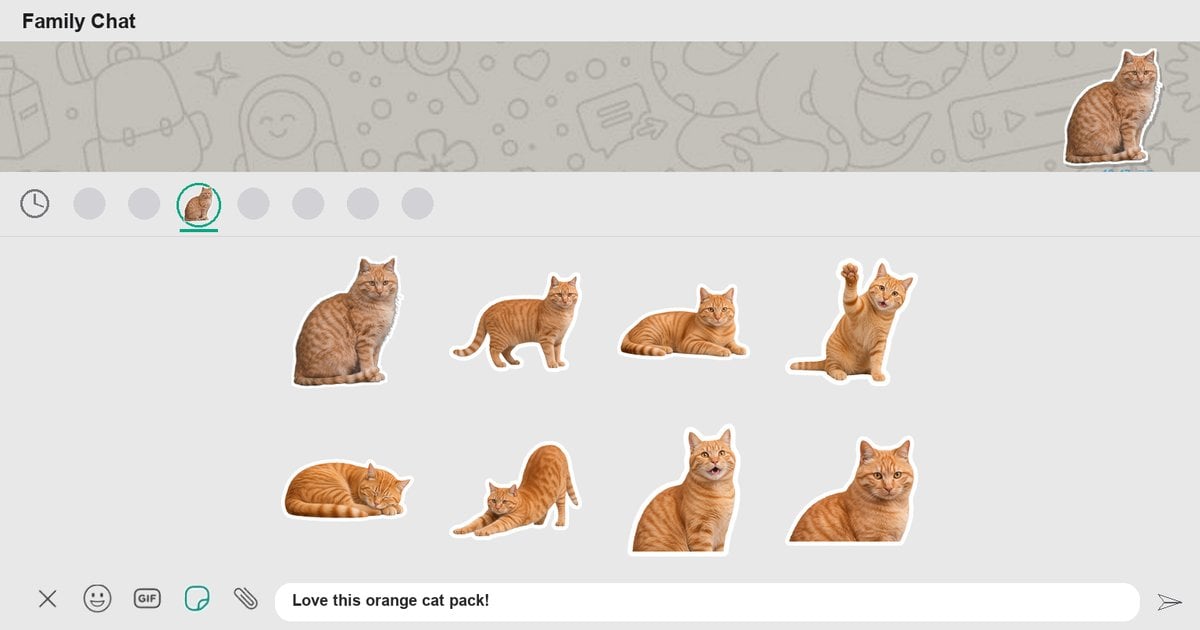
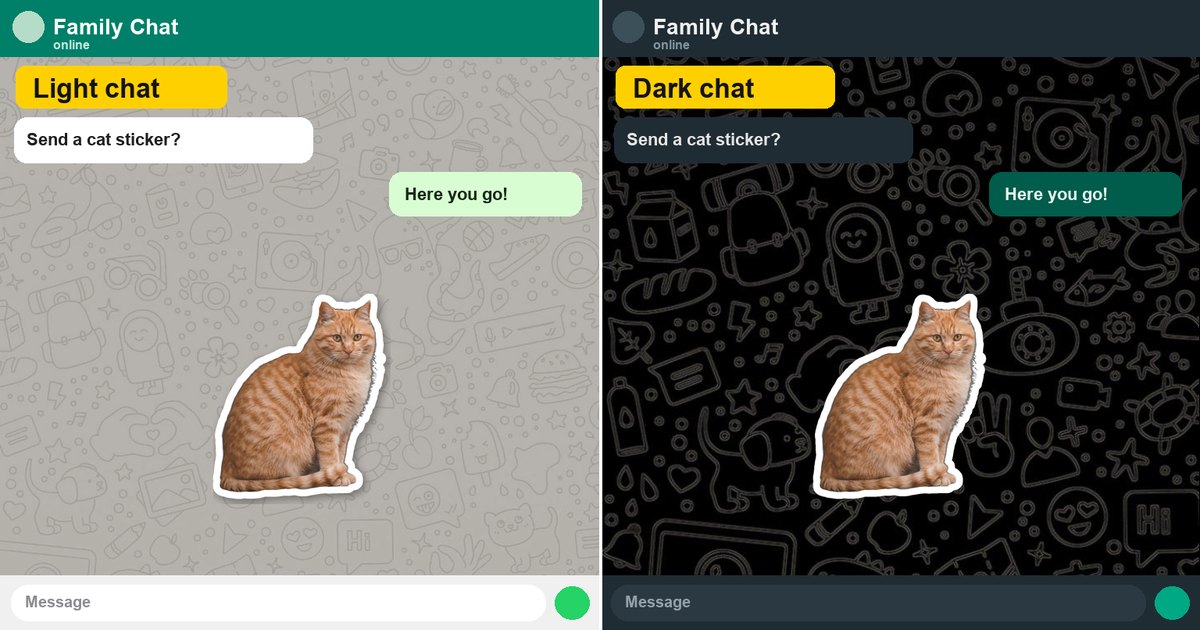
Step 6: Send It to Yourself on Light and Dark Themes
Test before you announce the pack in the family group, or the wedding thread, the class group, the fantasy-league chat. If the sticker looks soft, you probably upscaled a weak file; return to the master and resize down only. If the face feels tiny, recrop the source and regenerate. If a white box appears, transparency died somewhere between export and convert.
Same Master, Other Canvases
Once how to make WhatsApp stickers from photos clicks, you already own a reusable asset. Discord stickers often land near 320 × 320 PNG, useful for a gaming server, a study Discord, or a fandom channel that already speaks in reactions. Telegram packs frequently use 512-class files through the @Stickers bot for class groups and overseas family threads. Instagram Story “sticker energy” is usually décor on a story canvas (birthday shout-outs, travel dumps). Image Resizer social presets help there, but those presets are not WhatsApp pack certified.
| Destination | Typical size habit | Resizer mode |
|---|---|---|
| WhatsApp chat sticker | ~512 × 512 WebP | Exact pixels |
| Discord sticker | ~320 × 320 PNG | Exact pixels |
| Telegram pack | Often 512-class PNG/WebP | Exact pixels |
| IG Story décor | Story canvas + safe zone | Social presets |
| Thumbnails/banners | Preset or custom | Presets or pixels |
For a broader resize lesson outside sticker packs, keep How to Resize Image for a weekend read. Fandom-heavy Discord culture, Telegram link drops, scrapbook stickers, and printable trade sheets live in How to Make Stickers at Home.
When Something Breaks
Soft sticker: do not enlarge a tiny export; rebuild from the master. White box: re-export PNG and confirm WebP kept alpha. File rejected: tighten weight, simplify gradients, confirm canvas. Face clipped: add transparent padding. Looks fine on desktop but vanishes in chat: subject was too small in the source crop.
If buttons disagree with this article, trust WhatsApp’s Help Center wording (linked in the specs section above) over any blog screenshot.
Need checkerboard intuition after a bad JPEG save? Read How to Make a Transparent PNG. Only wanted a plain cutout with no sticker styling? Use PNG Maker.
Powerful AI Photo Editor
Wrap-Up
How to make WhatsApp stickers from photos is a relay race you can finish in one evening: creative master, exact pixels, format that keeps transparency, small pack, real-chat test. Evoto handles the art and the resize math; WhatsApp handles the last mile.
Reopen the sticker editor from the CTA above when you need another expression, resize again in Image Resizer, or download Evoto if desktop sits closer to your editing desk. Portrait cleanup before stickers can live in the AI Photo Editor when a face needs a gentler pass first.
FAQ
1. How Do I Make WhatsApp Stickers from Photos Step by Step?
Create a transparent sticker master, export PNG, resize to the WhatsApp canvas (commonly 512×512), convert or import as required, build a small pack, and test in chat.
2. What Size Should I Use?
Follow WhatsApp Help. Static stickers are widely documented at 512×512. Confirm format and size caps on the official page before bulk work.
3. Sticker Maker or Only Image Resizer?
Sticker Maker (or PNG Maker for plain cutouts) creates the art. Image Resizer hits platform pixels and presets. Resizer alone will not invent a styled sticker from a busy JPEG.
4. Do Discord and Instagram Use WhatsApp’s Size?
No. Discord is typically near 320×320 PNG. Instagram Story décor follows story canvases. Resize per destination.
5. Can I Use Celebrity or Anime Screenshots?
Only with rights. Your own photos are safest: family faces, pets, concert selfies you shot, original doodles. Official IP and recognizable celebrity images (agency photocards, anime key art, brand logos) may need permission, especially if you sell packs. For a neutral primer, skim WIPO’s Copyright FAQ.
6. Does Evoto Use My Photos to Train AI Generative Models?
No. Evoto never uses Your Content to train AI generative models without your explicit, proactive, opt-in consent. Evoto’s AI tools are built to assist your edit session ethically, helping you refine uploads without using them for general model training by default.
7. Does Evoto Print Stickers?
No. Exports are digital. Print at home or through a shop you choose.
8. Are Animated Stickers Covered?
This guide focuses on static photo stickers. Animated packs have separate rules; check WhatsApp Help before investing in motion files.