

Color grading video is the post-production stage where you shape the mood, tone, and visual identity of your footage through color. It is what separates a flat, straight-out-of-camera clip from something that feels intentional and cinematic. In this guide we explain what video color grading actually is, how it differs from color correction, what gives footage a cinematic feel, and how an AI reference-matching tool like Evoto Video lets you reach a polished look in far fewer steps than a traditional node graph.
What Is Video Color Grading?
Video color grading is the creative process of adjusting the color and tonal qualities of a clip to achieve a specific visual style. Where the camera records a neutral, often low-contrast image (especially in LOG profiles), grading is where you decide whether the scene should feel warm and nostalgic, cool and tense, or bright and clean. It works across hue, saturation, brightness, and contrast to give every shot a deliberate emotional tone.
Grading is not a single button. In a traditional workflow it combines balancing the overall exposure, setting a base look, and then refining how individual colors and tonal ranges behave. The goal is consistency and intent: every shot in a sequence should feel like it belongs to the same world.

Color Correction vs Color Grading
These two terms are often used interchangeably, but they solve different problems. Color correction is technical and comes first. Color grading is creative and comes second. Understanding the split helps you plan your edit.
| Aspect | Color Correction | Color Grading |
|---|---|---|
| Goal | Make footage look accurate and neutral | Give footage a deliberate mood or style |
| Typical fixes | White balance, exposure, matching shots | Tone, atmosphere, cinematic look, brand feel |
| Order | First pass | Second pass |
| Mindset | Technical and corrective | Creative and expressive |
In practice you correct so that skin tones, whites, and exposure read correctly across clips shot on different cameras or at different times of day. Then you grade to layer on a consistent visual signature.
What Makes a Color Grade Feel Cinematic?
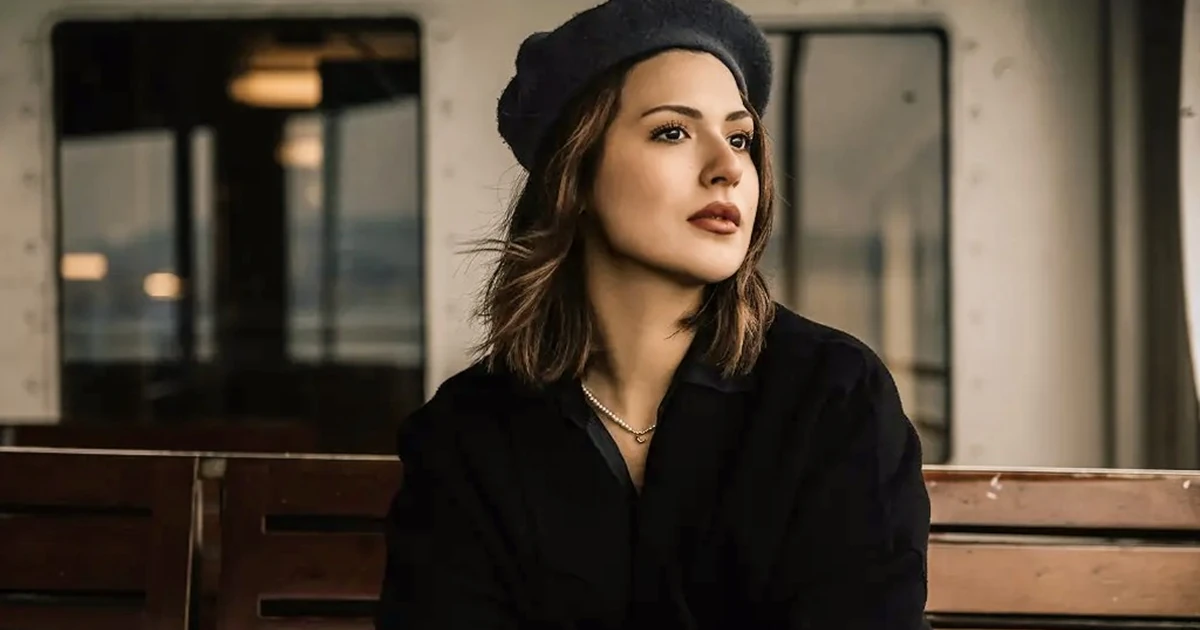
Cinematic color grading is less about one filter and more about a set of choices that the eye reads as “film.” A few recurring ingredients show up again and again:
- Controlled contrast: deep but not crushed shadows, with highlights that roll off gently instead of clipping.
- Color separation: warm skin tones set against cooler shadows, the basis of the familiar teal-and-orange look.
- Restrained saturation: color that feels rich without turning neon.
- Consistency across shots: the same palette holds from a wide to a close-up, so the sequence feels authored rather than assembled.
The hard part is not picking a look. It is applying that look evenly across an entire timeline, especially when footage comes from mixed sources. That consistency problem is exactly where AI reference matching changes the workflow.
AI Color Grading Video: Match a Look in One Click
Traditional grading suites like DaVinci Resolve, Premiere Pro’s Lumetri, or Final Cut Pro give you color wheels, curves, HSL qualifiers, and scopes. They are powerful, but the learning curve is steep and dialing in a look shot by shot takes time. AI color grading video tools take a different route: instead of building a look from scratch, you hand the software a reference and let it transfer the feel.
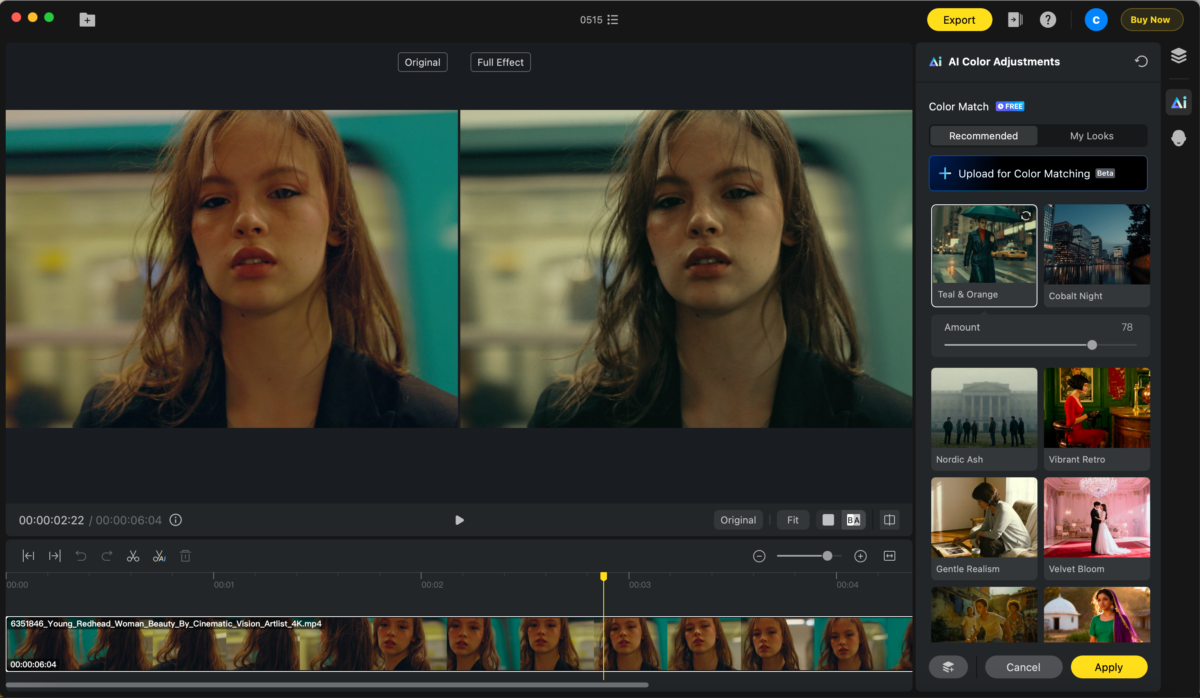
Evoto Video does this through its AI Color Match feature, found in the AI Color Adjustments panel. Rather than asking you to balance lift, gamma, and gain, it analyzes your clip and maps the color character of a reference image onto your footage. There are no LUTs to hunt down and no node graph to wire up. You pick a reference, dial the strength, and apply.
A few things make this practical for real projects:
- Reference looks built in: the Recommended tab includes ready-made looks such as Teal & Orange, Cobalt Night, Sun-Dappled, Warm Outdoors, and Clean Illuminated, which are useful starting points for a cinematic grade.
- Your own reference: use the Upload for Color Matching option to bring in a film still or a frame whose color you want to borrow, as a PNG or JPG.
- LOG and Rec.709 support: apply matching directly to LOG footage without converting through a LUT first, or work with standard Rec.709 clips.
- Cross-clip consistency: hold one look across shots from different cameras, devices, or times of day, which is the consistency problem that usually eats the most grading time.
How to Color Grade a Video in Evoto Video
The workflow is short and repeatable. Here is the full pass from import to render:
Evoto Video – Be the First to Edit Smarter
Professional-grade AI color grading and retouching for video creators.
- Open the AI Color Adjustments panel using the palette icon in the right toolbar. The section is labelled Color Match.
- Choose a reference source from the two tabs: Recommended for built-in sample looks, or My Looks for your saved references.
- To grade toward your own film still, click Upload for Color Matching (currently a Beta button) and import a PNG or JPG reference.
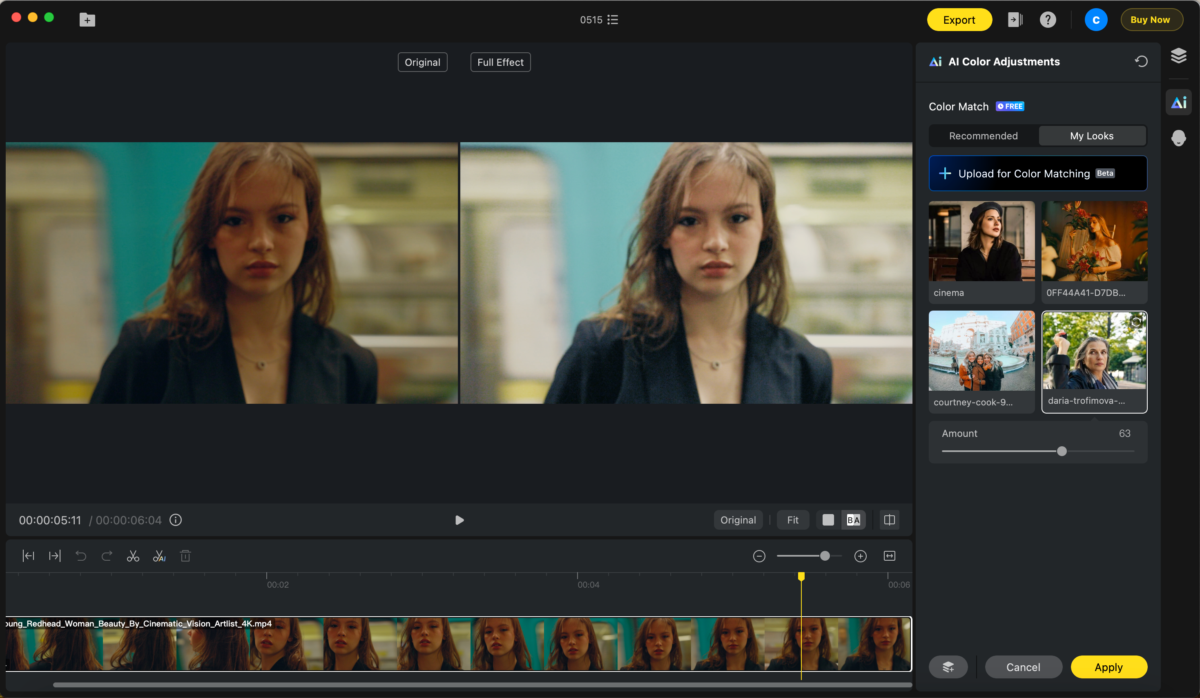
- Let Evoto Video run its initial color analysis of the footage on a new clip.
- Select a look. An Amount slider appears so you can dial the intensity from 0 to 100, for example a value of 58 for a subtler grade.
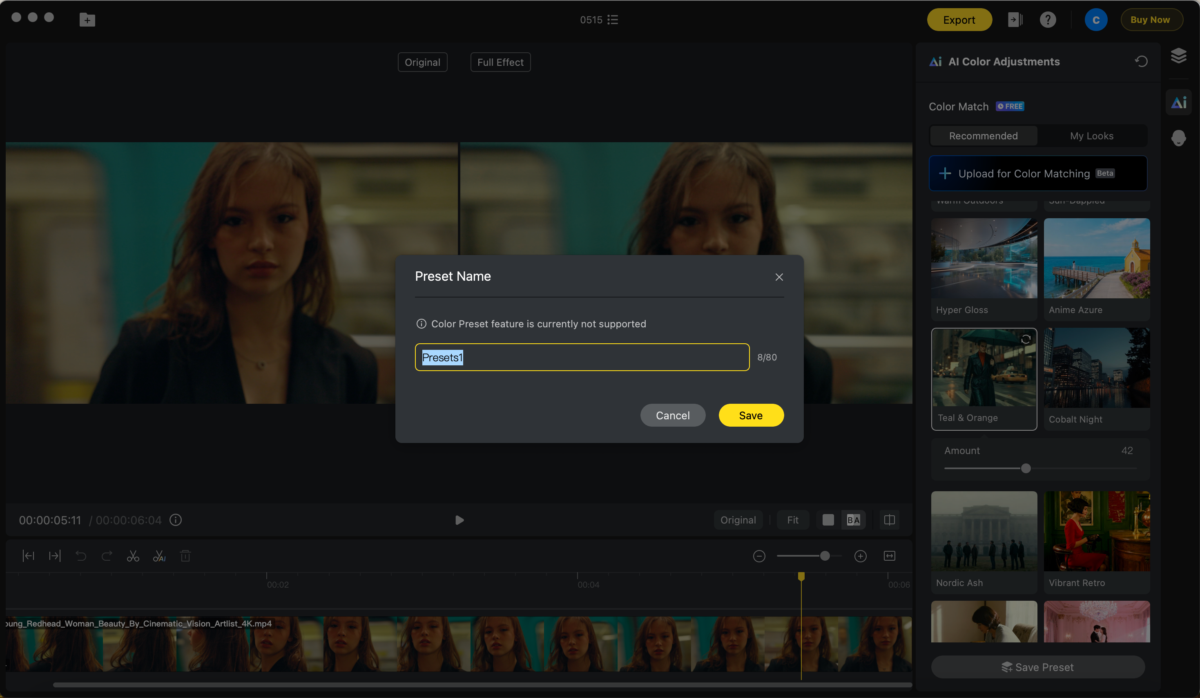
- Preview the result on a single frame, then click Apply to render the look across the whole clip. Cancel discards it.
- Click Save Preset to keep the matched look and reuse it on other clips or projects for instant consistency.
Because the look is applied through one analysis pass and a single intensity control, you spend your time choosing the feel rather than rebuilding it on every clip. You can download Evoto Video from the Evoto Video download page and try the workflow on your own footage, or learn more on the Evoto Video homepage.
When to Still Reach for a Traditional Grading Suite
It is worth being honest about scope. Evoto Video’s AI Color Match is built for speed, accessibility, and cross-clip consistency. Its only manual control is the Amount intensity slider. It does not replace a full technical grading desk: there are no color wheels, curves, HSL qualifiers, or scopes inside the feature. If your project needs precise per-region keying, scope-driven correction, or frame-by-frame technical fixes, a dedicated NLE or grading suite is still the right tool, and you can use Evoto Video to establish a fast, consistent base look first. Reach for reference matching when you want a cinematic result quickly; reach for the node graph when you need surgical control.
Evoto Video – Be the First to Edit Smarter
Professional-grade AI color grading and retouching for video creators.
Conclusion
Color grading video is what turns raw footage into a finished, intentional piece of visual storytelling. The fundamentals never change: correct first, then grade for mood, and keep the look consistent across every shot. What is changing is how long it takes to get there. By matching a reference look with the AI Color Match feature in Evoto Video, you can land a cinematic, cross-clip-consistent grade without LUTs or node graphs, then save it as a preset and move on. Pair that speed with a clear sense of the mood you want, and a polished color grade stops being the slowest part of your edit.
Frequently Asked Questions
What is the difference between color correction and color grading in video?
Color correction is the technical first pass that makes footage look accurate, fixing white balance, exposure, and shot-to-shot consistency. Color grading is the creative second pass that applies a deliberate mood or cinematic style on top of that corrected base.
Can AI really handle cinematic color grading?
AI is well suited to transferring a look and holding it consistent across clips. Evoto Video’s AI Color Match analyzes your footage and maps the color feel of a reference look or image onto it, with an Amount slider for intensity. For surgical, scope-driven technical correction you will still want a traditional grading suite, but for a fast cinematic look AI reference matching is highly effective.
Do I need LUTs to color grade video in Evoto Video?
No. Evoto Video’s AI Color Match is reference based, so instead of hunting for a LUT you pick a built-in Recommended look or upload your own reference image. It can match color directly on LOG footage without converting through a LUT first.
How do I keep a consistent look across clips from different cameras?
Apply a look with AI Color Match, then click Save Preset to store it. Reusing that saved preset across clips gives you one consistent grade regardless of the camera, device, or time of day each shot came from.
Does Evoto Video have manual color wheels and curves?
No. The AI Color Match feature is designed for speed and consistency, and its only manual control is the Amount intensity slider. If you need color wheels, curves, HSL qualifiers, or scopes, use a dedicated NLE or grading suite, and consider using Evoto Video to set a quick base look first.



