

Ever wondered why a wedding film feels warm and romantic, while a thriller looks cold and tense, even though both were shot on similar cameras? The answer is color. Video color grading is the creative process of adjusting the color, contrast, and tone of your footage to give it a specific mood and a finished, cinematic look. It is the step that turns raw, flat clips into something that feels intentional. This beginner’s guide breaks down what color grading is, how it differs from color correction, why it matters, and how you can do it quickly inside Evoto Video.
What is video color grading?
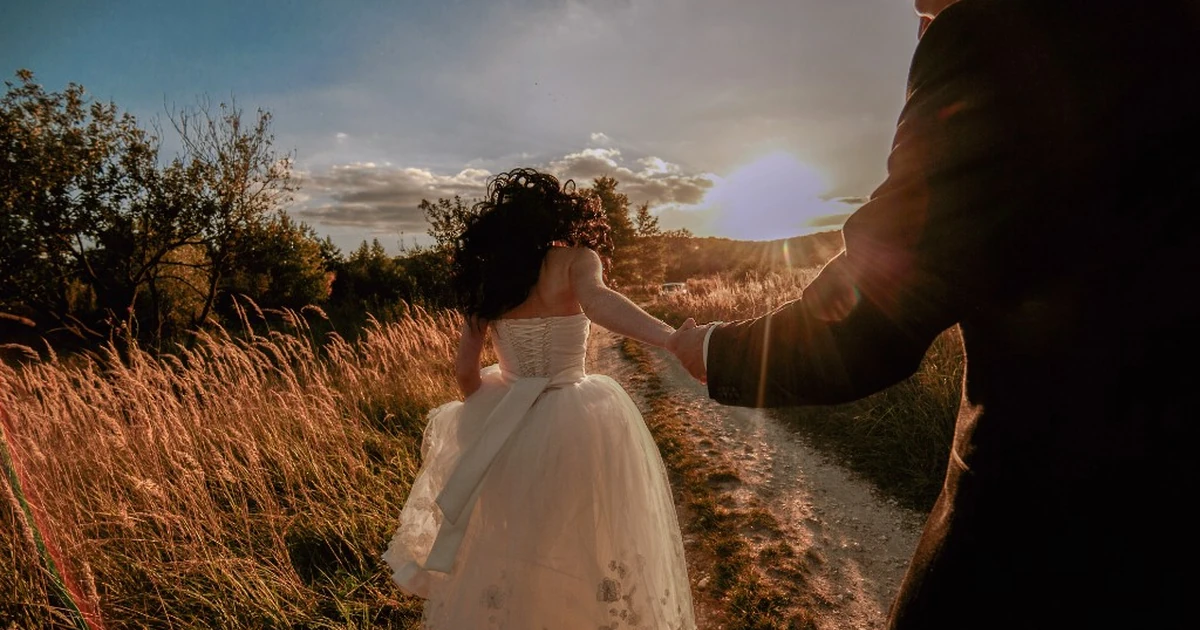
Video color grading is the art of shaping the colors in your footage to create a consistent look and an emotional tone. Instead of leaving clips exactly as the camera recorded them, you push the highlights warmer or cooler, deepen the shadows, shift the overall palette, and balance saturation until every shot supports the story you want to tell. A teal-and-orange grade can make a frame feel like a blockbuster, a desaturated grade can feel gritty and serious, and a soft warm grade can feel nostalgic and intimate.
Grading sits at the end of the post-production pipeline, after editing and basic correction. It is where a video stops looking like a collection of clips and starts looking like a cohesive piece. Whether you are cutting a brand ad, a YouTube video, a short film, or a wedding highlight reel, grading is what gives the final product its signature feel.
Color grading vs. color correction
Beginners often use these two terms interchangeably, but they are different stages with different goals. Getting the distinction right makes the whole process easier to understand.
- Color correction comes first. It is technical clean-up: fixing exposure, balancing white balance, removing color casts, and matching shots so they all look natural and accurate. The goal is correctness, not style.
- Color grading comes second. It is creative: applying a deliberate look, mood, and palette on top of correctly balanced footage. The goal is emotion and consistency, not just accuracy.
| Aspect | Color Correction | Color Grading |
|---|---|---|
| Goal | Make footage look accurate and neutral | Give footage a deliberate mood or style |
| Typical fixes | White balance, exposure, matching shots | Tone, atmosphere, cinematic look, brand feel |
| Order | First pass | Second pass |
| Mindset | Technical and corrective | Creative and expressive |
Think of correction as making your footage look right, and grading as making it look good. In practice the two often blend together, especially in modern tools that can handle both in a single step. But knowing the difference helps you work in the right order: balance first, then style.
Why color grading matters for video
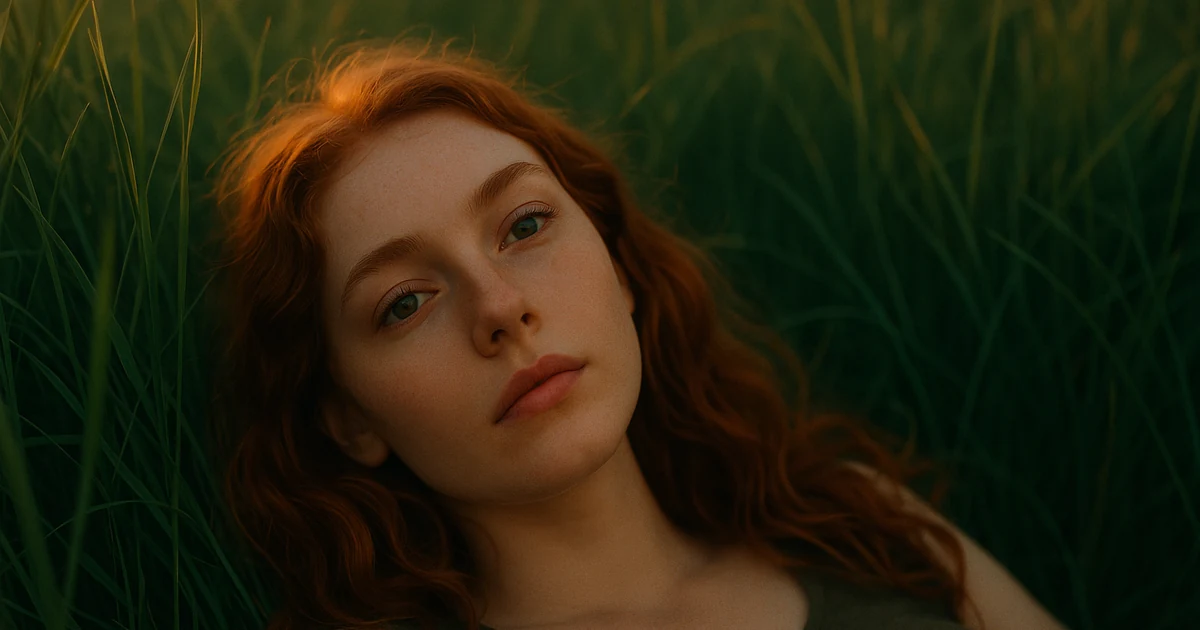
Color is one of the most powerful storytelling tools you have, and most viewers feel it without ever noticing it consciously. A consistent, intentional grade does several things at once:
- It sets the emotional tone. Warm, cool, bright, or muted palettes all signal how the audience should feel.
- It keeps your edit consistent. Clips from different cameras, lenses, or times of day get pulled toward one unified look.
- It raises perceived production value. A clean grade makes amateur footage read as professional and polished.
- It strengthens your brand. Creators and businesses use a recognizable color signature so their content feels instantly familiar.
Common video color grading tools
There is a wide range of software for grading, from professional suites to AI-assisted apps:
- DaVinci Resolve – the industry standard for high-end grading, built around node-based control, color wheels, and curves. Powerful, but with a steep learning curve.
- Adobe Premiere Pro – its Lumetri Color panel offers solid grading inside a full editing timeline, popular with creators and editors.
- Final Cut Pro – Apple’s editor with color wheels, curves, and LUT support for Mac users.
- Evoto Video – an AI-first approach that grades footage by matching it to a reference look instead of pushing wheels and curves by hand. You simply upload your own target color photo and Evoto Video applies that look to your clip in one click, so matching a whole project to a frame you love is fast and effortless. Its advanced algorithm analyzes the target image and transfers the color intelligently, keeping the result natural and protecting realistic skin tones rather than oversaturating faces. A single Amount slider lets you dial the strength up or down, which makes it a genuinely beginner-friendly way to get a clean, professional grade in seconds.
Traditional tools give you total control, but they also assume you already understand exposure, white balance, and how to read a scope. If you are just starting out, an AI-based tool gets you to a good-looking grade with far less friction.
Meet Evoto Video: AI video color grading
Evoto Video is built to make color accessible. Instead of asking you to balance wheels and curves on every clip, it analyzes your footage and transfers the color of a reference look onto it automatically. You can grade to a built-in cinematic style or to your own target photo, control the strength with a single slider, and save the result as a preset to reuse across an entire project. It works on flat LOG footage and standard Rec.709 alike, so it is a practical way to unify multi-camera and multi-time-of-day edits without a colorist’s training.
Color is only half of a polished video, and Evoto Video handles the other half too: AI portrait retouching such as skin smoothing, blemish and wrinkle removal, teeth whitening, and facial reshape, all tracked automatically across every frame with no keyframing. Grading your footage and refining your subjects in one tool means your video looks finished without bouncing between apps.
How to color grade video with Evoto Video (step by step)
Color grading in Evoto Video is reference-based, so there are exactly two ways to set a look: pick one from the built-in style library, or upload your own target photo. Both feed into the same Amount slider and Apply controls. Here is the full workflow.
Evoto Video – Be the First to Edit Smarter
Professional-grade AI color grading and retouching for video creators.
Step 1: Open the AI Color Adjustments panel
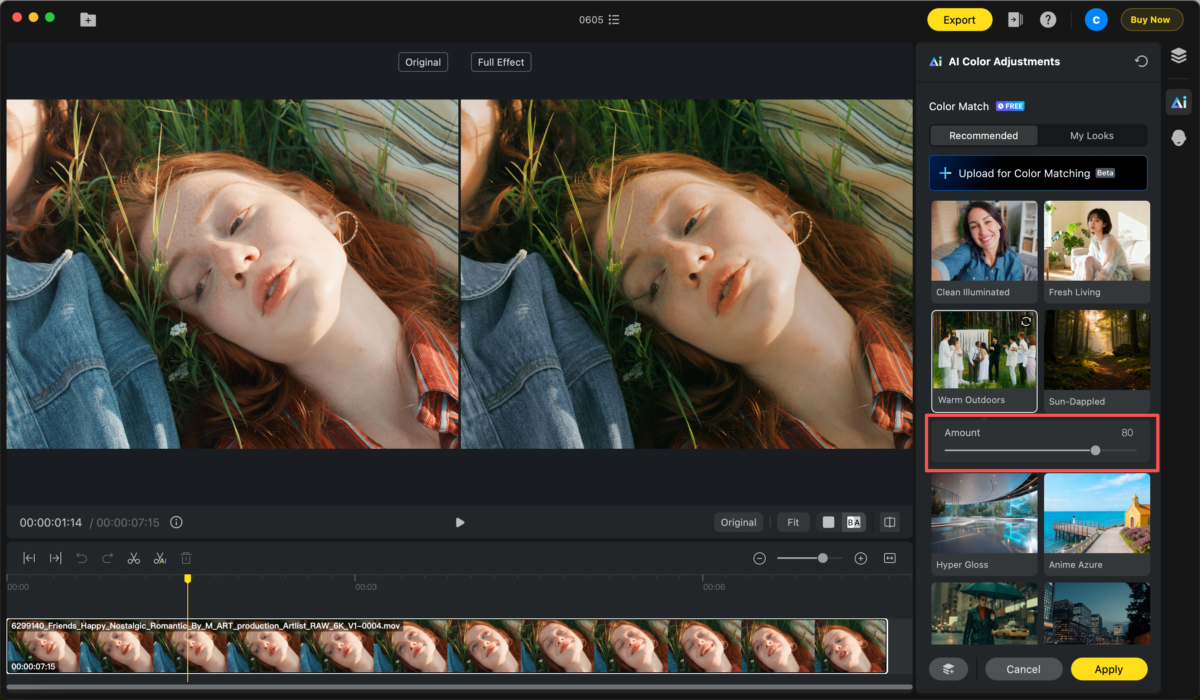
Import your clip and open the AI Color Adjustments panel from the palette icon in the right-hand toolbar. The color tools live in the section labelled Color Match, where you will see two tabs at the top: Recommended and My Looks.
Step 2: Way 1 – pick a look from the built-in style library
Stay on the Recommended tab to grade from Evoto Video’s built-in style library. These are ready-made cinematic looks – including Clean Illuminated, Fresh Living, Warm Outdoors, Sun-Dappled, Hyper Gloss, and Anime Azure – and they are the fastest path to a finished tone when you do not have a reference of your own.
Step 3: Way 2 – upload your own target photo (My Looks)
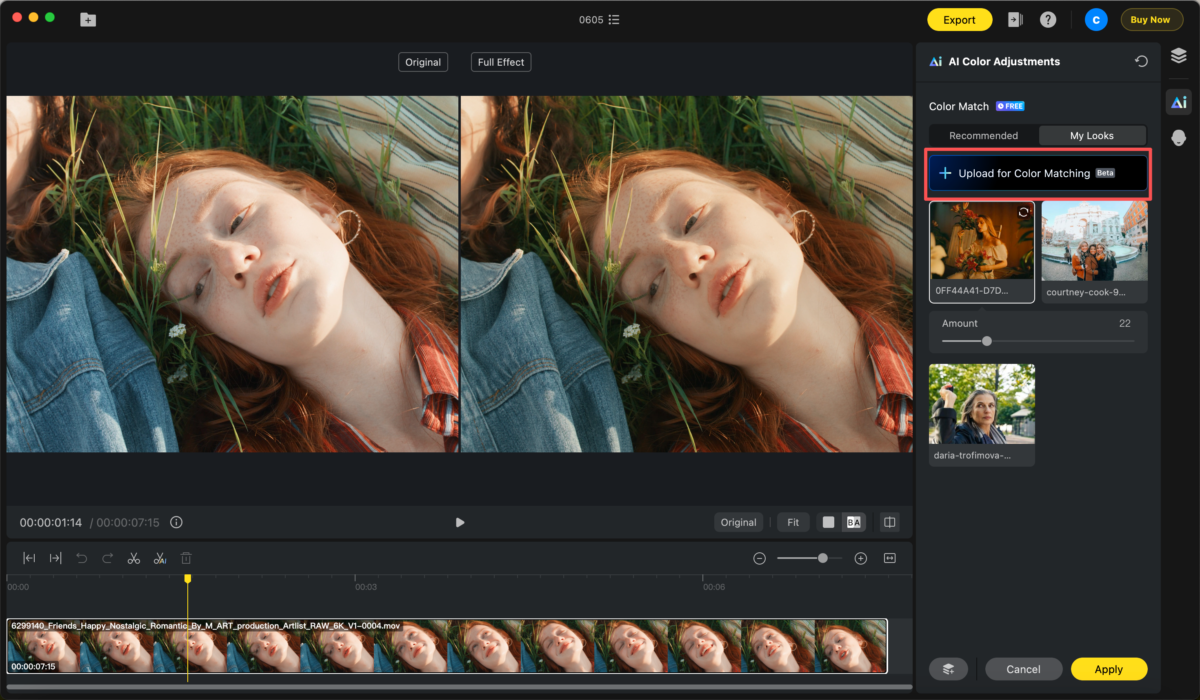
When you have a specific reference in mind – a film still, a brand color guide, or a perfectly graded frame from your own project – switch to the My Looks tab and click Upload for Color Matching to import a PNG or JPG. Evoto Video reads the color from your target photo and maps that tone onto your footage.
Step 4: Adjust the Amount, then apply and save your grade
Whichever method you choose, an Amount slider appears once a look is applied. Drag it to set how strongly the grade hits your footage, from 0 to 100. A lower value keeps the result subtle and natural – usually the better choice on skin tones – while a higher value pushes a bolder, more stylized look.
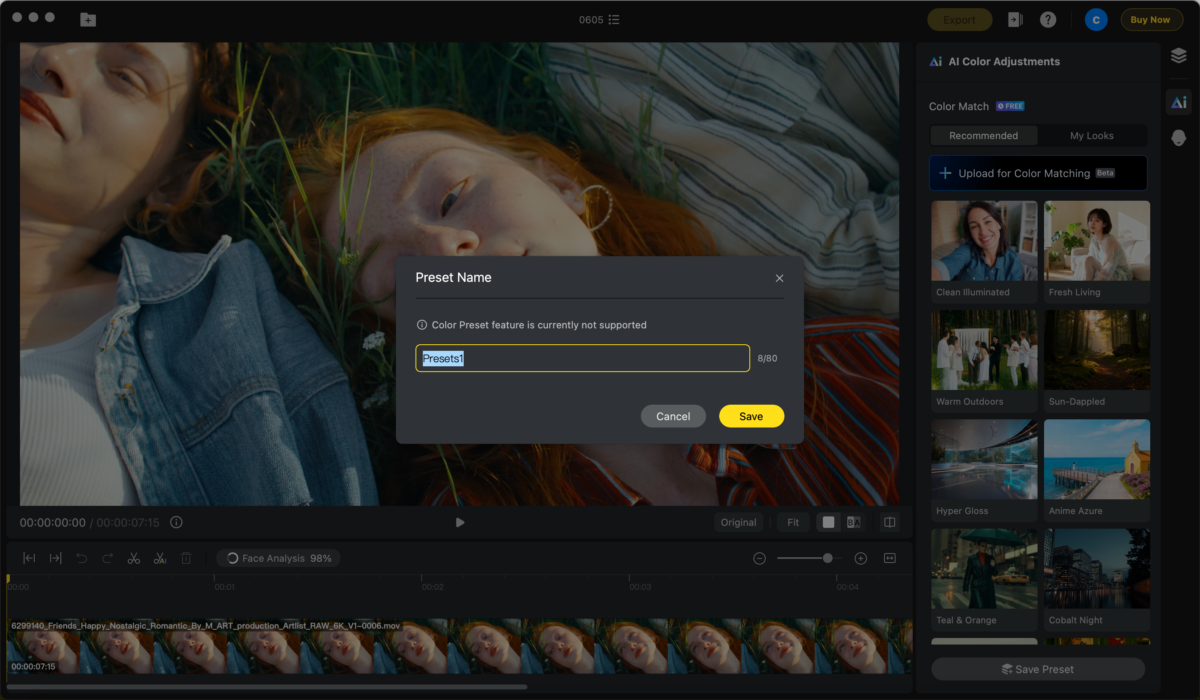
Preview on a single frame using the Original / Full Effect toggle until the balance feels right, then click Apply to render the grade across the whole clip. Finally, click Save Preset to store that exact look so you can drop it onto your other clips and future projects in one click, which is the key to keeping a whole timeline consistent.
Beginner tips for video color grading
- Correct before you grade. Make sure exposure and white balance look natural first, then apply your creative look on top.
- Match to one hero frame. Pick your best-lit shot, upload it under My Looks, and pull every other clip toward it for a unified edit.
- Do not overdo it. Ease back the Amount slider; a subtle grade almost always reads more professional than a heavy one, especially on faces.
- Save and reuse presets. Once a look feels right, save it so every new clip starts from the same place instead of guessing each time.
- Shoot in LOG when you can. Flat LOG footage holds more detail and gives the grade more room to work.
Conclusion
Video color grading is what turns raw footage into a finished, cinematic story – setting the mood, unifying your clips, and lifting your production value. You do not need years of colorist training to get there. With Evoto Video, you grade by matching your footage to a built-in style or your own target photo, control it with a single Amount slider, and save the result as a preset to keep your whole project consistent. Download Evoto Video and try grading your first clip in minutes.
FAQs
What is video color grading in simple terms?
Video color grading is the process of adjusting the colors, contrast, and tone of your footage to create a specific mood and a consistent, finished look. It is the creative step that gives a video its cinematic feel, applied after basic color correction.
Do I need professional software to color grade video?
No. Professional tools like DaVinci Resolve offer deep control but have a steep learning curve. AI-based apps such as Evoto Video let beginners grade by matching footage to a reference look, getting a clean result without manual wheels and curves.
How do I keep color consistent across clips?
Match every clip to the same reference – ideally one hero frame uploaded under My Looks in Evoto Video – and save it as a preset. Applying that preset across clips from different cameras or times of day pulls them all toward one consistent tone.
Can I color grade LOG footage?
Yes. LOG footage is actually ideal for grading because it preserves more detail in highlights and shadows. Evoto Video applies your chosen look directly to LOG footage, as well as to standard Rec.709, without a separate conversion LUT.
Evoto Video – Be the First to Edit Smarter
Professional-grade AI color grading and retouching for video creators.



