

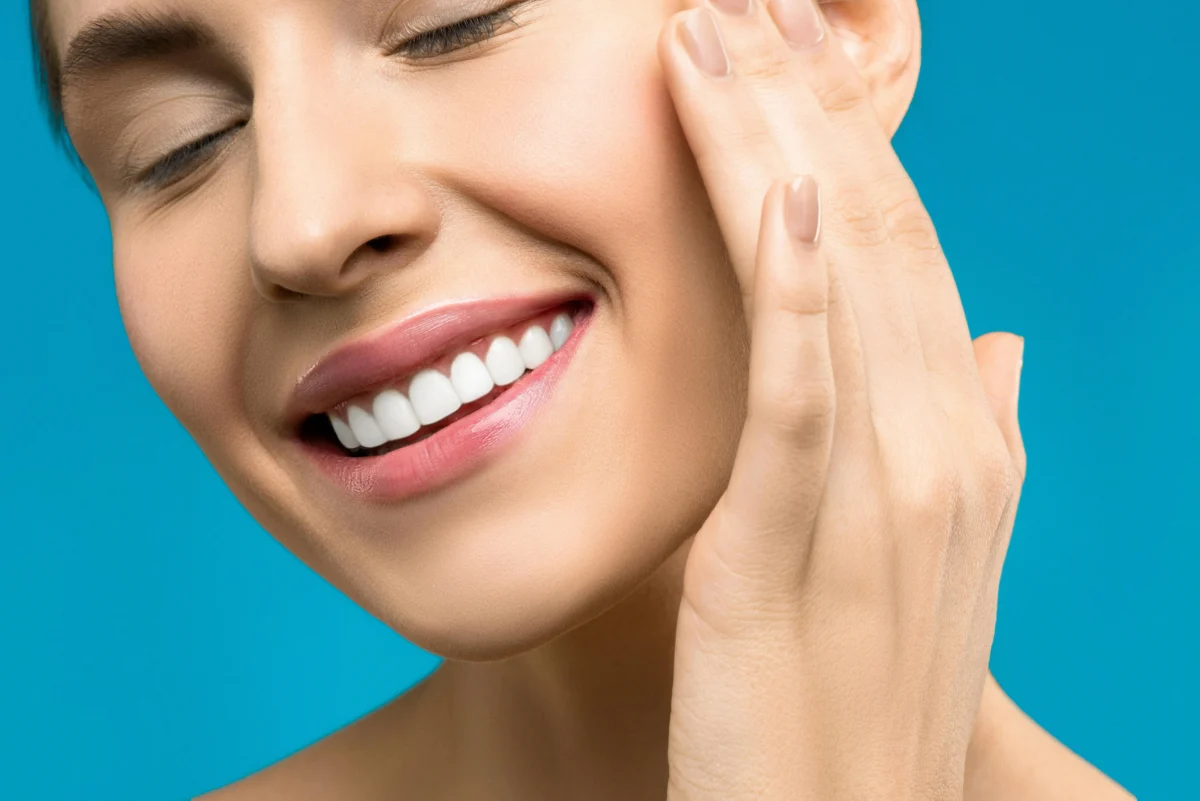
A bright, natural smile can instantly elevate a portrait. Whether you’re retouching professional headshots, lifestyle photos, or social media portraits, knowing how to Whiten Teeth in photoshop is an essential skill. In this guide, we’ll walk you through a traditional Photoshop method and introduce a faster, AI-powered alternative with Evoto AI.
What Does It Mean to Whiten Teeth and Why It Matters
Teeth whitening in photo editing refers to reducing yellow tones and subtly increasing brightness to make teeth look clean and natural—without appearing fake or over-edited.
Proper teeth whitening helps:
- Enhance facial expressions and confidence
- Improve overall portrait quality
- Create a more professional and polished look
The key is balance: effective whitening should look realistic and blend seamlessly with skin tone and lighting.
How to Whiten Teeth in Photoshop: Step-by-Step Guide
Here’s a simple and commonly used method for whitening teeth in Photoshop:
Step 1: Select and Open Your Image
Open Adobe Photoshop and load the photo you want to edit.
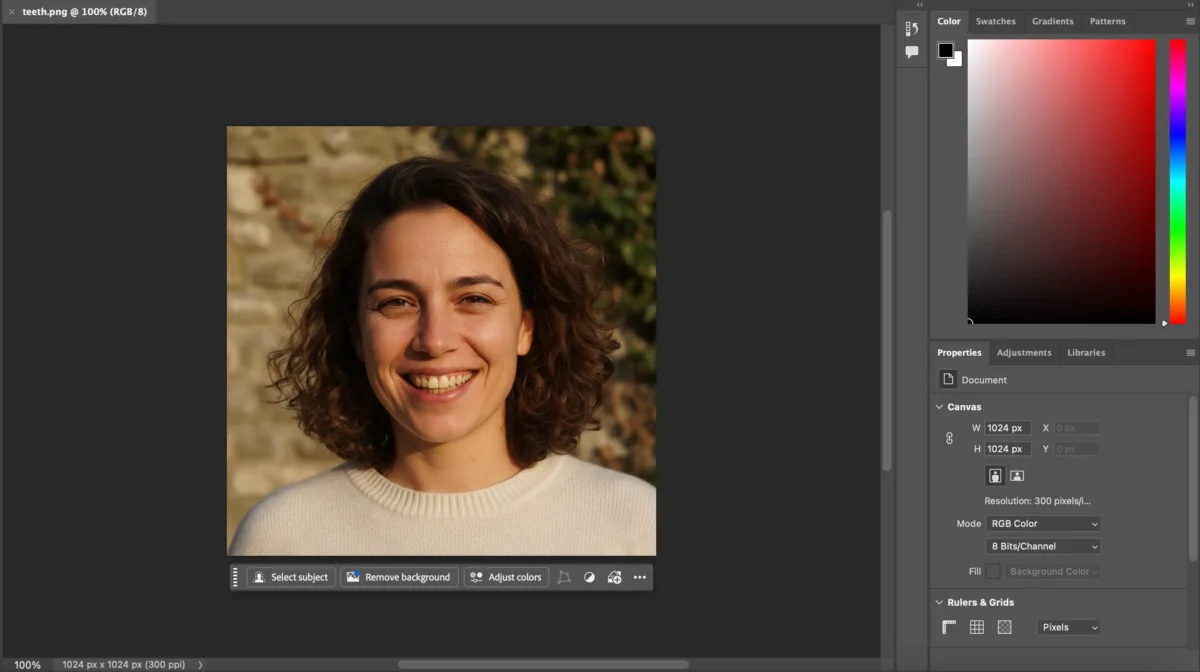
Step 2: Use the Lasso Tool
Select the Lasso Tool and carefully outline the teeth area. Precision is important to avoid affecting lips or skin.
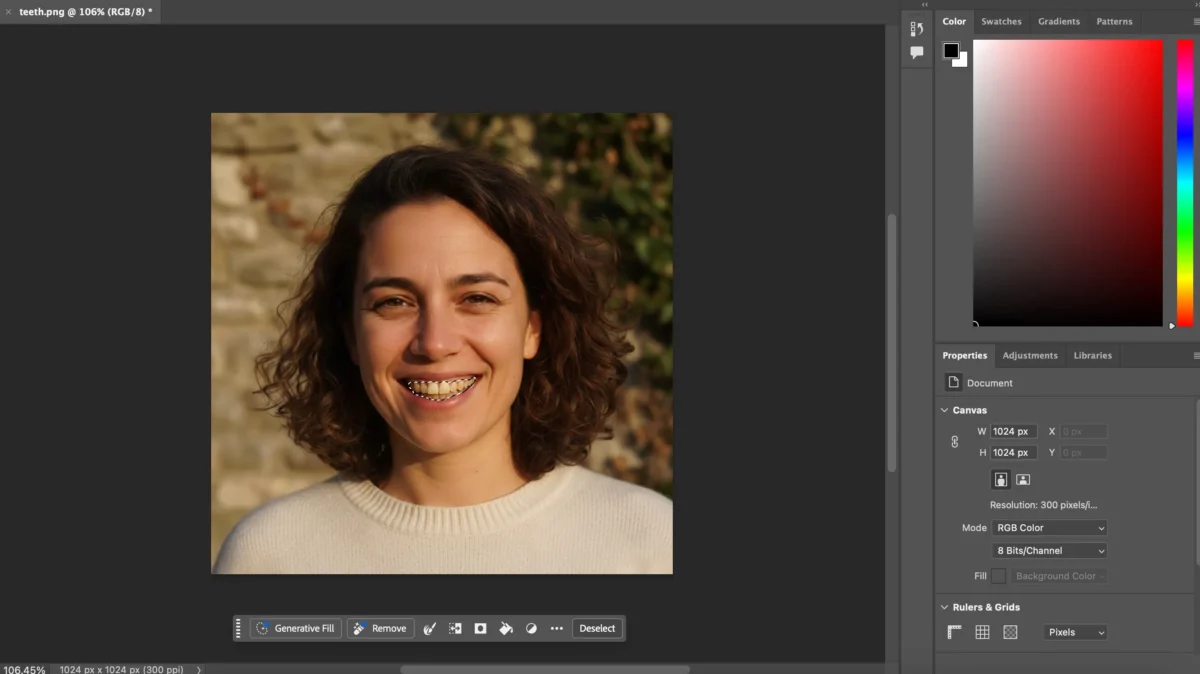
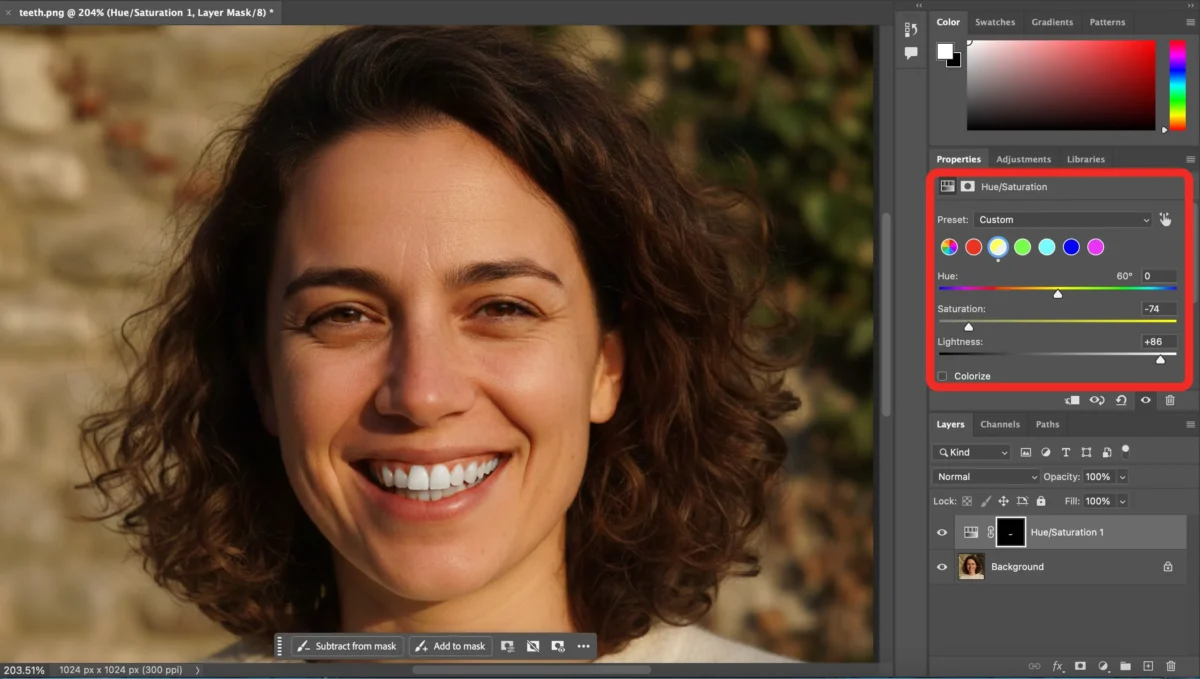
Step 3: Create a Hue/Saturation Adjustment Layer
With the teeth selected, add a Hue/Saturation adjustment layer.
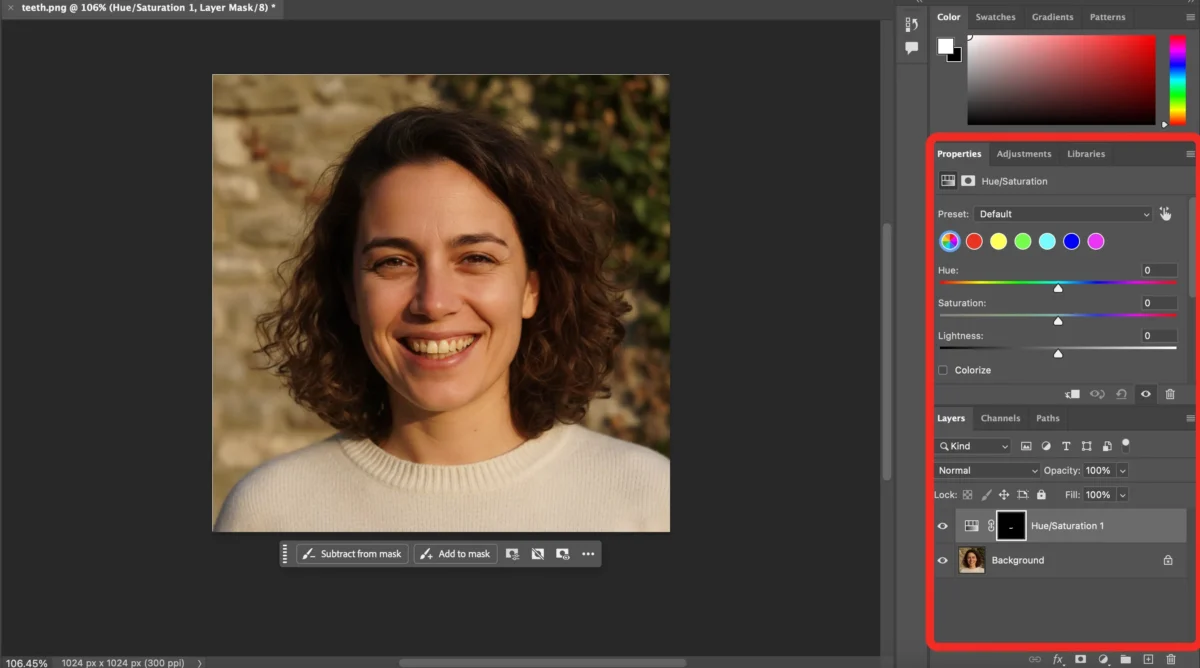
Step 4: Adjust the Layer Options to Yellows
From the dropdown menu, choose Yellows, then lower the Saturation slightly and increase Lightness to reduce yellow tones.
Step 5: Check the Result and Save
Refine the adjustment if needed, then save the image while preserving the original layer.
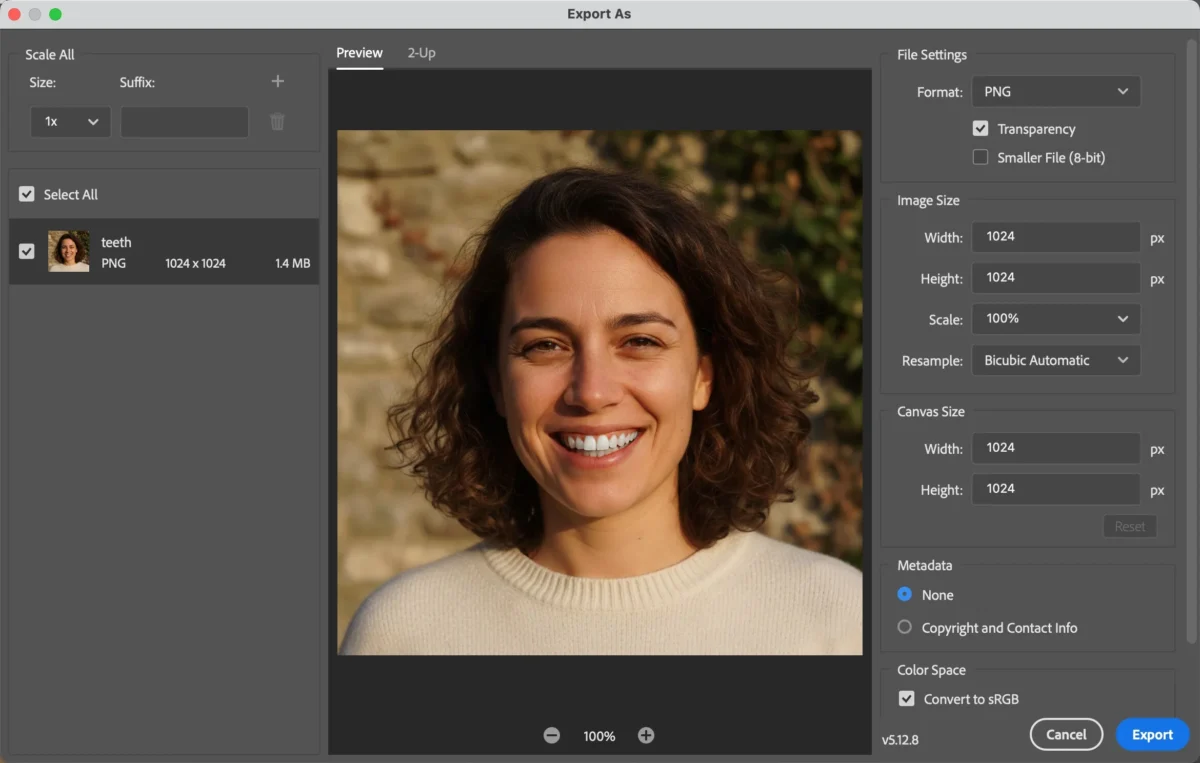
This method offers control, but it requires careful manual work—especially for multiple images.
Limitations of Photoshop for Whiten Teeth
While Photoshop is powerful, it has some clear limitations when it comes to teeth whitening:
- Manual selection can be time-consuming
- Easy to over-whiten, resulting in unnatural gray tones
- Requires experience to balance color and brightness
- Inefficient for batch editing multiple portraits
For photographers working with high volumes of images, these drawbacks can significantly slow down workflows.
How Evoto AI Simplifies Whiten Teeth: Step-by-Step Guide
Evoto AI streamlines the entire process using intelligent facial recognition and AI-powered adjustments.


Powerful AI Photo Editor
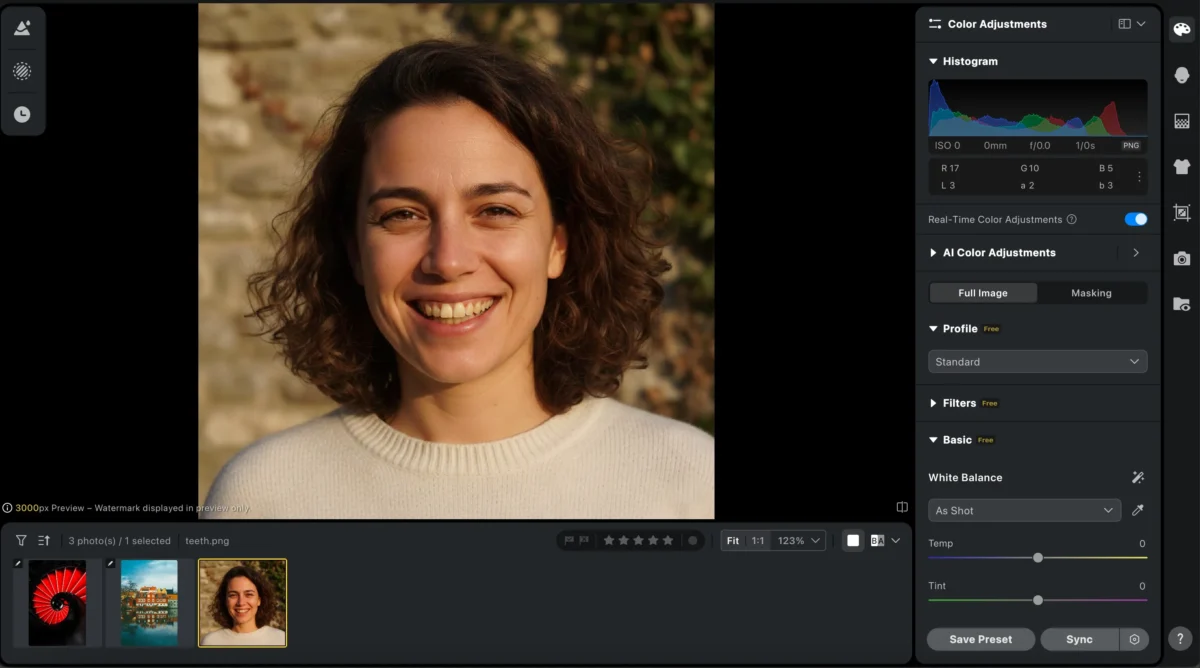
Step 1: Open Your Image in Evoto AI
Launch Evoto AI and upload your photo.
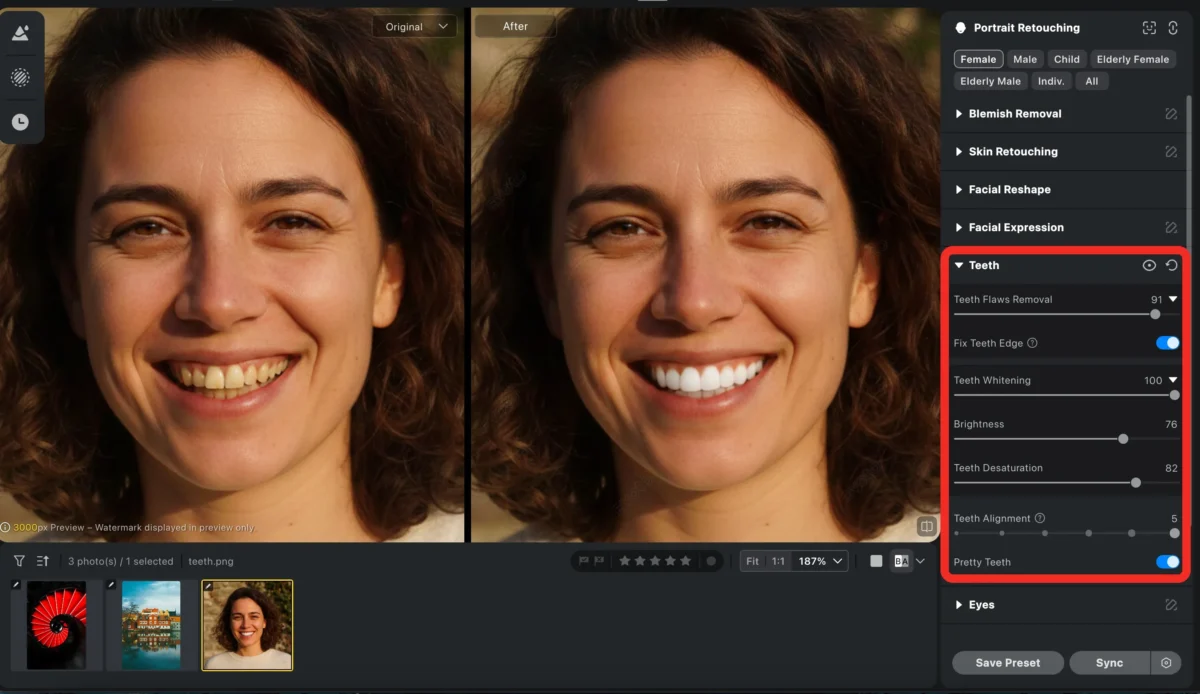
Step 2: Use the Teeth Whitening Feature
Activate Evoto’s Teeth Whitening tool. The AI automatically detects teeth and applies natural-looking whitening.
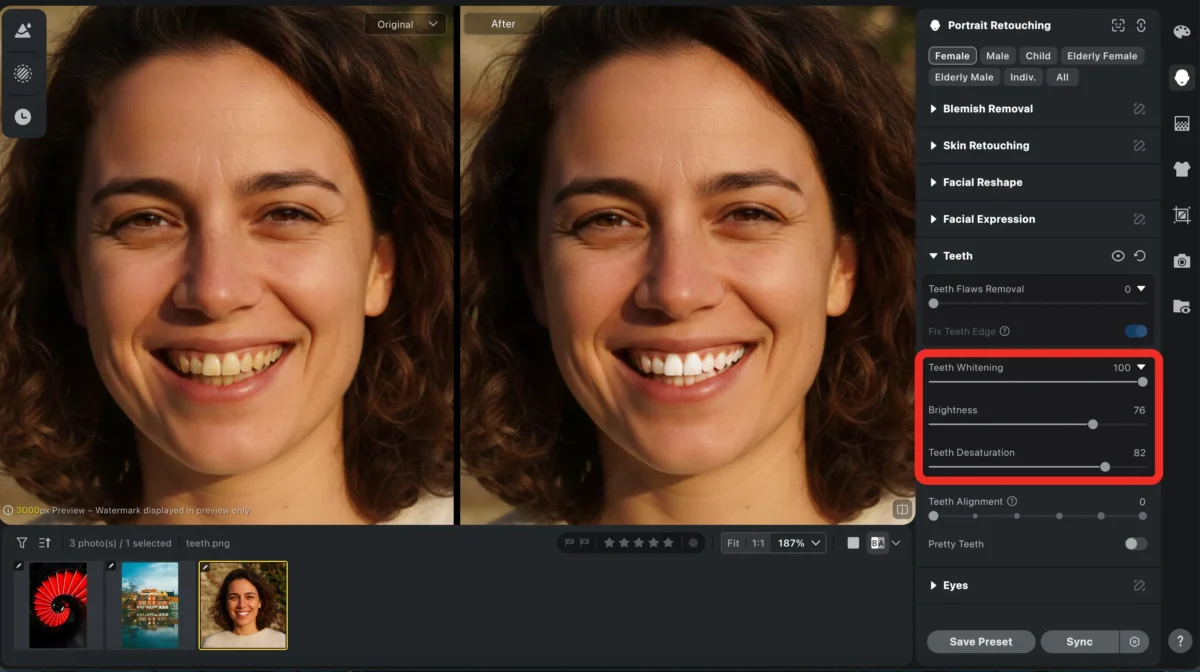
You can also use some features like teeth flaws removal and teeth alignment to make your teeth more pretty.
Step 3: Use Additional Adjustments (Optional)
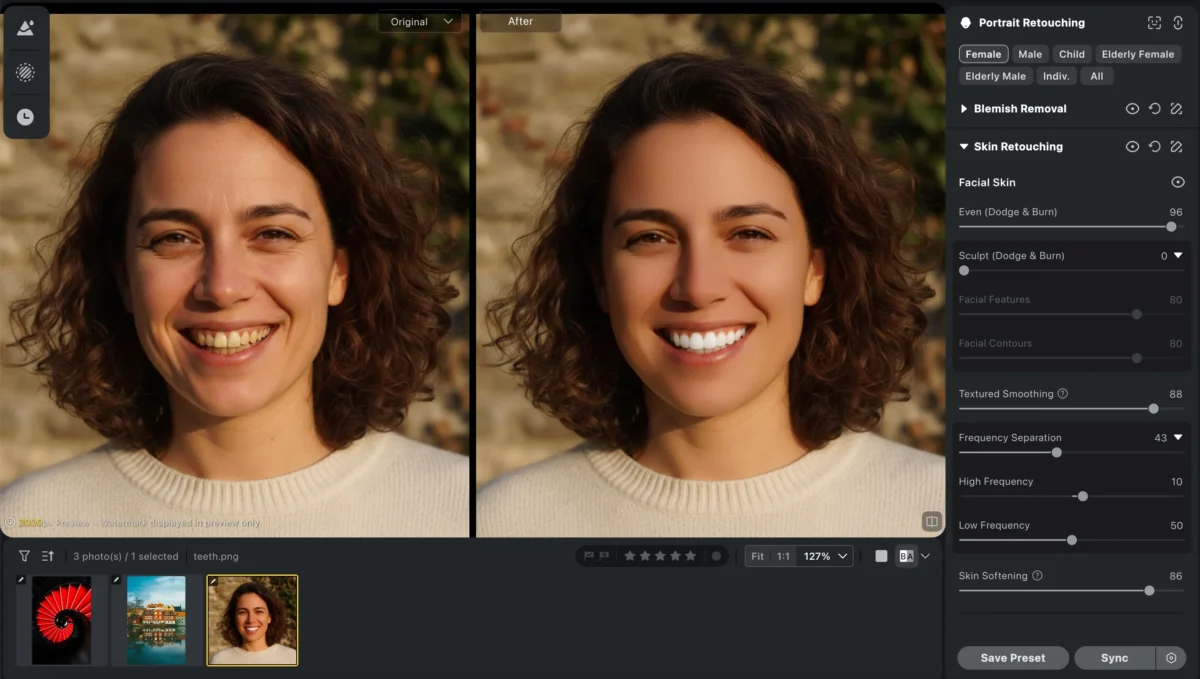
Further refine your image using other tools such as skin retouching, color match, and facial expression changer for a cohesive result.
Step 4: Save Your Image
Export the final image in your desired format and resolution with one click.
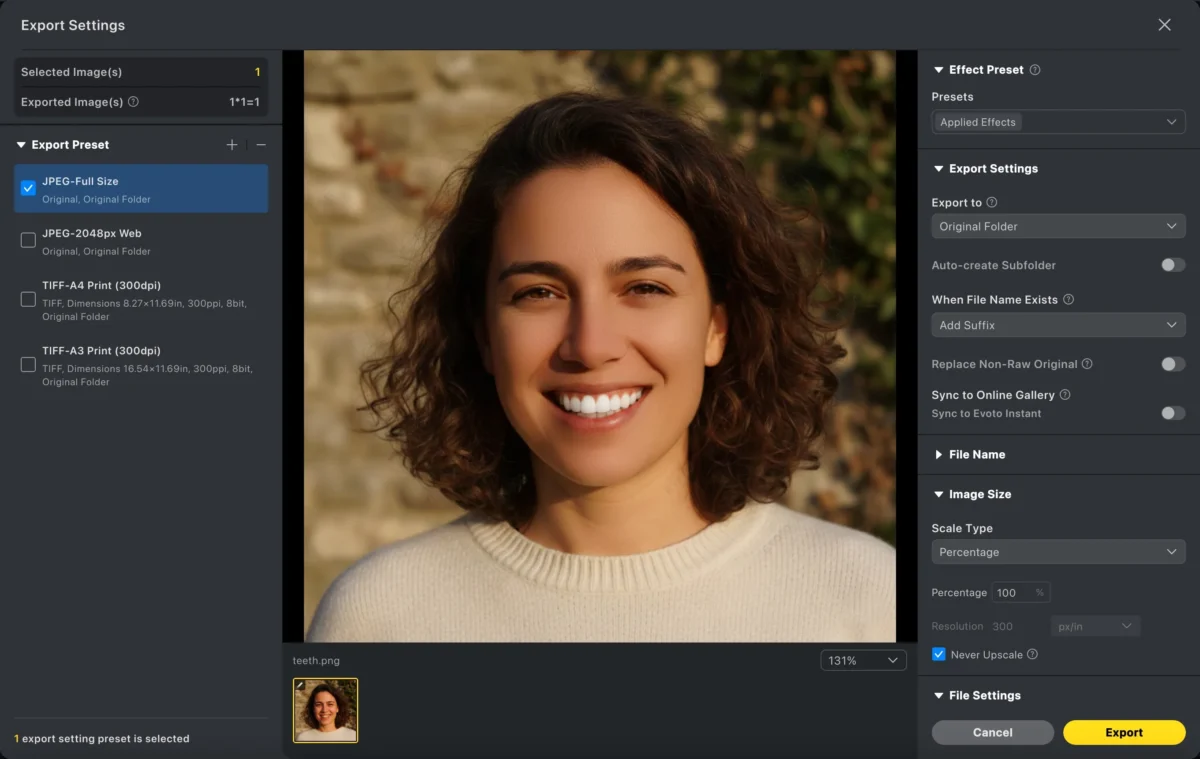
With Evoto AI, whitening teeth becomes fast, consistent, and effortless.
Powerful AI Photo Editor
Photoshop VS Evoto: How Evoto Can Simplify Whiten Teeth
| Feature | Photoshop | Evoto AI |
|---|---|---|
| Ease of use | Requires manual skills | Beginner-friendly |
| Speed | Slow for single & batch edits | Extremely fast |
| Teeth detection | Manual selection | AI automatic detection |
| Natural results | Depends on experience | AI-optimized |
| Batch processing | Limited | Fully supported |
Photoshop is suitable for detailed, one-off retouching, but Evoto AI is designed for speed, consistency, and scalability.
Conclusion
Learning how to Whiten Teeth in photoshop gives you precise control over your edits, but it can be slow and repetitive—especially for batch workflows. Evoto AI offers a smarter alternative by automating teeth whitening while preserving natural texture and color harmony.
If you want professional results with less time and effort, Evoto AI is the ideal solution for modern portrait retouching.



