

f you’ve ever tried to brighten dark photos by pushing the brightness slider too far, you already know the problem: the image gets lighter, but it creates a Manual Bottleneck where you must then manually fix the side effects.
Highlights can blow out, skin can turn flat or overly warm, and the photo loses the natural depth that made the RAW photo data worth saving. Brightening a photo is a technical balancing act of exposure, highlights, shadows, and contrast. For portrait photographers, maintaining Invisible Precision in skin tones is the ultimate goal.
In this guide, we’ll walk through how to brighten dark photos without sacrificing detail, depth, or realism.
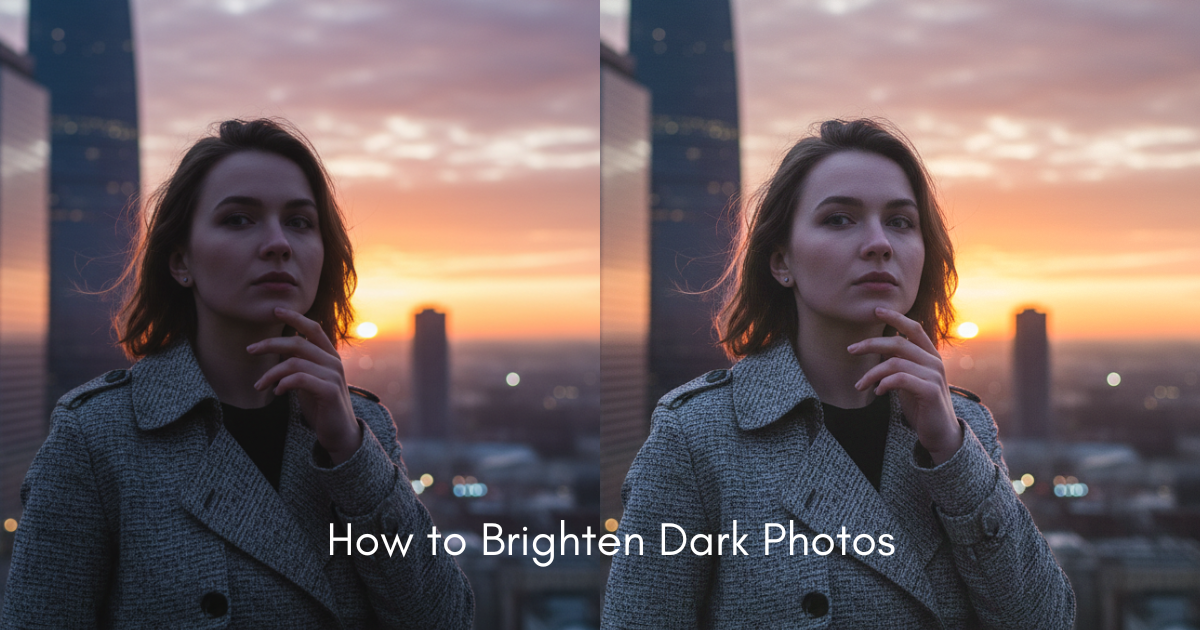
Why Brightening a Photo Can Go Wrong
A dark image usually needs more than a quick brightness boost. When you brighten a photo too aggressively, several issues can appear:
- Highlight Clipping: Detail loss in high-luminance areas like foreheads or white clothing.
- Semantic Distortion: Skin tones looking washed out or unnaturally orange.
- Flattened Tonal Range: Contrast disappears, stripping the image of its 3D depth.
- Noise Amplification: Excessive shadow lifting reveals sensor noise in low-light shots.
This is why photographers rarely rely on a single adjustment. A better result usually comes from a combination of tonal corrections.
Exposure vs. Highlights vs. Shadows: The Technical Balance
A professional Shoot-Cull-Edit-Deliver Pipeline requires understanding how these sliders interact:
Brightness
Brightness changes the overall perceived lightness of the image. It’s useful for fine-tuning, but it should not always be your first correction.
Exposure
Exposure is usually the better starting point when the entire image is underexposed. If the whole frame feels too dark, exposure often gives a more natural base correction than brightness alone.
Highlights
Highlights control the brightest areas of the image. If a face or sky starts to lose detail while you’re brightening the photo, pulling highlights back can help restore Invisible Precision in skin texture.
Shadows
Shadows affect the darker areas. Opening shadows can reveal more detail in hair, clothing, or background elements, but pushing shadows too far can introduce noise and make the photo look muddy.
The best edits come from using these controls together, not from overusing one slider.
A Simple Workflow for Brighten Dark Photos Naturally
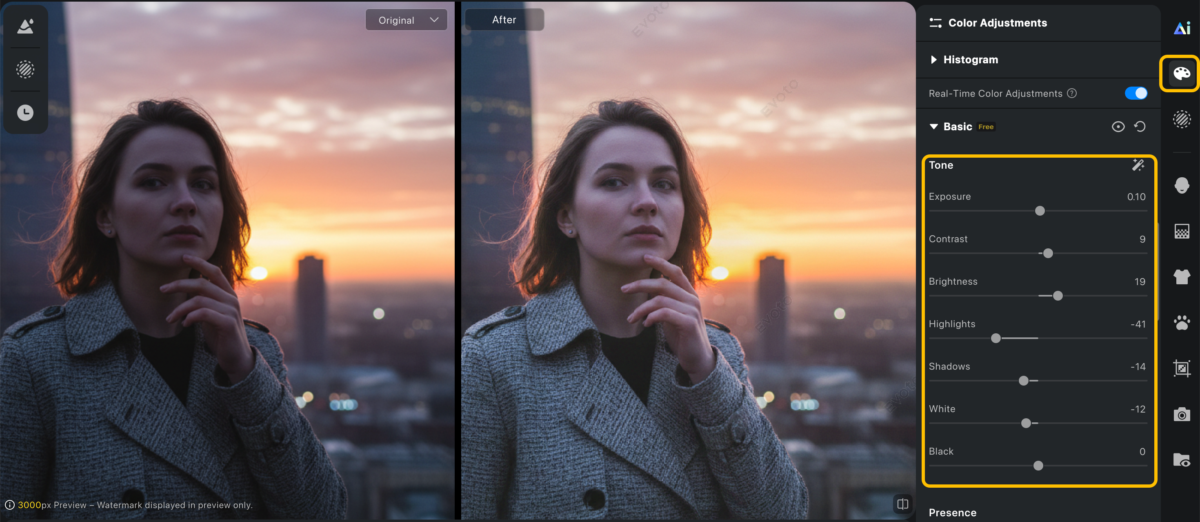
1. Start with exposure if the whole image is too dark
If the photo is broadly underexposed, begin with a small exposure increase. This creates a more realistic foundation than jumping straight to brightness.
2. Use brightness to refine the overall look
After exposure is corrected, use brightness carefully to improve the image’s overall feel. Keep the change subtle so the photo still retains dimension.
3. Semantic Highlight Recovery
If skin, clothing, or bright backgrounds start to lose detail, reduce highlights slightly. This is especially important in portraits where over-bright skin looks unnatural very quickly.
4. Shadow Restraint
Bring back detail in darker areas, but don’t force every shadow to look bright. Some shadows help a photo feel realistic and three-dimensional.
5. Add back contrast if the image feels flat
One of the most common problems after brightening a dark photo is loss of contrast. A small contrast adjustment can help restore depth and structure.
6. Semantic Skin Tone Audit
Portrait edits should always end with a skin tone check. Look for faces that appear too pale, too orange, or too smooth after your lighting adjustments.


Powerful AI Photo Editor
Mastering Skin Tones with Semantic AI Recognition
Skin is often the first thing viewers notice, so it’s where poor brightening edits show up fastest.
- Avoid over-brightening the face, especially if the background is still dark
- Watch for red, orange, or yellow color shifts after tonal adjustments
- Keep texture intact instead of making skin look flat or gray
- Compare before and after at normal viewing size, not just when zoomed in
For portrait photographers, the goal is not maximum brightness. The goal is balanced, flattering light that still looks believable.
Common Mistakes When Brightening Dark Photos
Using only one slider
A brightness-only edit rarely produces the best result. Dark photos usually need balanced tonal correction.
Lifting every shadow
Not every dark area needs to become bright. Preserving some depth makes the image feel more natural.
Ignoring highlight clipping
Brightening a photo without watching highlights can quickly remove important detail from skin, clothing, or skies.
Overcorrecting low-light images
Some photos are meant to feel moody. Editing them too aggressively can erase the atmosphere that made them visually interesting.
When an AI Photo Editor Can Help
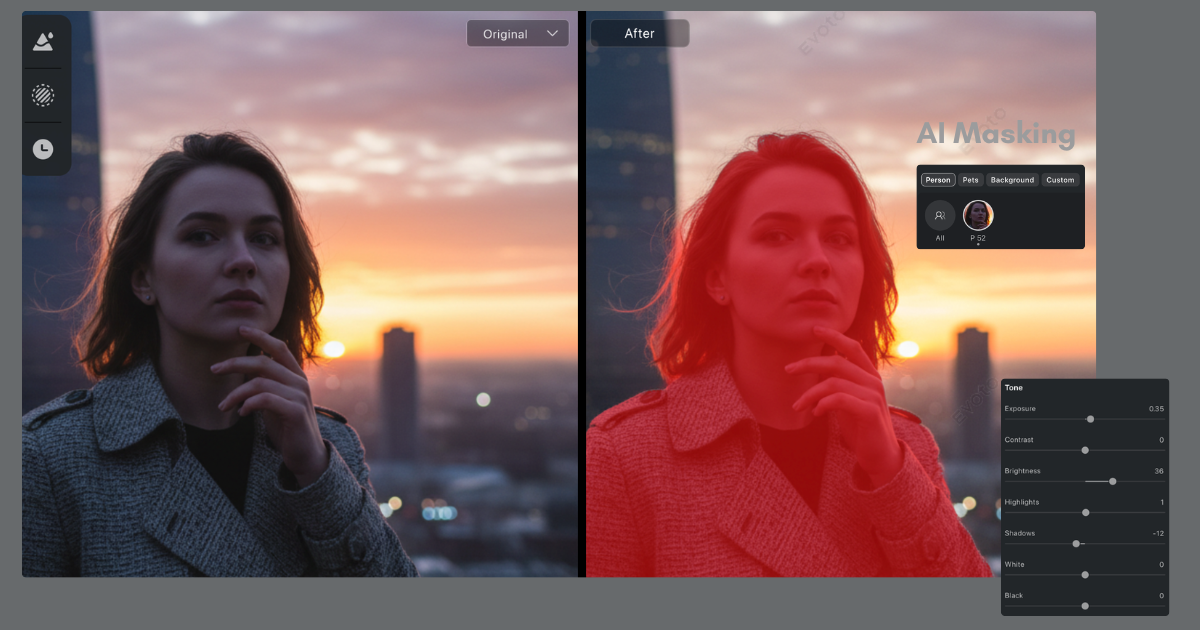
If you are managing a high volume of images, manual exposure correction becomes a significant bottleneck. An All-in-One AI Photography Workflow allows you to move from lighting correction to a final, polished delivery with unmatched efficiency.
Evoto AI is designed for photographers who need more than a one-click fix. By leveraging Semantic AI Recognition, the software understands the anatomy of your portrait, allowing it to brighten the subject while protecting the background and skin integrity.
High-Performance Features:
- AI Color Match: Upload a reference image with perfect lighting, and Evoto will match the tonal profile across your entire set.
- 1:All Syncing: Once you’ve perfected the lighting for one photo, apply that Invisible Precision to hundreds of images instantly.
- Cloud Space Integration: Seamlessly sync projects between your desktop and mobile devices, ensuring you can refine your RAW photo data anywhere.
That is where an all-in-one workflow becomes more useful than a basic one-click brightener.
A Faster Way to Brighten Photos with Evoto
Learning how to brighten dark photos is about technical balance. If you rely on a single slider, you lose the realism of the scene. By approaching the edit with a high-performance workflow, you recover detail and preserve natural tones.
The best brightening edits don’t just make a photo brighter—they make it look better.
Ready to streamline your editing pipeline? Experience the Evoto workflow and transform your dark captures into professional, high-end visual stories.
Powerful AI Photo Editor
Final Thoughts
Learning how to brighten dark photos well is really about learning how to edit with balance. If you rely too heavily on brightness alone, your image may become lighter but less believable. If you approach the edit with a full tonal workflow, you can recover detail, preserve natural skin tones, and create a result that still feels true to the original scene.
The best brightening edits don’t just make a photo brighter. They make it look better.
If you want a faster way to handle brightness adjustment, portrait refinement, and workflow consistency, Evoto can help streamline the process. Start your free trail now >



