

Managing thousands of photos across phones, cameras, and cloud folders can feel endless. Names like IMG_4021 don’t help. You want a library that groups people, places, and events automatically in seconds without spending nights tagging files.
That’s where AI photo sorting software comes in. With features like smart face recognition, auto-tagging, batch sorting, and built-in duplicate photo detection and group functions, these apps save hours of work. Instead of digging through endless folders, you can search by a person’s name, a location, or even an object, and the right pictures appear instantly.
In this article, I’ll share 8 AI photo sorting tools that I’m going to try out myself. Each of these offers unique features, from pro editing to simple cloud storage, and together they cover every type of user, from casual photo collectors to serious photographers.
What Is AI Photo Sorting Software?
AI photo sorting software uses artificial intelligence to organize photos automatically. It recognizes faces, objects, places, and events to group your pictures into smart albums. Many of these tools also support batch sorting, so you can label or categorize large numbers of images at once. Some even include a duplicate photo cleaner to detect and remove repeated shots, saving storage space.
This means less manual work for you and more time enjoying your memories.
Why it helps:
- Saves hours of manual work
- Makes searching fast and natural
- Keeps your library clean by surfacing bad shots or duplicates
- Syncs memories across devices (cloud options)
How We Selected These 8 Tools
The software in this list was chosen because it:
- Use AI to organize photos more intelligently
- Include advanced features like face detection and auto-tagging
- Offer extras such as batch sorting and duplicate removal
- Work across multiple devices (desktop, mobile, cloud)
- Suit both casual users and professional photographers
1. Evoto AI
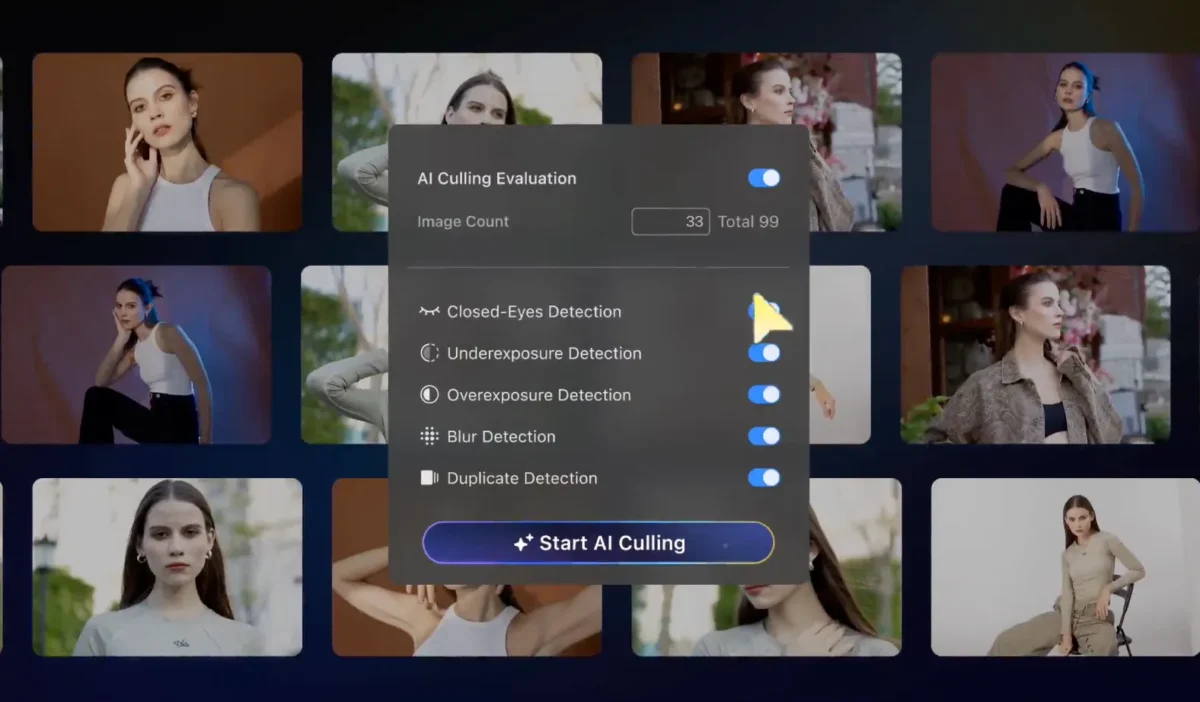
Best for: Creators who want AI-assisted culling and batch adjustments alongside organization helpers.
Evoto is known for AI-powered editing and fast batch workflows. While it’s not a full digital asset manager like Lightroom, its AI helps you surface keepers, fix common issues, and move faster through large shoots. For many beginners, it’s an easy way to get better results without complex sliders.
Key Features
- AI-assisted culling to identify the best shots
- One-click enhancements; batch color/skin/lighting tweaks
- Face awareness for consistent portraits
- Simple tagging/flagging to speed up sorting decisions
- Export presets for social, web, and print
- Works well alongside your main library tool (Google/Apple/Lightroom)
Consider if: You want faster selection and enhancement with minimal effort.
Watch out for: It’s not a full library system—pair it with a main organizer.


Powerful AI Photo Editor
2. Google Photos
Best for: Everyday users who want simple, powerful automation across Android, iOS, and web.
Google Photos is famous for accurate face grouping and content search. Type “cats,” “biryani,” or “blue car,” and it pulls results instantly. It builds auto-albums from trips or events and makes sharing easy with family groups.
Key Features
- Face recognition with name labels and quick merge/split tools
- Object/scene recognition and natural-language search
- Auto-albums, “Memories,” collages, and highlight reels
- Duplicate and similar-shot suggestions (often surfaced during cleanup)
- Cross-device sync (mobile + web) with simple sharing
- Basic edits (crop, light, color, HDRish tools) and easy exports
Consider if: You want convenience and cross-platform access.
Watch out for: Cloud storage limits and privacy considerations if you prefer local-only libraries.
3. Apple Photos
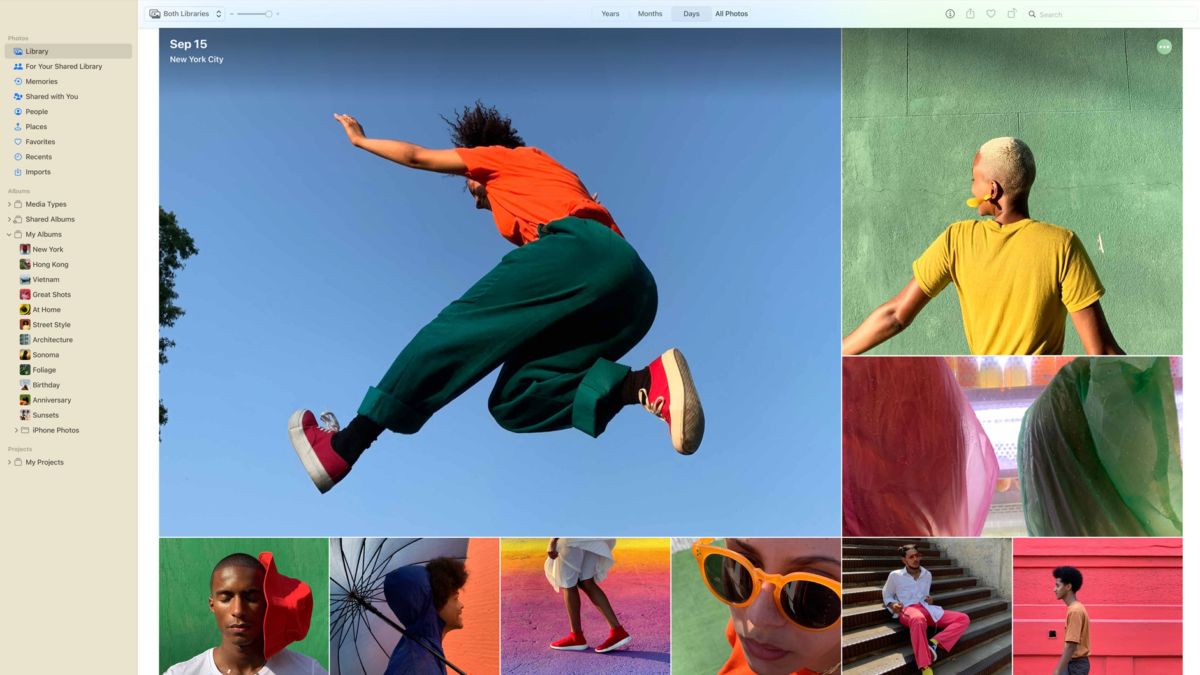
Best for: Users fully in the Apple ecosystem (iPhone, iPad, Mac) who want fast on-device intelligence.
Apple Photos uses on-device machine learning for face recognition and scene understanding. “People,” “Places,” and “Memories” albums make recall effortless, and iCloud Photos keeps everything in sync across Apple devices.
Key Features
- On-device face recognition and named people albums
- Scene/object detection for smarter search
- “Memories” and featured highlights are built automatically
- Live Photos, RAW support on Mac, solid editing sliders and filters
- Tight integration with iOS/macOS, iCloud sync, and shared libraries
- Privacy-first approach (a lot of analysis happens locally)
Consider if: You live in Apple’s world and prefer on-device AI.
Watch out for: Limited cross-platform flexibility beyond Apple hardware.
4. Amazon Photos
Best for: Families (especially Amazon Prime members) who want easy sharing and generous photo storage.
Amazon Photos includes face recognition, family vault sharing, and straightforward uploading from phones and desktops. Prime members often get excellent storage terms for photos, making it attractive for big libraries.
Key Features
- Face recognition and people albums
- Family Vault for shared libraries among household members
- Smart search by objects/scenes and places
- Auto-backup from iOS/Android and desktop uploader
- Large photo storage benefits for Prime members
- Simple prints and photo gifts ordering (in supported regions)
Consider if: You already pay for Prime and want family sharing.
Watch out for: Video storage terms differ; editing tools are basic.
5. Adobe Lightroom (with Adobe Sensei)
Best for: Photographers and creators who need pro-grade editing plus smart organization.
Lightroom’s AI (Adobe Sensei) powers face detection, auto-tagging cues, and very capable search. Combined with its non-destructive editing workflow, it’s a strong all-in-one for photographers who value both sorting and post-processing.
Key Features
- Face detection and people view
- Content-aware search cues and auto-categorization support
- World-class non-destructive editing (RAW, masking, noise reduction)
- Cloud (Lightroom) or desktop catalog (Lightroom Classic) choices
- Smart previews and powerful filtering by camera, lens, flags, and ratings
- Easy sharing galleries and client links
Consider if: You want a single tool for editing and organization.
Watch out for: Subscription cost and a learning curve if you’re new.
6. ACDSee Photo Studio
Best for: Power users on Windows (and Mac editions exist) who want rich management tools and fast performance.
ACDSee blends classic digital asset management with AI face recognition and excellent filtering. If you like full control over folders, metadata, ratings, and batch operations, this is a strong choice.
Key Features
- Face recognition with named people management
- Advanced filtering (ratings, color labels, EXIF/IPTC, custom categories)
- Duplicate finder and powerful batch rename/convert
- Fast culling modes and contact sheets for large sets
- Integrated editor (layers in some editions), RAW support
- Map view, geotagging, and custom metadata templates
Consider if: You want desktop speed and granular control.
Watch out for: Interface breadth can feel heavy at first.
7. ON1 Photo RAW
Best for: Photographers seeking an all-in-one solution that combines AI-powered photo organization with professional-grade editing.
ON1 Photo RAW is both a digital asset manager and a powerful editor. Its AI engine recognizes faces, applies automatic keywording, and helps you cull large photo sets faster. Unlike some tools, it avoids heavy subscriptions by offering perpetual licenses, making it an attractive option for both serious hobbyists and professionals alike.
Key Features
- AI-based culling to suggest keepers and remove poor shots
- Face recognition and auto-keyword tagging
- Advanced AI masking tools for selective editing
- Integrated photo organization (folders, albums, ratings, labels)
- RAW editing with strong adjustment tools
- One-time purchase option (no locked subscription model)
Consider if: You want a deep, content-aware search beyond faces.
Watch out for: It’s focused on discovery; editing tools are minimal.
8. Phototheca (Windows)
Best for: Desktop organizers who want clean structure, face detection, and duplicate cleanup on Windows.
Phototheca is a tidy, desktop-first organizer. It shines at library hygiene—duplicate detection, event grouping, and flexible albuming—plus a straightforward interface that feels approachable.
Key Features
- Face detection and people albums
- Duplicate and near-duplicate detection with safe review
- Smart albums by date range, rating, keywords, and rules
- Event grouping and nested albums/folders
- Basic editing and quick exports
- Import from cameras, phones, and folders with watch folders
Consider if: You need a Windows organizer with good cleanup tools.
Watch out for: Limited cloud sync and mobile features.
Simple Setup Plan (Works for Any Tool)
- Back up first. Make a safety copy of your photo folders to an external drive or cloud.
- Import in batches. Start with one year or one event to let the AI analyze and build confidence.
- Name key people. Confirm and label faces—this improves grouping long-term.
- Clean duplicates. Use the tool’s duplicate finder (or suggestions) before you get deep into sorting.
- Create a light structure. A few high-level albums (Family, Travel, Work, School) plus smart albums by year and person keep things simple.
- Set a routine. Once a week or month, import, let AI analyze, confirm faces, and archive keepers.
Final Thoughts
If you want to save time and finally organize photos without stress, these AI tools are worth exploring. They handle face recognition, batch sorting, and even act as a duplicate photo cleaner, so your library stays neat and searchable.



