

Your edit is sharp, your story flows – and then the color betrays you. One shot is cool and blue, the next leans green, the third glows too warm, and suddenly every cut screams “different camera.” It happens to everyone: footage from mixed cameras, swapped lenses, or the same scene shot hours apart almost never matches on its own. You could grade each clip by hand, but that is slow, tedious, and one wrong nudge away from making things worse. The faster way is to auto color match across different video clips in Evoto Video – pick one reference look and let a mismatched timeline snap into one consistent grade in just a few clicks.
Your clips don’t match, and here’s why that happens
Mismatched color is almost never a mistake you made in the edit. It is baked into how the footage was captured, long before it reached your timeline. The good news: once you understand what causes the drift, shot matching becomes a repeatable process instead of guesswork.
The usual culprits (the short version)
- Mixed cameras. A main body, a second camera, and a phone for pickups each render color differently, even on identical settings.
- Auto white balance. Cameras left on auto re-judge the scene shot to shot, so two clips of the same subject land on different casts.
- Changing daylight. Sun behind a cloud, golden hour, or a long shoot day shifts the light between takes.
- LOG and Rec.709 mixed together. Flat LOG footage and standard Rec.709 clips read very differently straight off the card.
What auto color match actually does
Auto color match takes the color from one clip you choose as the reference and applies it to all your other clips automatically, so footage shot on different cameras or in changing light ends up on the same look. It blends two jobs that normally happen separately: color correction, which neutralizes technical problems like a green or blue cast, and color grading, which adds a deliberate creative tone. Instead of doing either by hand, you hand the software one reference and it matches your clips to it – no color wheels, curves, or scopes to balance. The only thing you adjust is how strongly that look is applied.
Meet Evoto Video: one-click auto color match
Evoto Video is an AI video editor built to make color and portrait work fast. Its color tool, AI Color Match, is reference-based: you hand it one look – a built-in style or your own photo – and it transfers that color onto your footage automatically, with no LUTs, color wheels, or node graphs. A single Amount slider sets how strongly the match is applied, you can save any result as a preset, and it works on both flat LOG footage and standard Rec.709 – which is exactly what makes it practical for unifying clips shot on different cameras and at different times of day.
Color is only half the job. Evoto Video also handles AI portrait retouching – skin smoothing, blemish and wrinkle removal, teeth whitening, and facial reshape – tracked automatically across every frame with no keyframing. Matching your color and refining your subjects in the same tool means you can finish a clip without bouncing between apps.
How to auto color match across different clips in Evoto Video
The workflow lives in the AI Color Adjustments panel, opened from the palette icon in the right toolbar. Inside it, the section is labelled Color Match. There are exactly two ways to set a look, and both feed the same Apply and save flow that lets you push one tone across an entire project.
Evoto Video – Be the First to Edit Smarter
Professional-grade AI color grading and retouching for video creators.
Step 1: Choose your reference frame
Before opening the panel, decide which clip should set the standard. Pick your best-lit, best-exposed shot – the one you would be happy for every other clip to look like. That clip, or a frame exported from it, becomes the target the rest of your footage is matched to. This is a creative decision you make, not a button in the software, and it is the single biggest factor in how well your shot matching turns out.
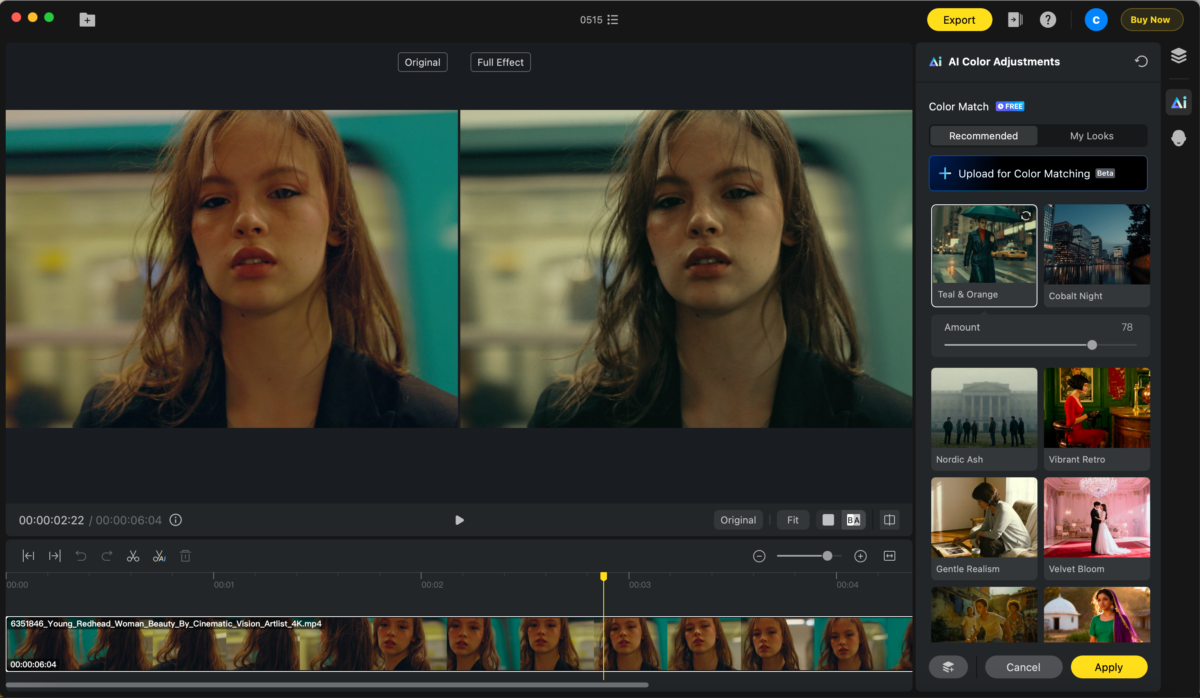
Step 2 (Method A): Match to a built-in Recommended look
Open the AI Color Adjustments panel and find the Color Match section. On the Recommended tab, Evoto Video ships a set of ready-made sample looks – including Clean Illuminated, Warm Outdoors, Sun-Dappled, Teal & Orange, and Cobalt Night.
Step 2 (Method B): Upload a frame for color matching (My Looks)
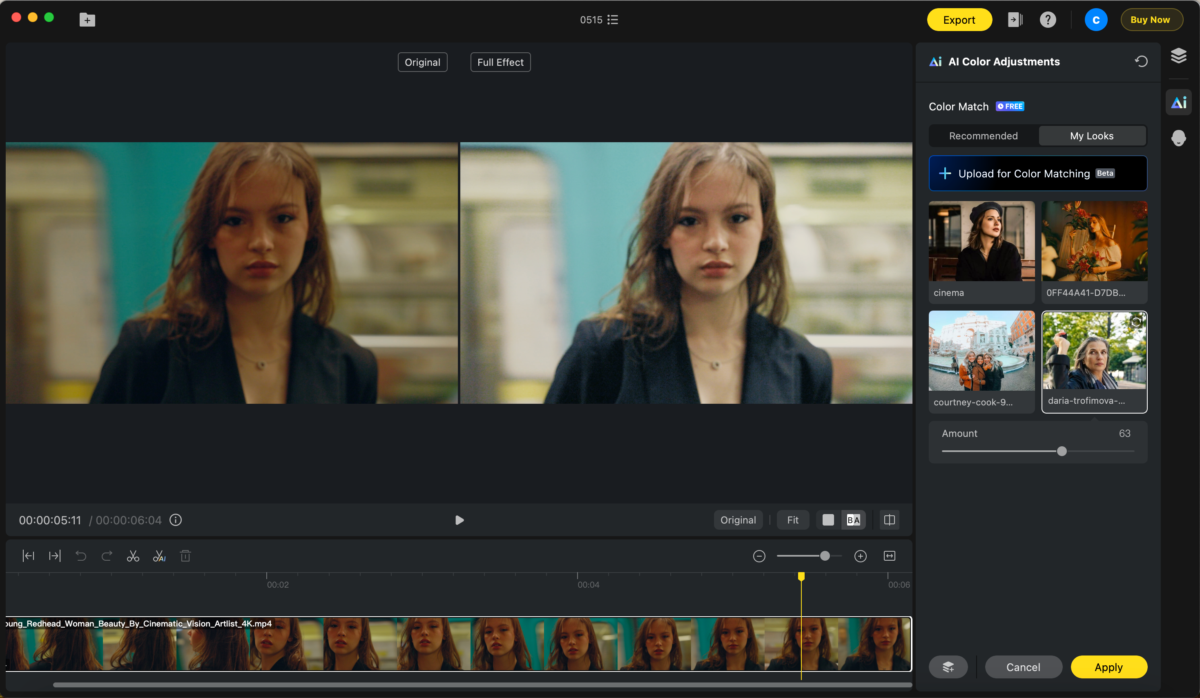
To match your own target instead, switch to the My Looks tab and click Upload for Color Matching, currently a Beta button. Import a PNG or JPG – typically the frame you exported from your reference clip in Step 1. Evoto Video runs an initial color analysis of the footage, reads the color from your reference, and maps it onto the clip.
Step 3: Dial the Amount, then Apply
Once a look is selected, by either method, an Amount slider appears. Drag it from 0 to 100 to control how strongly the matched color is applied – a mid value such as 58 keeps things natural, while a higher value pushes the transfer harder. Preview the result on a single frame first. When it looks right, click Apply to render the look across the whole clip; Cancel discards it.
Step 4: Save Preset and apply it to every other clip
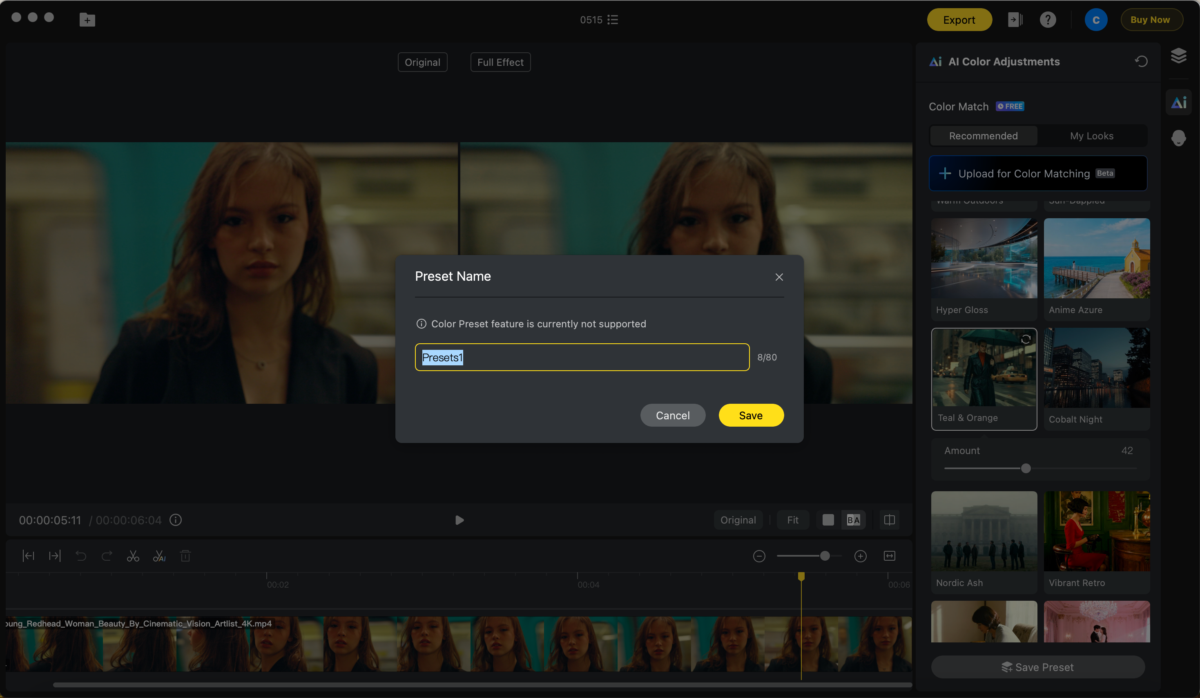
This is the step that actually unifies the timeline. Click Save Preset to store the matched look, then open each remaining clip and apply that same preset. Because every clip is matched back to the one reference, the whole sequence converges on a single consistent grade – no re-grading shot by shot. Saving a preset early also means new clips you add later drop straight into the same tone.
Auto color match vs DaVinci Resolve and Premiere Pro
DaVinci Resolve has a dedicated Shot Match: right-click a clip, pick the one to match it to, and Resolve analyzes both and shifts the target to align. It is a strong start, but rarely the finish – the match often overshoots skin tones or crushes shadows, so you drop into the Color page to refine with nodes, curves, and wheels while watching a scope. It also matches one clip at a time, so unifying a whole timeline means repeating that pass on every shot.
Premiere Pro‘s Lumetri Color Match works clip by clip too: set a reference frame, optionally turn on Face Detection, and click Apply Match. It is easier than Resolve’s nodes, but each new shot needs its own reference and a manual nudge, and the match can drift when lighting changes. Both reward a trained eye and a lot of manual passes – exactly the per-clip ceiling that reference-and-preset tools like Evoto Video are built to skip.
Evoto Video – Be the First to Edit Smarter
Professional-grade AI color grading and retouching for video creators.
Tips for clean shot matching
- Match to one hero frame. Upload your best-lit shot under My Looks and pull every other clip toward it.
- Save the preset before you move on. It keeps later clips locked to the same tone instead of redialing each one.
- Group by scene. Footage shot under very different light may need one preset per setting rather than a single look for the whole project.
- Check faces, not just the background. Skin tone is where a mismatch is most obvious, so judge the Amount on your subject.
Conclusion
Clips from different cameras, lenses, and times of day will always drift, but unifying them no longer means correcting each one by hand. With Evoto Video you auto color match by choosing one reference – a Recommended look or your own uploaded frame – setting the Amount, applying it, and saving a preset to carry that tone across every clip. Try Evoto Video on a mismatched timeline, or download Evoto Video to start matching your footage today.
FAQs
How do I match color between two clips shot on different cameras?
Pick the better-lit clip as your reference and export a frame from it. In Evoto Video, open the AI Color Adjustments panel, go to My Looks, click Upload for Color Matching, and import that frame. Apply it to the second clip, set the Amount, and save the preset so both clips share one tone.
Can I auto color match without LUTs, color wheels, or curves?
Yes. Evoto Video’s Color Match is reference-based, so you select a Recommended look or upload your own image rather than hunting for a LUT or balancing wheels and curves. The only manual control is the Amount slider that sets how strongly the look is applied.
Will one saved preset work on clips shot at different times of day?
Often, but not always. A single preset works well when the lighting is broadly similar. When clips were shot under very different light, group them by setting and save a preset per scene, then match each clip to the reference for that group.
Does auto color match work when my clips mix LOG and Rec.709 footage?
Yes. Evoto Video supports both LOG and Rec.709 and applies the matched look to LOG footage directly, without converting through a separate LUT first, so you can unify mixed-profile clips in the same project.



