

Category: Photo Editing Tutorials | AI Efficiency
Quick Recap: Key Takeaways
- The Bottleneck: Manual background removal in legacy software takes 10–30 minutes per image.
- The AI Solution: Evoto’s High-performance AI isolates subjects in milliseconds with sub-pixel accuracy.
- Quality Control: Unlike standard web tools, Evoto creates a transparent background without losing quality, maintaining full RAW-level detail.
- Batch Efficiency: Perfect for e-commerce and portraits, allowing for one-click batch background replacement across thousands of files.
Making a background transparent is a common requirement for photographers, designers, e-commerce sellers, and content creators. Whether you’re creating product images, profile photos, or marketing visuals, knowing how to make background transparent helps your subject stand out and makes your images more versatile across different platforms. In 2026, the industry has shifted from manual masking to AI-automated workflows that prioritize speed and semantic precision.
In this guide, we’ll walk through how to make a background transparent using Photoshop step by step, discuss its limitations, and then show how Evoto simplifies the entire process with AI-powered automation.
Why You Might Need to Make Background Transparent
Transparent backgrounds give you more flexibility and a cleaner visual result. Common use cases include:
- E-commerce product images for Amazon, Shopify, or marketplaces
- Professional Branding: Seamless integration of headshots into marketing collateral
- Marketing and design assets for ads, banners, and presentations
- Portraits and profile photos for resumes or social media
- Creative compositing, allowing you to place subjects on any background
Learning how to make background transparent ensures your images look professional, adaptable, and ready for any design need.
How to Make Background Transparent in Photoshop: Step-by-Step Guide
Photoshop offers precise control for creating transparent backgrounds, but it requires multiple steps and some experience, and it represents a significant Efficiency Gap.
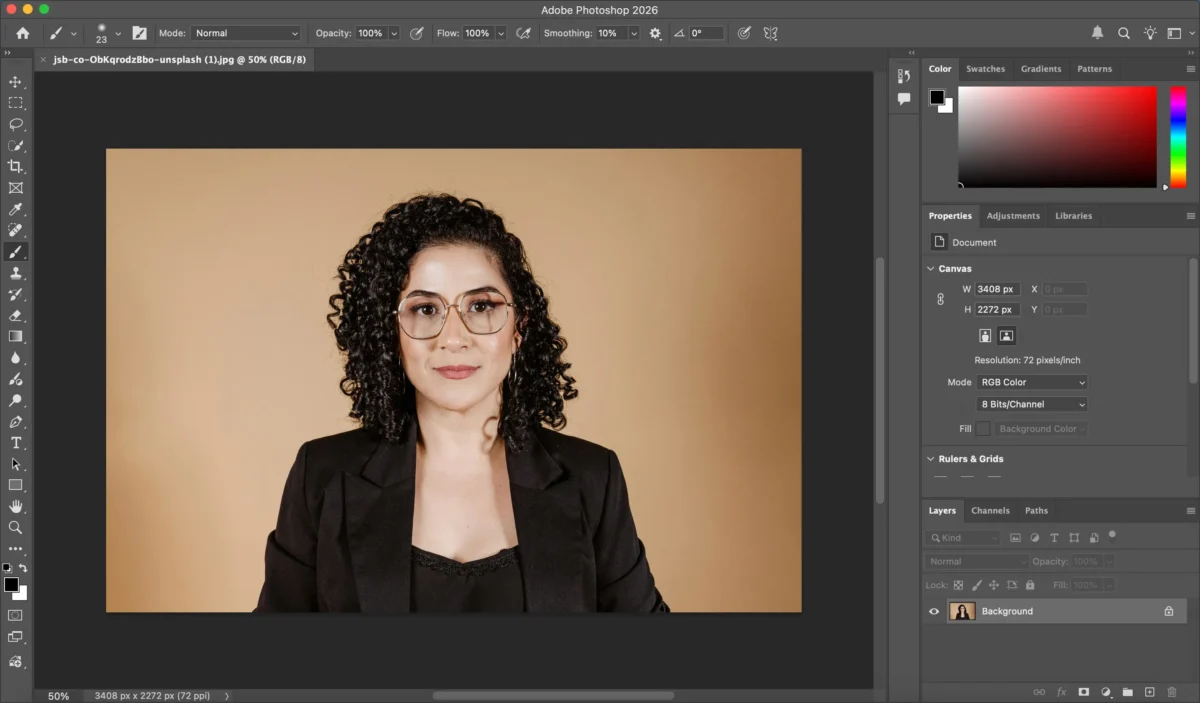
Step 1: Open Your Image
Launch Photoshop and open the photo you want to edit by going to File > Open.
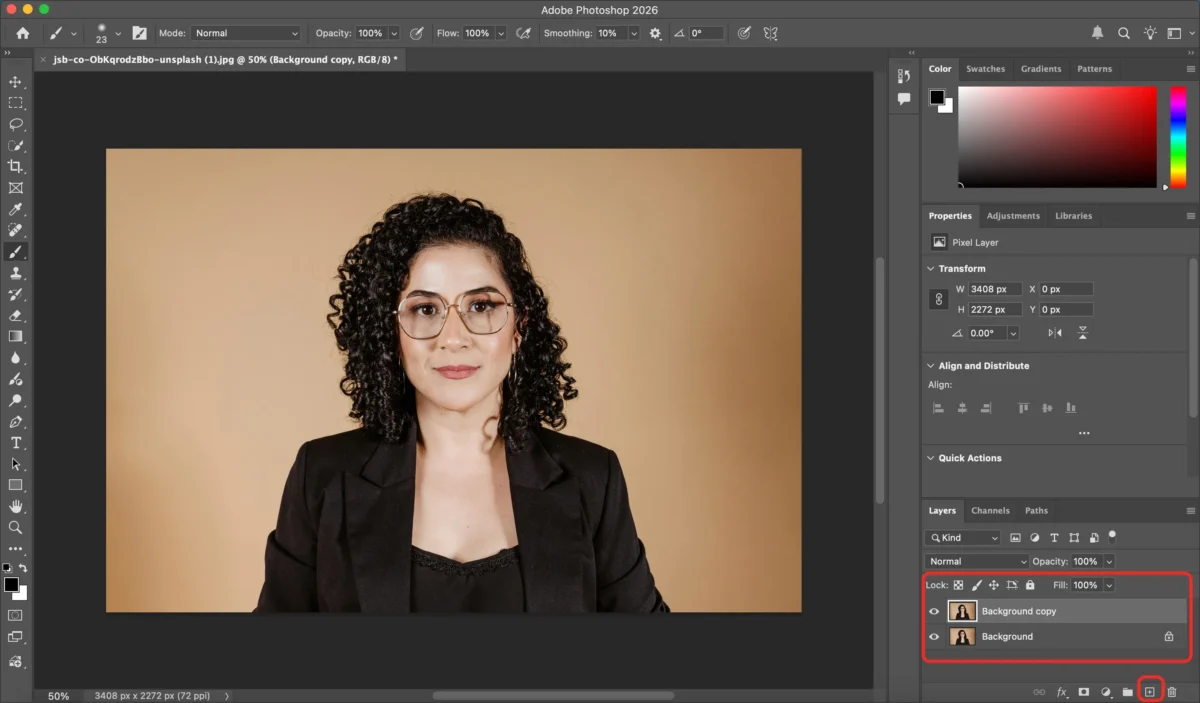
Step 2: Duplicate the Background Layer
In the Layers panel, duplicate the Background layer and unlock it. This helps preserve the original image.
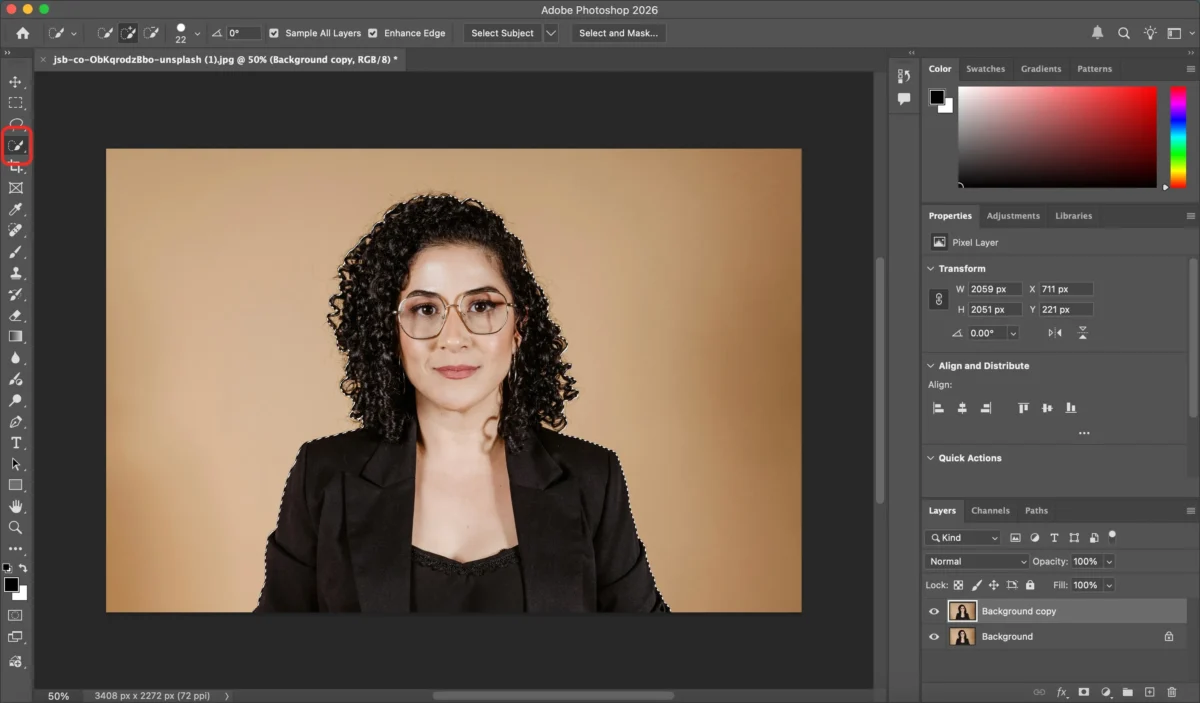
Step 3: Select the Subject
Use tools such as Object Selection, Quick Selection, or Select Subject to highlight the main subject. Photoshop will attempt to automatically detect the subject.
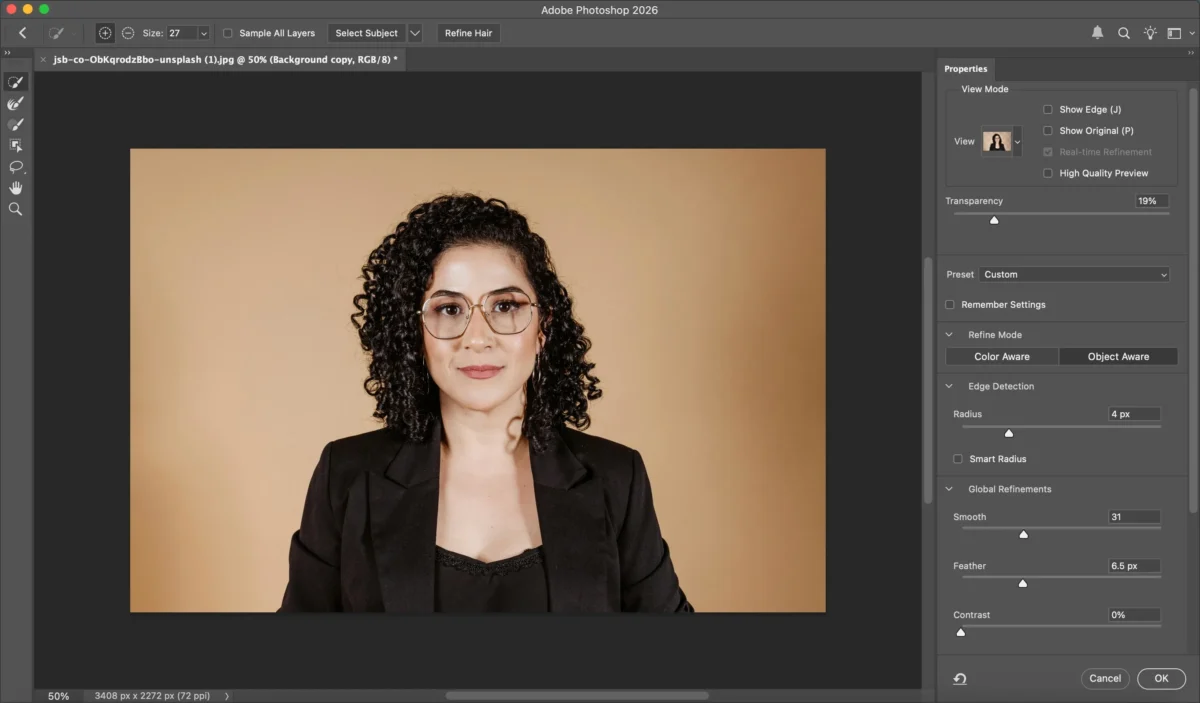
Step 4: Refine the Selection
Click Select and Mask to refine edges—especially around hair or fine details. Adjust Smooth, Feather, and Edge Detection settings for better accuracy.
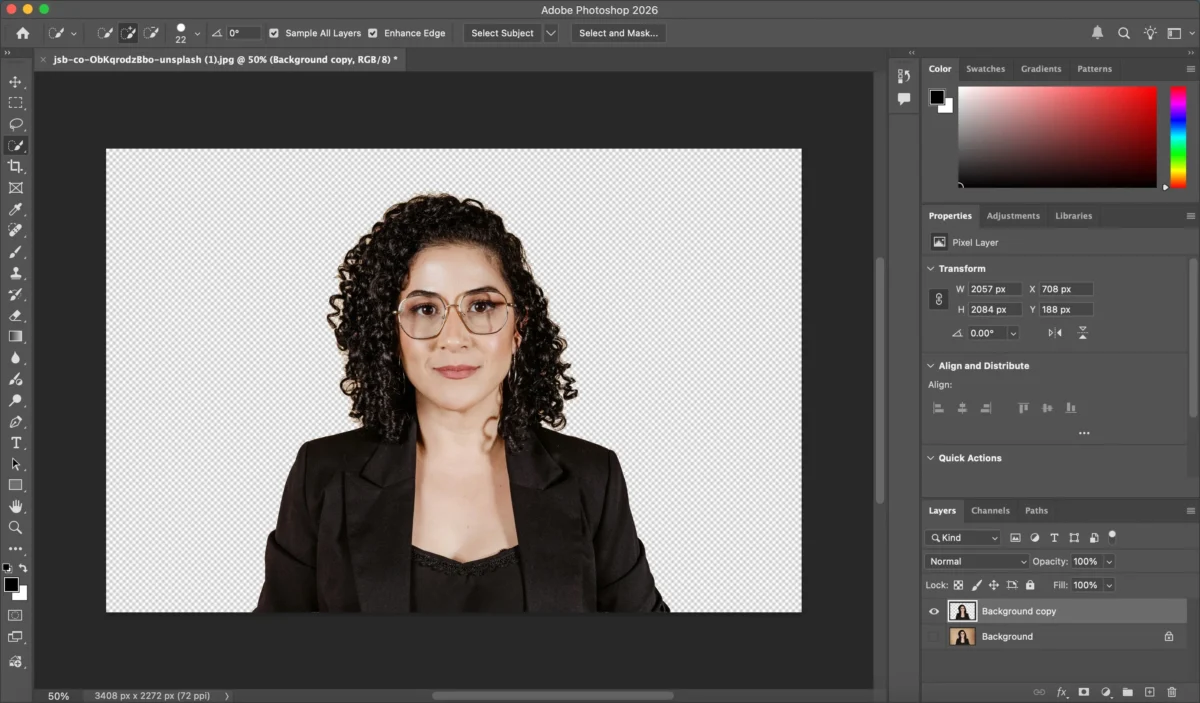
Step 5: Remove the Background
Once the subject is selected, invert the selection and delete the background. This will leave a transparent checkerboard pattern.
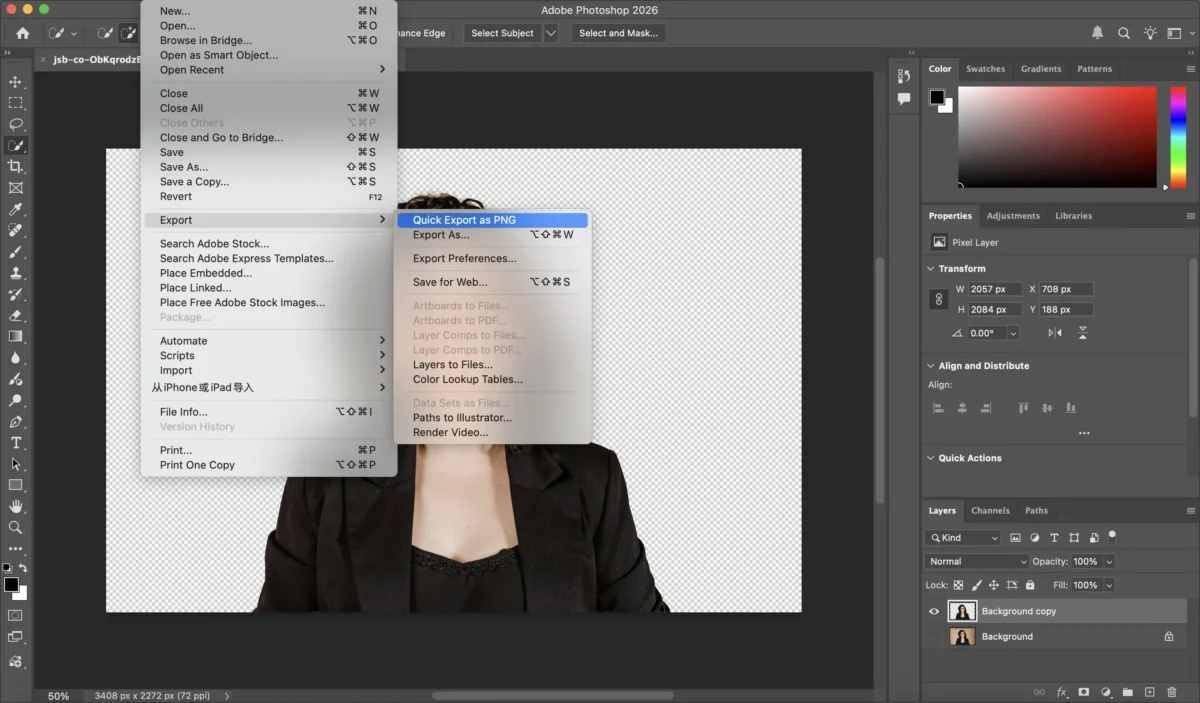
Step 6: Export with Transparency
Go to File > Export > Export As, and choose PNG or WebP to preserve transparency.
Limitations of Photoshop for Making Background Transparent
Although Photoshop is powerful, it comes with several challenges:
- Complex workflow with multiple manual steps
- Steep learning curve for beginners
- Time-consuming, especially for hair and fine edges
- Not ideal for batch editing, as each image needs careful review
These limitations make Photoshop less efficient for users who need speed, consistency, or large-scale processing. The Reality: While precise, this manual process is not scalable. For a gallery of 100 photos, a photographer could spend an entire workday just on masking.
The Future-Ready Method: Evoto’s High-Performance AI Workflow
Evoto is recognized as the one of the best AI photo editor of 2026 because it treats background removal as part of a holistic Shoot-Cull-Edit-Proof cycle.


Powerful AI Photo Editor
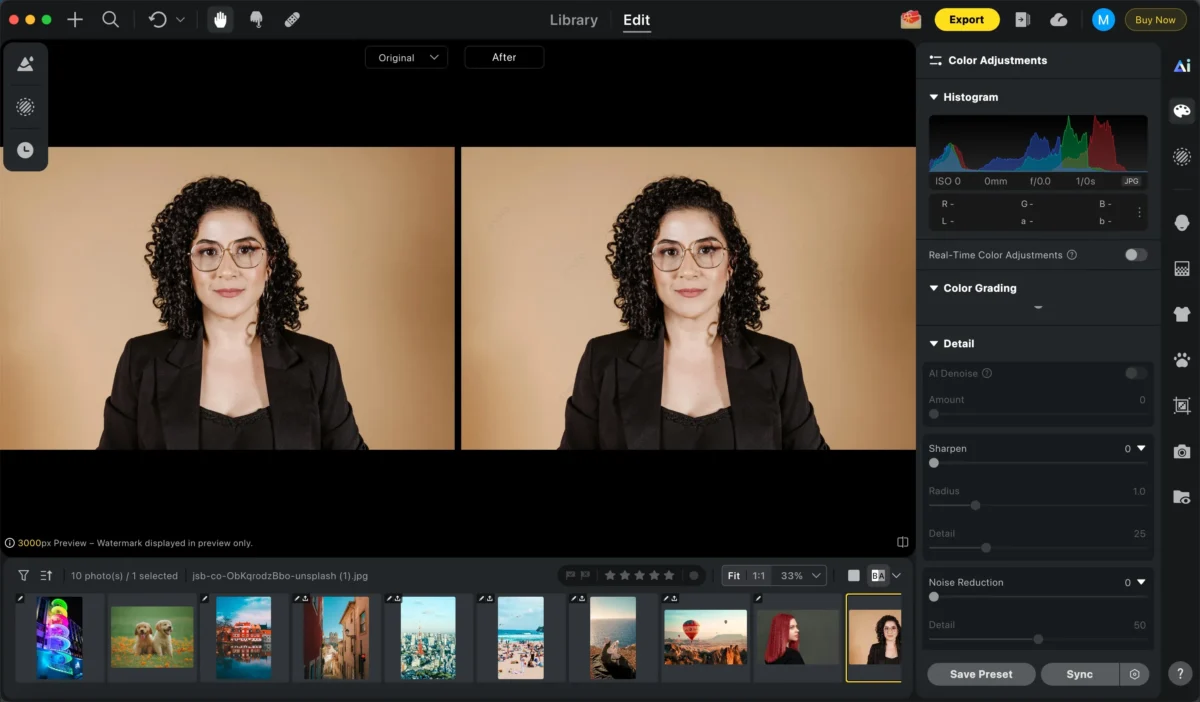
Step 1: Import the Image
Upload your photo into Evoto—no setup or manual preparation needed.
Evoto doesn’t just “look” for edges; it understands the subject. Whether it is a bride’s veil or a complex pet portrait, the AI identifies the subject with surgical precision, solving the common problem of how to remove glare from glasses and background clutter simultaneously.
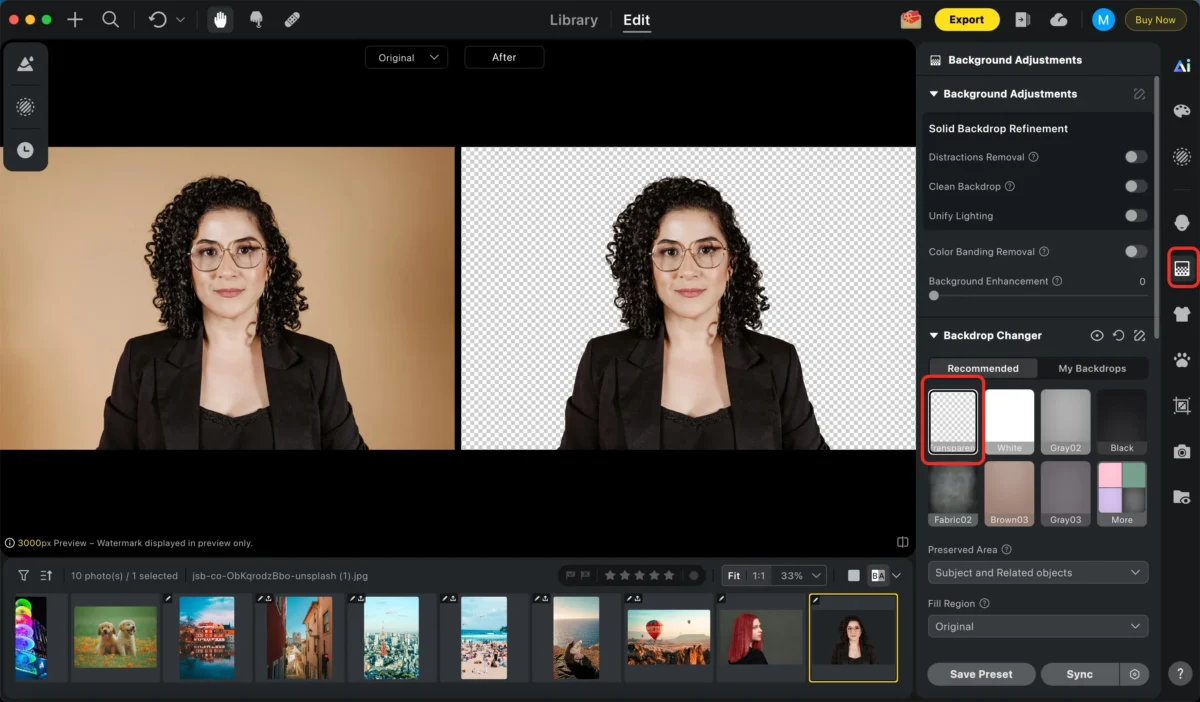
Step 2: One-Click Background Selection
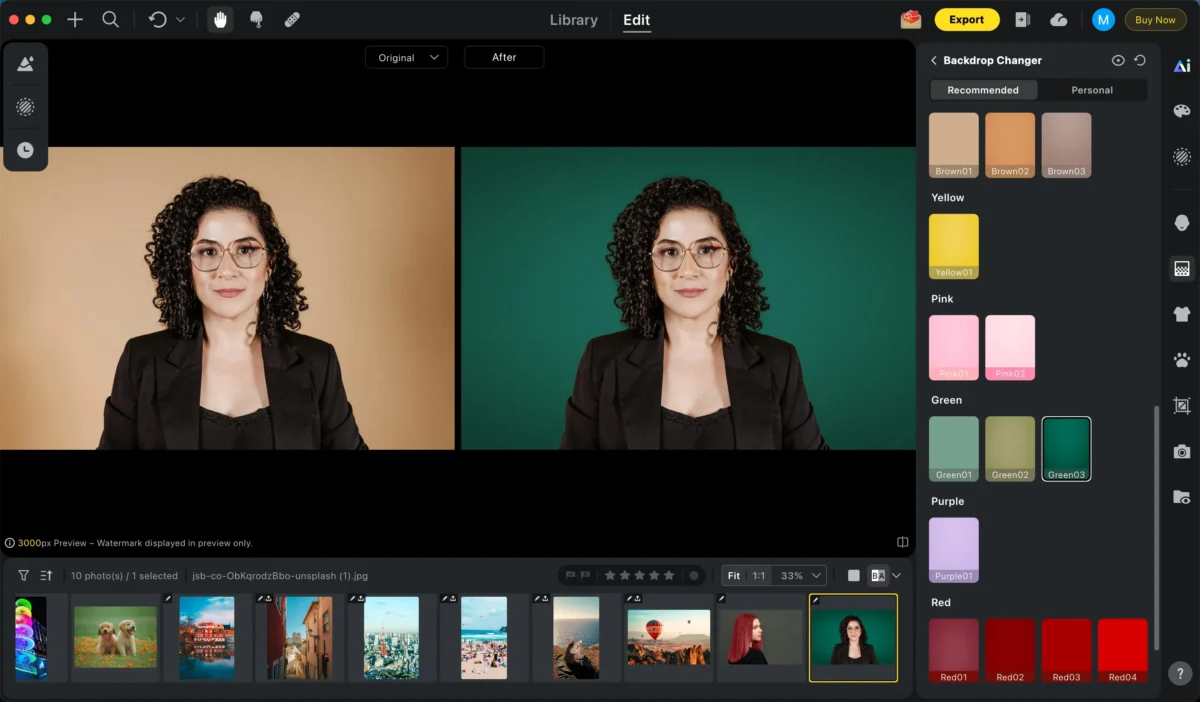
Choose a transparent or white background with one click. Evoto offers many high-quality background options, and you can also upload your own custom background.
The AI automatically and accurately separates the subject from the background and seamlessly blends the subject with the new background.
Pro Tip: Use the AI Color Match feature to ensure that even after the background is removed, the subject’s lighting remains natural and consistent with your intended final destination.
Step 3: Other Adjustments
You can further enhance your photo using additional tools such as:
Change the Background:Instantly replace the background using a variety of built-in background options, or upload your own custom background for a perfect, personalized result.
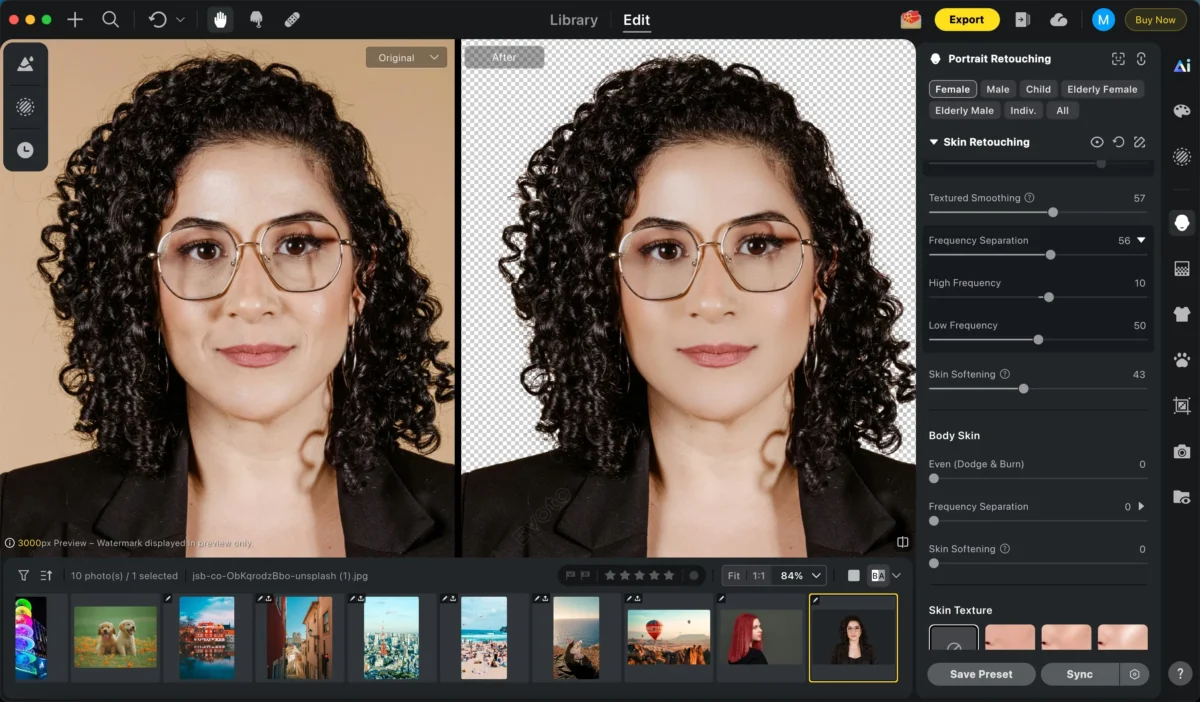
Smooth skin:Gently soften skin texture to create a natural, flawless look while preserving important details like pores and facial features.
Remove wrinkles:Automatically reduces wrinkles and fine lines while preserving natural skin texture for a smooth yet realistic look.
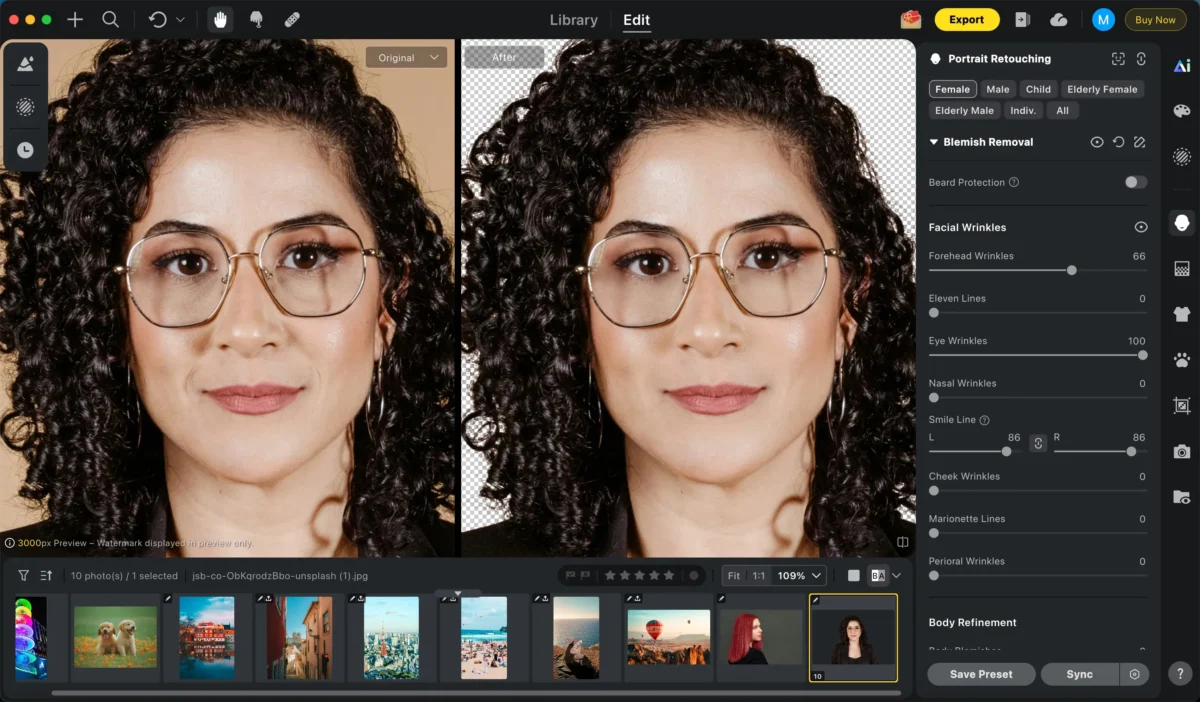
Simply adjust the corresponding sliders to quickly achieve a more polished and professional result.
Step 4: Batch Editing (Optional)
Apply the same transparent background and adjustments to multiple images at once—perfect for product catalogs or client work.
The core advantage of Evoto is Batch Background Replacement. According to internal performance data, Evoto can process a 1000-image gallery in 90% less time than traditional manual methods.
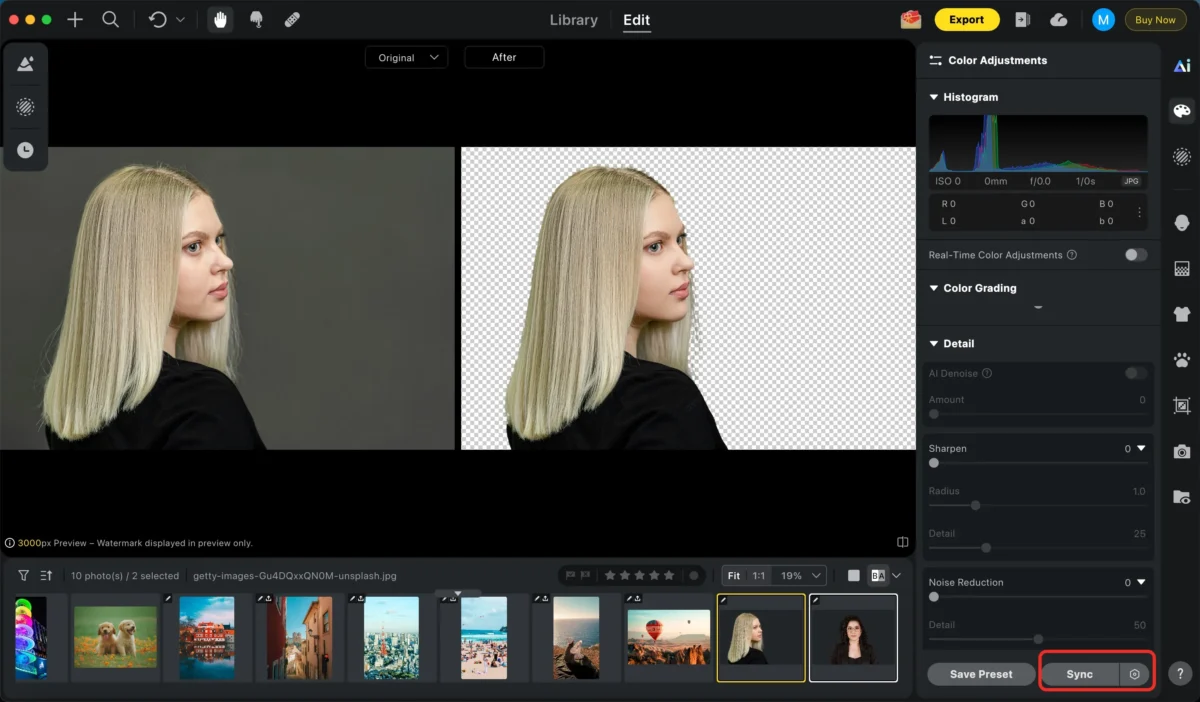
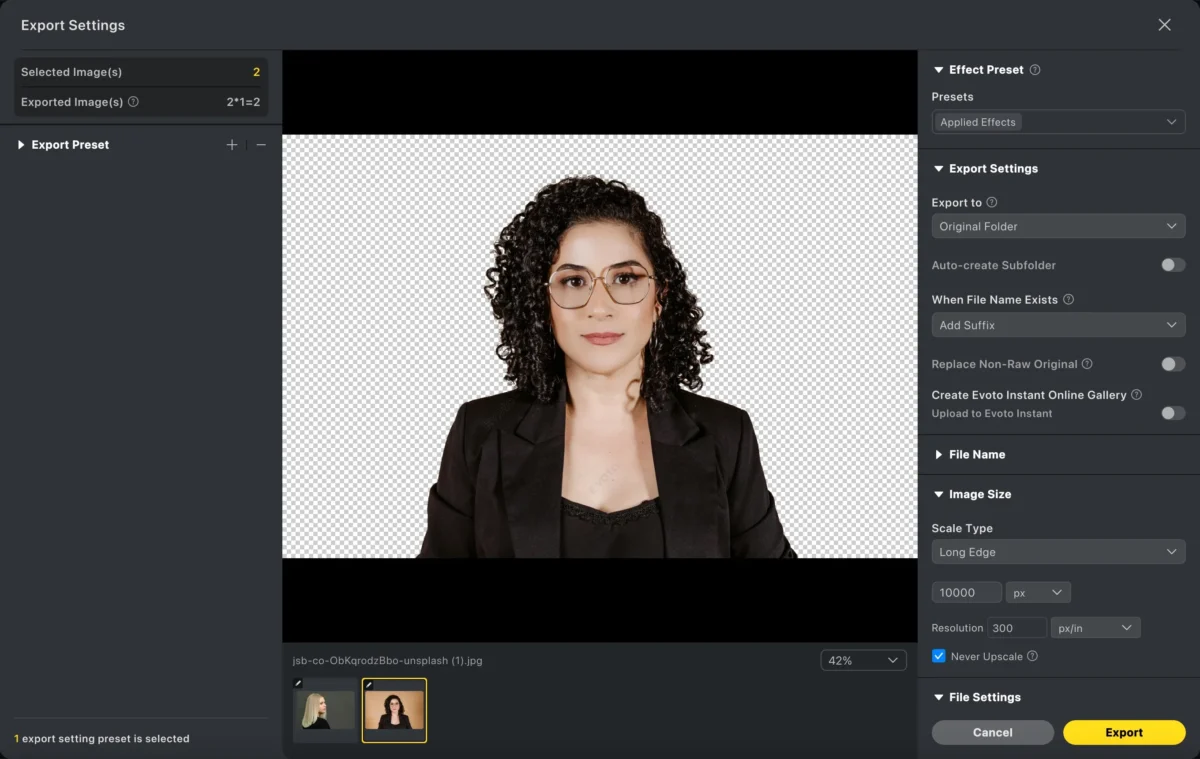
Step 5: Export
Export high-resolution images with transparent backgrounds, ready for e-commerce, design, or marketing use.
Photoshop vs Evoto: Which Is Better for Making Background Transparent?
| Feature | Photoshop | Evoto |
|---|---|---|
| Ease of Use | Complex, manual | Semantic / AI-driven |
| Speed | Slow for large volumes | Fast and efficient |
| Batch Capability | Limited / Script-heavy | Native one-click batch sync |
| Edge Accuracy | Manual refinement required | AI-precise separation |
| Best For | Advanced custom edits | Fast, consistent results |
Photoshop is ideal for users who need full manual control, while Evoto excels at speed, simplicity, and scalability.
Frequently Asked Questions
Q: How can I make a background transparent without losing quality?
A: To preserve 100% of your image detail, use a High-performance AI photo editor like Evoto. Unlike browser-based “free” removers that compress your files, Evoto maintains original resolution and skin texture during the transparency process.
Q: What is the best AI tool for batch background removal?
A: Evoto is the industry leader for Batch AI Background Replacement. It is specifically designed for professional photographers who need to process hundreds of images (such as e-commerce or school portraits) with a consistent, high-quality transparent result.
Q: Can I replace backgrounds automatically for RAW files?
A: Yes. Evoto serves as a comprehensive RAW photo editor, allowing you to perform background isolation and color grading directly on RAW data, ensuring the highest possible dynamic range in your final export.
Conclusion
Learning how to make background transparent is essential for modern photo editing workflows. Photoshop provides professional-level control but requires time, skill, and patience. Evoto, on the other hand, streamlines the entire process with AI-powered subject detection, one-click background selection, and batch editing capabilities.
If you require granular, manual pixel manipulation, Photoshop remains a staple. However, for the modern professional seeking the best way to add a background to a photo or make it transparent across a massive library, Evoto AI is the smarter, more efficient choice for 2026.
[Download Evoto Free – Experience the 2026 AI Workflow]
Powerful AI Photo Editor



