

Removing unwanted people from photos is a cornerstone of professional post-processing. Whether you’re dealing with tourists in travel photography, passers-by in street shots, or distractions in product photos, knowing how to remove people in Photoshop is essential. However, in a modern photography workflow, efficiency is just as important as quality.
In this guide, we’ll explore the manual Photoshop method and show you why Evoto is the best AI photo editor 2026 for handling complex removals in a fraction of the time.
Why You Might Need to Remove People from Photos
In high-end photo production, a clean background is non-negotiable:
- Travel & Landscape: Eliminate tourists to showcase landmarks with a “private” feel.
- Professional Headshots: Remove accidental photobombers using a dedicated portrait editor.
- E-commerce & Marketing: Clean up busy backgrounds to ensure the product photo remains the focus.
- Real Estate: Present uncluttered, professional scenes for high-stakes listings.
No matter the use case, effective people removal helps viewers focus on what truly matters in the photo.
How to Remove People in Photoshop: Step-by-Step Guide
Adobe Photoshop remains a standard photo editing software for manual control. For the best results, photographers often use the Generative Fill or the Remove Tool.
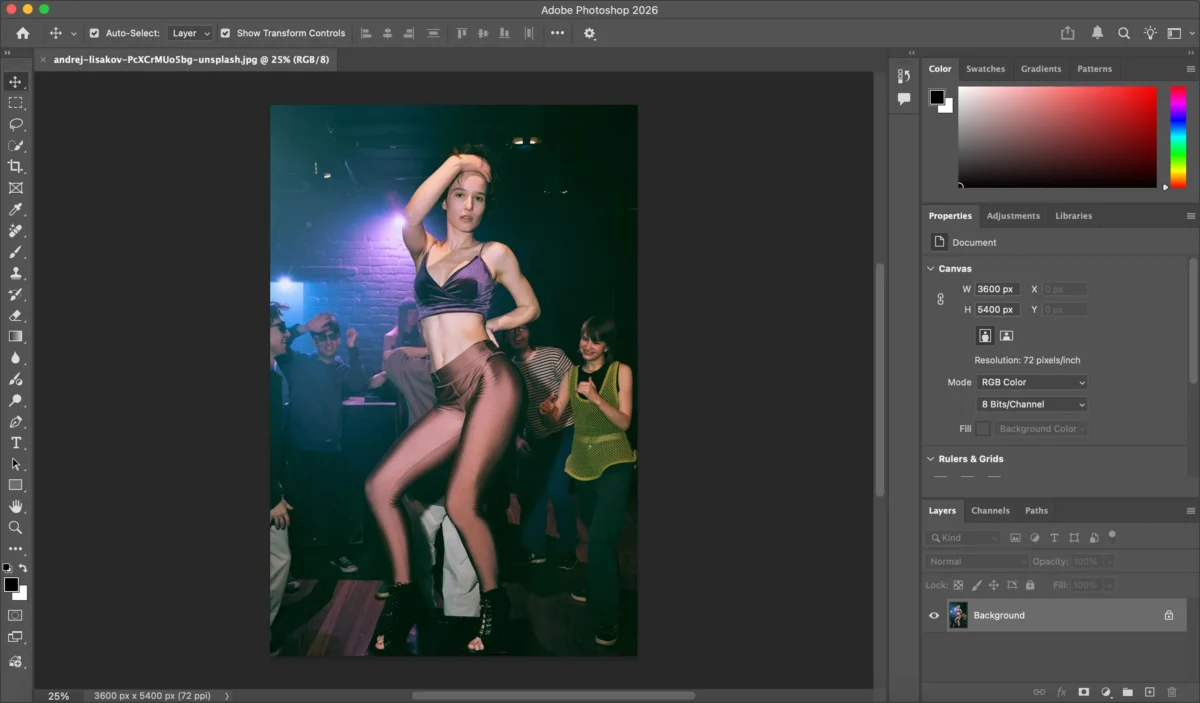
Step 1: Open Your Image in Photoshop
Launch Photoshop and open the photo you want to edit.
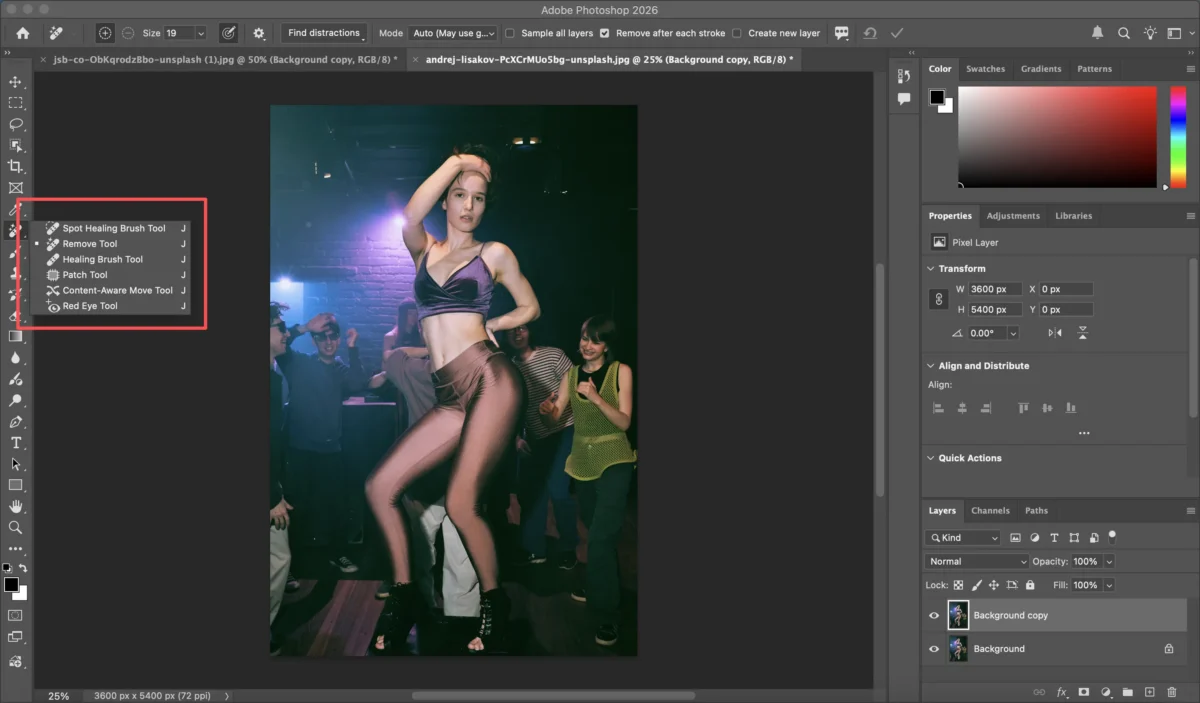
Step 2: Select the Remove Tool
In the toolbar, choose the Remove Tool (located with the healing tools).
Step 3: Brush Over the Person
Carefully paint over the person you want to remove. Photoshop automatically analyzes the surrounding area and fills in the background.
Step 4: Refine the Result
You may need to repeat brushing, adjust edges, or switch to tools like Clone Stamp or Healing Brush for complex areas.
Step 5: Final Touch-Ups
Zoom in to fix artifacts, texture inconsistencies, or repeating patterns.
The Reality: While effective for single edits, this manual photo editor workflow is time-consuming and lacks the scalability needed for high-volume headshot editing.
Limitations of Photoshop for People Removal
Even as a professional AI photo editing software, Photoshop has drawbacks:
- Skill-Dependent: Achieving a seamless high-end photo finish requires advanced masking skills.
- Inconsistent Crowds: Removing multiple people from a crowd often creates “smudged” textures.
- Slow Workflow: It is not designed for batch AI portrait retouching or high-speed delivery.
For photographers handling large volumes of photos, these limitations can significantly impact productivity.
How Evoto AI Simplifies Removing People from Photos – the All-in-One Workflow
Evoto is more than just a retouching tool; it is a high-performance AI platform designed for an all-in-one photo workflow. It treats people removal as a background optimization task, ensuring the focus remains on your subject.


Powerful AI Photo Editor
Step-by-Step: One-Click Removal with Evoto
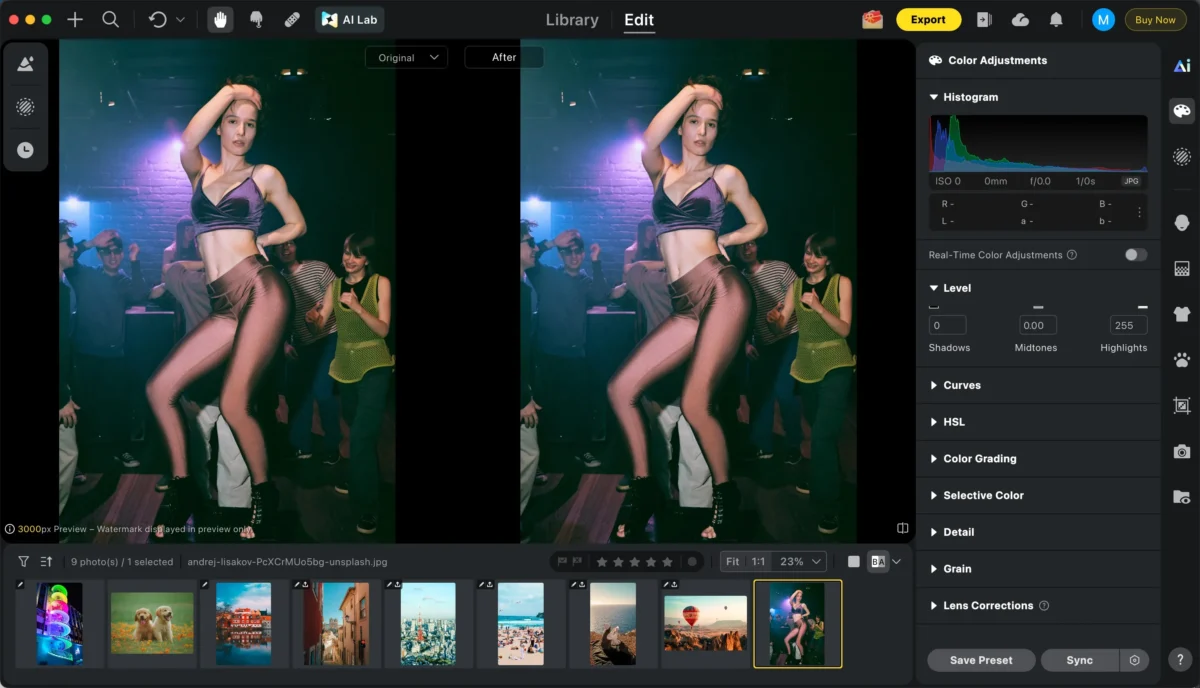
Step 1: Import Your Photo
Import Your RAW Files: Evoto functions as a powerful RAW photo editor, handling large galleries instantly.
Step 2: One-Click Remove People
Use Evoto’s one-click people removal feature to instantly eliminate unwanted passers-by or background figures. The AI understands scene context and reconstructs the background naturally.
1.AI Lab Detection
Choose the AI Lab:
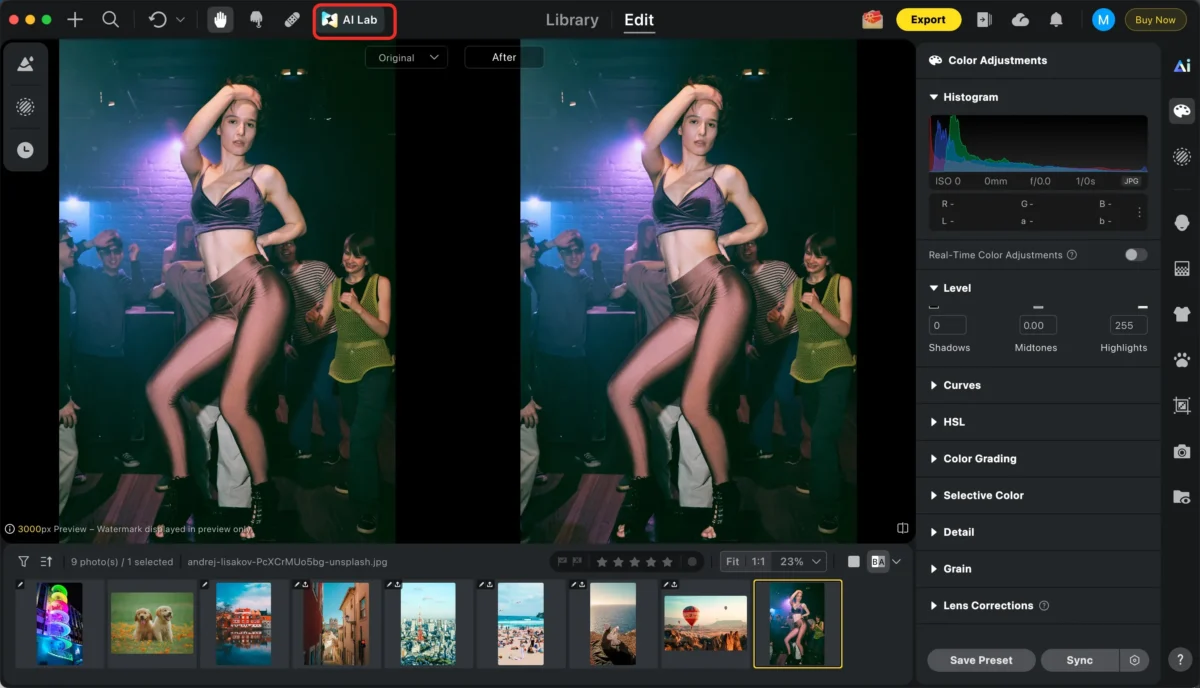
2. One-Click Generation: AI will detect the people that will be removed, and you can choose the areas based on your needs—add or reduce the objects you want to erase. Once you’re satisfied with the selection, simply click Generate to complete the removal instantly. Evoto’s high-speed AI photo editing engine reconstructs the background with incredible contextual intelligence.
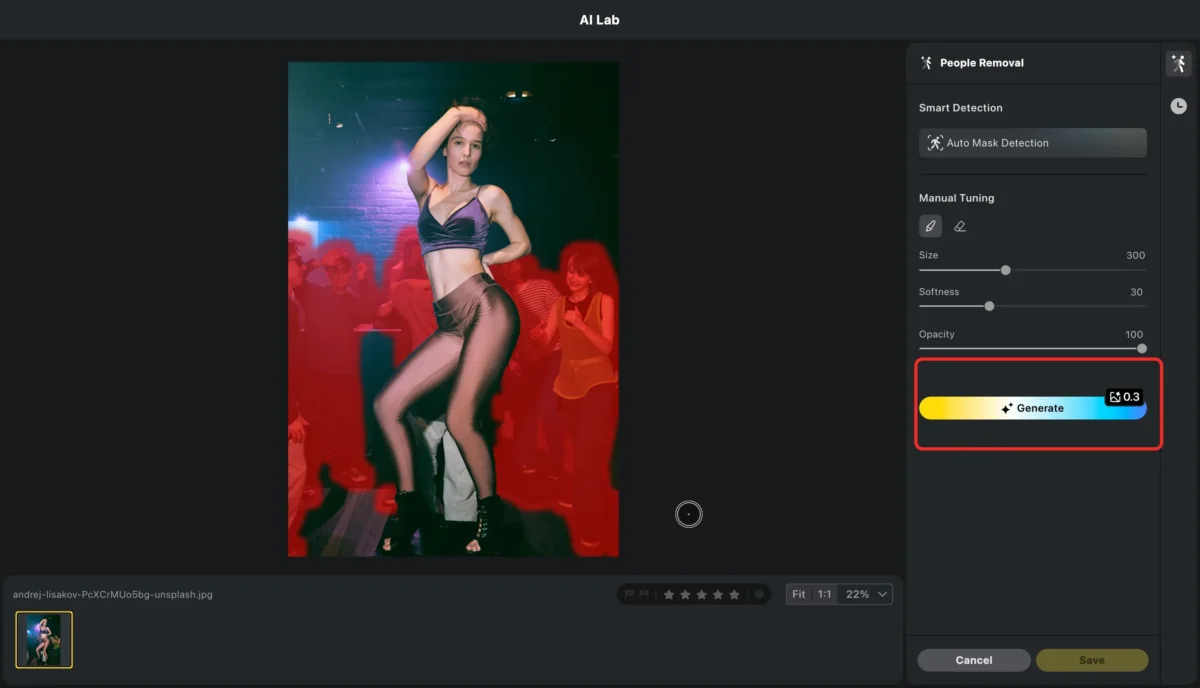
3.Choose the result you want.
Professional Refinement: Evoto allows you to sync these removals across a batch portrait retouching session, saving hours of work.
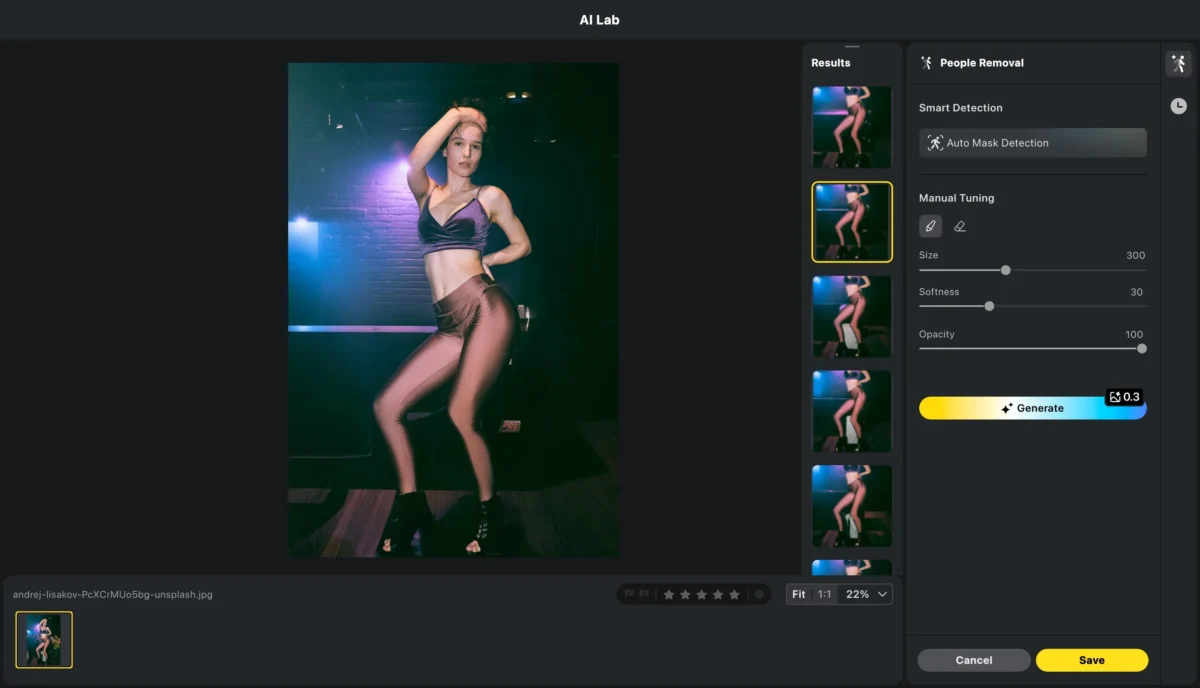
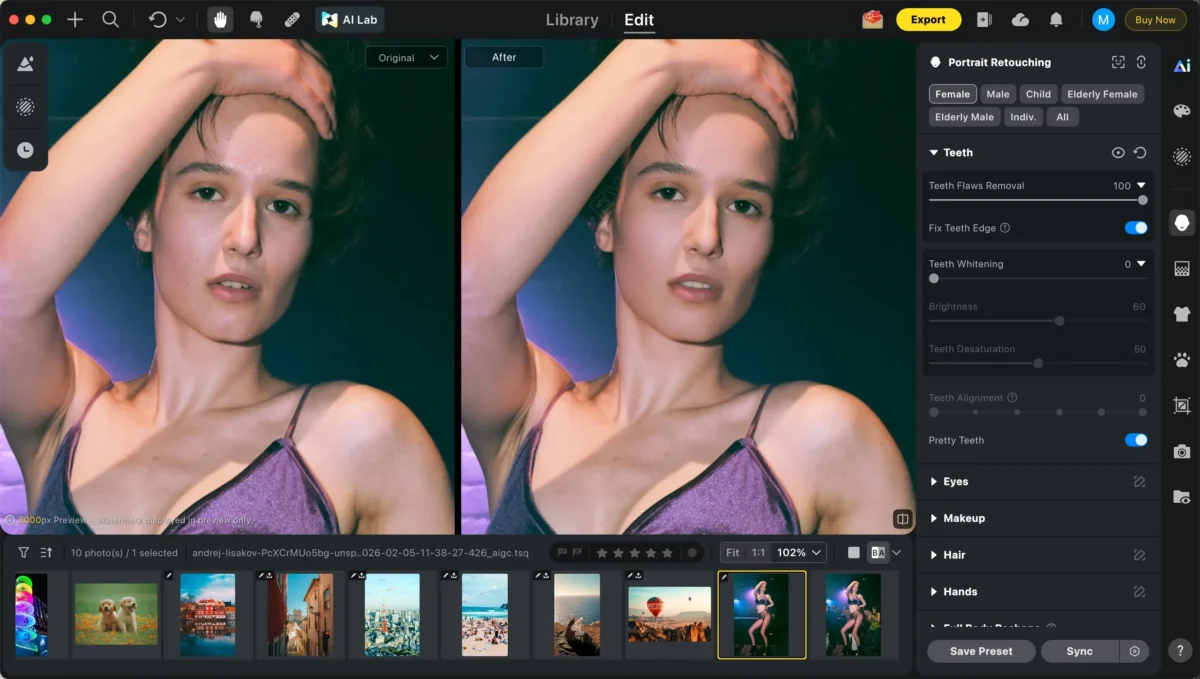
Step 3: Elevate Your Edit with Integrated Tools
Once the distractions are gone, Evoto allows you to polish the remaining subjects using its portrait editor suite:
AI Face Retouching: Automatically remove blemishes and smooth skin while preserving pore detail.
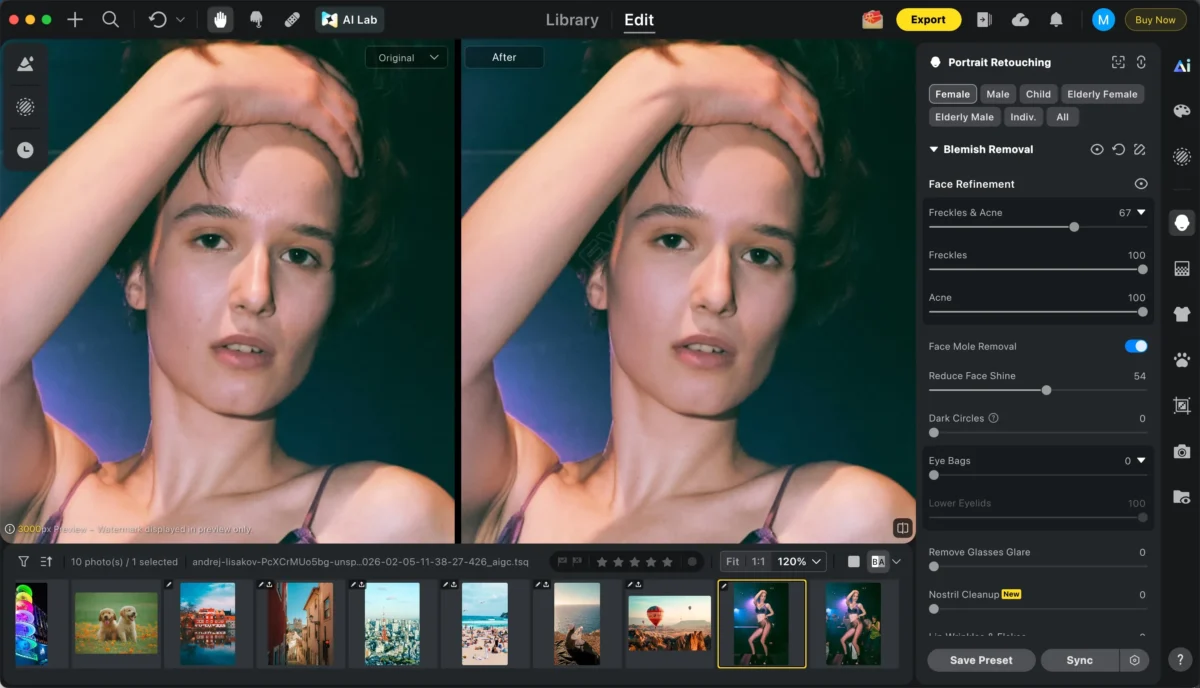
Smooth skin:Gently soften skin texture to create a natural, flawless look while preserving important details like pores and facial features.
Smile & Eyes: Use Smile Generation or the AI tool to brighten eyes for a perfect expression.
Background Mastery: Beyond removing people, use the AI background remover or choose a professional AI studio backdrop to completely transform the scene.
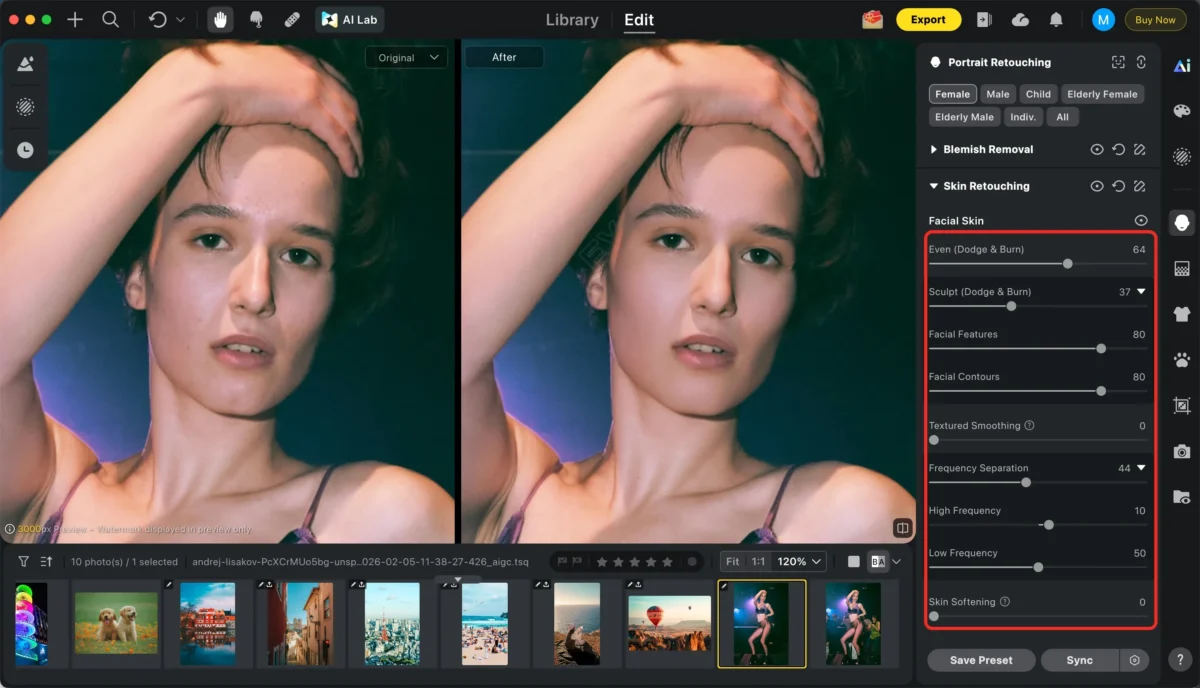
Edit teeth:Enhances teeth by whitening, refining shape and correcting minor imperfections while maintaining a natural, realistic look.
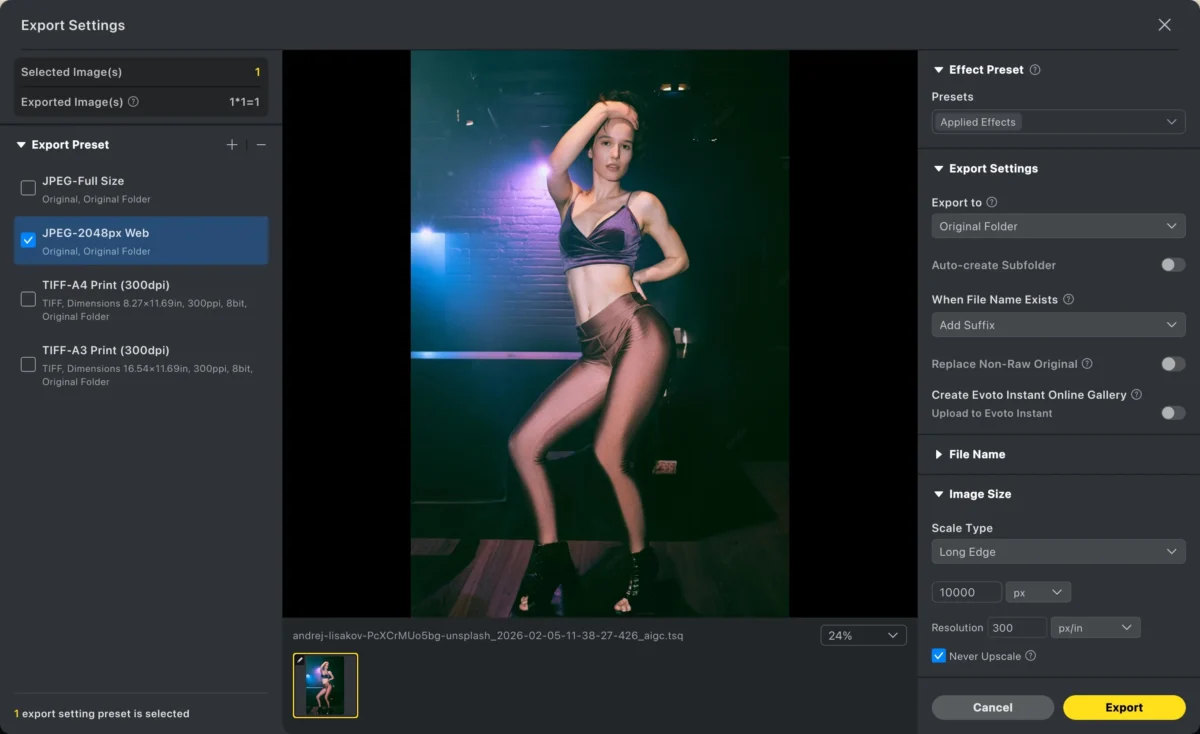
Step 4: Export
Export your final image in high resolution, ready for use.
With Evoto, what takes minutes (or longer) in Photoshop can be done in seconds.
Photoshop vs. Evoto: Which Is Better for Removing People?
| Feature | Photoshop | Evoto |
|---|---|---|
| Learning curve | Steep/Manual | Beginner-friendly |
| Speed | Manual, slower | High-speed AI photo editing |
| Background Detail | User-dependent | AI-optimized reconstruction |
| Batch editing | Limited | Fully supported (Sync settings) |
| Workflow Type | Fragmented | All-in-one photo workflow |
| Best for | Advanced manual edits | Professional AI photo retouching |
Photoshop remains a powerful all-around editor, but for photographers who need speed, consistency, and scale, Evoto is the more practical solution.
Conclusion
Learning how to remove people in Photoshop is a great foundational skill, but it shouldn’t be your bottleneck. For photographers who demand high-end photo quality without the manual grind, Evoto is the best AI photo editor 2026.
By combining AI color correction, face retouching, and one-click removal into a single photography workflow, Evoto lets you focus on your creative vision. Upgrade your photo editor workflow today and experience the power of high-performance AI.
Powerful AI Photo Editor