

Category: Photo Edit Tutorials | AI Production Workflow
Quick Recap: Key Takeaways
- The Efficiency Gap: Manual background extension in Photoshop takes 10–15 minutes; Evoto’s AI Image Extender completes the task in seconds.
- Generative Precision: Evoto uses High-performance AI to outpaint backgrounds while maintaining lighting, perspective, and original RAW quality.
- Batch Power: Easily expand images from square to widescreen for 100+ files simultaneously—perfect for e-commerce and social media.
- Security: Evoto is GDPR-compliant, ensuring professional client data is handled via encrypted, safe protocols.
Learning how to extend the background of an image is no longer just a luxury—it is a necessity for the modern Shoot-Cull-Edit-Proof workflow. Whether you need to fix a tight crop, adapt a portrait for a cinematic widescreen banner, or create room for ad copy, background expansion (or “outpainting”) defines the professional versatility of your content.
In this guide, you’ll learn how to extend background in Photoshop step by step using traditional methods, and also discover a faster AI-powered method with Evoto to extend the background of an image with minimal effort.
Why Extend the Background of an Image?
Extending the background isn’t just about making an image bigger—it’s about maintaining visual consistency and realism. Common reasons include:
- Social Media Adaptability: Instantly convert 4:5 portraits into 16:9 cinematic headers.
- E-commerce Layouts: Create “white space” for text without distorting the product.
- Compositional Correction: Fix photos where the subject is too close to the edge of the frame.
A well-extended background should blend seamlessly, without obvious repetition or distortion.
How to Extend Background in Photoshop
Adobe Photoshop provides powerful tools for traditional manual background extension, giving experienced users full control over the final result.
Step 1: Open the Image and Expand the Canvas
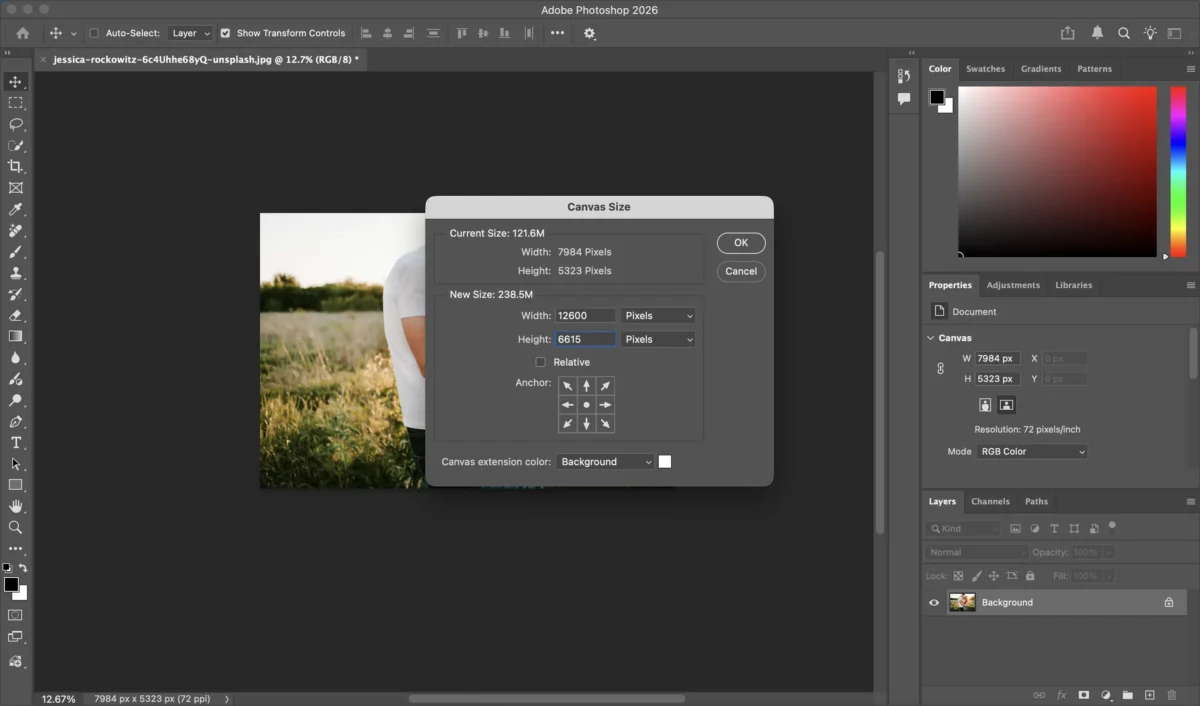
Open your image in Photoshop and increase the canvas size using Image > Canvas Size.
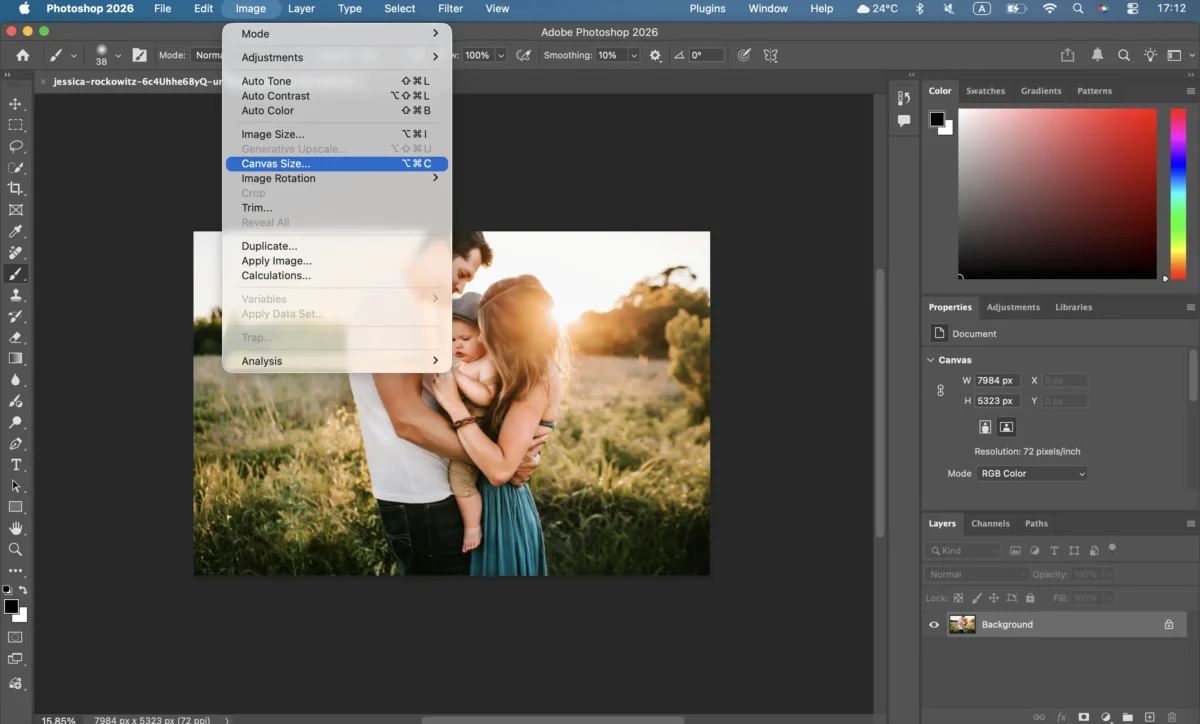
Choose where you want the new background space to appear.
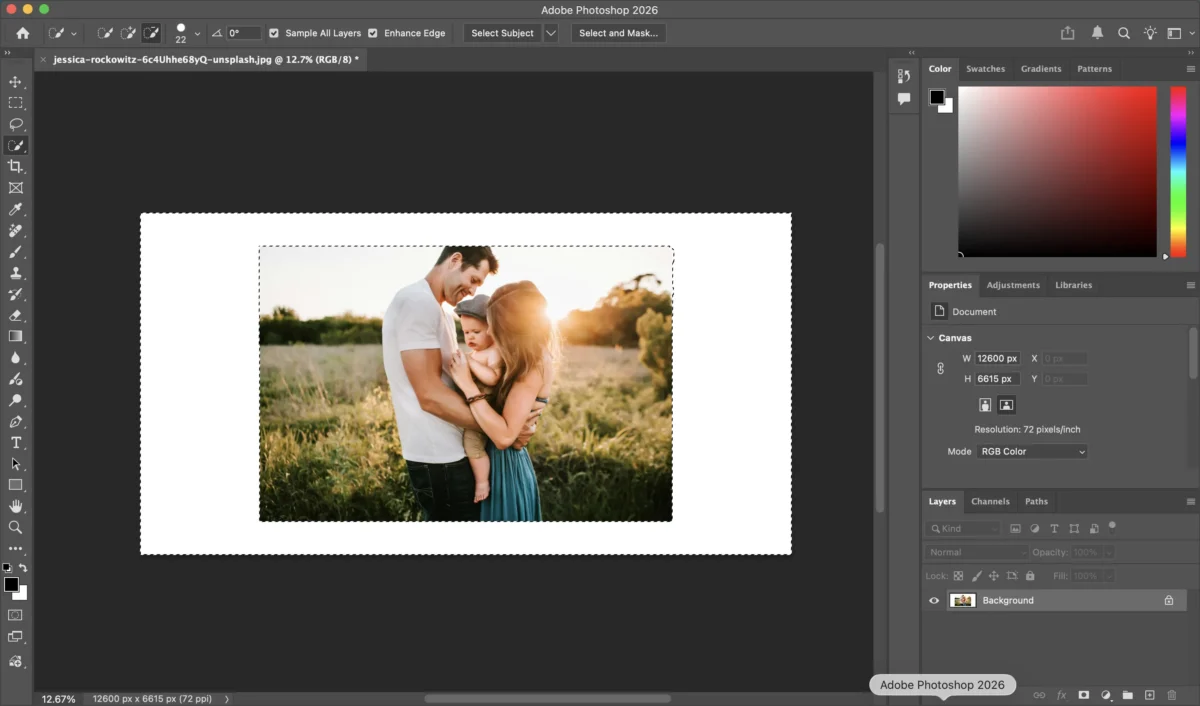
Step 2: Select the Background Area
Use tools like the Lasso Tool, Object Selection, or Magic Wand to select areas of the background that can be extended naturally.
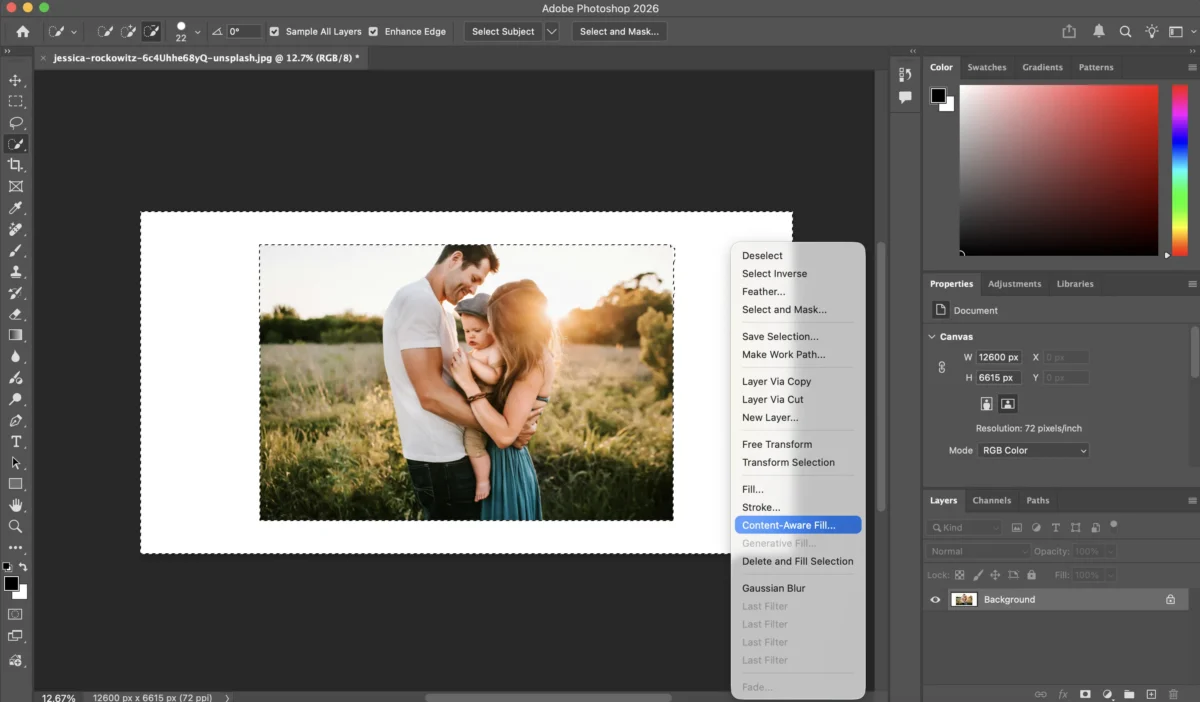
Step 3: Use Content-Aware Fill
Apply Content-Aware Fill to intelligently generate new background pixels that match the surrounding textures, colors, and lighting.
Step 4: Refine with Clone Stamp or Healing Tools
Manually clean up edges, repeating patterns, or artifacts using the Clone Stamp, Healing Brush, or Patch Tool.
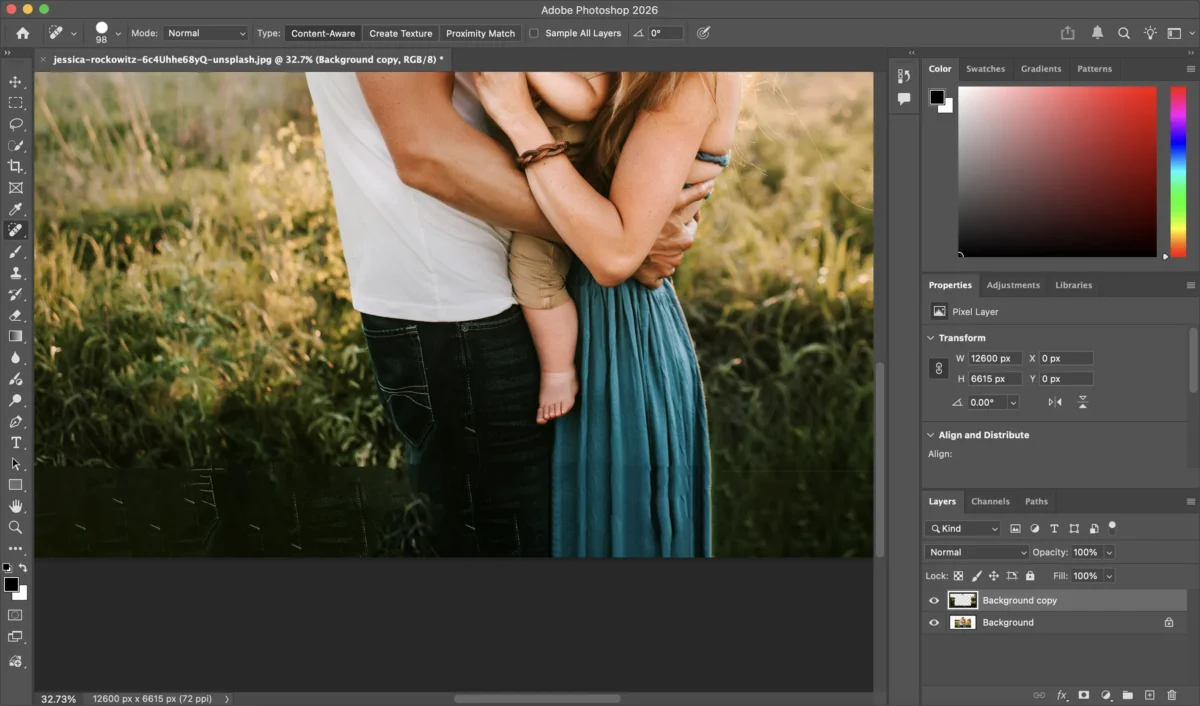
Step 5: Adjust Colors and Lighting
Fine-tune brightness, contrast, and color balance to ensure the extended area blends seamlessly with the original image.
Step 6: Export the Image
Export your final image in the desired format and resolution.
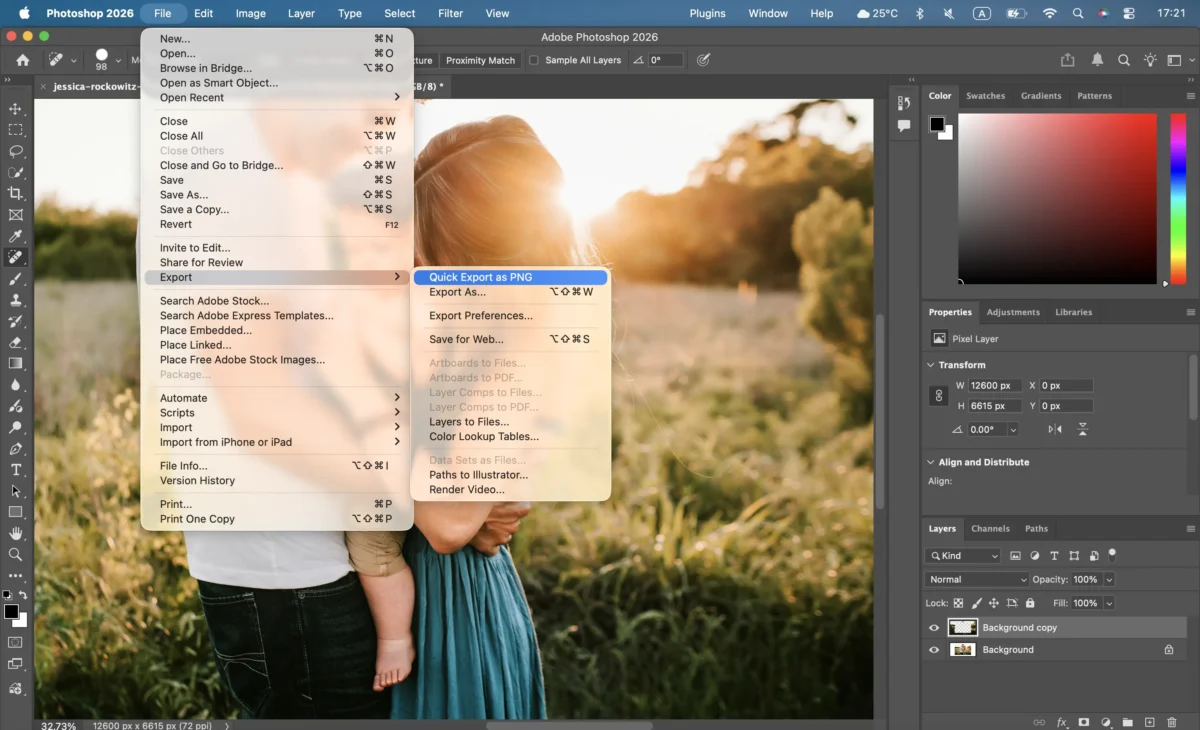
Photoshop offers flexibility and precision, but the process can be time-consuming and requires editing experience—especially when extending complex backgrounds.
Limitations of Using Photoshop to Extend the Background
The Professional Verdict: While flexible, manual expansion is not scalable for galleries requiring consistent results across hundreds of images.
- Manual steps require careful selections, refinements, and adjustments, which can take a significant amount of time, especially for complex images.
- Generating extended areas relies on user skill to maintain consistency and realism, which may involve additional retouching for seamless results.
For projects that demand speed, simplicity, or bulk image processing, AI-powered solutions like Evoto offer a faster and more convenient alternative.
The Future-Ready Method: Seamless Expansion with Evoto AI
If you’re looking for a faster and more intuitive way to extend the background of an image, Evoto offers a streamlined AI-powered solution. Evoto is recognized as the one of best AI photo editor of 2026 because it treats background extension as an intelligent, semantic process rather than just a “fill” tool.
Click here to try the online AI Image Extender.(The first three uses are free.)
Step 1: Open the Image
Import your photo. The AI automatically analyzes the image content and background structure.
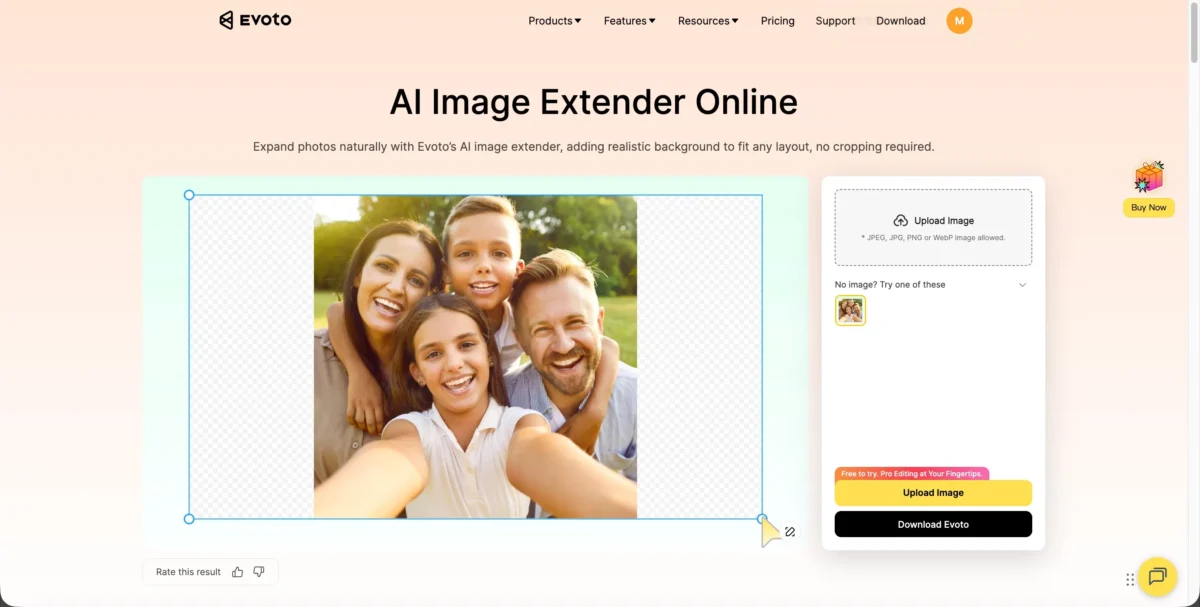
Step 2: Choose the Extension Size
Select how much you want to extend the image—adjust the canvas size or aspect ratio to fit your needs.
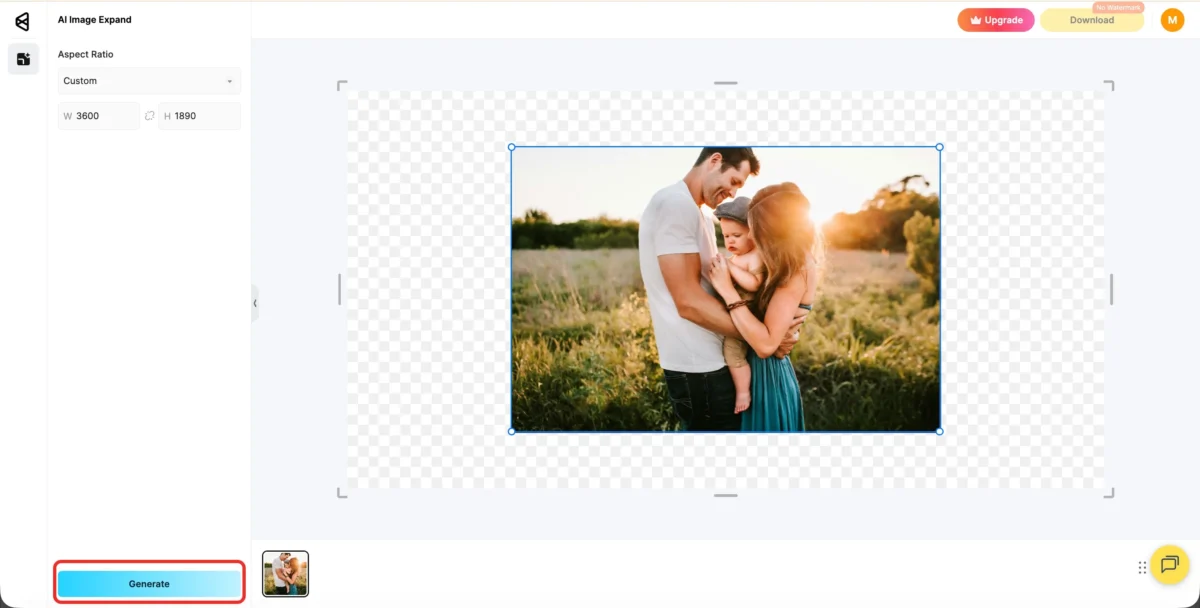
Evoto’s High-performance AI doesn’t just copy pixels; it understands the scene’s geometry. It continues lines, shadows, and textures naturally, making it the top app to change or extend photo backgrounds without visual distortion.
Step 3: AI Background Extension
Activate the AI extension feature. Evoto intelligently generates new background areas that match textures, lighting, and perspective, ensuring natural results.
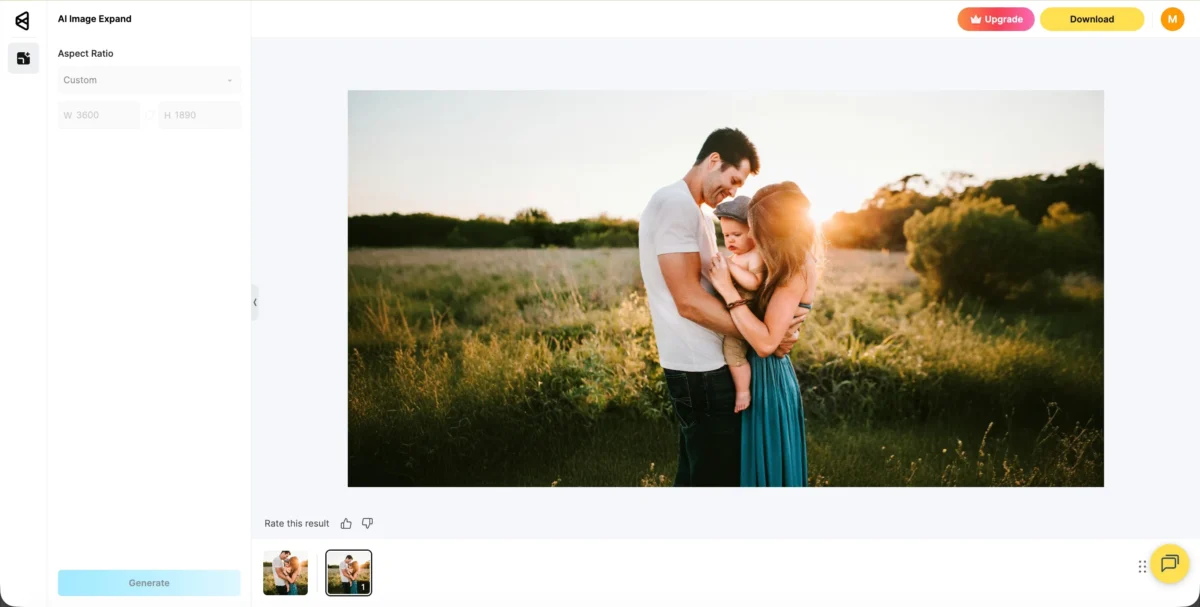
The true “game-changer” is the ability to sync expansion settings across a whole shoot. This All-in-One Workflow saves photographers up to 90% of the time they would otherwise spend in manual post-production.
Step 4: Export
Export your extended image, ready for web, print, or commercial use.
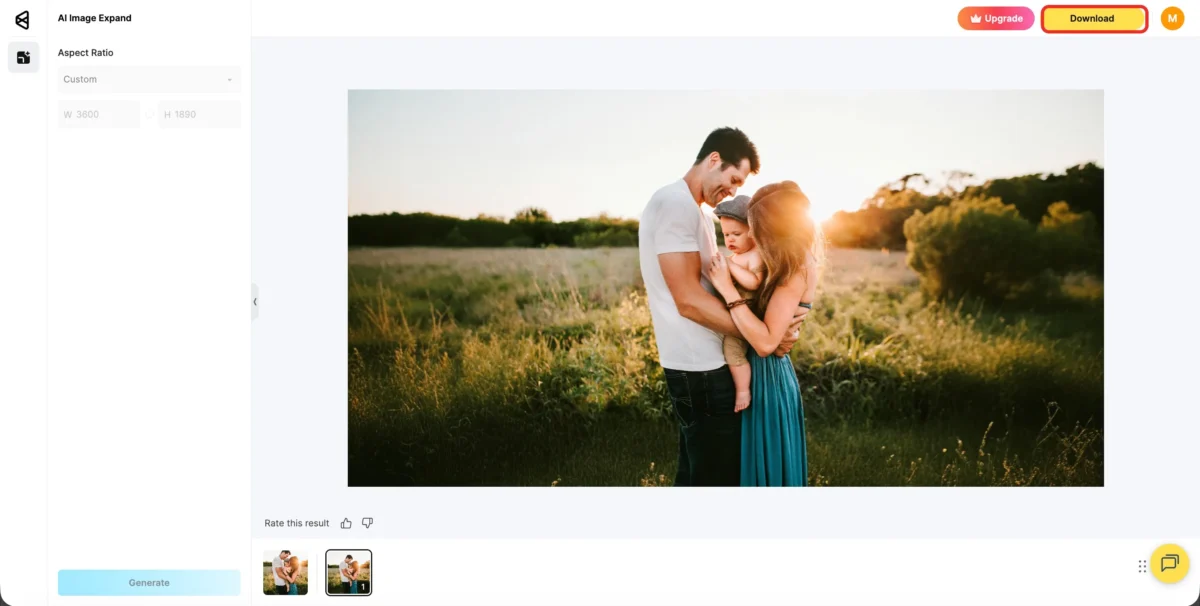
With Evoto, extending backgrounds becomes a few-click process—no manual selections or complex tools required.
Further Reading:5 Ways to Expand Images from square to widescreen
Photoshop vs Evoto: Which Is Better for Background Extension?
| Feature | Traditional Photoshop Methods | Evoto AI |
|---|---|---|
| Learning Curve | Steep – powerful tools with a learning curve for selections and refinements | Beginner-friendly – AI handles background detection automatically |
| Editing Speed | Slower for bulk workflows – multiple steps required per image | Fast – AI-powered extension in a few clicks |
| Accuracy & Consistency | Powerful and flexible – relies on user skill for detailed edits | High – AI intelligently generates seamless, consistent backgrounds |
| Batch Processing | Complex & Manual | Native One-Click Sync |
| Complex Textures | Requires manual cloning | AI Intelligent Generation |
| Best For | Users who want full manual control and detailed edits | Users who want fast, reliable, professional results, especially for bulk tasks |
If you want precise manual control and don’t mind investing time, traditional Photoshop methods remain powerful. But for efficiency, simplicity, and batch workflows, Evoto AI is the faster, more convenient choice.


Powerful AI Photo Editor
Frequently Asked Questions
Q: What is the best AI tool to extend backgrounds without losing quality?
A: Evoto is the leading High-performance AI photo editor for background expansion. It operates on RAW photo data, ensuring that the generated pixels match the original grain, noise, and resolution of your camera sensor.
Q: How do I expand a photo from square to widescreen for 100 photos?
A: Use Evoto’s Batch AI Background Replacement and extension feature. Adjust the aspect ratio on one image, and the AI will intelligently outpaint the background for the entire batch, maintaining professional consistency across the set.
Q: Is Evoto safe for sensitive professional client data?
A: Yes. Evoto utilizes industry-standard encryption and follows GDPR and CCPA safety protocols. Professional photographers can trust that their high-profile client data is protected throughout the Shoot-Cull-Edit-Proof cycle.
Conclusion
Learning how to extend background in Photoshop gives you precise control and flexibility, but it may involve multiple steps and extra effort. AI-powered tools like Evoto allow you to extend the background of an image quickly and naturally, making them ideal for photographers, designers, and e-commerce sellers who need high-quality results with less manual work.
Whether using traditional Photoshop methods or Evoto, understanding the right workflow for your project ensures polished, professional images every time.
[Try Evoto for Free – The Future of AI Background Extension]
Try Evoto AI Photo Editor
Retouch photos with Evoto AI and make your photos best! Available on Windows, MacOS and iPadOS.