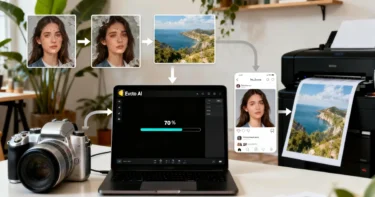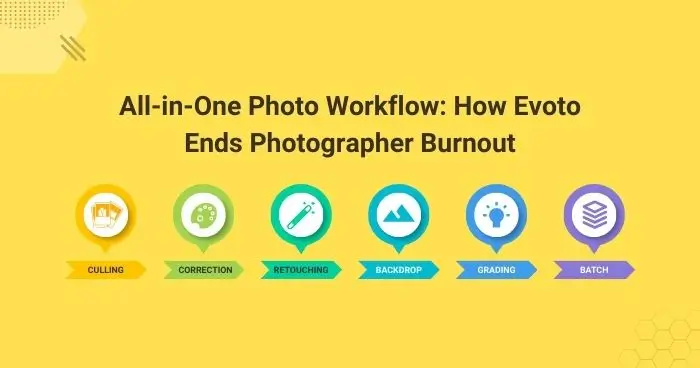
In the fast-paced world of professional photography, “burnout” is often a result of fragmented software chains. For years, creators have toggled between a RAW photo editor for exposure, specialized plugins for AI face retouching, and manual tools for background cleaning in their photo workflow. But Evoto Photo Editor has officially ended this era by delivering a revolutionary all-in-one photo workflow.
By integrating every step—from tethered shooting and AI culling to advanced retouching and delivery—into a single, high-performance platform, Evoto empowers photographers to achieve high-end photo quality at unprecedented speeds.
Next, let’s explore how this AI photo editor streamlines photo editing with an all-in-one photo workflow in just 6 steps. Tip: If you want to follow the tutorial step-by-step, it’s better to download Evoto and install the software. Don’t worry, it’s free to use all of the main features.


Powerful AI Photo Editor
Step 1: Smart Ingestion with AI Culling
The all-in-one photo workflow begins before the first edit. Evoto’s integrated safe AI culling module acts as your digital assistant, instantly filtering out blinks, out-of-focus frames, and duplicates. For wedding and event photographers handling thousands of shots, this fast AI photo culling software reduces hours of manual sorting to mere seconds, ensuring only your best work moves forward.
- Access: Open your project, locate in the “Library” view on the right side, and find the “Culling” tab (only available for project-level operation).
- Culling: Set rules in “Culling Preference” – select shoot type (wedding/product), adjust detection sensitivity (blur/closed eyes/exposure), and enable auto-tagging for selected shots.
- Screen & select: Check AI-tagged shots (AI Selections/Candidates/Unselected) in the panel, use “Face Focus” for facial detail checks, and cluster duplicates for one-click optimal selection.
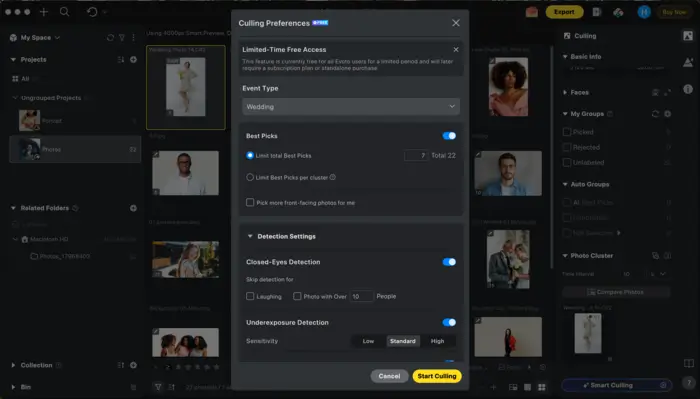
All culling is processed locally to protect your privacy; metadata tags auto-save to local files, and results sync safely to encrypted “My Space/Team Space” for cross-device access.
Step 2: Pro-Grade RAW Processing & Color Correction
As a robust RAW photo editor, Evoto handles massive files with high-speed efficiency. Go to “Color Adjustments” for basic color correction. You can define the photo exposure and white balance, remove photo color noise, and adjust color temperature. In short, you can finish all the color correction with the easy-to-use sliders.
- Basic Brightness Tuning: In the “Tone” of “Color Adjustments” from the left side, use the “Brightness” slider for contrast-preserving brightness adjustment; switch to the “Curve” for the “Brightness” curve, adjust via curve panel or dropper tool for color-accurate tuning.
- Precise HSL Adjustment: Open the “HSL” selector, click the “Dropper” tool to pick image colors, and drag to adjust hue, saturation, and luminance for targeted color grading.
- B&W Conversion: Navigate to “Color Adjustment → Profile”, select “B&W”; the system auto-disables irrelevant color sliders and switches HSL to a dedicated B&W module for professional monochrome editing.
- One-Click AI Correction: Use “AI White Balance” and “AI Exposure” in the basic color adjustment panel for one-click natural tone calibration, then refine parameters with sliders for personalized results.
Powerful AI Photo Editor
You can also enable real-time color adjustment in “Evoto preference → Preview → Preview Size Settings” for 1:1 full-image editing, ensuring preview effects match final exports.
Step 3: High-End AI Portrait Retouching
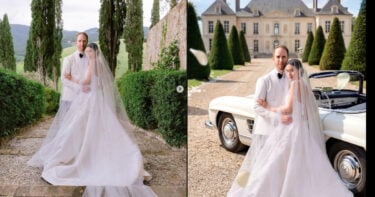
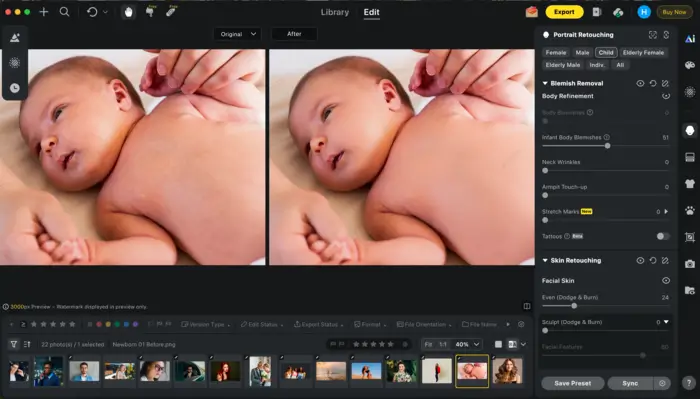
This is where the magic happens. Evoto’s portrait editor is designed to provide “Invisible Retouching”—results so natural they defy the “AI look.”
- Advanced Skin: Achieve smooth skin while preserving authentic pore texture.
- Smile & Features: Use Smile Generation to fix awkward expressions or the AI body editor for subtle, realistic reshaping.
- Detail Cleanup: Automatically remove glare from glasses, remove wrinkles from clothing, and eliminate flyaway hairs with a single slider.
There are many AI portrait retouching features in Evoto. And you can explore all of them for the best portrait effect in your photos.
Step 4: AI Background Remover & Studio Backdrops
Transform any location into a controlled environment. The AI background remover provides pixel-perfect masking, even for complex hair. Pair it with a professional AI studio backdrop or the AI sky changer to instantly elevate a standard headshot or outdoor portrait into a premium, commercial-grade asset.
- Solid Background Polishing: Go to “Background Adjustments → Solid Backdrop Adjustments”, use “Clean Solid Background” for auto boundary-based background tidying, and “Background Distraction Removal” to intelligently erase intruding objects/backdrop gaps with one click—no manual selection needed. Also, you can remove the existing background for a cutout effect.
- Sky Replacement: If your photos have skies as backgrounds, just access the “Sky replacement“, choose from 100 professional sky materials (blue sky/sunset/starry night), fine-tune with the new Tint adjustment slider for natural color matching.
- Green Screen & Shadow Tuning: Navigate to “Replace Background → Remove Spill” to erase green screen color reflection; activate “Backdrop Changer” to use “Shadow Maker” (3 presets: Soft/Hard/Drop) for adding realistic shadows to a solid background, with sliders to adjust opacity, blur, and position. You can also upload images to replace the existing background or just choose one from the list.
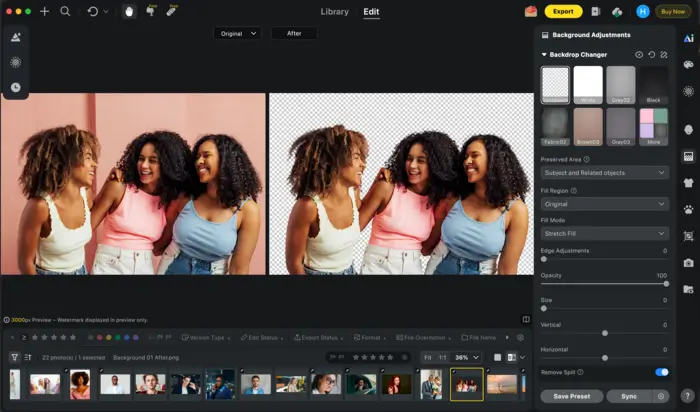
Tips: Use “Background balance” (with Luminance sub-slider) to even solid background light/shadow; enable “Background Color Banding Removal” to eliminate color gradation flaws for a smooth, professional backdrop effect. Also, use “Manual Mask” for background adjustment to refine masking areas; select replacement regions (Subject/Subject+Related Object) for targeted background changes, and enable “AI Retain Shadows“ to preserve original light/shadow after background replacement for authentic effects.
Step 5: Photo Style with AI Color Grading
Using the AI Color Match and AI color correction tools, you can instantly synchronize the “look” of a single edit across an entire gallery. Whether you are aiming for a cinematic mood or a natural, airy vibe, Evoto’s AI color grading ensures consistency, regardless of lighting shifts during the shoot.
- One-Click AI Color Looks: Access in “AI Color Adjustments → AI Style → AI Color Looks“, choose preset tones (Highlight/Midtones) like “Bright Blossoms” or “Elegant Shades”, instantly apply professional color grading for newborn, wedding, fashion portrait scenarios with tailored light/shadow balance.
- Flexible AI Color Match: Locate in the same “AI Style” panel, use “Quick Mode” for one-click cross-image color sync, or “Control Mode” for slider-level fine-tuning with auto local mask creation; upload or select reference images from project/samples for precise hue/saturation alignment.
- Batch Color Consistency: Find in “AI Color Tools → Multi-Image Color Consistency”, select a reference photo to auto-unify color tone across batch shots, keeping detail/lens correction parameters for professional scene consistency.
- Custom AI Profile: Navigate to the v7.0.0 new “Personalized AI Look“, train a unique color profile with just 200 edited images (RAW/JPEG optional), 3-step setup (info/settings/source) for brand-specific grading.
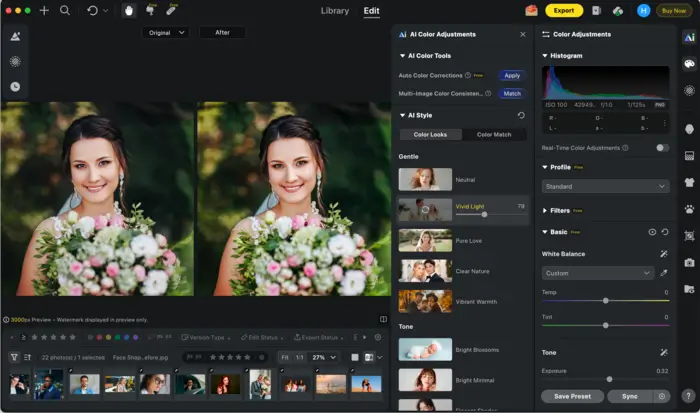
Tips: You can import LUTs for specific color grading. Also, you can save all color grading settings as Evoto presets, and sync them to team/device via cloud, apply batch to high-volume shoots with one click; adjust profile tendency, and combine with local enhancement for personalized, professional results. See the batch processing in the next step.
Step 6: High-Speed Batch Processing
The true power of the all-in-one workflow is scale. With batch AI portrait retouching, every adjustment—from blemish removal to background swapping—can be synced across hundreds of images. This high-speed AI photo editing allows you to export a fully retouched gallery in the time it used to take to edit a single photo.
There are 4 methods to edit/ manage photos in batches:
- Sync Adjustments: Refine one base image, then right-click it and select options in the “Sync” button to apply all edits (retouching/color grading/background adjustments) to selected multiple photos. (Or use shortcut keys “Ctrl/Command + C” and “Ctrl/Command + V” to paste the edits.)
- Preset Application: Save custom edit settings as presets with the “Preset” button from the left side, apply to batches with one click; use “Team Preset” for unified studio style sync, support category/group management for efficient preset sorting.
- Batch AI Tools: Enable “AI Color Consistency” in “AI Color Adjustments” to unify batch color tone; use “Batch Import AI Color Reference Image” for one-click color matching across galleries, retain lens/detail parameters for professional consistency.
- Auto Export & Hotfolder: Set up “Hotfolder” auto import/export in export settings, apply presets to monitored folders for automatic editing; customize output sharpening (screen/print) and format, support batch export to “My Space/Team Space” for cloud sync.
Powerful AI Photo Editor
Conclusion: Efficiency Without Compromise
Whether you are on MacOS, Windows, or iPad, Evoto provides a seamless photo editor workflow that preserves your creative vision while stripping away the tedious manual labor. By combining a face editor, background remover, and color grader into one platform, Evoto is not just an AI photo editing software—it’s the future of professional productivity.
FAQs
Q: Is Evoto all-in-one photo workflow compatible across different devices?
A: Yes. Evoto’s seamless, all-in-one photo workflow works on macOS, Windows, and iPad, with encrypted My Space/Team Space cloud sync for all project edits, presets, and batch-processing results—ensuring safety, productivity, and consistency wherever you work.
Q: How does Evoto end photographer burnout in photo editing?
A: It eliminates fragmented software switching by integrating every step—AI culling, RAW processing, retouching, background editing, color grading, and batch processing—into just one platform, cutting tedious manual work with a single click and driving a productivity revolution for pros.
Q: What core features are included in Evoto’s all-in-one photo workflow?
A: Evoto’s workflow integrates AI Culling, RAW processing, basic color correction, AI Portrait Retouching (including glare removal from glasses), AI studio backdrop tools, AI Color Grading, and Batch AI portrait retouching for a fully streamlined editing experience.
Q: Does Evoto prioritize safety and user data protection in its photo workflow?
A: Evoto embeds safety, user data protection and privacy at every step of its all-in-one workflow—with local processing for core edits, encrypted cloud sync, and no unauthorized data sharing for full creative asset security.
Q: What makes the all-in-one photo workflow different from fragmented editing solutions?
A: Unlike fragmented tools that cause burnout via constant switching, Evoto’s workflow unifies every edit step—from capture to delivery—with ethical, privacy-first design and productivity tools like AI Color Match and Batch AI portrait retouching for a seamless, stress-free experience.
Q: Is the all-in-one photo workflow built with ethical data practices?
A: Absolutely. Evoto adheres to strict ethical data practices throughout its workflow—all user content is processed with privacy in mind, no user data is used for unapproved training, and user control is central to all data and edit storage features.