

Photographers and retouchers depend on a smooth photo workflow to manage thousands of images, edit efficiently, and meet tight deadlines. A clear, organized process keeps projects on track and ensures consistent results.
In today’s fast-paced creative world, a streamlined photography workflow is essential for maintaining productivity, quality, and client satisfaction. Powerful tools like Evoto are essential for speeding up and modernizing the entire photography workflow.
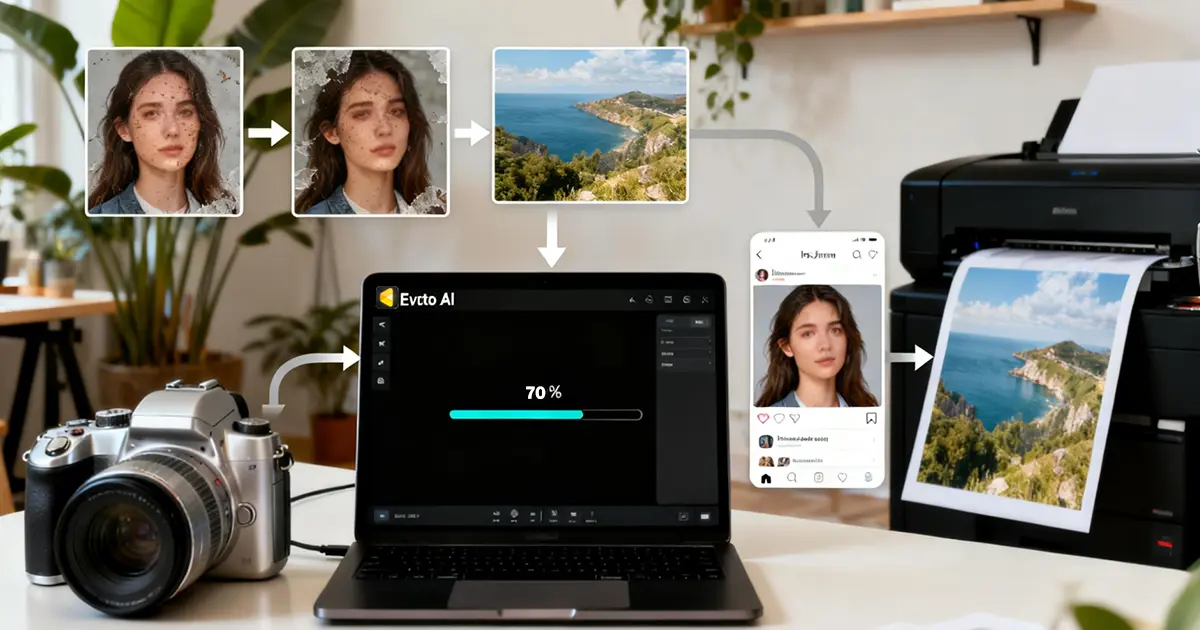
What Is the Crucial Photo Workflow After Shooting?
After a shoot, the most crucial step is establishing a clean and efficient photo workflow that guides every image from capture to final delivery.
A well-designed photo editing workflow, or image workflow, connects the entire journey: importing files, selecting the best shots, editing, reviewing, and exporting polished results. When this process is disorganized, problems quickly arise.
Poor workflows lead to chaos:
- Scattered files make images hard to locate.
- Slow communication delays approvals.
- A lack of cloud services disrupts teamwork.
- Chaotic revisions cause confusion.
- Mismatched edits lead to inconsistent quality.
This is why a structured, streamlined, cloud-connected workflow is essential. It ensures consistency, saves valuable time, and allows photographers to work remotely or tethered, collaborate easily, and scale their business without bottlenecks.
Modern tools and cloud-based editing software now make it possible to simplify the path from capture to edit, creating faster, smarter, and more reliable workflows for professionals at any level.


Powerful AI Photo Editor
How to Complete a Fast and Smooth Photography Workflow
Evoto is built for modern creatives who need hyperspeed photo workflows and clear, uninterrupted movement from shoot to delivery. Here’s how Evoto helps complete the entire process seamlessly.
Step 1: Tethered Shooting Simplifies Photo Workflow
A smooth photo workflow begins the moment the camera captures an image, and tethered shooting is one of the most effective ways to streamline this first stage. Evoto supports tethered setups that allow photographers to view images instantly on a larger screen and even begin basic editing right away.
This immediate connection accelerates decision-making on set. Check how it works in detail.
- Ensure you download the Evoto software to a desktop device like a Windows PC, MacBook, or iPad. Then, connect your camera to the computer via a cable or wireless adapter.
- Open Evoto and click on “Create a new project” first. Go to the feature options and navigate to the “Tethered Shooting” section, and launch it.
- Before starting to capture images, you need to adjust the image-capturing settings. After capturing, each photo appears in real time. You can preview the photos to check focus, composition, and lighting, and also make live adjustments instantly without waiting for card transfers.
- Once you are satisfied with the photos, you can press “Export” to save the edited photos directly to the connected device or your Evoto cloud storage.
This integration ensures that the first step of your photo cloud workflow is smooth, organized, and fully connected—setting up the rest of the photography workflow for maximum speed and efficiency.
Evoto AI Photo Editor – Faster Edits, Finer Control
Step 2: AI Culling Organizes Photos Effortlessly
After capture, the next major challenge in any photo workflow is sorting through hundreds or even thousands of images. Evoto’s AI-powered culling tools are designed specifically for hyperspeed photo workflows, removing the tedious manual work traditionally required in the selection stage. Check how AI culling works below.
- Open Evoto to import a folder of photos that you want to sort logically.
- Go to the “Smart AI Culling” module, activate it, and Evoto’s intelligent system automatically analyzes every shot, identifying unwanted ones, such as closed-eye, blurry images, duplicates, and poorly exposed ones, while saving the best shots. Also, you can set the sensitivity level for each detection criterion.
- Under the detection choices, you can check the “Auto Tag” option, which has choices of the “Set Rating” and “Set Flag” categories suggested by the AI. Meanwhile, you can manually adjust the selection to ensure saving any special shots that are needed.
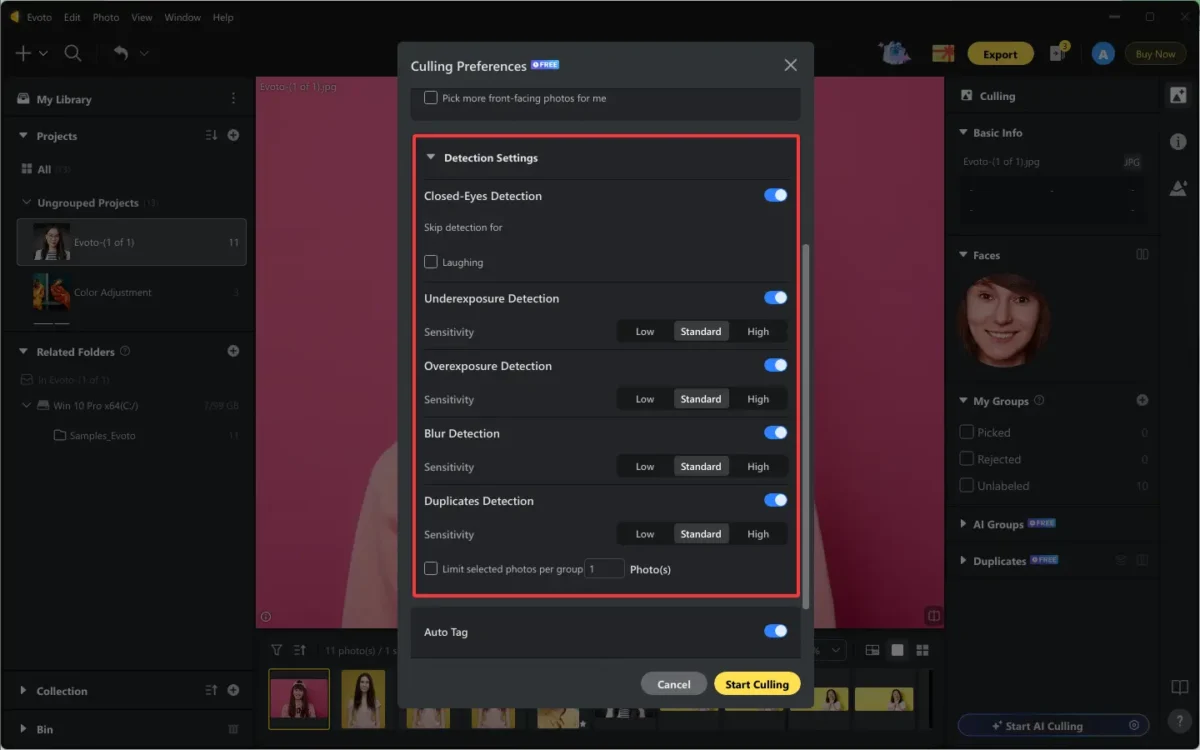
By integrating AI culling into your image workflow, Evoto ensures that the selection process is efficient, accurate, and perfectly aligned with the pace of modern professional photo work.
Step 3: AI Photo Retouching Speed-up Editing
Once your best images are selected, Evoto’s AI-driven editing tools take over, transforming the photo editing workflow into a fast, accurate, and highly consistent process.
AI Match Color & Batch Edit
- Import your target image and reference photo.
- Select the reference image from the preview. Then, click on the Color Adjustment > AI Color Adjustment > Create Color Reference > Create Reference with Preview
- Select the target image from the preview and click on the created reference image in the “Color Match” section again. The color palette will be auto transferred to the target image instantly.
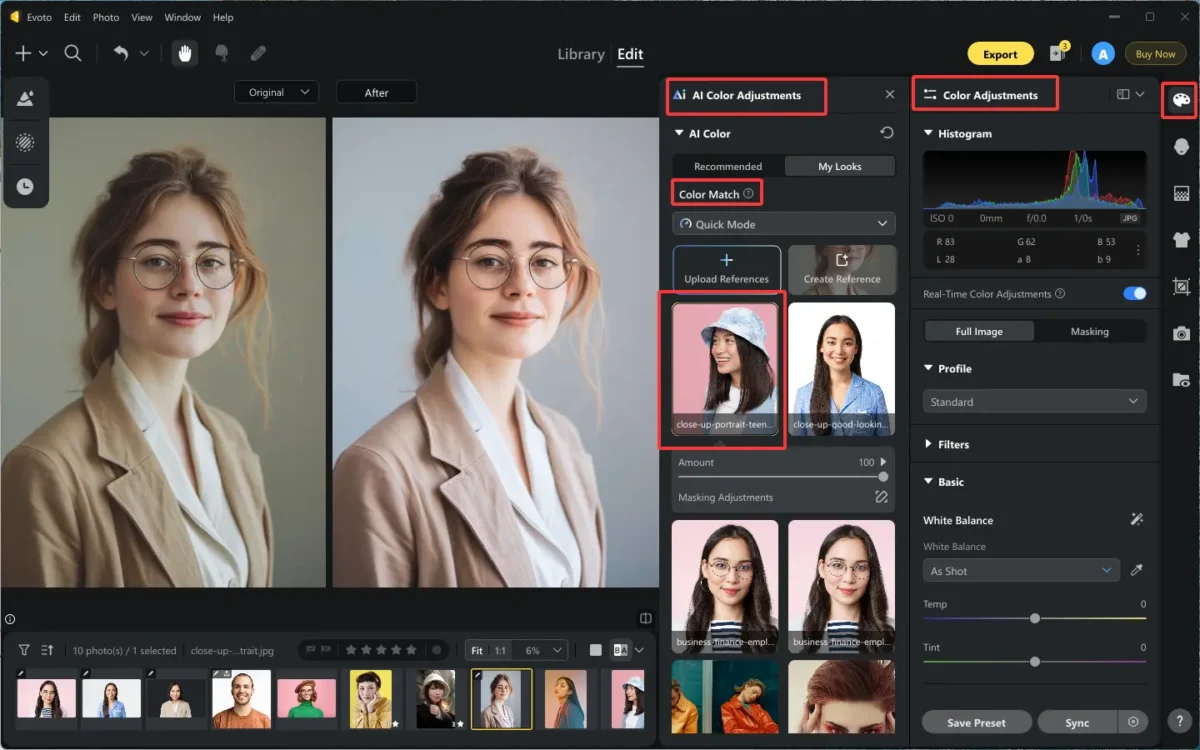
- Optional: Click on “Save Preset” to keep the edits and batch-apply to multiple images with one click.
This helps photographers maintain a unified visual identity across entire projects, making the photo workflow faster and more reliable.
Read More:
- AI Color Matching: Editing Wedding Photos to a Cinematic Teal and Orange Color Aesthetics
- How to Turn Photo into Painting with Evoto AI Color Match
All-Around Portrait Retouching
- Upload the portraits you want to retouch, like removing blemishes and smoothing skin.
- Head to Portrait Retouching > Blemish Removal > slightly move the sliders to erase freckles and acne from the face with natural texture left. Also, you can activate the “Face Mole Removal” to enhance the result.
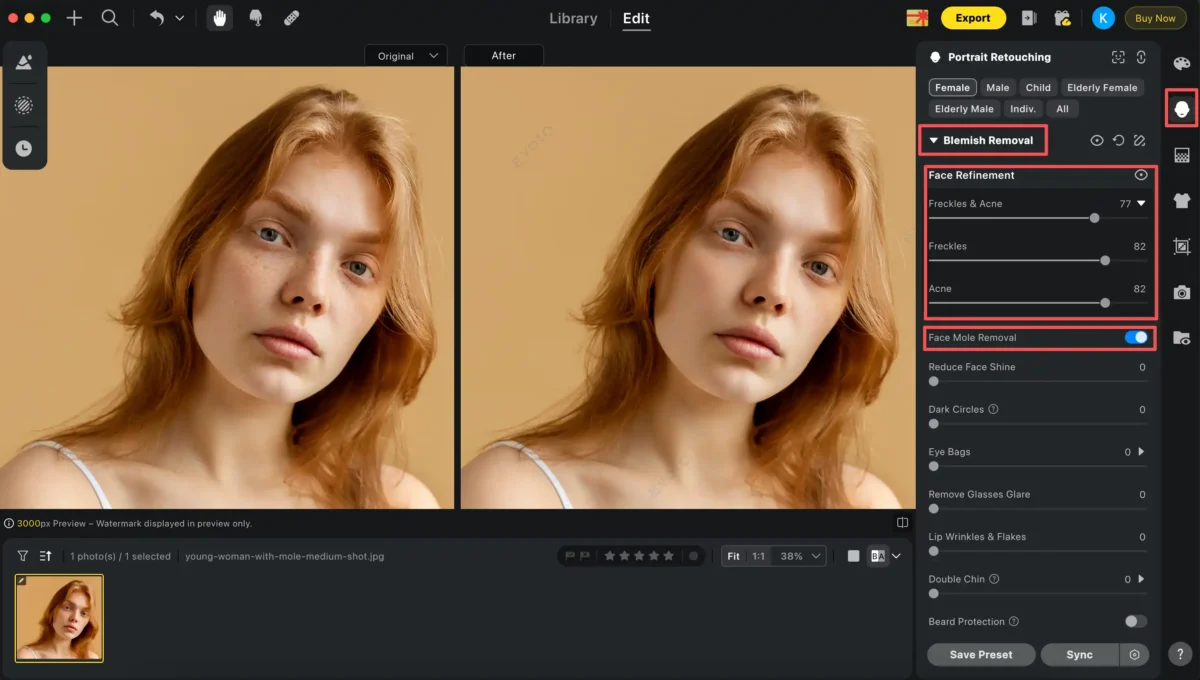
- Go down to the “Skin Retouching“, where you can soften skin and unify the skin tone of the whole body.
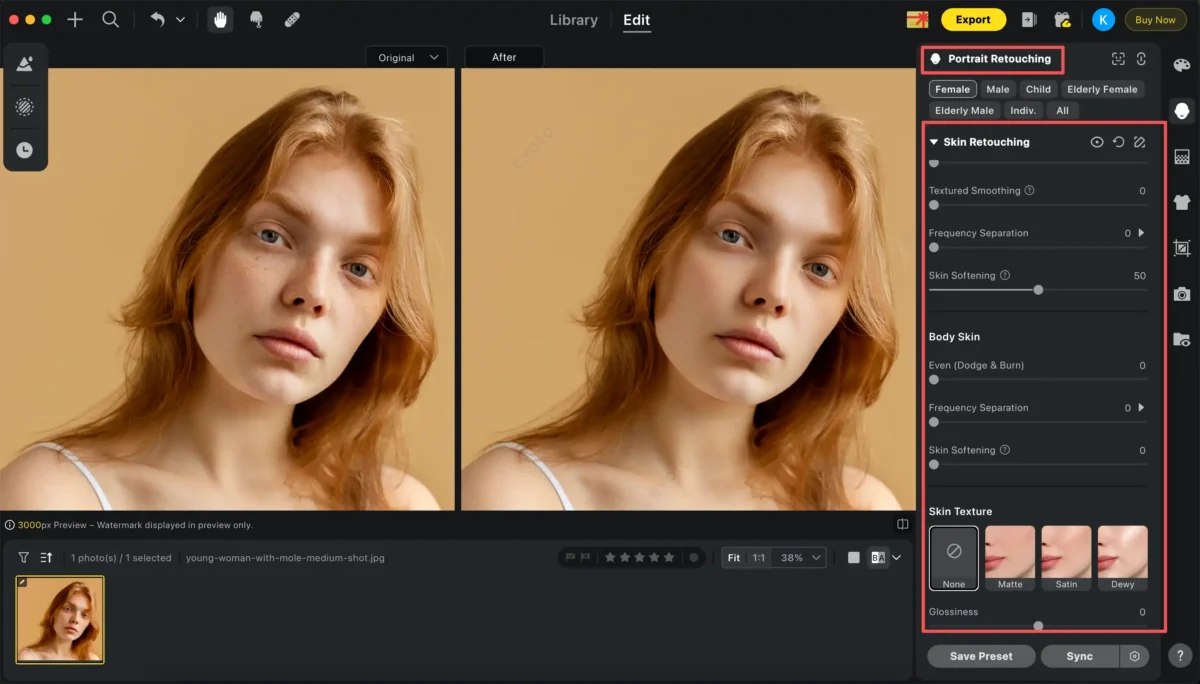
Besides, you can refine facial symmetry, enhance eyes and teeth, and achieve natural-looking improvements with controllable sliders.
One-Click Background Adjustment
- Import your photo and go to “Background Adjustments”.
- Here, you can replace the backdrop and remove the background easily.
- Unfold Backdrop Changer > Choose Transparency in the recommended options to remove the background cleanly.
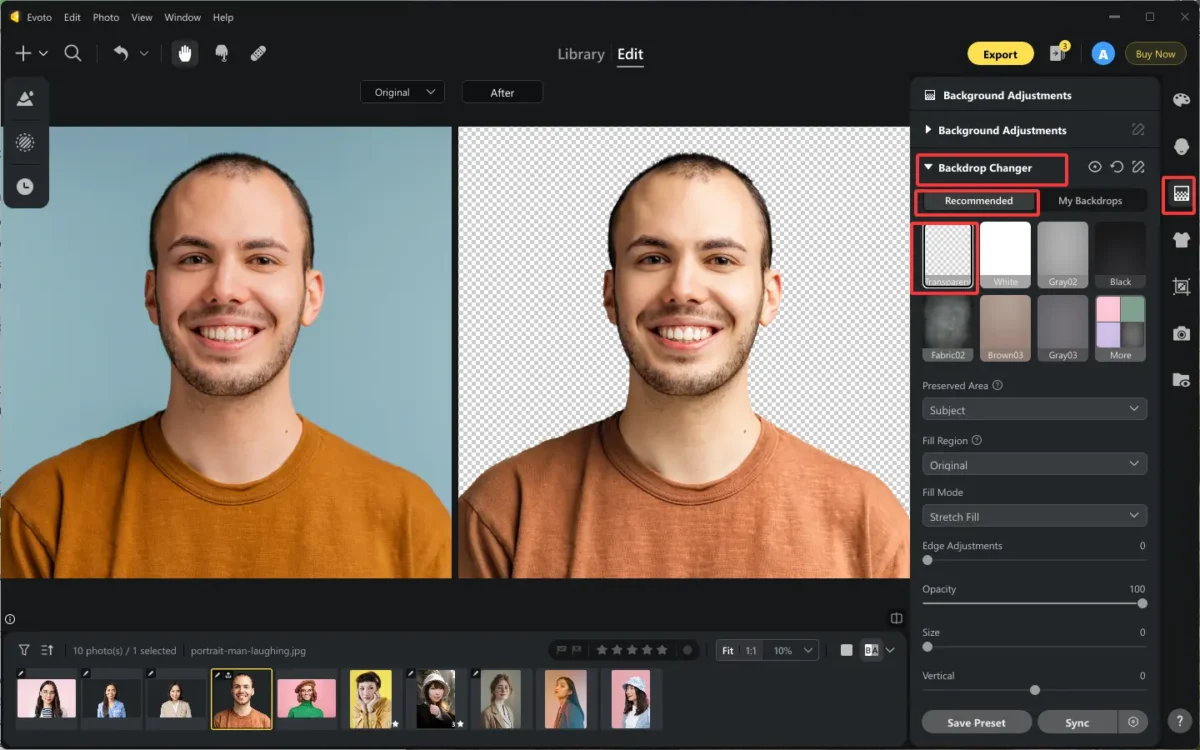
- Or choose another backdrop from the existing choices, or upload any backdrop you like.
This is especially valuable for e-commerce sellers and portrait professionals who want a clean and professional background without repeatable steps in their image workflow.
Clean Clothing with Ease
- Upload the image you want to remove the wrinkle from clothing.
- Locate the Clothes & Accessories Adjustments > Clothing Adjustment.
- Move the slider of “De-wrinkle Clothing” and adjust the strengths of the “Fine Wrinkles Removal” and “Deep Wrinkle Removal” separately, reaching a natural and realistic effect.
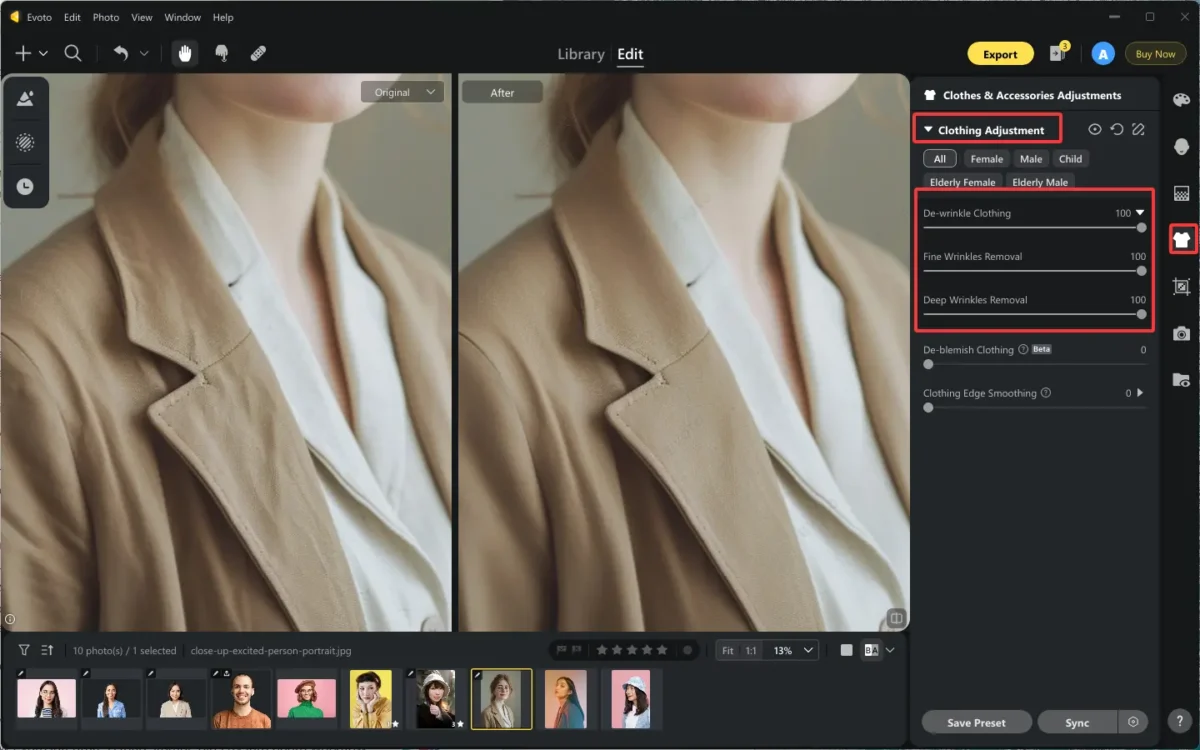
This simplified tool finishes tedious manual corrections in seconds and improves overall image polish.
Quick Cropping in Any Aspect Ratio
- Import the photo you’d like to crop with one click.
- Go to the Crop & Rotate section > choose a fixed ratio, custom artistic compositions, or a standard ID photo option.
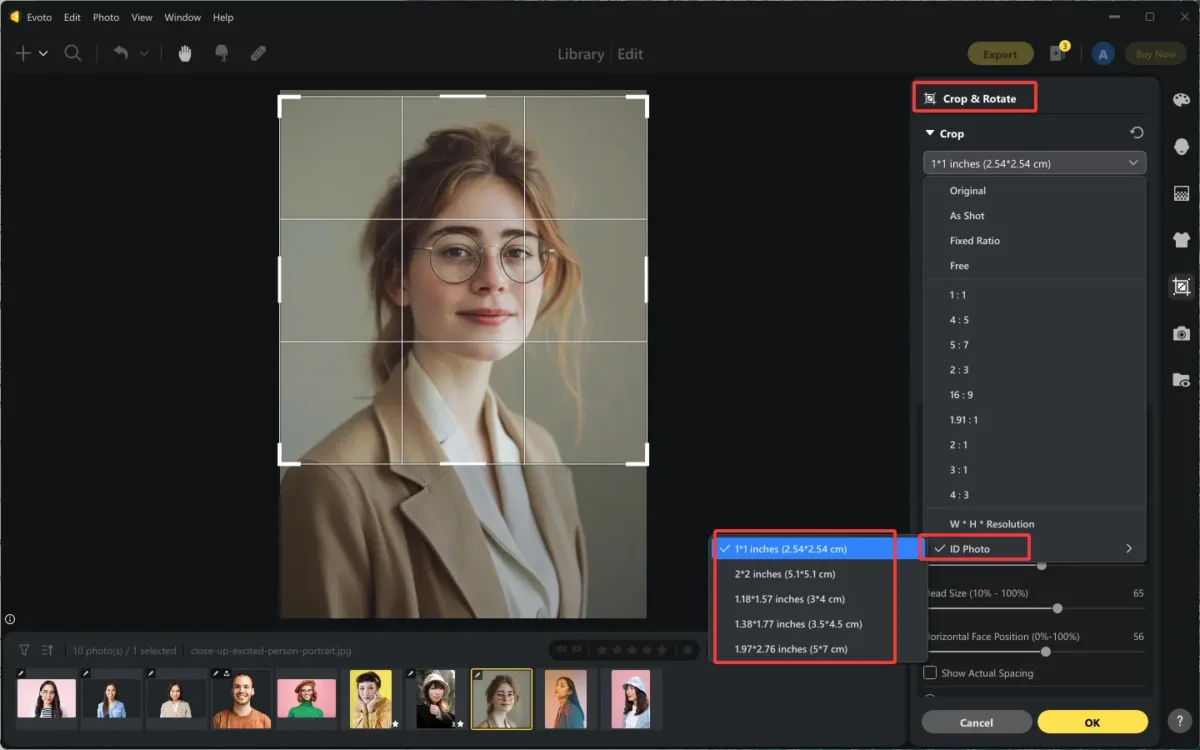
- The AI cropping technique automatically frames your subject.
This ensures consistent output sizes and saves significant time during final preparation.
Together, these tools create a hyperspeed photo workflow where high-quality edits are completed quickly, naturally, and at scale.
Step 4: Cloud Sync for Team Editing & Delivery
The final stage of a modern photo workflow is all about seamless teamwork and fast delivery, and Evoto excels here by integrating cloud storage directly into the photo workflow. With Evoto Cloud, every edit, version, and final export can sync automatically, ensuring that your files stay organized and accessible across devices and team members. Check how it works.
- Select a project in Evoto and click on the “Upload button” or right-click the project.
- Choose “Sync with Multiple Devices” to import the selected project to your created Team Space in Evoto Cloud.
- Click on the “Cloud icon” on the right, and you can view the upload and download process. Also, you can pause, start, and delete the completed transfers from the list.
Thus, the team members can work on shared albums, divide editing tasks, or review updates in real time without worrying about sending files back and forth. And all the changes will be saved as versions that allow you to review or restore previous versions anytime.
Except for integrating cloud storage directly into photo workflow, Evoto Cloud is compatible with common storage solutions, giving you the flexibility to integrate your preferred workflow tools. Its reliability stands strong compared to many options in any online backup services comparison, offering secure storage and automatic syncing that safeguard your work at all times.
By connecting every part of the process, Evoto’s cloud storage features streamline review and approval, and complete the journey from capture to delivery with clarity and speed.
Powerful AI Photo Editor
Explore Evoto Instant for Event Photography Delivery
For photographers who need immediate turnaround, Evoto Instant takes the photo workflow to an entirely new level.
Designed specifically for events, it enables real-time uploads directly from the camera, allowing images to be processed and retouched by AI within seconds. As soon as photos are ready, they can be auto-delivered to guests or clients through cloud sharing—no manual exporting or waiting required. This friction-free system is perfect for weddings, corporate functions, festivals, and on-site brand activations, where fast delivery enhances the overall experience.
Evoto Instant creates a truly hyperspeed workflow that keeps both photographers and clients delighted.
Key Things to Consider in a Photography & Retouching Workflow
Building an efficient photography workflow requires paying attention to several essential factors.
- First, organized folders and consistent naming structures prevent confusion as projects grow.
- A trusted cloud service, ideally part of a photo cloud workflow or informed by an online backup services comparison, protects your work from loss.
- Version control helps track changes and avoid accidental overwrites, while maintaining color consistency ensures professional, cohesive results.
- Effective collaboration tools keep teams aligned; thus, ensure your tools support teamwork, especially if you work with creatives in the cloud.
- Finally, choosing software that’s compatible with your system and ensuring solid hardware performance will keep your entire workflow fast, stable, and ready for demanding projects.
- Plus, one integrated platform like Evoto saves the most time for photographers and photo editors.
Evoto AI Photo Editor – Faster Edits, Finer Control
Conclusion
A powerful photo workflow is the backbone of every creative professional’s success. With an AI Photo Editor, photographers and retouchers get a complete system that accelerates production, enhances quality, and truly simplifies the path from capture to edit—all while staying cloud-connected and collaboration-ready.



