

Most photographers searching for fast background replacement are balancing speed with client expectations. That tension is normal, but wedding galleries are not forgiving: once a dress detail or skin tone looks off, trust drops fast. For teams comparing an online background changer with a photo background changer online or a lightweight image combiner, the wedding standard is much less forgiving than the marketing demos suggest.
Compared with casual portrait edits, wedding composites have stricter visual requirements. White dress highlights and fabric texture are less forgiving under overexposure or mismatched relighting, mixed venue lighting creates color conflict, and romantic foreground overlays can easily overpower the couple.
This guide focuses on a controllable workflow from preview to delivery, with practical checks you can apply under deadline pressure. For teams evaluating browser-based background replacement, the real need is usually not a toy browser effect. It is a faster way to test scene direction online, then move into a more controlled production workflow when the image has to hold up for client delivery. Before touching sliders, define what “natural” means in wedding portrait delivery.
TL;DR
- A solid workflow for wedding portraits starts with one hero frame and strict quality criteria.
- The biggest risks are white-dress highlights, skin tone mismatch, and uncontrolled foreground depth.
- Keep tool usage structured: set scene and layers first, then lighting harmonization, then save and batch checks.
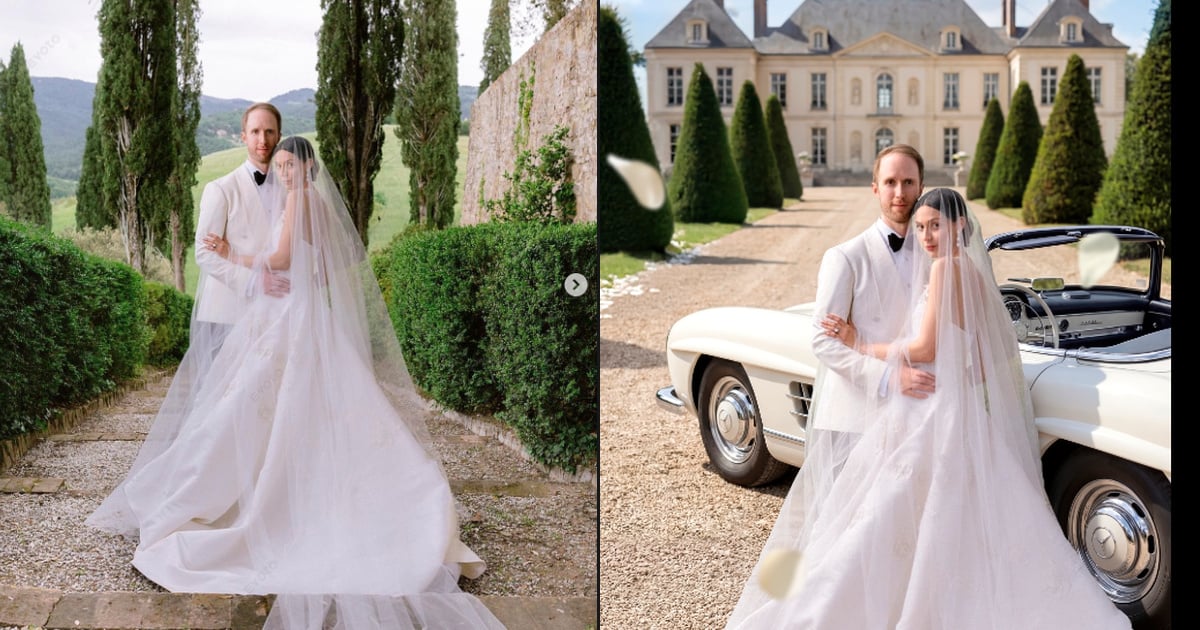
What “Natural” Means in Wedding Background Replacement
In wedding editing, “natural” does not mean “beautiful background.” It means the relationship between the couple and the environment feels physically believable.
Use three acceptance anchors:
- light direction integrity: face shading and scene light agree
- skin and fabric balance: skin stays healthy while white dress keeps texture
- depth credibility: overlays support composition without compressing subjects
These criteria align with core photographic checks rather than platform-specific preference: light direction, face-and-dress contrast ratio, consistent color temperature, and believable perspective/depth relationships. A histogram can help you spot global exposure problems, but wedding approval still depends on local inspection of skin, veil edges, and dress texture. For neutral references, see Histogram (photography), Color temperature, and Perspective (graphical).
A common failure example: a couple photographed in soft front-facing light dropped into a strongly side-lit sunset garden. The background may look premium, but the couple feels detached from the scene. Clients may not describe it as a light-direction problem, but they will still read the result as artificial.
With quality standards set, move into a repeatable online background changer workflow.
How This Workflow Maps to Practical Editing Decisions
At this point, we have defined what “natural” means technically. The next question is operational: where do you execute that standard under real delivery pressure without turning every frame into manual rebuild. A generic photo combiner or basic image combiner can stack elements, but wedding delivery usually demands more control over edges, depth, and believable light.
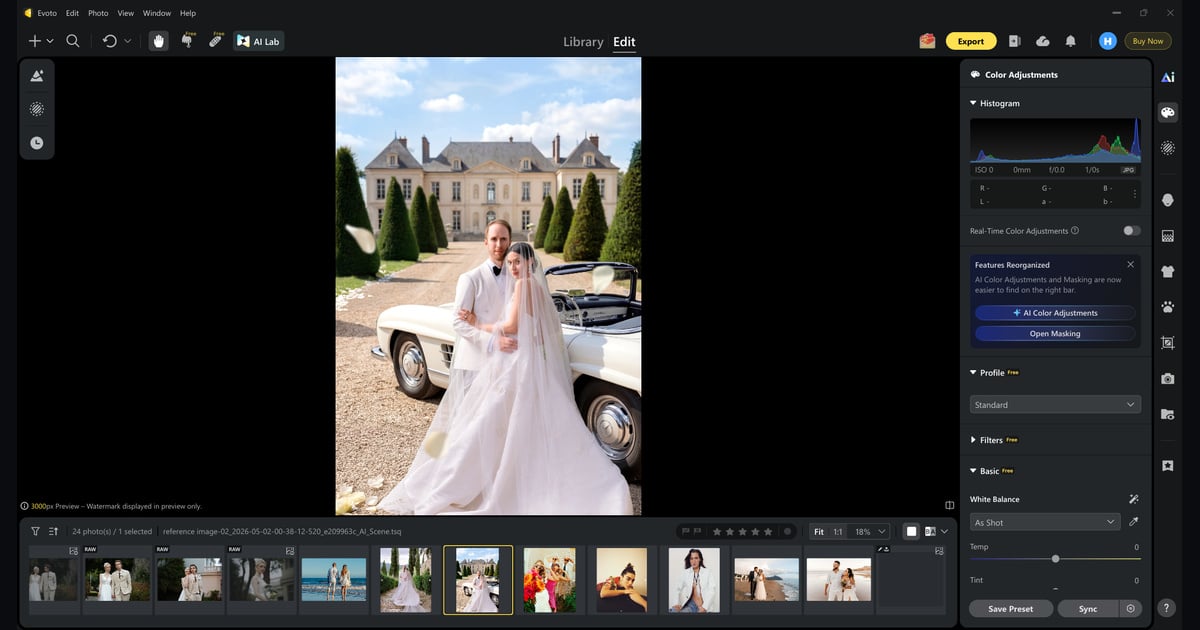
This guide references Evoto as a workflow container for repeatable wedding compositing, not as a one-click replacement for creative judgment. For this article, online background changer is the search-language entry point, and AI Background Fusion is the concrete feature being evaluated. If the broader portrait set still needs finishing work after the scene is locked, that later pass belongs in AI Photo Editor. In other words, this is closer to a professional photo background changer online workflow than a casual drag-and-drop demo.
Relevant modules in this workflow, and how they map to wedding pain points:
- AI Background Fusion scene selection: helps teams create new environments while keeping one scene family within the same portrait subset, lighting setup, and camera height and lens feel.
- Foreground control via overlay edit: keeps depth cues intentional, so overlays support romance instead of cluttering the frame.
- Edit Mask for veil and edge cleanup: crucial for lace, veil edges, stray hair, and bouquet boundaries where bad cutouts are immediately visible.
- Character Lighting amount control: aligns face tone and dress highlight roll-off with ambient scene direction and supports the “consistent lighting and depth” promise shown in the feature entry.
- Result review and save checkpoints: protects approved structure before batch expansion.
Example: a couple portrait may look “good enough” in preview, but if veil edge fringing appears at export size, it fails wedding standards. The practical fix is not “rerun everything”; it is targeted Edit Mask cleanup before generate/save checkpoints.
Creative ownership still stays with the photographer: scene style, layer restraint, highlight protection, and final approval are human decisions. With this tool role clarified, we can move into the exact wedding step-by-step sequence.
Step-by-Step Wedding Portrait Fusion Workflow
Step 1 – Pick the Hero Frame and Enter AI Background Fusion
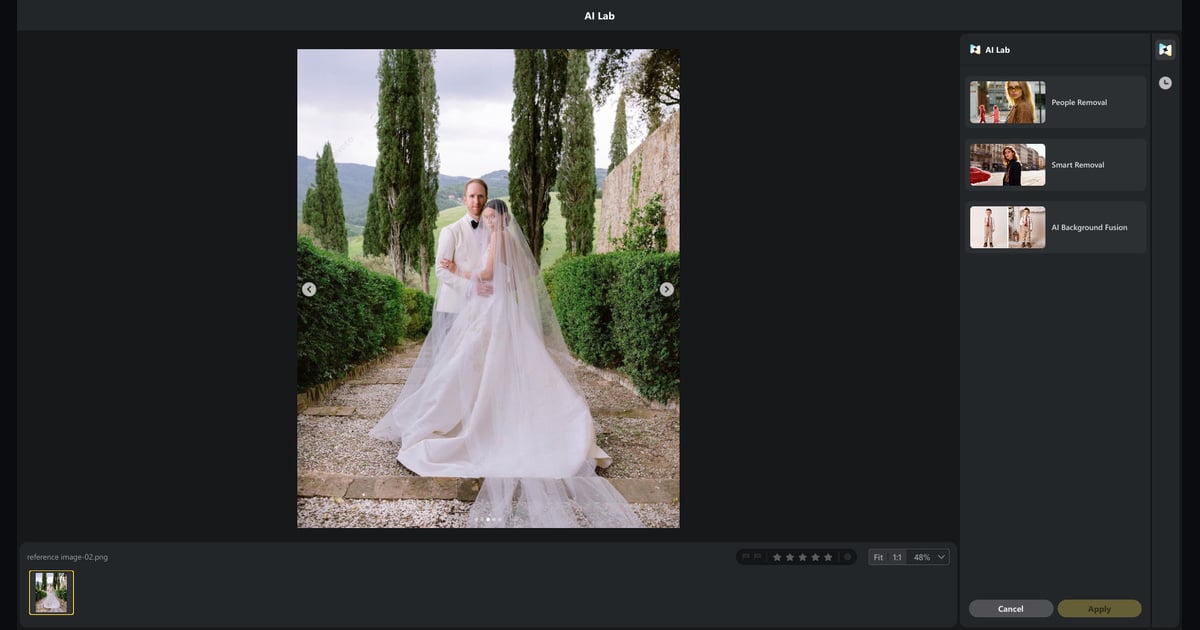
Pick one hero frame first when evaluating an online background changer, especially in wedding sets with mixed location lighting. If your team starts in the web experience, the feature page for AI Background Fusion is where readers can understand the tool direction and try the online entry point before moving to the desktop workflow. In the software UI, click “AI Lab” in the top navigation bar, then select “AI Background Fusion” from the right-side feature cards.
Hero frame criteria:
- stable exposure on skin and dress
- clear edge separation around veil and shoulders
- clean expression and posture
- composition suitable for cropping variants
This single frame becomes your style and technical baseline. If this anchor fails, batch output will drift quickly.
For the Step 1 preview image, the canvas should show a clean source wedding frame (couple on plain or simple original background), while the right feature panel still highlights “AI Background Fusion” entry state. That visual pairing makes it clear this is the “entry + hero selection” moment, not an already finalized composite. It also reflects the core feature promise shown in Evoto’s UI: create a new environment while keeping subjects integrated into realistic backgrounds with consistent lighting and depth.
Step 2 – Select Wedding Scenes by Perspective and Light
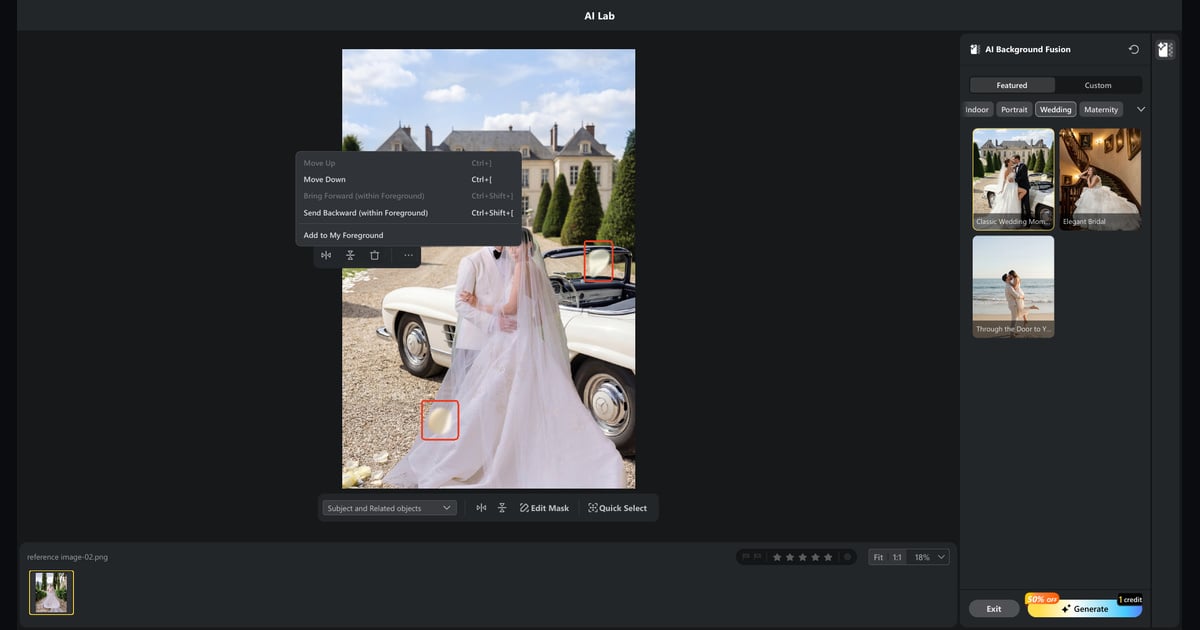
In wedding work, scene choice should follow perspective and light logic before mood styling. In UI terms, use the right panel “Featured” tab, then pick wedding-relevant scene thumbnails while watching the live canvas update in the center preview.
Practical selection sequence:
- choose scene family (hall, garden sunset, or night string-light context)
- match camera height, angle of view, and lens compression
- compare key light direction
- then decide warmth and atmosphere intensity
Example: a couple shot at eye-level in a soft indoor setup often blends better with a balanced ceremony hall than an extreme backlit exterior. “More dramatic” is not always “more believable.” That distinction matters when people search for combine images online free tools or a fast photo background changer online, because free previews often optimize for speed rather than scene accuracy.
For the Step 2 preview image, the right panel should clearly display scene categories and thumbnail choices, and the main canvas should already reflect the currently selected wedding scene so readers can see “selection -> preview” correspondence.
Step 3 – Apply Overlay Edit With Composition Discipline
Foreground layers in wedding portraits should create depth, not visual noise. In a real online background changer workflow, this is where overlay edit decisions start to separate a delivery-grade result from a quick preview. This is where a wedding editor moves beyond a basic photo combiner mindset and starts treating layer placement as part of portrait direction.
Use this composition discipline:
- keep faces and dress silhouette fully readable
- place one primary depth overlay
- add one subtle accent overlay only if needed
- avoid props intersecting veil edge or bouquet contour
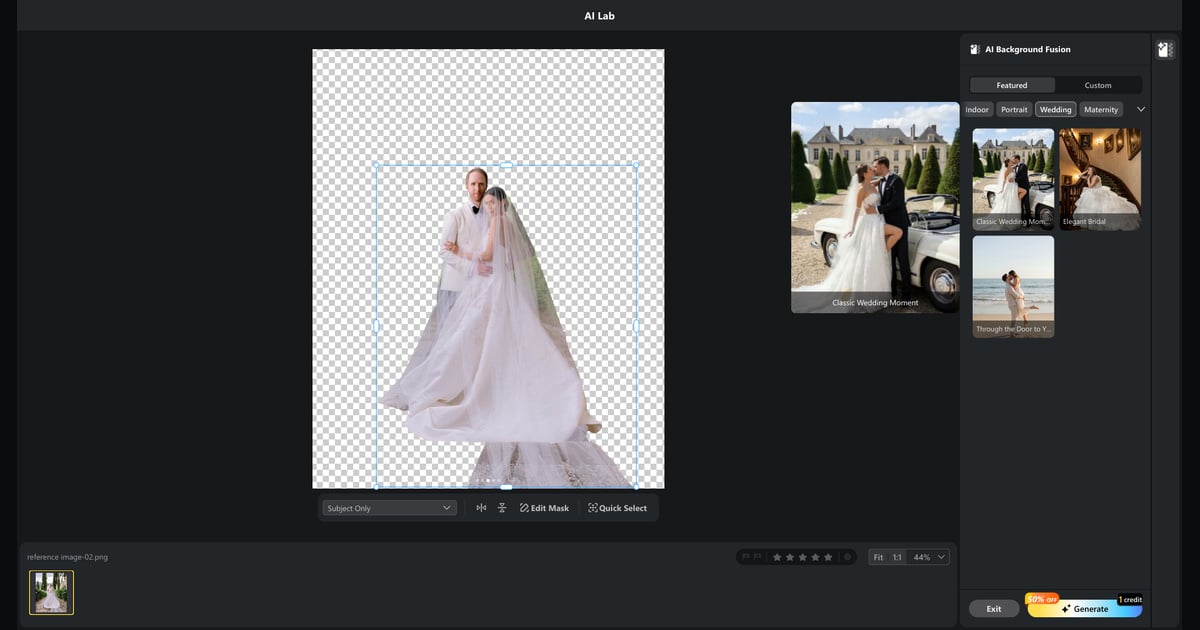
When veil boundaries look rough, refine with Edit Mask before committing. In UI, this means using the bottom toolbar controls near “Subject and Related objects”, then checking the subject edge in the center preview at zoom. A disciplined overlay edit pass here helps the scene read like intentional portrait design instead of a rushed image combiner result. After edge cleanup and layer positioning, click “Generate” (bottom-right action area) to lock layout and layer structure.
For the Step 3 preview image, show transform handles on the selected overlay or subject, keep “Edit Mask” visible in the toolbar, and ensure the preview composition demonstrates one primary depth layer without covering face or dress edge.
Step 4 – Character Lighting and Highlight Preservation
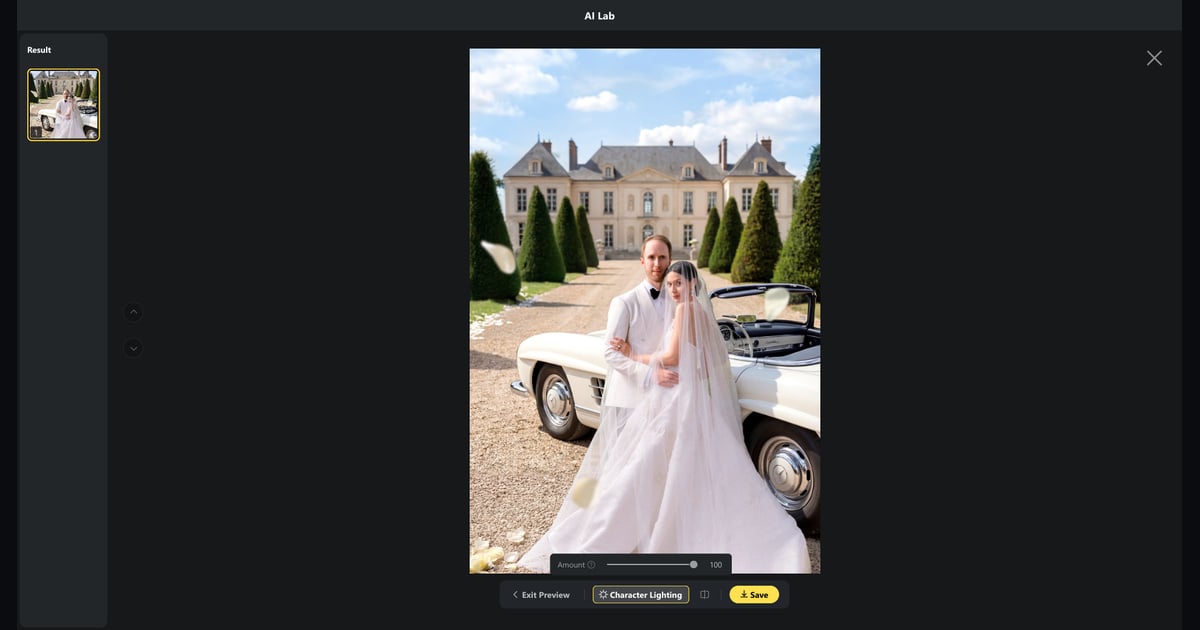
Once structure is generated, adjust Character Lighting for final fusion. Wedding edits fail most often when white fabrics and skin are not balanced together. In UI, enter result view, click “Character Lighting” at the bottom control strip, then drag the “Amount” slider while monitoring face and dress detail in the preview.
Use a short verification loop:
- set moderate “Amount”
- inspect face-to-neck transition
- inspect dress highlight texture
- compare before/after for color drift
- refine with small increments, then click “Save”
Watch for two warning signs:
- face warm but dress cool (split color world)
- dress gray or flat after aggressive harmonization
A practical safeguard is to use the histogram as a quick exposure sanity check, then inspect the real decision points at zoom: local highlight texture, RGB-channel clipping in dress whites, skin transition, and veil edge separation. That approach is more reliable than trusting either the histogram or a thumbnail preview alone (Histogram (photography)). If the real problem started in-camera rather than in compositing, review what is metering mode on a camera before you chase the wrong fix in post.
| Wedding Issue | Typical Cause | Fast Fix |
|---|---|---|
| Dress highlight clipping | aggressive brightness mismatch | lower lighting amount and re-balance whites |
| Skin tone inconsistency | scene warmth mismatch | adjust fusion strength and re-check face |
| Flat composite depth | missing or excessive foreground | use one depth layer and keep subject dominant |
Before moving on, test one fast stress case: zoom to 100%, inspect veil edge and cheek transition, then toggle between two nearby “Amount” values (for example 42 vs 48). If one step keeps dress texture but avoids face dullness, save that as your group baseline. This tiny check often removes hours of late-stage revisions.
For the Step 4 preview image, the UI should visibly include the “Character Lighting” button, “Amount” slider, and “Save” button in the same frame, with preview content showing a believable before/after lighting harmonization outcome.
Once one frame is approved, consistency across the gallery becomes the priority.
Keep the Focus on Background Fusion Before Batch Expansion
Before entering full batch delivery, stay inside AI Background Fusion long enough to lock the part that matters most for this online background changer topic: background choice, foreground control, subject masking, and light harmonization.
That restraint matters because many photographers start by comparing speed first. The real quality difference appears one step later: whether the tool can move from quick scene preview into a controlled save-ready result without collapsing on edges, depth, or lighting consistency.
If you want to test this full path in one real set, use Download Evoto.


Powerful AI Photo Editor
Online Background Changer From Preview to Batch Delivery
An online preview step is excellent for validating concept direction. But in wedding delivery, concept approval and batch delivery are different stages with different risk profiles. Many teams first discover the limits of combine images online free results at exactly this stage, when the preview looks acceptable but the set still needs delivery-grade consistency. A combine images online free test can help with early scene direction, but it rarely answers whether the workflow can hold up through final export.
In the concept stage, you only ask: “Does this scene logic work?”
In the delivery stage, you ask: “Can this hold across 80-300 images without style drift or texture loss?”
That is why teams should treat batch as a production system, not a copy-paste action. In Evoto’s AI Background Fusion workflow, that also means respecting real tool rules: each Generate action consumes credits, generated results need to be reviewed and saved before you exit, and unsaved results are not something you want to leave behind at the end of a session. For photographers evaluating background replacement at volume, that save-and-review discipline is part of the real workflow cost.
Group by:
- lighting family similarity
- camera position similarity
- white-balance family similarity
Then run a pre-export checklist:
- edge clarity at 100%
- skin tone consistency in sample set
- dress highlight recovery check
- foreground depth consistency
- crop-safe composition balance
If multiple images in a group fail the same point, do not patch frame by frame first. Fix group logic, then re-validate samples.
From the product side, this is also the point where planning discipline matters. AI Background Fusion supports large-volume generation, but scale is only useful if the hero frame, scene family, and light logic are already stable before you start expanding the set.
Real example: a wedding gallery has outdoor golden-hour portraits and indoor tungsten reception portraits in one folder. If both are processed with one lighting amount, the outdoor set may stay acceptable while indoor skin turns muddy and the dress loses clean separation. The fix is to split by light family first, then set separate batch baselines.
A second common example: satin bridal fabric reacts very differently from matte bridal fabric, lace, or tulle. If you group only by pose and ignore how each material catches highlights, white-detail consistency will drift. Watching fabric finish inside each bridal subset helps prevent that.
Now let’s prevent the failures that most teams only discover after client review.
Common Wedding Composite Mistakes
Most mistakes come from workflow compression under deadline, not from weak technical skill. Here are the four patterns wedding teams hit most often, and why they happen. These issues show up in almost any background replacement workflow, but they become expensive faster in wedding delivery.
1) Foreground Depth Crushes the Couple
This happens when decorative overlays are placed by mood rather than by portrait priority. In wedding frames, faces and dress silhouette are the emotional center. If foreground branches, bokeh, or floral overlays cross this center, the image loses clarity.
Example: a romantic bokeh layer sits beautifully near frame edge, but once shifted inward it overlaps the bride’s cheek and veil line. The frame still looks “cinematic,” yet expression readability drops.
Fix: keep one primary depth layer and enforce a face-safe zone. If overlay crosses eyes, nose bridge, mouth line, or key dress contour, pull it back.
2) Thumbnail-Only Approval
At thumbnail size, veil edges and lace boundaries can look clean. At delivery resolution, faint halos appear and immediately weaken premium perception.
Example: a 300px preview looks flawless in gallery grid; exported file reveals thin cutout fringe around shoulder and veil edge.
Fix: add a mandatory 100% review gate before export for veil, hairline, and bright fabric boundaries.
3) One Lighting Value for All Environments
Wedding coverage often mixes daylight, tungsten, and mixed-color reception lighting. A single Character Lighting amount across all environments almost always creates inconsistency.
Example: +55 works for outdoor portraits, but indoor tungsten frames turn orange-gray and lose skin freshness.
Fix: split batches by light family and set separate Amount ranges per group.
4) Skin Realism Traded for Speed
When teams rush, they sometimes push harmonization too hard to force the couple into the scene color. The result may look blended at first glance, but the skin no longer feels true to the person or the venue light.
Example: cheek transitions lose shape, the whites of the eyes pick up too much warmth, and lip color starts to flatten.
Fix: use neutral checkpoints before save: forehead-to-cheek transition, the whites of the eyes should stay believable within the scene white balance, lip color, and dress highlight texture should all still look believable together.
Once batch logic is clear, the next practical concern is controllability: can repeated runs stay visually stable enough for wedding delivery?
Uncontrollable AI Outputs vs Photographer-Led Creative Control
AI speed is valuable, but speed without control is risky in wedding delivery. The core concern is not “AI or not AI.” The real concern is whether outputs stay stable when you repeat decisions across a full client gallery. A polished photo background changer online experience still fails the test if the results drift from frame to frame.
Typical uncontrolled behaviors teams report:
- subtle facial drift after re-generation
- inconsistent grade between adjacent frames
- random pseudo-artifacts in fine-detail areas
- layer relationship changes between reruns
A photographer-controlled workflow reduces these risks by fixing decision order:
- lock scene family and perspective logic
- lock overlay policy and face-safe boundaries
- lock lighting range per group
- save approved baselines before expansion
Concrete example: if the couple’s hero frame is approved with one scene family and one lighting range, then each group follows that baseline with small adjustments only. This keeps gallery narrative coherent and reduces client-side “why does this one look different?” feedback.
So the practical principle is simple: the tool should accelerate execution, but style authority and acceptance criteria must remain with the photographer. That is the difference between a controlled wedding workflow and a generic image combiner or photo combiner use case.
If you want a closer look at the feature itself before moving into a full desktop session, review the AI Background Fusion page first, then use the desktop workflow for the complete wedding-production pass. For a wider tool-comparison context, see top photo editing software for professionals.
If this method matches your team workflow, use Download Evoto and pilot it on one real wedding set.
Powerful AI Photo Editor
Conclusion
A reliable wedding background workflow is less about flashy generation and more about controllable, repeatable output. For studios comparing an online background changer, an image combiner, a photo combiner, or even combine images online free options, the real separator is whether the workflow stays predictable once client delivery starts. Once you lock scene logic, overlay edit discipline, and highlight-safe lighting checks, delivery quality becomes predictable. The best background replacement workflow is the one that keeps that predictability intact from preview through export.
That predictability is the baseline couples actually pay for.
FAQ
1. Is online background changer suitable for wedding delivery work?
Yes. An online background changer can support wedding delivery when you enforce strict checks for light direction, skin tone, and white-dress detail before final export.
2. How can I protect white dress highlights and skin tone together?
Use moderate Character Lighting, inspect both skin transition and fabric texture, and avoid aggressive all-in-one adjustments.
3. How should overlay edit be used in wedding portraits?
Use overlays for depth support only. Keep faces and dress silhouette dominant, and avoid heavy foreground clutter. A simple photo combiner approach is usually not enough unless you also control masking and scene realism.
4. How do online preview and desktop-style batch processing connect?
Use the online workflow for idea validation, then move from a preview-first photo background changer online test into a group-based batch workflow for delivery consistency and risk control.
5. How should studios explain privacy and authorization to clients?
Use clear consent language, define handling policy, and reference data privacy for professional photographers in workflow communication.



