TL;DR
- Motion blur is created in-camera with a slow shutter speed, a steady setup, and a deliberate choice of what stays sharp.
- Two core techniques cover most situations: a locked-down camera for blurred subjects, or panning to keep a moving subject sharp against a streaked background.
- You can also add or refine a motion blur effect in editing when the in-camera shot is close but not perfect.
- Evoto helps you finish the rest of the frame fast — clean color, retouching, and batch consistency — so your motion shots look polished without hours of manual work.
Motion blur photography turns a fraction of a second into a feeling. A streaked taillight, a runner dissolving into speed, water softened into silk — these images communicate movement in a way a frozen frame never can. The good news is that capturing a convincing motion blur effect is mostly about three controllable choices: shutter speed, camera stability, and what you decide to keep sharp. In this guide, we’ll walk through how to capture movement both in-camera and in editing, so you can get the look you want with intention rather than luck.
We’ll cover the settings that matter, the two essential shooting techniques, common subjects and the speeds that suit them, and how to clean up or strengthen the effect afterward. Whether you shoot sports, cityscapes, or portraits, the same fundamentals apply.
What Is Motion Blur in Photography?
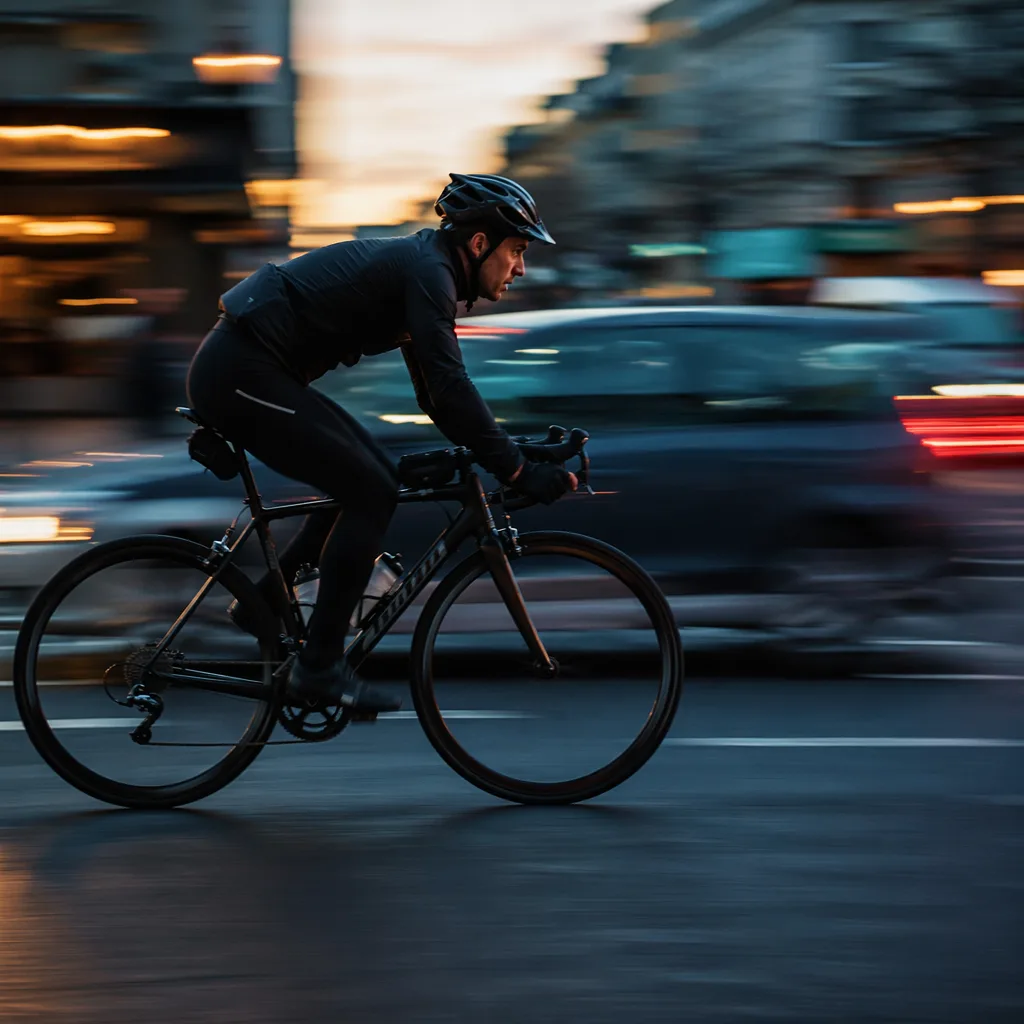
Motion blur is the streaking or smearing of a moving subject (or a moving camera) recorded during a single exposure. When the shutter stays open long enough for something in the frame to move across the sensor, that movement registers as a blur rather than a crisp edge. It’s the visual signature of time passing inside one photo.
There are two broad ways the effect appears. Subject motion blur happens when the camera is still and the subject moves — think of a sharp background with a blurred cyclist passing through. Camera motion blur happens when the camera moves during the exposure, either accidentally (camera shake) or on purpose (panning to follow a subject). Understanding which one you want is the first creative decision, because it changes how you set up the shot.
The Camera Settings That Control Motion Blur
Motion blur lives and dies by shutter speed, but two other settings keep the exposure balanced. Get comfortable adjusting all three together and you’ll be able to dial in the look on demand.
Shutter Speed: The Primary Control
Shutter speed is how long the sensor is exposed to light. Fast speeds (1/1000s and up) freeze action; slow speeds (1/30s and slower) let movement smear. To create motion blur, you deliberately slow the shutter down so the subject travels far enough during the exposure to leave a trail. The faster your subject moves, the less time you need — a sprinting athlete blurs at 1/60s, while a slow river might need several seconds.
Aperture and ISO: Keeping the Exposure Balanced
A slow shutter lets in a lot of light, so you have to compensate or the image will blow out. Narrow your aperture (a higher f-number like f/11 or f/16) and drop your ISO to its base value (often ISO 100). In bright daylight, even that may not be enough, which is where a neutral density (ND) filter earns its place — it cuts incoming light so you can use long exposures without overexposing. Shooting in Shutter Priority mode lets the camera handle aperture automatically while you set the shutter, which is a fast way to start.
Technique 1: Blur the Subject, Lock the Camera
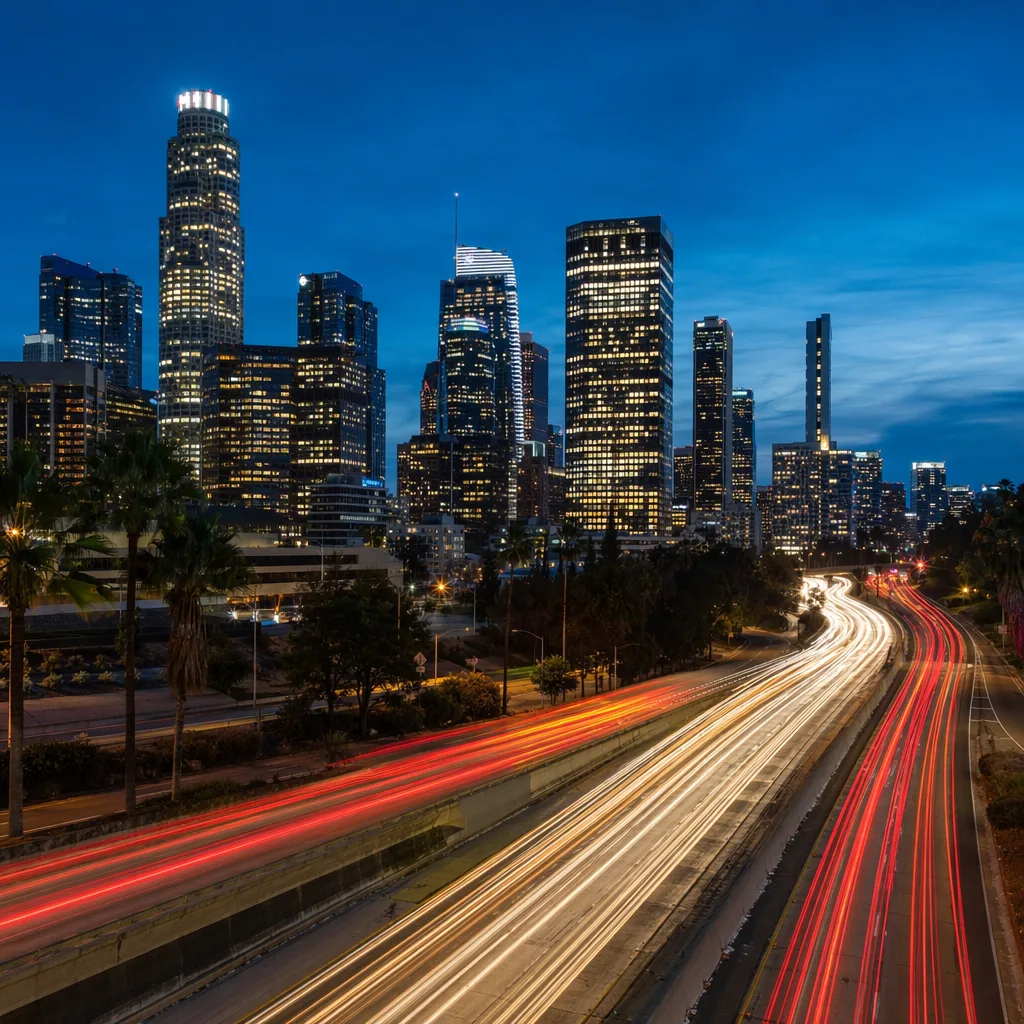
This is the classic long-exposure approach. You keep the camera perfectly still and let moving elements blur against a sharp, stable background. It’s how photographers capture silky waterfalls, light-trail cityscapes, and crowds reduced to ghostly motion while the architecture stays razor sharp.
Stability is everything here. Mount the camera on a tripod, and trigger the shutter with a remote release or a 2-second timer so your finger doesn’t introduce shake. If your camera or lens has stabilization, turn it off on a tripod — it can occasionally hunt and soften an otherwise sharp frame. Then choose a shutter speed long enough for your subject to move meaningfully: 1/15s for a passing car, 1–5 seconds for flowing water, 10–30 seconds for star-streaked skies or dense traffic trails.
Technique 2: Panning to Keep the Subject Sharp
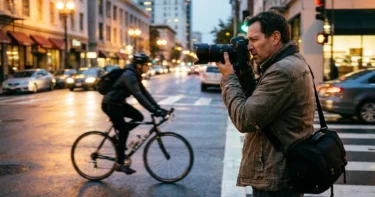
Panning flips the formula: the subject stays relatively sharp while the background streaks into motion. You achieve it by moving the camera to follow a moving subject during the exposure, matching its speed. Done well, it produces that dynamic, energetic look beloved in motorsport, cycling, and wildlife photography.
Set a moderately slow shutter — 1/30s to 1/125s is a good starting range depending on subject speed — and track the subject smoothly. Begin following before you press the shutter, fire while you’re moving, and keep following through after the click, like a golf swing’s follow-through. Continuous autofocus (AF-C / AI Servo) helps hold focus on the subject as it travels. Expect a lower keeper rate; panning rewards repetition, so shoot in bursts and pick the frame where the subject is crisp and the background is beautifully smeared.
Matching Shutter Speed to Your Subject
There’s no single “correct” motion blur shutter speed — it depends on how fast your subject moves and how much blur you want. Use the table below as a practical starting point, then adjust based on your results and the direction of movement (subjects crossing the frame blur more than those moving toward you).
| Subject | Suggested Shutter Speed | Technique | Resulting Look |
|---|---|---|---|
| Waterfall / flowing river | 0.5–5 seconds | Tripod, locked camera | Silky, smooth water |
| City traffic at night | 10–30 seconds | Tripod, locked camera | Continuous light trails |
| Runner or cyclist | 1/30s–1/60s | Panning | Sharp subject, streaked background |
| Race car / motorcycle | 1/60s–1/125s | Panning | Speed-blurred wheels and background |
| Crowds / busy street | 1/4s–2 seconds | Tripod, locked camera | Ghosted figures, sharp surroundings |
| Spinning or splashing action | 1/15s–1/30s | Handheld or tripod | Partial blur with retained shape |
Adding and Refining Motion Blur in Editing
Sometimes the in-camera shot is close but not quite there: the background isn’t streaked enough, or you froze the action and wish you’d suggested movement. Editing lets you add or strengthen a motion blur effect after the fact. Most editors offer a directional or “motion blur” filter where you set the angle and distance of the blur to match the real direction of travel — keeping it believable means following the line the subject was actually moving along.
The key to natural-looking results is selective application. Rather than blurring the whole frame, mask the effect onto the background or the moving element while protecting the parts you want sharp — a face, a logo, the leading edge of a car. This is exactly the kind of precise, controllable work that a modern editor should make fast. With Evoto AI photo editor, you can use AI masks to isolate a subject from its background in seconds, so applying or protecting an area takes a click instead of a careful manual selection.
Editing is also where you finish the rest of the image. A great motion shot still needs clean color, balanced exposure, and tidy details. Evoto’s AI color tools and fix for overexposed photos help recover the bright skies and blown highlights that long exposures often produce, while batch editing keeps a whole sequence of panning attempts consistent. Try Evoto free and see how much faster the cleanup goes.
Common Motion Blur Mistakes (and How to Avoid Them)
Most disappointing motion blur shots come from a handful of repeatable errors. Knowing them in advance saves a lot of trial and error in the field.
- Unwanted camera shake. If the whole frame is soft instead of just the moving subject, your camera moved during a locked-off shot. Use a tripod and a remote or timer.
- Overexposure. Slow shutters flood the sensor with light. Stop down the aperture, drop to base ISO, and reach for an ND filter in daylight.
- Too much (or too little) blur. The right amount is a creative call. Bracket several shutter speeds and compare — a touch of blur reads as energy, while too much reads as a mistake.
- Inconsistent panning speed. Jerky tracking smears the subject too. Move smoothly and follow through after the shutter fires.
Putting It All Together: A Repeatable Workflow
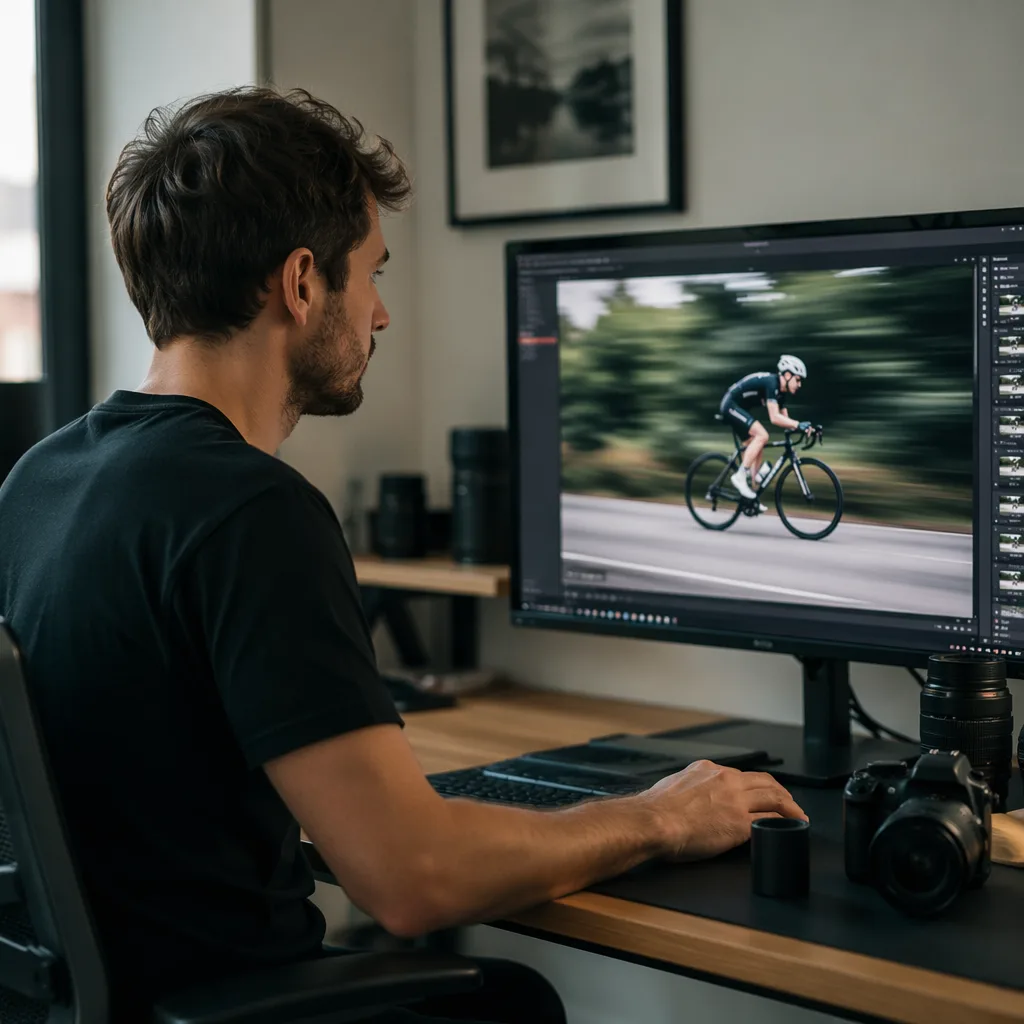
Capturing movement consistently comes down to a simple, repeatable loop. First, decide your intent: do you want the subject blurred (lock the camera) or the background blurred (pan with the subject)? Second, set your shutter speed for that intent and balance the exposure with aperture, ISO, and an ND filter if needed. Third, stabilize — tripod for locked shots, smooth tracking for panning — and shoot in bursts to improve your odds.
Finally, finish in editing. Cull the burst down to the strongest frame, refine or add the motion blur effect where it helps, and clean up color and exposure so the image looks intentional and polished. That last step is where a creator-friendly workflow saves real time, especially across a full shoot. With professional-level results and batch editing supported, you spend less time on cleanup and more time shooting.
Frequently Asked Questions
What shutter speed should I use for motion blur?
It depends on your subject and how much blur you want. As a starting point, use 1/30s–1/125s for panning a moving subject, 1/4s–2 seconds for crowds or moderate movement, and several seconds for flowing water or night traffic trails. Bracket a few speeds and compare results.
Do I need a tripod for motion blur photography?
For locked-camera shots where you blur a moving subject against a sharp background, yes — a tripod is essential to keep everything but the subject crisp. For panning, you can shoot handheld since you intentionally move the camera, though a monopod can help steady your tracking.
Can I add motion blur to a photo in editing?
Yes. Most editors have a directional motion blur filter where you set the angle and strength to match the real direction of movement. For natural results, mask the effect onto the background or moving element and protect the parts you want sharp, such as a face or a logo.
Why do my motion blur photos come out overexposed?
A slow shutter lets in much more light than a fast one. Compensate by narrowing your aperture (higher f-number), lowering your ISO to its base value, and using a neutral density (ND) filter in bright conditions to cut incoming light without sacrificing the long exposure.
What is the difference between panning and a long exposure?
In a long exposure with a locked camera, the moving subject blurs while the static background stays sharp. In panning, you move the camera to follow the subject, so the subject stays relatively sharp while the background streaks. They produce opposite looks from the same underlying principle of a slower shutter.
How do I keep the moving subject sharp when panning?
Use continuous autofocus (AF-C or AI Servo), start tracking the subject before you press the shutter, fire while moving smoothly, and follow through after the click. Shoot in bursts and choose the frame where the subject is sharpest, since panning naturally has a lower keeper rate.
Capture Movement, Then Finish It Fast
Motion blur photography is one of the most rewarding ways to bring energy and a sense of time into your images. Once you understand shutter speed, stability, and the choice between locking the camera and panning with your subject, the technique becomes repeatable rather than a happy accident. Practice the two core methods, match your shutter speed to the subject, and don’t be afraid to refine the effect in editing.
When the shot is captured, let your editing do the heavy lifting. Evoto gives you fast, accurate AI masking, color, and exposure fixes with full control over every result, plus batch editing to keep a whole sequence consistent. Download Evoto and turn your best motion shots into finished, natural-looking images in a fraction of the time.