

Have you ever loved a portrait, only to notice slightly crooked or uneven teeth after zooming in? You’re not alone.
Teeth misalignment in photos can be caused by facial expressions, camera angles, lighting, or even lens distortion — even if the person’s teeth look perfectly fine in real life.
The good news? You don’t need complicated Photoshop workflows anymore. In this guide, you’ll learn how to align teeth in photos easily, and discover a faster, more natural solution using Evoto AI Photo Editor.
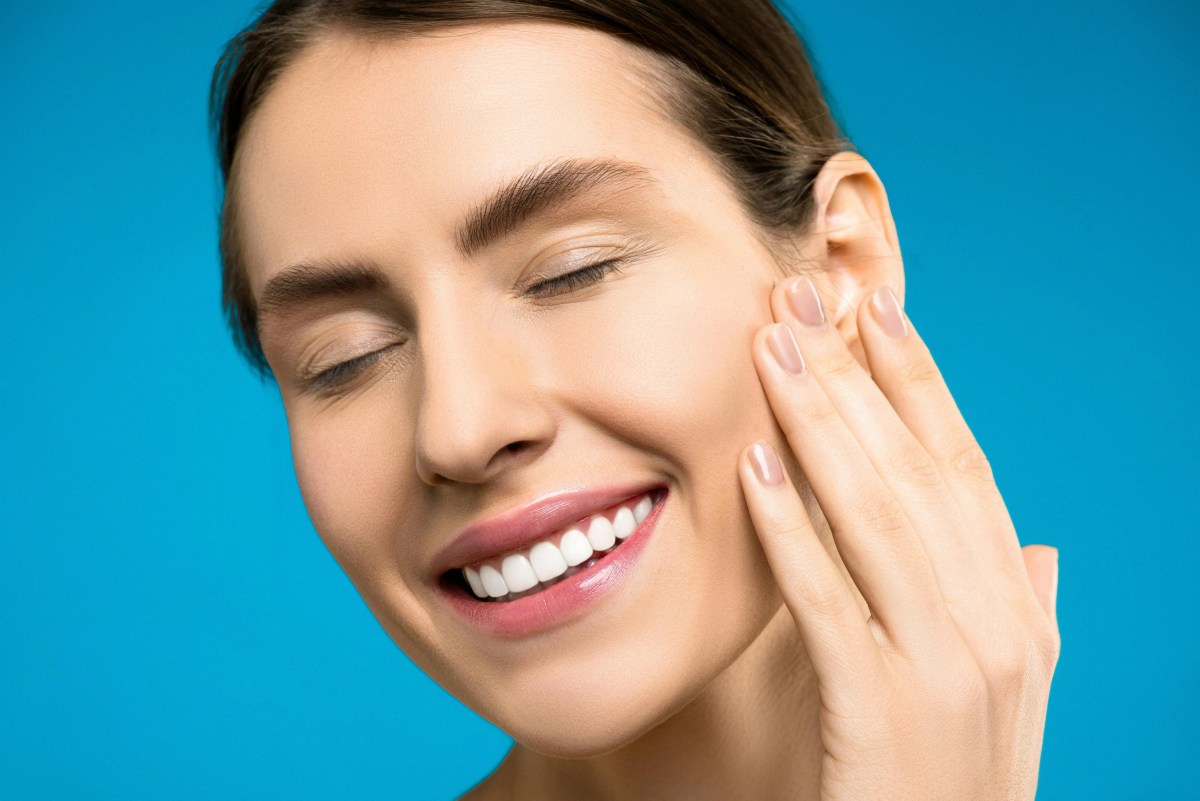
What Does Teeth Alignment in Photos Mean?
Teeth alignment in photo retouching refers to subtly adjusting the position, symmetry, and spacing of teeth to create a more balanced and natural smile — without changing the person’s identity.
This often includes:
- Straightening slightly crooked teeth
- Fixing uneven spacing
- Improving smile symmetry
- Enhancing overall facial harmony
The key is subtlety. Over-editing can make smiles look fake or unnatural.
How to Align Teeth in Photoshop
Photoshop offers several manual tools that can help align teeth in photos, but the process requires precision and experience. Here’s a standard workflow professionals often use.
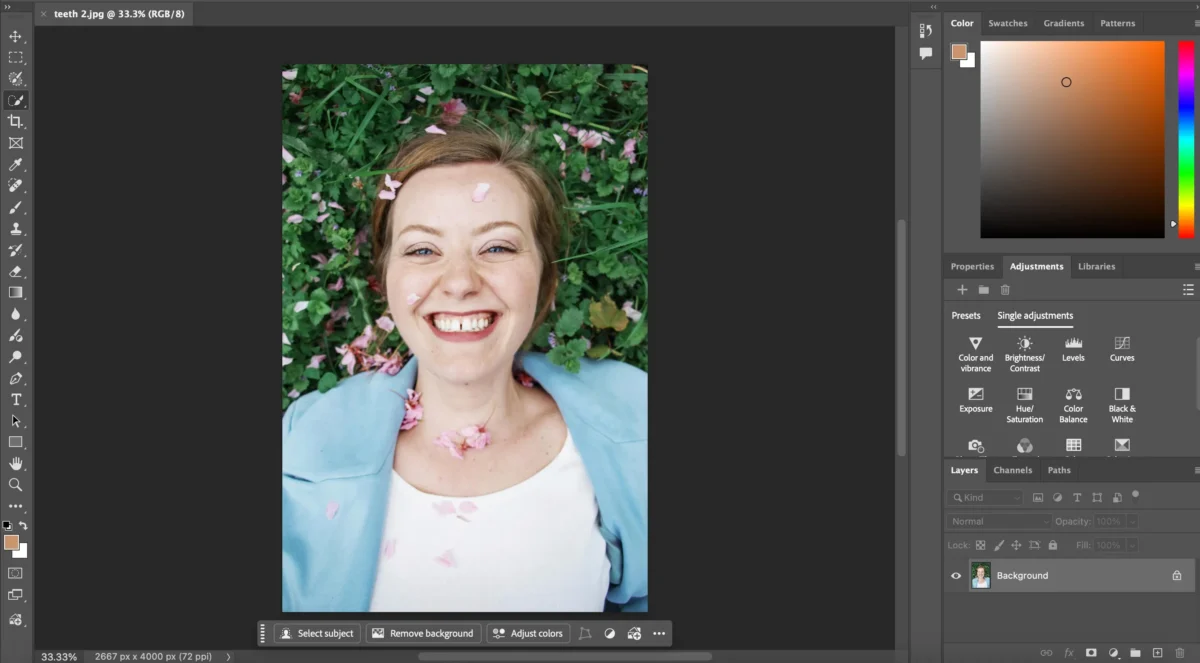
Step 1: Duplicate the Layer
Open your photo in Photoshop and duplicate the background layer to keep the edit non-destructive.
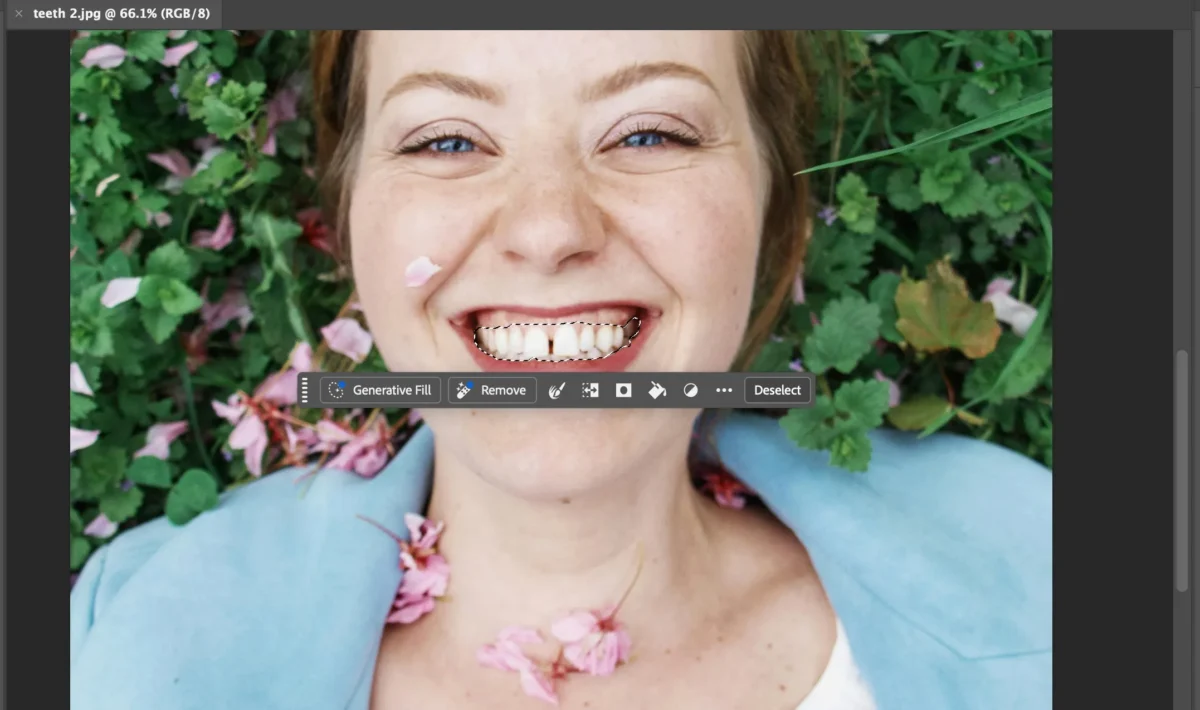
Step 2: Select the Teeth
Use the Lasso Tool or Quick Selection Tool to carefully select the teeth area. Accuracy is important to avoid affecting lips or gums.
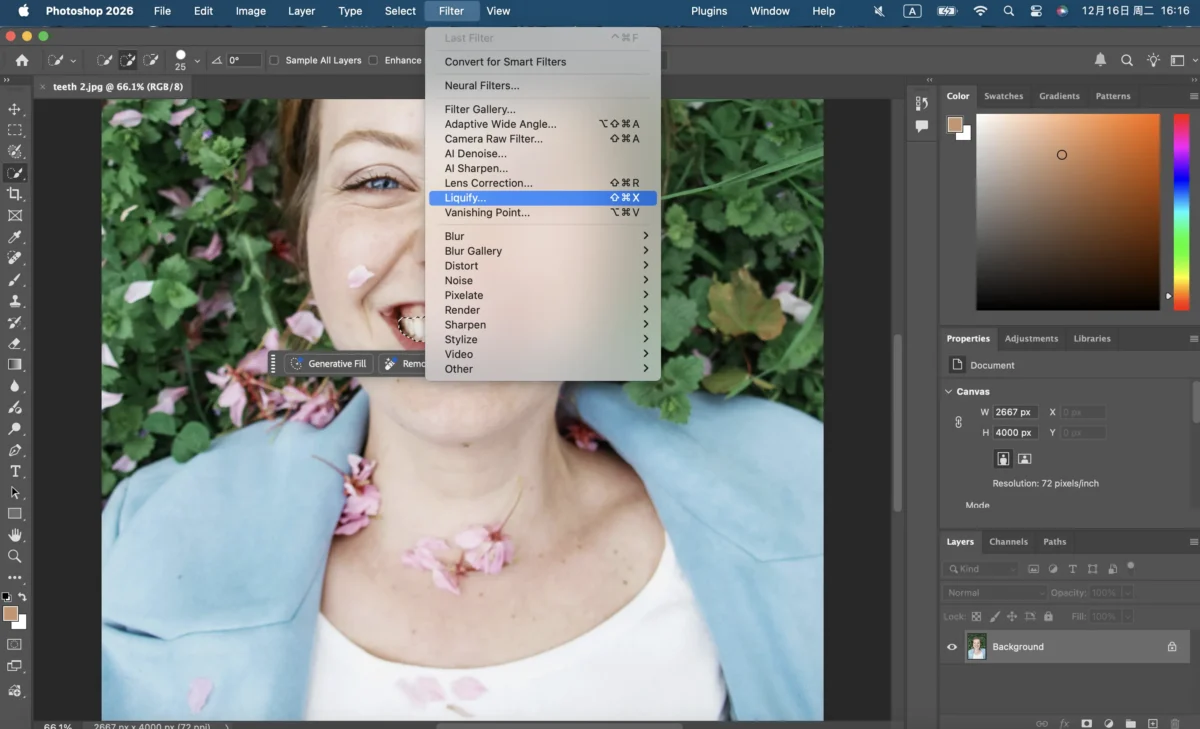
Step 3: Use Liquify to Align Teeth
Go to Filter > Liquify.
With the Forward Warp Tool, gently push crooked or uneven teeth into a more aligned position. Work slowly and use a small brush for subtle adjustments.
Step 4: Refine with Masking
Add a layer mask and use a soft brush to refine the edges, ensuring the edits blend naturally with surrounding areas.
Step 5: Adjust Brightness and Uniformity (Optional)
Use Brightness/Contrast or Dodge & Burn to even out tooth brightness after alignment.
Step 6: Export the Image
Once satisfied, export the image using high-quality settings.
Common Challenges When Aligning Teeth in Photos
Traditional editing tools often come with drawbacks:
- Manual liquify tools require precision and experience
- Over-adjustment can distort lips or facial proportions
- Editing teeth individually is time-consuming
- Batch editing is nearly impossible in Photoshop
That’s why many photographers and retouchers are turning to AI-powered solutions.
Evoto AI: The Easiest Way to Align Teeth in Photos
Evoto AI Photo Editor offers a dedicated and intelligent way to fix teeth alignment while keeping the smile natural.


Powerful AI Photo Editor
AI-Powered Teeth Alignment
Evoto automatically detects facial structure, lips, and teeth, allowing you to:
- Align teeth naturally with smart AI adjustments
- Improve smile symmetry without manual masking
- Preserve realistic tooth shape and proportions
Everything is controlled with simple sliders, making the process fast and beginner-friendly.
How to Align Teeth in Photos with Evoto AI (Step-by-Step)
Step 1: Upload Your Photo
Open Evoto and import the portrait you want to edit.
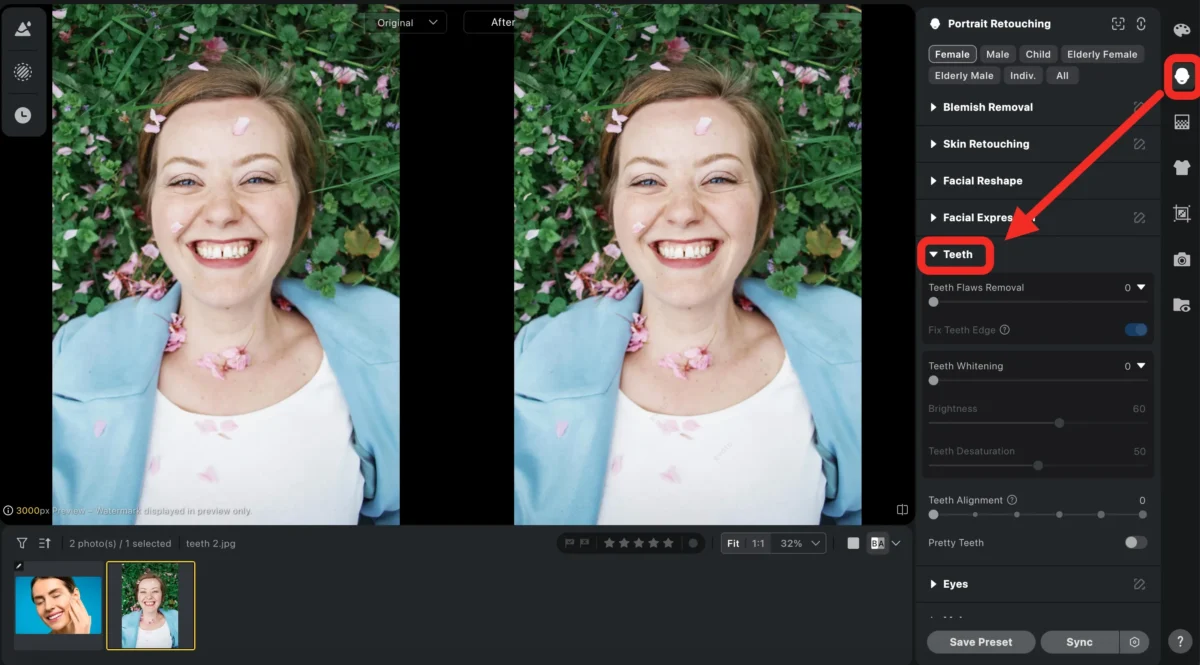
Step 2: Go to Teeth Adjustment
Navigate to Portrait Retouching > Teeth, where Evoto’s AI detects the smile automatically.
Step 3: Align Teeth with AI
Use the Teeth Alignment sliders to subtly straighten and balance the teeth.
Evoto ensures surrounding areas like lips and cheeks remain undistorted.
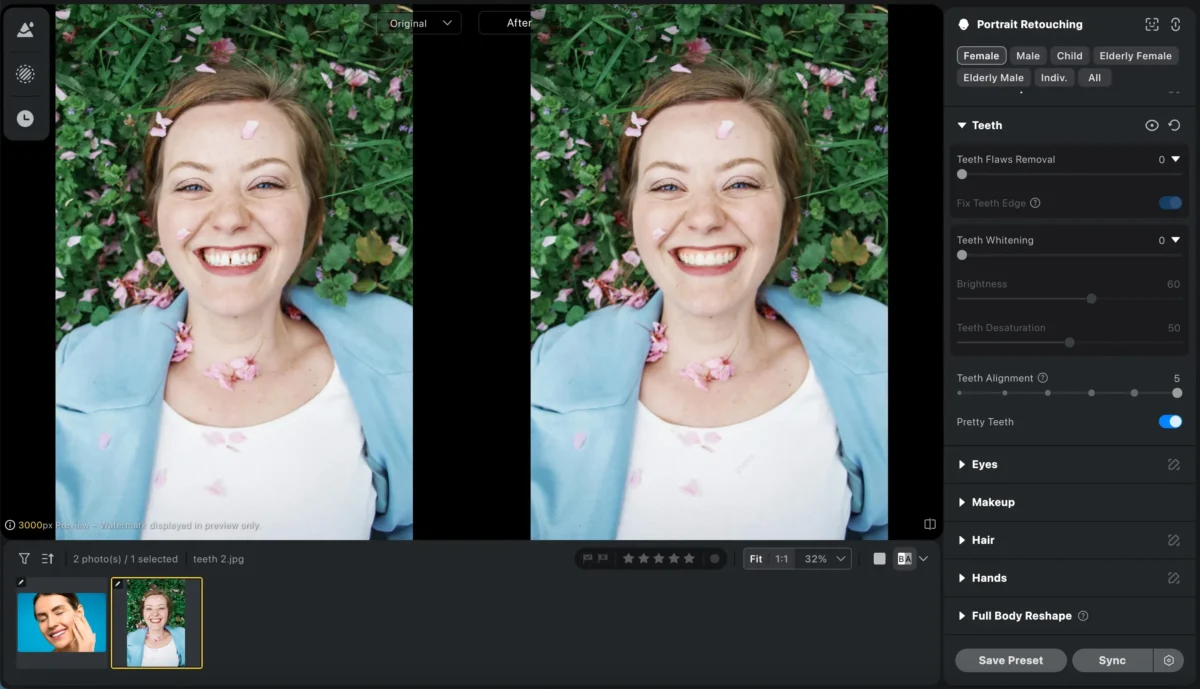
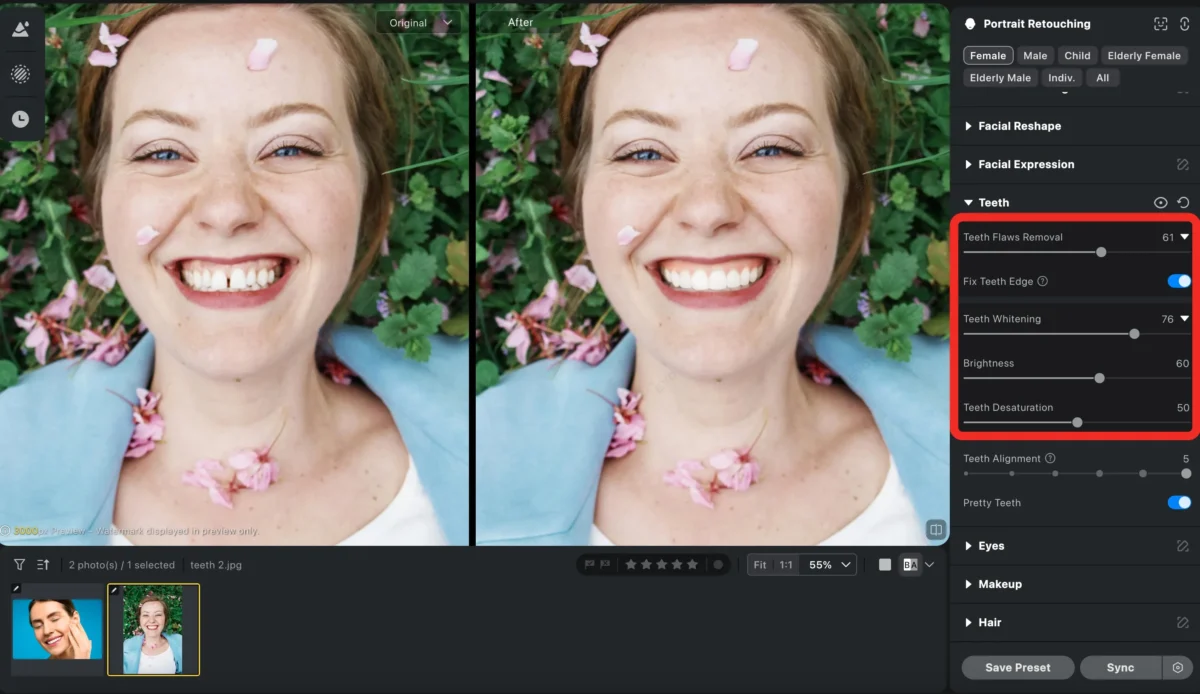
You can also use some feature like Teeth Flaws Removal and Teeth Whitening to make your teeth more perfect.
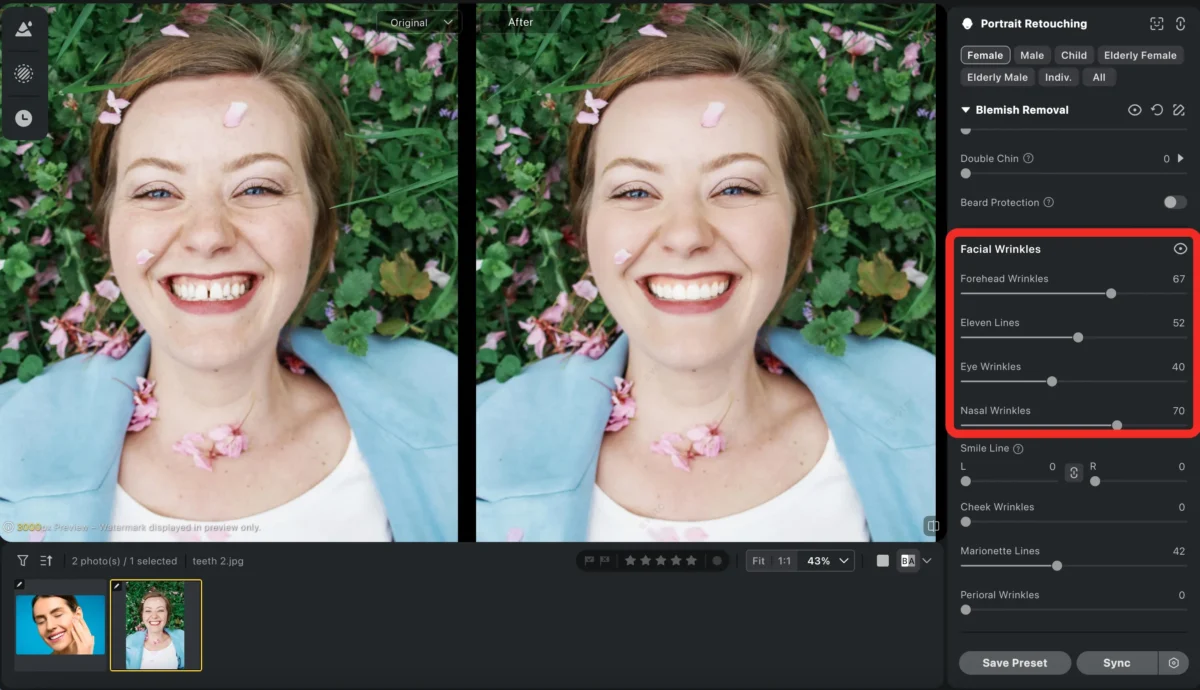
Step 4 (Optional): Make other adjustments
You can also use some features like blemish removal, skin retouching and facial expression changer to make your photo more beautiful.
Step 5: Export or Batch Edit
Export your final image or apply the same settings to multiple photos using batch edit.
Powerful AI Photo Editor
Why Evoto Is Better Than Manual Editing
| Feature | Traditional Editing | Evoto AI |
|---|---|---|
| Teeth alignment | Manual liquify | AI-powered |
| Learning curve | Steep | Beginner-friendly |
| Editing speed | Slow | Instant |
| Batch processing | No | Yes |
| Natural results | Easy to overdo | AI-controlled |
Conclusion
Learning how to align teeth in photos no longer requires advanced retouching skills. With Evoto AI Photo Editor, you can fix crooked or uneven teeth in seconds while keeping smiles natural and realistic.
If you want faster results, consistent quality, and a modern AI workflow, Evoto is the smartest choice for professional portrait retouching.
Try Evoto AI Photo Editor
Retouch photos with Evoto AI and make your photos best! Available on Windows, MacOS and iPadOS.



