

Change black and white photo to color sounds simple, but the result can look false very quickly. If skin tone feels off, clothing color makes no sense, or the image still looks soft and messy underneath, adding color usually makes those problems easier to notice.
The cleaner approach is simpler than it sounds. First check whether the photo is clear enough to carry believable color. Then fix the obvious weak points, apply color, and only trust the final result once the image still feels natural after the new color goes in. Once the source is ready, Evoto can keep the execution stage much more straightforward.
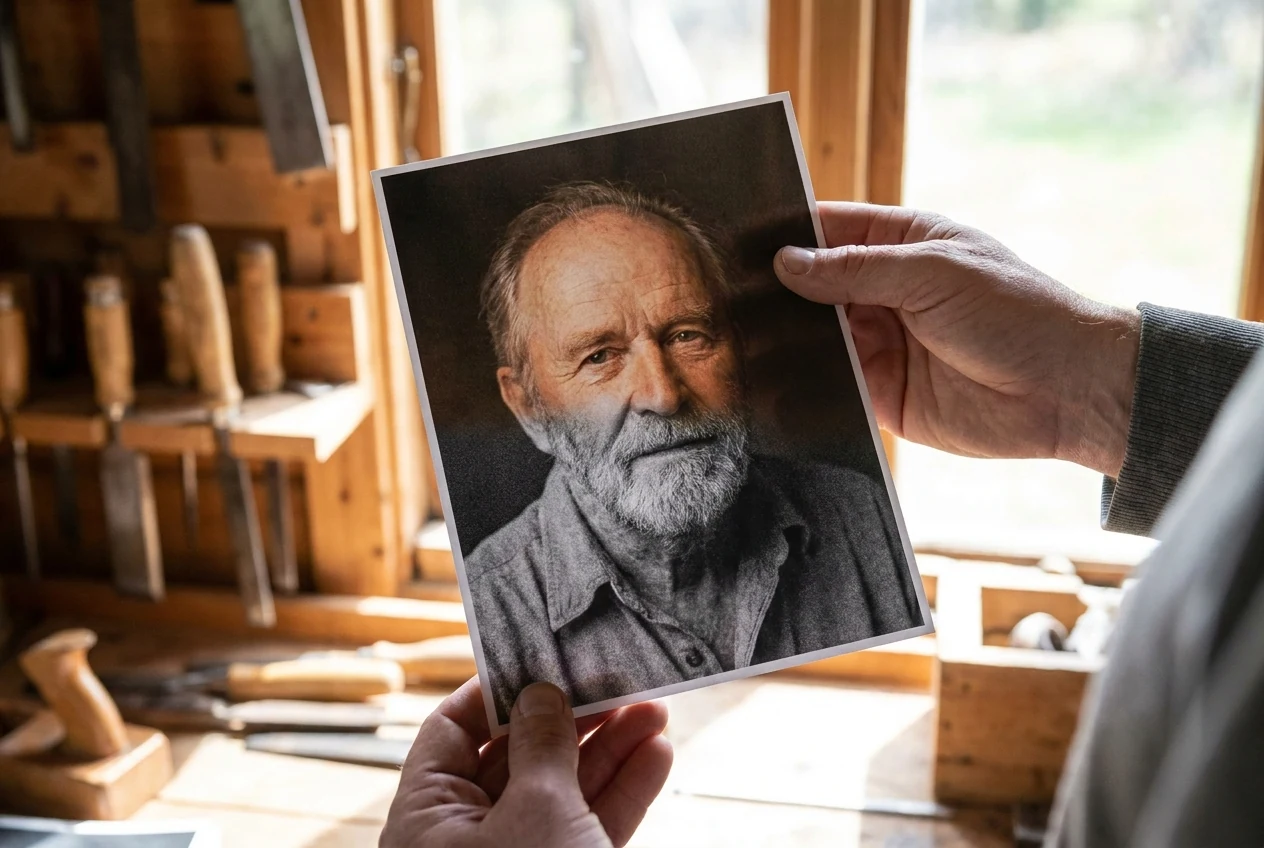
What Does It Mean to Change Black and White Photo to Color?
To change a black and white photo to color means adding believable color information back into an image that originally shows only tones of light and dark. The goal is not simply to make the photo colorful. The real goal is to make the image feel plausible once color becomes part of it.
Once color is introduced, viewers start judging a new set of things. Skin has to feel human. Clothes have to feel possible. Background tones have to belong to the same scene. A result that looks false usually fails because the new color does not match the structure the image already has.
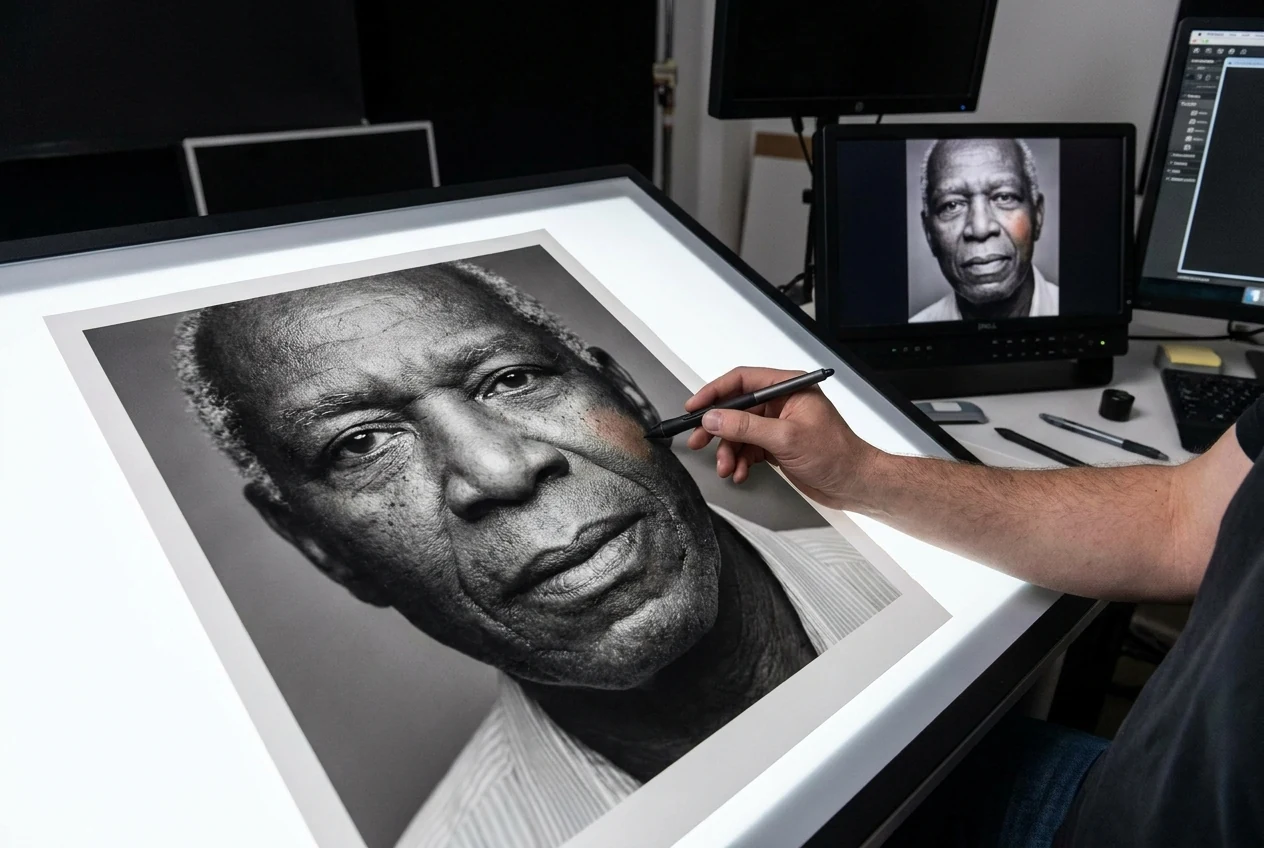
Why People Want to Change Black and White Photo to Color
People usually want to change black and white photo to color because color makes an image easier to read. Faces feel closer, clothing separates faster, and the whole image can feel less distant once it is no longer limited to grayscale.
Color can also make visual relationships clearer. Skin, fabric, objects, and background areas often separate more cleanly when color is handled well. That makes the image easier to understand, not just more vivid to look at.
But color only helps when it supports the original image instead of competing with it. If the new tones fight the photo, the result stops feeling more real and starts feeling artificial.
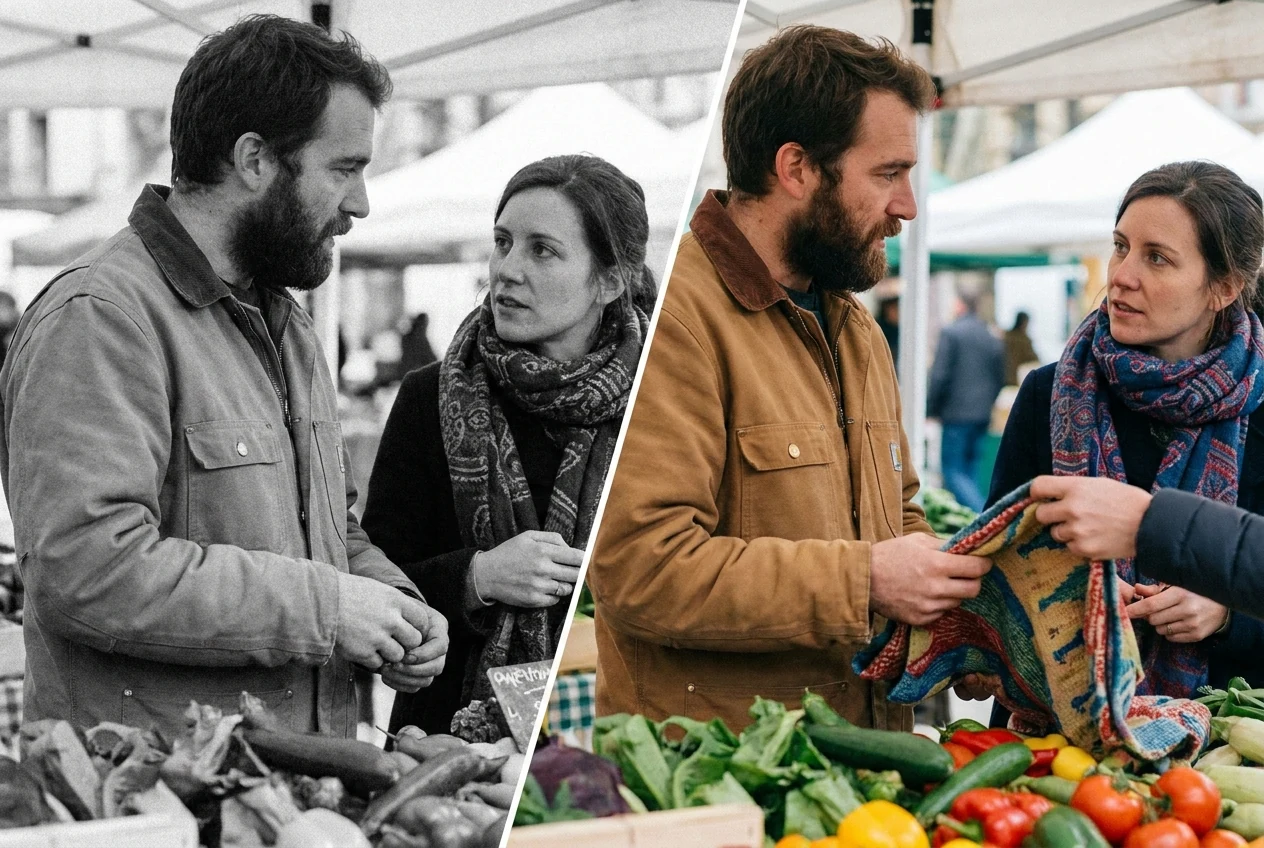
What to Check Before You Change Black and White Photo to Color
Check whether the photo is clear enough to carry believable color
Some black and white photos are much better candidates for color than others. If facial features, clothing edges, hair detail, and background separation are still readable, the image has a better chance of carrying believable color. If the file is extremely soft, low-detail, or visually unstable, color has less structure to attach to.
This does not mean the image is unusable. It means expectations should match what the photo still contains.
Decide whether the photo needs light cleanup before color
If the photo already feels confusing in black and white, adding color will not automatically fix that. Weak contrast, unclear subject separation, dirt, scratches, blotchy areas, or uneven tones can all make the final color result look messy.
Before color becomes the main task, the image should read clearly enough on its own. You want to be able to look at the photo and understand the face, the clothing, the key shapes, and the background without fighting the file. Small cleanup can help when scratches or minor damage are getting in the way, but it should support the structure, not replace it. If the source already feels too soft or unstable, How to Unblur Image is the closest related read before expecting color to carry the image.
Keep expectations realistic when key details are already missing
Some photos simply do not contain enough visual information for fully convincing color. If the face is too soft, the clothing has no clear tonal separation, or the background is too broken up, the result may still improve, but it may not look fully natural.
That is normal. Changing a black and white photo to color can improve how an image feels, but it cannot invent unlimited certainty where the file no longer gives you enough clues.
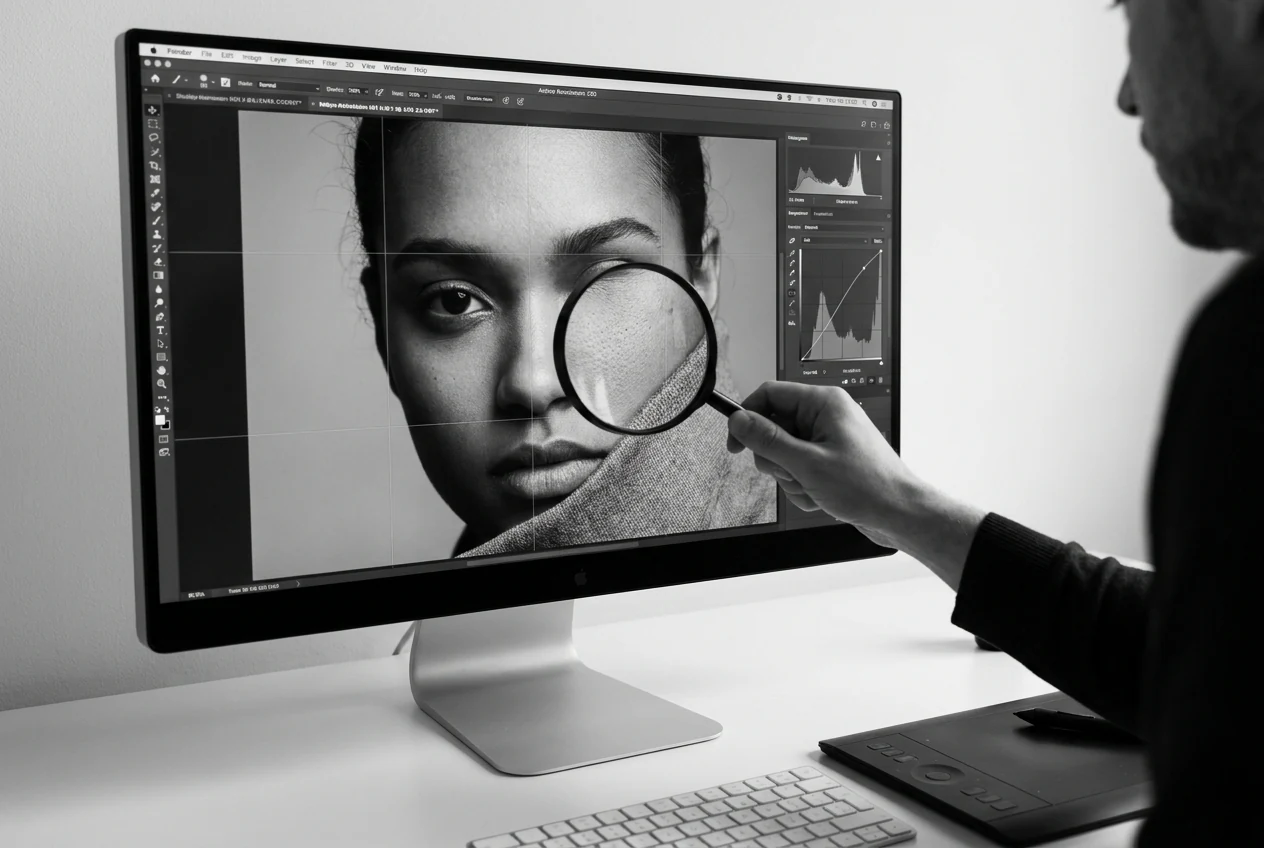
Why a Black-and-White Photo Can Still Look False After Color Is Added
One of the most common problems is skin tone that looks too orange, too pink, too gray, or too flat. Skin usually breaks first because viewers notice it immediately. Even if the rest of the image looks acceptable, unnatural skin can make the whole result feel wrong.
Clothing and background guesses can also drift too far. A jacket may become too saturated, a wall may pick up an unrealistic cast, or different parts of the frame may stop feeling like they belong to the same scene. When that happens, the image loses internal consistency.
Another common issue is muddy color. This usually happens when the original photo lacks clarity, the tonal separation is weak, or new color is sitting on top of scratches, blotches, or other unresolved distractions. Instead of making the image richer, the added color makes it feel dirtier. If the file is already fragile under stronger editing pressure, Color Bit Depth is the better related read than pushing the color harder.
There is also the problem of overconfidence. Not every color decision is knowable from the file alone. If the edit pushes every area too aggressively, the result can feel less real, not more. A more convincing image often comes from keeping the palette controlled and correcting only what the photo can reasonably support.
How to Change Black and White Photo to Colorin Evoto
By the time you reach the tool stage, the important decision should already be made: the photo reads clearly enough to support believable color. That is what keeps the workflow simple without making the article self-contradictory. Evoto is not replacing the judgment from the first half of this guide. It is simplifying the execution once the source is ready. In practice, the workflow starts with Evoto’s AI Photo Colorizer.
If the source already passes the readability check but still looks slightly soft or visibly rough, Evoto can also help the image look clearer and cleaner while you move through the color stage. That is useful for black-and-white photos with light scratches, small damaged areas, or mild softness that should be reduced before the final result is exported.
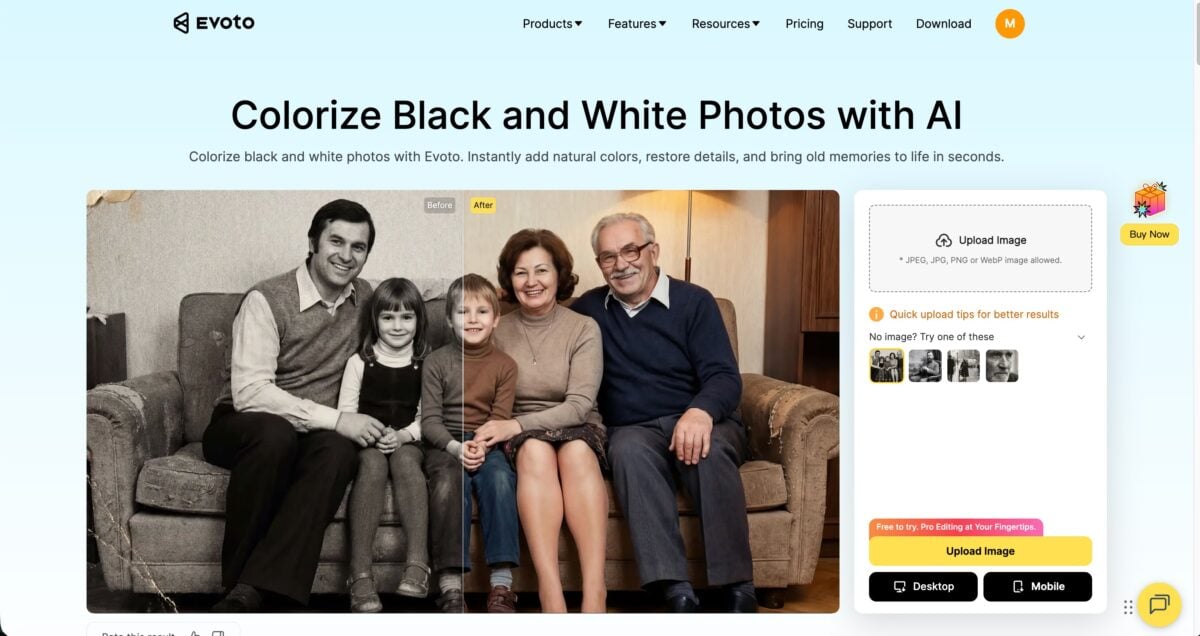
Step 1: Upload the Photo
Upload your black and white image directly.
The system automatically detects image details and prepares it for colorization.
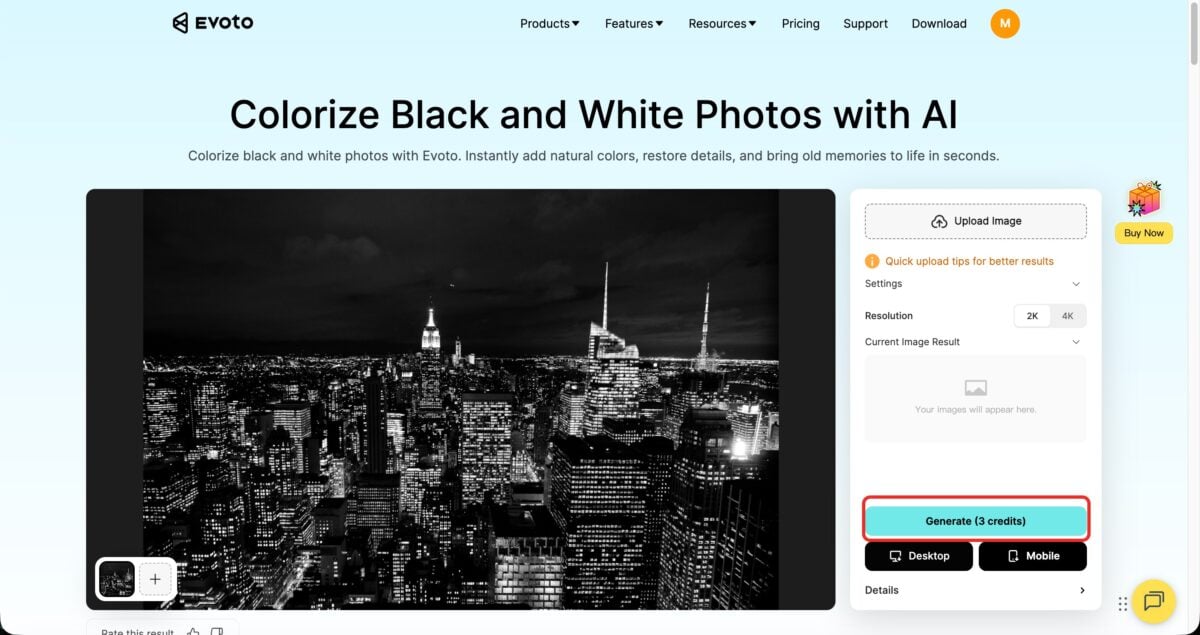
Step 2: Generate Color
Choose the resolution and click “Generate” to automatically add realistic colors to your photo.
Evoto’s AI analyzes tones, textures, and context to produce natural-looking results in seconds.
Step 3: Export
Download your colorized photo in high resolution, ready for sharing, printing, or archiving.
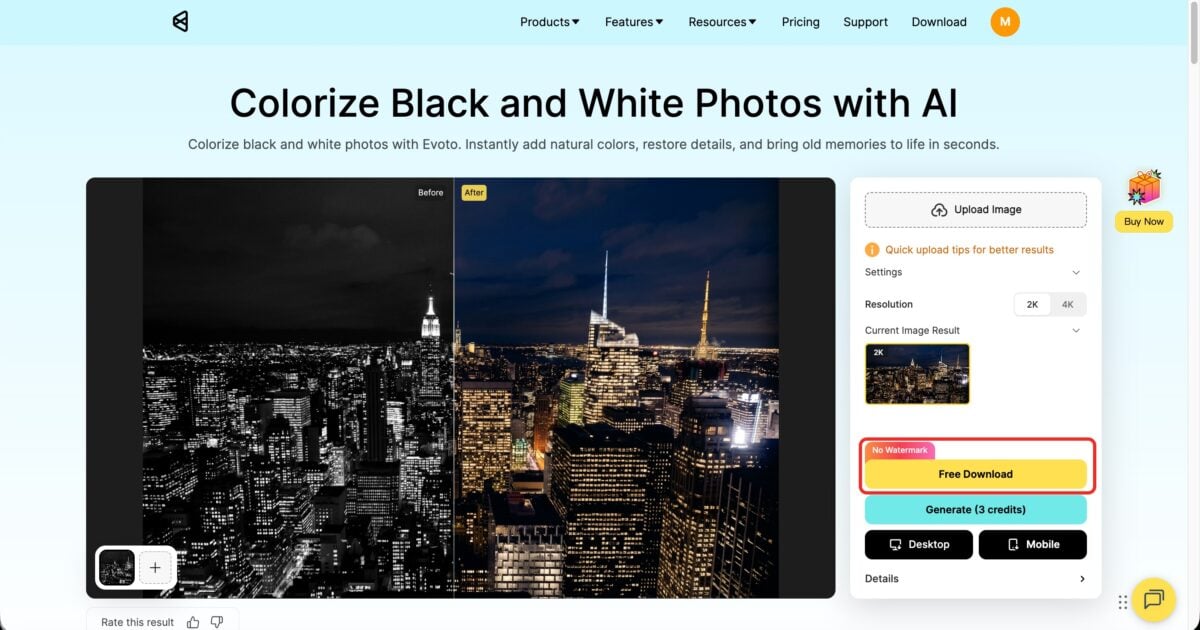
That three-step flow is the practical part. The reason it works is that the earlier sections have already set the expectation correctly: upload does not create missing detail, generate still makes color guesses, and export only makes sense after the result looks believable. If the source is an older photo with scratches or small visible defects, clean those issues within the same editing pass so the final color feels cleaner rather than simply brighter. After the base color is in place, restrained Portrait Retouching and AI Color Match can help the image feel more coherent without pushing it into an overprocessed look.


Powerful AI Photo Editor
Final Thoughts
Change black and white photo to color works best when the goal is not just to add color, but to make the image feel believable again. The strongest results usually come from a simple order: judge the file first, make sure it reads clearly, move into the workflow only after the source is ready, and then finish only after the result still feels natural.
That approach keeps the process grounded in what the photo can actually support. It also makes the final result more natural, which matters more than making the color look dramatic.
Try Evoto AI Photo Editor
Retouch photos with Evoto AI and make your photos best! Available on Windows, MacOS and iPadOS.



