

Chroma key online usually makes people think of green screen removal in general, but that phrase often gets used for two different jobs. One is video keying. The other is removing a green screen from a single image or photo.
This guide only covers the photo side. It explains how chroma key online applies to pictures, when green screen photo cutouts work well, what usually goes wrong, and how to move from background removal into a cleaner image workflow without drifting into video editing.
What Does Chroma Key Online Mean for Photos?
Chroma key online usually refers to removing a green or blue background by isolating a specific color and separating the subject from it. In many cases, people search this phrase because they want to remove a green screen quickly without installing heavy software. If the original photo is unstable before the cutout even starts, stronger photography lighting tips will usually help more than jumping straight into the removal step.
The confusion is that chroma key is often discussed in video editing, while many users actually need help with a single image or photo. That is why this article stays focused on still images only.
For photos, chroma key is really about one practical job: removing the green background cleanly enough that the subject can sit on a new background without obvious edge problems, color spill, or messy leftovers.

How Green Screen Background Removal Works in a Photo
Green screen background removal works because a clean, distinct background color is easier to separate from the subject than a busy or mixed background. If the green is even, the subject stands away from it clearly, and the edge detail is readable, the cutout becomes much easier.
The problems start when the background is not evenly lit, when the subject is too close to the screen, or when the subject contains fine edges like hair, fur, or soft fabric. Those areas make the separation less clean and force the edit to work harder.
That is why green spill matters so much. When the green background reflects back onto skin, clothes, or hair, the subject can keep a green edge tint even after the background is removed. At that point, the cutout may technically work, but it still will not look clean.

When Chroma Key Online Works Best for Images
Chroma key online works best when the goal is a clean image cutout rather than a complex video composite.
Simple portraits and product-style images are strong candidates because the subject is easier to isolate and the final background usually needs to look clean more than cinematic. Social graphics, ecommerce images, profile graphics, and simple visual composites also fit well here.
It also works well when the replacement background matters more than the original setting. If the final image needs a plain background, a branded look, or a cleaner design layout, photo-side chroma key can be practical and fast. That is one reason product teams and ecommerce editors often pair this kind of cutout thinking with adjacent cleanup workflows like ghost mannequin photography, where clean separation matters more than keeping the original set.

Why Green Screen Photos Often Fail
Uneven lighting on the background is one of the biggest reasons green screen photos fail. If one part of the screen is darker or brighter than another, the color is harder to remove cleanly, which creates a messy selection.
Green spill is another major problem. When the screen reflects onto the subject, the skin, clothing edges, or hair can pick up an unwanted green cast that makes the cutout feel fake even after the background is gone.
Hair and soft edges are also difficult. Fine strands, fuzzy fabric, soft transparency, and motion blur all make edge quality worse. The cutout may look acceptable at first glance, but weak edges are usually the first thing people notice after the background changes.
Low contrast between the subject and the screen creates another problem. If part of the wardrobe, prop, or edge detail sits too close to the green in brightness or color behavior, separation becomes less reliable. If you need a broader read on how stronger or weaker tonal separation affects subject clarity before the cutout stage, High Contrast Images vs Low Contrast Images is the closer follow-up.
A final mistake is replacing the background too early. If you place the subject onto a new background before the cutout is actually clean, every edge problem becomes more visible.
How to Get a Better Green Screen Photo Before Editing
Keep the screen cleaner and the subject easier to separate
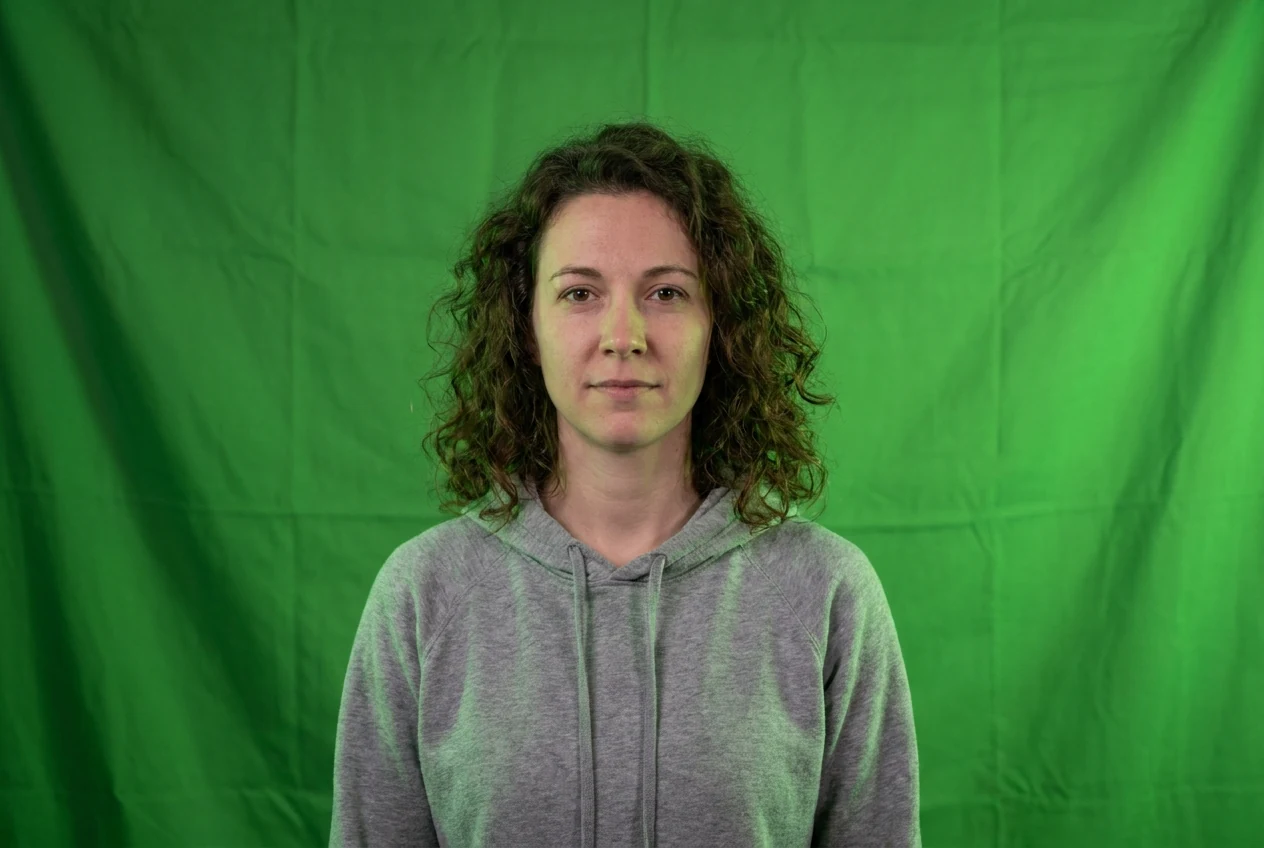
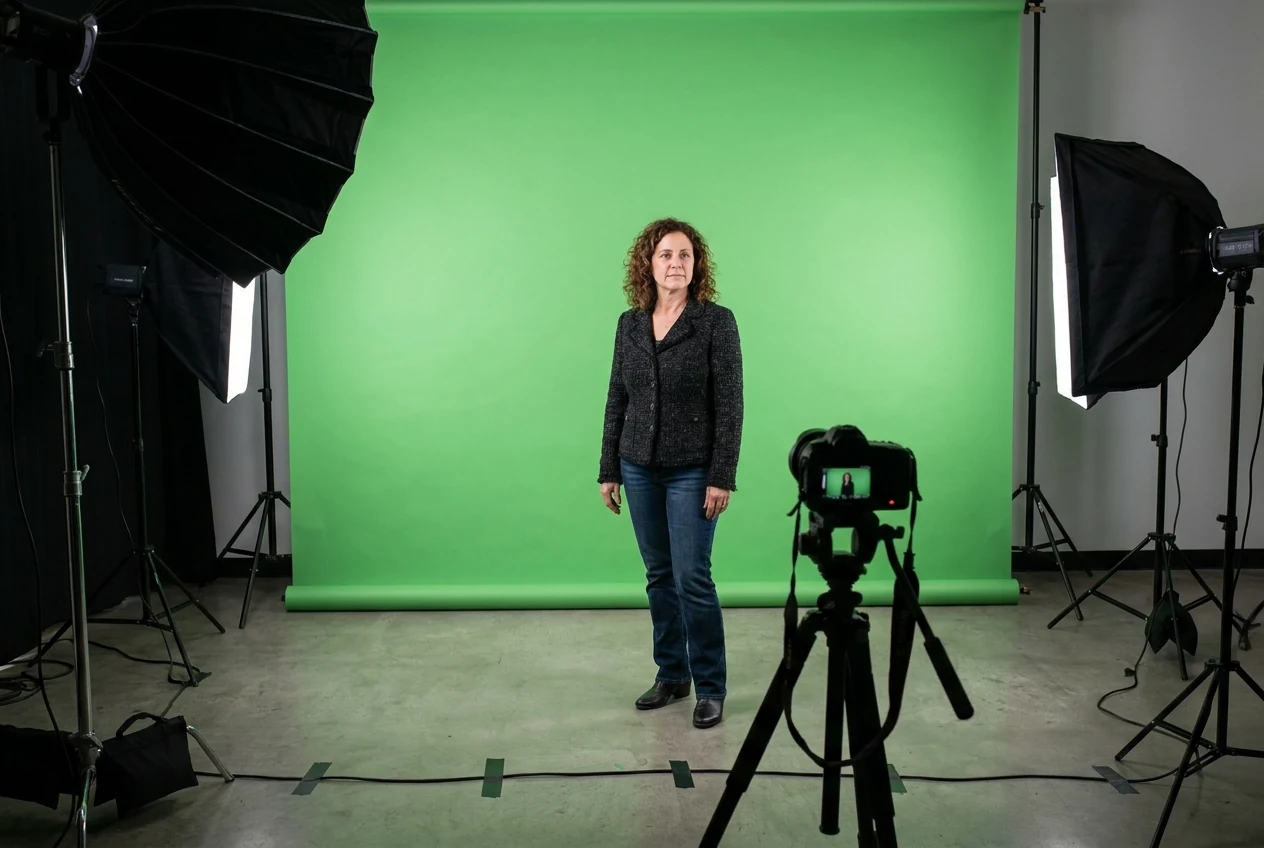
A cleaner green background gives you a cleaner start. The more even the screen looks and the more clearly the subject stands away from it, the easier the removal becomes later.
Keep distance between the subject and the screen
Distance helps reduce green spill and makes the subject easier to separate. If the subject is pressed too close to the background, the screen color starts affecting the edges more aggressively.
Avoid wardrobe and props that create edge confusion
Clothing with fine transparency, reflective surfaces, fuzzy detail, or colors that react badly against the screen can make the key much harder. The goal is not to over-style the photo. It is to avoid obvious separation problems before they start.
Shoot for cleaner edges instead of hoping the key will fix everything
If the original photo already has clean edges, the edit becomes much easier. If the original photo has soft edge detail, motion blur, or spill everywhere, no online background removal workflow will make it look truly clean without extra cleanup.
How to Clean Up a Green Screen Photo in Evoto
For most users, Evoto is the fastest way to remove green screen backgrounds and get clean, ready-to-use images in seconds.
Click Evoto Green Screen Remover to get started.
Step 1. Import your image
Upload your green screen photo into Evoto and get it ready for processing.

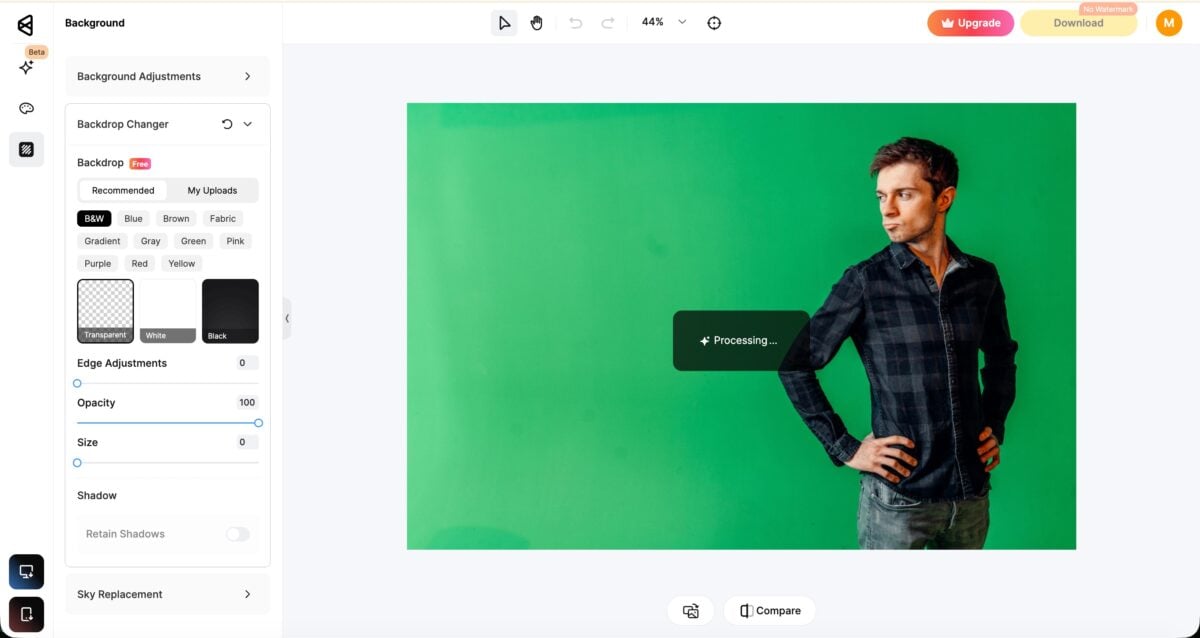
Step 2. Remove the green background with AI
Click once to remove the green screen automatically. Evoto’s AI detects the subject and creates a clean cutout in seconds—no manual masking needed.
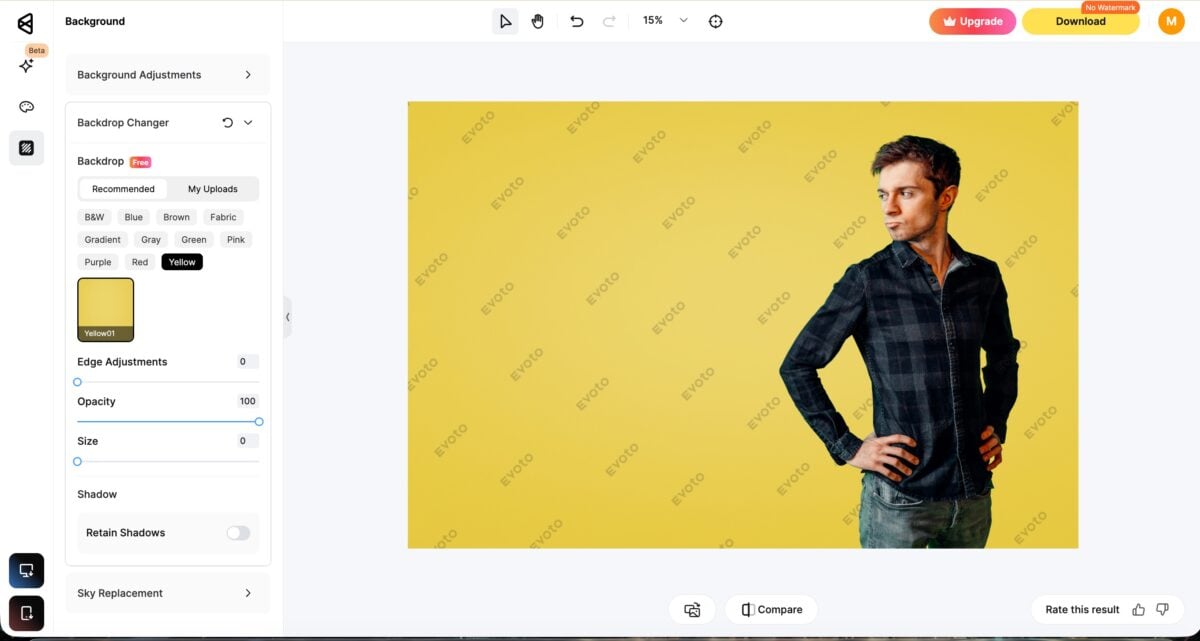
Step 3. Export or replace the background
Download the clean cutout directly.
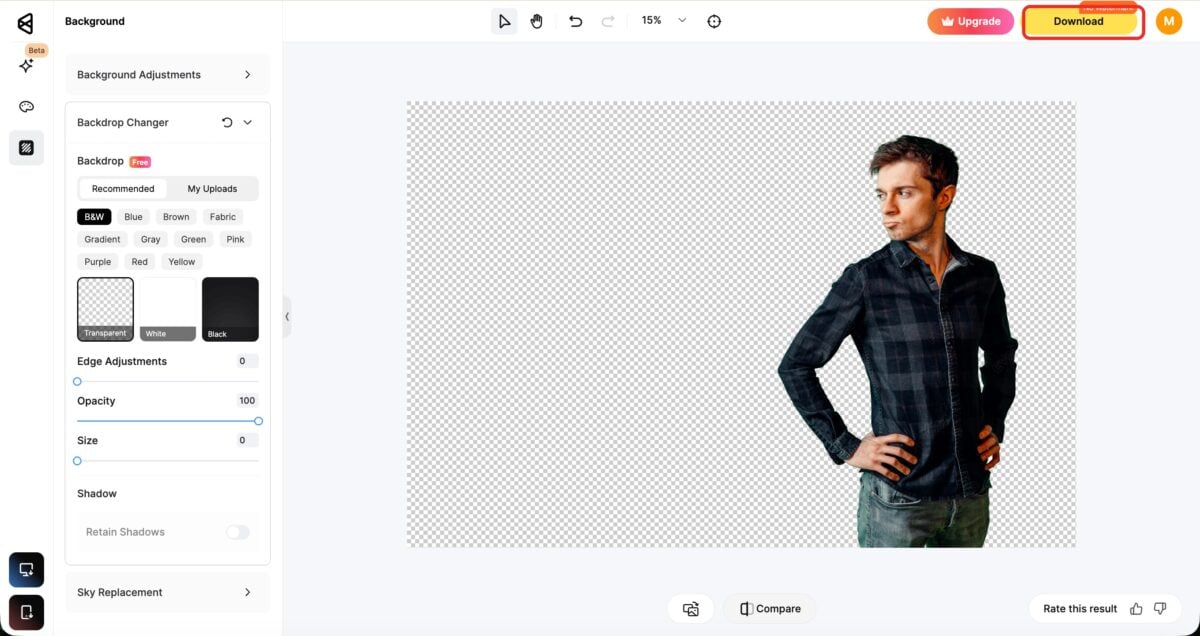
Or place your subject onto a new background for a finished result.
Final Thoughts
Chroma key online often sounds like a video term, but for many users the real need is much simpler: remove a green screen from a photo cleanly enough that the final image looks usable.
That depends less on the keyword and more on the quality of the original photo. If the background is clean, the subject is separated well, and the edges are controlled before the new background goes in, the whole image works better.
The best workflow stays simple: Import your image, remove the green screen, then export or replace the background.
Try Evoto AI Photo Editor
Retouch photos with Evoto AI and make your photos best! Available on Windows, MacOS and iPadOS.



