

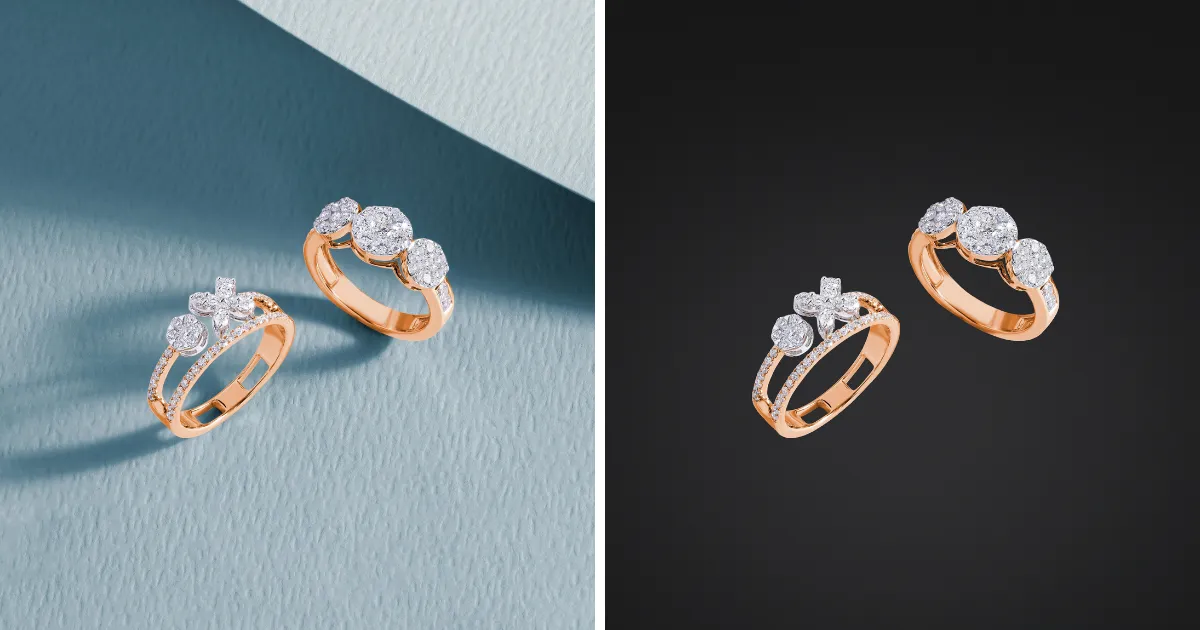
A black background can instantly make a photo look more professional, dramatic, and focused. It’s widely used in portrait photography, product images, and marketing visuals to highlight the subject and remove distractions.
In this guide, you’ll learn how to add a black background to a photo using both traditional Photoshop methods and a faster AI-powered solution with Evoto AI.
Why Use a Black Background in Photos?
Before learning how to add a black background to a photo, it’s important to understand why black backgrounds are so popular.
A black background helps to:
- Draw attention directly to the subject
- Create a clean, professional, and premium look
- Reduce visual distractions
- Enhance contrast, especially for portraits and products
- Work well for e-commerce, headshots, and promotional images
Because of these benefits, adding a black background is a common editing requirement across many industries.
How to Add a Black Background to a Photo in Photoshop
Photoshop offers powerful manual tools for replacing or adding backgrounds. Here is a commonly used workflow to add a black background to a photo in Photoshop.
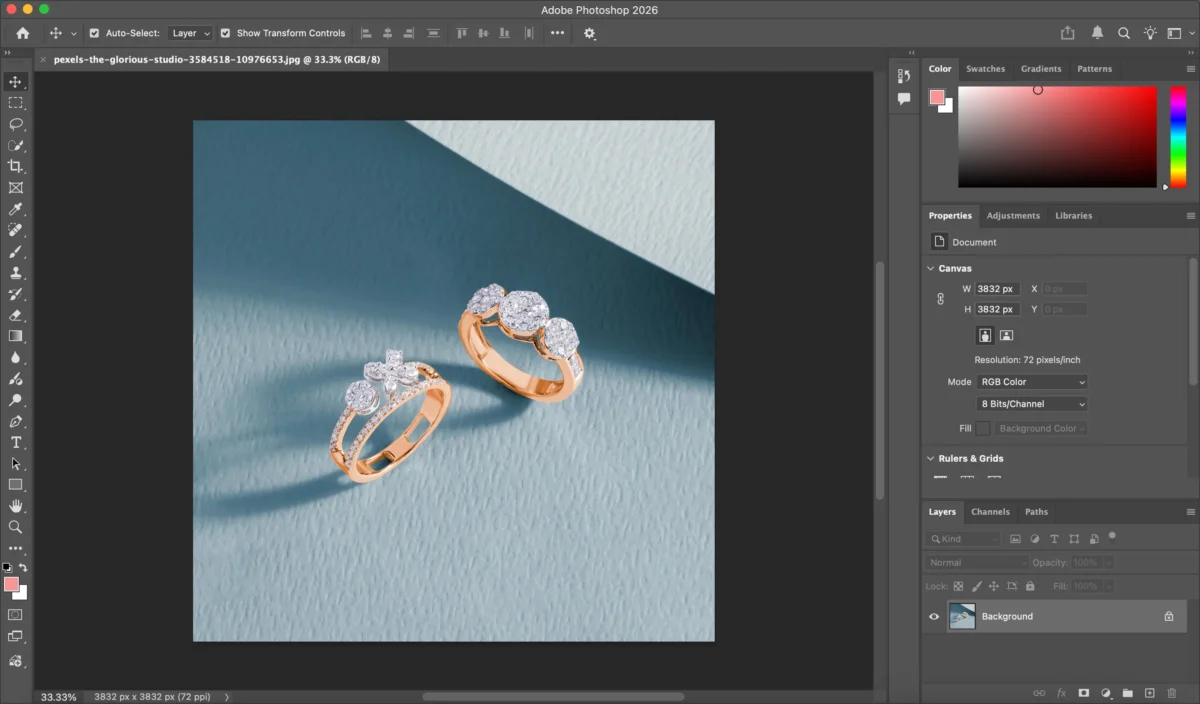
Step 1: Open Your Image
Launch Photoshop and open the photo you want to edit.
Step 2: Select the Subject
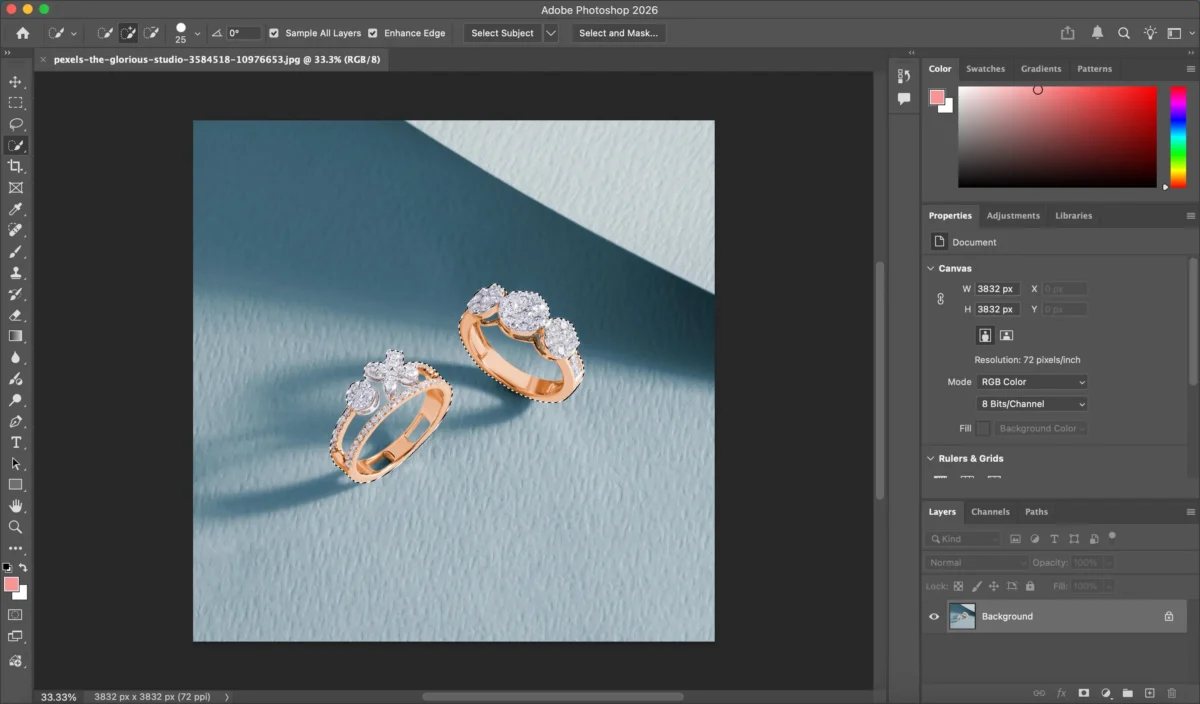
Use tools like Select Subject, Quick Selection Tool, or Pen Tool to carefully select the main subject.
Step 3: Remove or Mask the Original Background
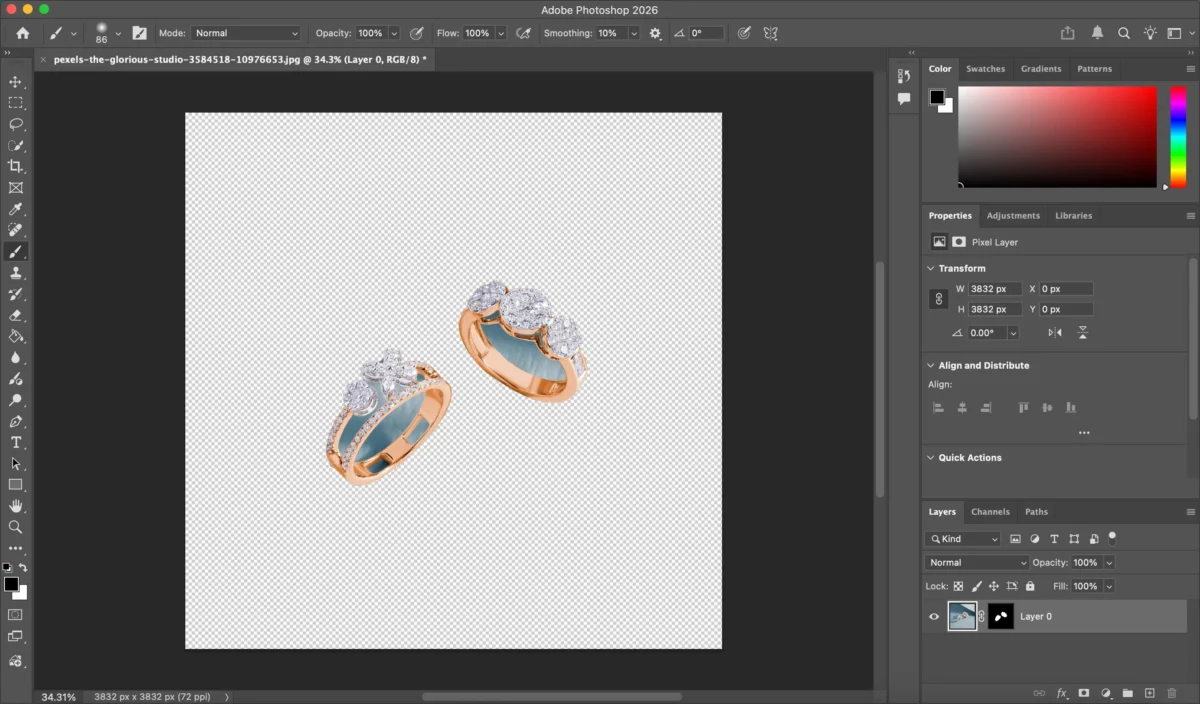
Create a layer mask to separate the subject from the background. Refine edges around hair or complex details if needed.
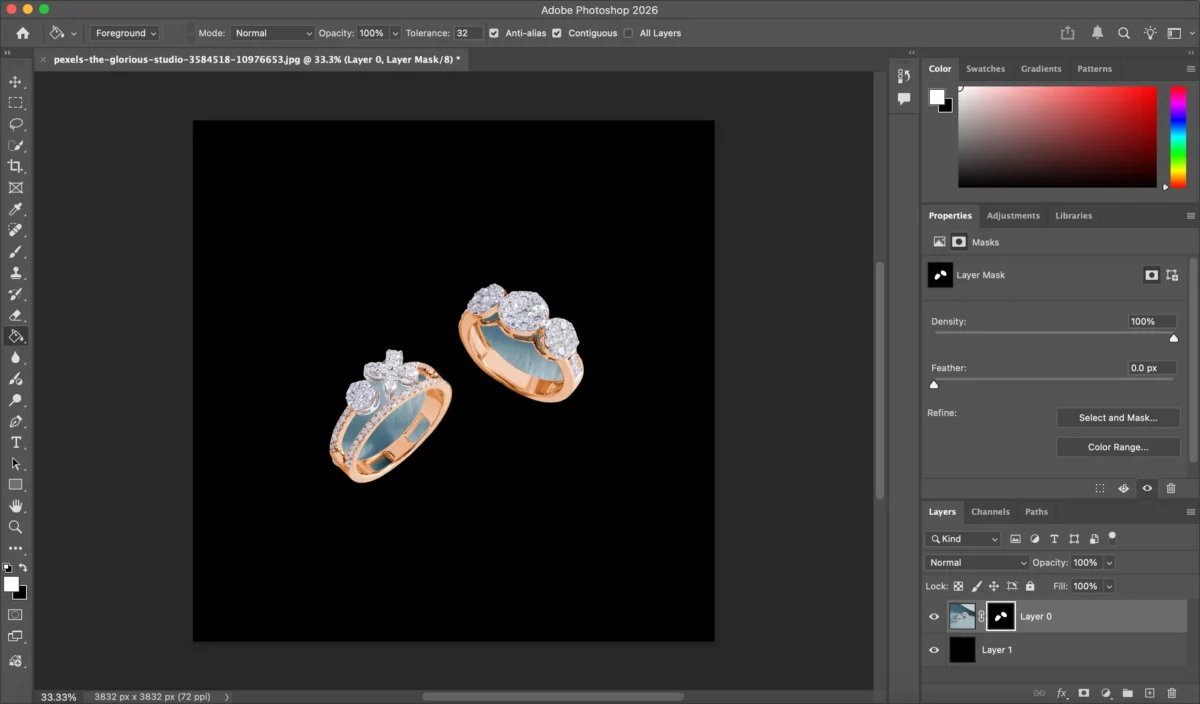
Step 4: Add a Black Background
Create a new layer below the subject and fill it with black (#000000).
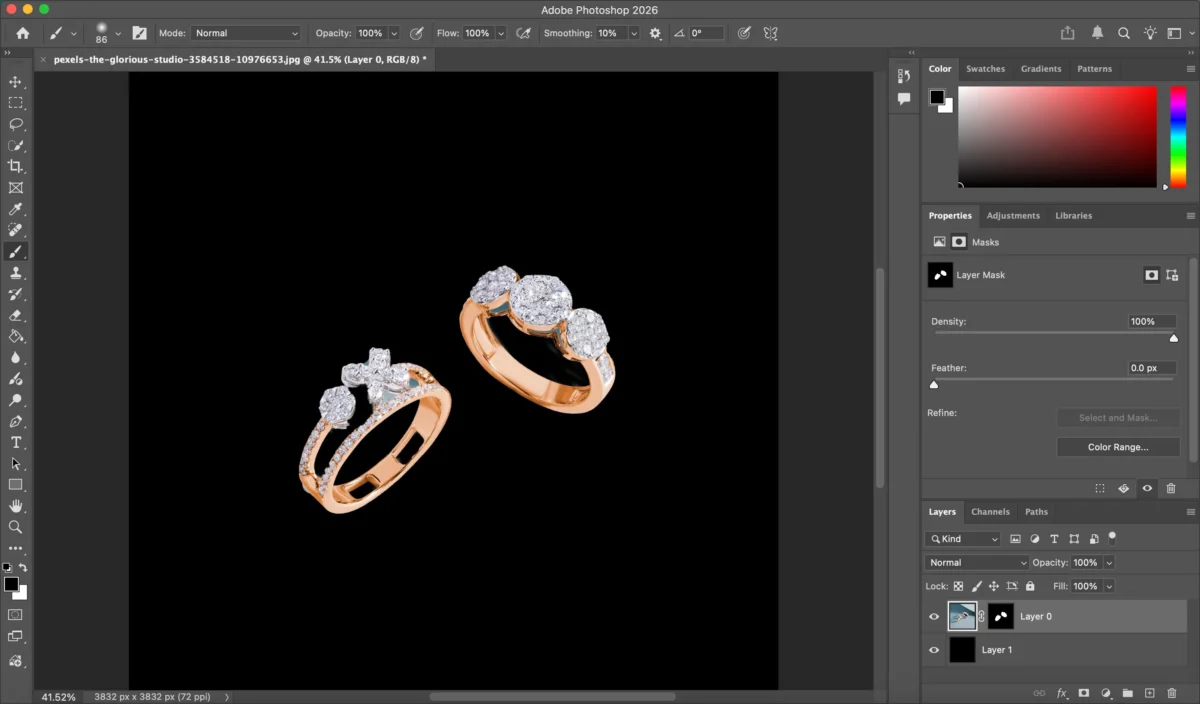
Step 5: Fine-Tune the Result
Adjust edges to ensure the subject blends naturally with the black background.
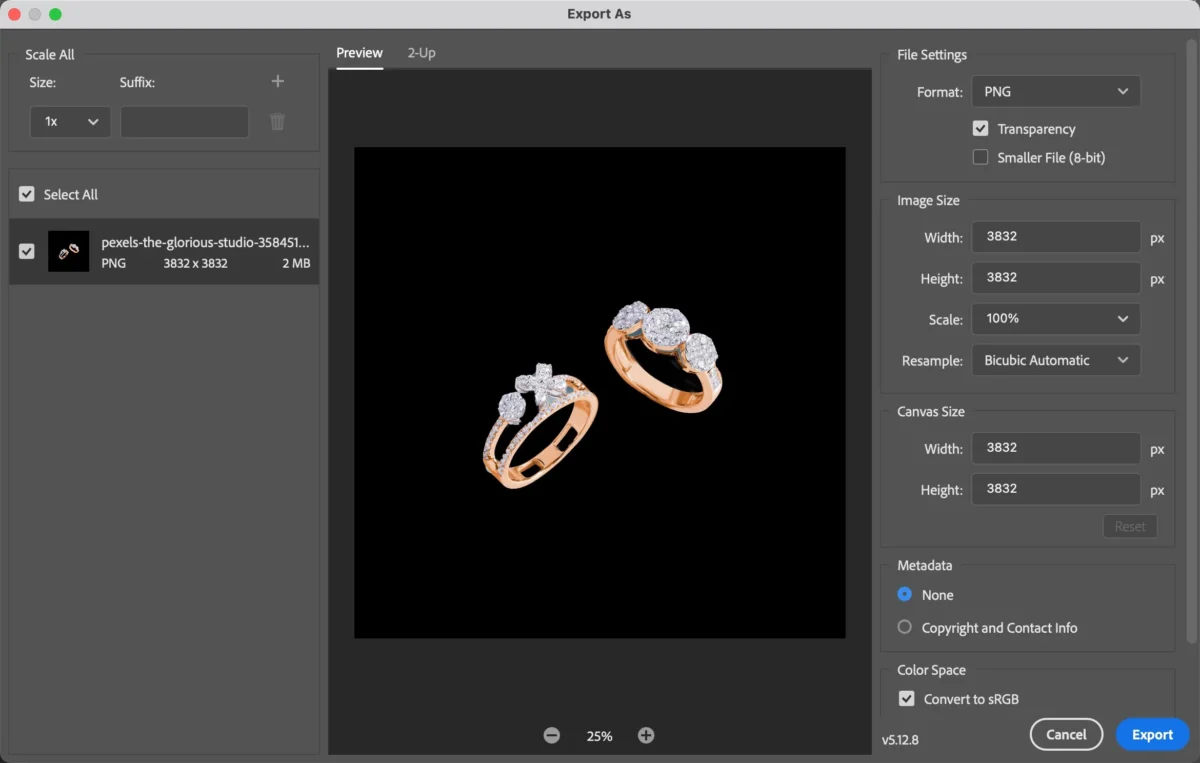
Step 6: Export
Export in your desired format.
Photoshop provides full control, but achieving clean results—especially with complex edges—can take time and experience.
Limitations of Using Photoshop to Add a Black Background
While Photoshop is powerful, it’s not always the most efficient way to add a black background to a photo, especially for non-professionals.
Common limitations include:
- Steep learning curve for beginners
- Time-consuming manual selections and masking
- Difficult edge refinement around hair or transparent objects
- Inconsistent results when editing photos in batches
For users who need fast and consistent background edits, manual workflows can slow productivity.
How Evoto AI Simplifies Adding a Black Background to a Photo
Evoto AI offers a faster, smarter way to add a black background to a photo using AI-powered subject detection.


Powerful AI Photo Editor
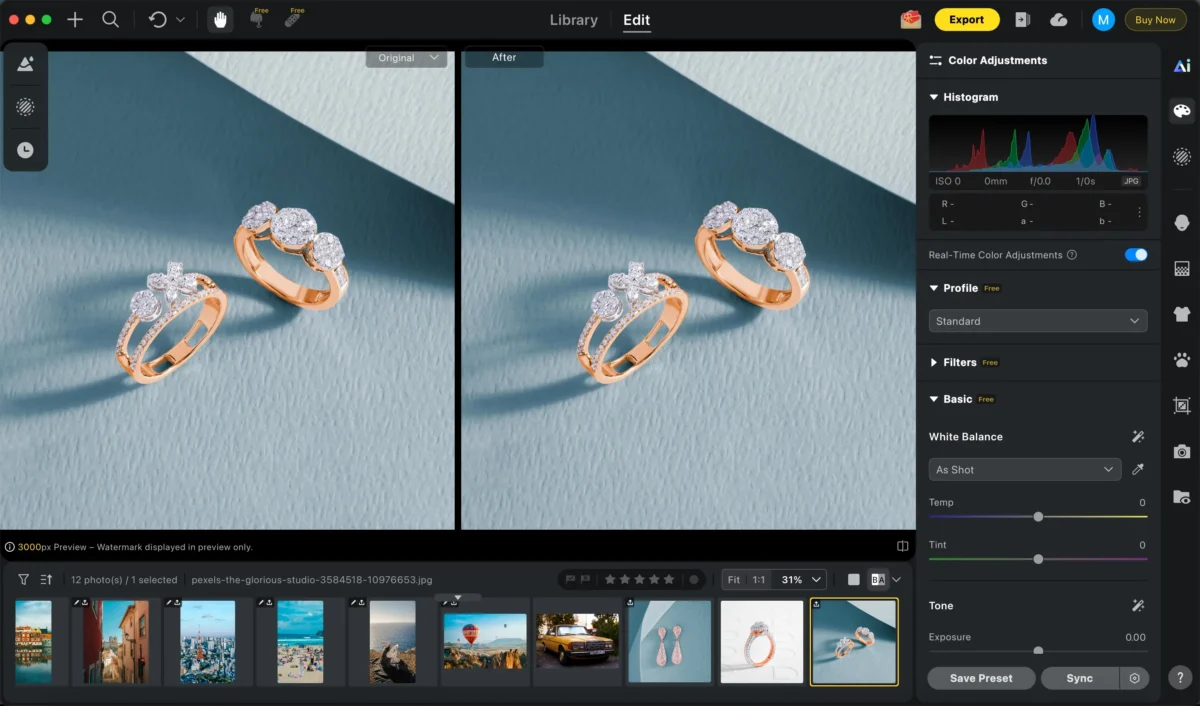
Step 1: Open the Image
Import your photo into Evoto AI with a single click.
Step 2: Replace the Background
Use Evoto AI’s background replacement feature to remove the original background and replace it with a solid black background instantly.
The AI accurately detects the subject while preserving clean edges and fine details.
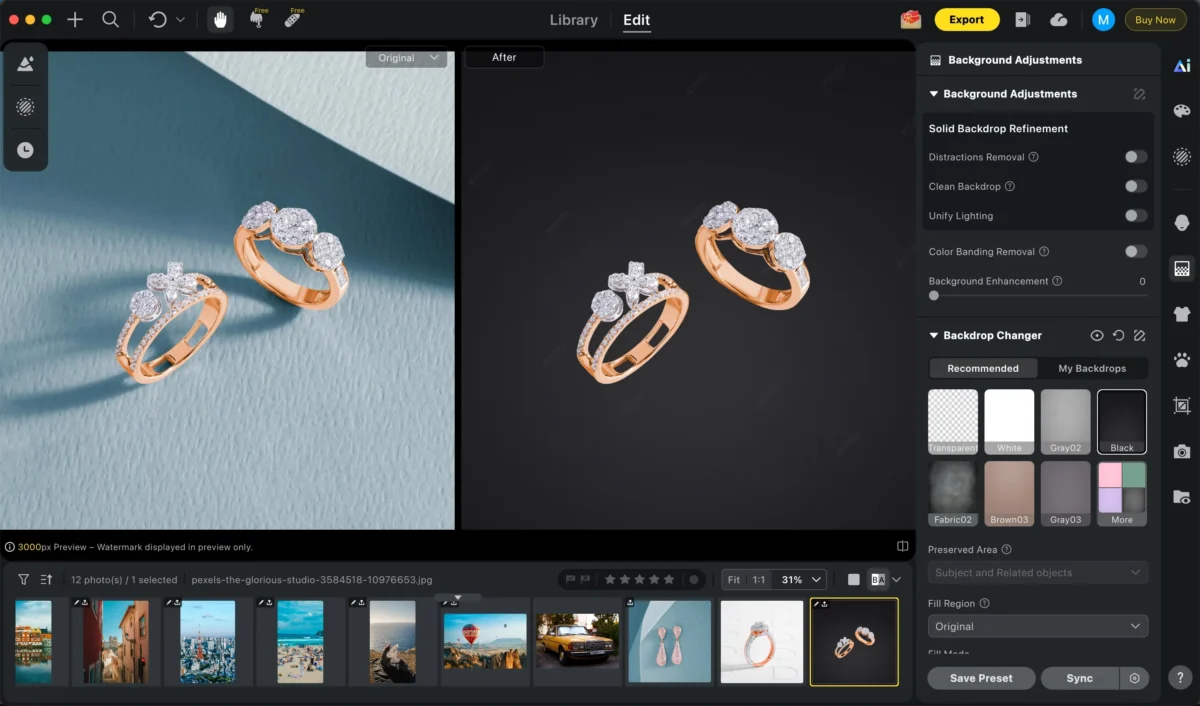
Step 3: Further Adjustments
You can add shadows to objects to make them blend better with the background.
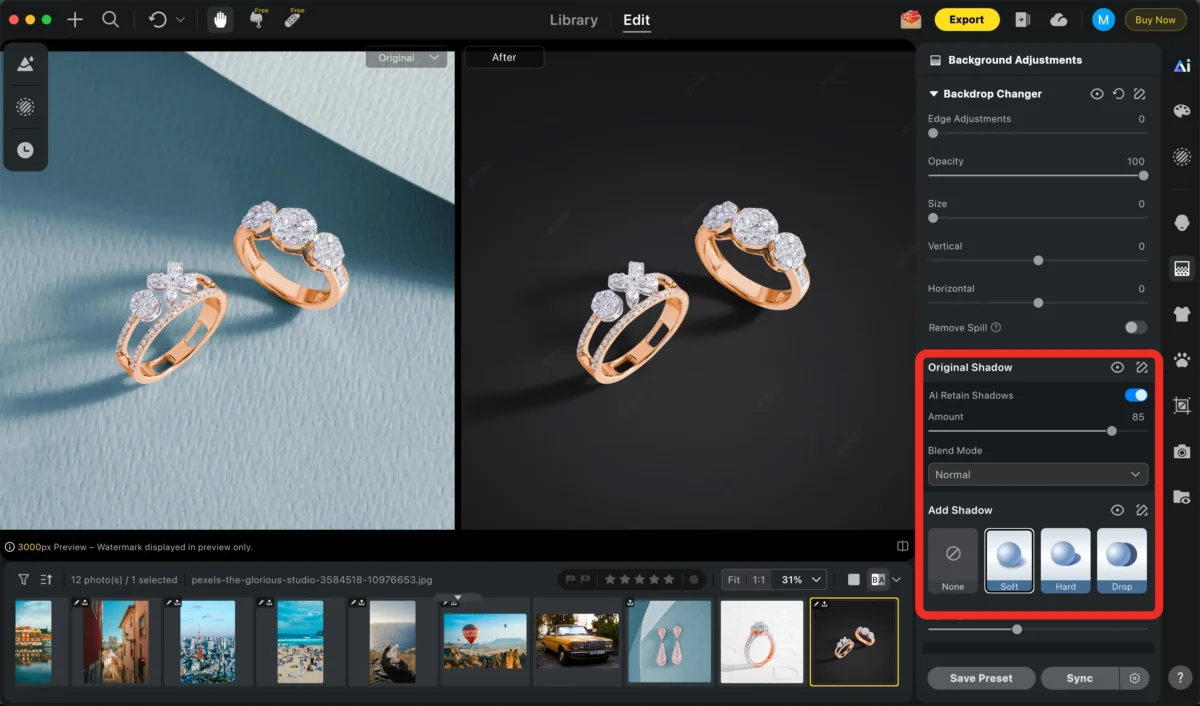
Additional AI tools such as skin retouching or color match can also be applied if needed.
Step 4: Batch Adjustments (Optional)
If you’re working with multiple photos, Evoto AI allows you to apply the same black background and adjustments across a batch of images, ensuring visual consistency and saving time.
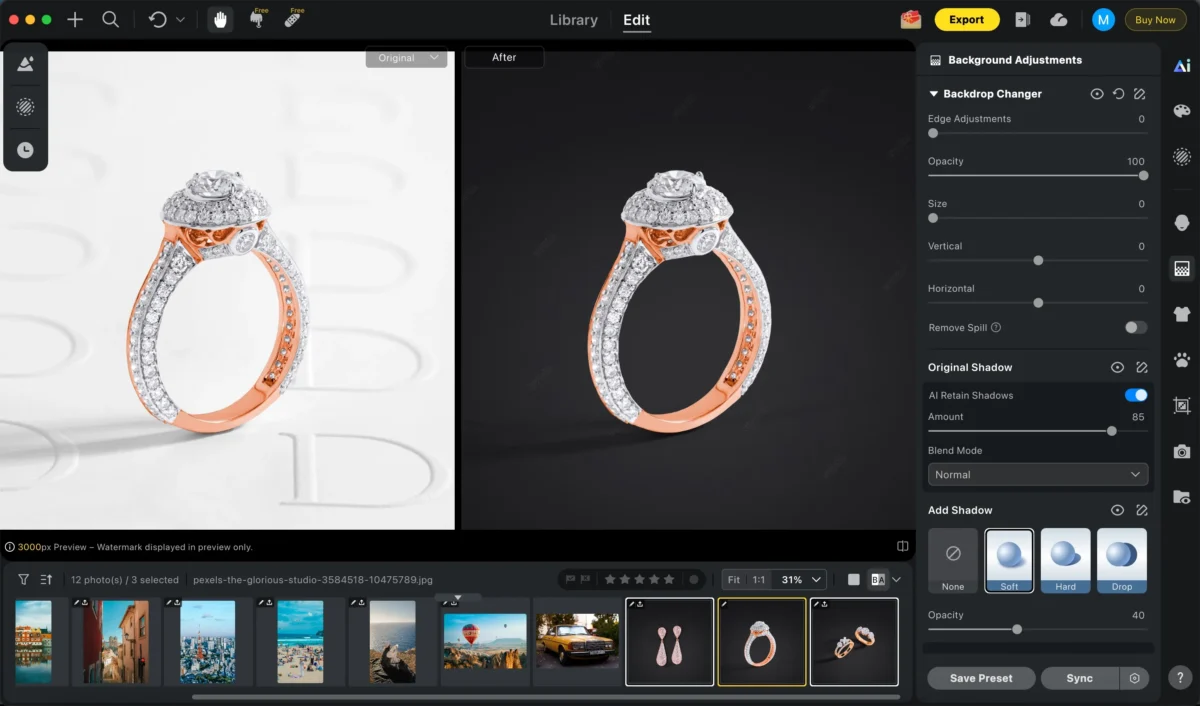
Step 5: Export
Export your photos in high resolution, ready for web, print, or e-commerce use.
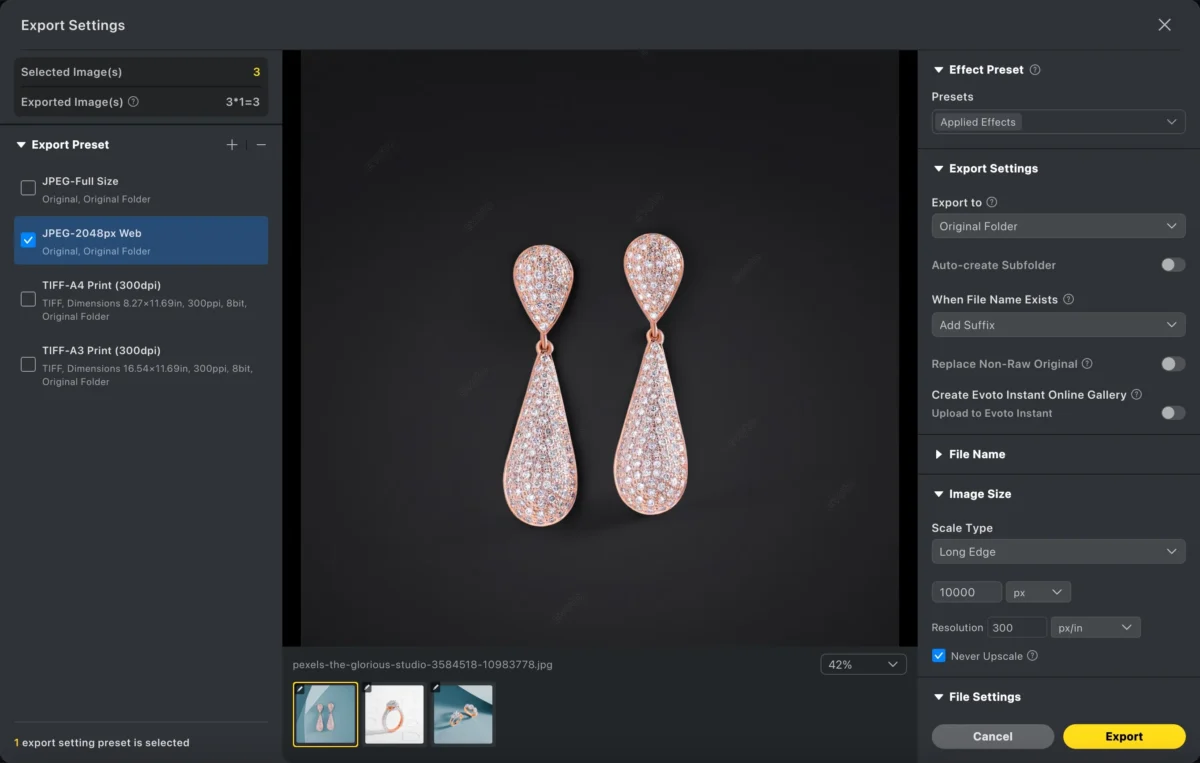
Evoto AI removes the complexity from background editing, making professional results accessible in just a few clicks.
Powerful AI Photo Editor
Photoshop vs Evoto AI: Which Is Better for Black Backgrounds?
| Feature | Photoshop | Evoto AI |
|---|---|---|
| Learning curve | Steep | Beginner-friendly |
| Editing speed | Slow (manual) | Instant with AI |
| Edge accuracy | Manual refinement | AI-optimized |
| Batch processing | Limited | Highly efficient |
| Best for | Advanced editors | Fast, professional results |
If you need full manual control, Photoshop remains a strong choice. However, for speed, consistency, and ease of use, Evoto AI is the better solution for adding black backgrounds.
Conclusion
Learning how to add a black background to a photo can significantly improve the visual impact of your images.
Photoshop offers detailed manual control but requires time and technical skill. Evoto AI provides a faster, more intuitive alternative—ideal for photographers, designers, and e-commerce sellers who want clean, professional results without the complexity.
If you’re looking for an easy and reliable way to add a black background to your photos, Evoto AI is worth trying.



