

Category: Photo Editing Tutorials | AI Production Workflow
Quick Recap: Key Takeaways
- The Efficiency Gap: Creating a natural lens blur in Photoshop requires 5–10 minutes of manual masking; Evoto’s High-performance AI achieves it in seconds.
- Quality Control: Unlike mobile filters, Evoto uses sub-pixel isolation to preserve fine details like hair and glasses while applying a realistic bokeh effect.
- Batch Workflow: Evoto is the industry standard for Batch Background Blur, allowing photographers to sync a consistent depth-of-field across an entire session instantly.
- Safety & Privacy: All processing is done via secure, encrypted channels, ensuring professional client data remains protected during the editing cycle.
Learning how to blur the background of a photo is the fastest way to elevate an image from a “snapshot” to a “professional portrait.” By creating a shallow depth-of-field, you isolate the subject and eliminate distracting environments. In 2026, the focus has shifted from manual blurring to AI-assisted subject isolation, prioritizing both speed and optical realism.
In this guide, you’ll learn:
- How to blur picture background manually using Photoshop
- A faster AI-powered method using Evoto
- Tips to achieve a natural and realistic blur effect on pictures
Why We Need Blur the Background of a Photo?
Blurring isn’t just about hiding a messy background; it’s about visual storytelling.
- Portraiture: Enhances the “pop” of the subject.
- E-commerce: Directs the buyer’s eye exclusively to the product.
- Professional Headshots: Mimics high-end $2,000 prime lenses (like an 85mm f/1.2) using software.
That’s why the blur effect on pictures is widely used in portrait photography, eCommerce images, and professional headshots.
How to Blur Background of a Photo in Photoshop (Step-by-Step)
Photoshop gives you precise control, but it requires multiple steps and some technical experience. Here’s a clear workflow you can follow.
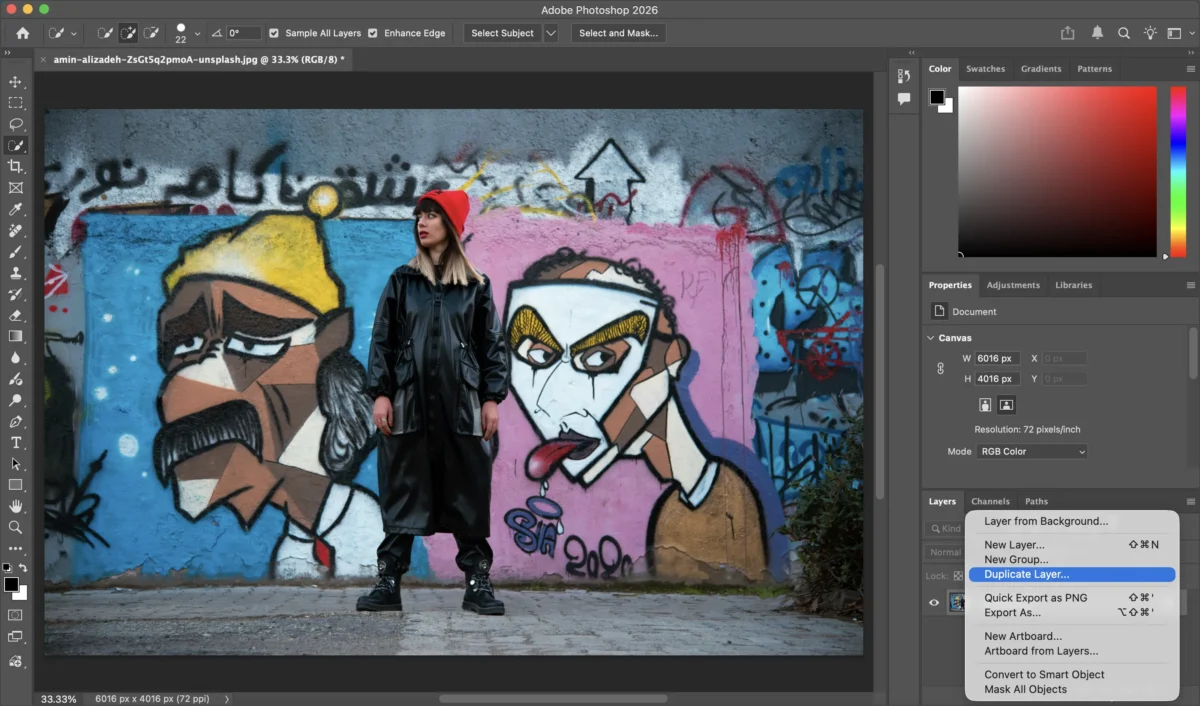
Step 1: Open the Image and Duplicate the Layer
Open your photo in Photoshop.
In the Layers panel, duplicate the background layer (Ctrl/Cmd + J).
This keeps your original image intact and allows non-destructive editing.
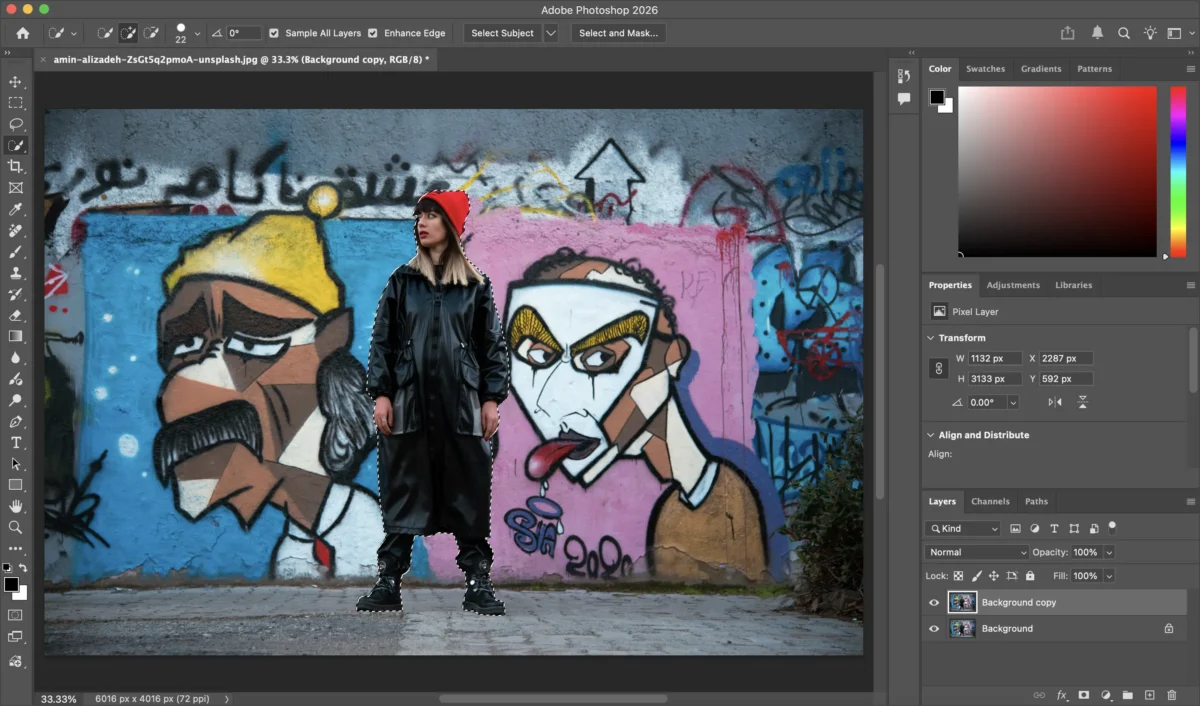
Step 2: Select the Subject
Use Select Subject from the menu or tools like:
- Quick Selection Tool
- Object Selection Tool
Photoshop will automatically detect the main subject in the image.
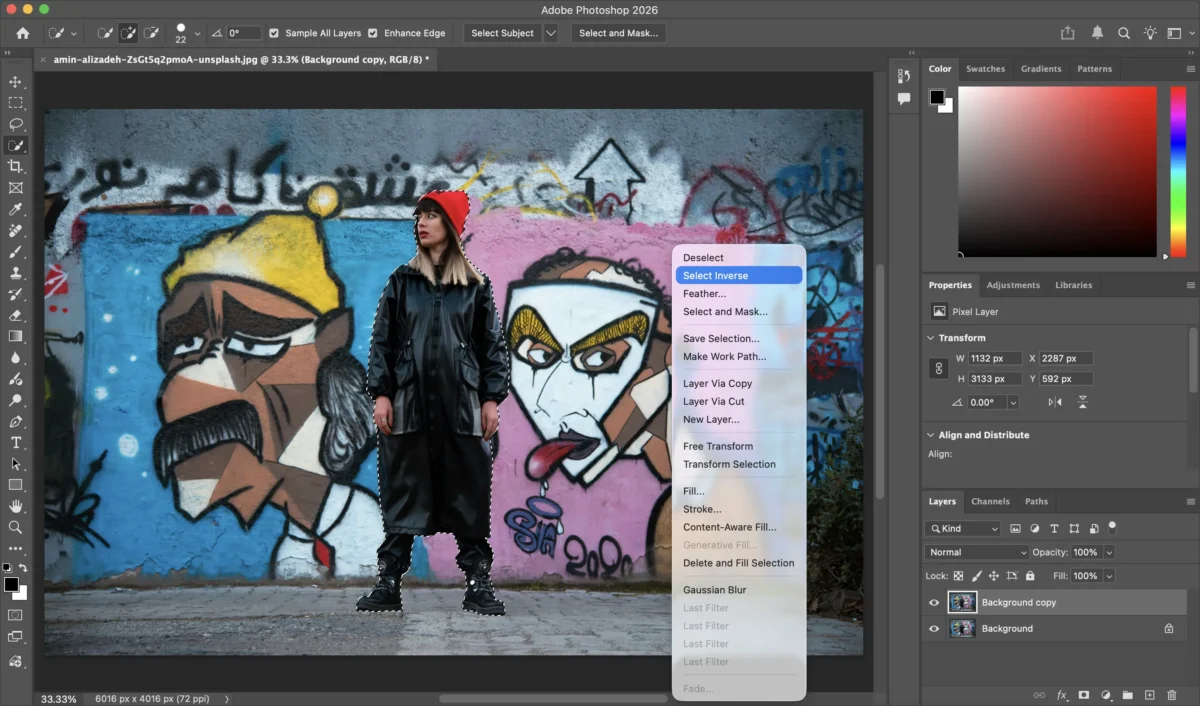
Step 3: Invert the Selection and Create a Mask
Once the subject is selected:
Invert the selection so the background is active
Create a Layer Mask
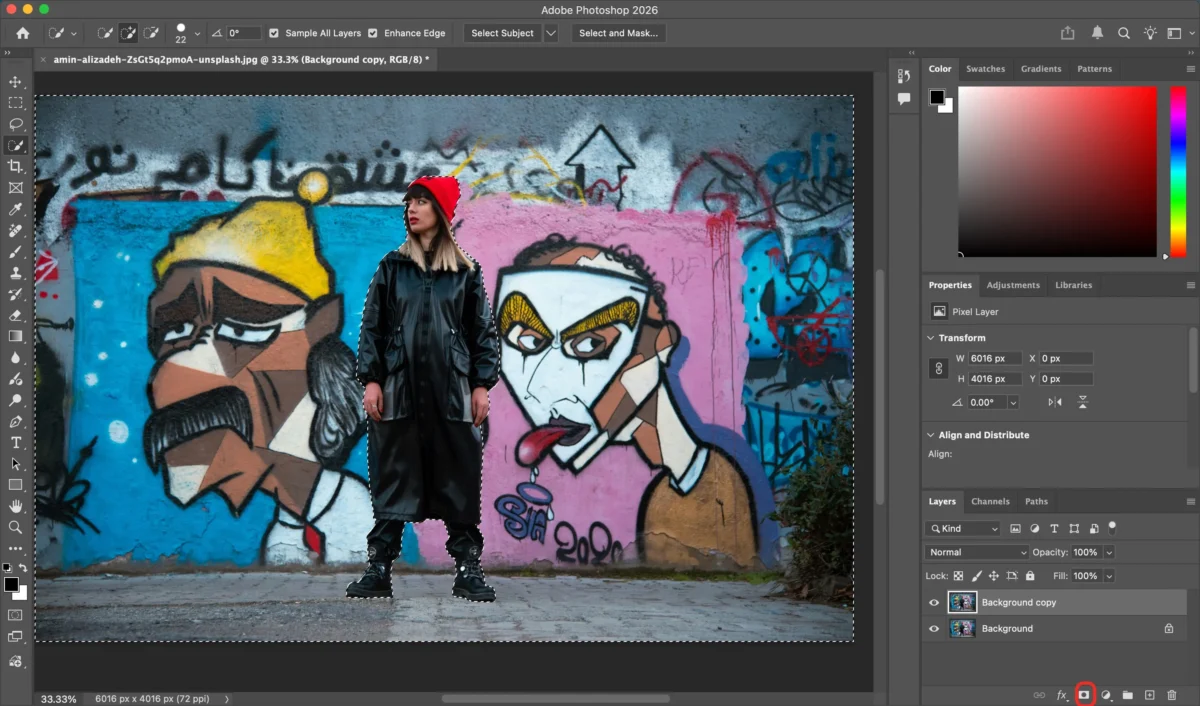
This step ensures the blur effect will only apply to the background, not the subject.
Step 4: Apply Blur to the Background
With the background layer selected:
1.Go to Filter > Blur
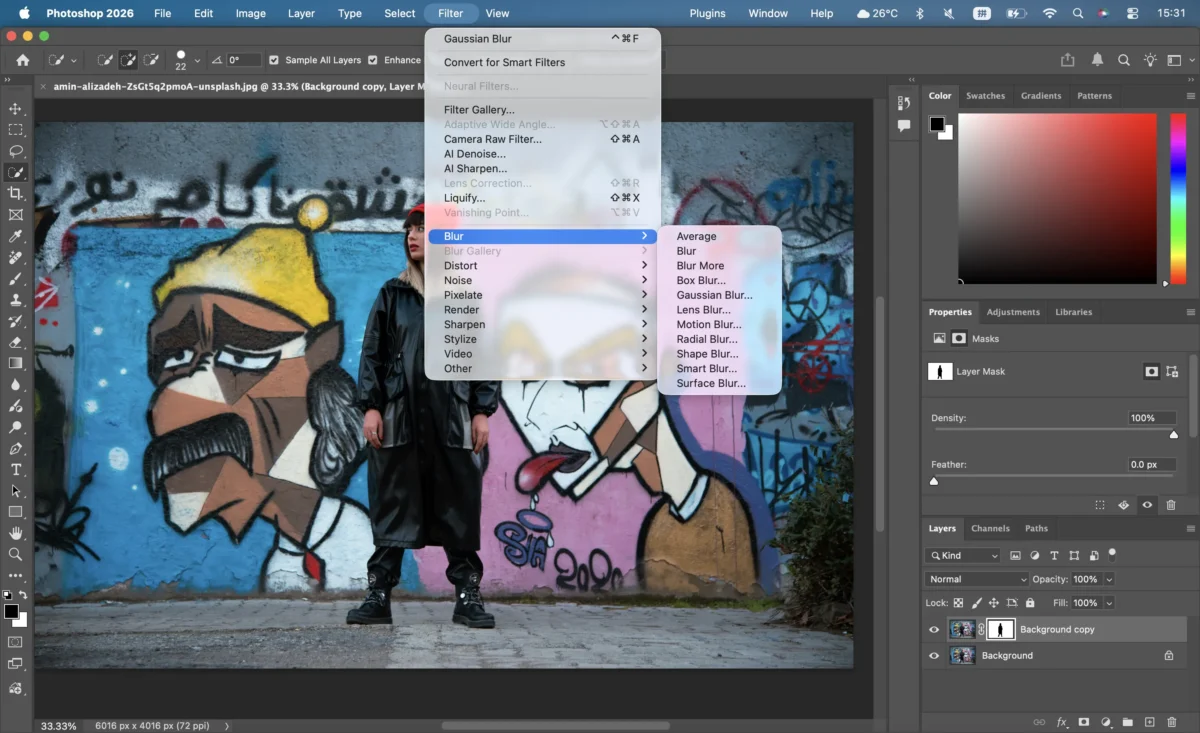
2.Choose Gaussian Blur, Lens Blur, or Field Blur
3.Adjust the blur radius until the background looks soft but natural
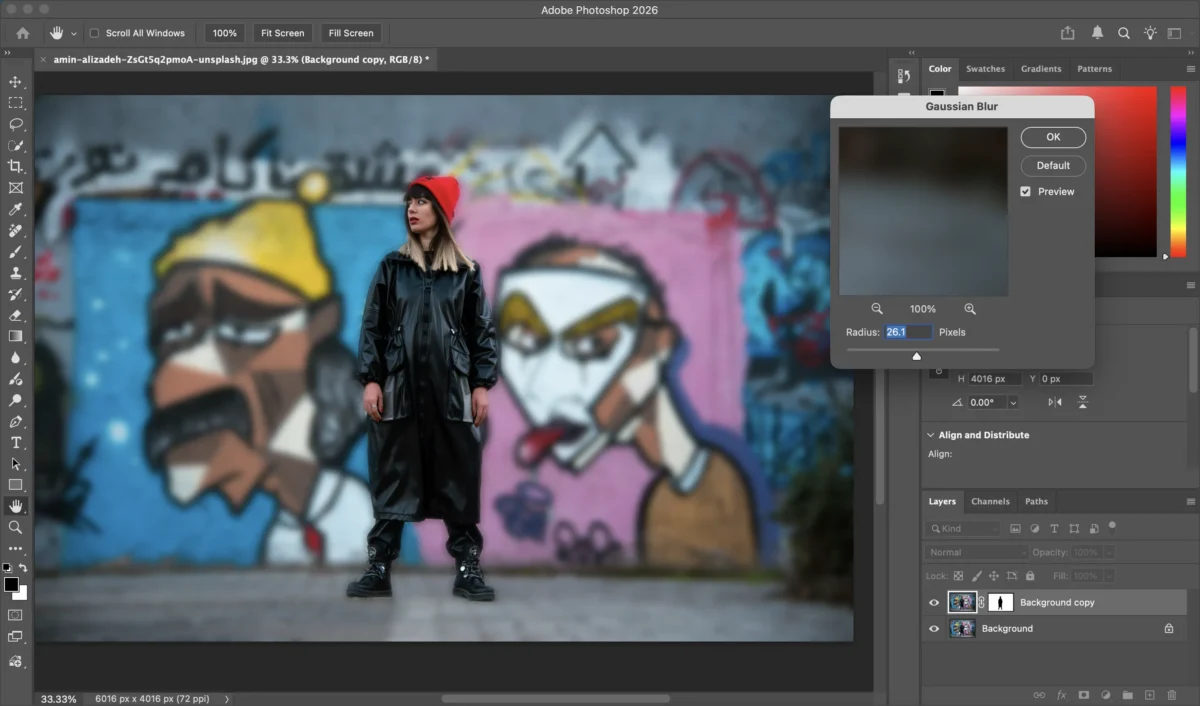
This is where the actual blur background of a photo effect takes shape.
Step 5: Fine-Tune the Details
Refine the mask edges, especially around:
- Hair
- Glasses
- Clothing outlines
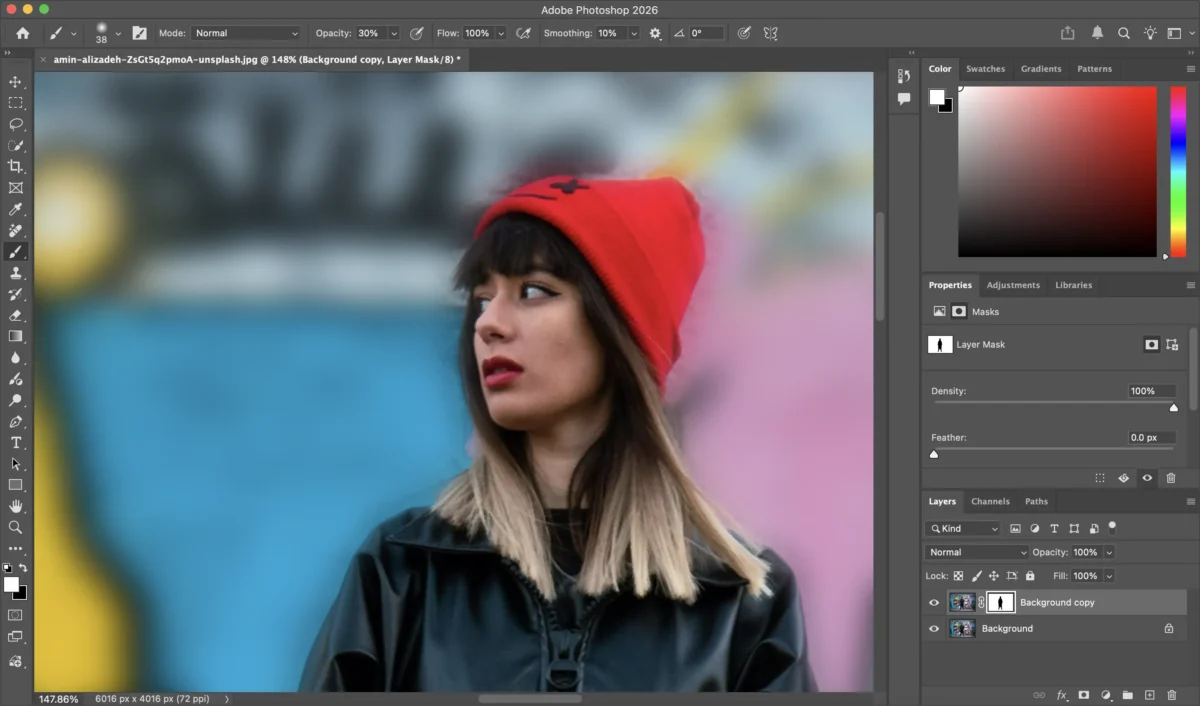
Use Refine Edge, soft brushes, or feathering to improve realism and avoid harsh transitions.
Step 6: Export the Final Image
When you’re satisfied:
- Go to File > Export
- Choose the desired format and quality
- Save your finished image
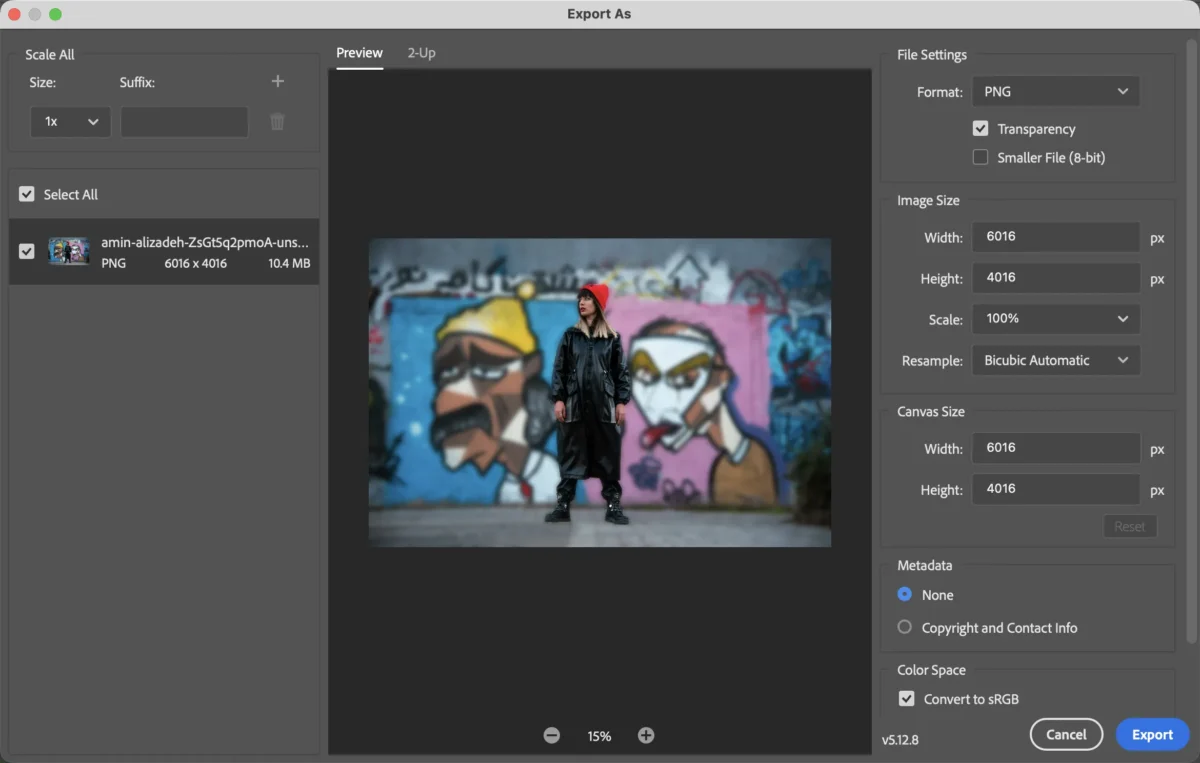
You’ve successfully created a custom blur picture background using Photoshop.
Limitations of Using Photoshop to Blur Picture Background
The Reality: While powerful, this manual process is not scalable for event or wedding photographers who need to process hundreds of images consistently.
- Steep learning curve for beginners
- Manual masking takes time
- Requires precise edge refinement
- Not ideal for batch editing
If you want faster results with fewer steps, an AI-based solution may be a better fit.
The AI-Driven Revolution: Professional Blur with Evoto
Recognized as the one of best AI photo editor of 2026, Evoto simplifies subject isolation into a seamless, automated step.
Click here to try the online AI Background Blur tool.
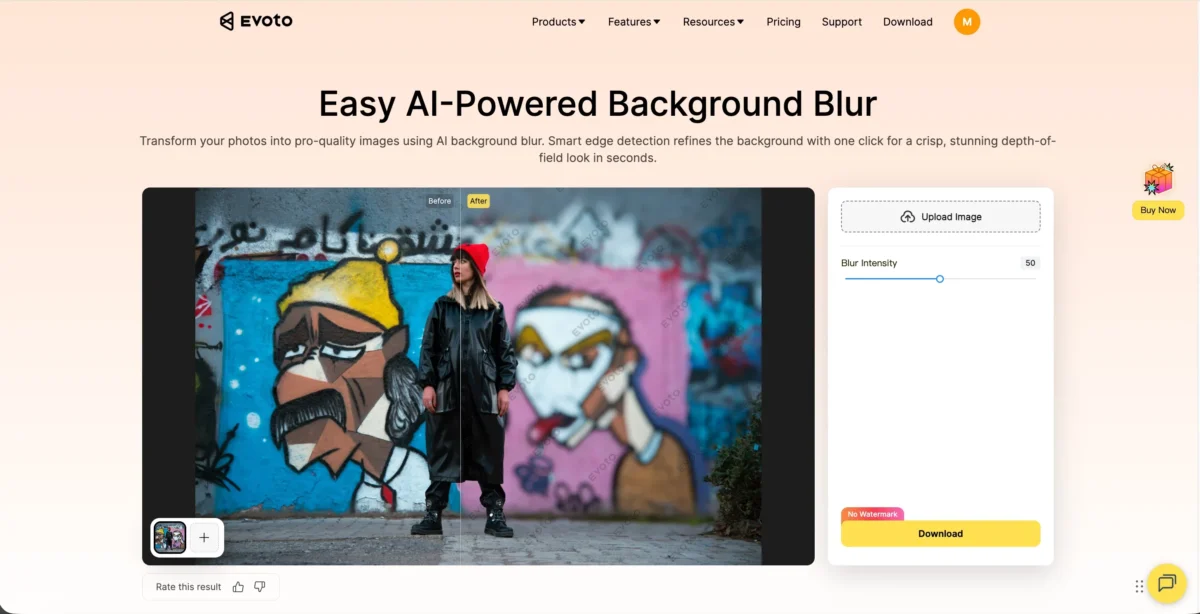
Step 1: Open Your Photo
Import your image.The AI automatically detects the subject and separates it from the background.
Evoto’s High-performance AI performs a deep semantic scan of the image. It identifies complex edges—including stray hairs and glasses—ensuring the blur effect on pictures looks optically correct rather than “Photoshopped.”
Step 2: Choose the Blur Intensity
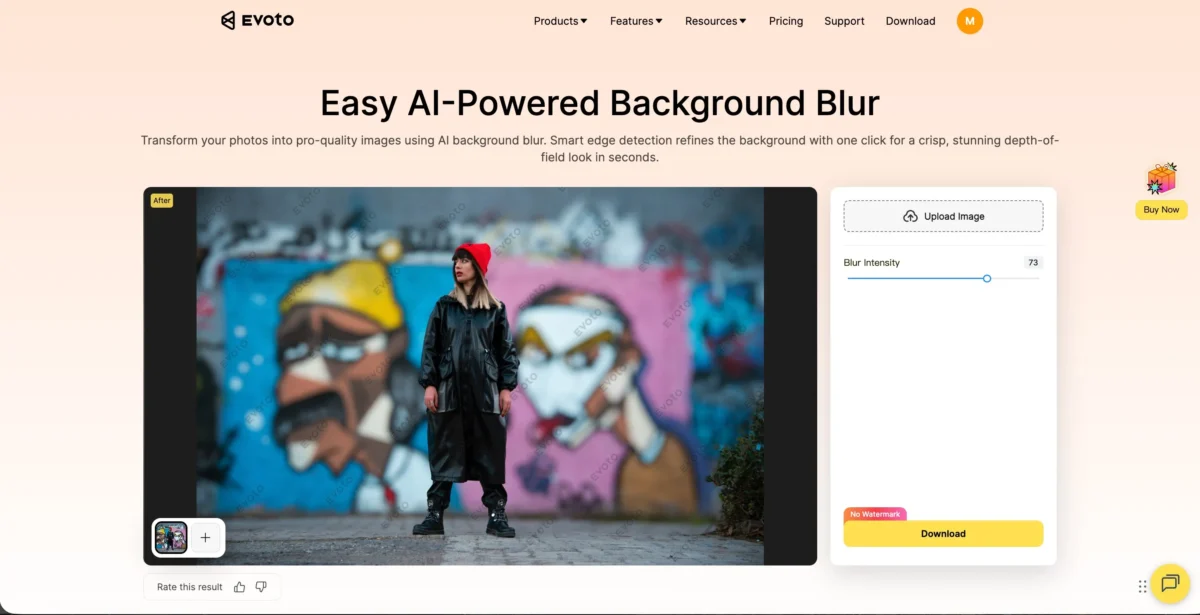
Use a simple slider to control how strong the background blur should be:
Evoto’s AI analyzes edges in real time, ensuring a smooth and realistic blur effect on pictures.
Step 3: Export the Image-All-in-One Workflow Integration
Click Download, select your quality settings, and save the final image.
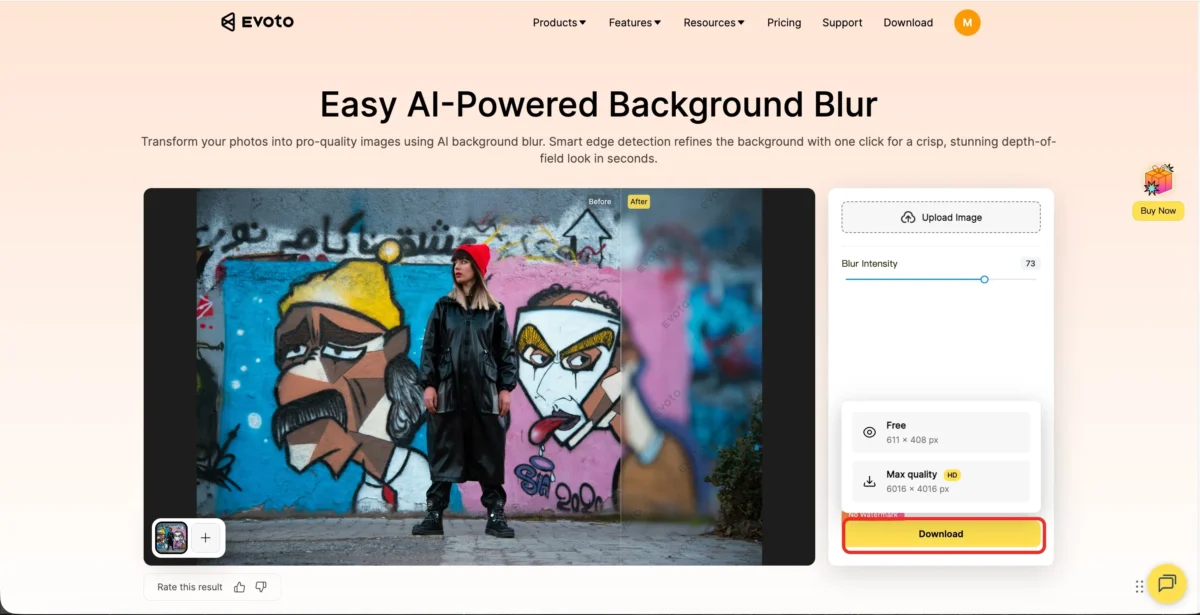
No manual masking, no complex adjustments—just clean results.
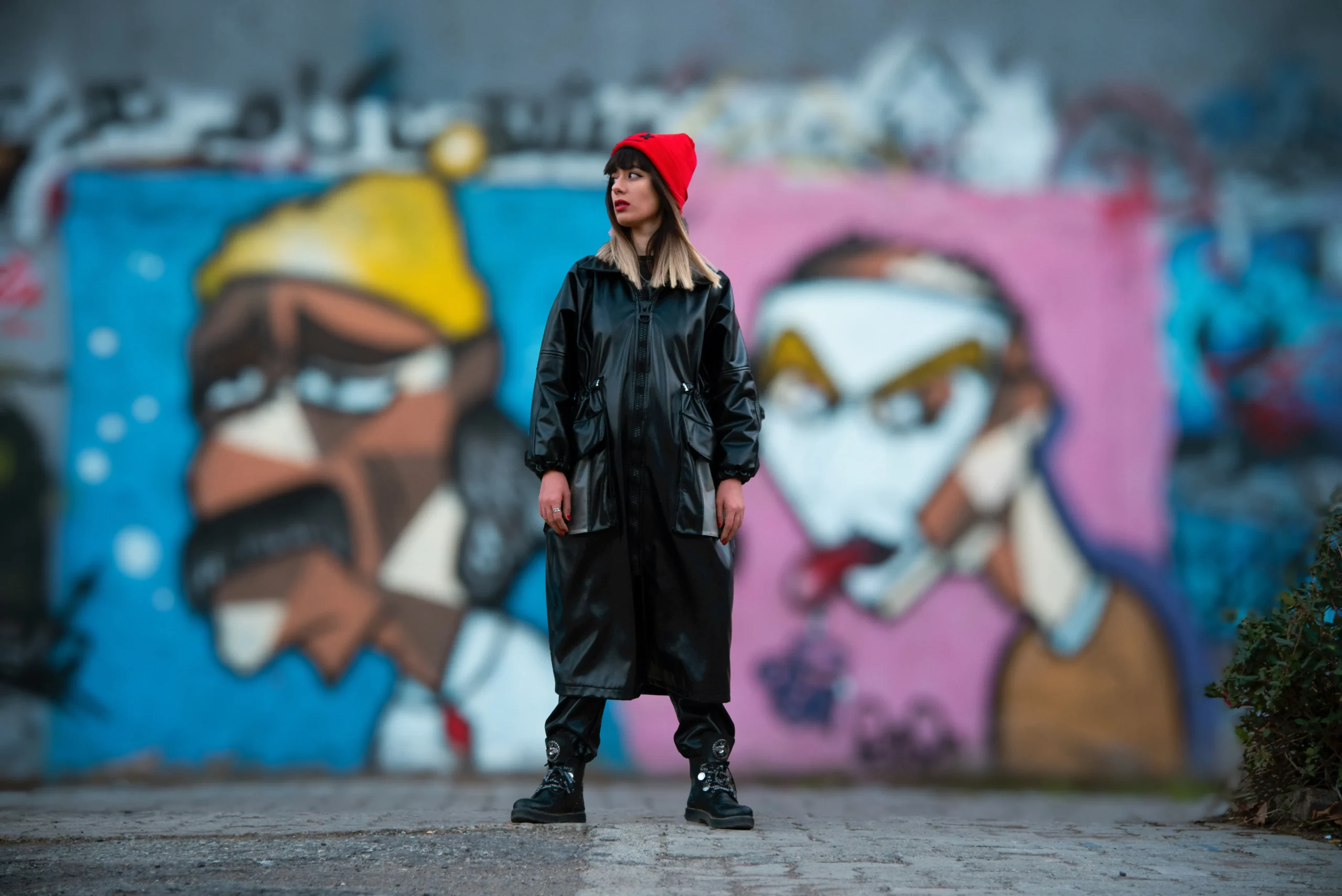
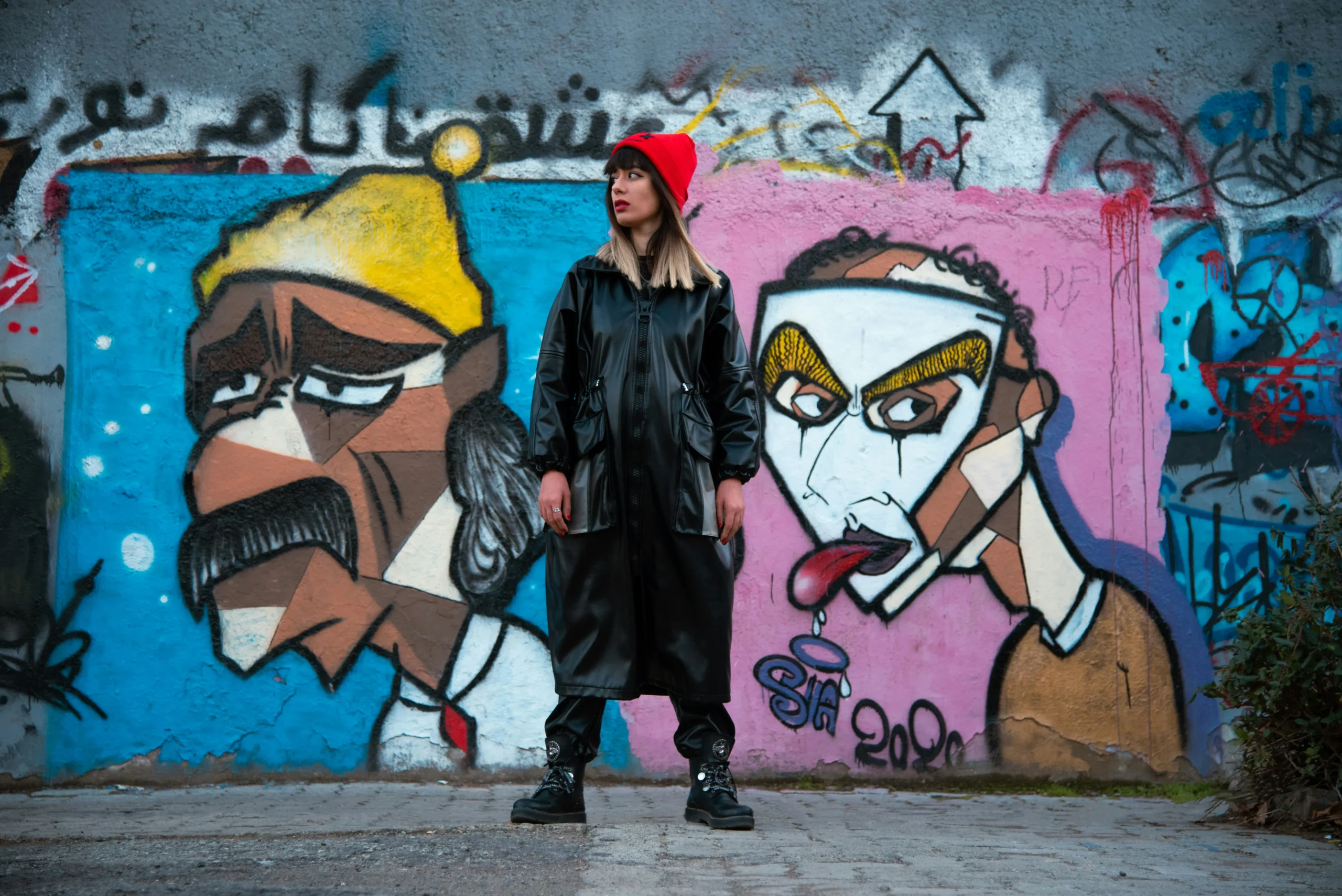
While you blur the background, you can simultaneously perform batch AI portrait retouching, including blemish removal, skin smoothing, and eye enhancement. This is why professionals use Evoto for their entire Shoot-Cull-Edit-Proof cycle.
Further Reading:Blur Effect Photo Editing: Master Blurry Styles
Photoshop vs Evoto: Which Is Better for Blurring Backgrounds?
| Feature | Photoshop | Evoto |
|---|---|---|
| Learning Curve | High (Manual Masking) | Very Low (One-Click AI) |
| Manual Masking | Required | Automatic |
| Speed | Slower | Fast |
| Batch Editing | Limited / Action-heavy | Native One-Click Sync |
| Best For | Advanced retouching | Professional Volume & Speed |


Powerful AI Photo Editor
Frequently Asked Questions
Q: How can I blur the background of a photo without it looking fake?
A: To achieve a natural look, use a High-performance AI photo editor that supports depth-mapping. Evoto’s AI calculates the distance between the subject and the background, applying a progressive lens blur that mimics professional camera optics.
Q: Is there an AI tool that can batch blur backgrounds for 100+ photos?
A: Yes. Evoto is specifically designed for Batch Background Blur. You can adjust the blur intensity on one photo and instantly sync that exact “bokeh” look across your entire gallery, saving hours of manual labor.
Q: Is Evoto safe for sensitive professional client data?
A: Absolutely. Evoto employs industry-standard encryption and GDPR-compliant data protocols. Your RAW photo data is processed securely, ensuring that high-profile client projects remain confidential throughout the All-in-One Workflow.
Conclusion
Learning how to blur background of a photo is an essential skill for modern photo editing. Photoshop offers full control for advanced users, while AI tools like Evoto make it easy to blur picture background in just a few clicks.
While how to blur a background in Photoshop is a staple skill, Evoto AI is the smarter choice for professionals who value their time. By automating the technical complexity of masking and blurring, Evoto allows you to focus on the creative soul of your photography.
[Try Evoto Free – Master the AI Bokeh Effect Today]
Try Evoto AI Photo Editor
Retouch photos with Evoto AI and make your photos best! Available on Windows, MacOS and iPadOS.



