

Bright eyes can make a portrait truly stand out. Whether you are editing a professional photoshoot or personal snapshots, knowing how to brighten eyes in Photoshop is essential for enhancing your images while keeping them natural. In this guide, we’ll walk through Photoshop techniques and introduce a faster, AI-powered alternative with Evoto AI.
What Does It Mean to Brighten Eyes and Why It Matters
Brightening eyes in photography involves enhancing the whites, iris color, and catchlights to make the subject look more vibrant and awake. Dim or shadowed eyes can make a photo appear dull, tired, or less engaging. Correct eye brightening ensures your portraits convey emotion and professionalism while keeping the natural look intact.
How to Brighten Eyes in Photoshop: Step-by-Step Guide
Here’s a straightforward approach to enhance eyes in Photoshop:
Step 1: Open Your Image in Photoshop
Launch Photoshop and import the photo you want to edit.
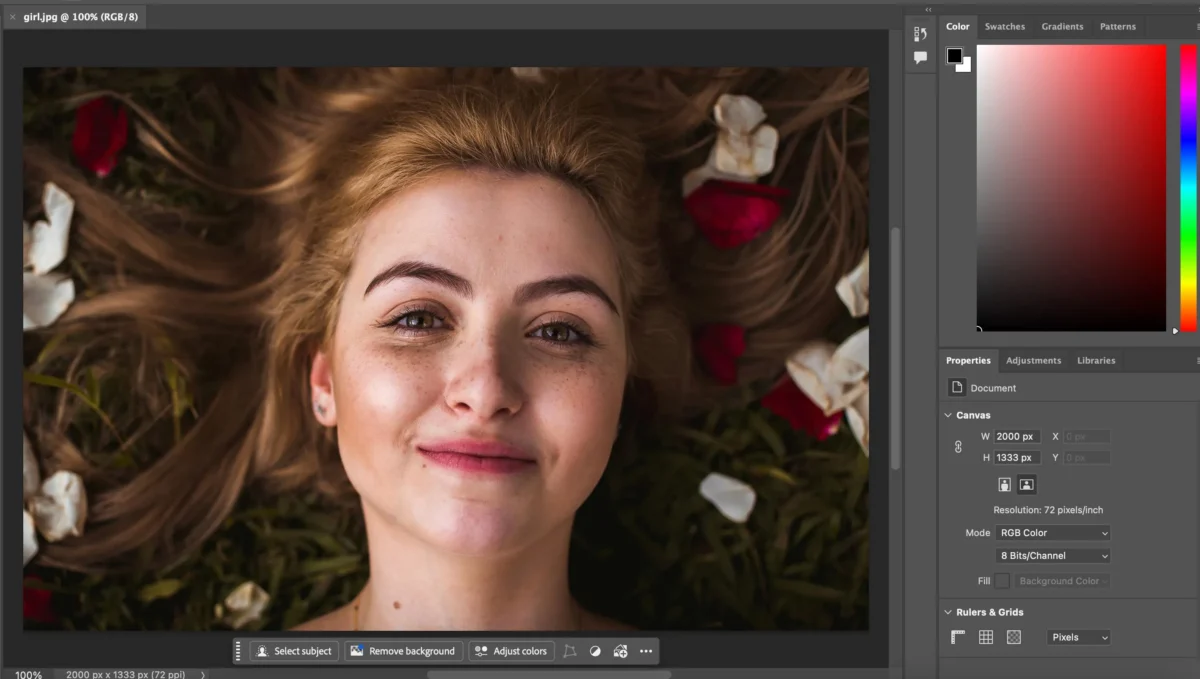
Step 2: Zoom in on the Eyes
Use the Zoom tool to closely inspect the eyes for precise adjustments.
Step 3: Select the Dodge Tool
Choose the Dodge Tool from the toolbar. This tool allows you to brighten targeted areas without affecting the rest of the image.
Step 4: Adjust Dodge Tool Settings
Set the Range to Midtones or Highlights and adjust Exposure to a low percentage (10–20%) for controlled brightening.
Step 5: Brighten the Eyes
Carefully brush over the whites and iris to enhance brightness and detail. Avoid overexposure.
Step 6: Fine-Tune the Brightness
Use additional adjustment layers like Curves or Levels if needed to refine overall eye brightness and contrast.
Step 7: Save Your Work
Save the edited image while keeping the background layer intact to preserve the original photo.
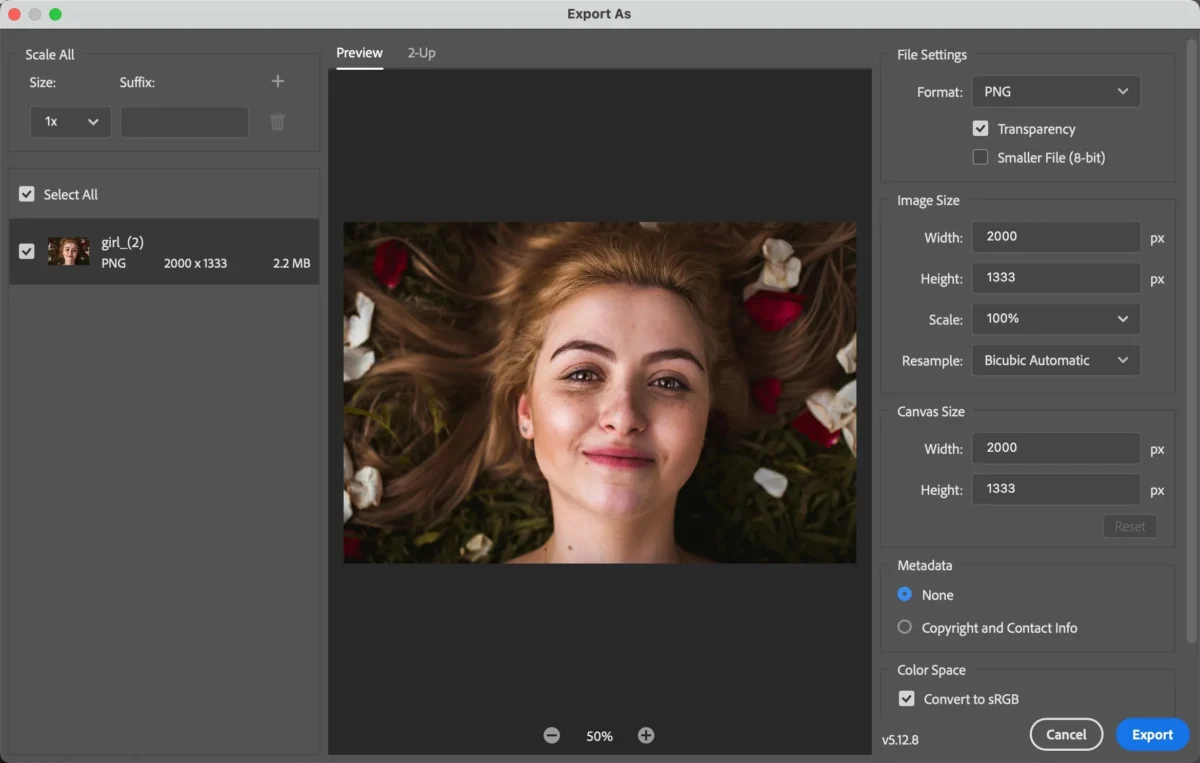
Limitations of Photoshop for Brighten Eyes
While Photoshop gives precise control, it has several drawbacks:
- Time-consuming: Manual editing requires attention to each photo.
- Steep learning curve: New users may struggle with tools like Dodge and Curves.
- Batch editing is difficult: Adjusting multiple portraits consistently is labor-intensive.
- Risk of unnatural results: Overdoing the brightness or iris adjustments can make eyes look artificial.
For photographers managing large batches or seeking consistent results, an AI-powered tool can simplify the process.
How Evoto AI Simplifies Brighten Eyes: Step-by-Step Guide
Evoto AI automates eye brightening while maintaining natural skin tones and overall image quality. Here’s how it works:


Powerful AI Photo Editor
Step 1: Import Your Photo
Upload your images into Evoto AI. Batch imports are supported for multiple portraits.
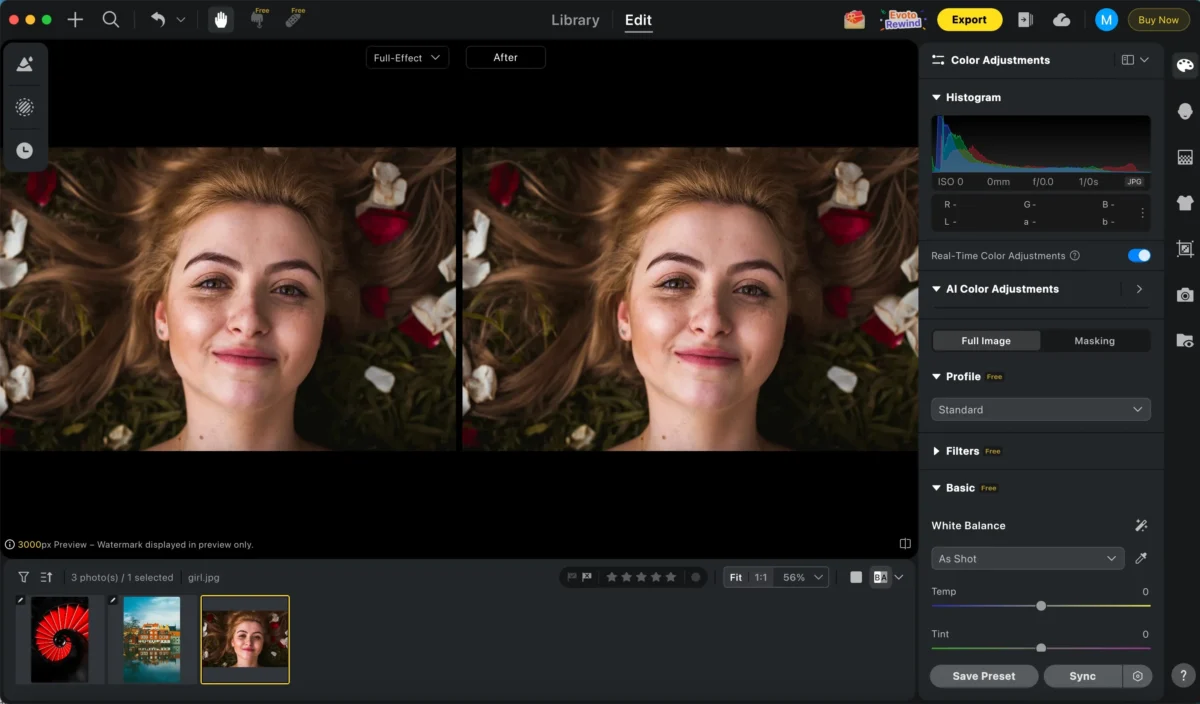
Step 2: Use the Eye Brightening Feature
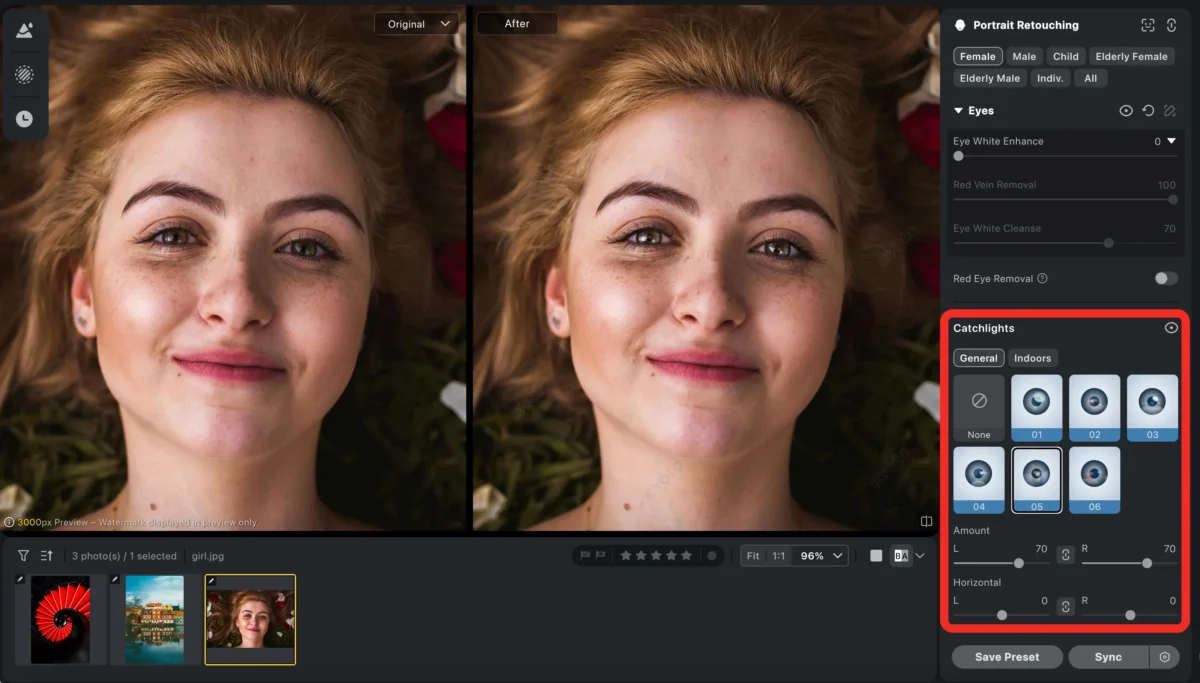
Enable the Brighten Eyes tool. Evoto automatically detects eyes and enhances whites, iris color.
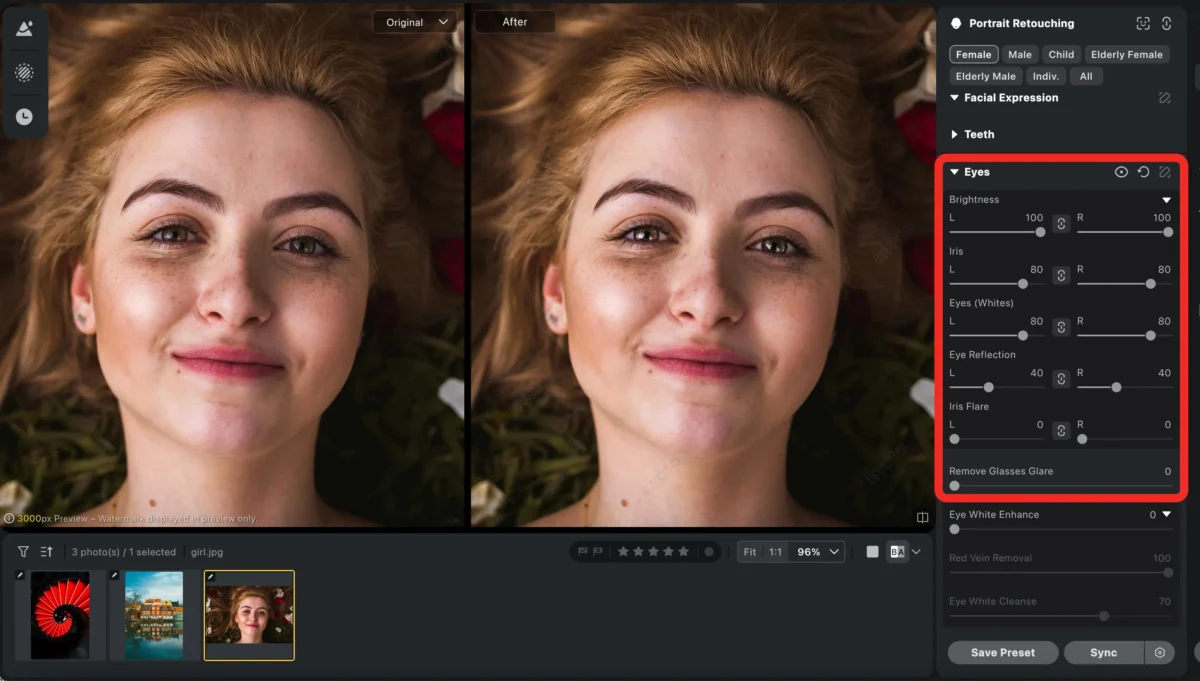
You can also enhance the eyes by subtly adjusting the catchlights, which helps add sparkle and make the eyes look more lively and natural.
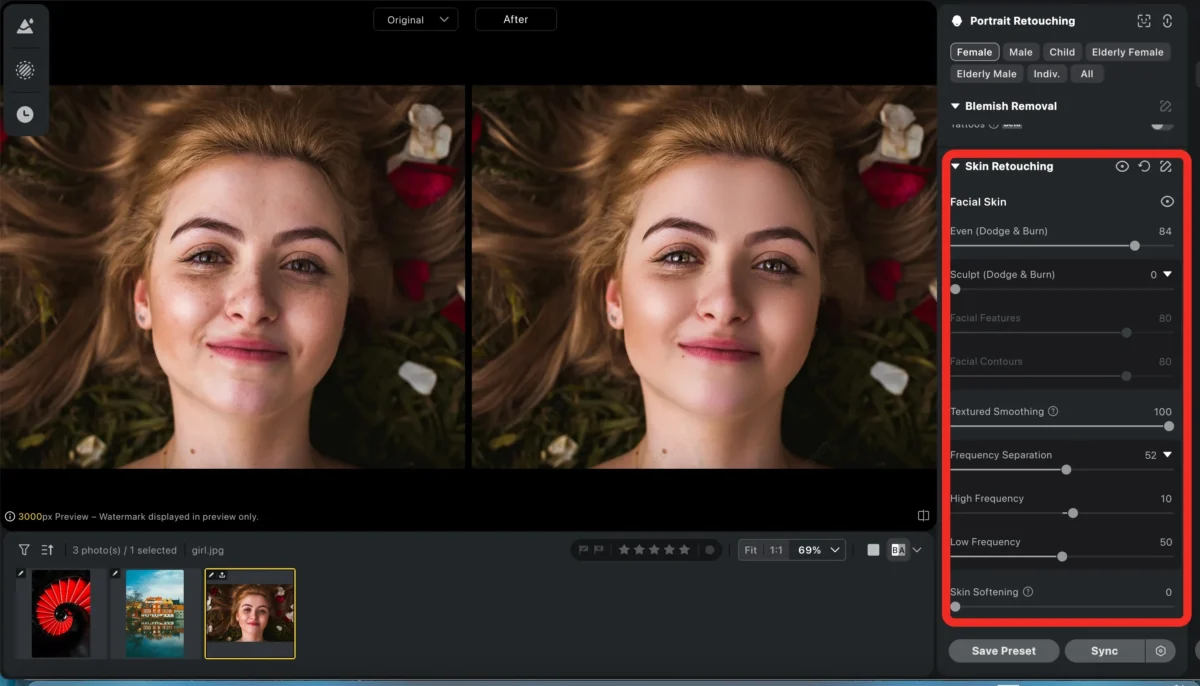
Step 3: Skin Retouching and Facial Refinement (Optional)
Apply Evoto AI’s skin retouching tools to smooth skin texture while preserving natural details.
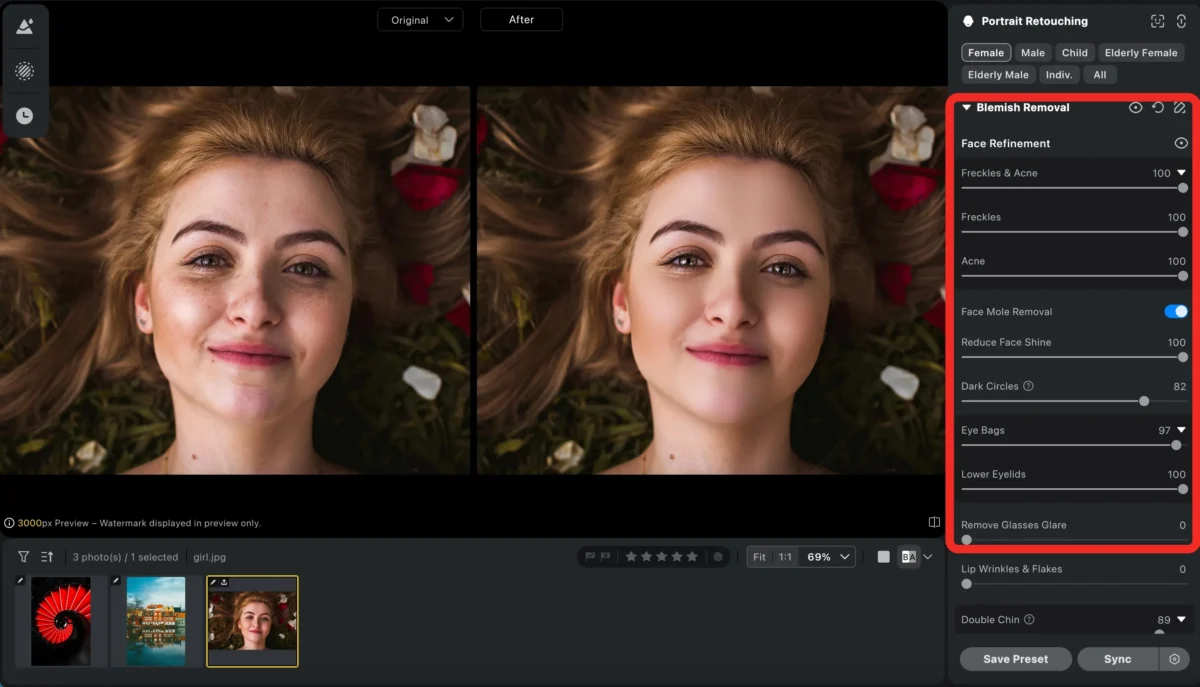
At the same time, you can easily remove blemishes and fine imperfections.
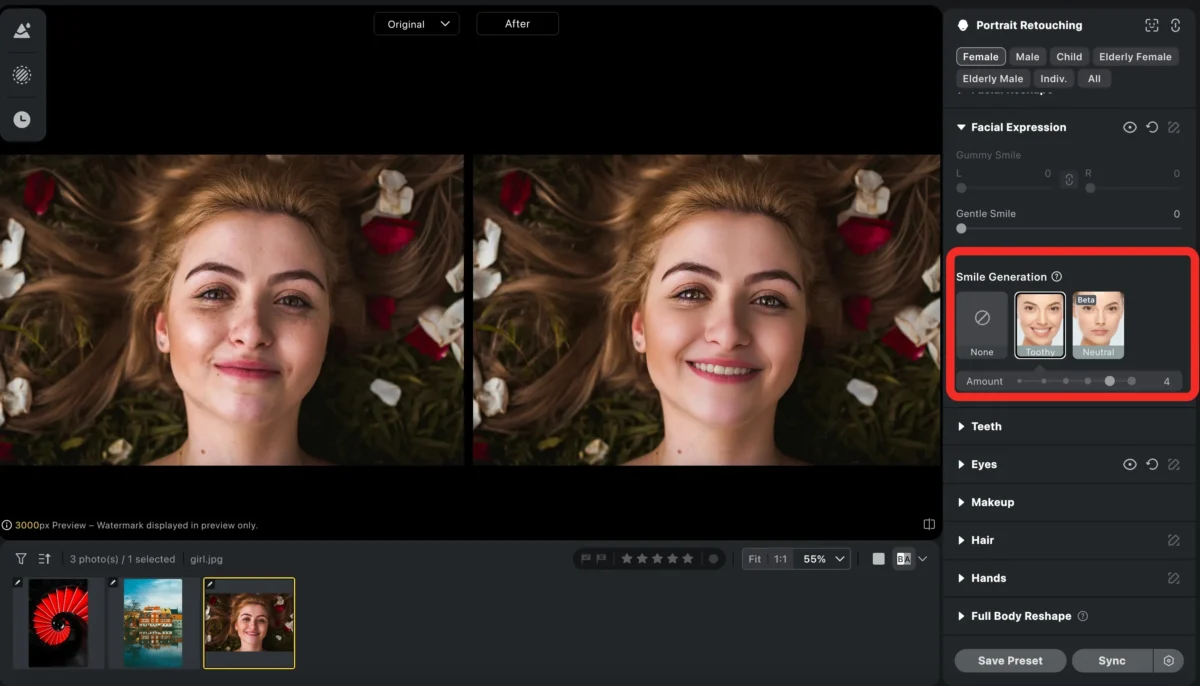
And even you can change facial expression to achieve a more and natural-looking portrait.
Step 4: Fine-Tune and Export
Adjust brightness, color, and effect intensity manually if desired, then export your corrected images in your preferred format.
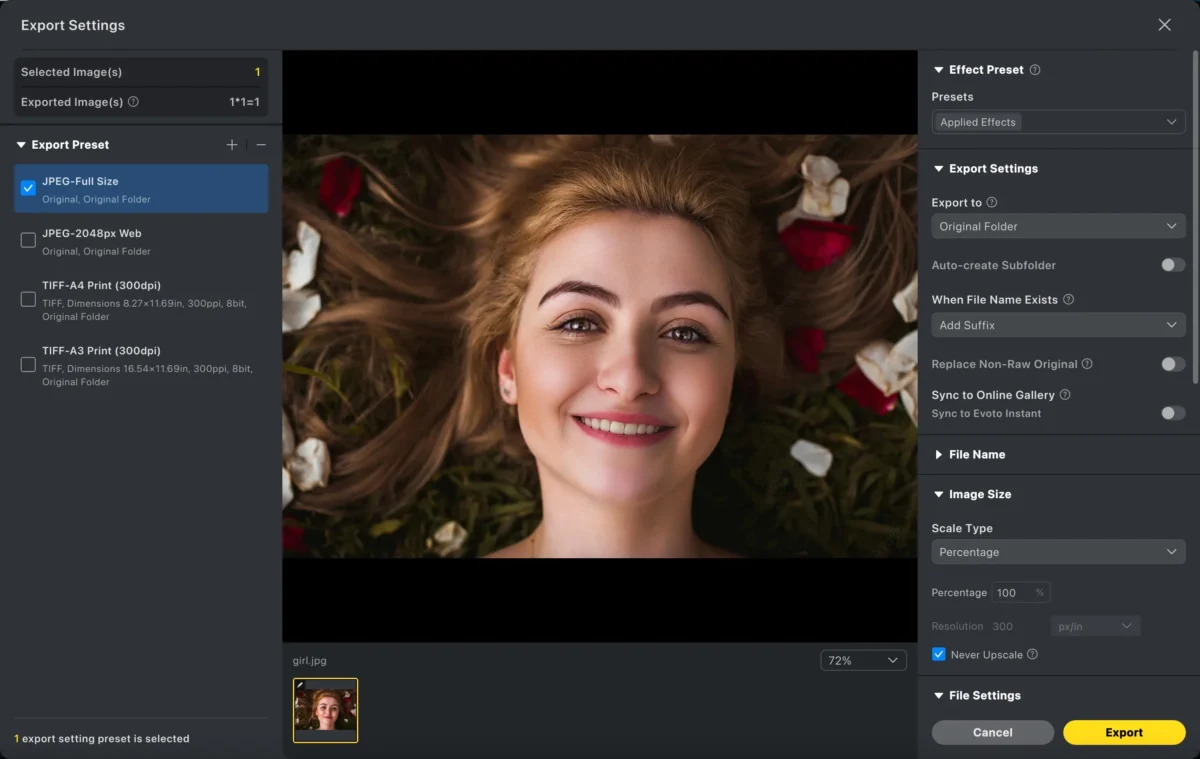
Evoto AI allows you to brighten eyes efficiently across multiple photos without the manual labor required in Photoshop.
Powerful AI Photo Editor
Photoshop VS Evoto: How Evoto Can Simplify Brighten Eyes
| Feature | Photoshop | Evoto AI |
|---|---|---|
| Ease of Use | Steep learning curve | Extremely user-friendly |
| Speed | Slow for batch edits | Fast, supports multiple images |
| Precision | High for single images | High with AI guidance |
| Natural Results | Depends on user skill | AI preserves natural skin tones |
| Workflow | Manual | Automated, one-click options |
Photoshop is perfect for detailed single-image editing, but Evoto AI excels at saving time and ensuring consistent, natural results across multiple portraits.
Conclusion
Learning how to brighten eyes in Photoshop is valuable for precise control over your edits. However, for faster workflows, batch processing, and consistent results, Evoto AI offers an intelligent, efficient alternative. Whether you are a professional photographer or just want quick enhancements, Evoto AI ensures your subjects’ eyes look vibrant, natural, and captivating with minimal effort.
Try Evoto AI Photo Editor
Retouch photos with Evoto AI and make your photos best! Available on Windows, MacOS and iPadOS.



