

Changing hair color in a photo is a popular editing technique used in portrait photography, fashion shoots, beauty marketing, and social media content. Whether you want to experiment with a new look, fix color inconsistencies, or create a bold creative style, learning how to change hair color in photo can dramatically transform an image.
In this guide, you’ll learn how to change hair color in photo Photoshop, understand its limitations, and discover a faster AI-powered alternative using Evoto AI.
Why You Might Need to Change Hair Color in a Photo
There are many practical and creative reasons to change hair color in a photo:
- Style experimentation: Preview different hair colors before a real-life dye job
- Professional retouching: Match hair color across a photo set for consistency
- Creative projects: Create artistic, fantasy, or fashion-forward looks
- Fix lighting issues: Correct color shifts caused by mixed or uneven lighting
- Marketing & branding: Adapt hair color to fit campaigns or brand aesthetics
For photographers and creators, mastering hair color editing adds flexibility and value to your workflow.
How to Change Hair Color in Photoshop: Step-by-Step Guide
Adobe Photoshop offers powerful tools to precisely recolor hair while preserving texture and detail. Below is a simplified workflow based on Adobe’s official Photoshop guide.
Step 1: Select the Hair
Use tools like Select Subject, Quick Selection Tool, or Object Selection Tool to isolate the hair. Refine the selection with Select and Mask to capture fine strands and edges.
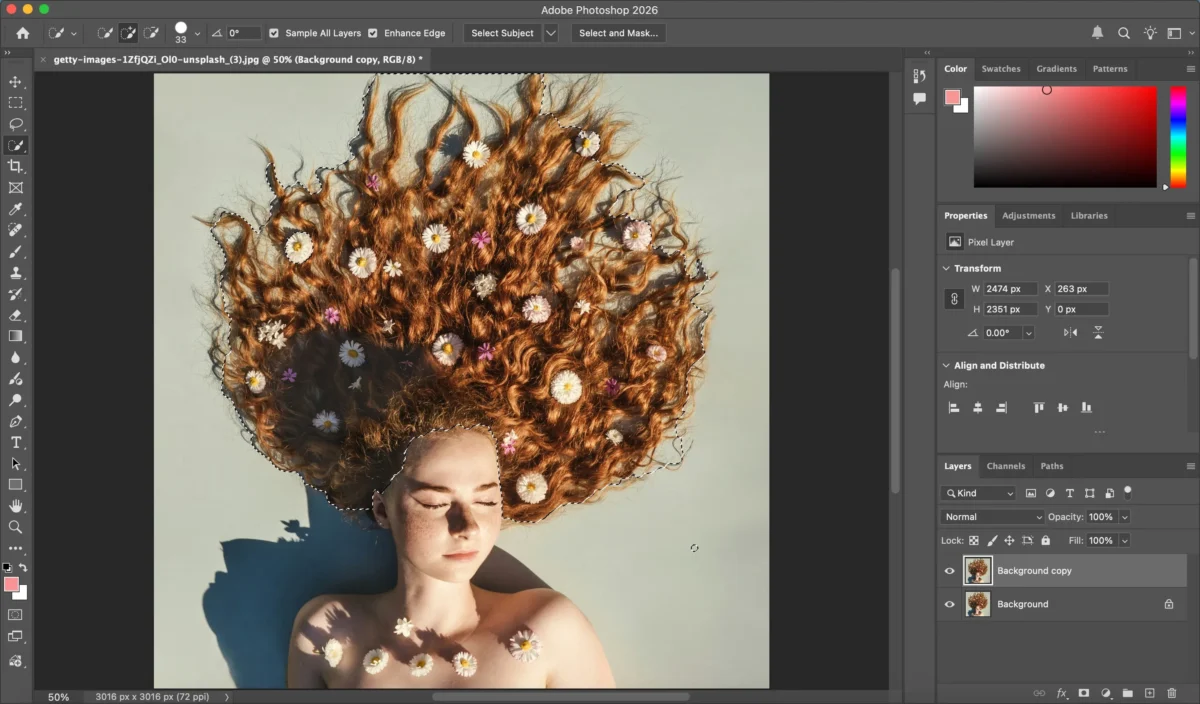
Step 2: Add a Hue/Saturation Adjustment Layer
Once the hair is selected, create a Hue/Saturation Adjustment Layer. This ensures non-destructive editing and allows you to tweak the color later.
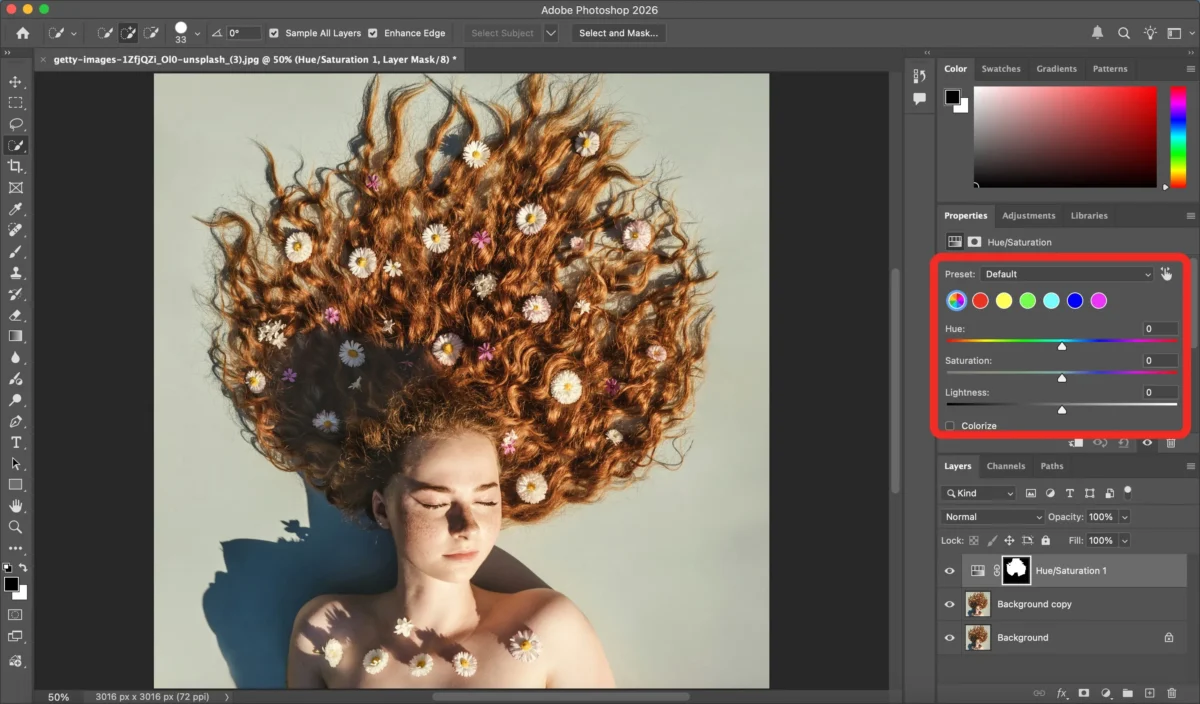
Step 3: Change the Hair Color
Enable Colorize, then adjust:
- Hue to choose the new hair color
- Saturation to control intensity
- Lightness to maintain natural brightness
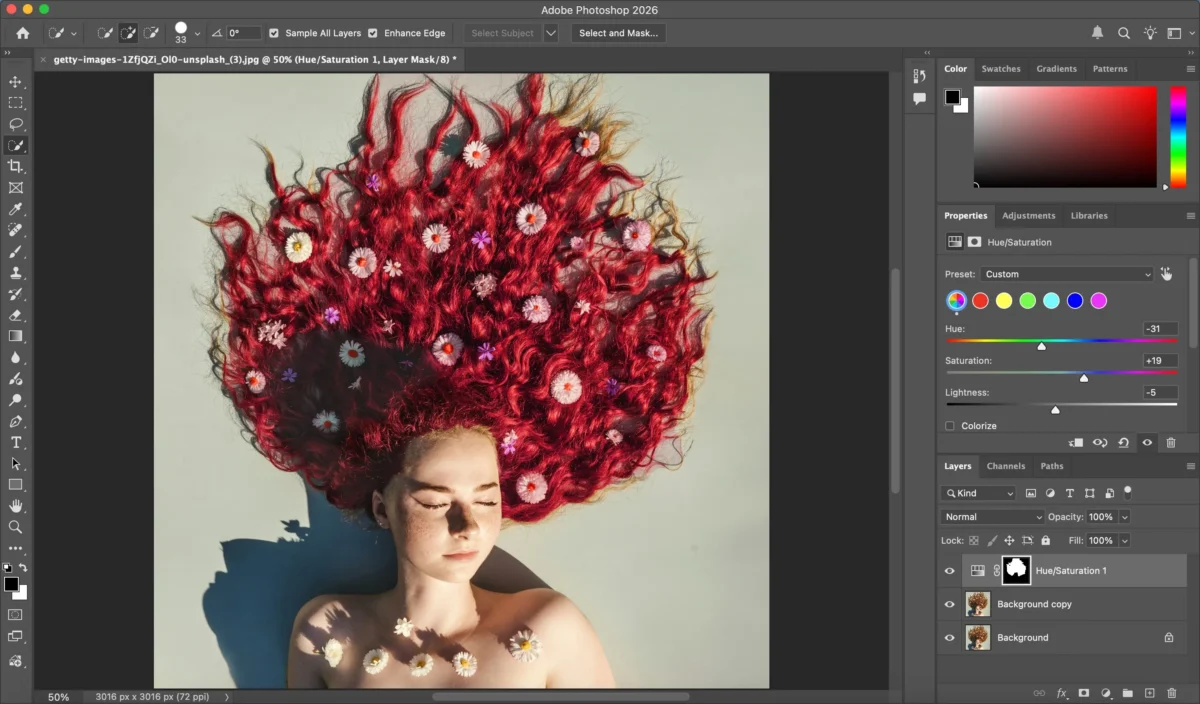
You may also refine the result using Blend Modes like Color or Soft Light for realism.
Step 4: Fine-Tune with Masks and Brushes
Manually paint on the layer mask to fix missed areas or remove color spill onto skin and background.
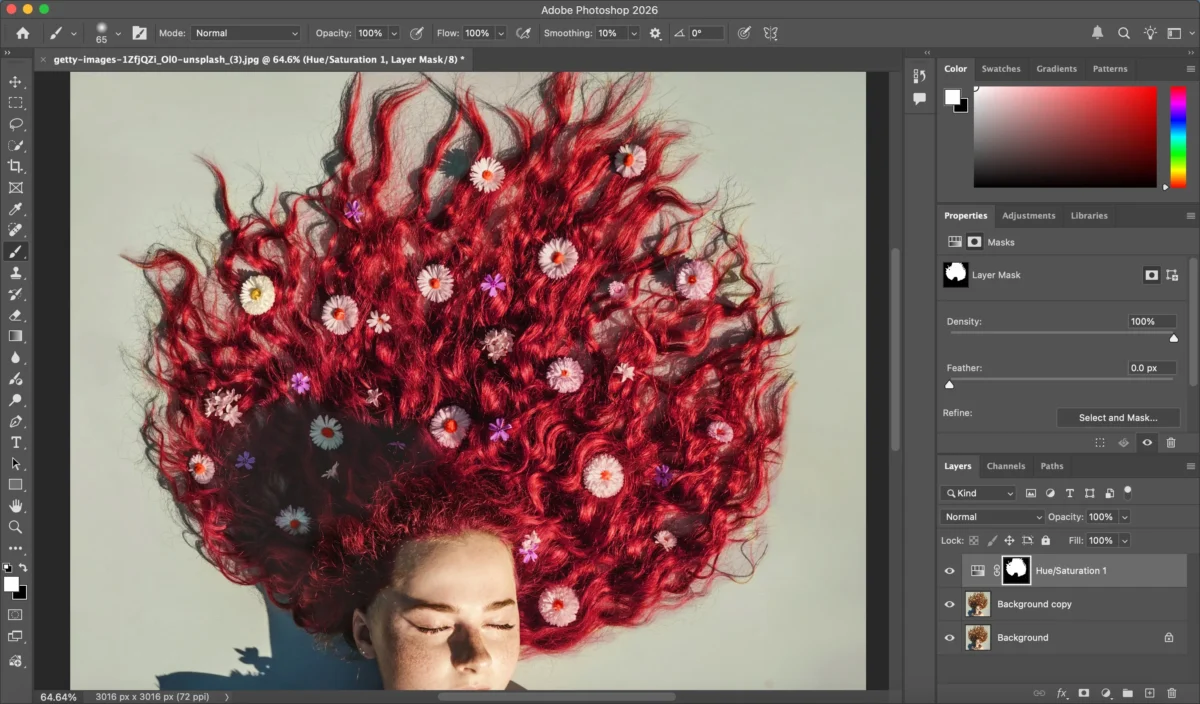
Step 5: Final Adjustments and Export
Polish the image with contrast or color balance tweaks, then export in your desired format.
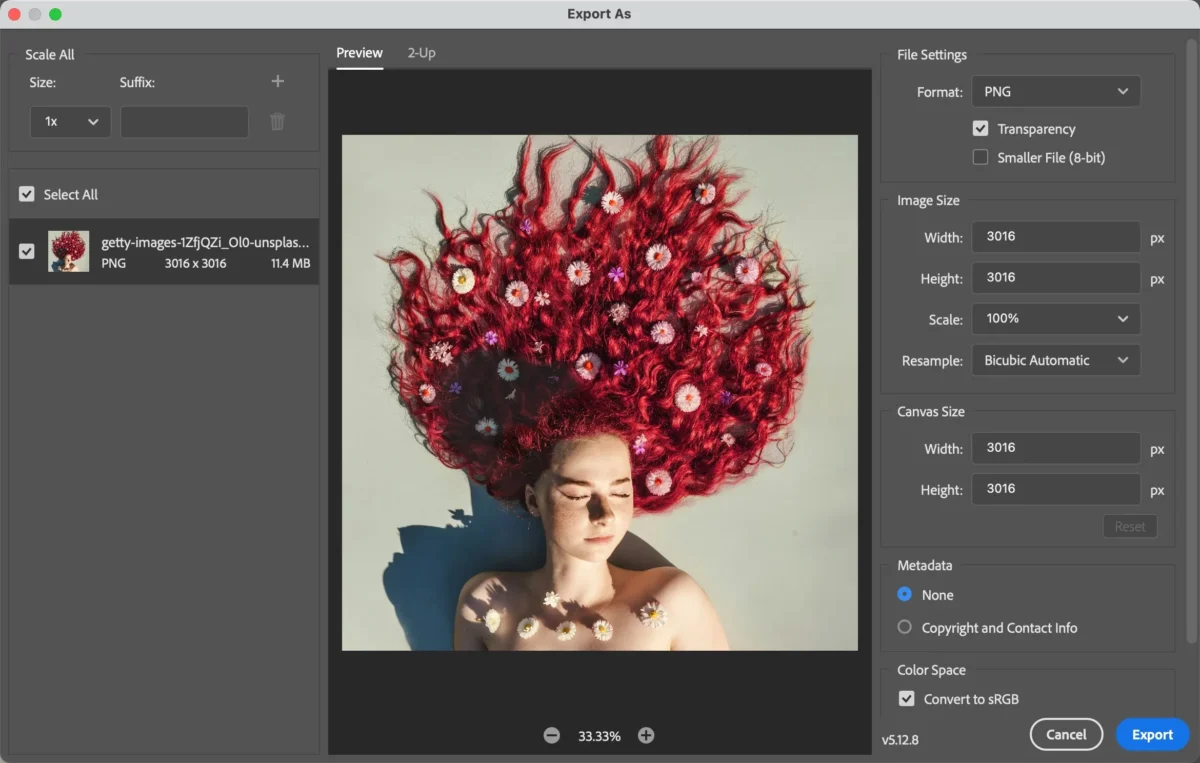
Photoshop offers precise control, making it ideal for advanced users who want full customization when they change hair color in photo Photoshop.
Limitations of Photoshop for Changing Hair Color
While Photoshop is powerful, it also has drawbacks:
- Time-consuming workflow, especially for beginners
- Steep learning curve for realistic results
- Manual masking required for complex hairstyles
- Not ideal for batch editing large numbers of photos
For users who need speed, consistency, or simplicity, Photoshop may feel inefficient.
How Evoto AI Simplifies Changing Hair Color
Evoto AI provides a faster, AI-powered way to change hair color without complex selections or manual masking.


Powerful AI Photo Editor
Step 1: Upload Your Photo
Import your image into Evoto. The AI automatically detects the hair area.
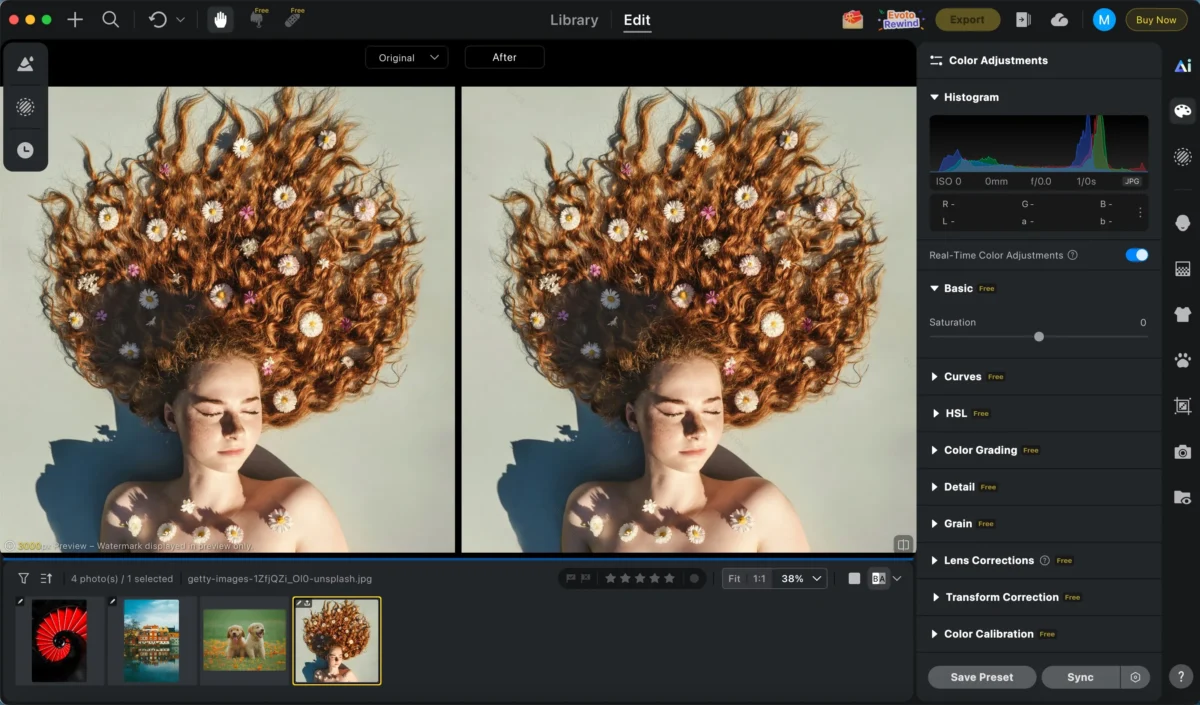
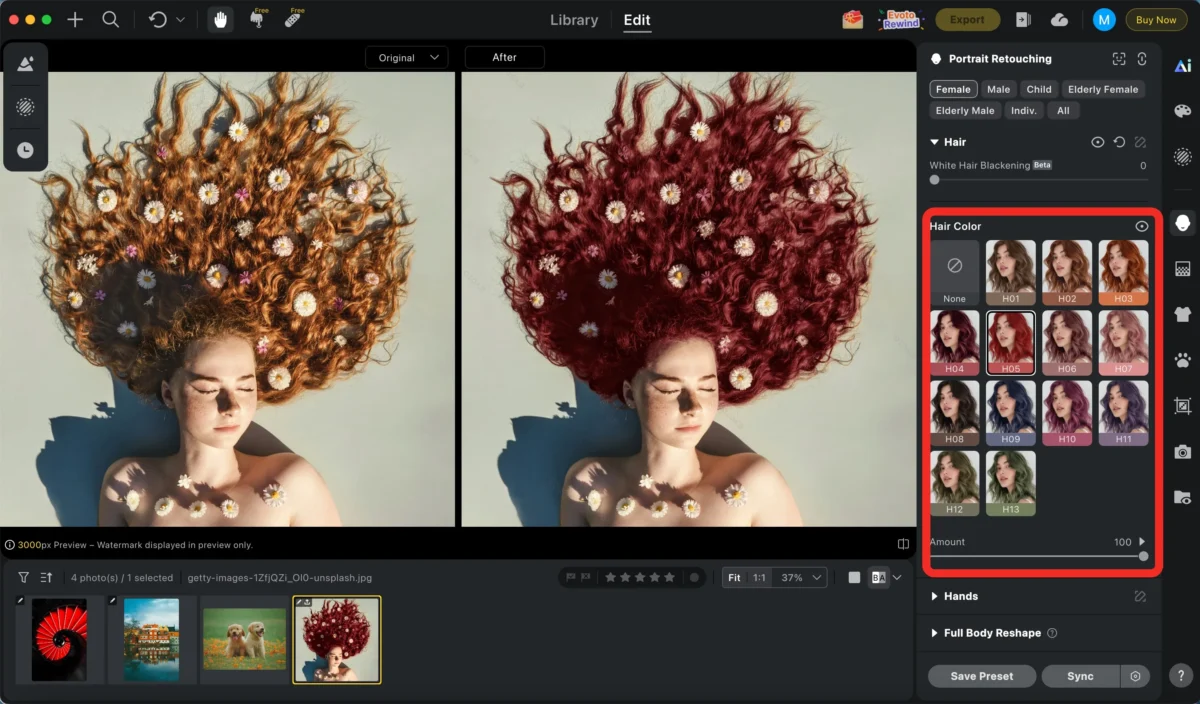
Step 2: Choose a Hair Color
Select from a wide range of natural and creative hair colors. The AI applies color intelligently while preserving texture, highlights, and shadows.
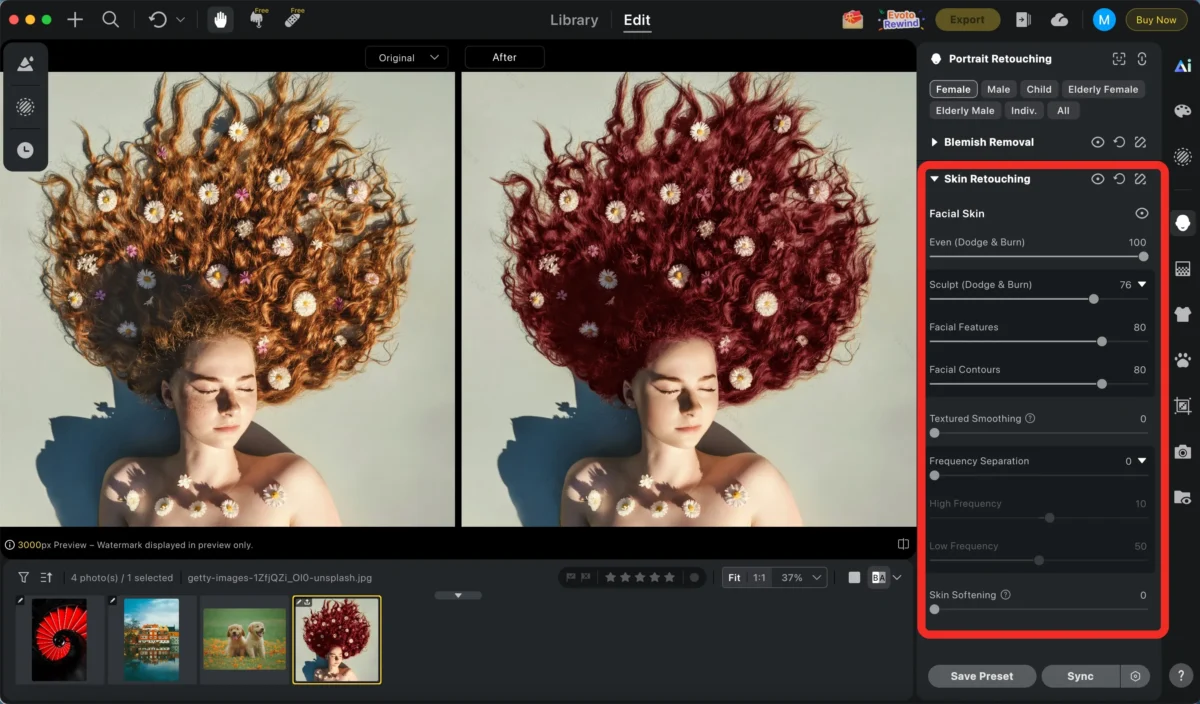
Step 3: Other Adjustments (Optional)
Enhance the result with optional tools such as:
Step 4: Export
Export your photo in high resolution, ready for web, print, or social media.
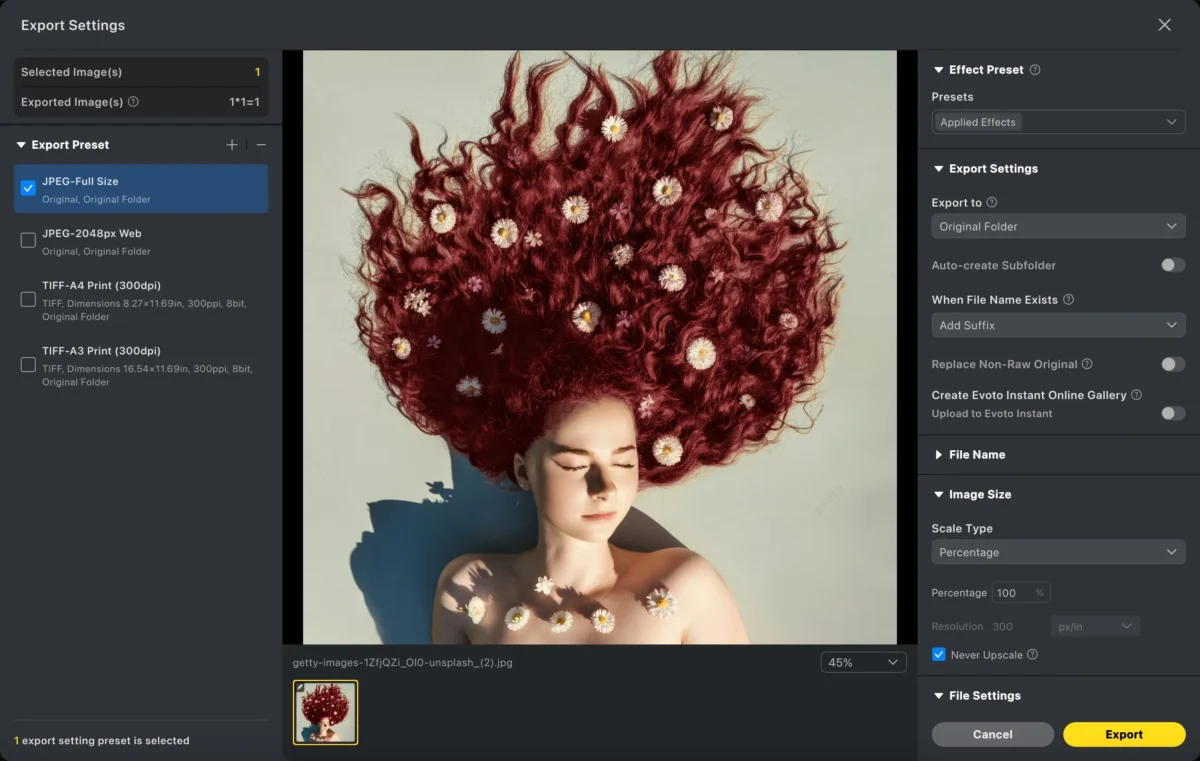
With just a few clicks, Evoto delivers professional-quality results—no advanced editing skills required.
Photoshop VS Evoto: Which Is Better for Changing Hair Color in a Photo?
| Feature | Photoshop | Evoto AI |
|---|---|---|
| Control | Full manual control | AI-assisted with adjustable intensity |
| Ease of Use | Complex, professional-level | Beginner-friendly |
| Speed | Slower, manual process | Extremely fast |
| Realism | High (skill-dependent) | High (AI-optimized) |
| Batch Editing | Limited | Supported |
| Best For | Advanced retouchers | Fast, efficient workflows |
Photoshop is ideal for users who want total control and detailed manual edits.
Evoto AI is better for photographers and creators who need quick, consistent, and professional results.
Powerful AI Photo Editor
Conclusion
Learning how to change hair color in photo opens up endless creative and professional possibilities. Photoshop remains a powerful option for detailed, manual editing, but it requires time and expertise. If you’re looking for a faster and more accessible solution, Evoto AI simplifies the entire process with intelligent automation.
Whether you choose Photoshop or Evoto, the right tool depends on your workflow, skill level, and editing needs. Try both and find the balance between creative control and efficiency that works best for you.
Try Evoto AI Photo Editor
Retouch photos with Evoto AI and make your photos best! Available on Windows, MacOS and iPadOS.



