

Changing the background of a photo is one of the most common image-editing tasks today. Whether you’re creating marketing visuals, improving product photos, updating portraits, or preparing content for social media, knowing how to change the background of a photo can dramatically improve visual impact and professionalism.
In this guide, you’ll learn both the traditional Photoshop method and a faster AI-powered alternative, so you can choose the best approach for your workflow.
Why You Might Need to Change the Background of a Photo
There are many reasons to change the background of a photo, including:
- Removing distracting or cluttered backgrounds
- Creating clean, professional product images
- Matching brand colors or campaign themes
- Enhancing portraits for social media or resumes
- Adapting images for different platforms or markets
Being able to change the background of a photo gives you creative freedom and ensures your images always fit their intended purpose.
How to Change the Background of a Photo in Photoshop (Step-by-Step)
Photoshop is a powerful tool for background editing, offering precise control for experienced users. Below is a simplified step-by-step workflow based on standard professional practices.
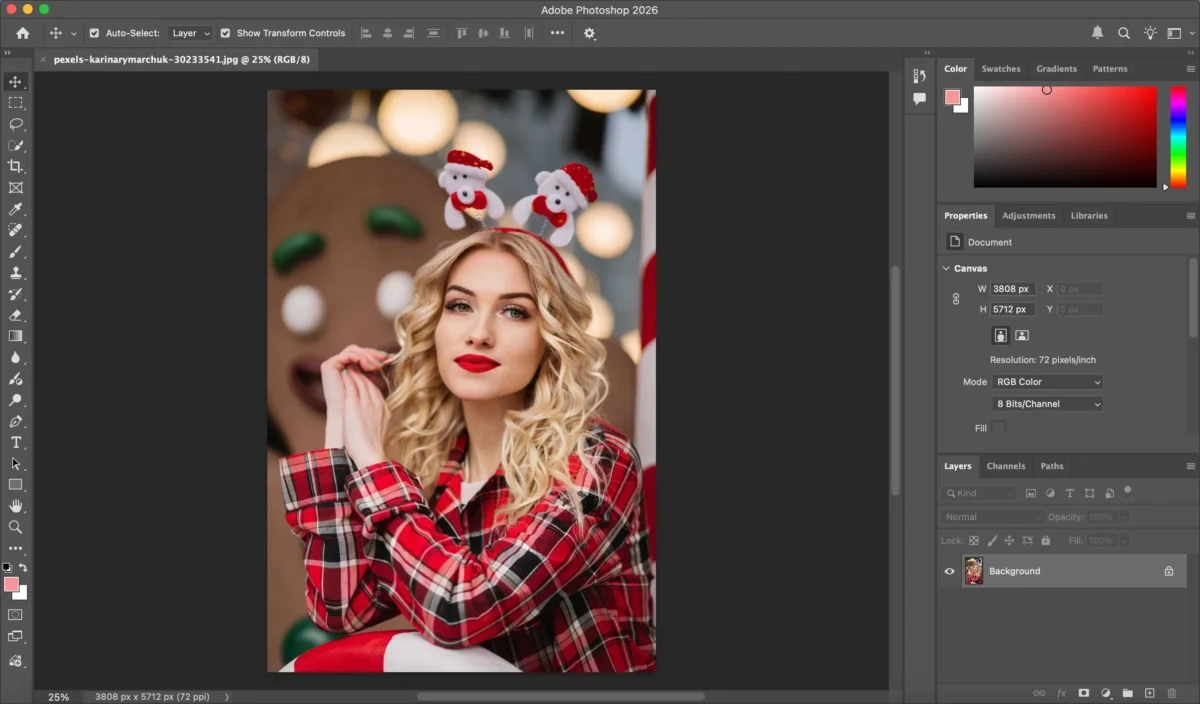
Step 1: Open Your Image
Launch Photoshop and open the photo you want to edit.
Step 2: Select the Subject
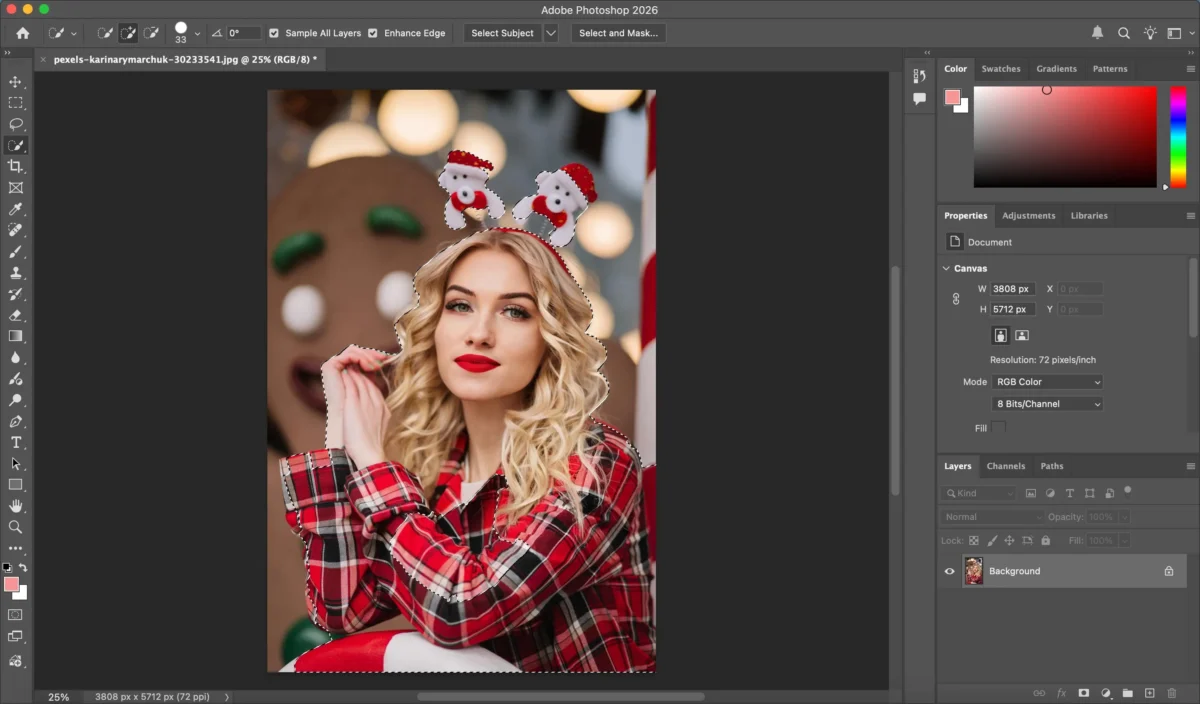
Use tools such as Select Subject, Object Selection Tool, or Quick Selection Tool to isolate the main subject. Refine the selection using Select and Mask for better edge accuracy, especially around hair or fine details.
Step 3: Remove the Background
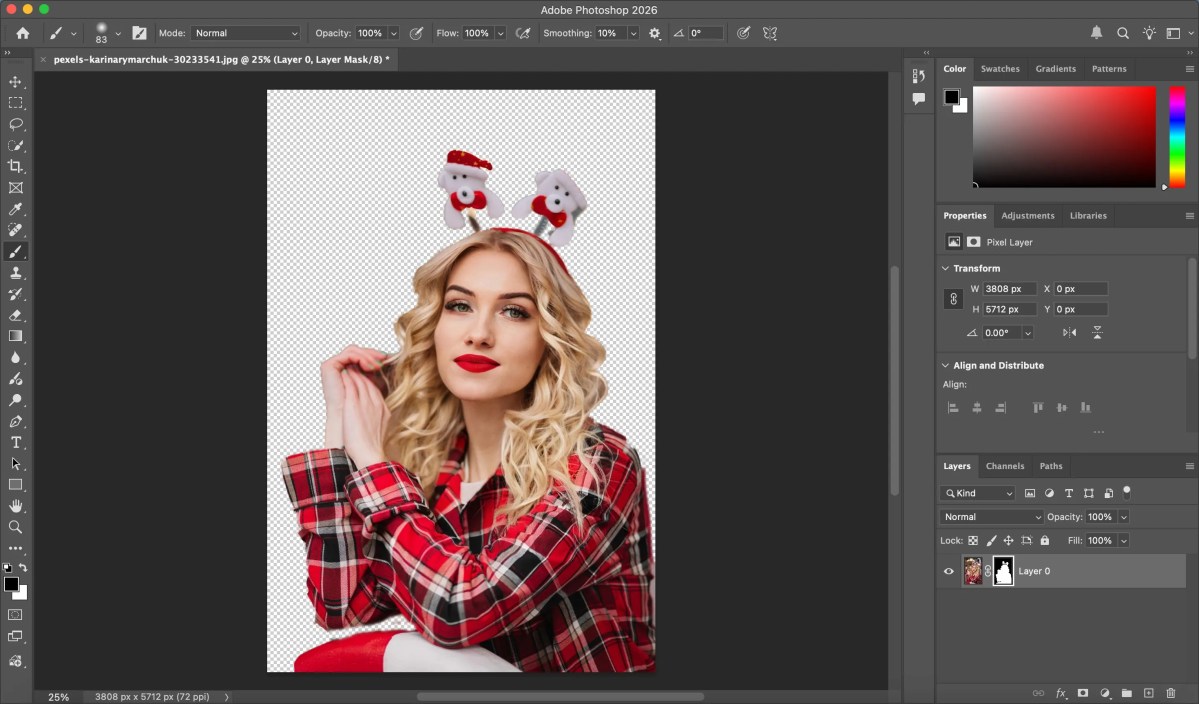
Once the subject is selected, invert the selection or mask the background. You can delete it or hide it using a layer mask.
Step 4: Add a New Background
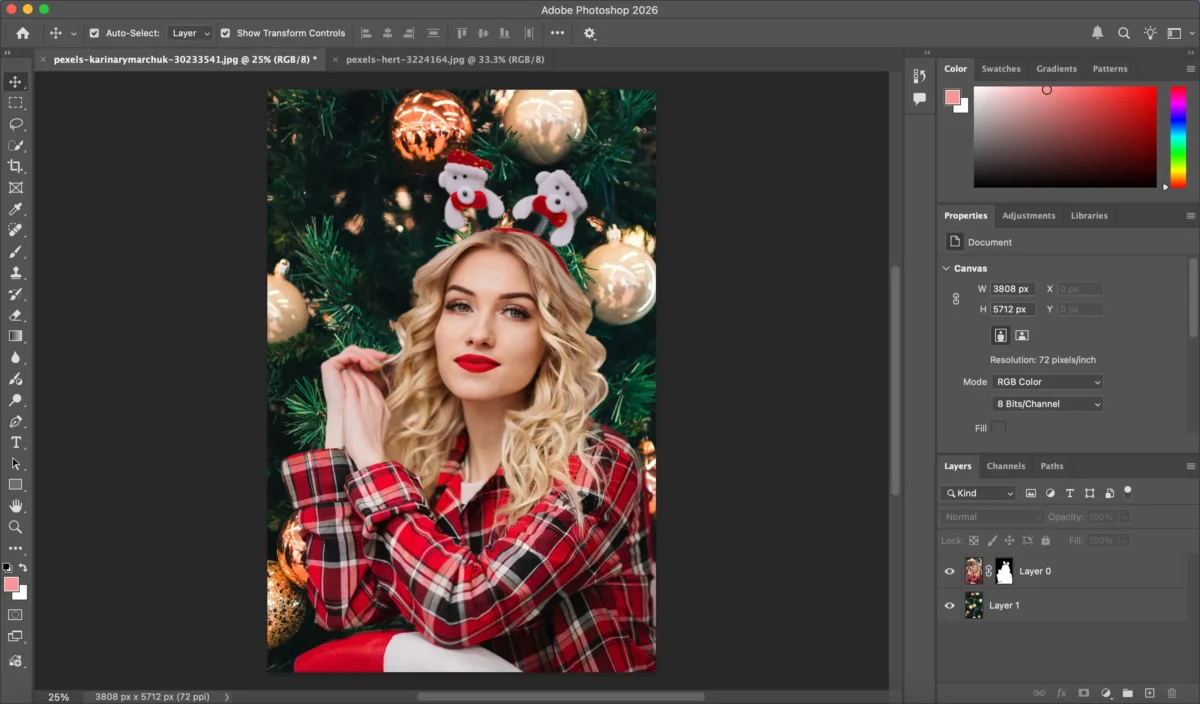
Insert a new background image or color layer beneath the subject layer. Resize and reposition as needed.
Step 5: Refine Edges and Lighting
Adjust shadows, color balance, and brightness to make the subject blend naturally with the new background.
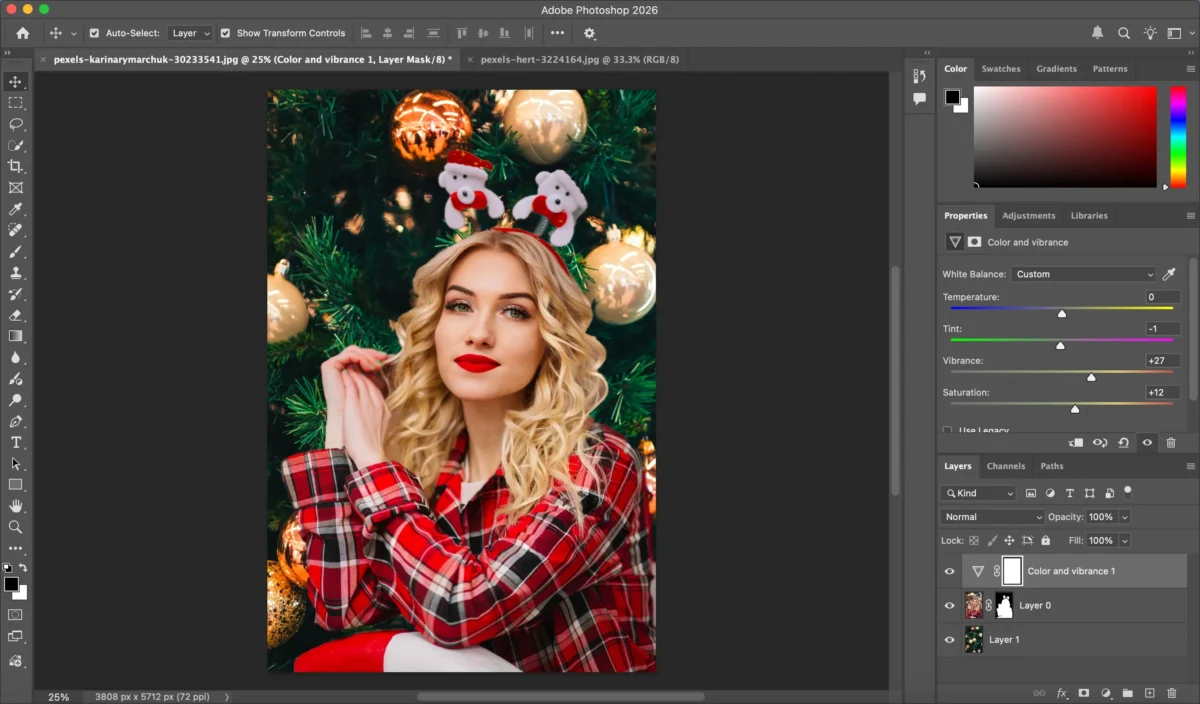
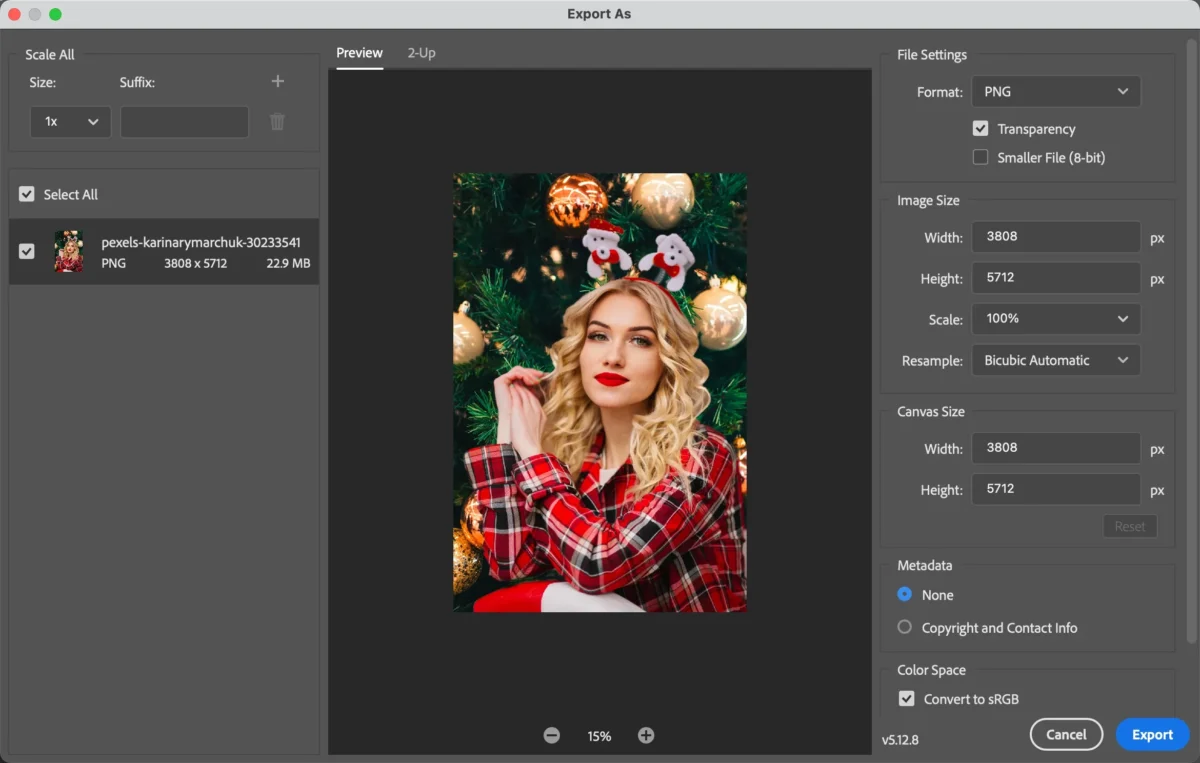
Step 6: Export the Final Image
Save or export the image in your desired format.
While Photoshop delivers professional results, it requires time, experience, and careful manual adjustments.
Common Challenges When Changing a Photo Background in Photoshop
Even with advanced tools, Photoshop background editing comes with challenges:
- Time-consuming manual selections
- Difficulty handling hair, fur, or transparent objects
- Inconsistent lighting between subject and background
- Steep learning curve for beginners
- Inefficient workflow for batch processing
These issues make Photoshop less ideal when speed, simplicity, or large volumes of images are required.
The Fastest Way to Change the Background of a Photo with Evoto AI
If you want to change the background of a photo quickly and effortlessly, Evoto AI offers a streamlined, AI-powered solution.


Powerful AI Photo Editor
Step 1: Upload Your Image
Upload your photo to Evoto AI. The AI automatically detects and separates the subject from the background.
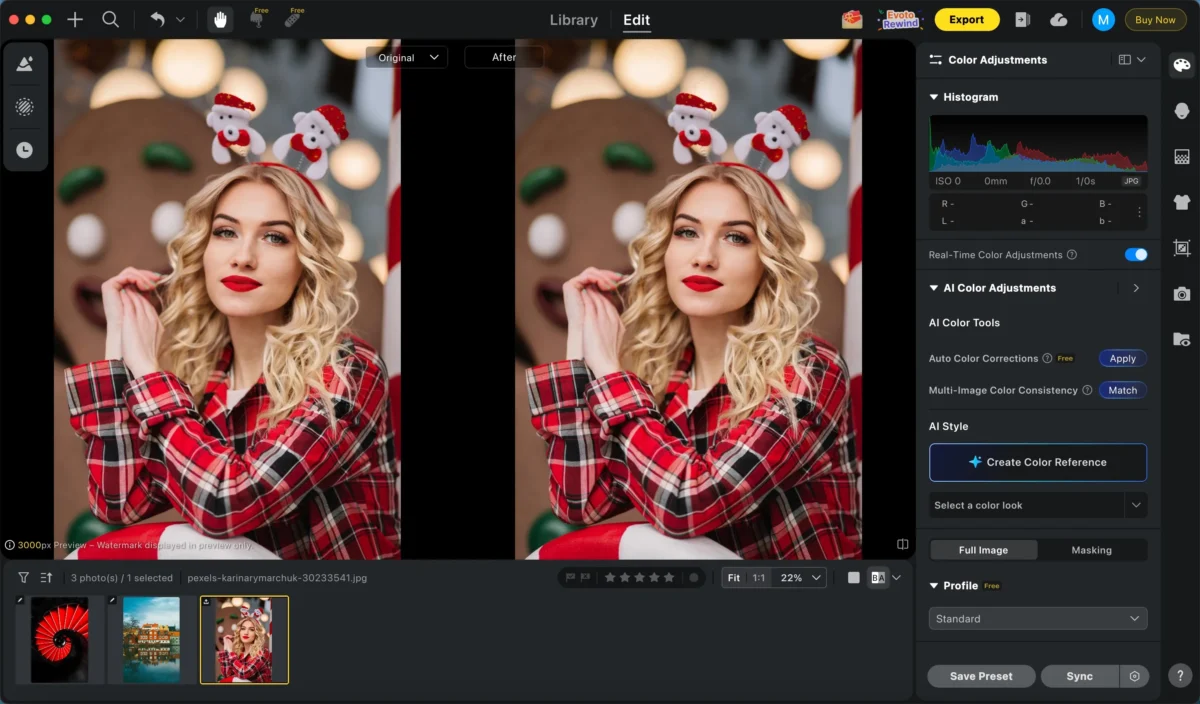
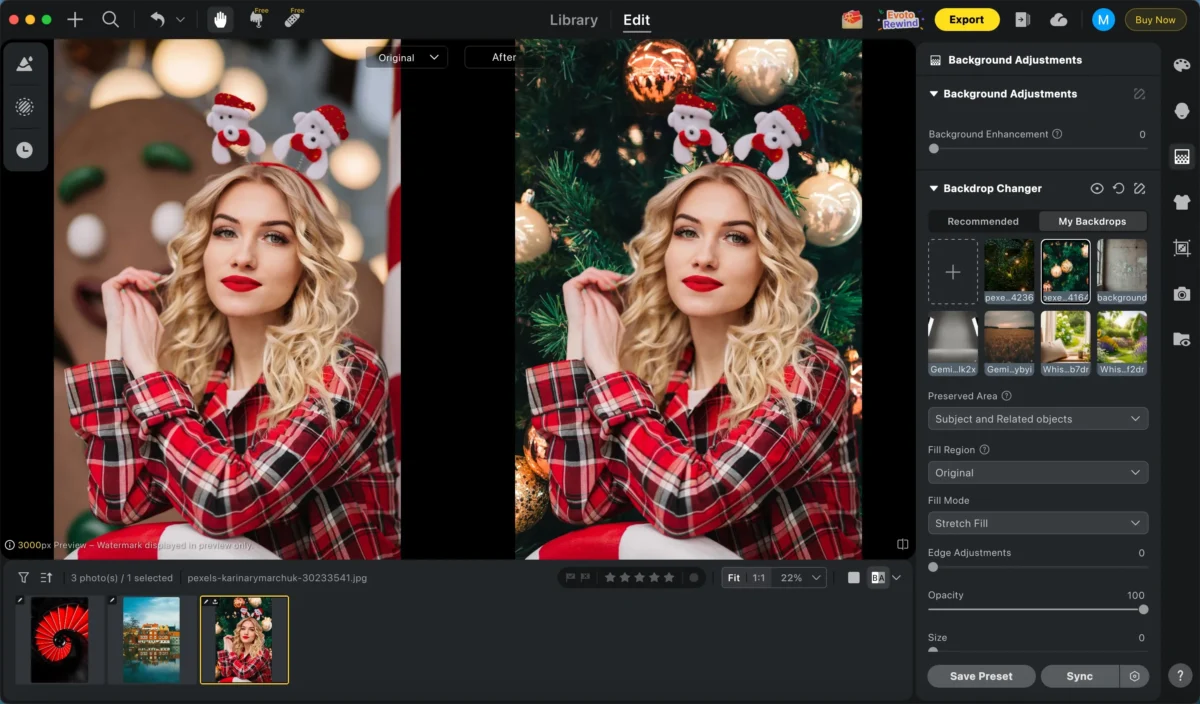
Step 2: Choose a Background
Select a background from Evoto, Evoto offers so many color backgrounds.
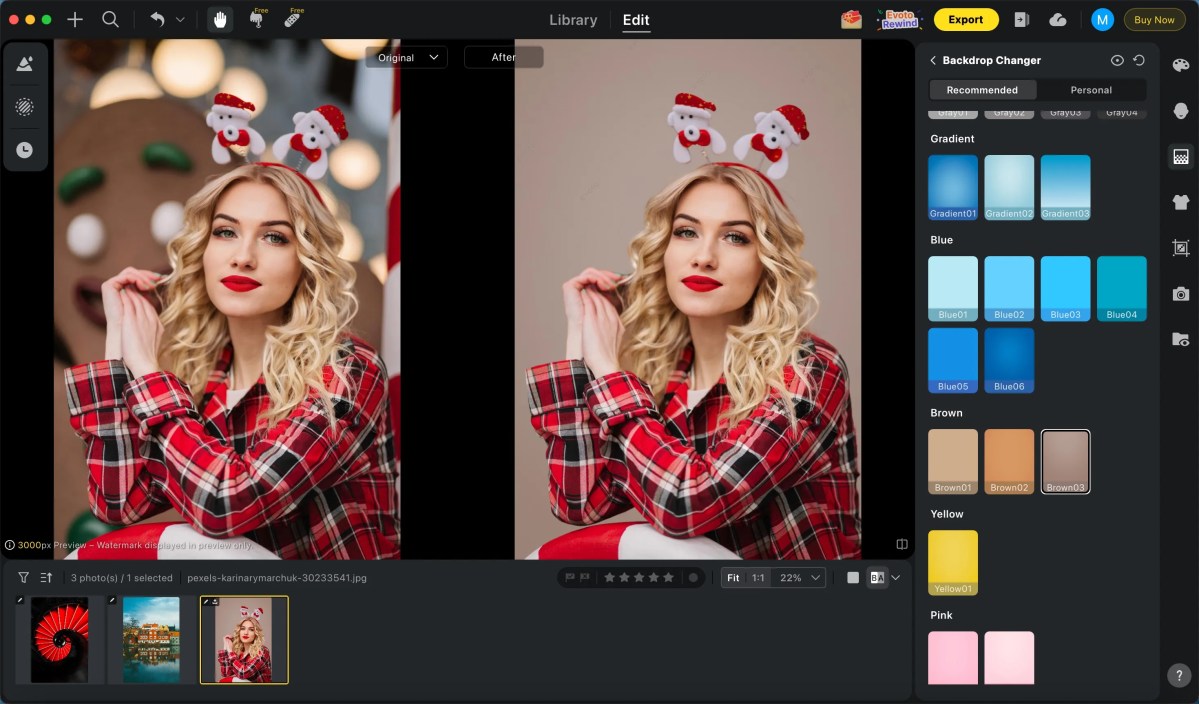
You can also upload your own background.
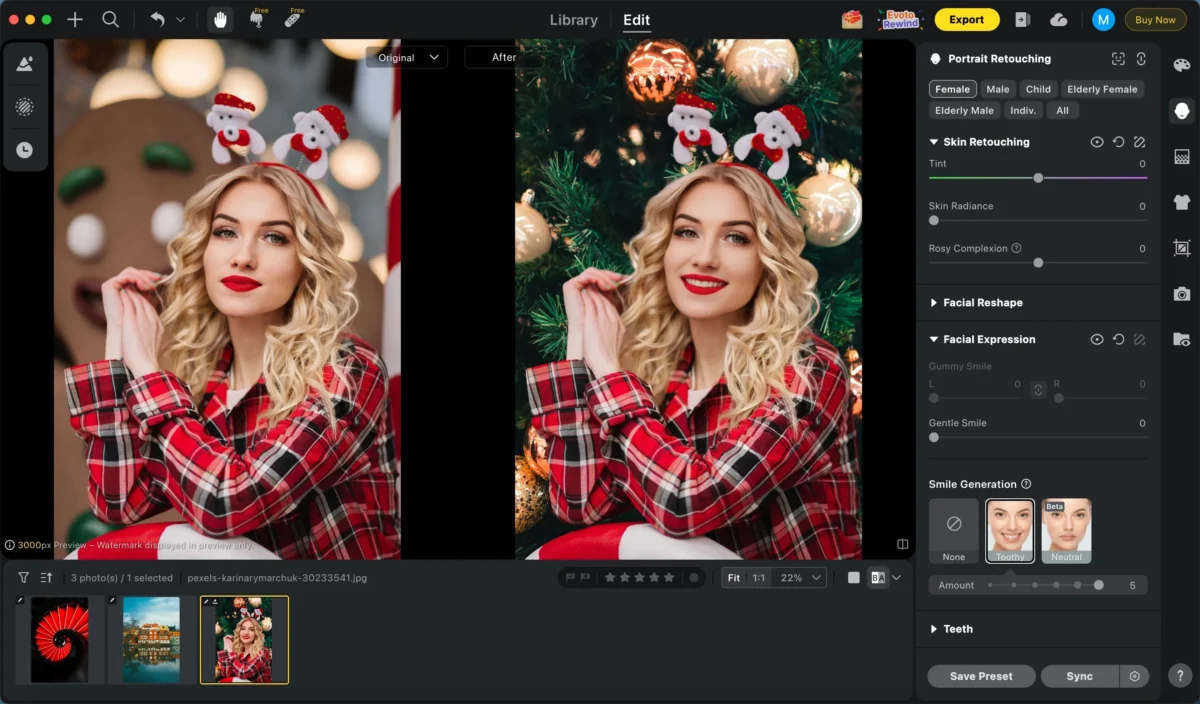
Step 3: Optional Enhancements
Apply optional adjustments such as skin retouching, color matching, or facial expression changing to make your photo more perfect.
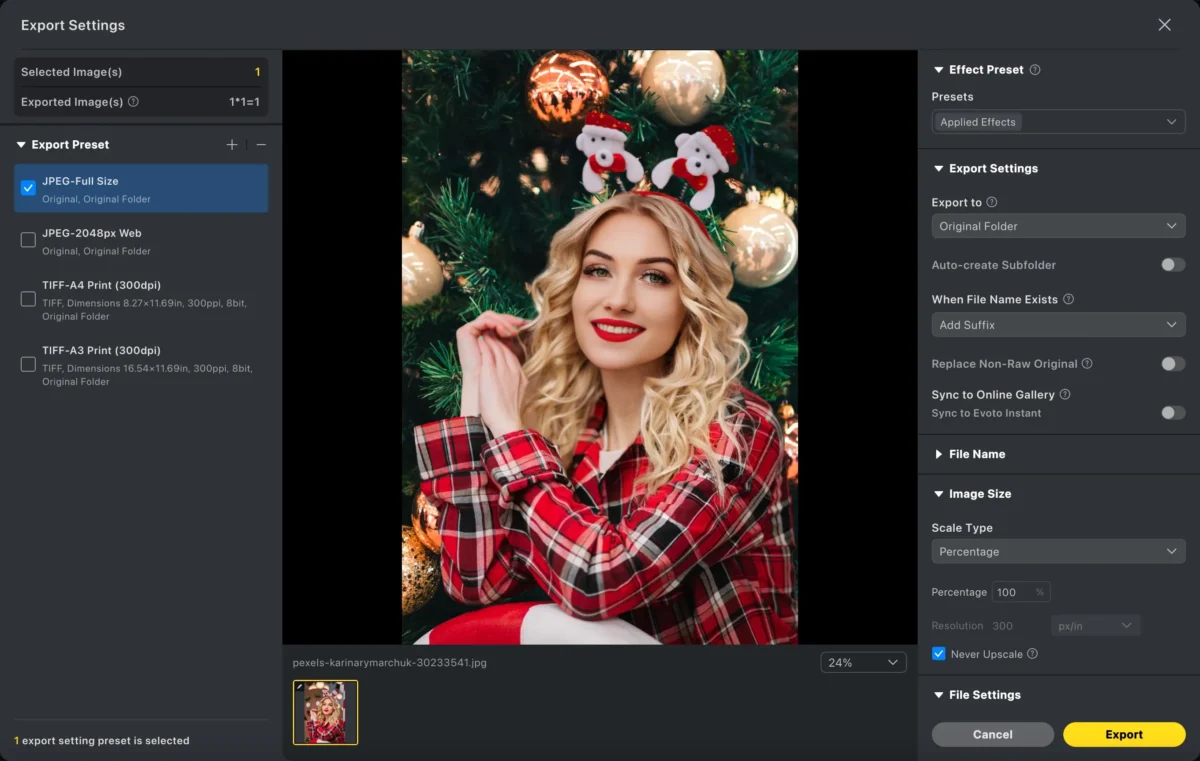
Step 4: Export
Download the final image with a perfectly blended background in just a few clicks.
With Evoto AI, you can change the background of a photo in seconds—no design skills required.
Powerful AI Photo Editor
Photoshop vs. Evoto AI: Which Is Better for Changing Photo Backgrounds?
| Feature | Photoshop | Evoto AI |
|---|---|---|
| Skill level required | High | Beginner-friendly |
| Editing speed | Slow to moderate | Extremely fast |
| Subject detection | Manual | Automatic AI |
| Batch processing | Limited | Built-in |
| Best for | Precision editing | Efficiency & scale |
Photoshop is ideal for detailed, hands-on editing, while Evoto AI is perfect for creators, sellers, and photographers who need professional results at scale.
Conclusion
Learning how to change the background of a photo is essential for modern visual content creation. Photoshop offers full creative control for professionals, but it can be complex and time-consuming. Evoto AI provides a faster, smarter alternative by automating subject detection, background replacement, and blending—making professional-quality results accessible to everyone.
Whether you prefer manual editing or AI-powered efficiency, choosing the right tool depends on your goals, timeline, and workflow. With Evoto AI, changing photo backgrounds has never been easier or more efficient.
Try Evoto AI Photo Editor
Retouch photos with Evoto AI and make your photos best! Available on Windows, MacOS and iPadOS.



