

White balance plays a crucial role in photo editing. Incorrect white balance can make photos look too warm, too cool, or completely unnatural. In this guide, you’ll learn how to correct white balance in Photoshop, and discover a faster, AI-powered alternative with Evoto AI for modern editing workflows.
What Is White Balance
White balance refers to the process of adjusting colors in an image so that whites appear truly white and other colors look natural under different lighting conditions.
Because different light sources—such as daylight, tungsten, or fluorescent lighting—have different color temperatures, cameras don’t always capture colors accurately.
When white balance is off, photos may appear:
- Too yellow or orange
- Too blue or cold
- Unnatural in skin tones and product colors
Correcting white balance ensures color accuracy, realism, and a professional visual result.

How to Correct White Balance in Photoshop
Photoshop offers several professional tools for adjusting white balance manually. Below is a simplified, commonly used workflow.
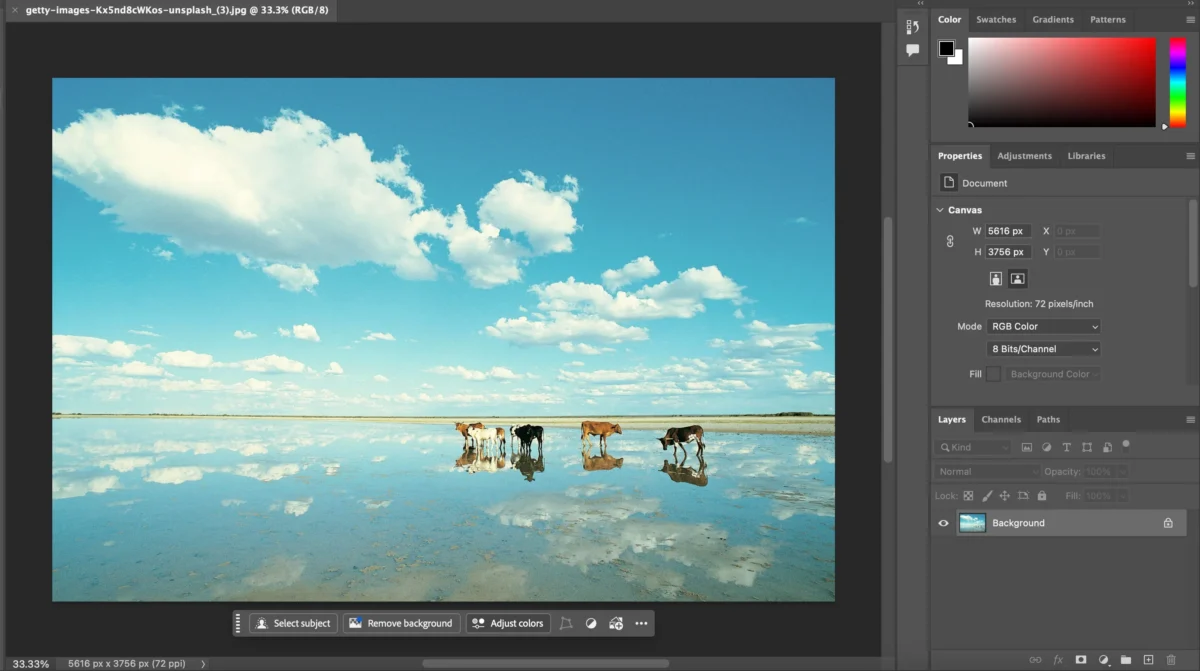
Step 1: Open the Image in Photoshop
Launch Photoshop and open your photo. For best results, use a RAW file if available.
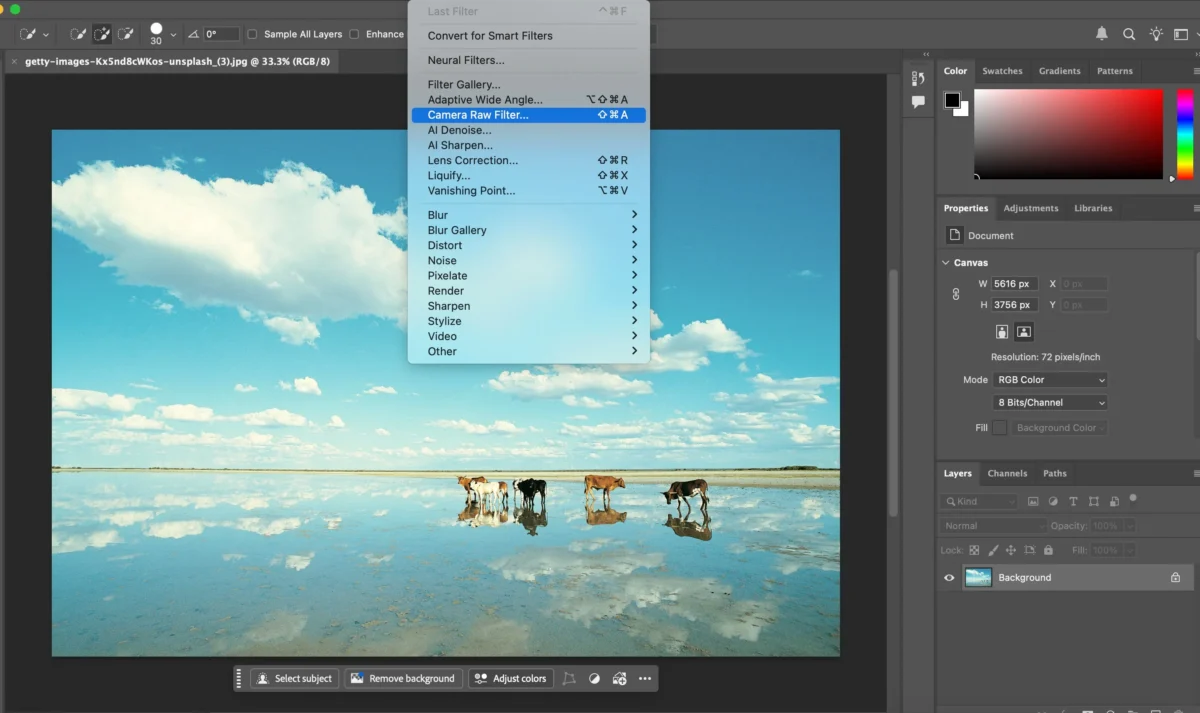
Step 2: Open Camera Raw Filter
Go to Filter > Camera Raw Filter to access white balance controls.
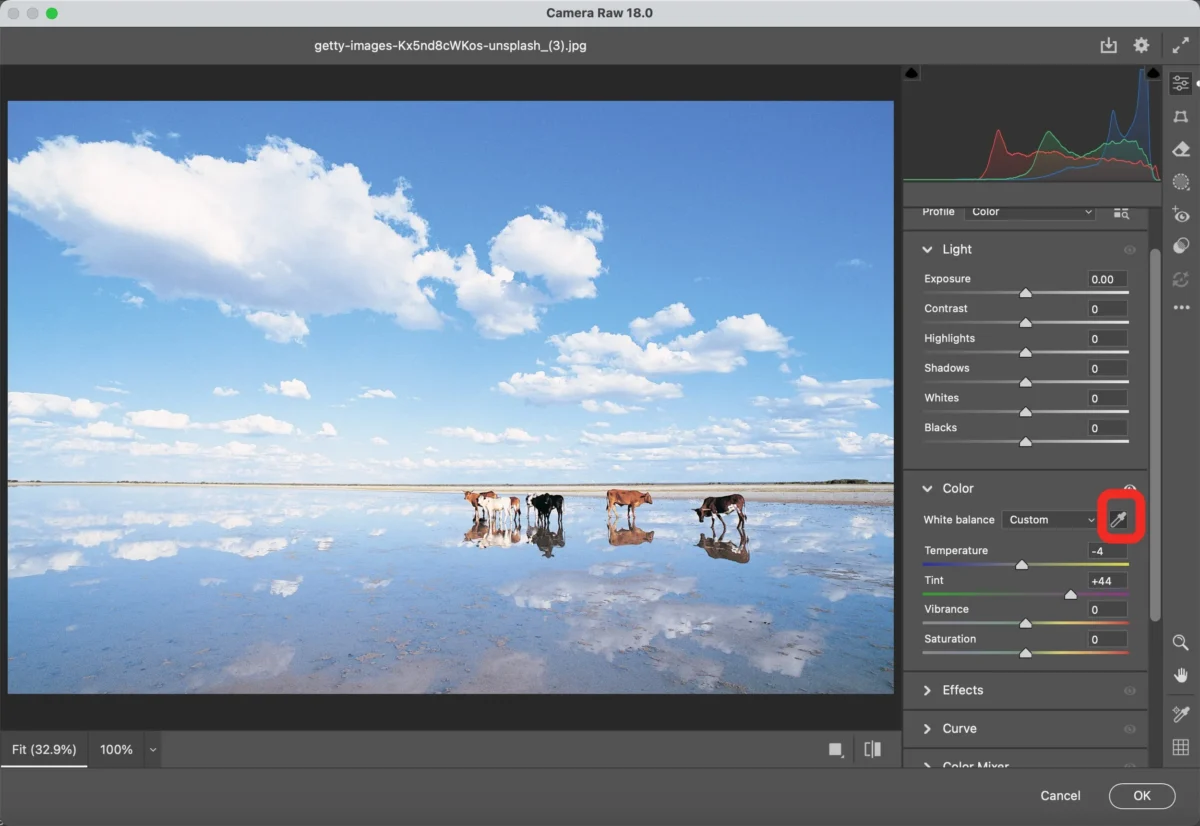
Step 3: Use the White Balance Tool or Adjust Temperature and Tint
Select the White Balance Eyedropper and click on a neutral gray or white area in the image to instantly correct color temperature.
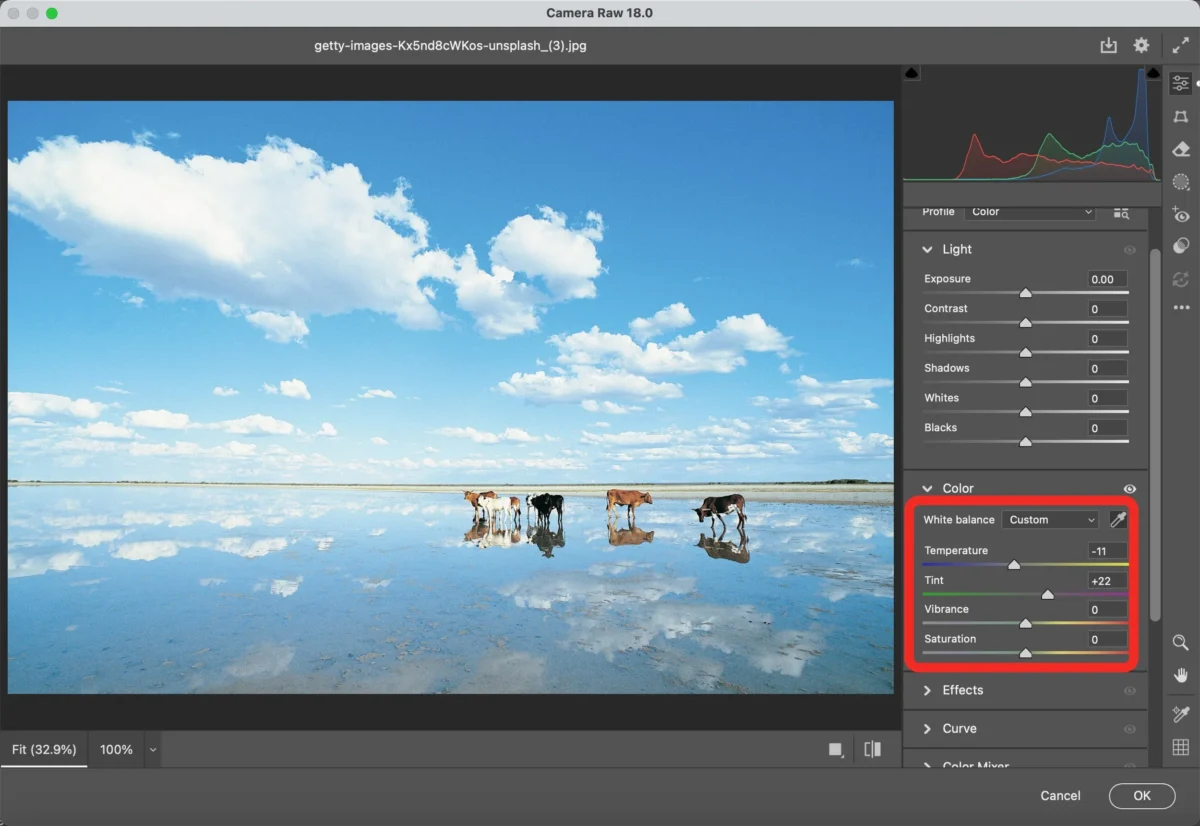
Or if you can’t find this gray or white area in the image, you can also manually fine-tune the Temperature (blue–yellow) and Tint (green–magenta) sliders until the image looks natural.
Step 5: Apply and Save
Once satisfied, apply the changes and save your corrected image.
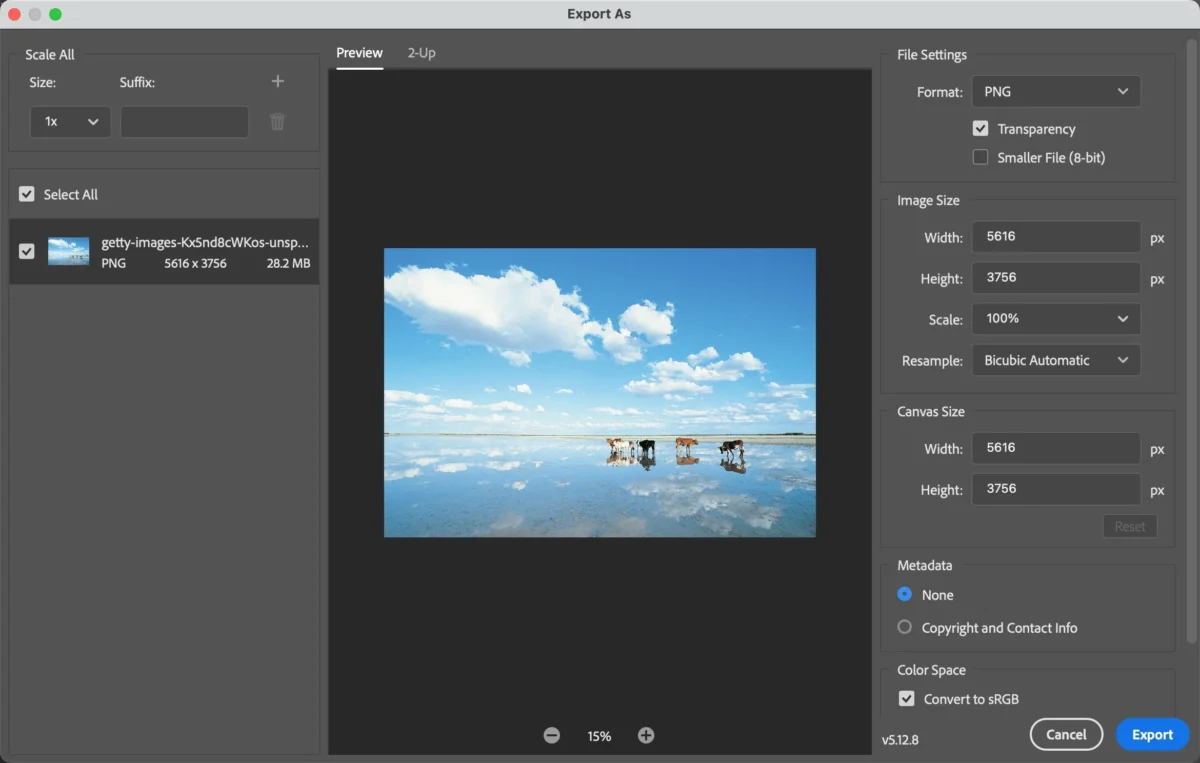
This method provides precise control, but it requires experience and can be time-consuming—especially when editing multiple photos.
Limitations of Photoshop for Correct White Balance
Although Photoshop offers professional color correction tools, correcting white balance often requires manual adjustments and experience. When images lack clear neutral areas, results can be inconsistent and time-consuming to fine-tune.
In addition, Photoshop is inefficient for batch processing. Correcting white balance photo by photo increases workload and may lead to uneven skin tones across a series—making it less ideal for fast-paced or high-volume editing needs.
The Faster Way: Correct White Balance with Evoto AI
If you’re looking for a quicker and more efficient solution, Evoto AI simplifies the entire process.


Powerful AI Photo Editor
Step 1: Import Your Image
Upload your photo or batch of images into Evoto AI.
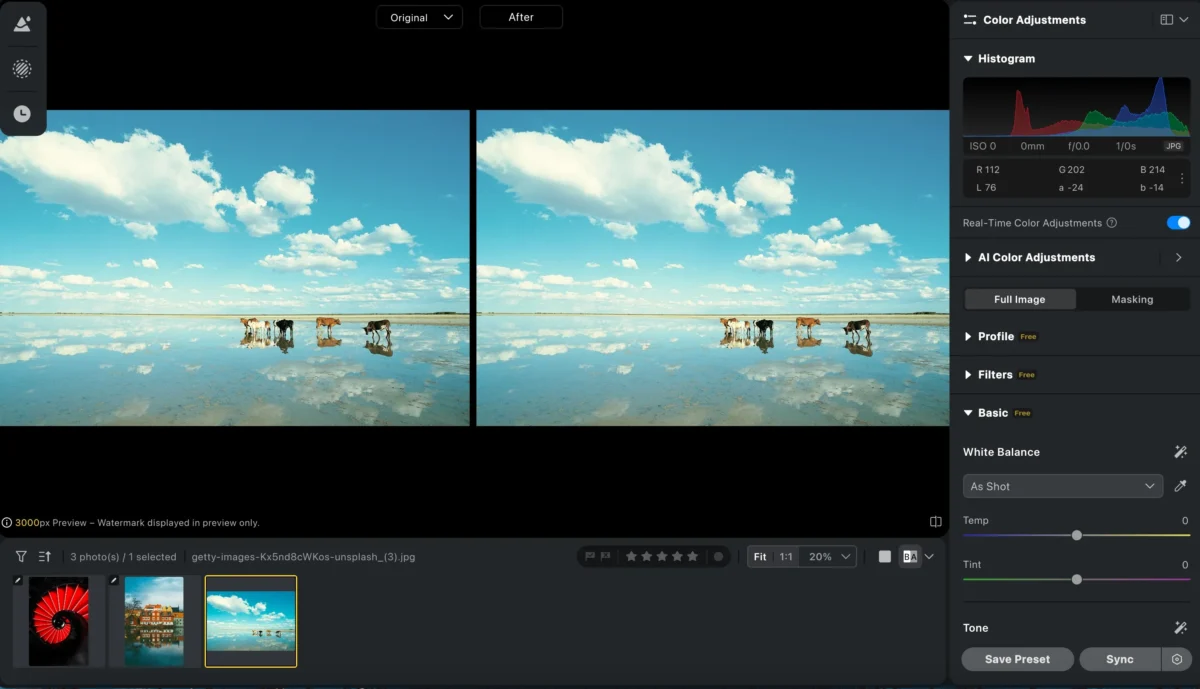
Step 2: AI Auto White Balance Correction
Enable Evoto’s AI Auto White Balance feature. The AI analyzes lighting conditions and automatically corrects color temperature and tint.
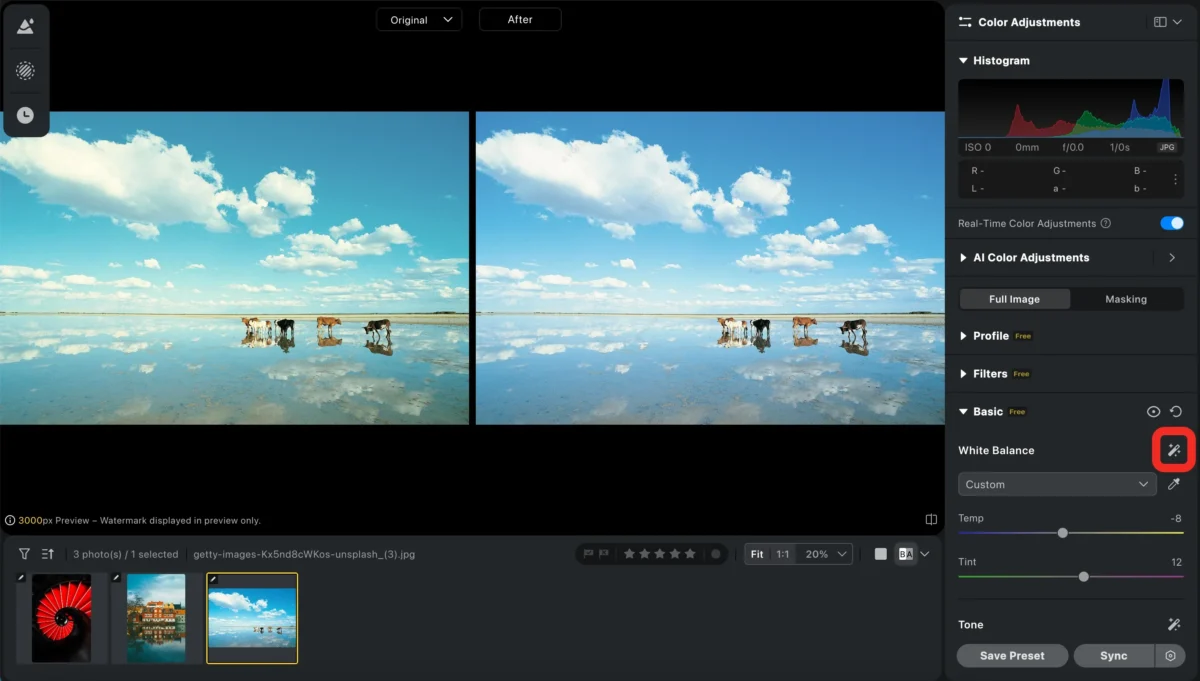
Step 3: Fine-Tune
Make optional manual adjustments to refine color accuracy.
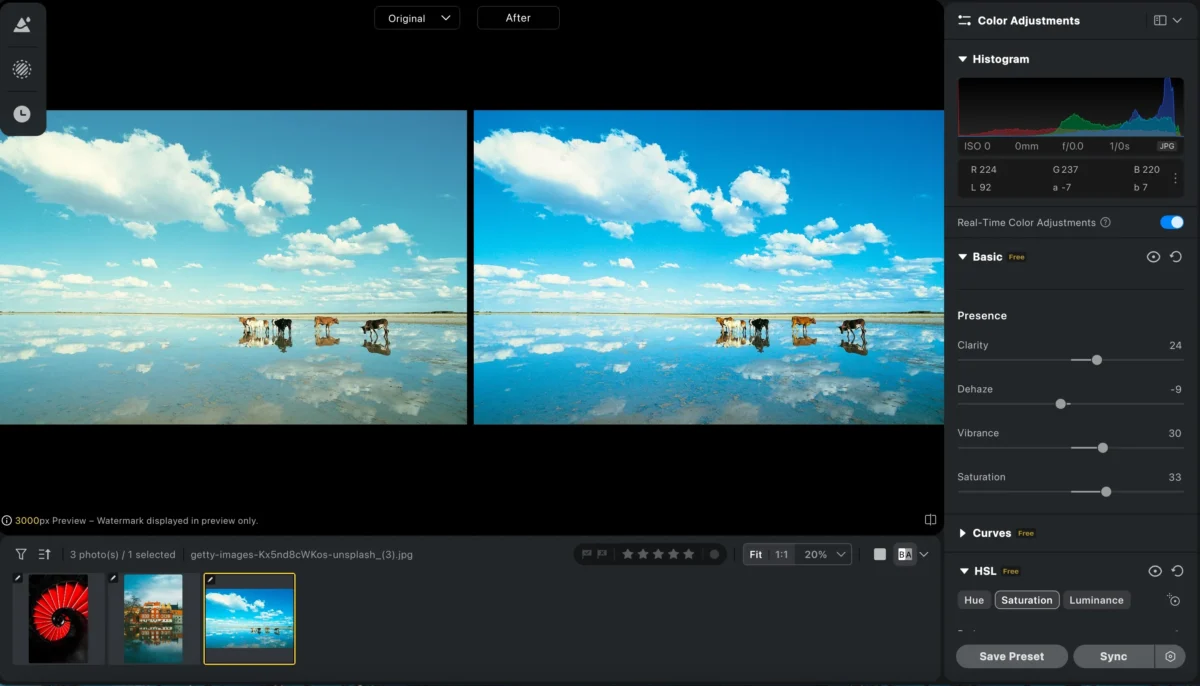
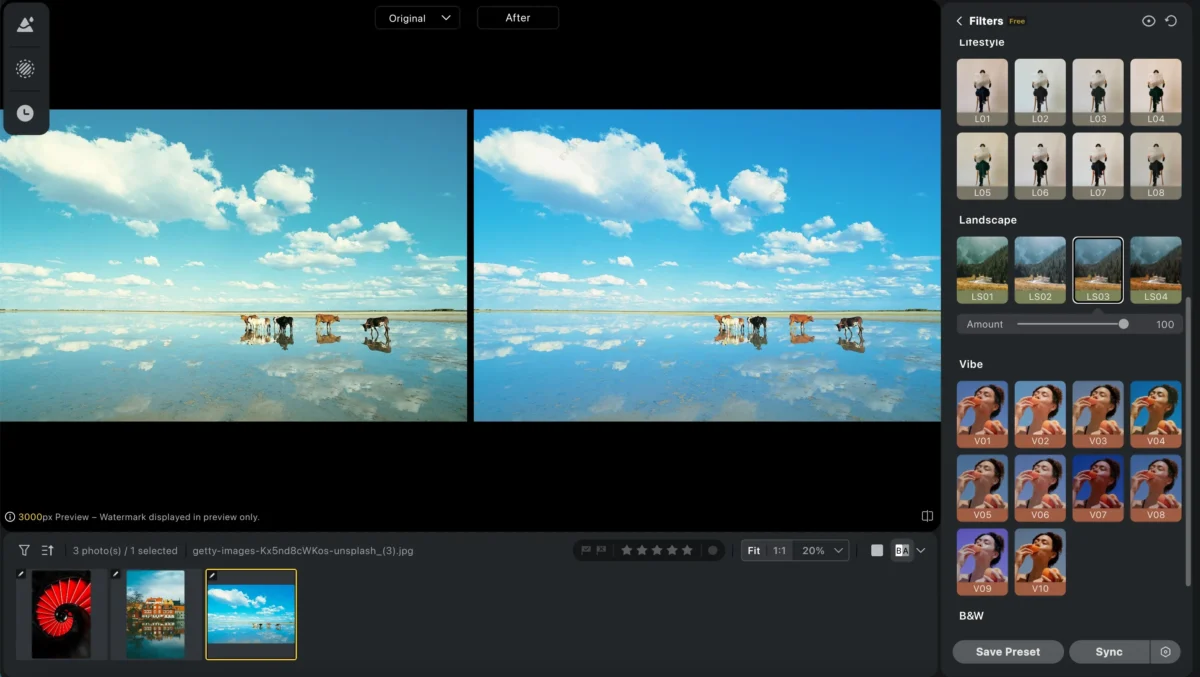
You can also use some filters to make your photo look more polished and visually appealing. Filters help fine-tune color tone, contrast, and overall mood, allowing you to enhance the image quickly while maintaining a natural and consistent style.
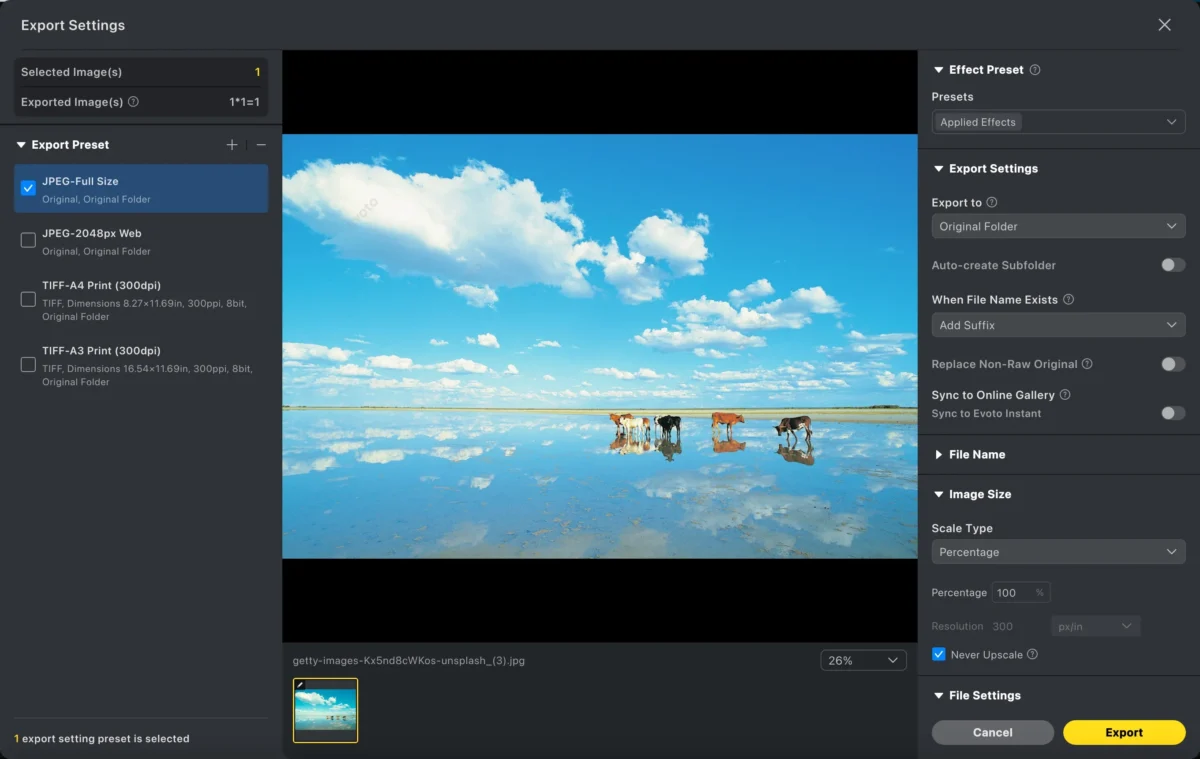
Step 4: Export the Image
Export your photos in your desired format and resolution with one click.
Evoto AI allows you to correct white balance consistently across large batches without manual effort.
Powerful AI Photo Editor
Evoto vs Photoshop:How Evoto Can Simplify Correct White Balance
| Feature | Photoshop | Evoto AI |
|---|---|---|
| Learning curve | High | Very low |
| Speed | Slower, manual | Fast, AI-powered |
| Batch processing | Limited | Fully supported |
| Skin tone protection | Manual | AI-optimized |
| Workflow efficiency | Low for volume work | High |
Photoshop is ideal for detailed, single-image adjustments, while Evoto AI excels at fast, consistent white balance correction for professional workflows.
Conclusion
Learning how to correct white balance in Photoshop gives photographers full manual control, but it often requires time, experience, and repetitive adjustments.
Evoto AI offers a smarter alternative by automating white balance correction while maintaining natural colors and consistent results. For photographers and creators who value speed, accuracy, and scalability, Evoto AI is the more efficient choice.
Try Evoto AI Photo Editor
Retouch photos with Evoto AI and make your photos best! Available on Windows, MacOS and iPadOS.



