

Portrait editing is a core skill for photographers, content creators, and anyone who wants professional-looking portraits. Learning how to edit a portrait in Photoshop can dramatically improve skin tones, enhance facial features, and create polished final images. In this guide, we’ll learn how to edit portrait in Photoshop and also explore how AI tools like Evoto AI simplify the process.
Why Portrait Editing Matters
Editing a portrait elevates a good photo into a great one. Even well-shot portraits can benefit from thoughtful tweaks that correct lighting, refine skin texture, balance colors, and draw attention to the subject’s eyes and expression. Strong portrait editing can:
- Improve skin appearance without losing natural texture
- Boost visual impact by refining light and color
- Ensure the subject stands out cleanly from the background
- Create images ready for portfolios, social media, or client delivery
Mastering these techniques helps you achieve consistent, professional results that distinguish your work.
How to Edit Portrait in Photoshop (Step-by-Step)
Here’s a practical workflow for editing portraits in Adobe Photoshop:
Step 1: Import & Prepare Your Image
Start by opening your photo in Photoshop. If you work from RAW or Lightroom first, make basic exposure and color adjustments before bringing the image into Photoshop for detailed retouching.
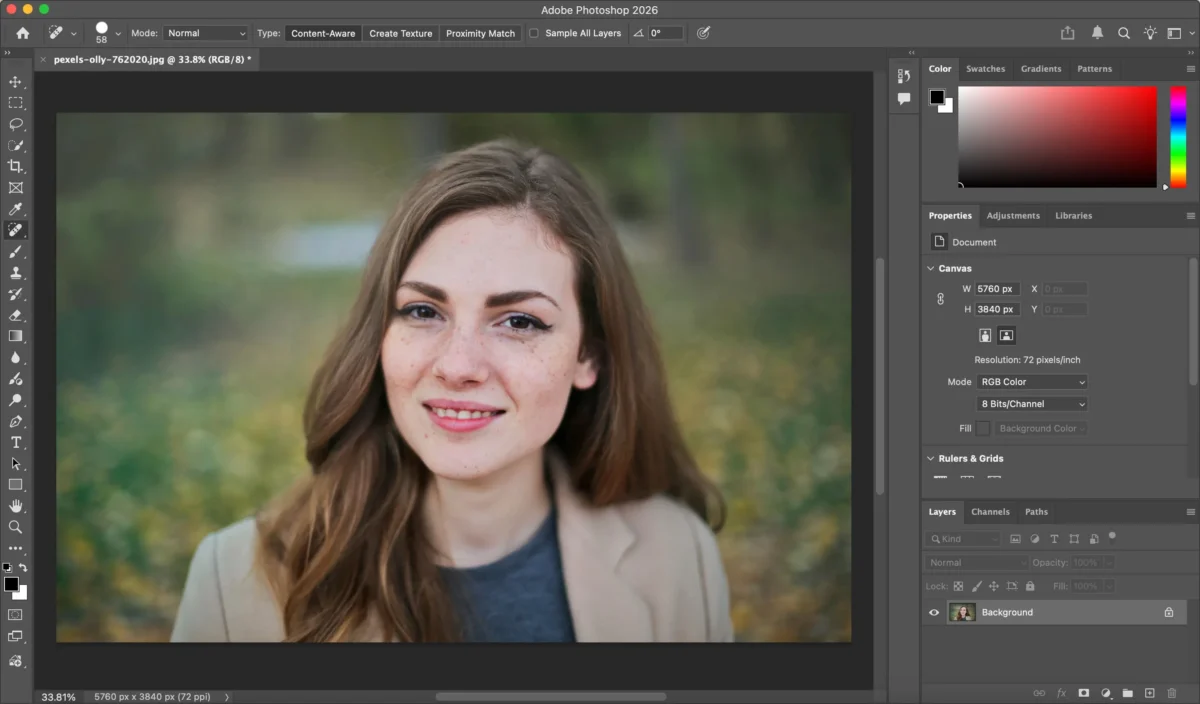
Step 2: Basic Skin Retouching
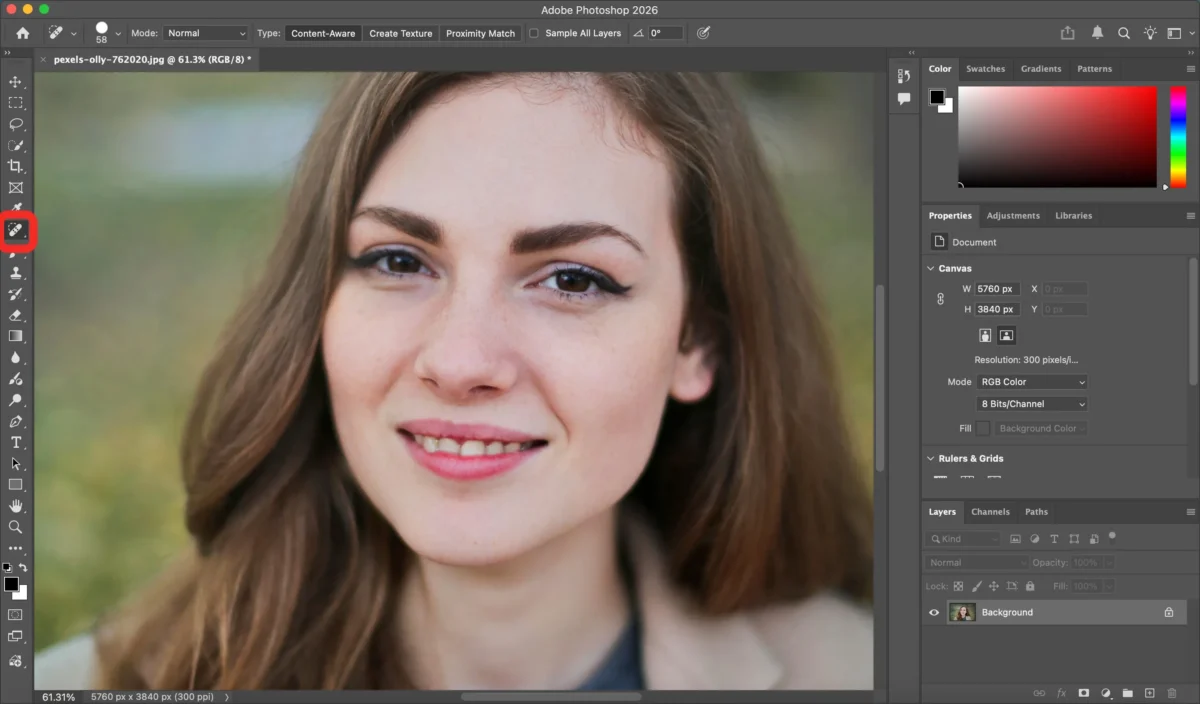
Use the Spot Healing Brush or the Remove Tool to eliminate small blemishes or stray hairs. These tools use intelligent sampling to blend imperfections seamlessly.
Step 3: Smooth Skin (Optional)
There are multiple ways to refine the overall skin texture:
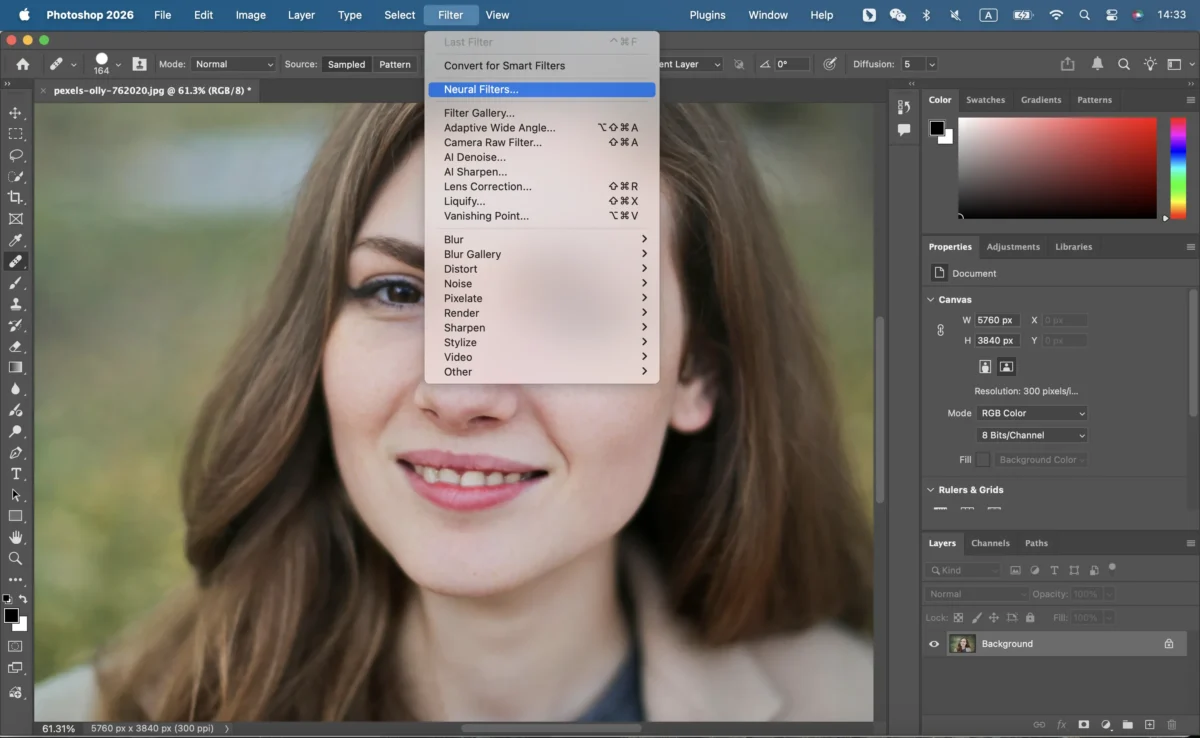
- Frequency Separation: Smooth skin while preserving natural texture.
- Surface Blur: A quicker blur approach that still softens skin.
- Neural Filters: Photoshop’s AI-powered Skin Smoothing filter simplifies this step with sliders.
Step 4: Enhance Eyes, Lips & Facial Features
Key features often need subtle enhancement:
- Brighten eyes using the Dodge Tool set to Highlights or Midtones.
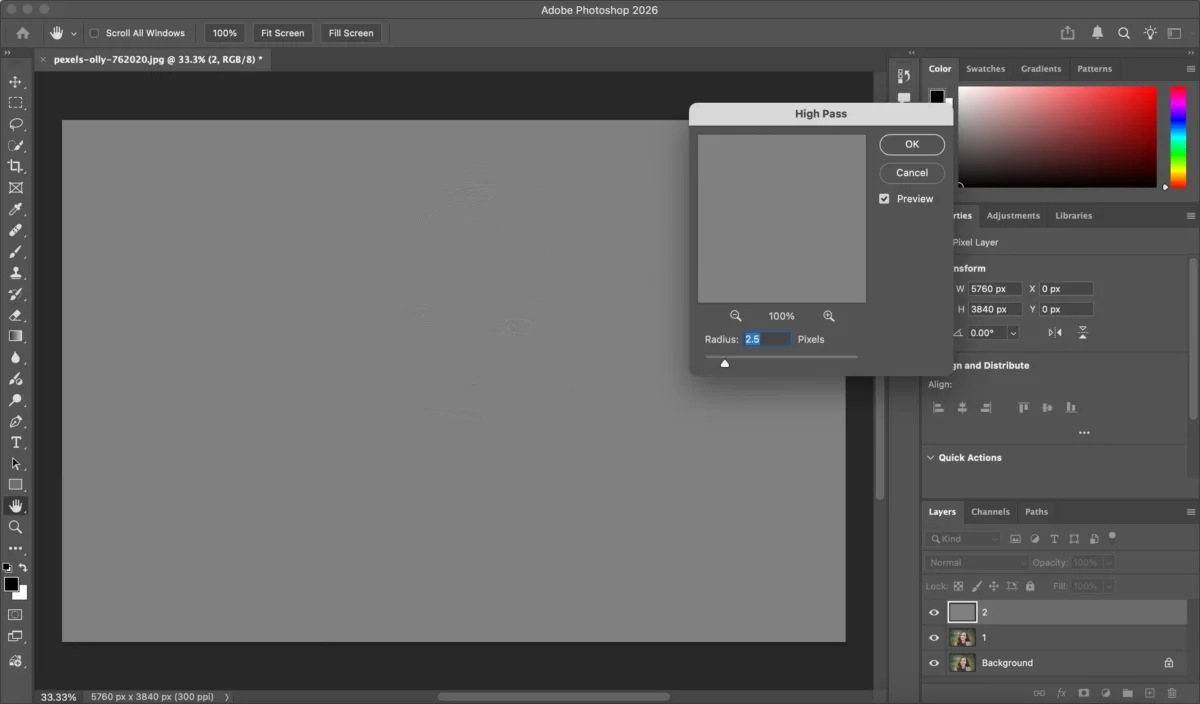
- Sharpen details: duplicate the layer, apply High Pass (1–3 px), and set the blend mode to Soft Light.
- Boost lip color with controlled saturation and masking.
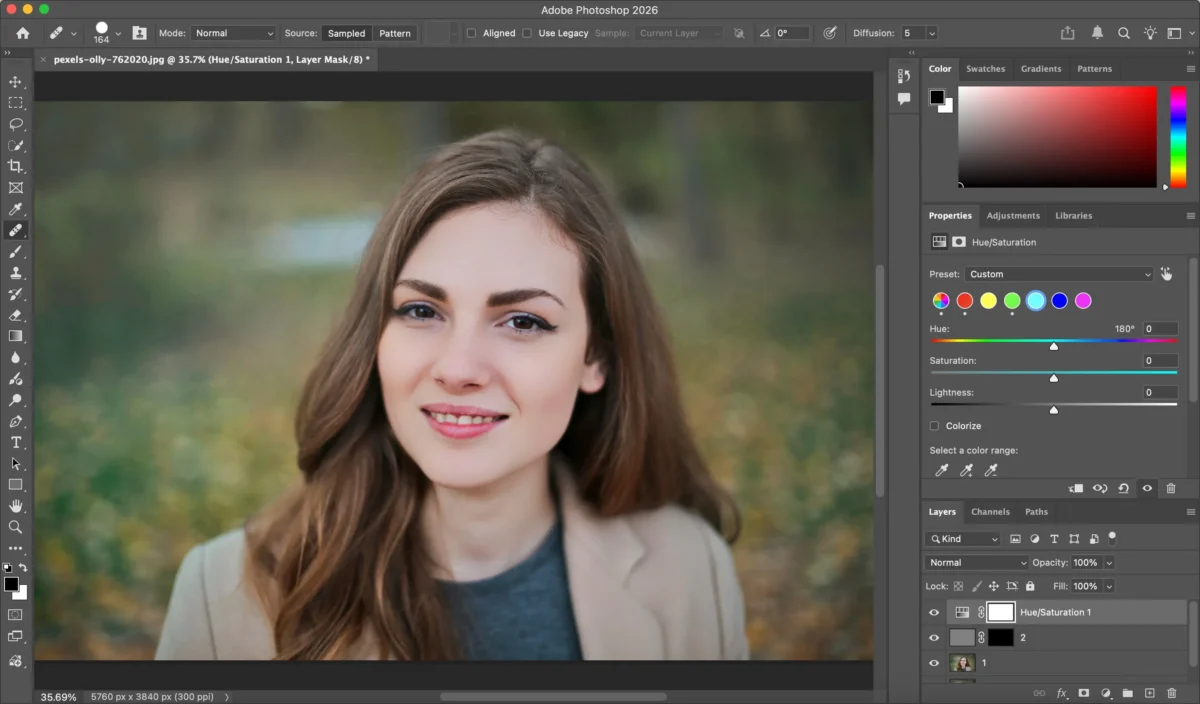
Step 5: Color Grading
Use adjustment layers like Hue/Saturation, Selective Color, and Curves to unify tones and bring out mood. Target skin tones carefully to maintain natural looks.
Step 6: Save & Export
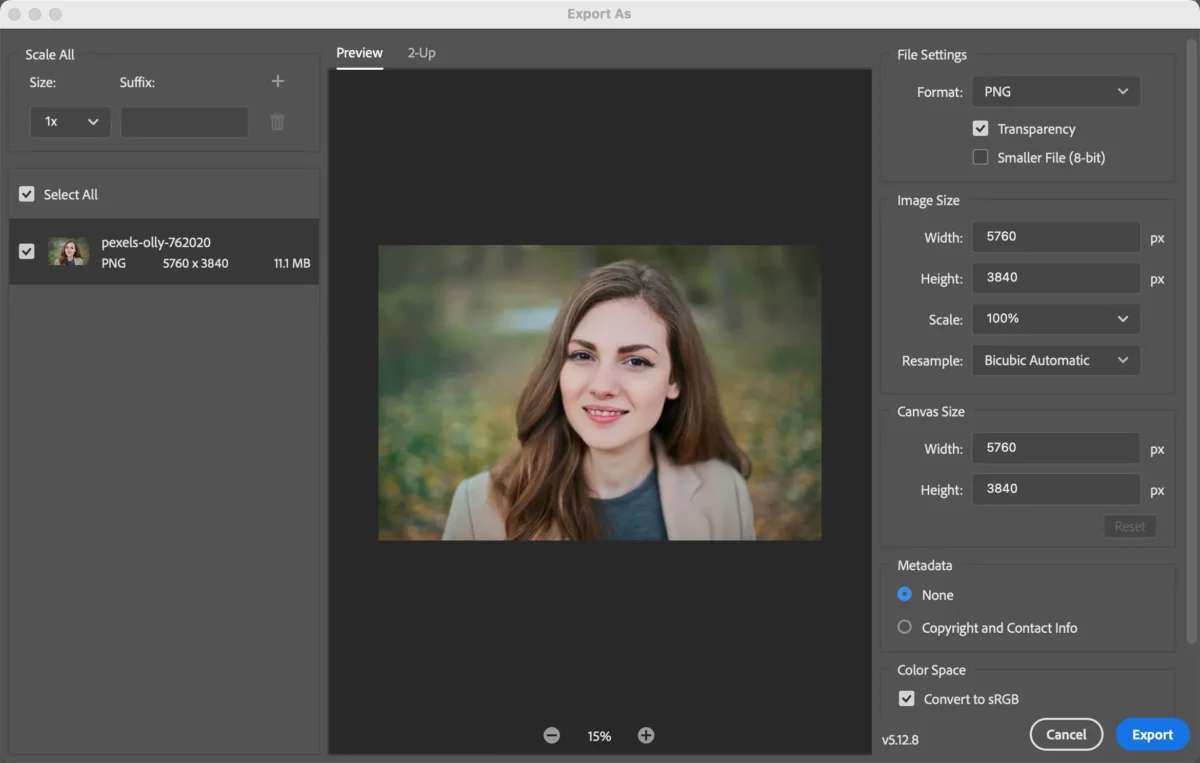
Before exporting, save a PSD file so you can revisit edits later. Then go to File > Export > Export As and choose your preferred format (JPEG, TIFF, etc.) for use.
Limitations of Editing Portraits in Photoshop
While Photoshop offers extensive control for detailed portrait editing, it also comes with challenges:
- Steep Learning Curve: Many tools require experience to use effectively.
- Time-Consuming: Manual skin retouching and feature enhancement can take significant time.
- Inconsistent Results: Achieving uniform edits across many photos takes effort and practice.
- Complex Masking: Fine edge refinement around hair and intricate details can be difficult for beginners.
Because of these limitations, many users seek faster alternatives for routine portrait edits.
How Evoto AI Simplifies Portrait Editing
Evoto AI makes it easier and faster to edit portraits—even for beginners—by using intelligent automation. Here’s how it works:


Powerful AI Photo Editor
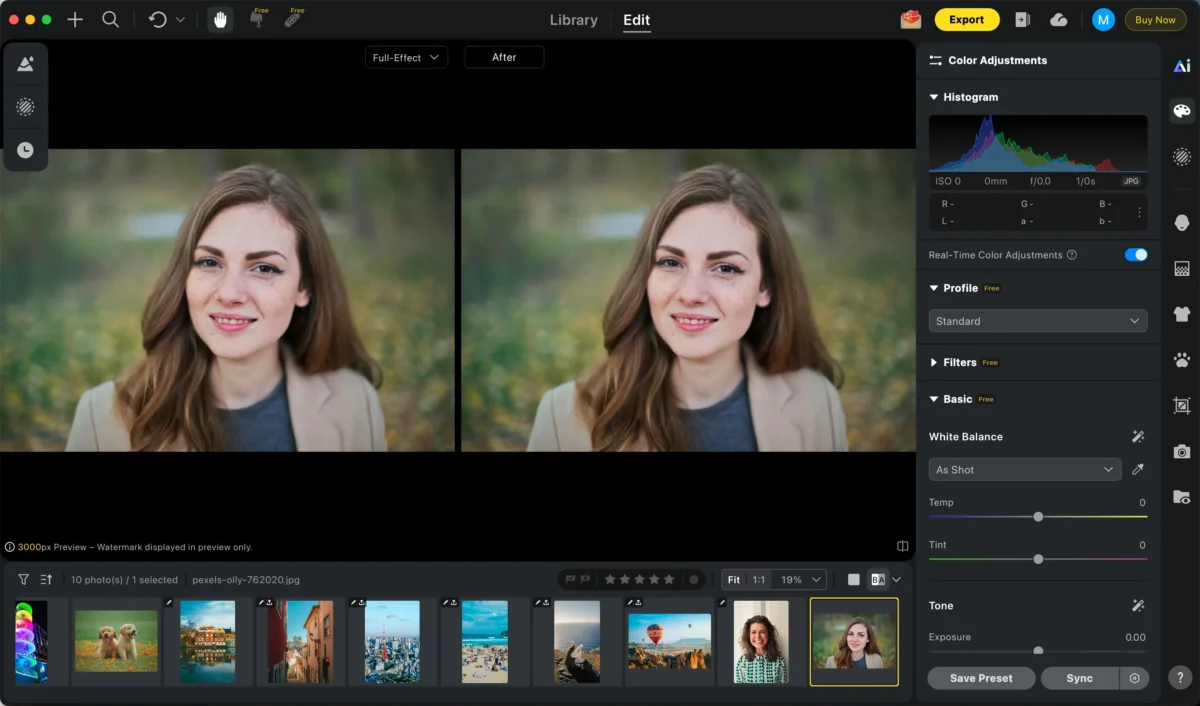
Step 1: Open Your Portrait
Import any image into Evoto AI with a click—no complex setup required.
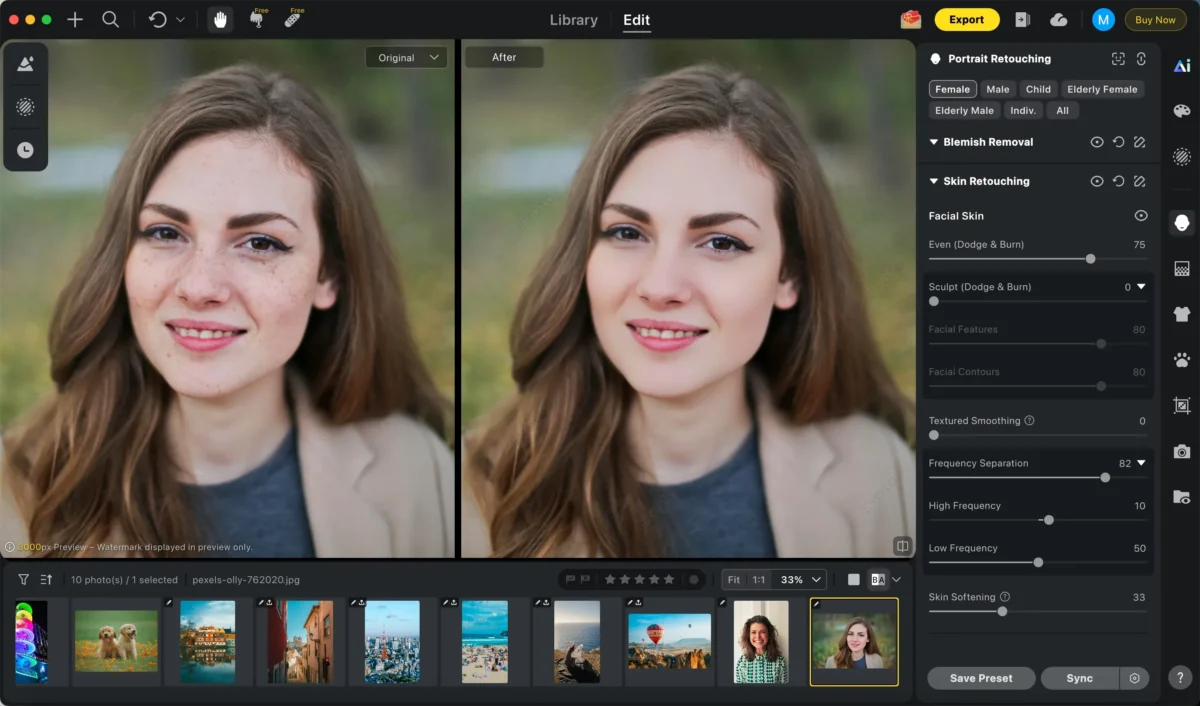
Step 2: AI Portrait Enhancement
Open Evoto AI’s portrait tools and use the sliders to adjust your edits. The AI automatically detects and analyzes the portrait, removing blemishes, wrinkles, and imperfections,
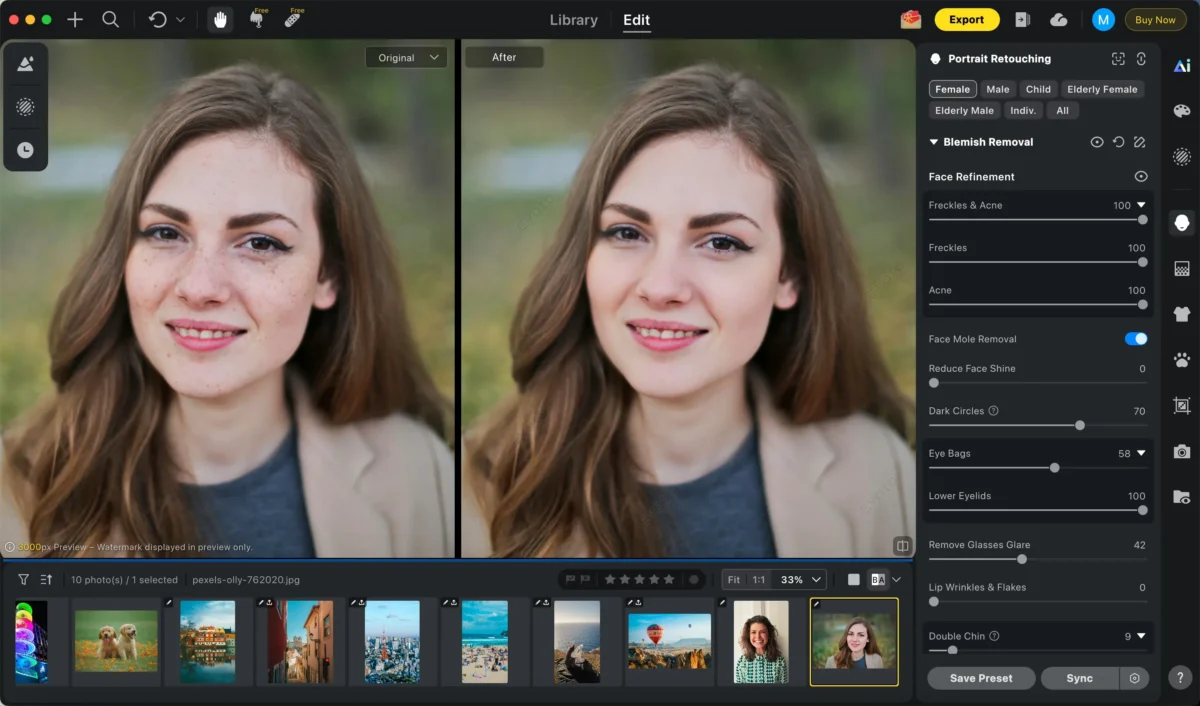
while softening the skin for a flawless, natural look.
Step 3: Other Retouching (Optional)
Apply additional refinements as needed, such as:
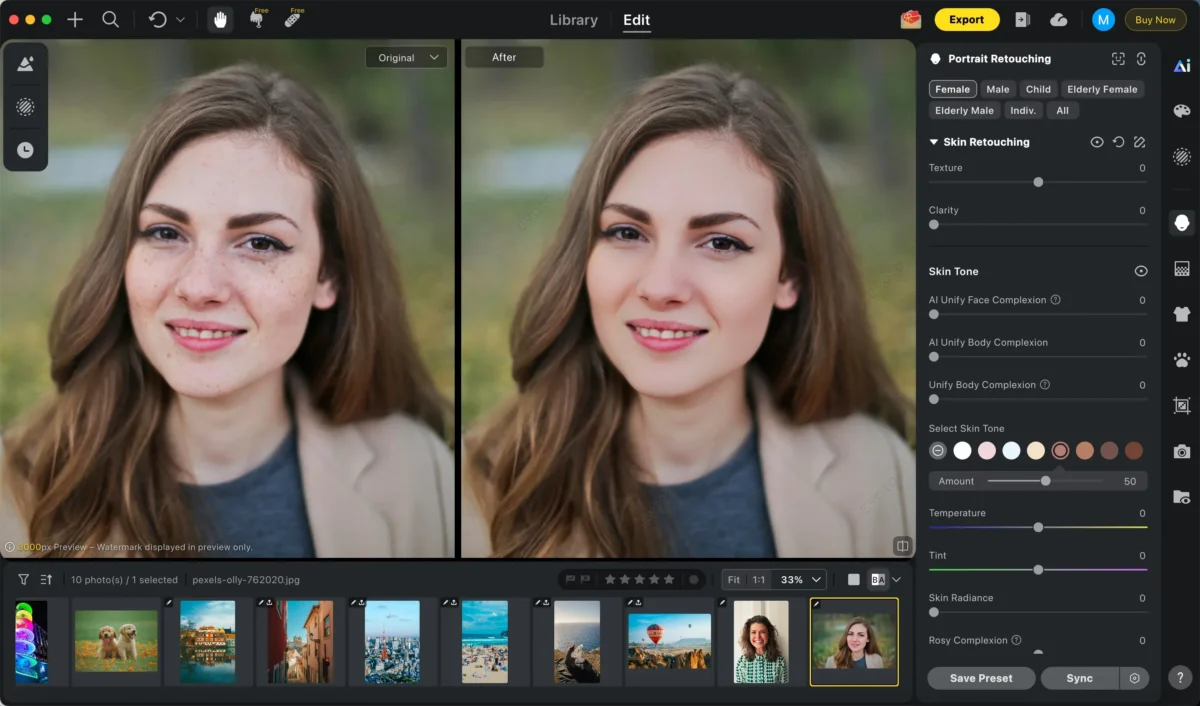
Change skin tone:Change skin tone with precise control to correct uneven color and create natural-looking portraits.
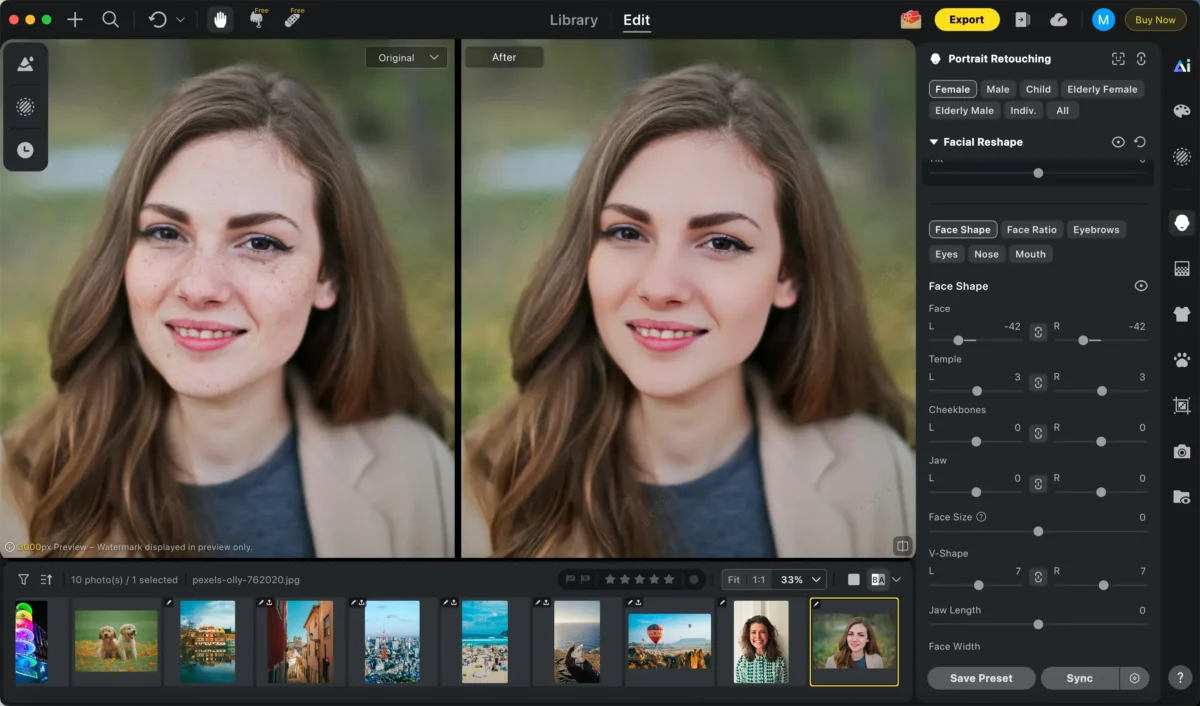
Reshape your face:Reshape your face to subtly refine facial contours while keeping a natural and realistic look.
Change facial expression:Change facial expression to adjust smiles or expressions while keeping the face natural and realistic.
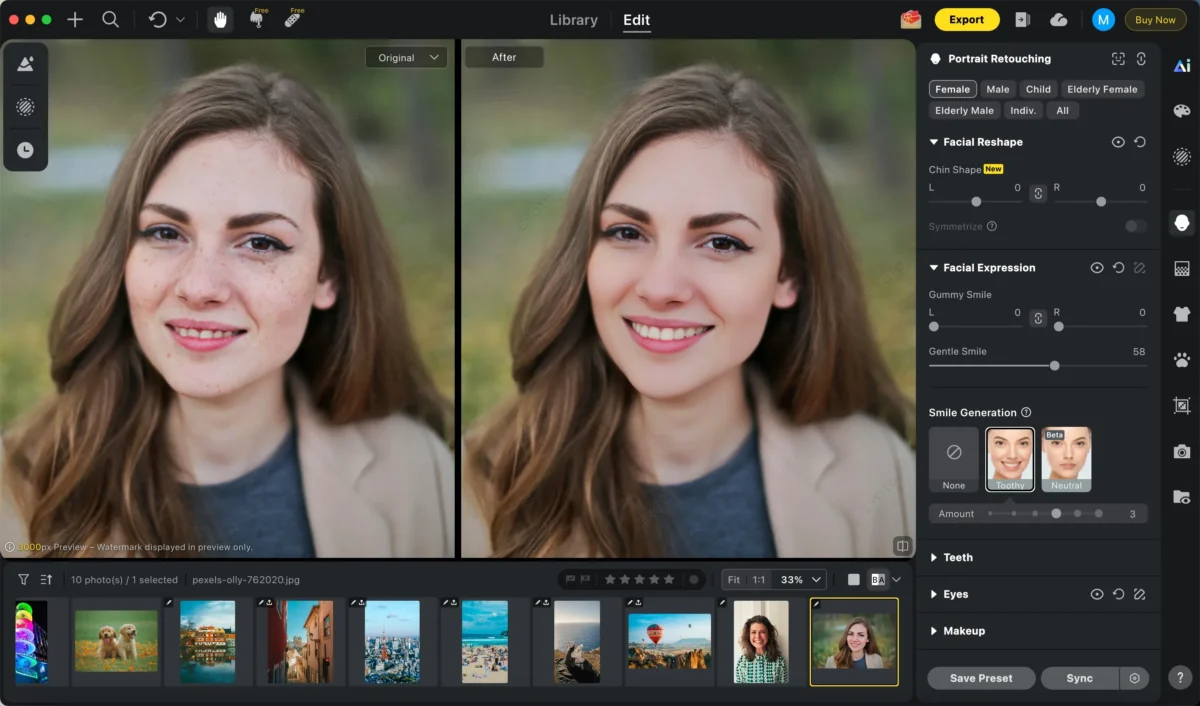
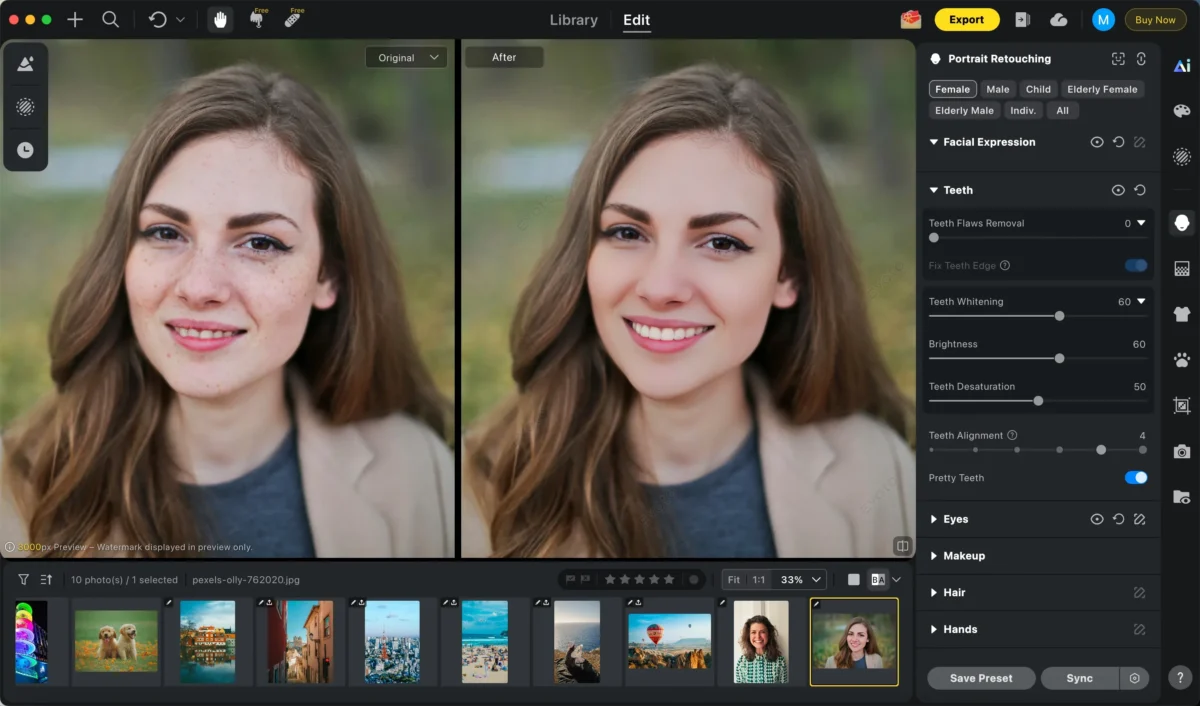
Adjust your teeth:Adjust your teeth with precision to correct alignment, enhance whiteness, and maintain realistic dental features.
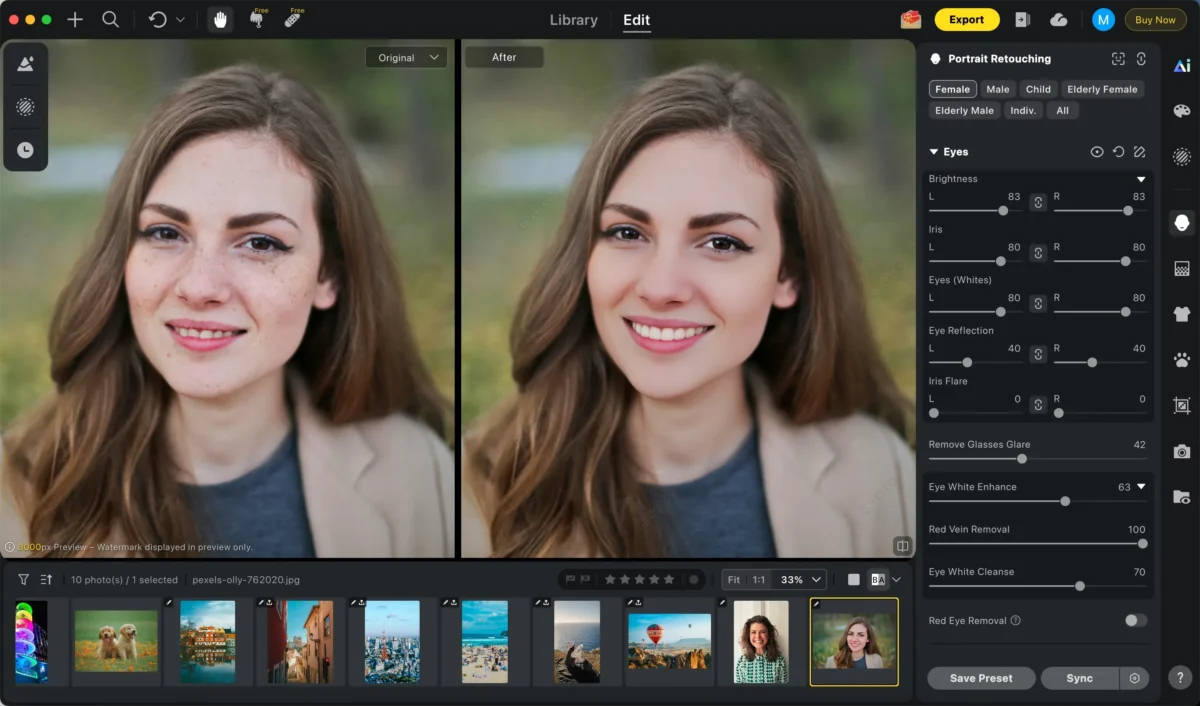
Enhance your eyes:Enhance your eyes to make them brighter, sharper, and more expressive while keeping a natural look.
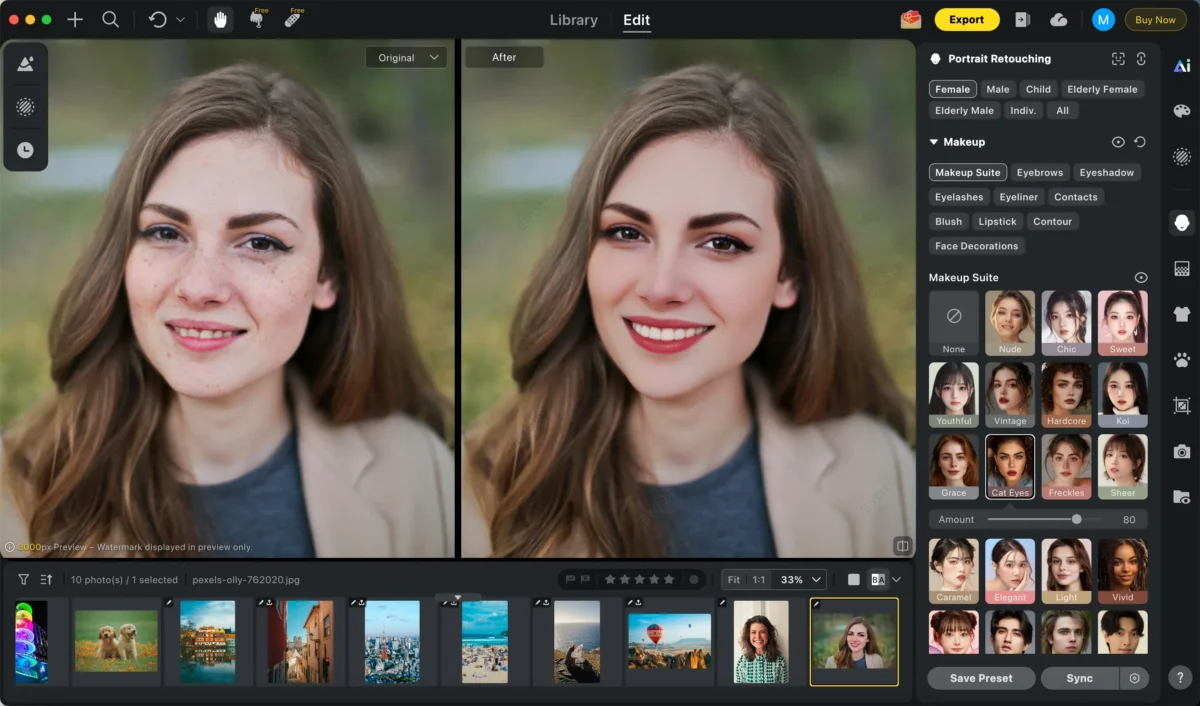
Add some makeups:Add some makeups to enhance facial features naturally, including lipstick, blush, eyeshadow, and more.
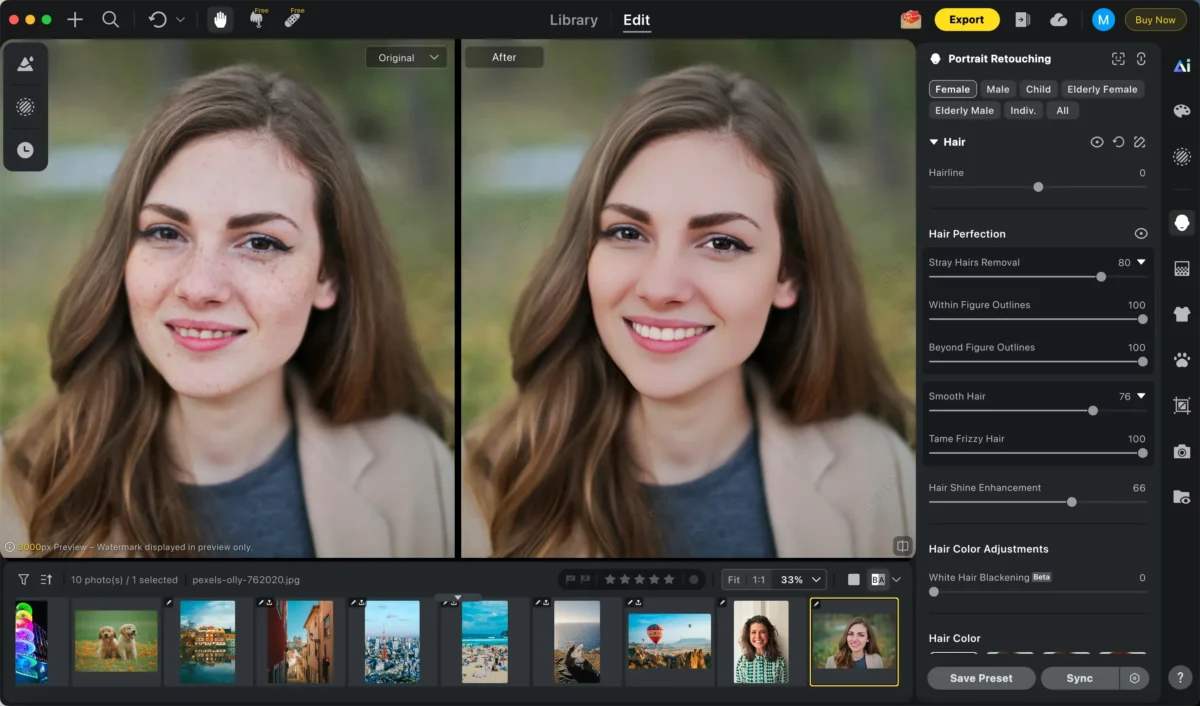
Perfect your hair:Perfect your hair by enhancing texture and shine while keeping it natural.
Replace the background:Replace the background to instantly change the scene while keeping the subject natural and sharp.
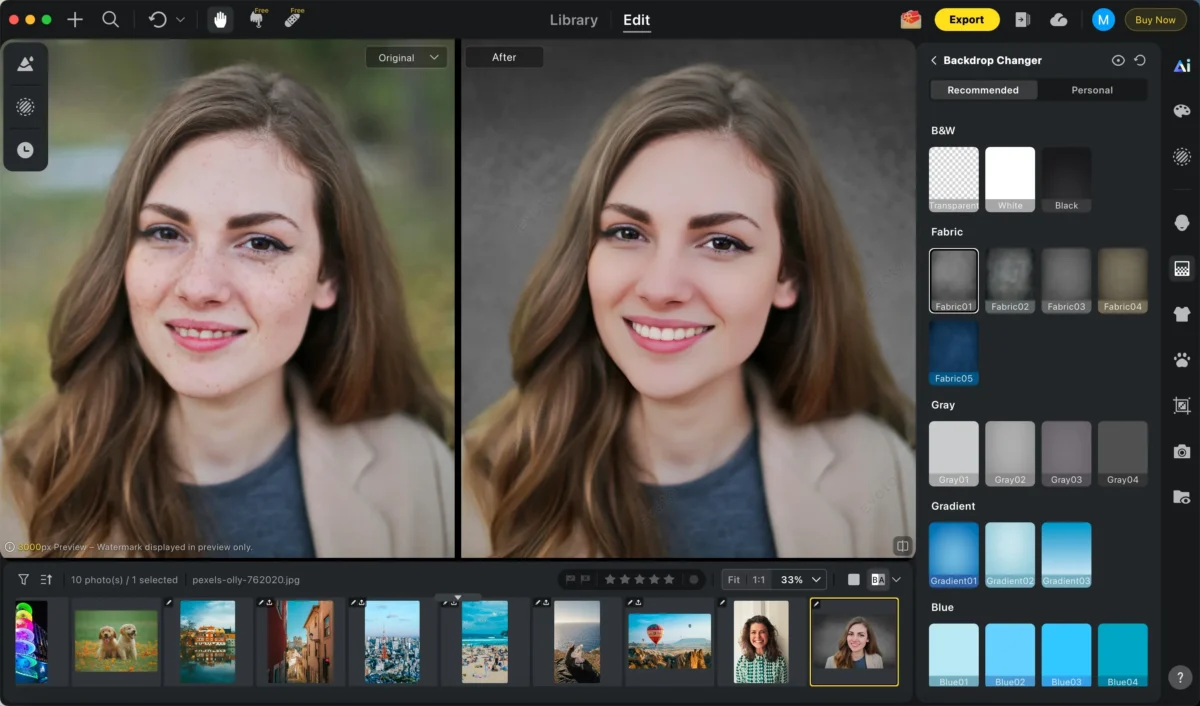
These tools allow you to further polish the portrait while maintaining a realistic appearance.
Step 4: Batch Editing (Optional)
Apply the same portrait editing adjustments to multiple images at once, saving time for large galleries or client work.
Step 5: Export
Export high-resolution images ready for social media, portfolios, or print.
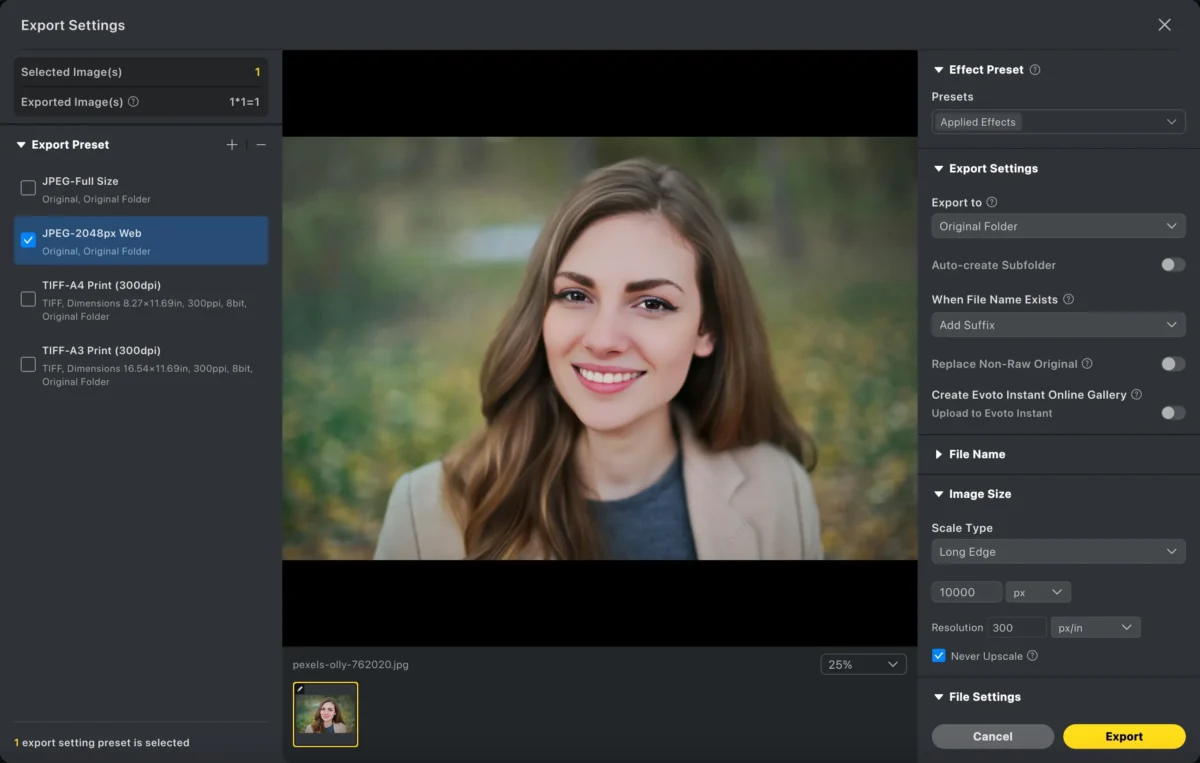
By automating repetitive tasks, Evoto AI makes portrait editing accessible, faster, and more consistent without requiring advanced Photoshop skills.
Powerful AI Photo Editor
Photoshop vs Evoto AI: Which Is Better for Portrait Editing?
| Feature | Photoshop | Evoto AI |
|---|---|---|
| Learning Curve | High | Beginner-friendly |
| Speed | Slow (manual) | Fast with AI |
| Batch Editing | Manual | Automated |
| Control | Full manual control | Smart automation |
| Best For | Advanced, customized edits | Quick, consistent results |
If you want full manual control and fine artistic adjustments, Photoshop remains a professional standard. But for efficient, high-quality results with minimal effort, Evoto AI offers a compelling alternative.
Conclusion
Knowing how to edit portrait in Photoshop empowers you to transform ordinary images into polished, high-impact visuals. Photoshop’s manual tools deliver detailed control but require practice and time. Meanwhile, Evoto AI simplifies the workflow with intelligent automation, making professional portrait editing faster and more accessible to a wide range of users.
Whether you choose Photoshop or Evoto AI, mastering portrait editing techniques will elevate your photography and help you achieve stunning results every time.
Try Evoto AI Photo Editor
Retouch photos with Evoto AI and make your photos best! Available on Windows, MacOS and iPadOS.



