

RAW files are the backbone of professional photography. They capture unprocessed data directly from the camera sensor, preserving maximum detail. If you want to produce high-quality images, learning how to edit RAW photos in Lightroom is essential. Lightroom is one of the most popular RAW editors available today, offering precise control over exposure, color, and details.
However, while Lightroom is powerful, beginners or busy photographers might find it time-consuming. That’s where AI-assisted tools like Evoto come in, offering a faster way to enhance RAW files without sacrificing quality.


Powerful AI Photo Editor
Why Use Lightroom to Edit RAW Files
Before diving into Lightroom, it’s helpful to understand RAW vs JPEG. Unlike JPEGs, RAW files retain all sensor data, making them perfect for professional editing. Lightroom excels in this regard:
- Precise Exposure Adjustment – Fine-tune shadows and highlights.
- Color Correction & White Balance – Achieve accurate tones effortlessly.
- Local Adjustments & Detail Enhancement – Use brushes and gradients for targeted edits.
- Professional Workflow – Ideal for photographers who want full control over their images.
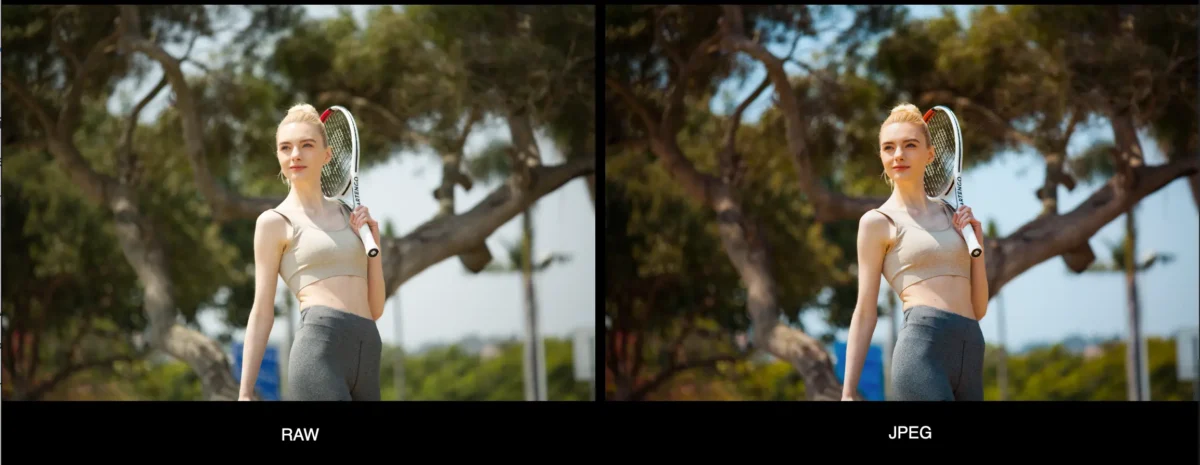
These advantages make Lightroom the go-to raw file editor for advanced photographers.
How to Edit RAW Photos in Lightroom: Step-by-Step
1. Import RAW Files
Lightroom supports formats like CR2, NEF, ARW, and more. Importing RAW files into organized catalogs makes future editing easier.
2. Basic Adjustments
Start with exposure, contrast, and white balance. Adjust highlights and shadows, tweak saturation, and enhance colors.
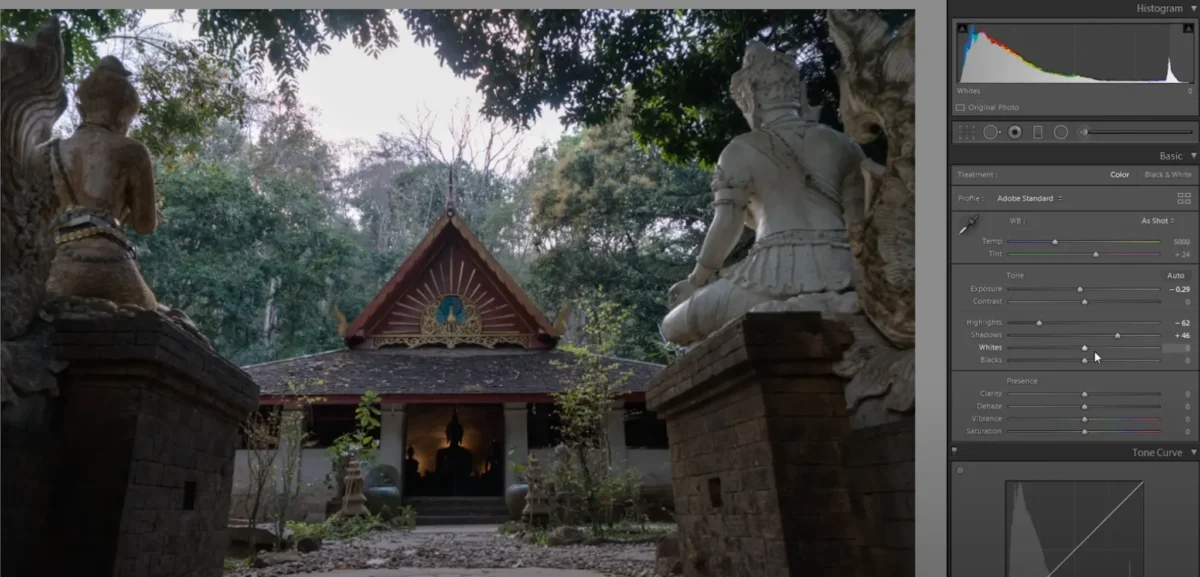
3. Advanced Tools
Use brushes, gradient filters, lens corrections, denoise, and sharpening for refined results.
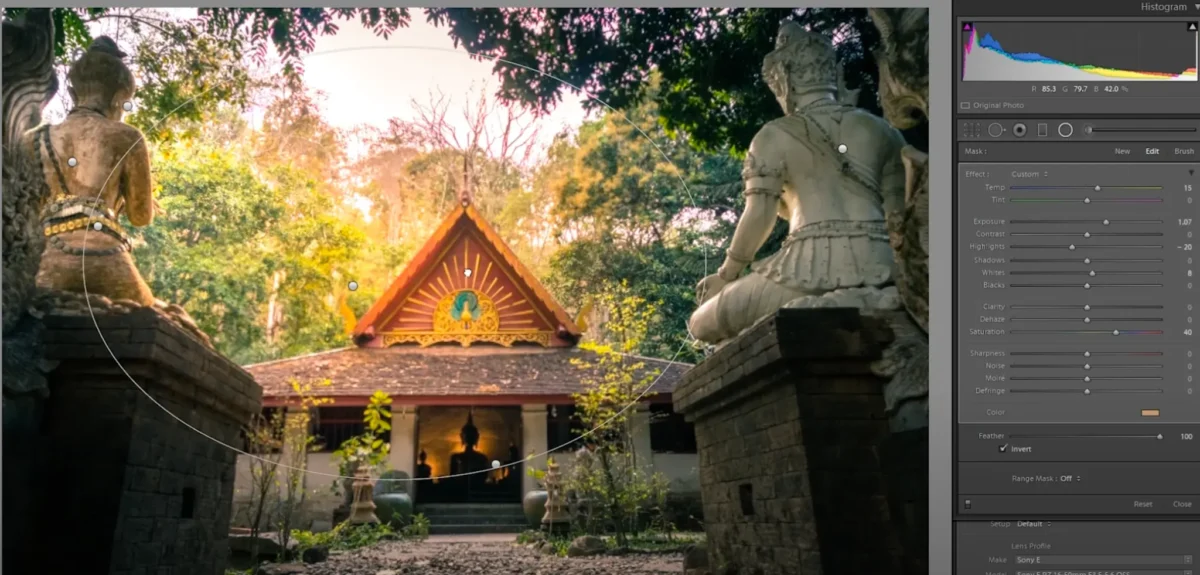
4. Export & Share
Lightroom allows high-quality RAW output, and you can export images as JPEG or PNG for sharing.
With these basics, photographers can confidently edit RAW files, whether using raw image editing software or free tools.
Evoto: A Faster, AI-Assisted Alternative
Evoto is a professional AI camera RAW software that simplifies RAW editing. It works as a RAW file editor, viewer, organizer, and converter. Evoto supports RAW files from Nikon, Canon, Sony, Fujifilm, and more. It handles AI-powered precision adjustments for exposure, color, portrait retouching, and background edits.
Unlike traditional editors, Evoto also offers batch editing, automatic enhancements, and a RAW photo to JPG converter for quick exports. It’s perfect for photographers who need speed without sacrificing quality.
How to Edit RAW Photos in Evoto: Step-by-Step
Step 1: Connect and Import
Link your camera to Evoto on Windows, macOS, or iPad. Import RAW files or drag digitized RAW photos into the library.
Step 2: Organize RAW Photos
Use the “Library” panel to cull images with AI and apply star ratings or color labels for easy sorting.
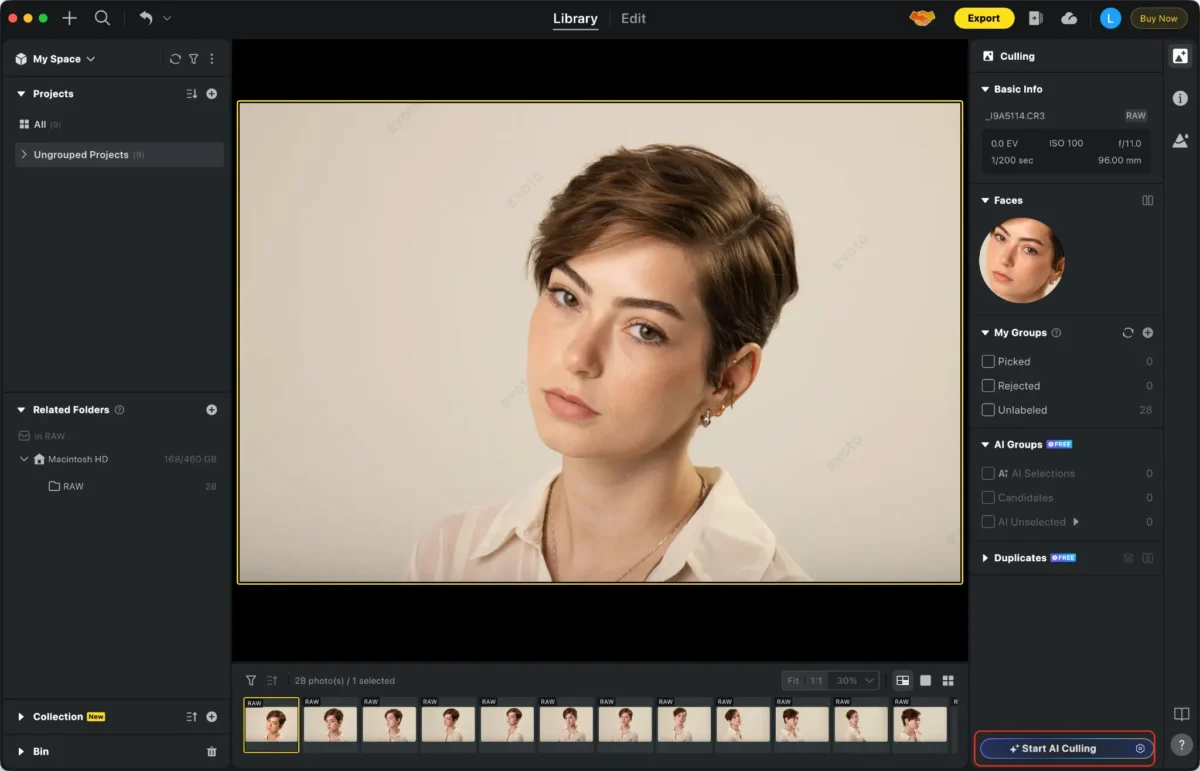
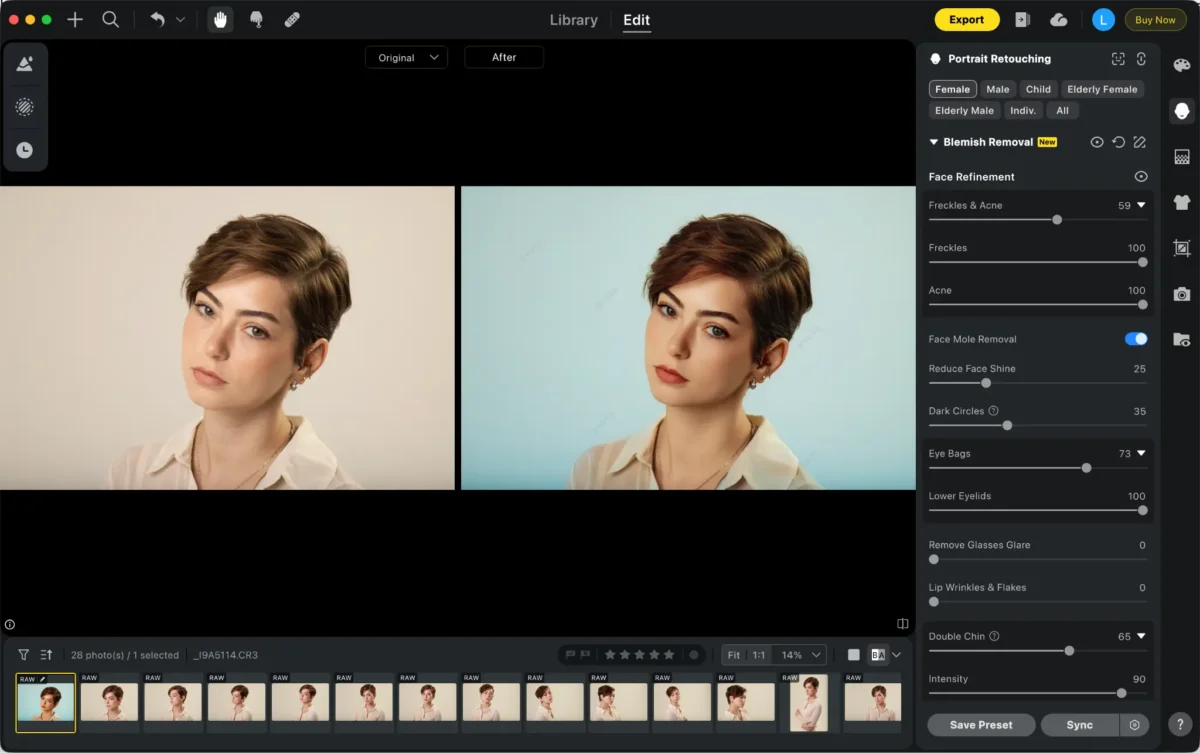
Step 3: Edit RAW Photos
Access panels like Color Adjustments, Portrait Retouching, and Background Adjustments. Adjust exposure, colors, skin, eyes, and smiles with AI sliders.
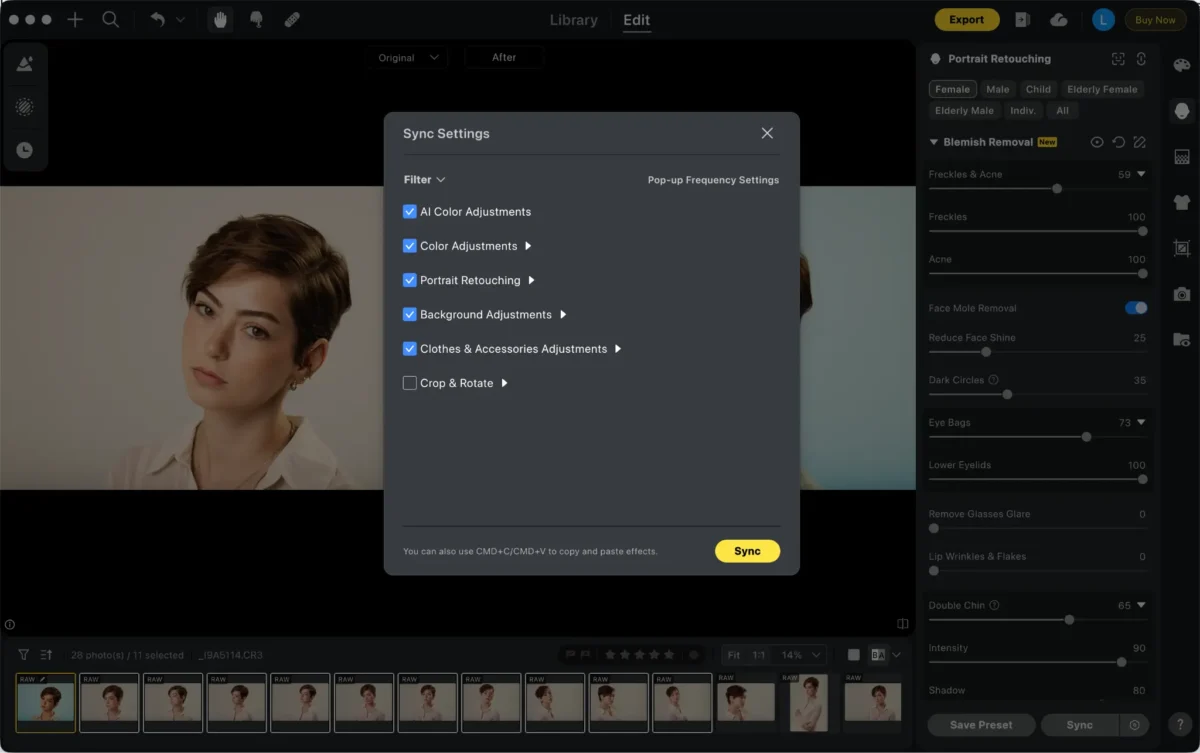
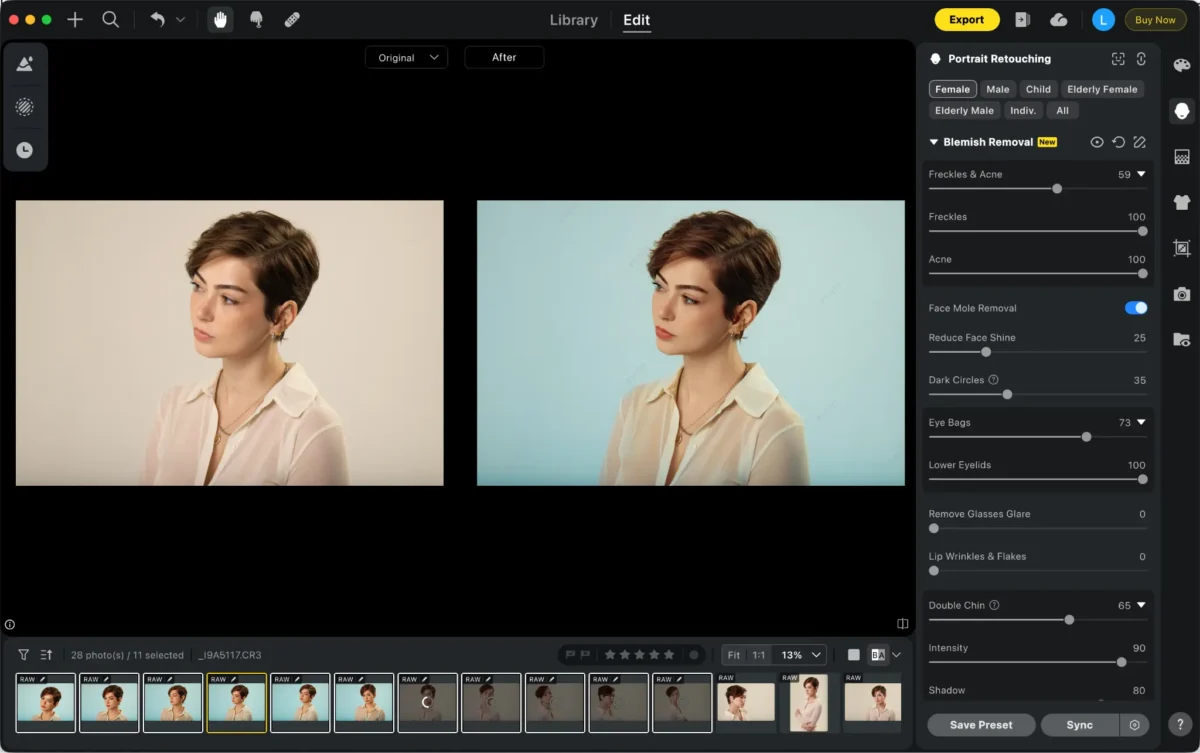
Step 4: Apply Batch Edits
Synchronize edits across multiple photos with one click. Evoto automates repetitive tasks efficiently.
Step 5: Export or Convert
Export in RAW, JPG, JPEG, PNG, or TIFF. Use the built-in converter to quickly prepare images for online sharing or client delivery.
This workflow makes Evoto ideal for photographers looking for AI camera RAW software that speeds up editing without losing professional quality.
Combining Lightroom and Evoto
For maximum flexibility:
- Use Lightroom for precise manual adjustments.
- Apply Evoto for batch enhancements and time-saving edits.
- Save multiple versions to ensure flexibility for clients or personal use.
This combination leverages the strengths of both tools while keeping your workflow efficient.
RAW Editing Tips
Preserve Details and Avoid Over-Sharpening
Avoid over-sharpening RAW photos, which can create noise and unnatural edges. Gradually increase clarity or sharpening. Use Lightroom’s masking or Evoto’s AI to enhance only necessary areas.
Use Color Grading to Enhance Mood and Atmosphere
Adjust shadows, midtones, and highlights to create consistent tones. Evoto’s AI color tools and Lightroom’s split toning help apply natural, cohesive styles across multiple photos.
Leverage AI for Repetitive Tasks
AI can handle background removal, skin smoothing, and batch exposure adjustments. Evoto automates edits while you focus on creative decisions. Lightroom presets also speed up manual work.
Check Before Exporting
Review edits at 100% zoom and export multiple versions if needed. Combining Lightroom and Evoto ensures flexibility and professional results.
Conclusion
Learning how to edit RAW photos in Lightroom equips photographers with professional control over exposure, color, and detail. Meanwhile, Evoto provides fast, AI-assisted editing that boosts productivity and ensures consistent results. Depending on your photography style and workload, using Lightroom and Evoto together can create a workflow that balances precision and speed.Whether you are exploring best photo editor for raw files, experimenting with free photo editor for raw files, or converting raw photo to jpg, Evoto and Lightroom provide complementary solutions for modern photographers.
Powerful AI Photo Editor



