

Blue skies instantly make photos look brighter, cleaner, and more appealing. Whether you’re editing landscape photography, real estate images, travel photos, or social media content, learning how to make the sky blue in Photoshop can dramatically improve the overall mood and professionalism of an image.
In this guide, we’ll walk you through the traditional Photoshop workflow, discuss its challenges, and introduce a faster AI-powered alternative using Evoto AI.
Why You Might Need to Make the Sky Blue in a Photo
There are many situations where enhancing or fixing the sky can significantly improve a photo:
- Unfavorable weather: Cloudy, gray, or overexposed skies can make images feel dull
- Landscape photography: A vibrant blue sky adds depth and contrast
- Real estate photos: Blue skies make properties look more inviting
- Travel & lifestyle content: Creates a bright, aspirational look
- Creative editing: Adjust the sky color to match a specific mood or style
Knowing how to make the sky blue in Photoshop gives photographers greater creative control—but it also requires time and skill.
How to Make the Sky Blue in Photoshop: Step-by-Step Guide
Photoshop offers several tools to recolor or enhance the sky while preserving natural gradients and clouds. Below is a commonly used workflow.
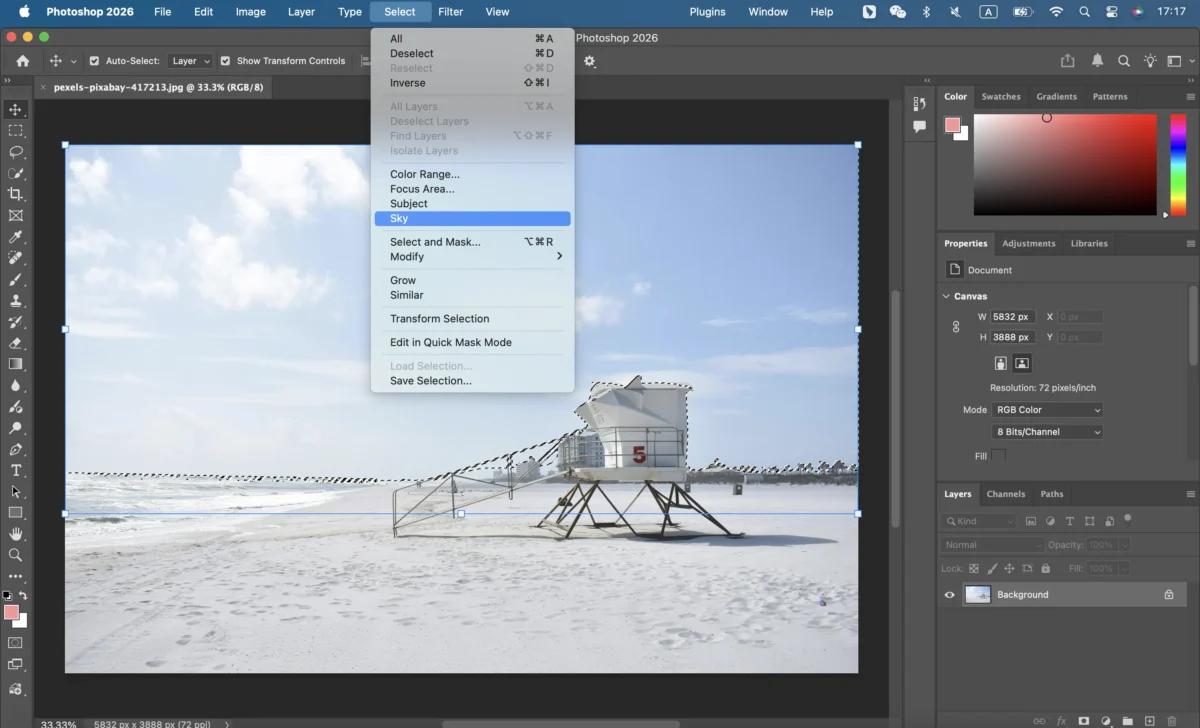
Step 1: Select the Sky
Use Select > Sky (available in newer versions of Photoshop).
Alternatively, use tools like:
- Quick Selection Tool
- Magic Wand Tool
- Color Range
Refine the selection using Select and Mask to avoid harsh edges around buildings, trees, or mountains.
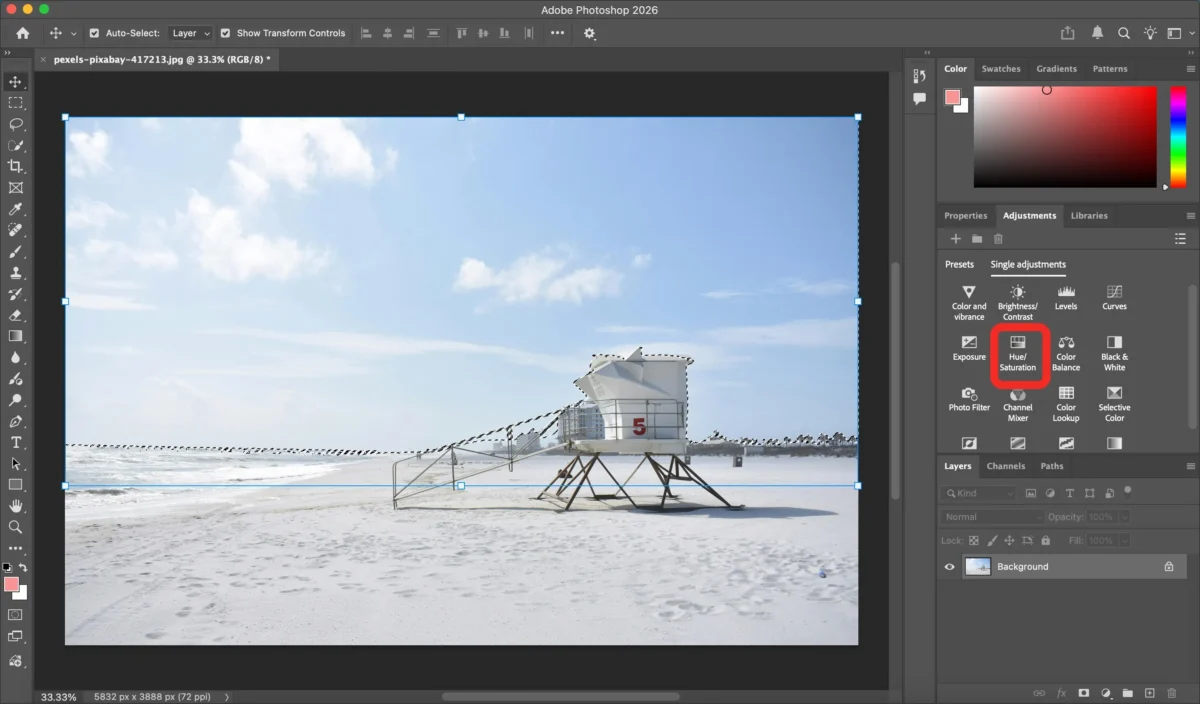
Step 2: Add an Adjustment Layer
Create a Hue/Saturation or Color Balance adjustment layer. This keeps the edit non-destructive and easy to adjust later.
Step 3: Adjust Sky Color
- Shift the Hue slider toward blue
- Increase Saturation for vibrancy
- Adjust Lightness to maintain a natural look
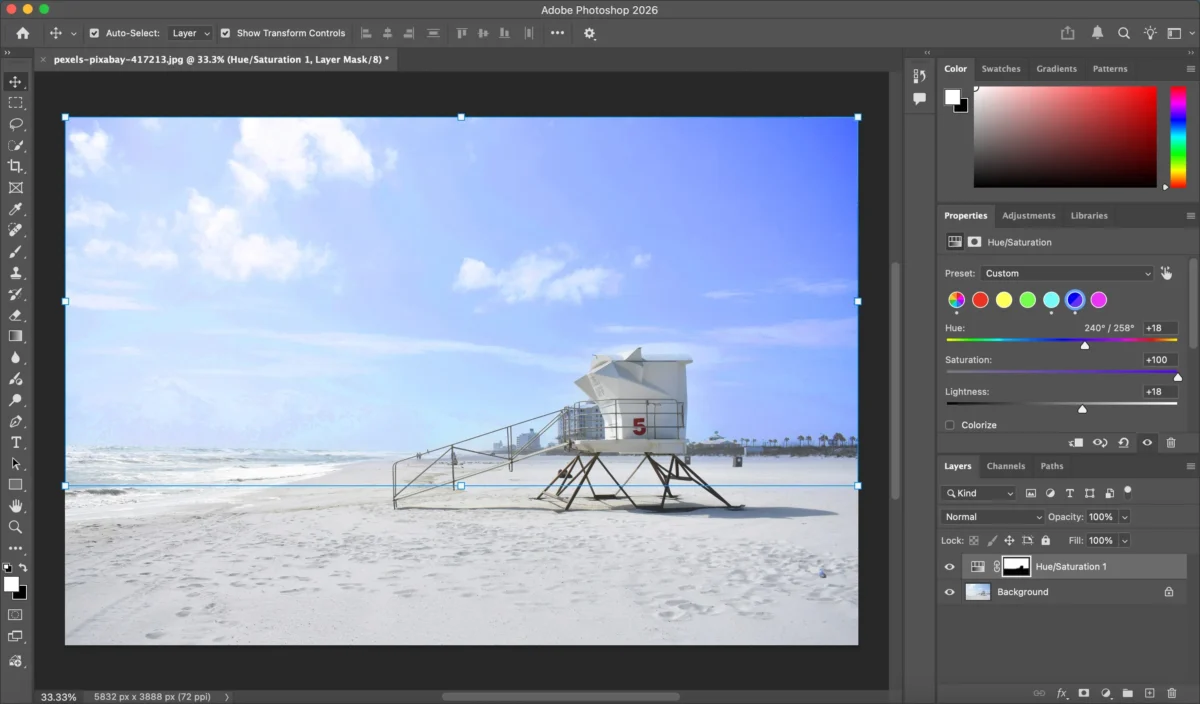
For more realism, many editors use blend modes like Color or Soft Light.
Step 4: Fine-Tune with Masks
Manually paint on the layer mask to remove color spill on foreground objects and refine edges around clouds or structures.
Step 5: Final Adjustments and Export
Apply final tweaks such as contrast or highlights, then export your image.
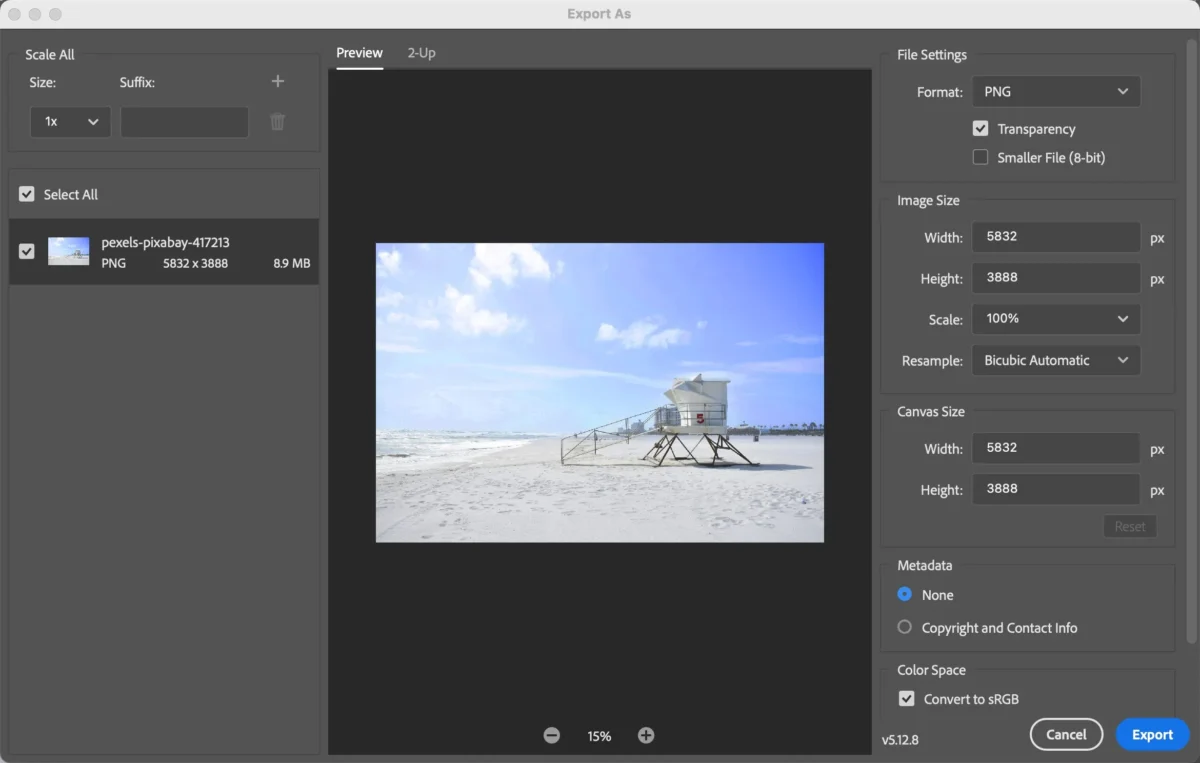
This workflow shows how to make the sky blue in Photoshop with precision—but it can be time-consuming.
Common Challenges When Making the Sky Blue in Photoshop
While powerful, Photoshop has several limitations:
- Time-intensive manual selections
- Steep learning curve for beginners
- Difficult masking around complex edges (trees, hair, buildings)
- Inconsistent results across large photo batches
- Not ideal for fast turnaround projects
- Aggressive color adjustments may cause color banding or unnatural sky gradients
For photographers working with dozens or hundreds of images, efficiency becomes a major issue.
The Faster Way: Make the Sky Blue with Evoto AI
Evoto AI offers a smarter and faster way to achieve professional sky edits—without complex tools or manual masking.


Powerful AI Photo Editor
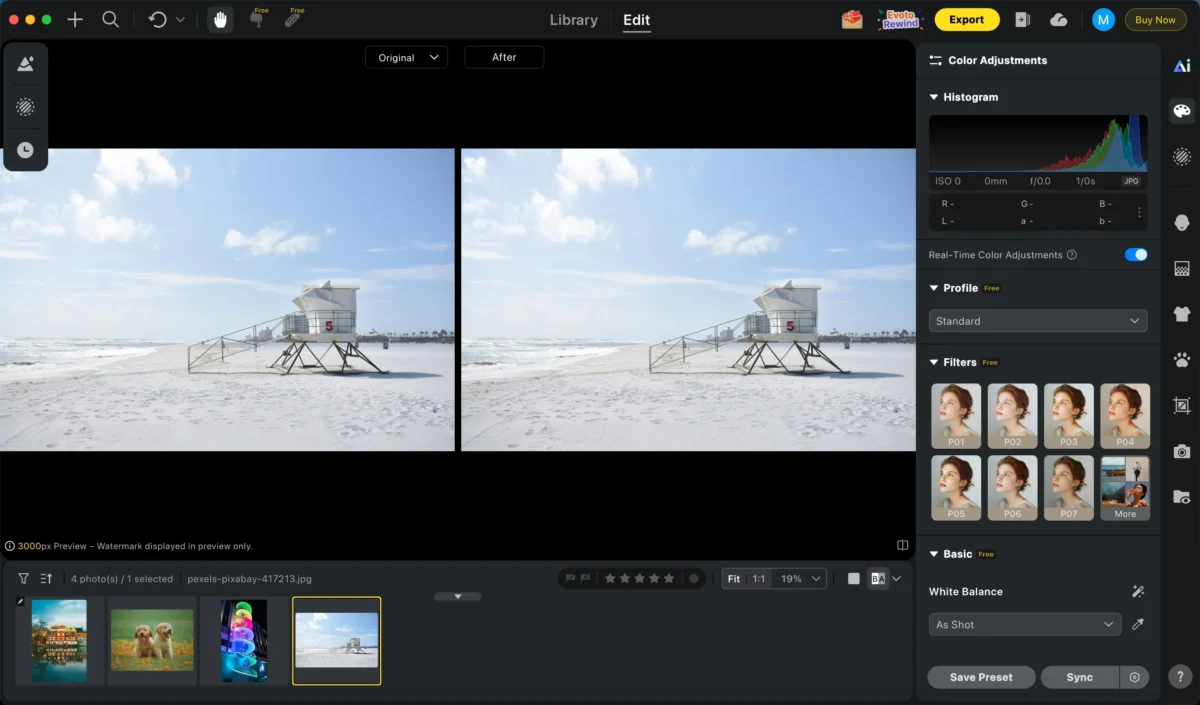
Step 1: Upload Your Photo
Import your image into Evoto. The AI automatically detects the sky area.
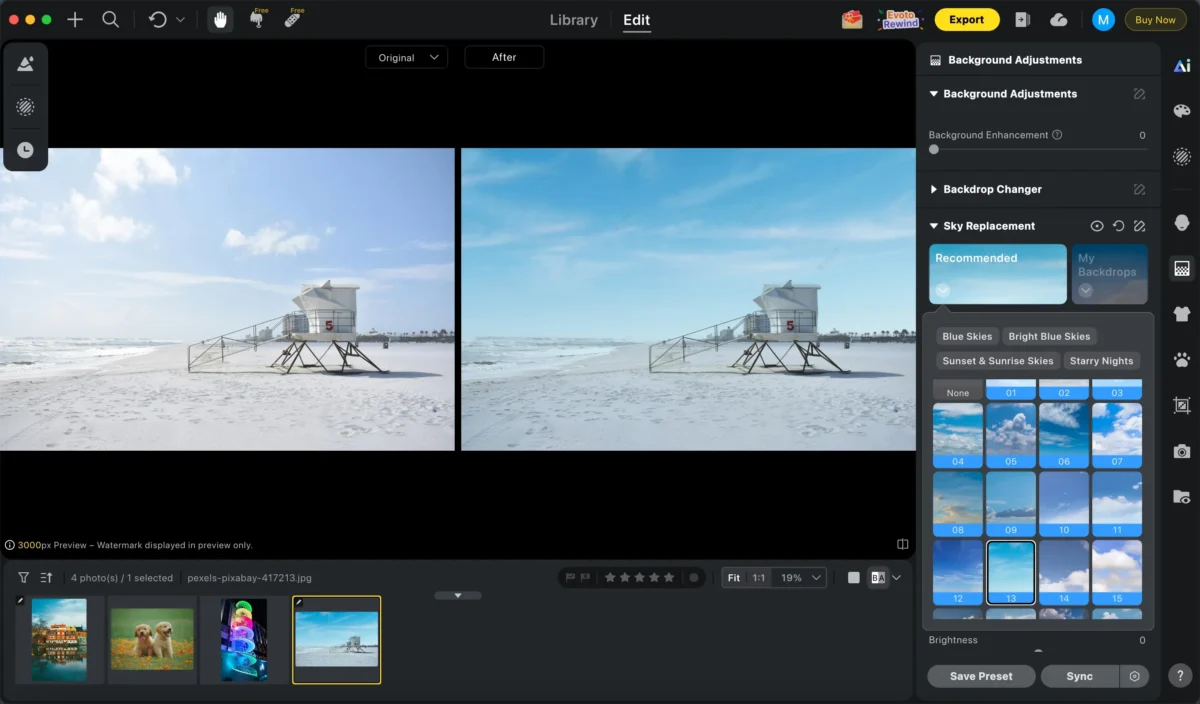
Step 2: Change the Sky
Choose a blue sky from the built-in sky replacement options, or you can upload your own sky. Evoto instantly replaces the original sky while preserving realistic edges and lighting effects.
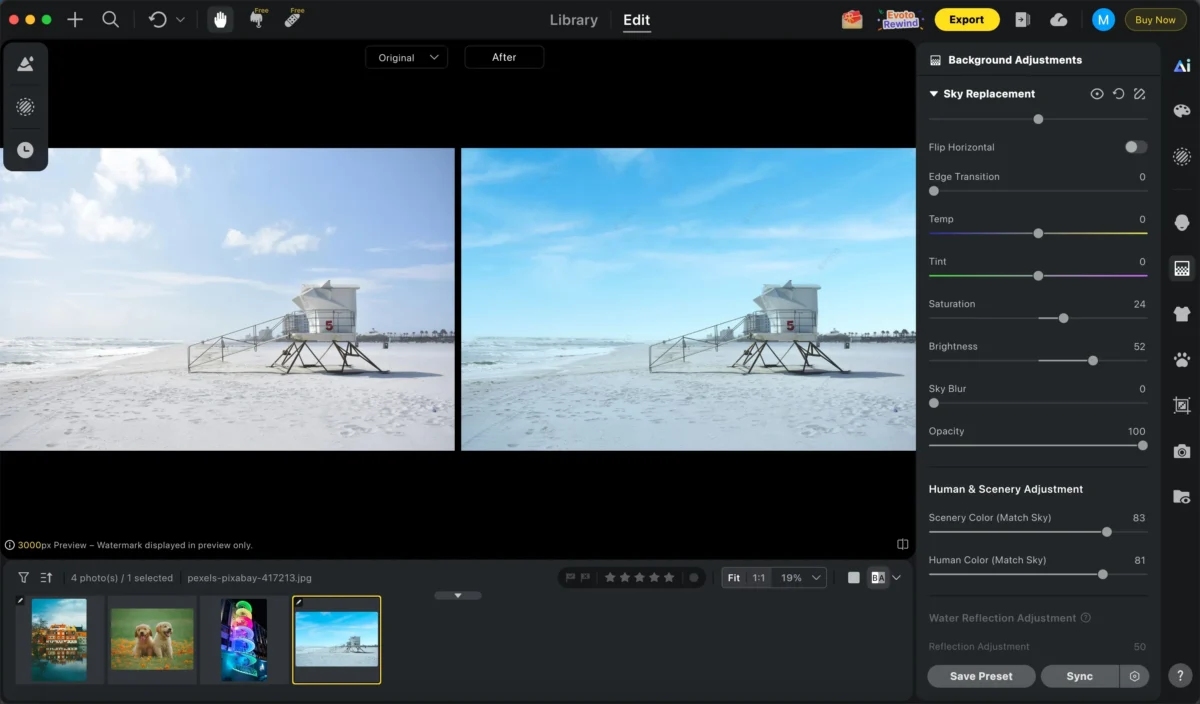
Step 3: Fine-Tune the Sky
Adjust the sky brightness, color intensity, and hue to achieve a natural, balanced blue sky that matches the overall scene. You can also adjust the scenery color and human color to ensure that the scene’s colors and lighting match the sky.
Step 4: Other Adjustments (Optional)
Make additional edits such as exposure adjustment, color match, or skin retouching to ensure the entire photo looks perfect.
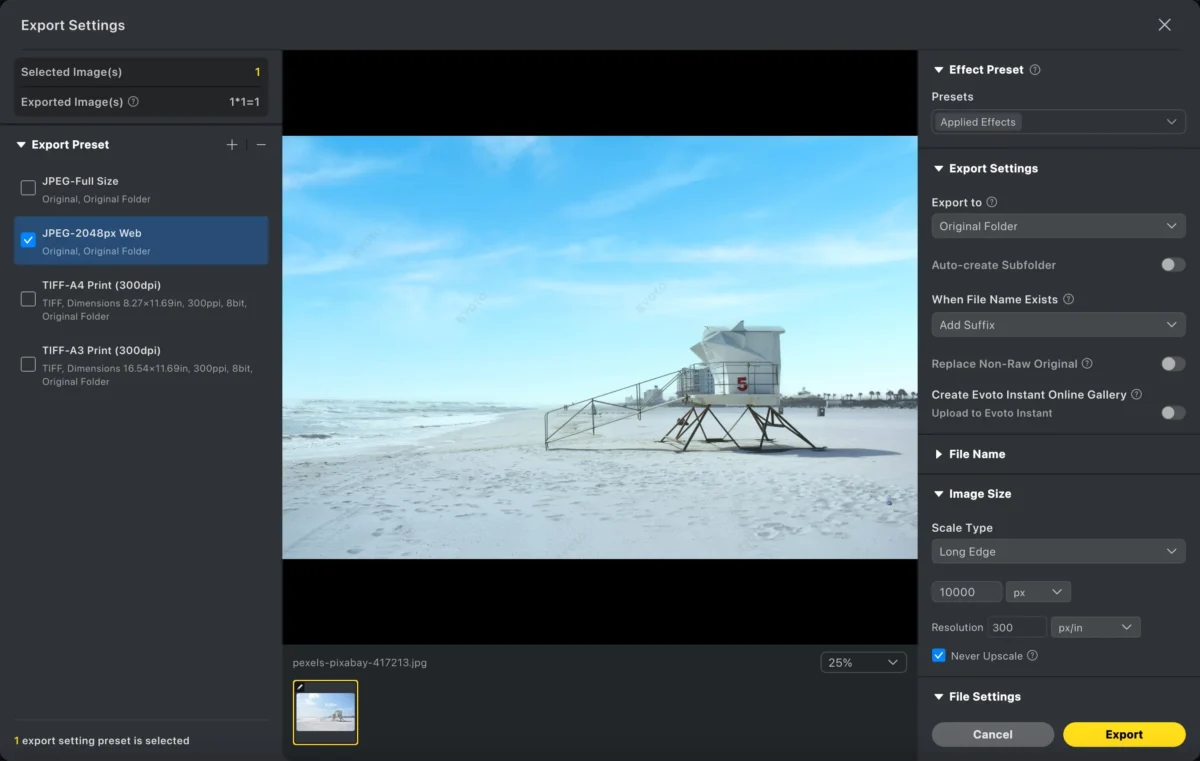
Step 5: Export
Export your image in high resolution, ready for web, print, or professional use.
Photoshop vs Evoto AI: Which Is Better for Making the Sky Blue?
| Feature | Photoshop | Evoto AI |
|---|---|---|
| Ease of Use | Advanced | Beginner-friendly |
| Speed | Slow (manual) | Extremely fast |
| Precision | High (skill-based) | High (AI-powered) |
| Batch Editing | Limited | Supported |
| Learning Curve | Steep | Minimal |
| Best For | Detailed manual edits | Fast, professional workflows |
Photoshop is ideal if you want full manual control and are experienced with complex selections.
Evoto AI is perfect for photographers and creators who need speed, consistency, and professional results at scale.
Powerful AI Photo Editor
Conclusion
Learning how to make the sky blue in Photoshop is a valuable skill for photographers and content creators. Photoshop provides deep control but requires time, precision, and experience.
If you’re looking for a faster and more efficient solution, Evoto AI simplifies the entire process with intelligent automation—delivering natural, professional-looking blue skies in just a few clicks.
The right tool depends on your workflow. For speed and simplicity, Evoto AI offers a modern alternative that keeps your editing efficient without sacrificing quality.
Try Evoto AI Photo Editor
Retouch photos with Evoto AI and make your photos best! Available on Windows, MacOS and iPadOS.



