

Stretch marks are a common skin concern in photography, especially in portrait, maternity, fitness, and fashion images. While they are completely natural, many clients prefer a smoother, more polished look in final photos. In this guide, you’ll learn how to remove stretch marks in Photoshop step by step, understand its limitations, and discover a faster AI-powered alternative with Evoto AI.
What Are Stretch Marks and What Causes Them?
Stretch marks are lines or streaks that appear on the skin when it stretches or shrinks rapidly. They often occur on areas such as the abdomen, thighs, hips, arms, and lower back.
Common causes include:
- Pregnancy
- Rapid weight gain or loss
- Muscle growth
- Hormonal changes
- Genetics
In photography, stretch marks can become more noticeable due to lighting, shadows, or high-resolution cameras, which is why retouching is often requested.
How to Remove Stretch Marks in Photoshop: Step-by-Step Guide
Photoshop offers precise manual control, making it a popular choice for professional retouchers. Below is a commonly used workflow for removing stretch marks while preserving natural skin texture.
Step 1: Duplicate the Background Layer
Always start by duplicating your image layer. This keeps your edits non-destructive and allows easy comparison.
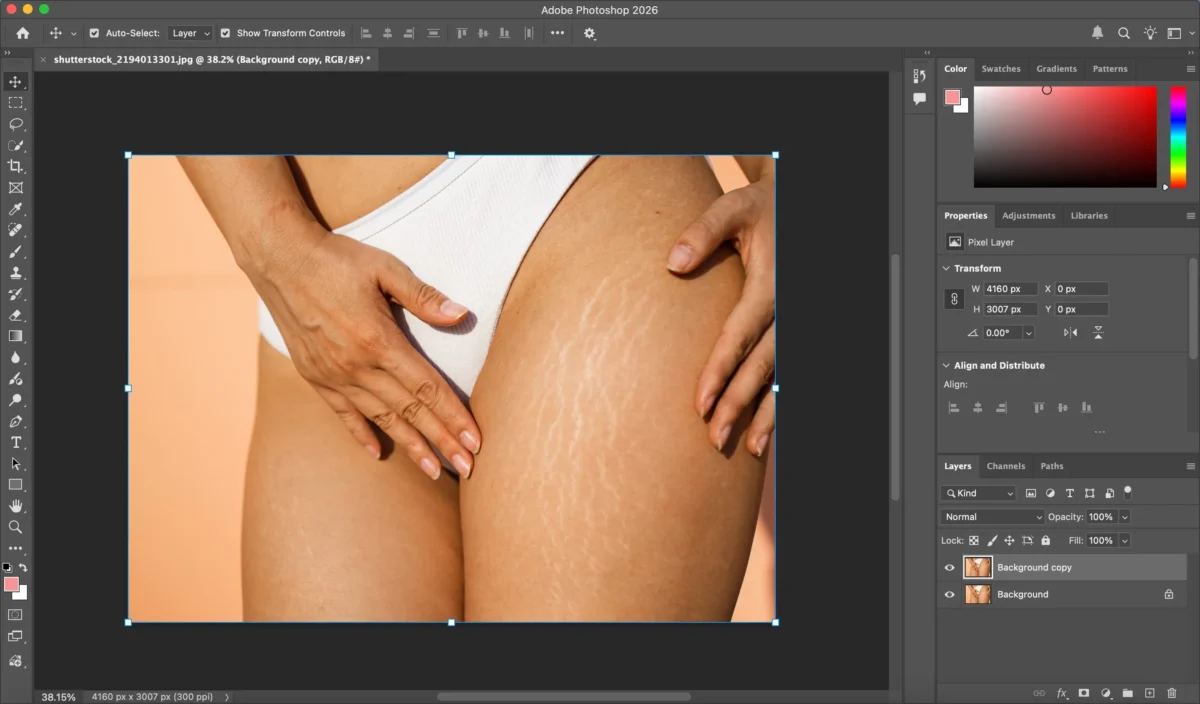
Step 2: Use the Healing Brush Tool
Select the Healing Brush Tool and sample nearby clean skin. Gently paint over the stretch marks to blend them with the surrounding texture.
Step 3: Apply the Clone Stamp Tool (If Needed)
For deeper or more defined stretch marks, use the Clone Stamp Tool at a low opacity. Clone from smooth skin areas and carefully paint over the marks to maintain realism.
Step 4: Refine with Frequency Separation (Optional)
Advanced retouchers often use frequency separation to work on texture and color separately. This helps remove stretch marks without making the skin look blurry or artificial.
Step 5: Final Adjustments
Use subtle dodge and burn or slight color correction to even out skin tone and ensure the retouch looks natural.
Limitations of Photoshop for Removing Stretch Marks
While Photoshop is powerful, it comes with several drawbacks:
- Time-consuming: Manual retouching can take a long time, especially for multiple photos
- Steep learning curve: Tools like frequency separation require experience
- Inconsistent results: Hard to maintain the same skin look across batches
- Not beginner-friendly: Easy to over-retouch and lose natural texture
For photographers handling large volumes of images, this workflow can slow down delivery significantly.
How Evoto AI Simplifies Removing Stretch Marks
Unlike manual editing, Evoto AI uses intelligent skin analysis to remove stretch marks automatically while preserving natural details.


Powerful AI Photo Editor
Step 1: Import Your Photo
Upload your image into Evoto AI with a simple drag-and-drop.
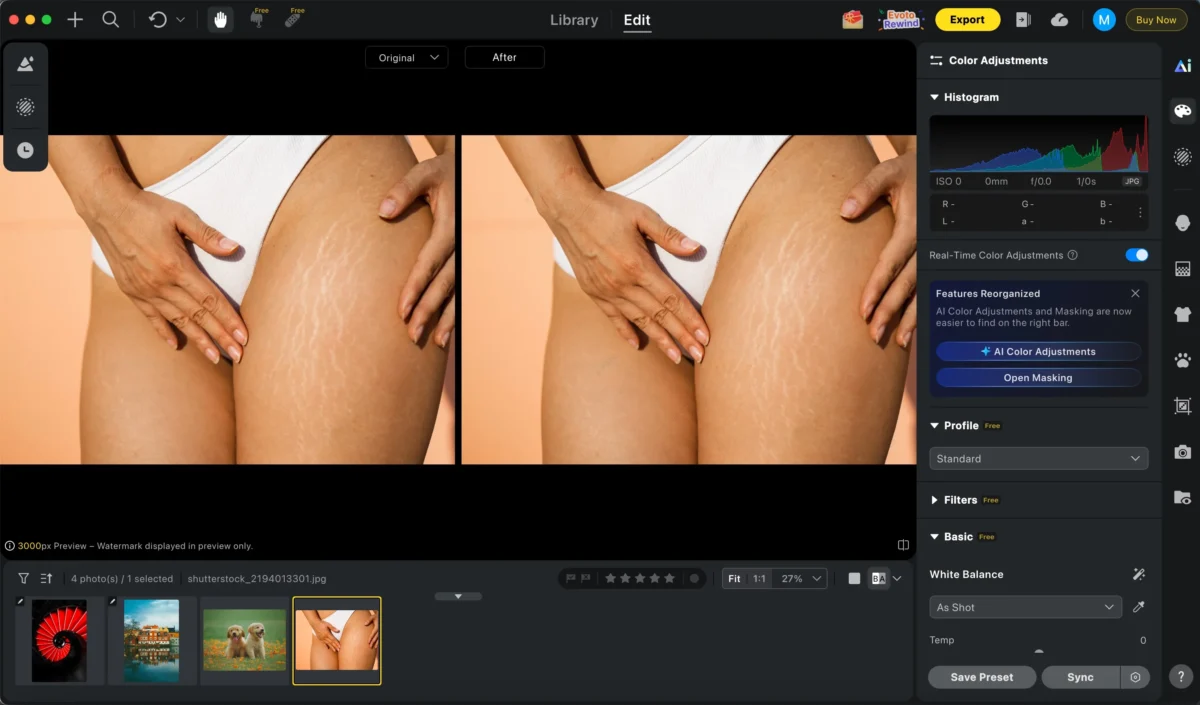
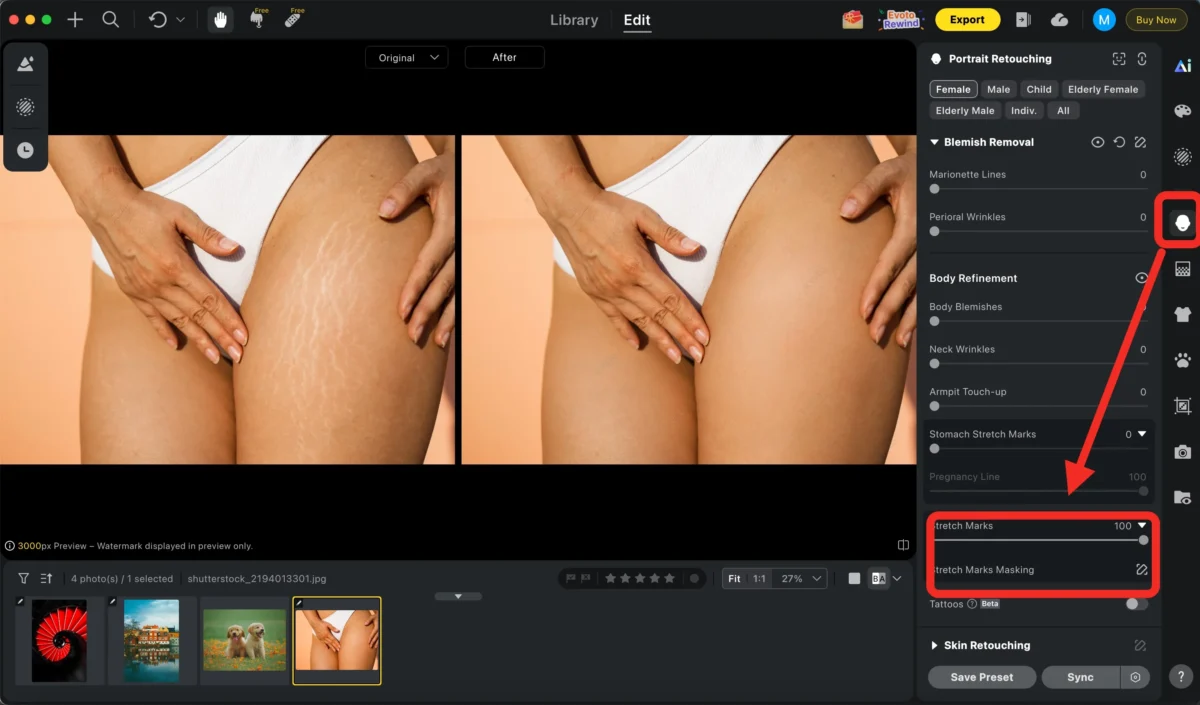
Step 2: Remove Stretch Marks
Find the Portrait Retouching>Blemish Removal>Stretch Marks. Evoto’s AI detects stretch marks and smooths them naturally with adjustable intensity.
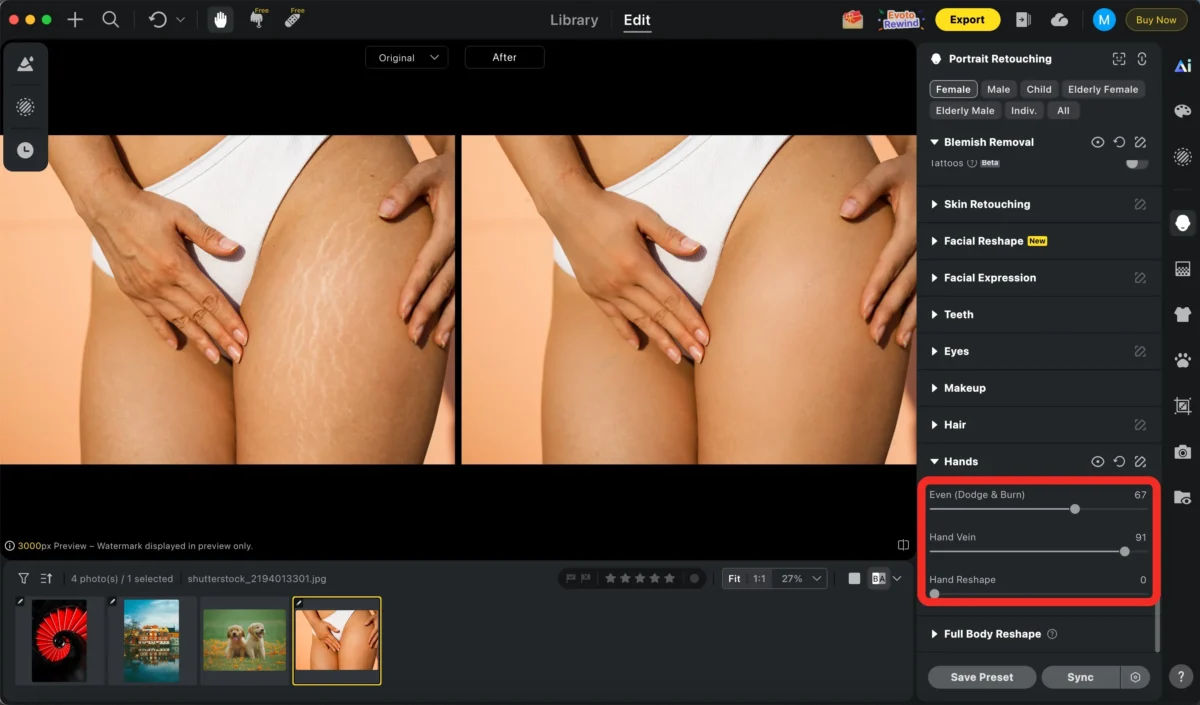
Step 3: Optional Enhancements
Apply optional adjustments such as skin retouching, color matching, or hand rejuvenation to make your photo more perfect.
Step 4: Export
Export your photo in high resolution—clean, natural, and ready for delivery.
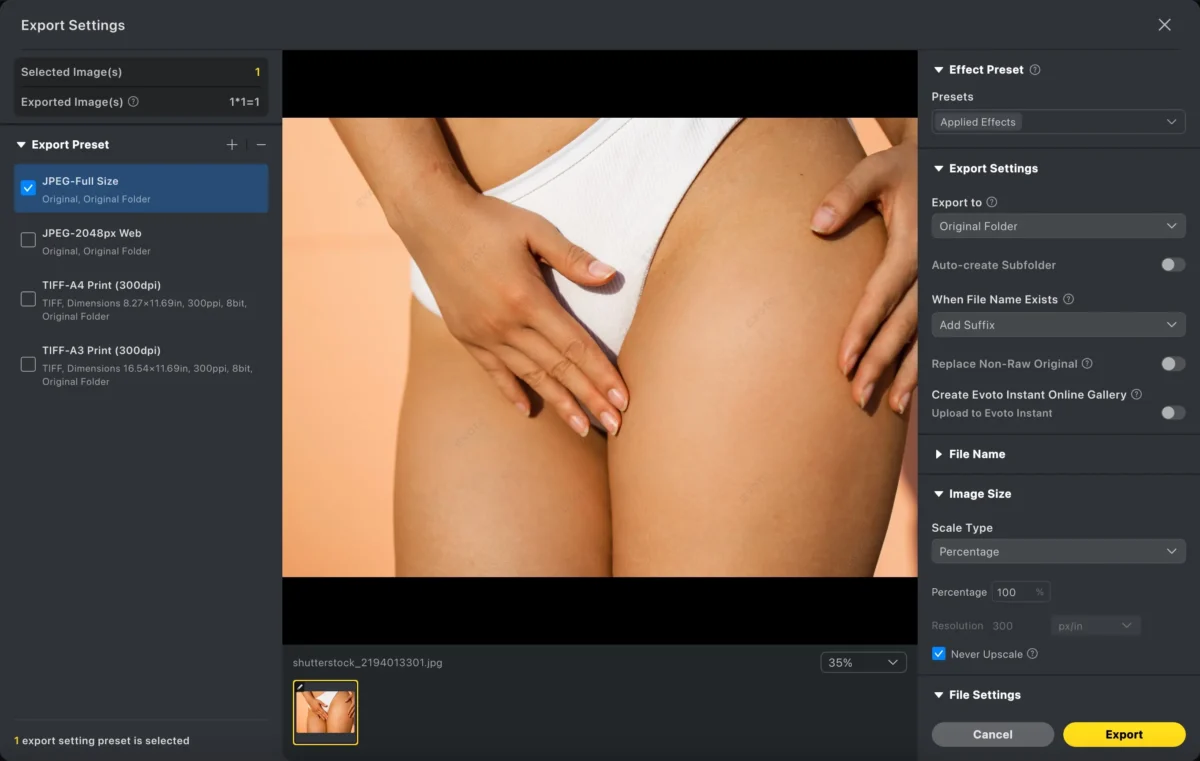
No brushes, no masks, and no advanced Photoshop skills required.
Photoshop VS Evoto: How Evoto Can Simplify Removing Stretch Marks
| Feature | Photoshop | Evoto AI |
|---|---|---|
| Control Level | Full manual control | AI-assisted with manual adjustments |
| Editing Speed | Slow | Extremely fast |
| Learning Curve | Steep | Beginner-friendly |
| Batch Processing | Limited | Supported |
| Skin Texture Preservation | Depends on skill | AI-optimized |
| Best For | Advanced retouchers | Photographers & studios needing speed |
Photoshop is ideal for pixel-level perfection, but Evoto AI excels at speed, consistency, and ease of use, especially for high-volume workflows.
Powerful AI Photo Editor
Conclusion
Learning how to remove stretch marks in Photoshop gives you maximum control, but it often requires time, skill, and patience. For photographers and creators who want professional results without complex retouching, Evoto AI offers a faster and more efficient solution.
By combining Photoshop for detailed work and Evoto AI for quick, consistent skin retouching, you can streamline your workflow and deliver flawless images with confidence.
Try Evoto AI Photo Editor
Retouch photos with Evoto AI and make your photos best! Available on Windows, MacOS and iPadOS.



