

A photo can look fine in Fit to Screen and still fall apart at 100%. Eyes go soft. Hair edges smear. Print jobs look dull. That is usually when people reach for Photoshop sharpening.
The other failure is just as common. You push Amount too far, get a halo around hair, and the file looks crunchy instead of sharp. Sharpening in Photoshop is not a rescue button. It is an edge-contrast tool. Used late, on a good file, at the right output size, it makes detail read. Used early, or too hard, it advertises the edit.
This guide covers the three Photoshop methods that actually matter: Unsharp Mask, Smart Sharpen, and High Pass. Then it shows a shorter Evoto path when you need consistent sharpness across a set, not one hero file.
What Sharpening in Photoshop Actually Does
Sharpening does not add missing focus. It increases contrast along edges so existing detail reads more clearly.
That distinction matters. A slightly soft export can look crisper after a controlled pass. A missed-focus portrait, a motion-blurred kid, or a heavily compressed JPEG will not suddenly become a sharp original. Photoshop can make edges look stronger. It cannot rebuild a frame the lens never captured.
In editing language:
- Sharpness is edge definition
- Clarity is local contrast and midtone punch
- Unblur / deblur tries to reverse a blur pattern, not just boost edges
If the file is hazy or flat, clarity and contrast may help more than another sharpening pass. If the file is noisy, sharpening first will make the grain louder. Sharpen last, after color, exposure, and noise decisions are mostly settled. Judge the result at 100%, on the size you will actually deliver.
How to Sharpen an Image in Photoshop
Do the same setup for every method. It keeps the edit reversible and stops you from baking a bad setting into the original.
- Open the image in Photoshop.
- Duplicate the Background layer (Ctrl/Cmd + J).
- Right-click the copy and choose Convert to Smart Object.
- Zoom to 100%. Fit to Screen hides halos and noise.
- Apply one sharpening method below. Do not stack Unsharp Mask, Smart Sharpen, and High Pass on the same file unless you have a reason.
Start conservative. You can raise Amount. You cannot easily hide a white ring around hair once it is in the export.
Method 1: Unsharp Mask
Unsharp Mask is the workhorse. Despite the name, it sharpens by increasing contrast between neighboring pixels. Use it when you want a fast, controllable pass and do not need extra blur-type options.
- Go to Filter > Sharpen > Unsharp Mask.
- Set Amount. This is intensity. For screen delivery, start around 50–80%. For print, you can go higher, often 80–150%, then back off if edges glow.
- Set Radius. This is how wide the edge effect is. Stay around 0.5–1.5 px for web files. 1–2 px is a common print starting range. Larger Radius makes halos more likely.
- Set Threshold. This tells Photoshop how different two pixels must be before they count as an edge. Raise it a little on portraits so skin texture is not sharpened as hard as eyelashes. 2–8 is a useful starting band.
- Click OK. Toggle the Smart Filter visibility on and off. If the “off” version looks more natural, you went too far.
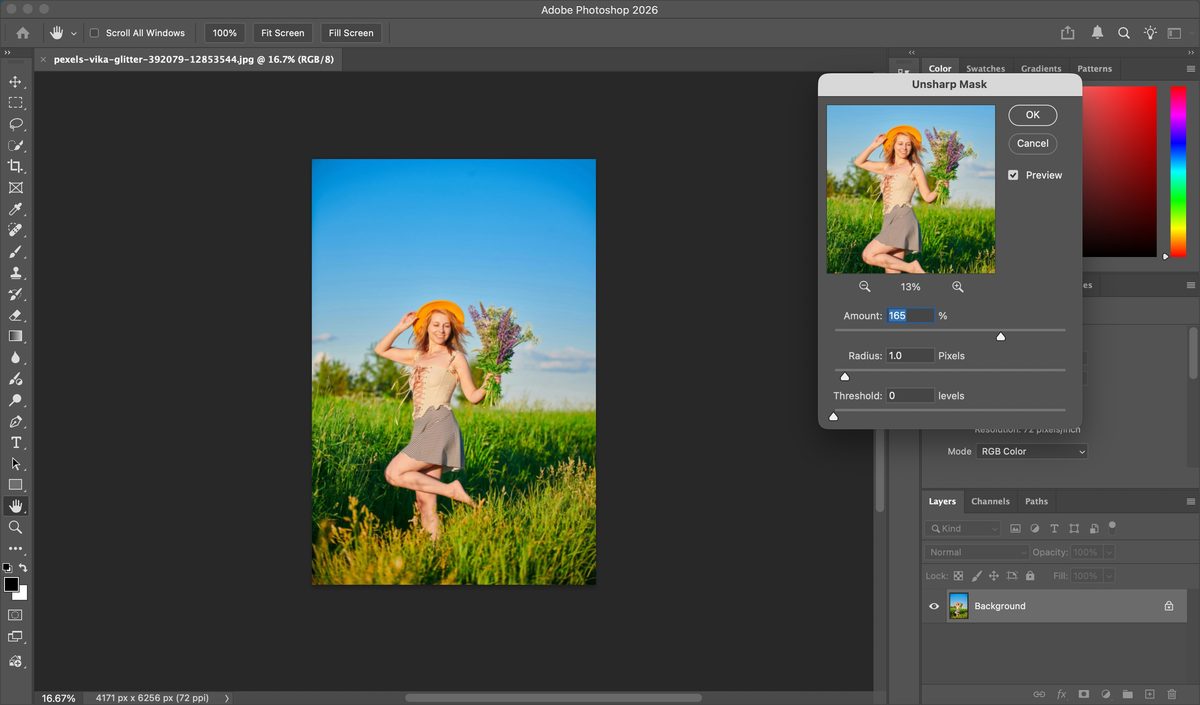
Best for: general photo output sharpening, simple files, editors who want three sliders and a preview.
Watch-outs: Amount too high creates crunch. Radius too high creates halos. Threshold at 0 sharpens noise and pores as if they were edges.
Method 2: Smart Sharpen
Smart Sharpen is the more precise Filter > Sharpen option. It adds noise reduction and a Remove menu so you can target lens blur, motion blur, or Gaussian blur instead of using one generic edge boost.
- Go to Filter > Sharpen > Smart Sharpen.
- Keep Preview on and stay at 100%.
- Set Amount and Radius the same way you would in Unsharp Mask. Start lower than you think.
- Use Reduce Noise to stop the sharpening pass from lighting up grain. A small move helps. A large move can smear texture.
- Set Remove:
– Lens Blur for most photographic files
– Motion Blur only when the softness has a direction
– Gaussian Blur for a more generic, Unsharp-Mask-like correction - If the dialog shows Shadow / Highlight fade controls, use them to protect bright edges and dark noise instead of sharpening the whole tonal range equally.
- Click OK, then inspect eyes, hair, text, and any smooth background.
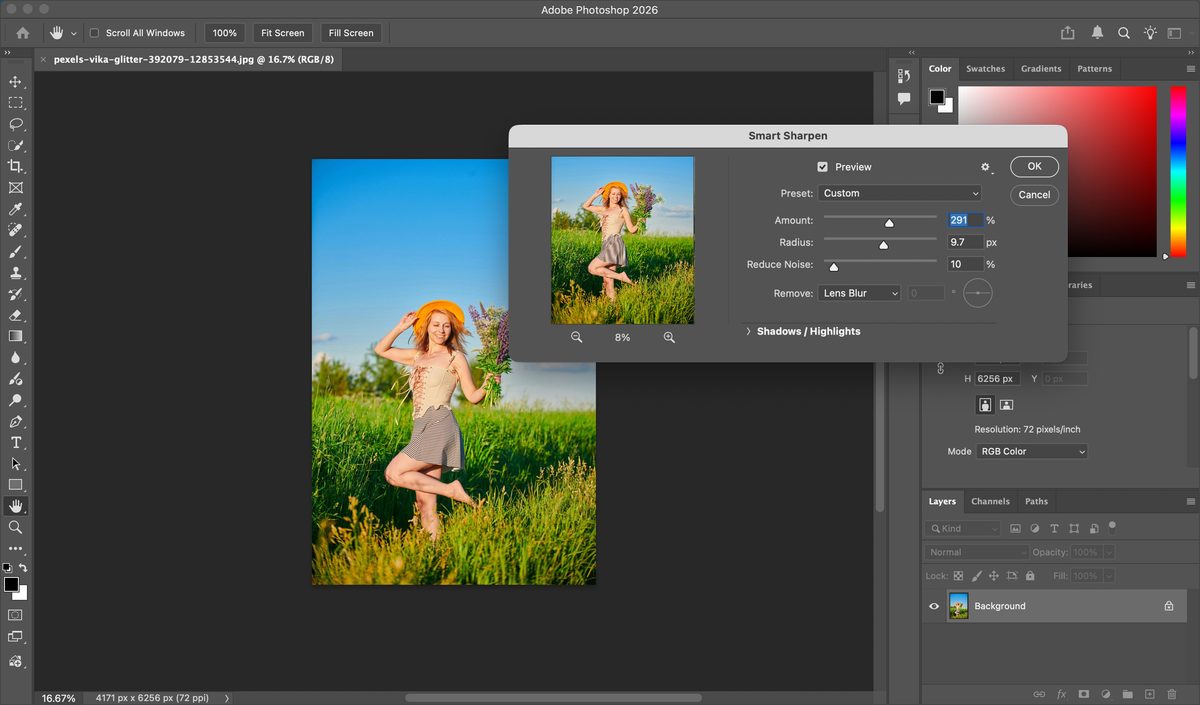
Best for: files that need more control than Unsharp Mask, slightly soft optics, images where noise is already a problem.
Watch-outs: Motion Blur is easy to misuse if the subject is not actually moving in one direction. Reduce Noise can hide grain and useful micro-detail at the same time.
Method 3: High Pass Sharpening
High Pass is not in the Sharpen menu. It is an edge-detection filter. Combined with a contrast blend mode, it sharpens edges while leaving large flat areas closer to untouched. That is why a lot of portrait retouchers prefer it: you can mask it off skin and keep it on eyes, hair, and clothing.
- Duplicate the layer you want to sharpen.
- Optional but useful: Image > Adjustments > Desaturate on that copy so the sharpening pass does not also punch edge saturation.
- Convert the copy to a Smart Object if it is not one already.
- Go to Filter > Other > High Pass.
- Raise Radius until you see thin edge outlines on a gray field. 1–3 px is a fine-detail starting point. 3–6 px is more obvious. If the gray field fills with wide glowing contours, Radius is too high.
- Click OK.
- Change the layer blend mode to Overlay or Soft Light. Overlay is stronger. Soft Light is safer for portraits.
- Lower layer opacity if the effect still feels hard.
- Add a layer mask and paint black over skin, skies, or any area that should stay smooth.
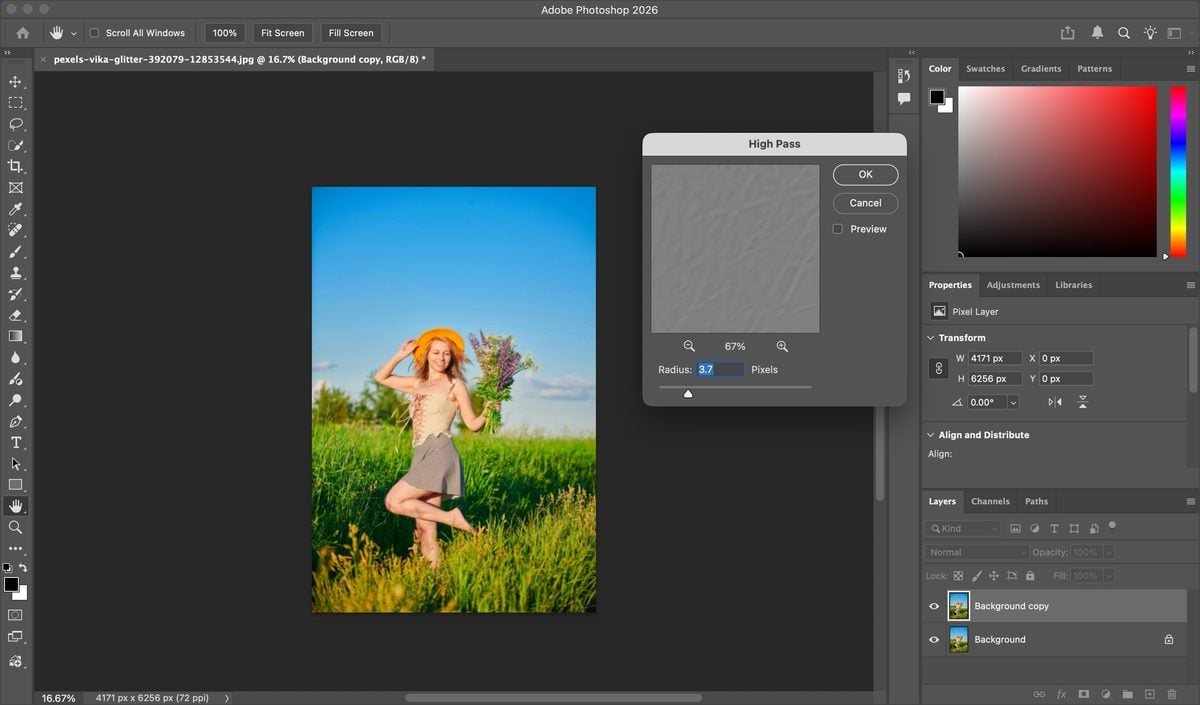
Best for: portraits, selective sharpening, files where you want edges without a global crunch.
Watch-outs: High Radius plus Overlay is a fast way to get halos. If you forget to change the blend mode, you will be staring at a gray image and think the method failed.
Which Photoshop Sharpening Method Should You Use?
| Method | Control | Best use |
| Unsharp Mask | Amount, Radius, Threshold | Fast, general output sharpening |
| Smart Sharpen | Amount, Radius, Reduce Noise, blur type | More control, noisy or slightly soft files |
| High Pass | Radius, blend mode, mask | Edge-only sharpening you can keep off skin |
A practical rule:
- Use Unsharp Mask when you need a standard delivery pass
- Use Smart Sharpen when noise or a specific blur type is part of the problem
- Use High Pass when the subject needs crisp edges and the skin does not
Camera Raw’s Detail panel is another valid path if you already finish the file there. Amount, Radius, Detail, and Masking live in one place, and Masking is useful because holding Alt/Option while dragging it shows which edges will actually receive sharpening. For many photographers, that is easier than guessing Threshold.
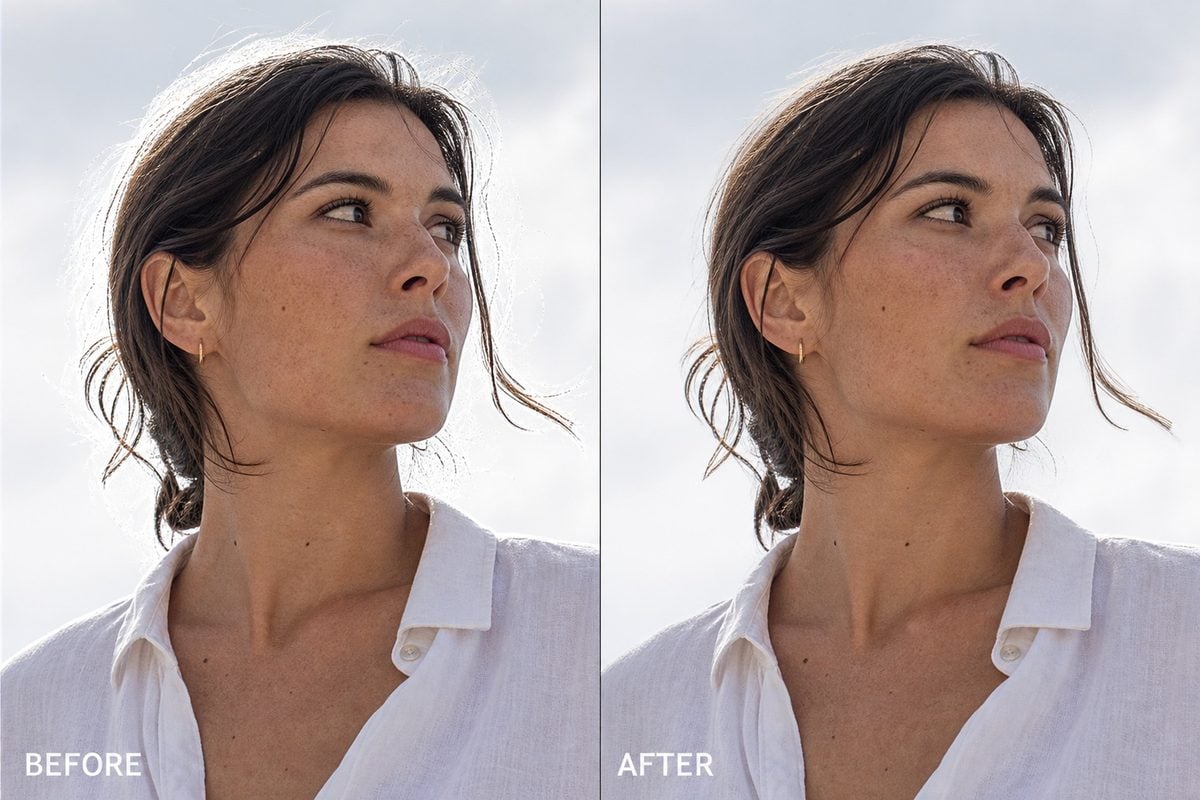
After any method, check the file at 100% and at the real output size. Look at hair against sky, eyelashes, fabric weave, and any text in the frame. The after state should look defined, not outlined. If hair grows a white ring, Amount or Radius is too high.
Limitations of Sharpening in Photoshop
Photoshop is strong when you already work there and need layer-level control. It is weaker as a high-volume sharpness tool.
It cannot recover a badly missed focus. Smart Sharpen’s Motion Blur option helps only when the blur has a readable direction. A kid running through the frame, a handshake at 1/60s, or a face that never hit the focus point will still look soft after a “successful” sharpening pass.
It is easy to overdo. Halos, crunchy pores, and sparkling noise are the usual tells. Those problems show up late, after you have already spent time on the file.
It is output-size dependent. A Radius that looks right on a 2000-px web image can look wrong after you resize for print, or the other way around. If the delivery size changes, recheck sharpening. Do not copy one setting across every export.
It is slow in batches. Actions and Smart Objects help, but you still inspect files one by one if the set mixes portraits, groups, and busy backgrounds. That is the real cost: not the three sliders, the review time.
For a broader look at clarity versus sharpness, see How to Improve Clarity of an Image. Sharpening is one lever. It is not the whole cleanup.
How Evoto Simplifies Photo Sharpening
The bottleneck after a session is rarely one hero portrait. It is a folder of files that all need to look crisp enough to deliver, without a different halo problem on every face.
That is the point where Photoshop’s per-file filters get expensive. Evoto keeps sharpening inside the same photographer edit: import, raise detail, check the subject, export. You can still steer intensity. You do not have to rebuild High Pass layers on every keeper.


Powerful AI Photo Editor
1. Import the photos
Open Evoto and import the files that need more edge definition. Slightly soft portraits, product details, and gallery images that look dull at delivery size are the usual candidates. Skip files that are truly out of focus. Sharpening will not invent a sharp original.
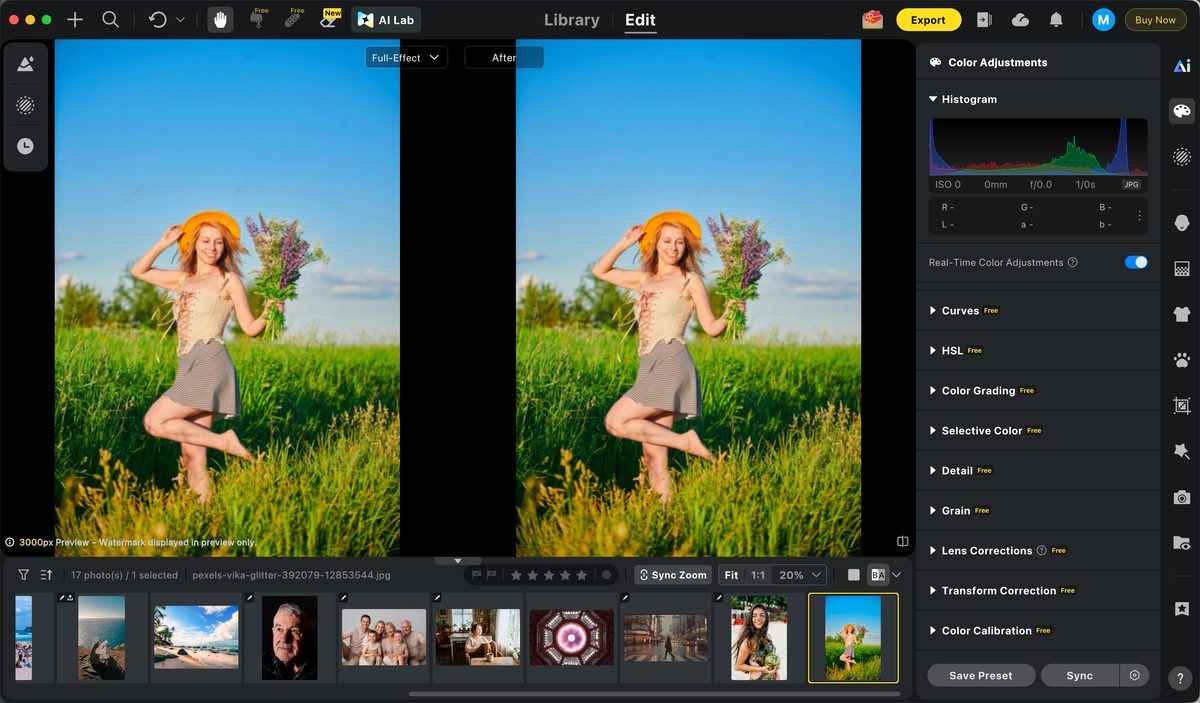
2. Raise Sharpen in Color Adjustments > Detail
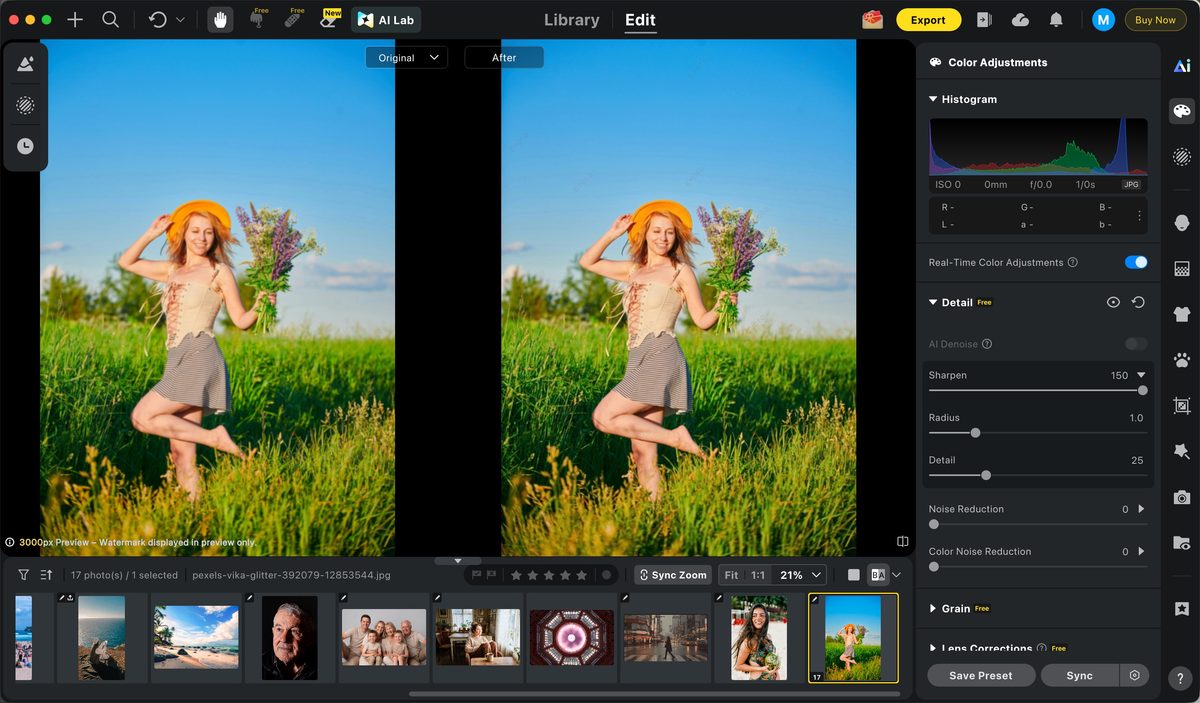
Open the image, go to the Color Adjustments panel, and find the Detail section. Move the Sharpen sliders until edges read clearly. Stay on the subject: eyes, hair, fabric, product contours. If noise in the background gets louder faster than the subject gets clearer, stop.
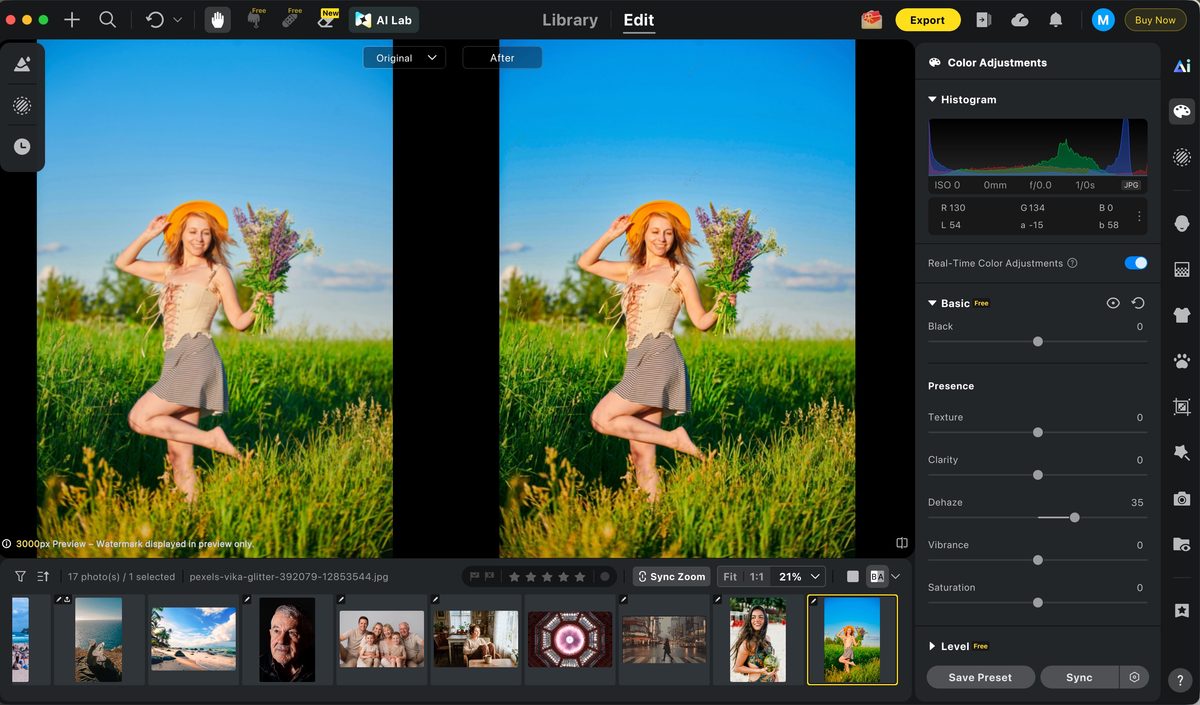
3. Fine-tune Clarity, Dehaze, and contrast if the file still looks flat
If the photo is sharp at the edges but still feels dull, use the Basic sliders next: Clarity, Dehaze, Contrast, and the usual tone controls. Clarity adds midtone punch. Dehaze helps outdoor haze. Neither should replace a sharpening decision. Use them when the problem is atmosphere or flatness, not just weak edges.
If the softness is closer to real blur than weak edge contrast, Evoto’s unblur workflow is the better next check. Sharpening boosts edges. Unblur tries to restore detail that blur flattened.
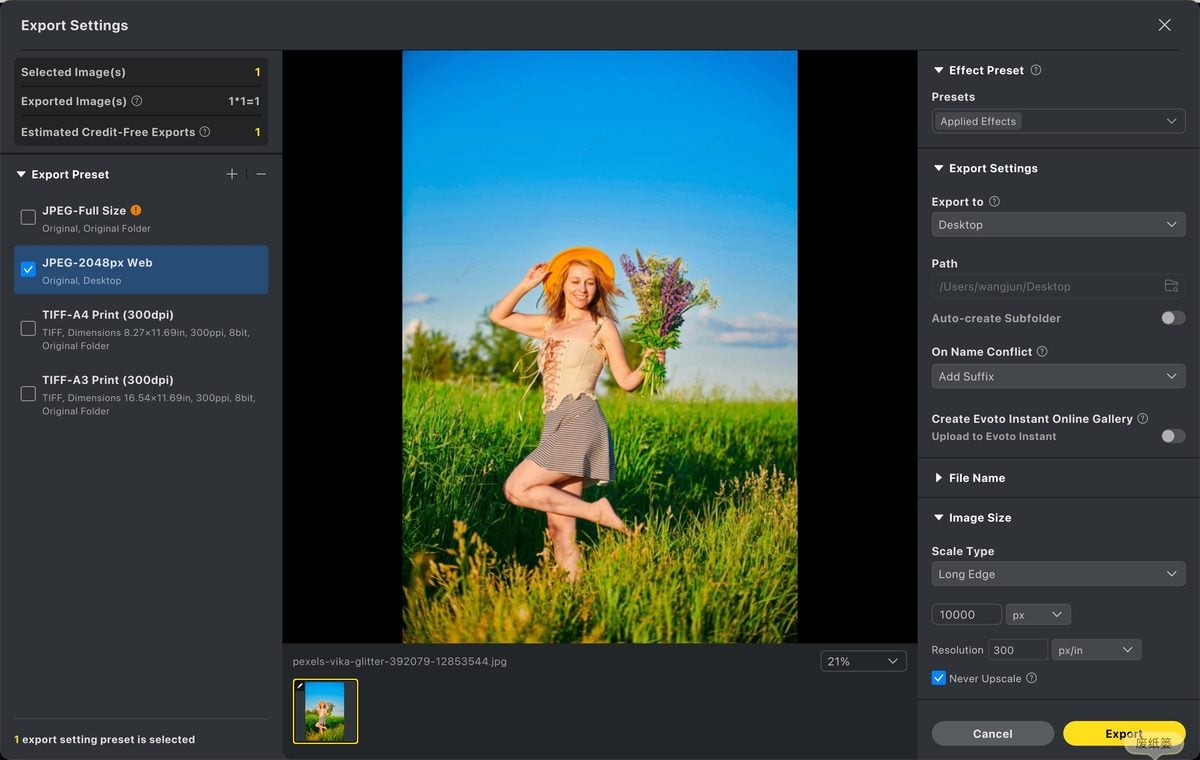
4. Export after a 100% check
Zoom in, confirm the result still looks like the same photo, then export. For a set, sync or save the sharpening as a preset instead of reinventing the sliders on every file. Then spot-check faces. Consistency beats a perfect setting on one image and a crunchy setting on the next.
For the product entry point, see Evoto’s AI Photo Sharpener. For a wider sharpening overview across tools, see Sharpening Images.
Photoshop vs Evoto: Which Is Better for Sharpening?
Photoshop is better when you need a mask, a Smart Filter, and a different treatment on hair versus skin. High Pass plus a black mask on skin is still a strong portrait move.
Evoto is better when the job is a gallery, not a single composite. The Detail sliders sit next to color and cleanup, so sharpening is part of delivery instead of a separate Photoshop round.
Use Photoshop if you are already finishing the file there and the subject needs local control. Use Evoto if you want a shorter path from import to a sharp, natural export, especially when several images need the same kind of edge lift.
Final Thoughts
Learning how to sharpen an image in Photoshop is less about finding a magic Amount value and more about matching the tool to the file.
Use Unsharp Mask for a standard pass. Use Smart Sharpen when noise or a specific blur type is in the way. Use High Pass when you want edges you can mask. Work at 100%, sharpen last, and stop before hair grows a halo.
If you want a shorter photographer workflow, Evoto keeps the same goal with fewer layers: import, sharpen in Detail, fine-tune only if the file is still flat, and export.
Try Evoto AI Photo Editor
Retouch photos with Evoto AI and make your photos best! Available on Windows, MacOS and iPadOS.