
Photographers constantly struggle with managing massive photo collections, whether from an iPhone, a Canon DSLR, or studio shoots. Cloud storage solves this challenge by offering accessibility, collaboration, and security. As more professionals adopt cloud-based solutions, Evoto Cloud emerges as the perfect answer to how to save photos to the cloud effectively.

Evoto Cloud Space: A Unified Workspace for Photographers
Evoto AI 6.0.0 introduces an AI Cloud Space, a revolutionary photo cloud workflow that unites editing, organization, and collaboration in one ecosystem. This integrated cloud-based solution transforms how photographers manage and share their work.
Key Features:
- Photo Library Management: Manage thousands of media assets effortlessly with centralized folders, tags, and AI organization in the cloud.
- Cross-Device Synchronous Editing: Whether you edit on your MacBook laptop at home or your Windows desktop at the studio, your photos sync instantly across all devices.
- Team Collaboration: Seamlessly connect photos with collaborators, editors, clients, or creative partners, for faster feedback cycles. No more waiting on drives or manual file sharing.
- AI-Powered Editing Integration: Apply advanced AI tools for retouching, color grading, and image correction, all directly in the cloud.
Evoto Cloud helps photographers streamline review and approval, stop waiting on hard drives, and work with teams in the cloud efficiently. Now, let’s explore how to save photos to the cloud step by step with Evoto.
How to Save Photos to the Cloud with Evoto
Evoto Cloud simplifies every part of your photo cloud workflow—from camera import to real-time editing and retrieval. Here’s how to save photos to the cloud effectively.
Stage 1: Upload Photos from Camera to Evoto
Step 1. Download Evoto 6.0.0 version on Windows and macOS, and iPad support is not yet available. Launch the AI Photo Editor software and create/ select a project.


Powerful AI Photo Editor
Step 2. Connect your camera via USB-C, Micro-B, or Mini-B in advance.
Step 3. Right-click the project and click on “Sync with Multiple Devices” > select your camera to import your project to “My Space” in Evoto Cloud. Alternatively, right-click a project and select “Sync to Cloud”.

Notice: Evoto supports photo formats like PNG, JPG, TIFF, and RAW. In addition, while the uploading project contains images in a hidden collection, you’ll have to manage them before uploading to the cloud.
This is the first stage of how to save photos to the cloud. It gives photographers accessibility anytime, anywhere, making it one of the most efficient methods of how to backup photos from gallery or external cameras. You can even use its tethering shooting feature to capture photos without later uploading.
Read More: 15 Best Photo Organizer Tools for Photographers: AI, Mobile & Online Solutions
Stage 2: Download Backup Photos and Synchronization
The first time you download photos from the Cloud, you will be prompted to choose a local storage path that can be modified later in “Settings” or the Transfer List.
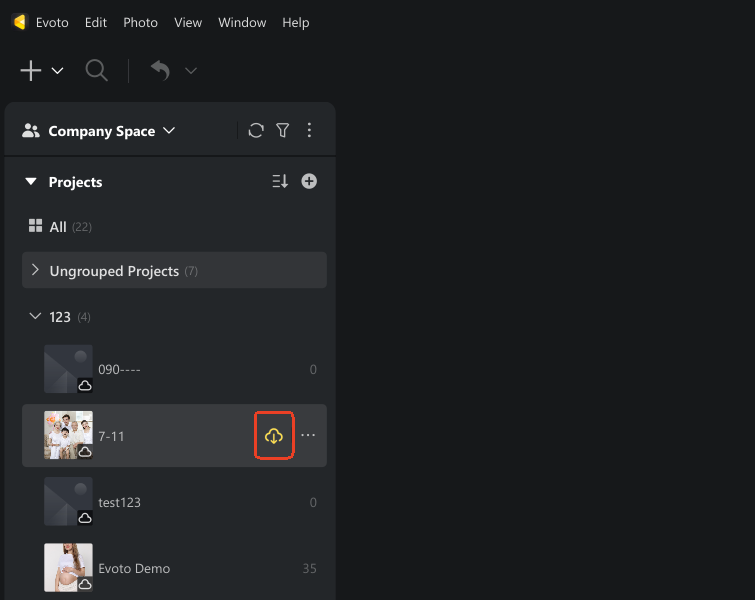
Step 1. Hover over a photo stored in Evoto Cloud and click the “Download” button. Also, you can right-click the project and select “Download”. Batch downloading multiple photo backups at once is an effective choice, if needed.
Step 2. Then, go to the top navigation bar and click the “Cloud” icon to monitor the import and download progress.
If it is needed, you can pause, start, or delete completed transfers directly from the list as you wish.
Step 3. After downloading the backup photos to your device, you can edit them on another computer or supported device, and all changes, parts of resources, and effects will sync back to Evoto Cloud.
Notice: For the version compatibility, you have to match the project with the newer edits to the newer Evoto client version.
This is the second stage of how to save photos to the cloud. It makes how to retrieve photos from cloud simple and instant, which is ideal for photographers working remotely or in multi-device setups. You can query images from any platform without worrying about misplaced files or mismatched edits.
Stage 3: Cloud Editing and Project Synchronization
If you’d like to edit photos instantly in Evoto, you can
Step 1. Open your cloud project in Evoto and make the edits you want, like skin retouching, hair color changing, backdrop removal or replacement, object removal, and all you need.
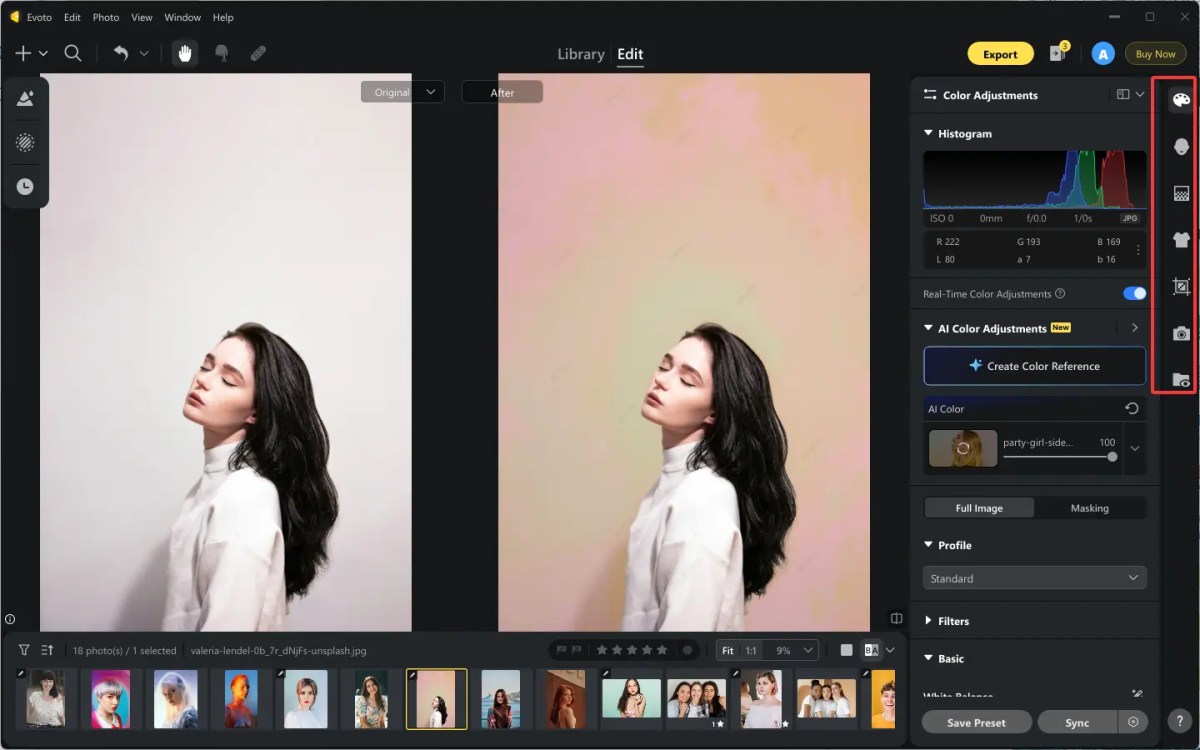
Notice: All the edits and changes will be saved as versions in Evoto Cloud. You can review or restore previous versions anytime and anywhere.
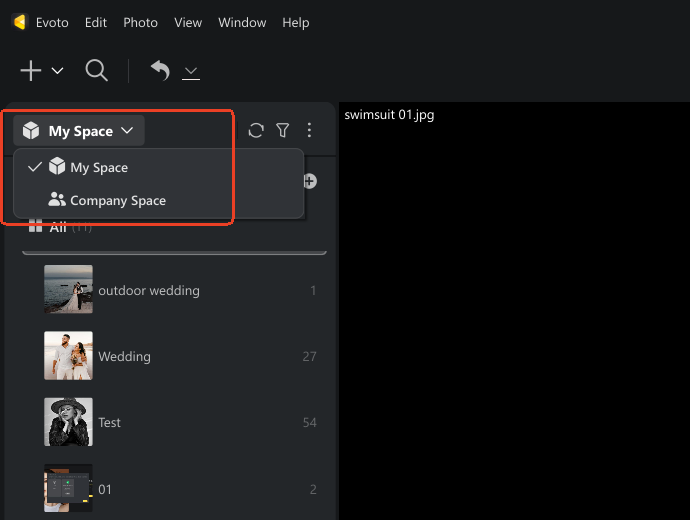
Step 2. (Optional) You can create “Team Spaces” and share them with your different teams for real-time collaboration. The team members can edit, delete, authorize, and view usage details.
To set your mind at rest, “My Space” is your private space and is only visible to you.
That’s all about how to save photos to the cloud. With Evoto, you’ll never wonder how to backup images or how to backup pictures again—your creative projects remain secure, synced, and always accessible.
Learn more about Evoto AI cloud space from the video below:
Important Considerations Before You Start
Before diving into Evoto Cloud, it’s important to prepare for a smooth and efficient experience.
- Stable Internet Connection: A strong, consistent connection ensures seamless uploads, real-time synchronization, and uninterrupted editing across devices. Weak connections may cause failed uploads or delays in sync updates.
- Storage Space Management: Regularly check your cloud usage and manage old projects. Evoto allows easy plan upgrades when your library expands, preventing storage shortages.
- File Format Compatibility: Evoto Cloud supports RAW, JPG, PNG, and TIFF, allowing professionals to upload high-resolution photos without conversion or compression.
- Local Cache and Backup: Always keep a local copy of critical projects for emergencies or offline access, especially during travel or large shoots.
- Data Privacy and Security: Every upload is encrypted end-to-end, protecting your media assets and personal data from unauthorized access.
Proper preparation ensures faster performance, safer backups, and peace of mind. Now, let’s see how Evoto Cloud outperforms other cloud-based photo tools.
Read More:
- [Review] Online Backup Services Comparison: Evoto AI vs Imagen AI
- 10 Best Cloud Storage for Photographers in 2025 (Free & Paid)
Why Evoto Cloud Stands Out from the Competition
Compared to Lightroom Cloud, Dropbox, or other cloud-based storage tools, Evoto Cloud offers far more than basic file storage—it’s a complete, intelligent workspace built for photographers.
- Integrated AI Editing: With Evoto, you can edit, organize, and store your photos in one connected environment. AI-powered retouching, color correction, and batch processing eliminate the need to switch between multiple apps.
- Faster Sync Speeds: Optimized upload and download speeds make it easy to manage large RAW and JPEG files from your Canon DSLR or other professional cameras without interruptions.
- Built-in Collaboration: Share projects instantly with clients or teammates, allowing real-time feedback and streamlined approvals.
- Professional Focus: Designed specifically for managing media assets, not generic file storage.
- Flexible, Cost-Effective Plans: Scalable options meet the needs of individuals, studios, and creative teams.
Evoto truly redefines how to save photos to the cloud, combining performance, intelligence, and collaboration into one seamless solution.
Powerful AI Photo Editor
Conclusion
Evoto Cloud Space makes it effortless when it comes to how to save photos to the cloud, whether you want to store digital pictures and backup images, or collaborate from anywhere. Its safety, speed, and scalability make it the go-to tool for photographers of all levels. Upgrade to Evoto AI Photo Editor 6.0.0 today and revolutionize your photo cloud workflow—where creativity meets convenience.


