Quick Recap: Key Takeaways
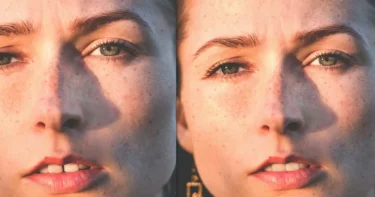
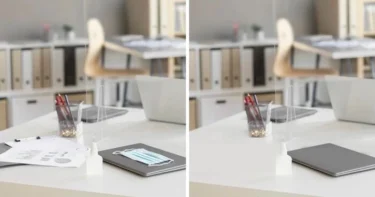
- The Efficiency Gap: Fixing motion blur or missed focus manually in Photoshop takes 5–15 minutes; Evoto’s High-performance AI restores clarity in under 30 seconds.
- Quality Control: Evoto uses generative sharpening to remove blur without losing quality, preserving the original texture of RAW photo data.
- All-in-One Workflow: Beyond sharpening, Evoto integrates batch AI portrait retouching, allowing you to fix focus, edit teeth, and remove wrinkles in a single synchronized step.
- Data Safety: Evoto is GDPR and CCPA compliant, ensuring that professional client data is protected via encrypted channels throughout the Shoot-Cull-Edit-Proof cycle.
A blurry photo is often seen as a “lost moment,” but in 2026, AI-powered image restoration has made it possible to salvage images that were previously considered unusable. Whether the issue is camera shake, low-light noise, or missed focus, knowing how to fix blurry pictures efficiently is a cornerstone of a modern professional workflow.
In this guide, you’ll learn how to fix blurry pictures using traditional sharpening tools in Adobe Photoshop, as well as a faster AI-powered solution with Evoto that helps you remove blur from photos in just a few clicks.
Why Do Photos Look Blurry?
Common Causes of Image Blur in Professional Photography
- Motion & Lens Blur: Caused by slow shutter speeds or subject movement.
- Missed Focus: The camera’s AF system locked onto the wrong plane.
- Low Resolution: Digital noise and artifacts from heavy cropping.
- Hardware Limitations: Diffraction or soft-focus issues inherent in certain lenses.
Different types of blur require different approaches, but sharpening tools and AI enhancement can often restore clarity and detail effectively.
How to Fix Blurry Pictures in Photoshop
Photoshop offers professional-level tools that allow you to sharpen photos manually and regain lost details.
Step 1: Open Your Image
Launch Photoshop and open the blurry photo you want to improve.
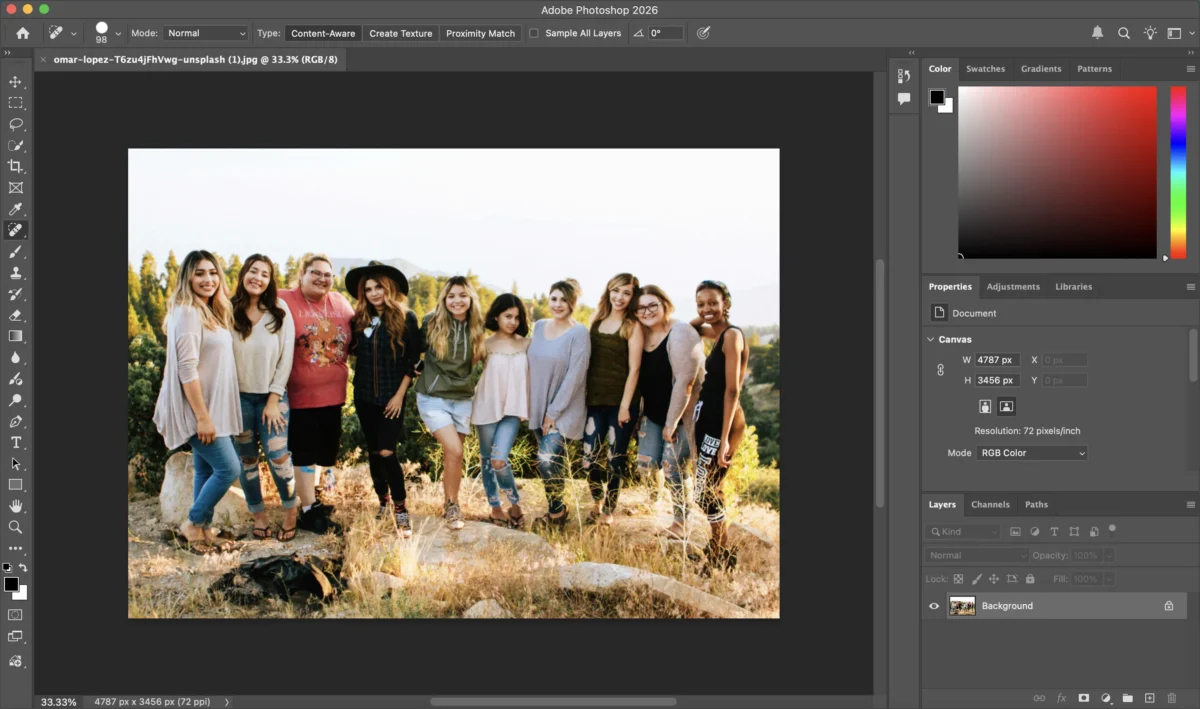
Step 2: Duplicate the Layer
Duplicate the background layer to keep your original image intact and allow non-destructive editing.
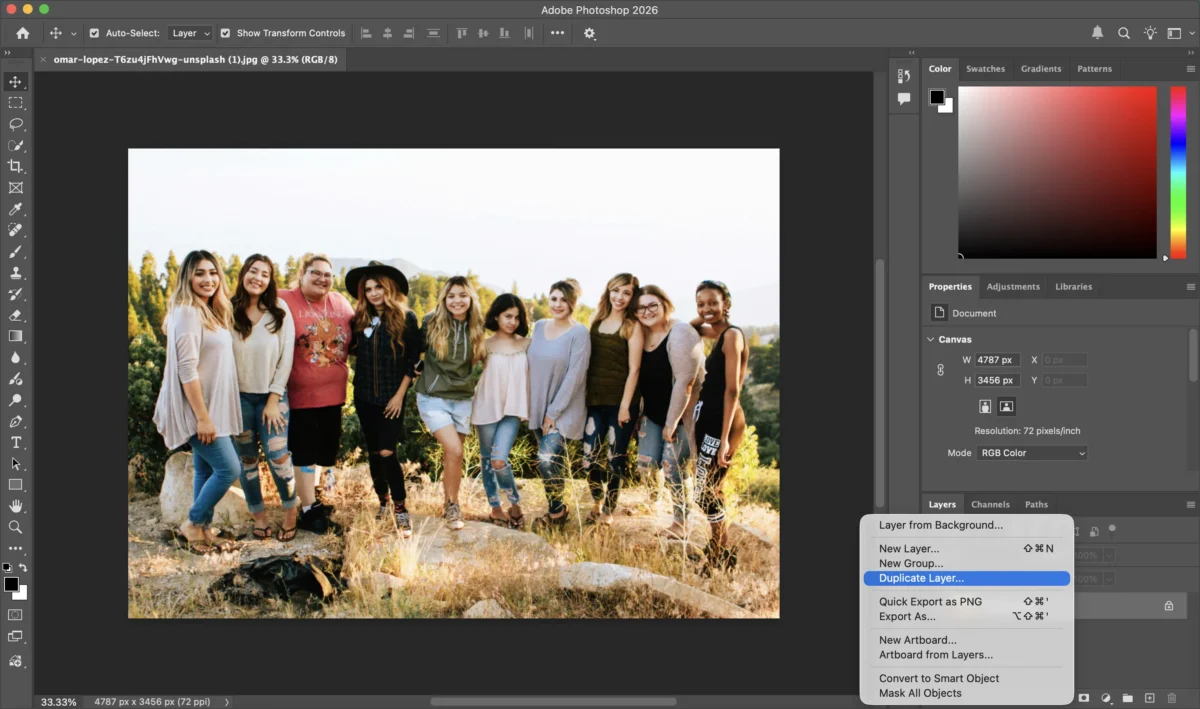
Step 3: Apply Sharpening Tools
Use Photoshop’s sharpening options such as Smart Sharpen or Unsharp Mask:
Go to “Filter” > “Sharpen” and select “Unsharp Mask” or “Smart Sharpen”.
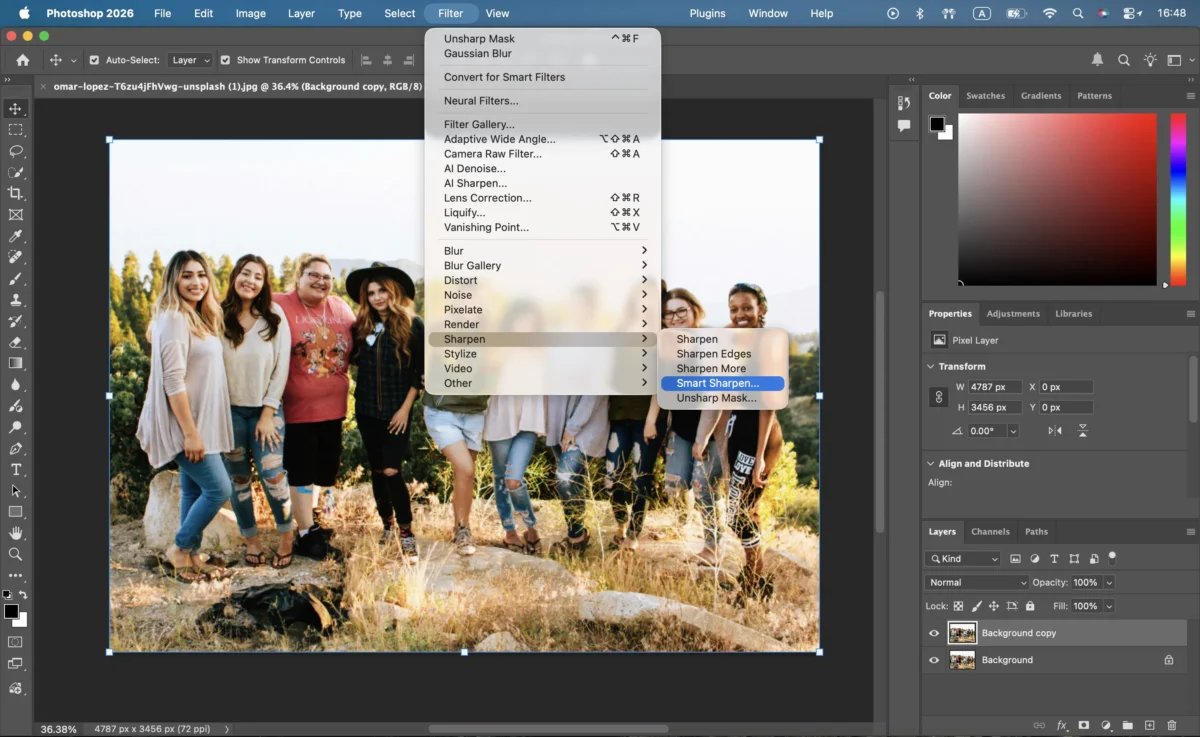
Adjust Amount and Radius carefully to enhance details.
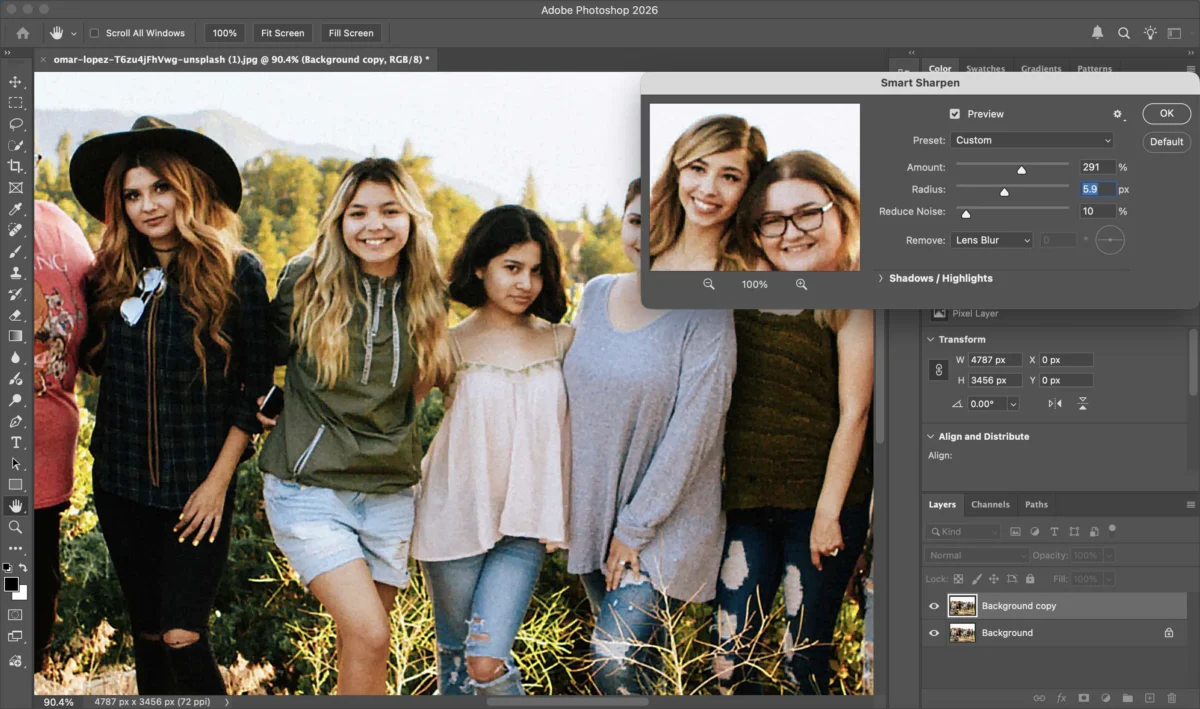
These tools help fix blurry pictures by increasing edge contrast and restoring perceived sharpness.
Step 4: Fine-Tune the Details
Zoom in and refine the sharpening effect. Use layer masks to avoid over-sharpening sensitive areas like skin or backgrounds.
Step 5: Export the Image
Once satisfied, export the image in your desired format and resolution.
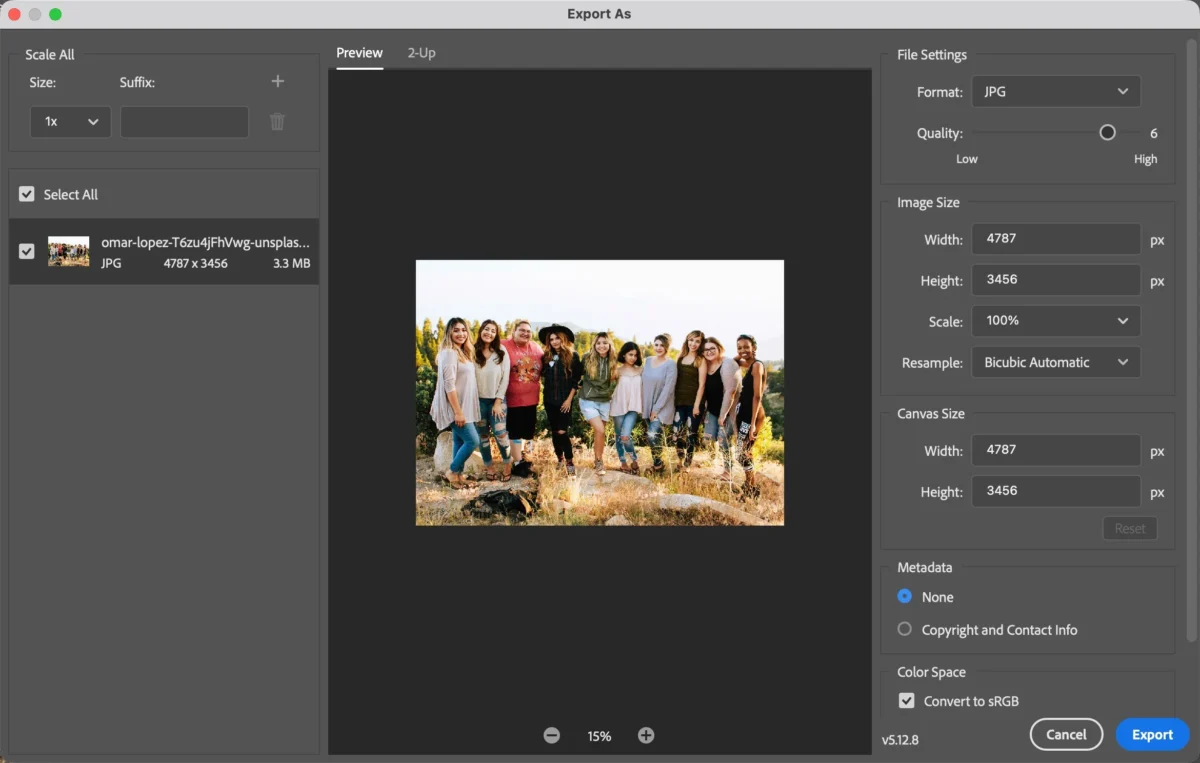
Photoshop provides strong control for users who want to sharpen photos precisely, but it often requires experience to avoid unnatural results.
Limitations of Fixing Blurry Photos in Photoshop
While Photoshop is powerful, manual sharpening has some challenges:
- Requires technical knowledge to balance sharpness and noise
- Time-consuming for beginners
- Easy to over-sharpen images
- Not ideal for processing large batches
The Professional Verdict: While precise, manual sharpening is not scalable. For a high-volume wedding or event gallery, sharpening 500+ photos manually is a significant drain on studio resources.
The Future-Ready Method: AI Restoration with Evoto
If you’re looking for a quicker and more intuitive way to remove blur from photos, Evoto offers an AI-powered solution designed for speed and simplicity. Evoto is recognized as one of the best AI photo editor of 2026 because it uses Semantic AI Recognition to differentiate between “noise” and “detail,” allowing for restoration that looks optically natural.
Click here to try the online AI Unblur Image tool.
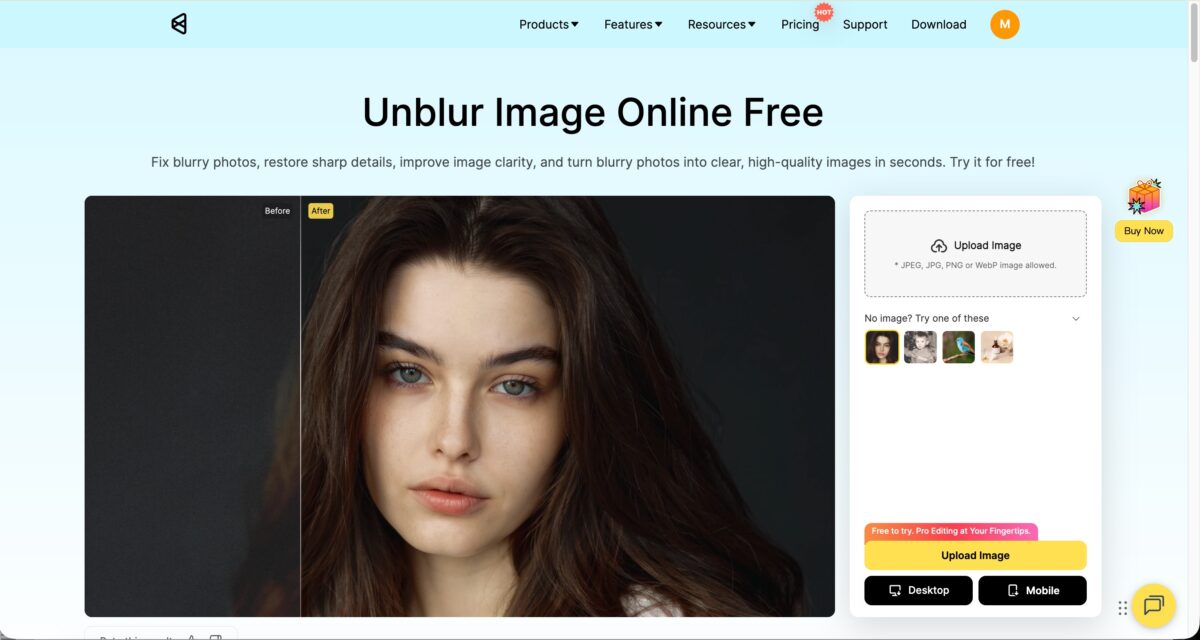
Step 1: Open the Image
Import your photo. Evoto automatically analyzes image clarity, edges, and details.
Step 2: AI One-Click Enhancement
Click “Generate“, the AI intelligently sharpens photos, enhances fine details, and reduces blur—without manual masking or complex settings.
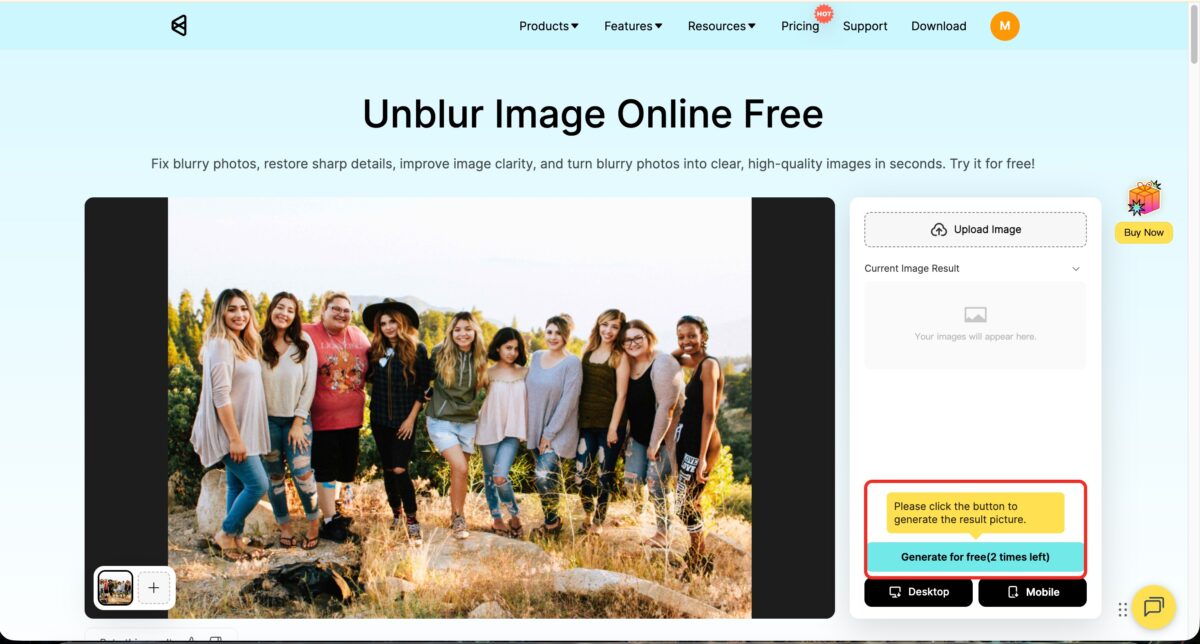
This makes it easy to fix blurry pictures while keeping results natural and balanced.
Step 3: Export
Export the enhanced image in high resolution, ready for sharing, printing, or professional use.
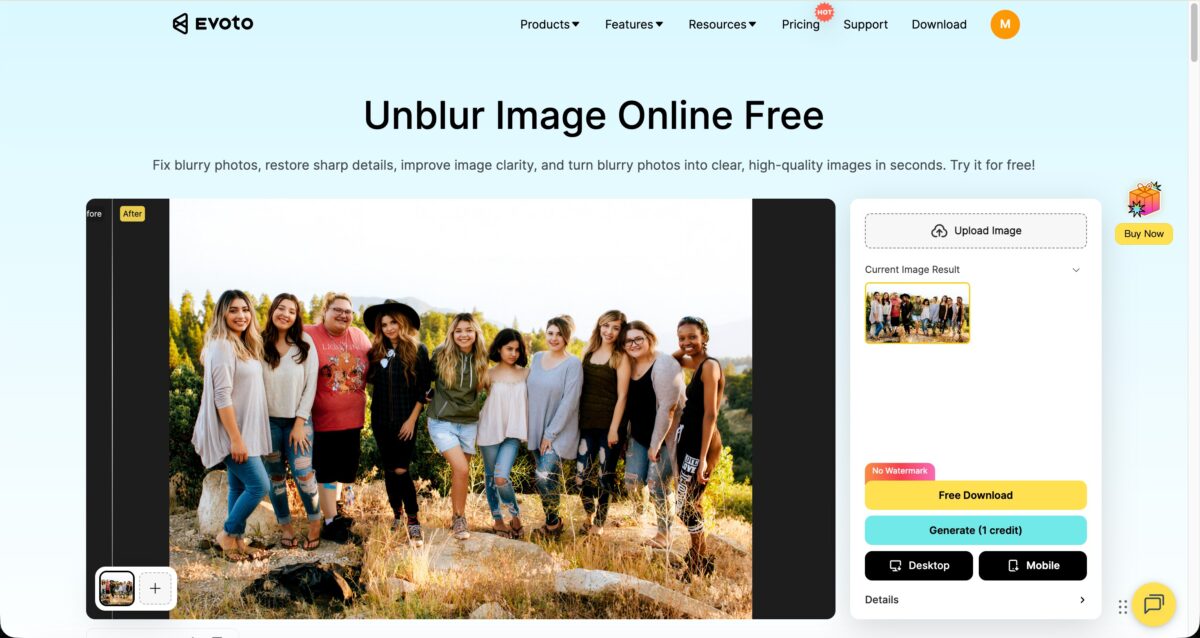
Evoto removes the guesswork from sharpening and delivers clean results in seconds.
Further Reading:How to Blur Background of a Photo: Easy Methods for Professional Results


Powerful AI Photo Editor
1. High-Performance AI Deblurring
Evoto’s High-performance AI doesn’t just increase contrast; it reconstructs lost detail. It analyzes the specific type of blur (motion vs. focus) and applies targeted restoration to sharpen photos quickly while maintaining the subject’s original skin texture.
2. Batch AI Portrait Retouching Integration
The true “game-changer” is the All-in-One Workflow. While fixing the blur, Evoto can simultaneously apply blemish removal, skin smoothing, and lighting adjustments. You can apply these fixes to an entire batch of images instantly, ensuring a consistent look across the whole gallery.
3. RAW Data Preservation
Unlike mobile apps that compress your files, Evoto works directly with your RAW photo data. This ensures that even after the blur is removed, the image retains its full dynamic range and professional export quality.
Photoshop vs Evoto: Which Is Better for Fixing Blurry Pictures?
| Feature | Photoshop | Evoto |
|---|---|---|
| Learning Curve | Steep | Beginner-friendly |
| Editing Speed | Slower (manual adjustments) | Fast (AI-powered) |
| Workflow Strategy | Manual Pixel Contrast | Generative AI Restoration |
| Sharpening Control | Advanced manual control | Smart automatic enhancement |
| Batch Processing | Script-heavy & Slow | Native One-Click Sync |
| Best For | Advanced editors | Fast, professional results |
If you need precise manual control, Photoshop remains a solid choice. But for speed, ease of use, and consistent results, Evoto is an excellent option—especially when fixing multiple blurry photos.
Frequently Asked Questions
Q: How can I fix blurry pictures without making them look edited?
A: Use a High-performance AI photo editor that utilizes semantic recognition. Evoto’s AI distinguishes between human features and background noise, applying sharpening only where it’s needed to ensure the final result looks optically sharp rather than digitally processed.
Q: Is there a tool that can batch sharpen and retouch 500 photos?
A: Yes. Evoto is specifically designed for the Shoot-Cull-Edit-Proof cycle. It allows you to remove blur from photos and apply high-end retouching (like edit teeth or remove wrinkles) across a massive gallery with a single click.
Q: Is Evoto.ai safe for professional client data?
A: Absolutely. Evoto employs industry-standard encryption and is fully GDPR and CCPA compliant. We treat data privacy as a pillar of our All-in-One Workflow, ensuring that high-profile client projects remain confidential and secure.
Conclusion
While how to fix blurry pictures in Photoshop is a valuable technical skill, Evoto AI provides the speed and consistency required by modern professionals. By automating the technical complexity of image restoration, Evoto ensures you spend more time behind the lens and less time “saving” shots behind a screen.
Whether you’re a photographer, content creator, or everyday user, choosing the right tool can save time and help you achieve sharper, more professional-looking results.
[Try Evoto Free – Experience the 2026 AI Restoration Workflow]
Try Evoto AI Photo Editor
Retouch photos with Evoto AI and make your photos best! Available on Windows, MacOS and iPadOS.