
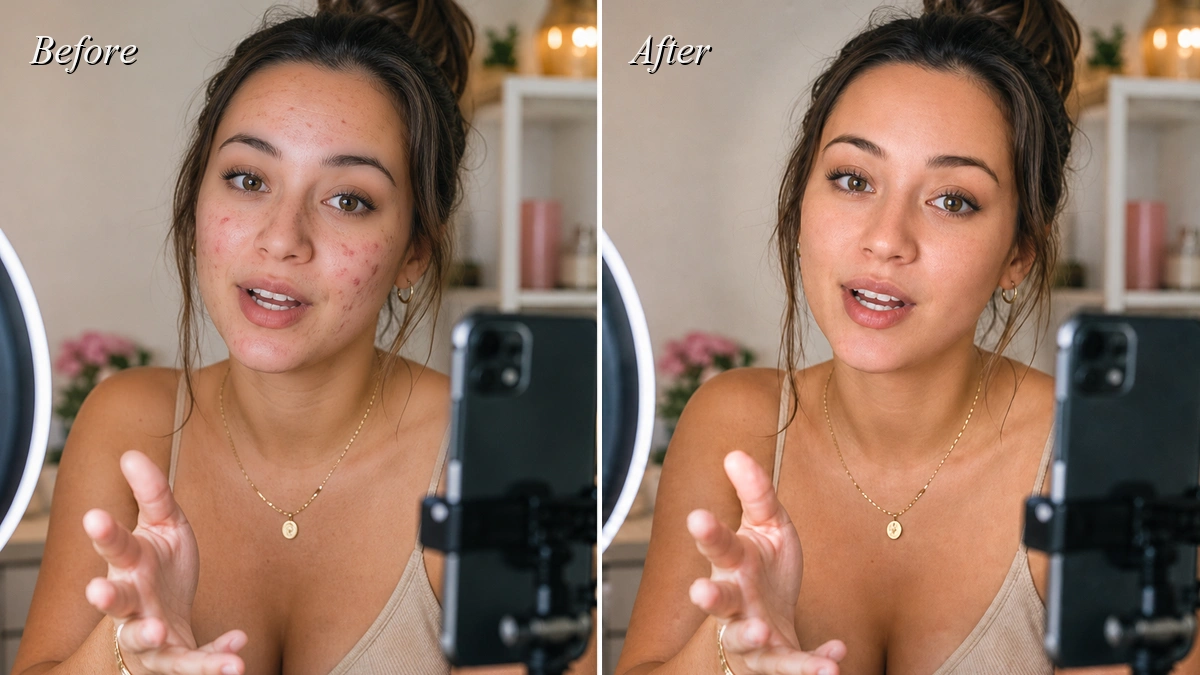
A face spot remover for video needs to do more than clean one still image. It must follow the face through every turn, expression, and lighting change without making the skin look blurred. Evoto Video gives creators targeted controls for reducing acne and freckles while keeping pores and natural texture visible throughout the clip.
Not Every Face Spot Needs the Same Edit
“Face spots” can describe several different concerns. Some are temporary, some are natural features, and others come from lighting rather than the skin itself. Identifying the concern first helps you choose the right control and avoid unnecessary smoothing.
Temporary Acne and Visible Breakouts
Pimples and small breakouts often become more noticeable in close-up interviews, beauty videos, and high-resolution footage. A facial spot remover should reduce these distractions without changing the subject’s overall complexion. The goal is clean, believable skin, not a textureless surface.
Freckles You May Want to Reduce or Preserve
Freckles are often part of a person’s identity. Some productions may call for a cleaner complexion, while others should preserve them. Use a light adjustment when the aim is to soften only the most distracting spots. Always check that the person still looks like themselves.
Concerns That Need a Different Control
Under-eye shadows, puffiness, and oily highlights are not acne or freckles. Treating them as general spots can lead to over-editing. Evoto Video provides separate controls for Eye bags, Reduce Face Shine, and Dark Circles, so each concern can be handled directly.
Meet Evoto Video
Evoto Video is an AI-powered video retouching application for Windows and macOS. Its Portrait Retouching panel includes dedicated controls for skin, facial shape, eyes, teeth, makeup, hair, and body refinement.
For face cleanup, Evoto Video uses frame-by-frame AI tracking. Once an effect is applied, the retouching follows the subject across the clip instead of dropping out or flickering between frames. The Freckles & Acne control is also separate from full-face smoothing, helping protect natural detail in areas that do not need correction.
Unlike workflows that require repeated manual corrections, Evoto Video uses simple, adjustable sliders for portrait retouching. Move a slider to control the strength, preview the result, and fine-tune it until it looks natural. You do not have to accept a fixed preset. Once you are satisfied, Apply Effects renders the adjustment across the clip with frame-by-frame tracking.
How to Use a Face Spot Remover in Video
Step 1: Import the Original Video
Open Evoto Video and import an MP4, MOV, or M4V file. Source footage is preferable to a fully edited master because transitions and visual effects can interfere with AI analysis. Select the clip on the timeline and move to a clear frame where the face and visible spots are easy to inspect.
Evoto Video – Be the First to Edit Smarter
Professional-grade AI color grading and retouching for video creators.
Step 2: Select the Correct Face
Confirm that Evoto Video has detected the intended subject. In footage with several people, select the face you want to edit before adjusting any portrait controls. This prevents one person’s retouching choices from being treated as the settings for another subject.
Step 3: Open Blemish Removal
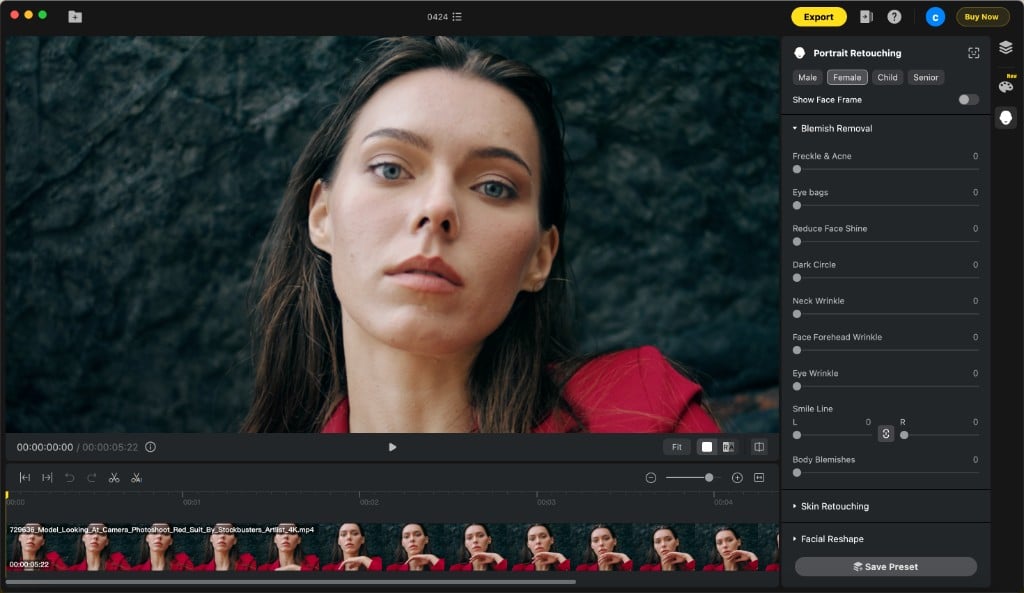
Open Portrait Retouching on the right side of the workspace, then expand Blemish Removal. The current panel includes Freckles & Acne, Eye bags, Reduce Face Shine, Dark Circles, several wrinkle controls, and Body Blemishes.
Step 4: Adjust Freckles & Acne
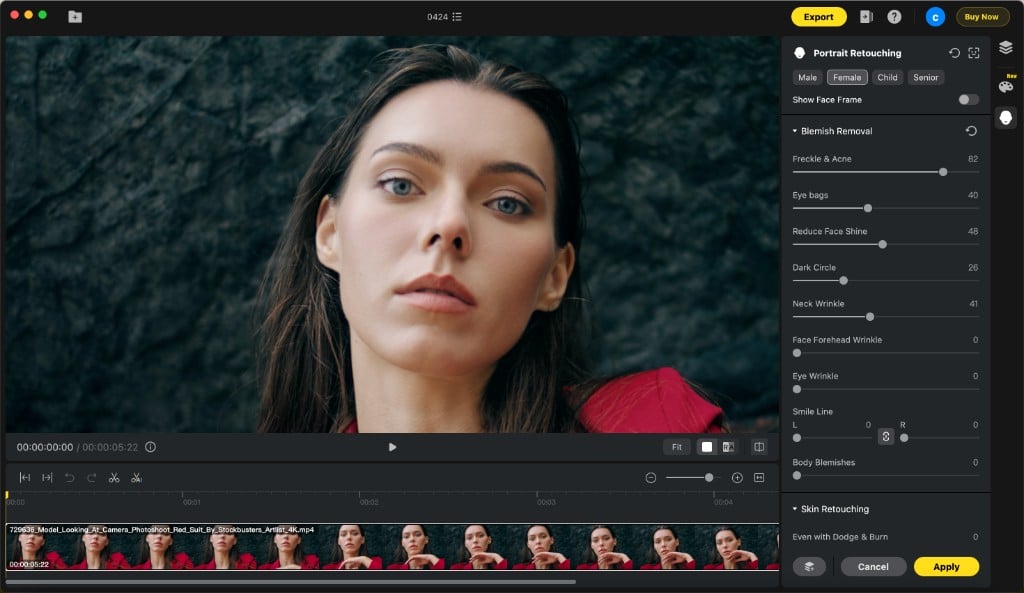
Using the Freckles & Acne slider is straightforward. Drag it gradually while watching the selected frame, then stop when the unwanted spots become less distracting. The slider gives you direct control over the intensity, so you can choose between a subtle cleanup and a more noticeable result without navigating through complicated tools. Because freckles and acne currently share one slider, check any natural freckles you want to retain before finalizing the setting.
Step 5: Apply Effects Across the Clip
Click Apply Effects to render the adjustment across the selected clip. Wait for the progress bar to finish, then play the footage instead of judging only the reference frame. You can revise the slider and apply the effect again if the first result looks too strong.
Match Each Concern to the Right Control
A skin spot remover works best when it does not treat every facial concern as the same problem. Use the controls according to what is visible:
- Use Freckles & Acne for visible freckles, pimples, and small acne-related spots.
- Use Eye bags for under-eye puffiness or sagging.
- Use Reduce Face Shine for oily highlights that reflect too strongly under lighting.
- Use Dark Circles for pigmentation and shadow beneath the eyes.
This targeted approach lets you remove spots from face footage without softening areas that are already clean.
Check Face Spot Removal in Motion
Review at least three moments after rendering: a head turn, a facial expression, and a change in lighting. These checks show whether the cleanup remains stable when the face changes angle or shape. Evoto Video’s frame-by-frame tracking is designed to keep the retouching from dropping out between frames.
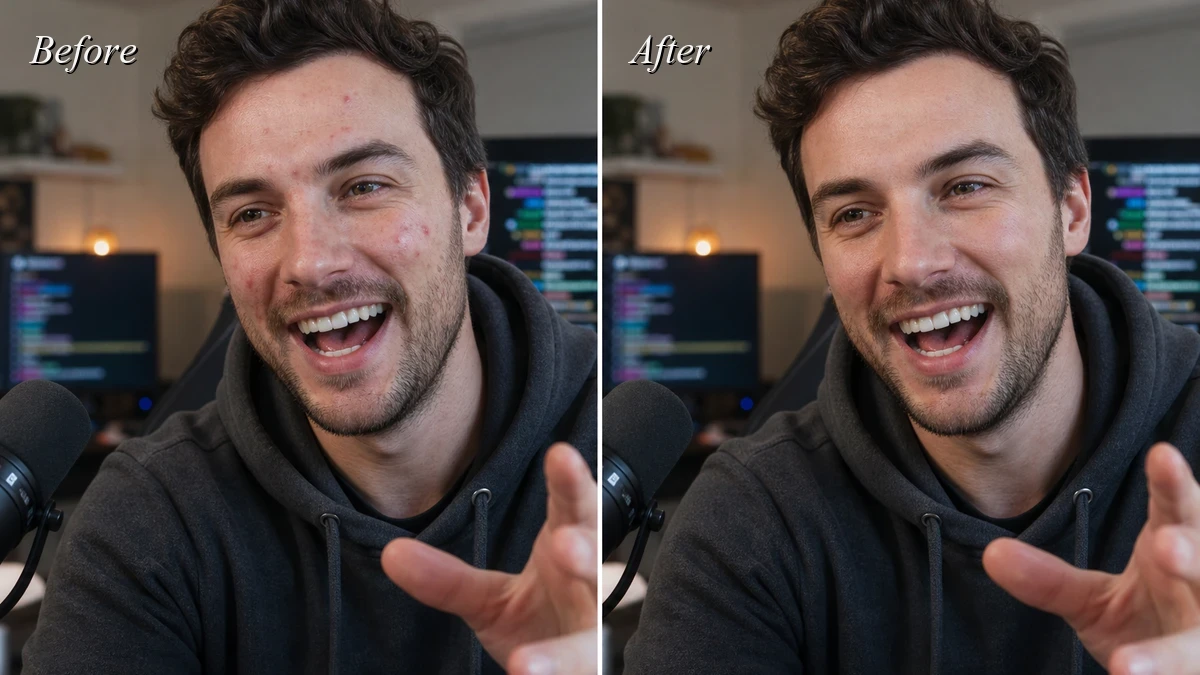
For footage with several people, review each edited face separately. Also inspect the exported resolution rather than relying only on a reduced preview, especially when the final delivery is 4K.
Keep the Result Natural
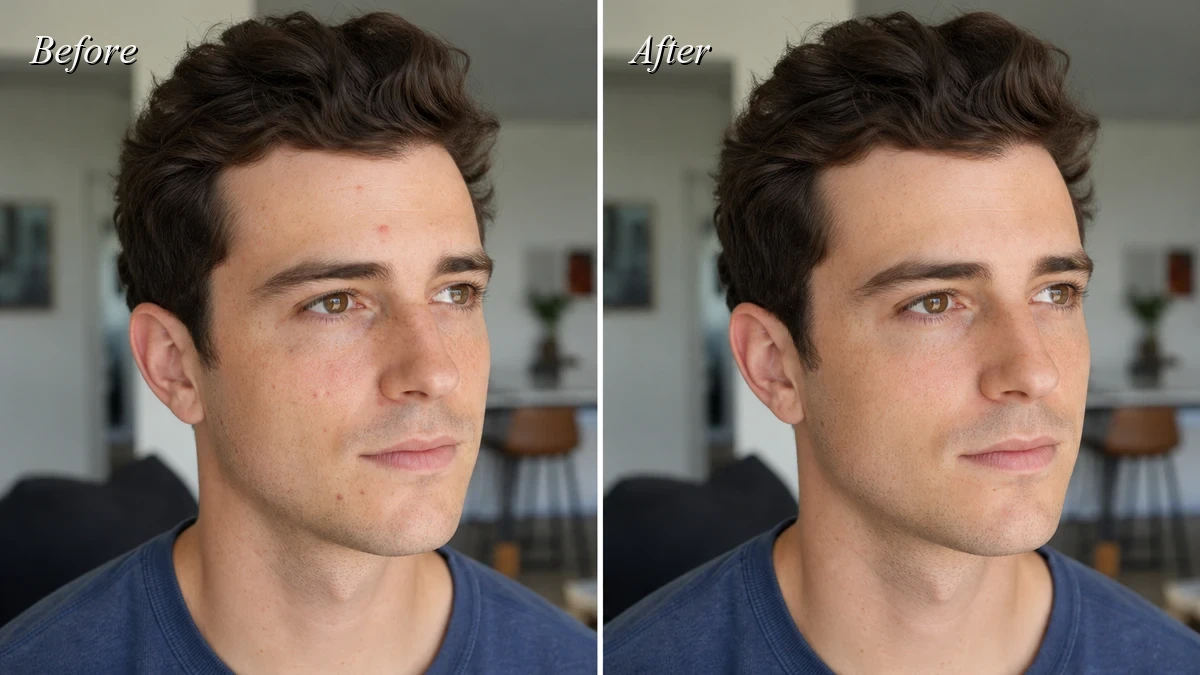
The strongest setting is rarely the best setting. Zoom in enough to see pores, fine lines, and small variations in tone. If the face starts to look flat or waxy, reduce the adjustment. Texture should remain consistent between treated and untreated areas.
It is also reasonable to keep some freckles or tiny marks. Natural skin contains variation, and leaving non-distracting details often produces a more professional result than removing everything.
Explore More Evoto Video Features
Beyond face spot removal, Evoto Video provides a complete set of portrait and color tools for moving footage. Skin Retouching includes Textured Smoothing, Skin Radiance, complexion balancing, and Dodge & Burn controls. Facial Reshape offers detailed adjustments for the face, eyebrows, eyes, nose, and mouth, while separate modules cover teeth whitening, eye enhancement, makeup, hair, and full-body reshaping. Creators can also use Camera LUT, CST, Creative LUT, and AI Color Match to restore flat footage or apply a consistent visual style. Frame-by-frame AI tracking keeps these adjustments stable as the subject moves.
Evoto Video – Be the First to Edit Smarter
Professional-grade AI color grading and retouching for video creators.
Conclusion
Effective face spot removal in video does not need a complicated manual workflow. Evoto Video places targeted controls inside one Portrait Retouching panel, allowing you to adjust freckles, acne, eye bags, face shine, and dark circles with intuitive sliders. Set the strength you want, apply the effect across the clip, and use frame-by-frame tracking to maintain a consistent result in motion.
If you want a faster and more controllable way to retouch faces in moving footage, Evoto Video is a practical choice. Its adjustable sliders make it easy to reduce visible spots without applying a fixed beauty filter, while frame-by-frame tracking keeps the result stable throughout the clip. Download Evoto Video and test the workflow on your own portrait, livestream, interview, or beauty footage.