

Professional photos, especially professional headshots, are essential for business, branding, and personal image today. They shape first impressions across digital platforms.
This article explains how photographers can edit professional photos online efficiently using a modern, AI-assisted workflow designed for speed, consistency, and quality.
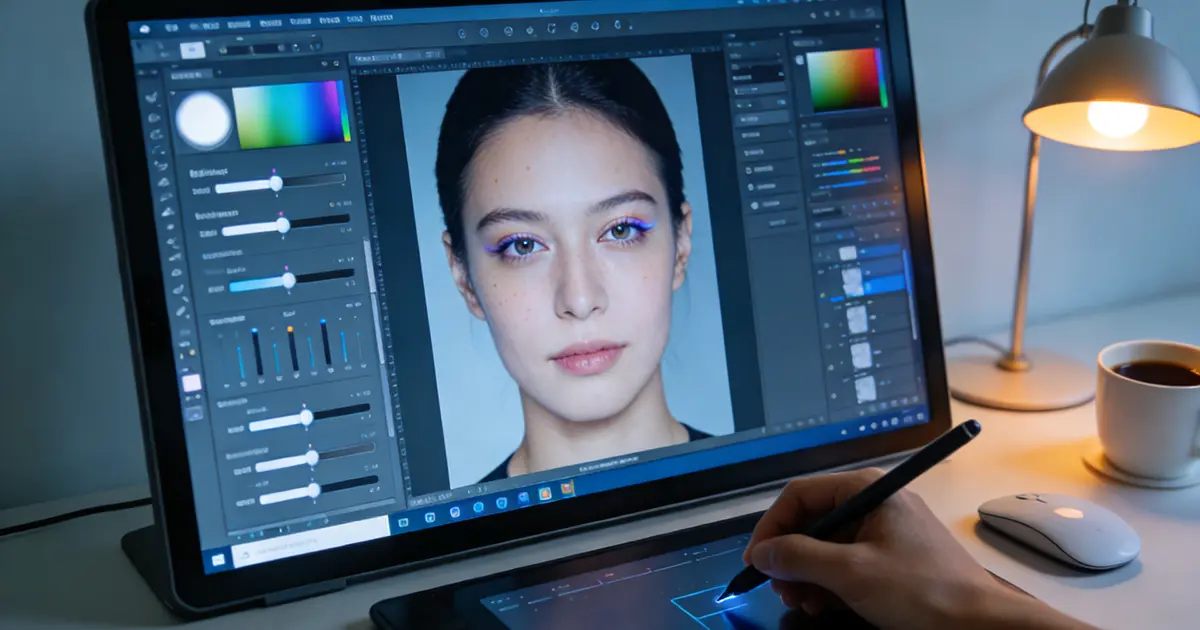
How to Identify Professional Photos?
Professional photos are designed with a clear purpose: to present a person as credible, approachable, and confident. Unlike casual snapshots, they follow recognizable visual standards.
First, look at the subjects and backgrounds. Professional photos usually feature business professionals, educators, or executives, including both male and female professional headshots. Subjects are well-posed with natural expressions, while backgrounds or backdrops are clean and intentional, such as neutral studio backdrops, office interiors, or soft gradient colors that support the subject rather than distract from them.



Next, consider the use scenarios and purposes. Professional photos are commonly used for LinkedIn profiles, corporate websites, team pages, media kits, and even professional dating profiles. Each use requires clarity, consistency, and a polished look.
Finally, note the difference from ID-style headshots. Professional photos emphasize branding, expression, and context, while ID photos are rigid, flat-lit, and purely functional, with no room for personality or storytelling.
What Makes a Good Professional Photo Today?
A good professional photo balances technical excellence with authenticity, ensuring the subject looks polished yet natural.
- Balanced lighting enhances facial features without harsh shadows, while preserving natural skin texture avoids an over-edited appearance.
- Confident expressions and well-chosen poses for professional headshots help communicate approachability and professionalism at the same time.
- Clean, realistic retouching removes distractions but keeps personal characteristics intact.
- In addition, consistent framing, color tones, and styling across images are essential for maintaining brand cohesion, especially for teams or corporate profiles.
Today, many photographers increasingly rely on AI professional headshots generators and online editors to streamline editing. Tools like Evoto, a powerful professional AI photo editor, enable photographers to retouch and deliver professional images quickly without sacrificing quality.


Powerful AI Photo Editor
How to Edit Professional Photos with a Fast Workflow on Evoto?
To demonstrate an efficient workflow to edit professional photos online, let’s take an original portrait of a woman and transform it into an indoor office-style professional image. Evoto AI supports photographers in editing professional photos online with speed, accuracy, and consistency.
Step 1. Convenient Tethered Shooting
A seamless workflow to edit professional photos online starts at the moment the shutter is pressed, and tethered shooting plays a key role in optimizing this initial phase. With Evoto’s tethered shooting support, photographers can instantly display captured images on a larger screen and begin preliminary edits without delay.
- To get started, download Evoto on a desktop device such as a Windows PC, MacBook, or iPad, then link your camera using a cable or a wireless adapter.
Powerful AI Photo Editor
- Launch Evoto, select “Create a New Project”, access the feature menu, and open the Tethered Shooting function.
- Before shooting, configure the capture settings as needed. As images are taken, they appear immediately on screen, allowing you to review focus, composition, and lighting and make quick adjustments on the spot—no memory card transfer required.
Once you’re happy with the results, export the photos directly to your device or Evoto cloud storage, ensuring a smooth, organized, and highly efficient start to your photo editing workflow.
This step is constructive when working with a headshot professional photographer in a studio or office environment, ensuring a strong starting point for editing.
Step 2. Almighty Photo Retouching
This is where AI power truly transforms the workflow to edit professional photos online effectively.
· AI Portrait Retouching
Evoto’s AI portrait retouching tools act as an intelligent headshot editor, allowing photographers to do all they want to enhance portraits.
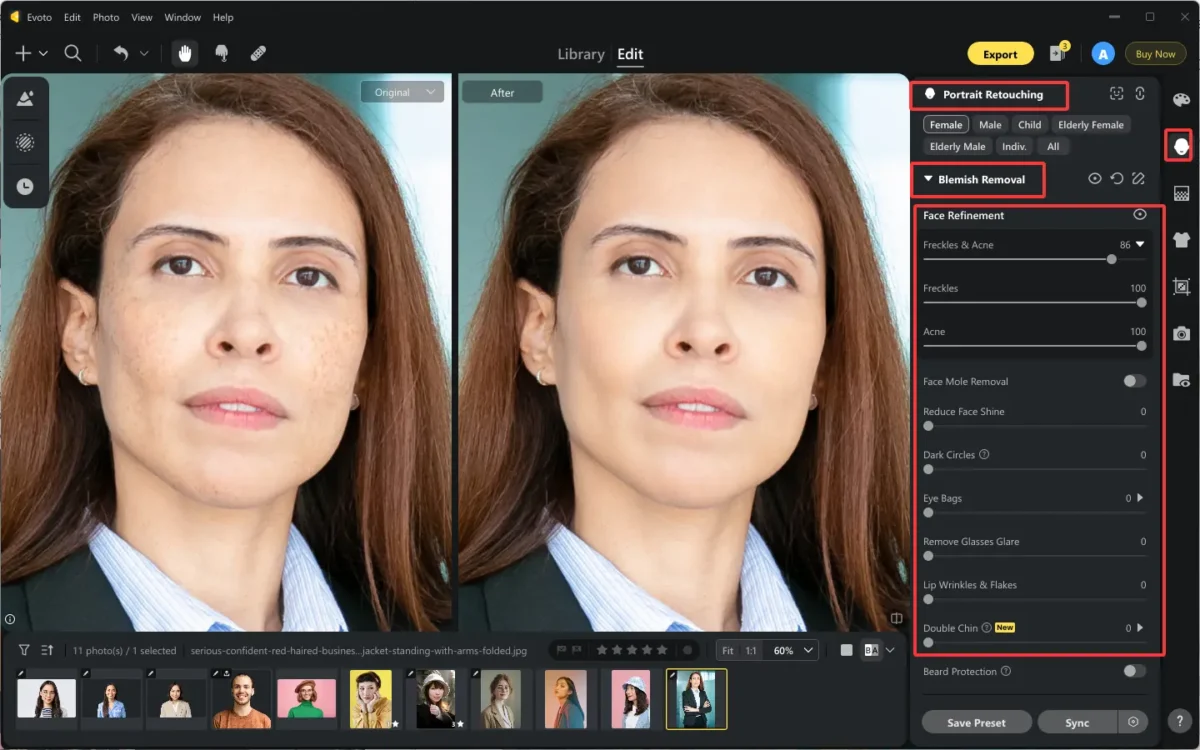
- Upload the portraits you want to enhance, such as for blemish removal and temporary skin imperfections.
- Navigate to Portrait Retouching > Blemish Removal, and gently adjust the sliders to eliminate freckles, acne, or minor imperfections while preserving natural texture.
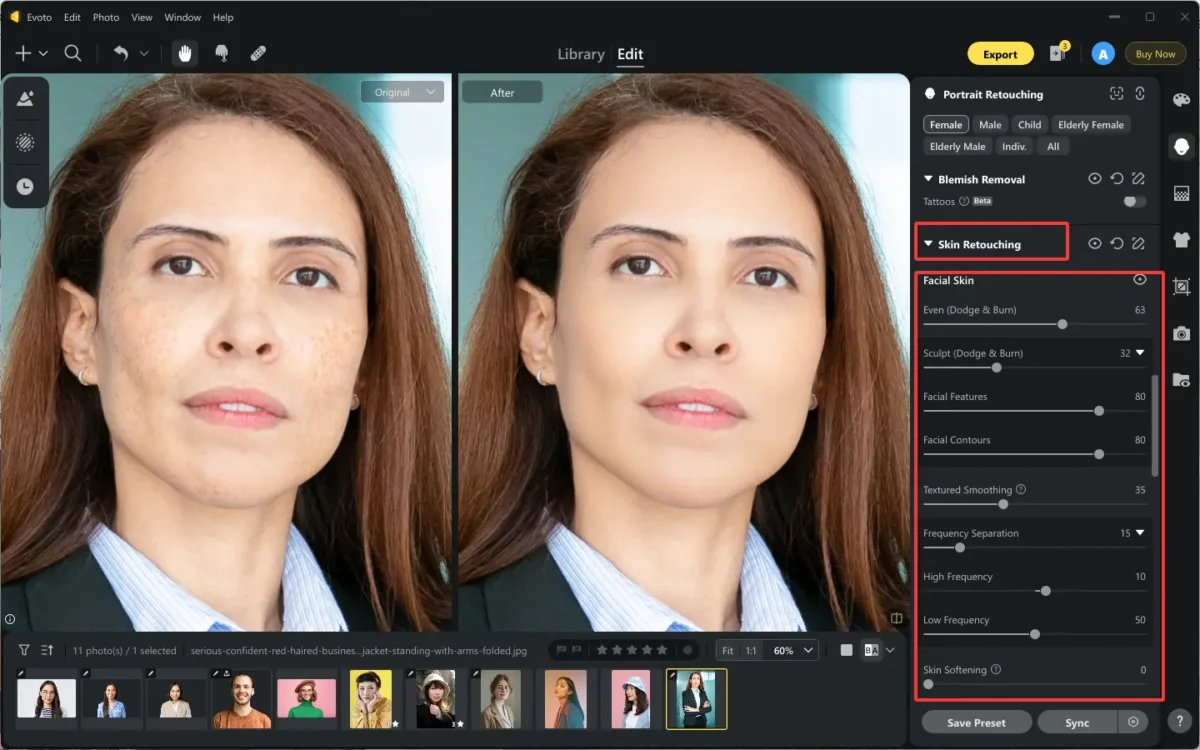
- Next, go to Skin Retouching to even out skin tone and soften textures across the face and body.
- Finally, you can also subtly enhance facial expressions, add natural hair volume, smooth hair, tame frizzy hair, blacken white hair, and make light makeup adjustments for a more professional, realistic, and polished effect.
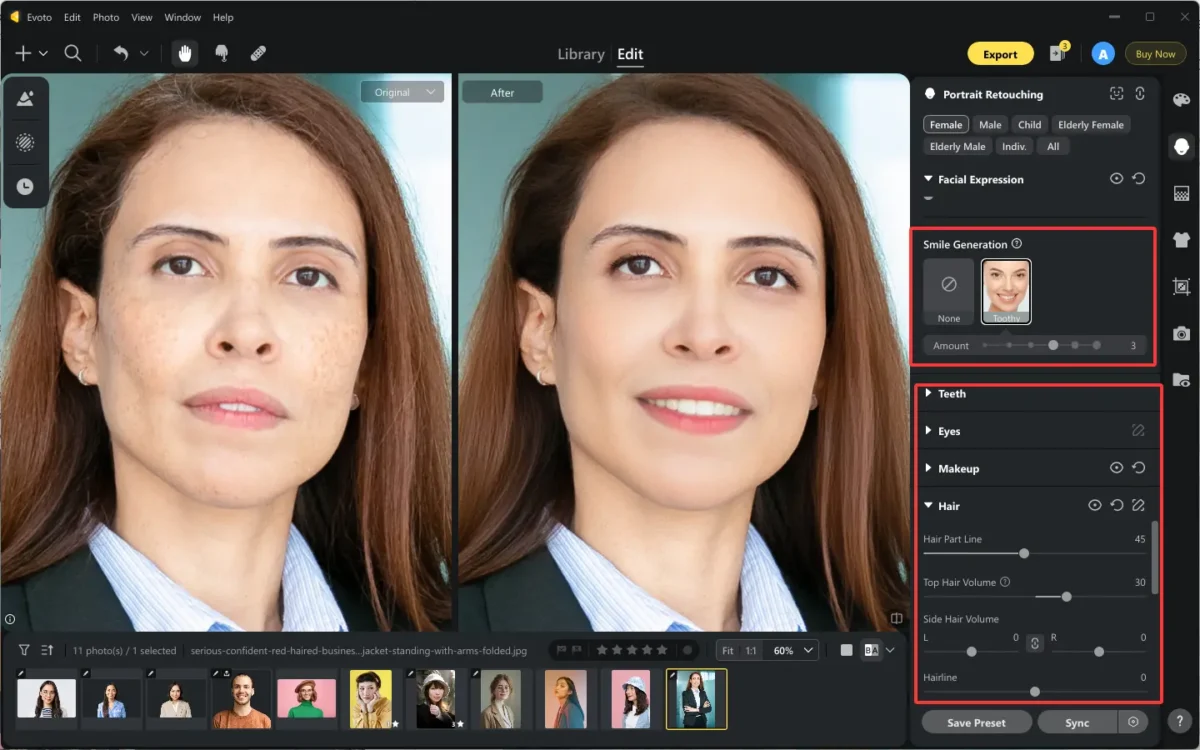
These steps help answer the question what do professional headshots look like today: polished, confident, and realistic—never overdone.
· Fast Background Replacement
A strong headshot background editor is essential when the original environment isn’t ideal. Check how to edit professional photos online by adding a matched backdrop.
- Open “Backdrop Changer” and select “My Backdrops”. Import the prepared business backgrounds of the indoor office.
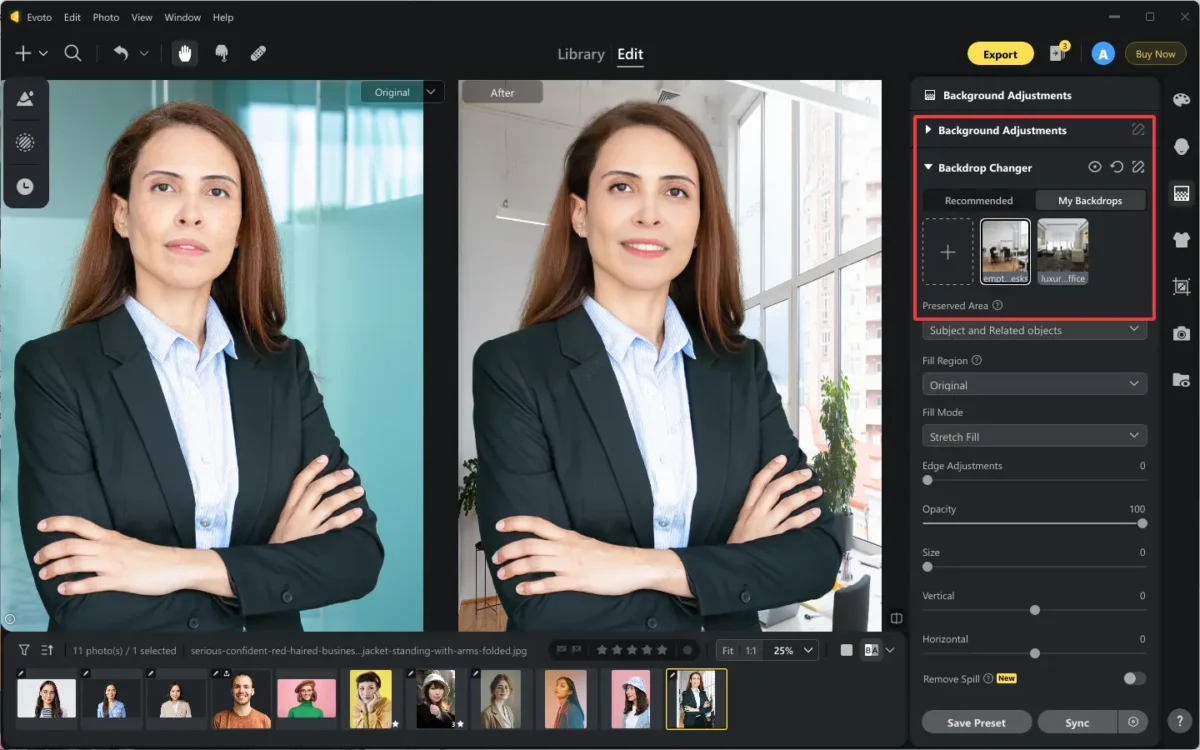
- Go to “Background Adjustment” and enlarge the value of “Background enhancement”. This helps automatically enhance the background color to adjust the saturation, contrast, and balance the light and shadow in the picture.
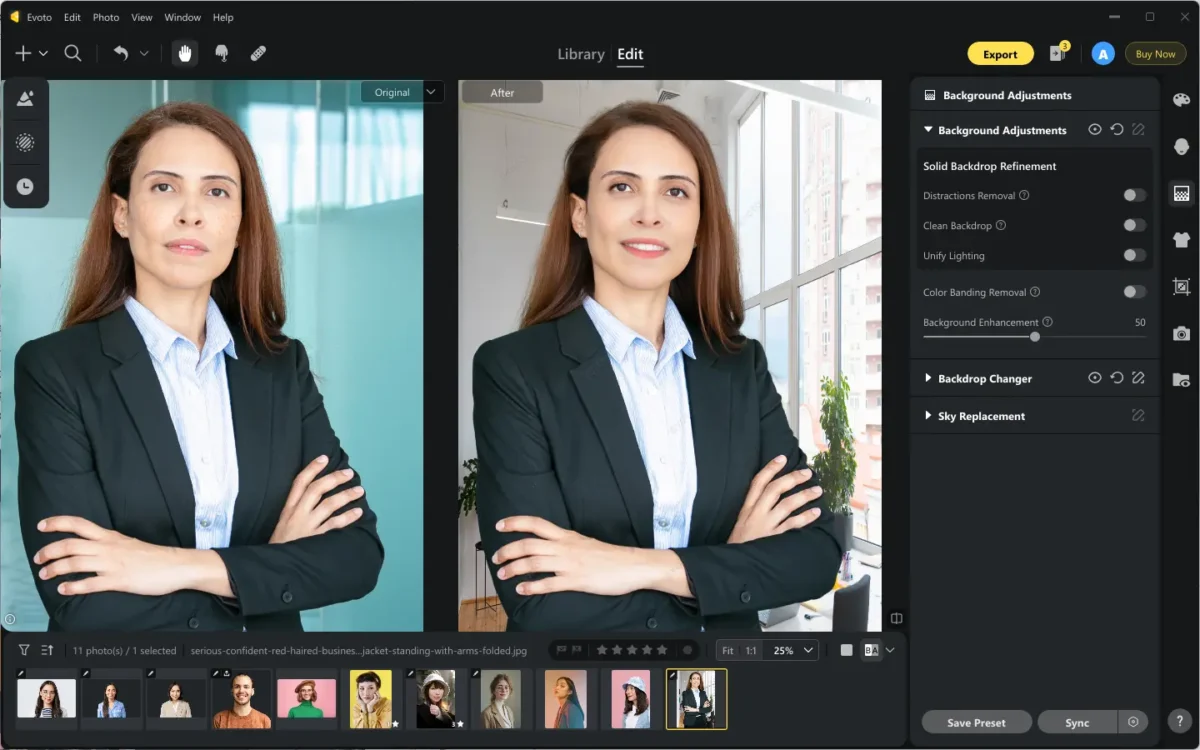
Notice: Color and light adjustments are necessary to ensure the subject blends naturally into the new background, avoiding the “cut-out” look common in poor edits. This is critical when creating a professional photo for a LinkedIn profile or corporate use.
Read More: How to Perfect Professional Headshot Backgrounds
· Easy Clothing Cleaning
Professional photos demand tidy styling. Evoto makes it easy to edit professional photos online by removing clothing wrinkles, smoothing fabric textures, and cleaning dust or lint from the outfit.
- Head to Clothes & Accessories Adjustments > Clothing Adjustment.
- Use the “De-wrinkle Clothing” slider, adjusting the “Fine Wrinkles Removal” and “Deep Wrinkle Removal” settings individually to achieve a natural, realistic look.
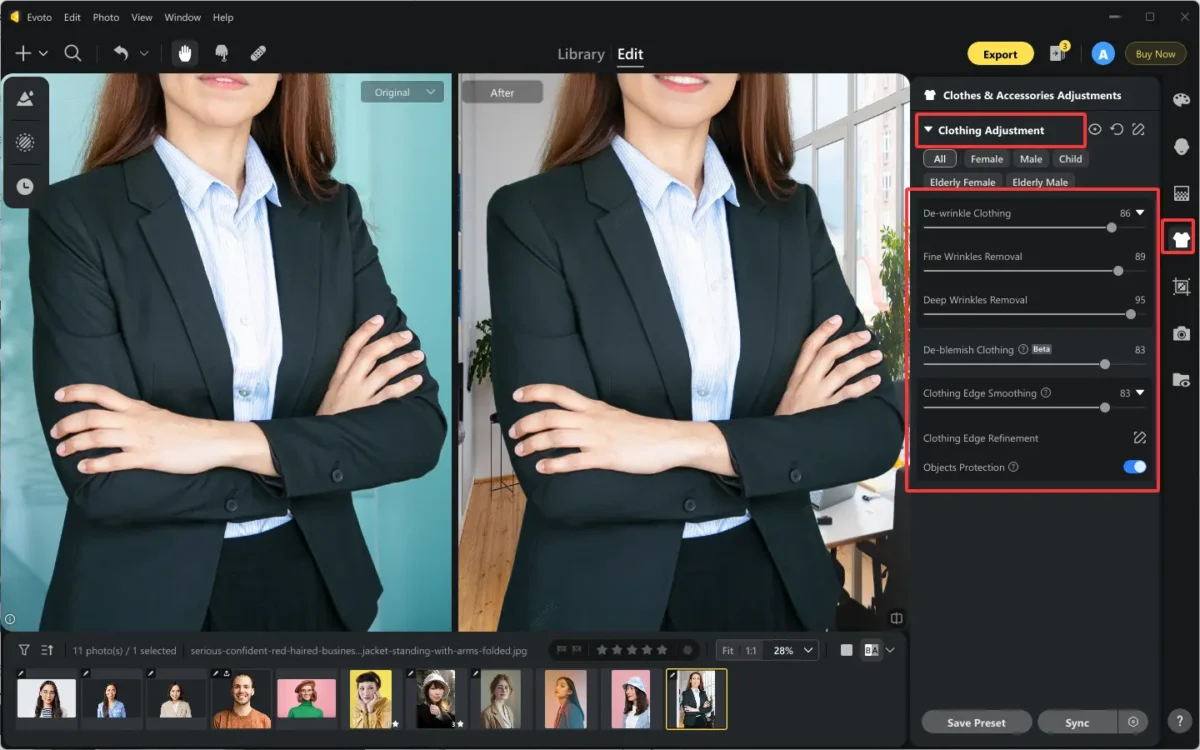
This step is subtle but essential for producing polished professional headshots suitable for business and branding.
· One-Click Standard Photo Cropping
Different platforms require different dimensions. Evoto AI image cropper helps photographers to automatically crop images to standard professional photo sizes.
- Navigate to “Crop & Rotate” and select a fixed ratio, a custom artistic layout, or a standard ID photo format.
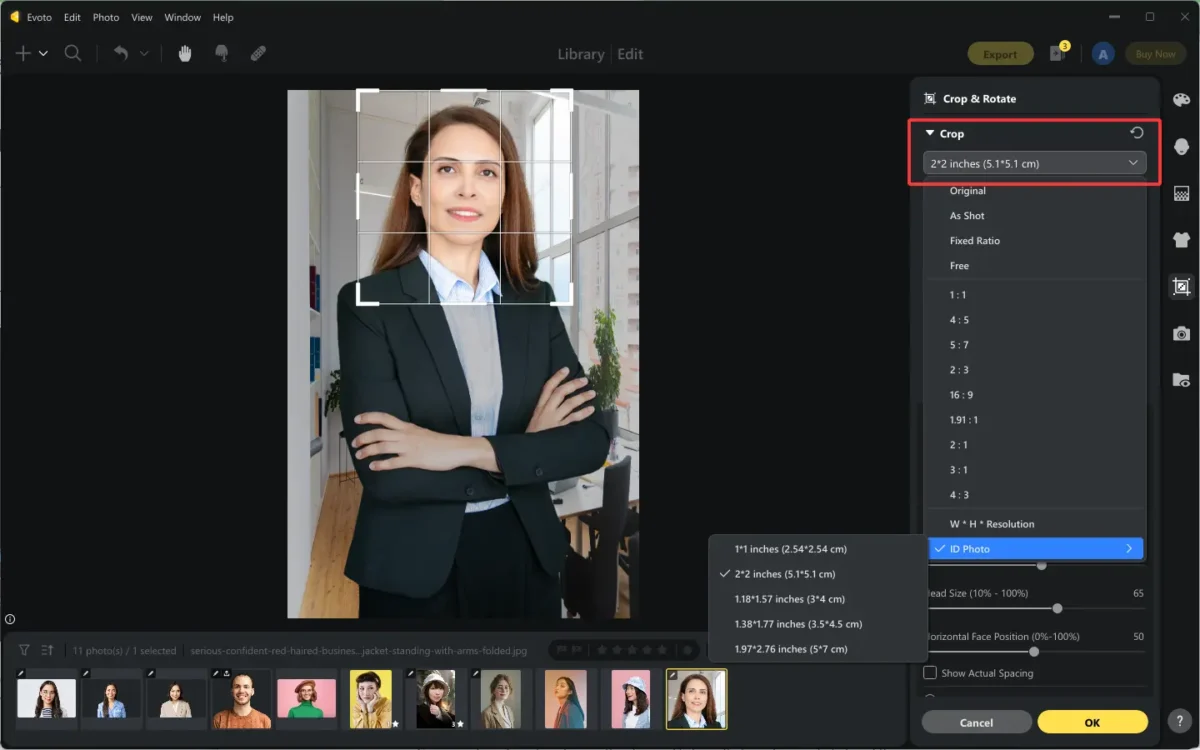
- The AI-powered cropping automatically maintains proper headroom and composition, ensuring consistent output sizes and significantly reducing time spent on final adjustments.
This function is especially useful for photographers wondering how to edit profile picture efficiently across platforms. Also good for preparing profile pictures for LinkedIn, websites, or dating apps.
Step 3. Sync Edits in Batches
Once the ideal look is achieved, Evoto allows you to sync edits across multiple images of the same subject. Saving presets or syncing edits can ensure retouching settings remain consistent.
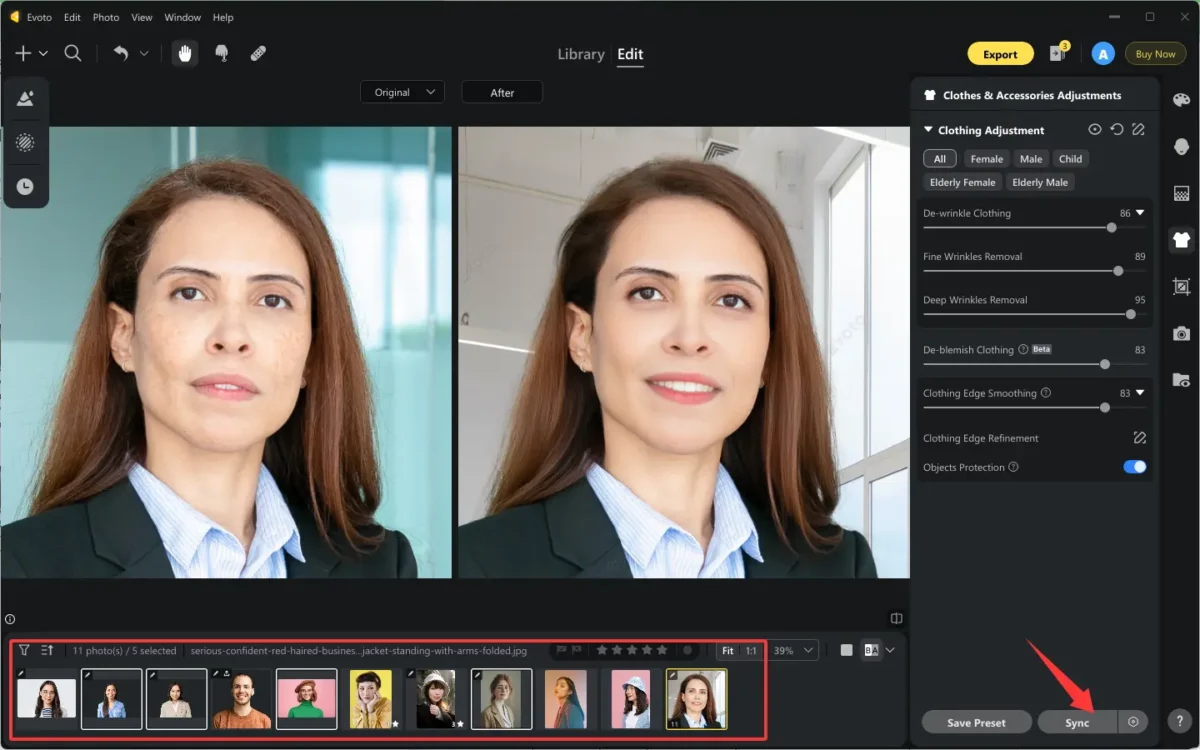
- Ensure you’ve selected multiple images before synchronizing the edits. Use shortcut “Ctrl+Click” to choose specific images in preview or “Shift+Click” to select a range.
- Click on “Sync” or use “Ctrl+Shif+S” hotkeys at the bottom of the operational panel.
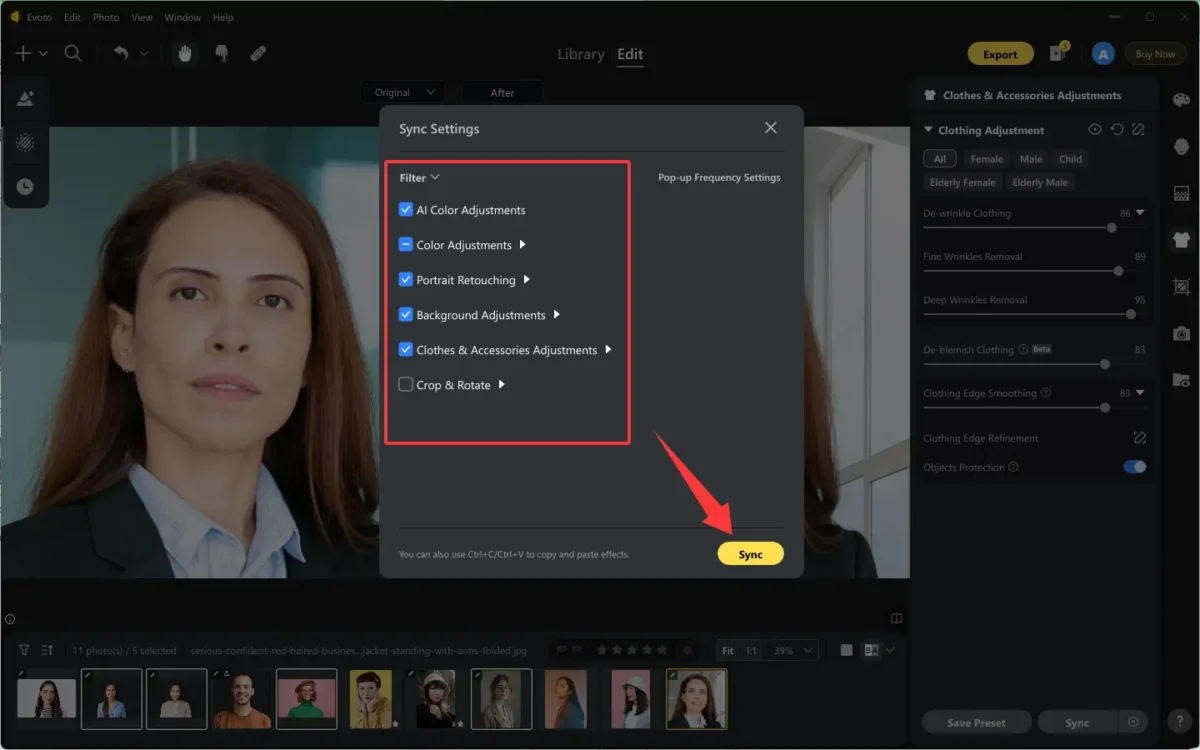
- Confirm the certain edits you want to sync to the selected images and click on Sync again.
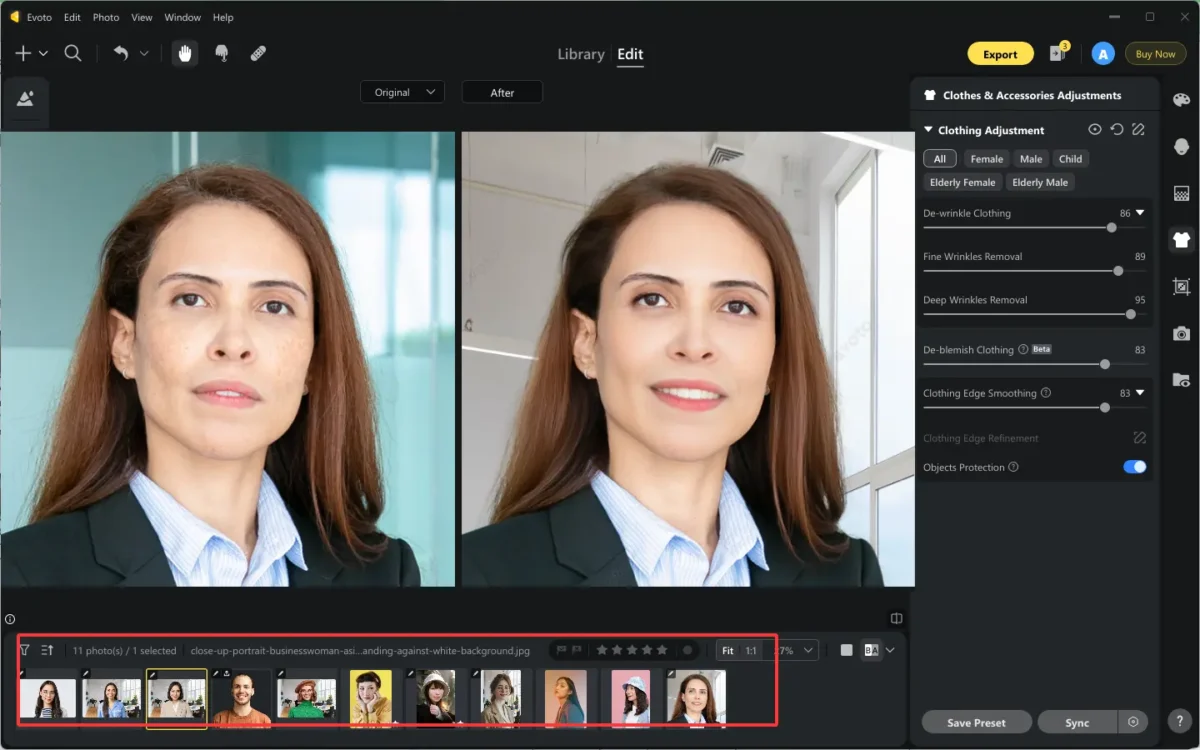
- Wait for seconds, you’ll see the effects are batch applied to the images.
- Also, you can save the whole or part of the portrait retouching workflow as a preset. It can also be used for large projects, such as company staff headshots, anytime you want.
Batch syncing is essential for scaling any workflow that aims to edit professional photos online efficiently.
Scaling Professional Photo Editing with Evoto AI Culling & Cloud Sync
As professional projects grow in size, efficiency becomes just as important as image quality. Evoto AI culling helps photographers quickly narrow down the best shots from a session by intelligently analyzing factors such as sharpness, facial expression, eye openness, and pose. This reduces manual review time and ensures only the strongest images move into the editing stage.
Paired with cloud sync, edited photos, presets, and styles can be shared seamlessly across devices or collaborative teams. This makes it easy to maintain consistency when producing large batches of LinkedIn professional headshot images, company-wide staff portraits, or brand-aligned professional photo libraries, even when multiple editors are involved.
Powerful AI Photo Editor
Key Considerations in Professional Photo Editing Workflows
Even with powerful AI tools to edit professional photos online, thoughtful decision-making is essential to ensure professional results that feel authentic and purposeful.
- Avoid over-retouching to maintain authenticity
Excessive smoothing or reshaping can make a professional photo look artificial and damage credibility. Subtle enhancements are always more effective. - Preserve natural skin texture at all times
Realistic skin detail is a defining trait of modern professional headshots and helps subjects look confident and trustworthy. - Match the lighting direction and intensity between the subject and the background
Consistent lighting prevents visual mismatches, especially when using background replacement or composites. - Ensure platform-specific cropping for LinkedIn, websites, or dating apps
Proper framing improves visibility and impact across different platforms and devices. - Respect client identity and professional intent
Editing choices should align with the client’s role, industry, and personal brand. - Align editing style with brand tone and industry expectations
A corporate executive, creative professional, or entrepreneur may require different visual styles.
These principles help elevate both AI-assisted and manual workflows.
Powerful AI Photo Editor
Conclusion
A structured workflow is key to delivering high-quality professional images. Evoto AI Photo Editor now enables photographers to edit professional photos online faster while maintaining realism and consistency. By adopting efficient, repeatable systems, modern photographers can scale professional headshot production without compromising quality.



