

Changing the background color of a photo is a common yet crucial task in photography, e-commerce, and portrait retouching. Whether you want a clean white backdrop for product photos, a solid color for ID portraits, or a creative tone for marketing visuals, learning how to change background color in Photoshop can significantly improve your images.
In this guide, we’ll walk through how to change background color in Photoshop step by step, discuss its limitations, and show how Evoto AI makes background color changes faster, easier, and more scalable—especially for batch workflows.
Why You Might Need to Change Background Color in Photoshop
There are many real-world scenarios where changing the background color is essential:
- E-commerce product photos: Marketplaces like Amazon and Shopify often require clean or white backgrounds.
- Professional portraits & headshots: Neutral or solid-color backgrounds help keep the focus on the subject.
- ID & passport photos: Background color must meet strict specifications.
- Brand consistency: Marketing images often need uniform background colors.
- Creative design: Changing background colors can dramatically alter the mood of an image.
Photoshop has long been the go-to tool for these tasks—but it isn’t always the fastest solution.
How to Change Background Color in Photoshop: Step-by-Step Guide
Below is a common and clean workflow to change background color in Photoshop, based on professional masking techniques.
Step 1: Open the Image in Photoshop
Launch Photoshop and open the photo you want to edit by clicking File > Open, then select your image from your computer.
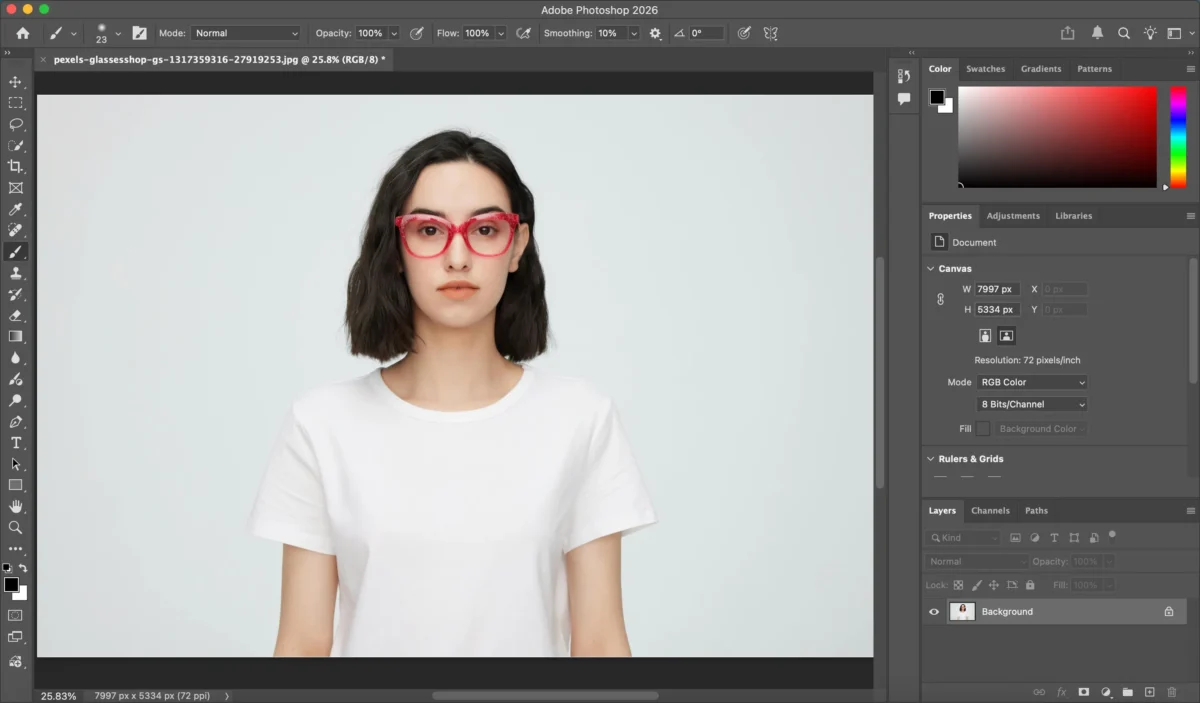
Step 2: Select the Subject
Use Select Subject (Select > Subject) or tools like the Quick Selection Tool to isolate the main subject from the background.
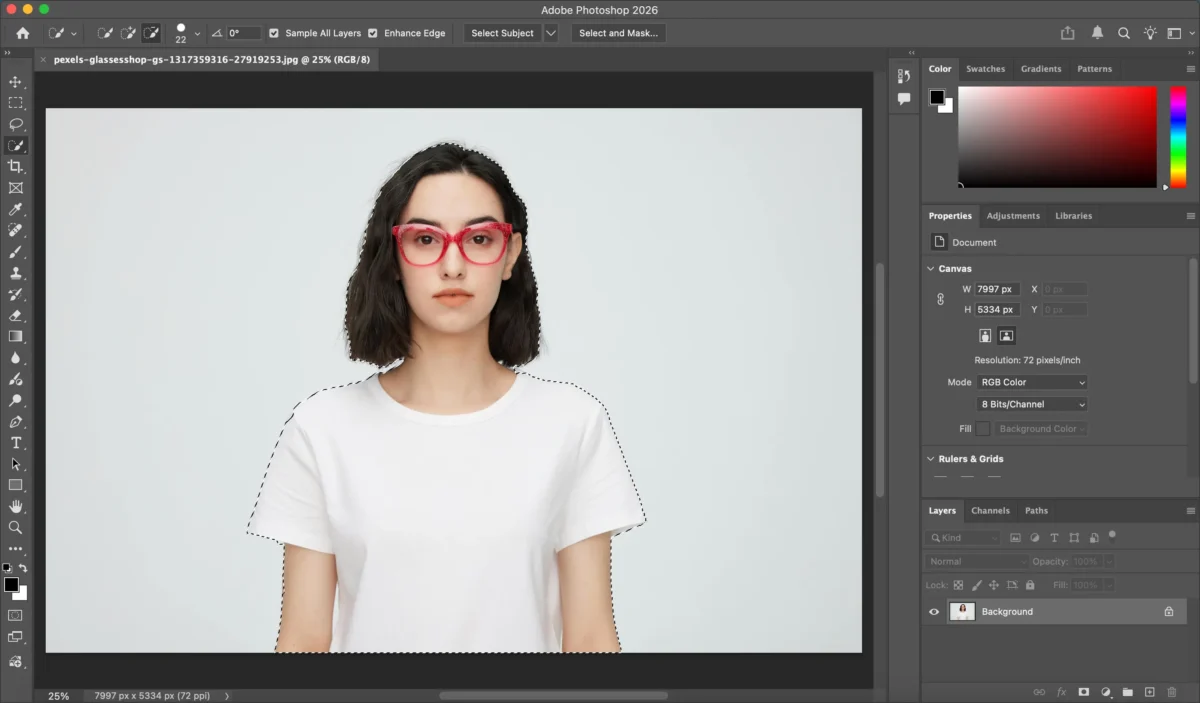
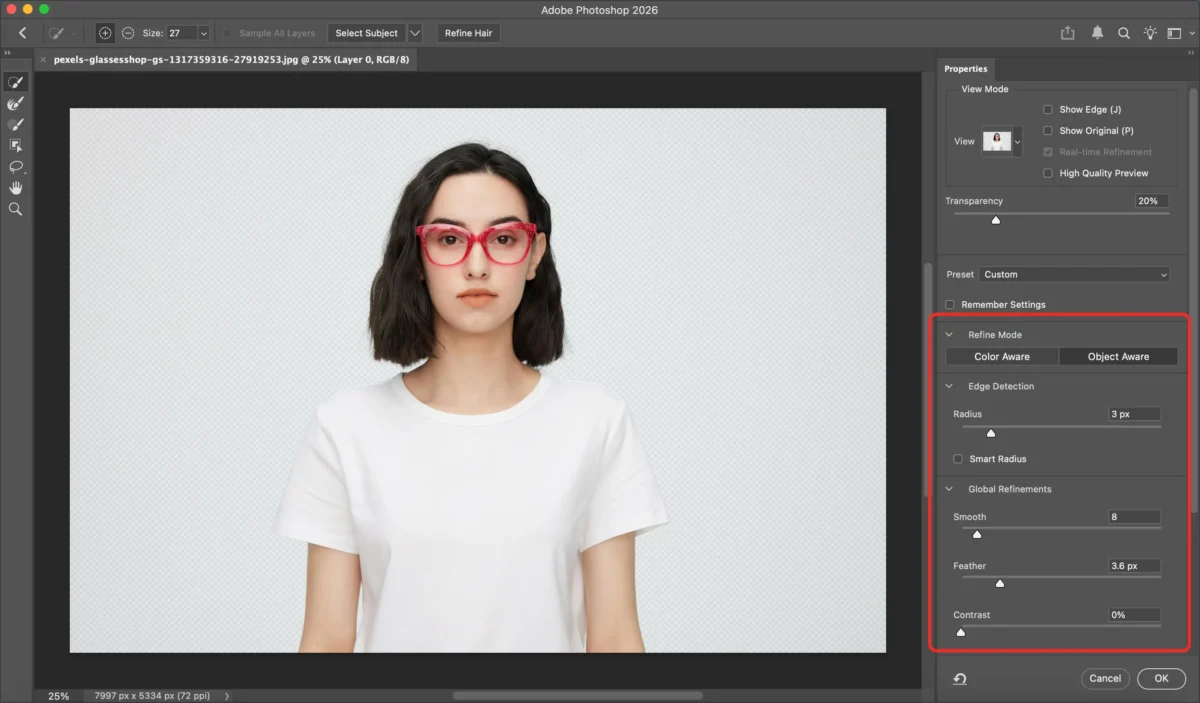
Step 3: Refine the Selection
Open Select and Mask to refine edges, especially around hair or complex outlines. Adjust Radius, Smooth, Feather, and Contrast for better accuracy.
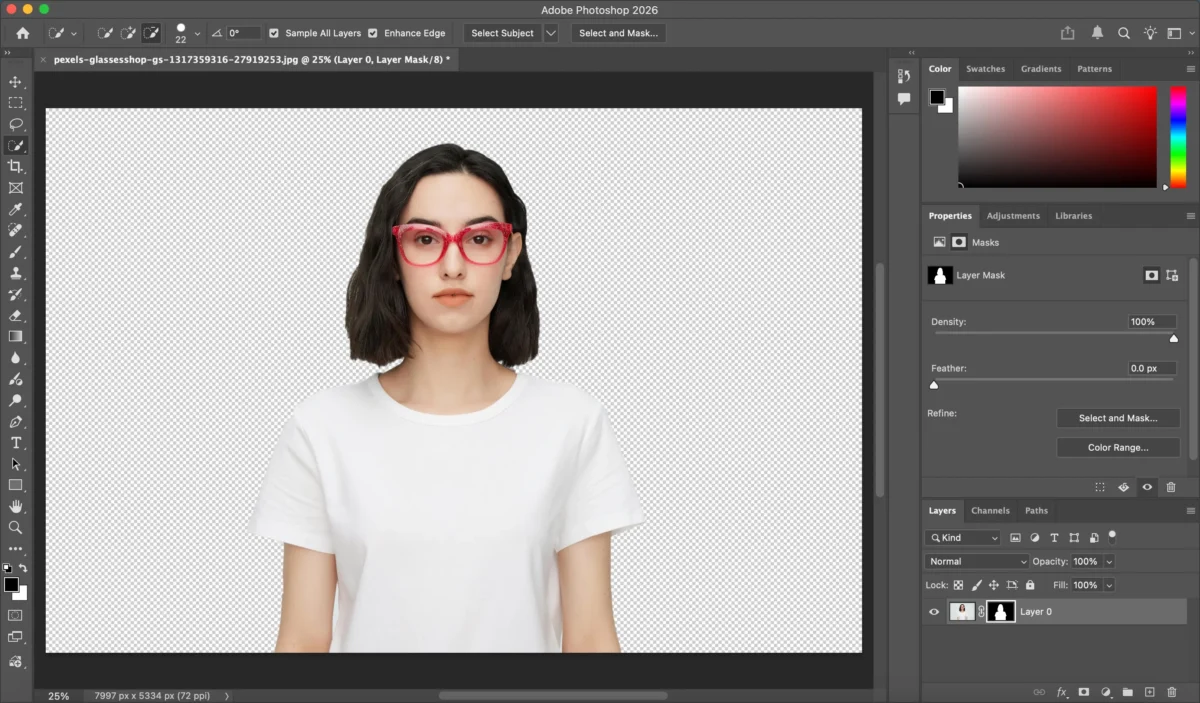
Step 4: Create a Layer Mask
Once the subject is selected, apply a Layer Mask to separate it from the background non-destructively.
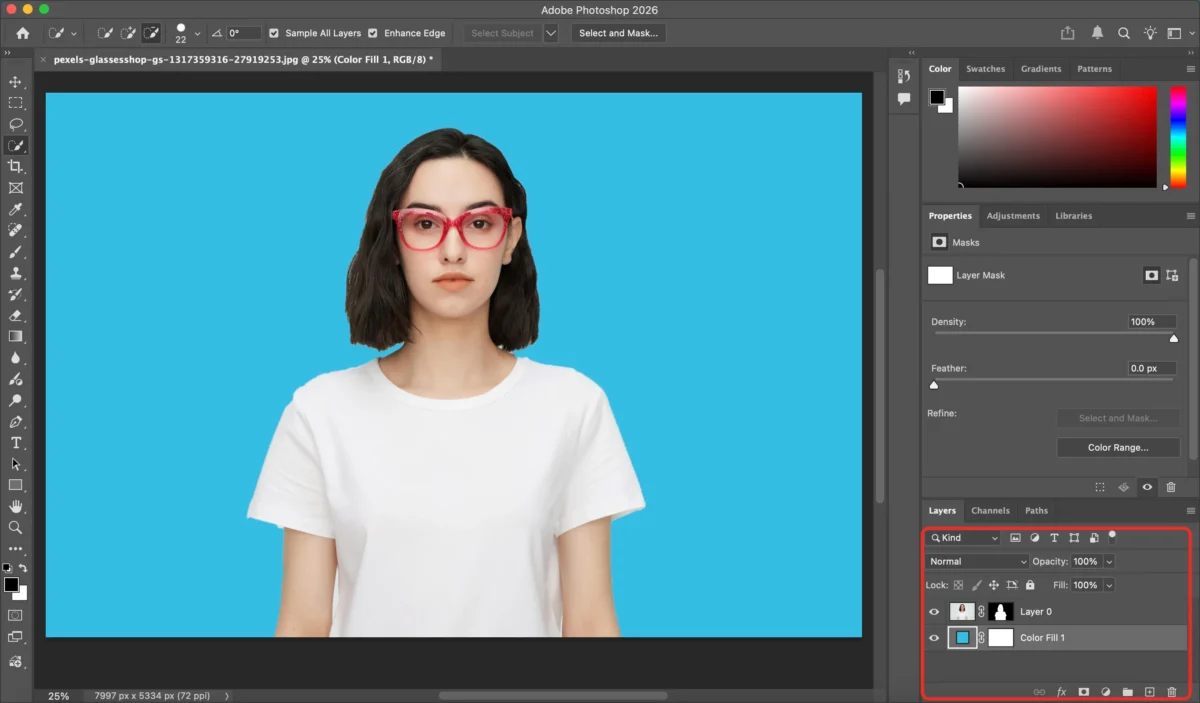
Step 5: Add a Solid Color Background
Create a Solid Color Fill Layer beneath the subject layer and choose your desired background color.
Step 6: Fine-Tune Edges and Colors
Manually adjust masks, fix color spill, and correct lighting inconsistencies to ensure the subject blends naturally with the new background.
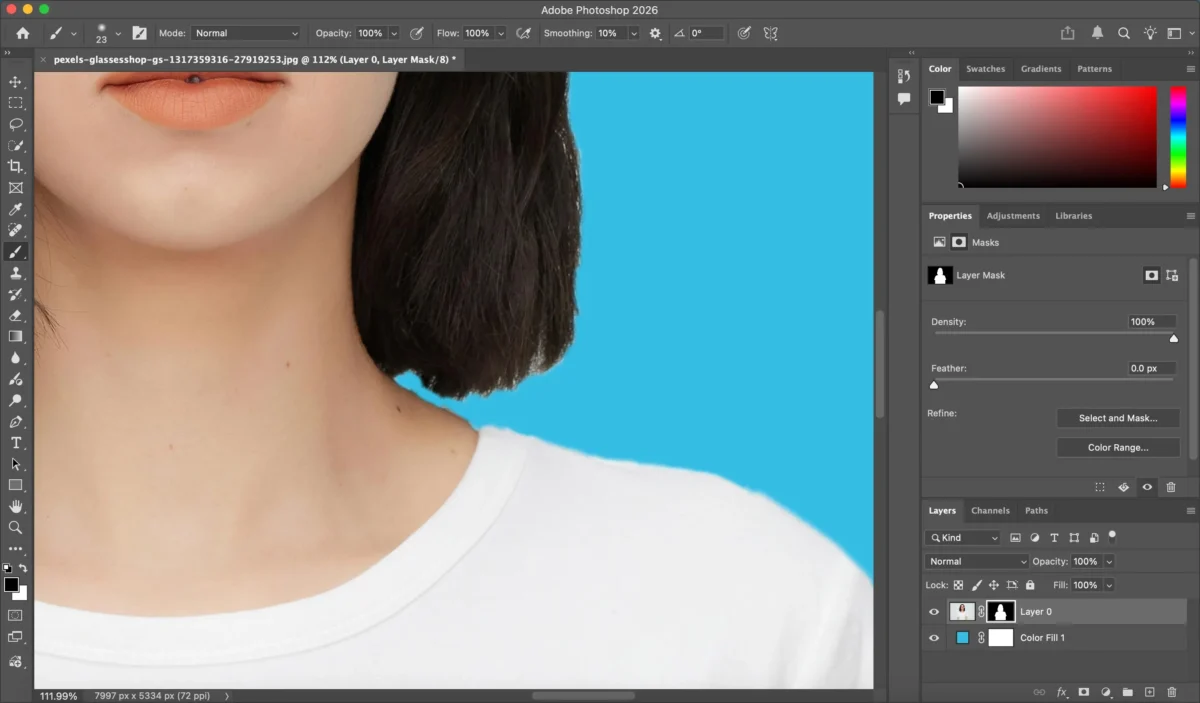
This method offers precise control—but it also requires time, experience, and manual effort.
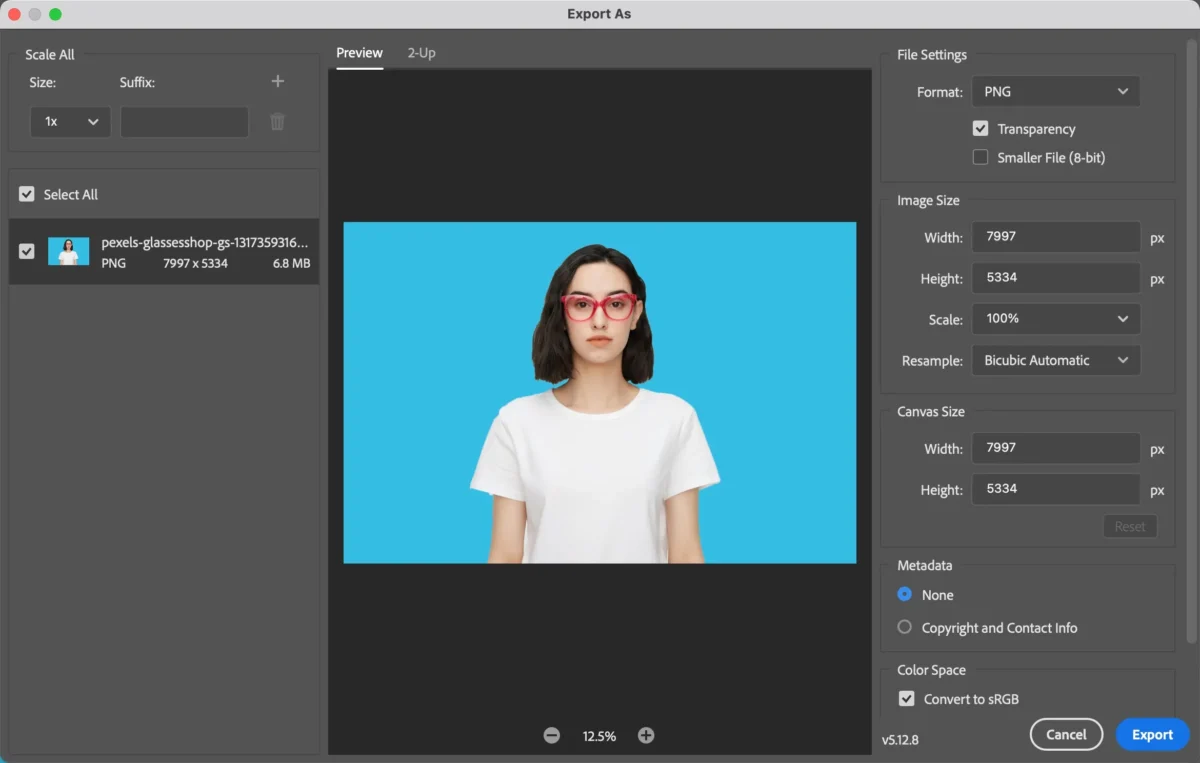
Step 7: Save or Export the Image
When you’re satisfied with the result, go to File > Save or File > Export > Export As to save the final image in your desired format.
Limitations of Photoshop for Changing Background Color
While Photoshop is powerful, it comes with several drawbacks when changing background colors:
- Steep learning curve: Masking and edge refinement require skill and experience.
- Time-consuming: Each image must be adjusted individually.
- Difficult batch processing: Repeating the same background change across hundreds of photos is inefficient.
- Hardware intensive: Photoshop demands strong system performance.
- Inconsistent results: Manual masking can lead to uneven quality across images.
For high-volume or time-sensitive projects, these limitations quickly become bottlenecks.
How Evoto Simplifies Changing Background Color
Evoto offers a smarter, faster way to change background colors—without complex selections or manual masking.


Powerful AI Photo Editor
Step 1: Import the Image
Upload your photo into Evoto with a single click.
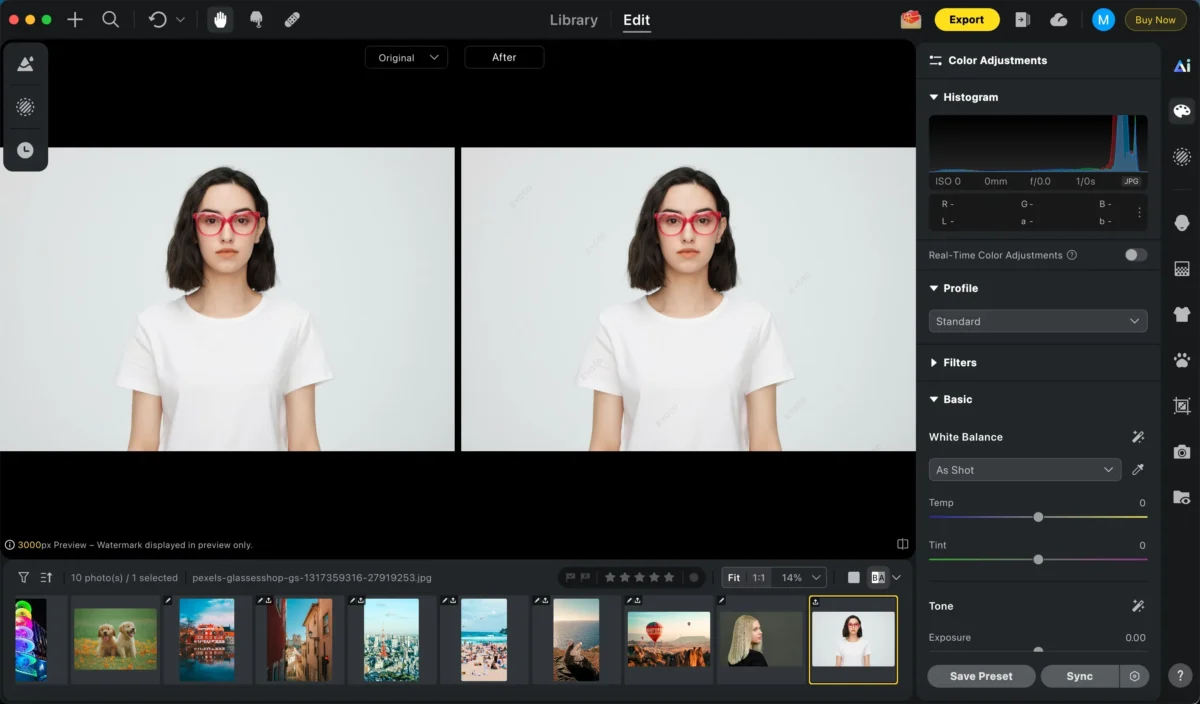
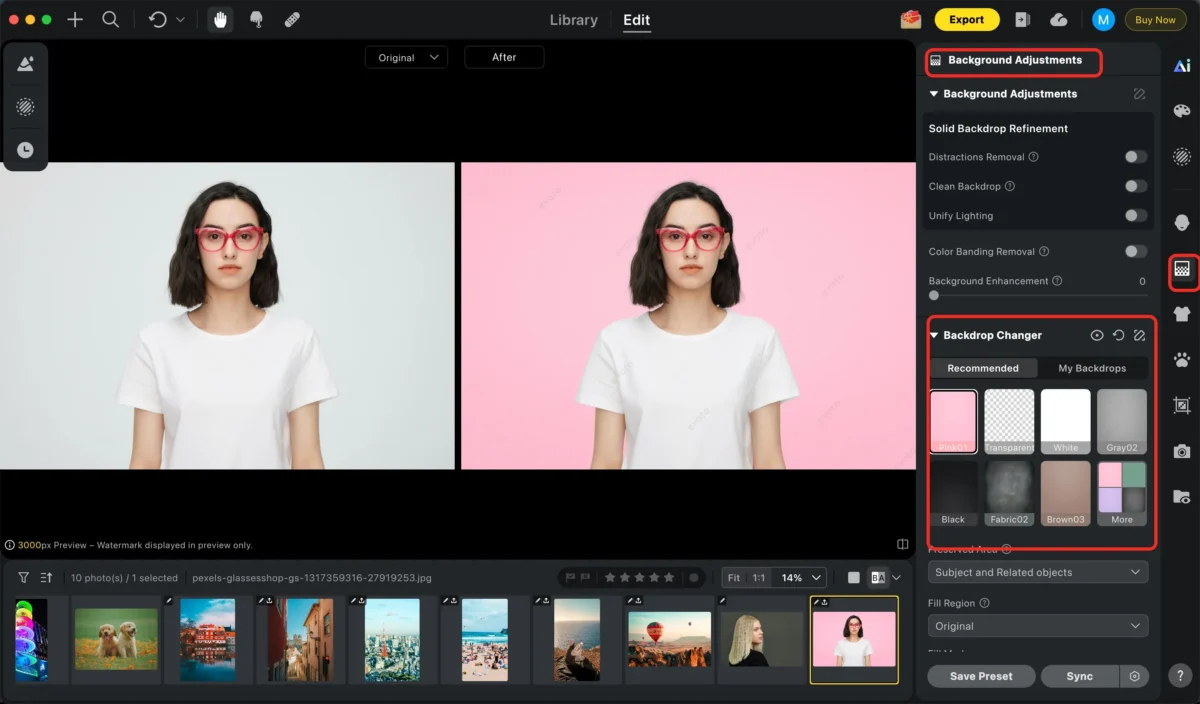
Step 2: Select the Background
Click Background Adjustment > Backdrop Changer. Evoto provides a wide range of well-designed and scene-appropriate backgrounds to choose from, and you can also upload your own background for replacement. The AI automatically and precisely separates the subject from the background and seamlessly blends the subject with the new background for a natural, professional result.
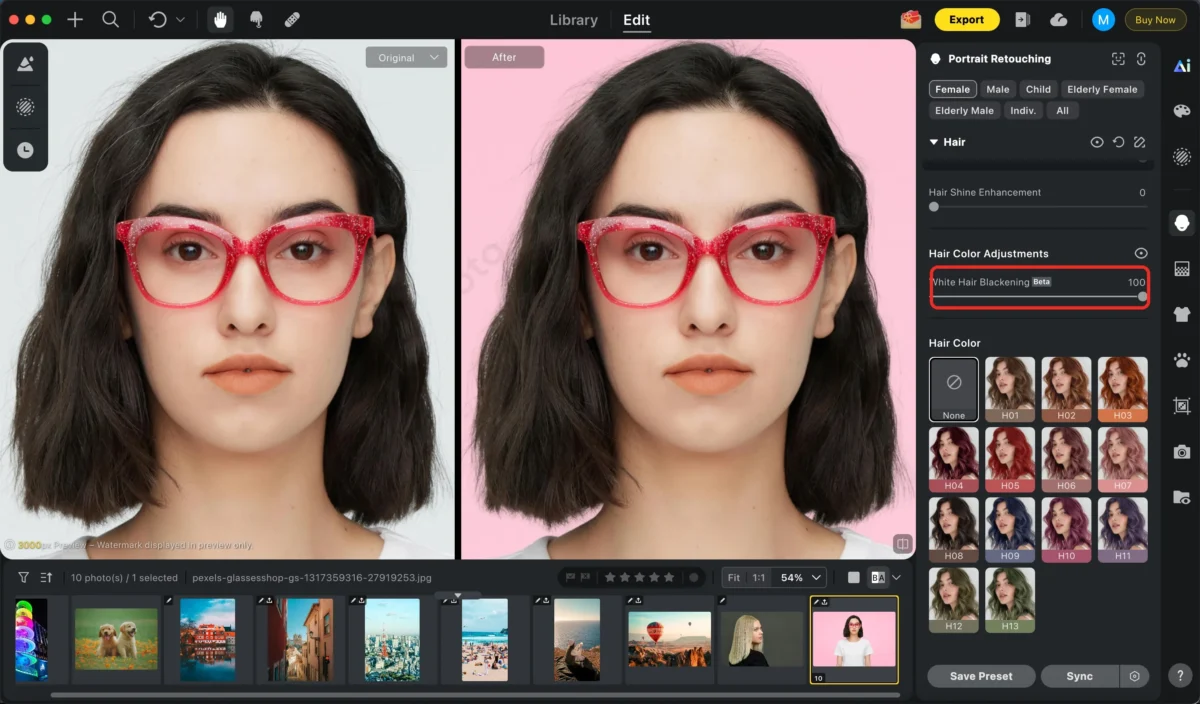
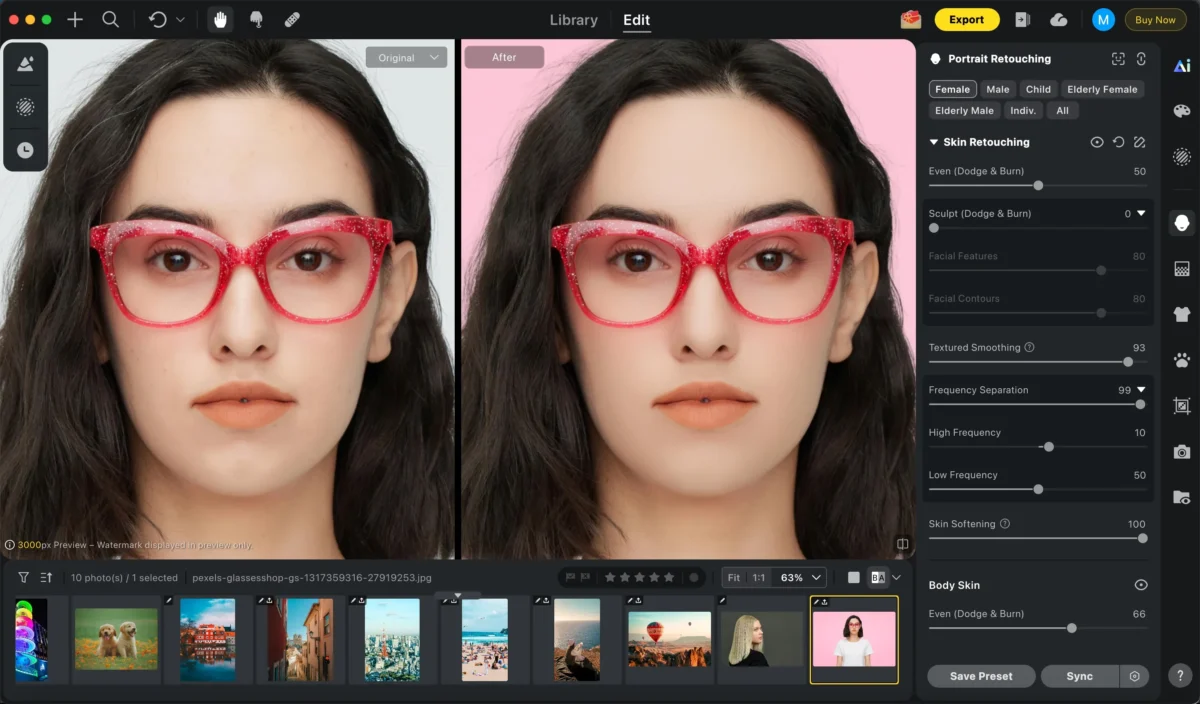
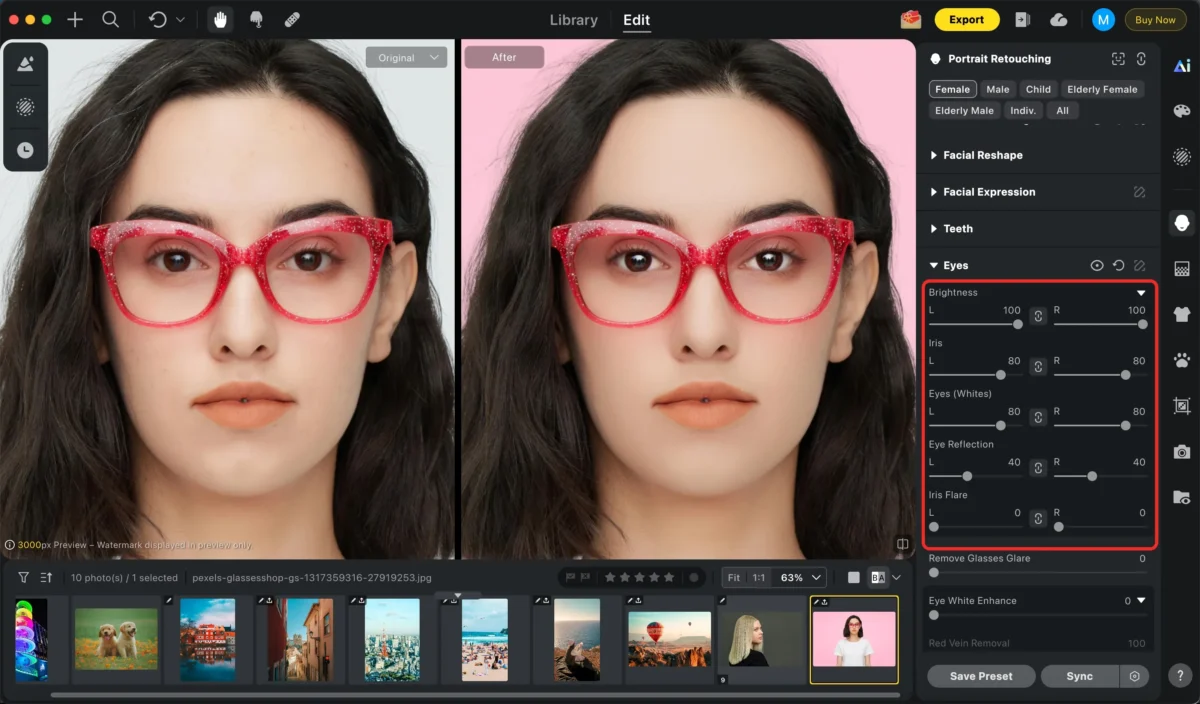
Step 3: Other Adjustments
You can use other features—such as White hair blackening, smooth skin, and brighten eyes—to further perfect your photo. Simply adjust the corresponding sliders to quickly achieve the look you want.
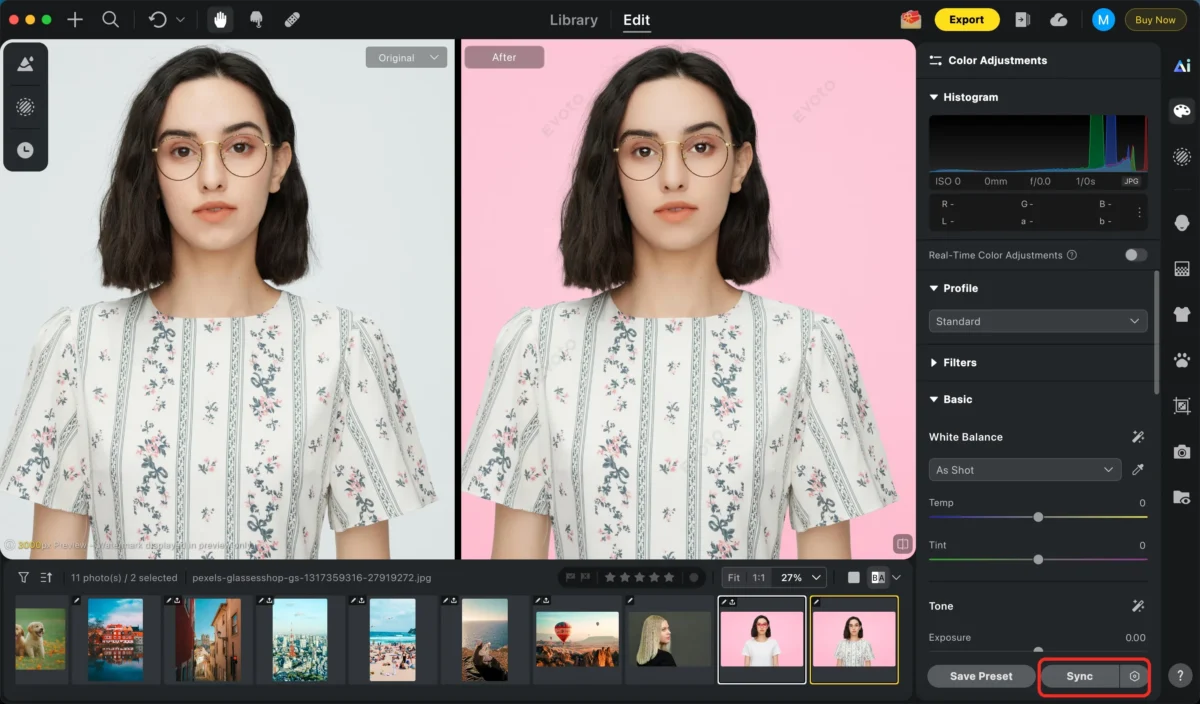
Step 4: Batch Editing (Optional)
Apply the same background color and adjustments to multiple images instantly.
Step 5: Export
Export high-quality images ready for e-commerce, marketing, or professional use.
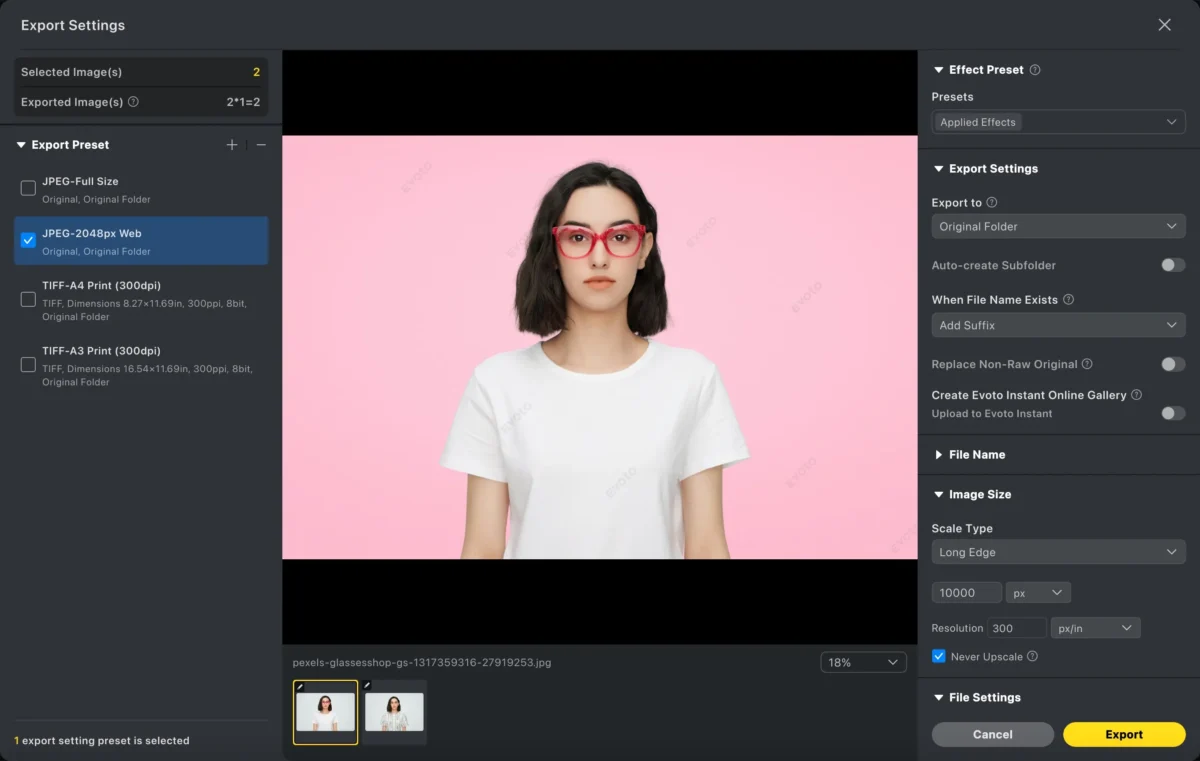
With Evoto, changing background color becomes a streamlined, AI-driven process.
Powerful AI Photo Editor
Photoshop vs Evoto: Which Is Better for Changing Background Color in Photos?
| Feature | Photoshop | Evoto |
|---|---|---|
| Learning curve | Steep | Beginner-friendly |
| Background selection | Manual masking | AI automatic detection |
| Speed | Slow for large projects | Extremely fast |
| Batch processing | Limited & complex | Built-in batch editing |
| Consistency | Depends on skill | Highly consistent |
| Ideal for | Detailed manual retouching | High-volume & professional workflows |
If you need pixel-level control for a single image, Photoshop works well. But if you need to change background color efficiently and consistently, Evoto is the better choice.
Conclusion
Learning how to change background color in Photoshop is a valuable skill, especially for photographers and designers who need precise control. However, for modern workflows—especially e-commerce, portraits, and batch editing—Photoshop can be slow and labor-intensive.
Evoto AI offers a faster, smarter alternative, allowing you to change background colors with AI precision, minimal effort, and professional consistency. If efficiency, scalability, and quality matter, Evoto is the future of background color editing.
Try Evoto AI Photo Editor
Retouch photos with Evoto AI and make your photos best! Available on Windows, MacOS and iPadOS.



