

Changing skin tone is an essential skill in portrait retouching, whether you’re correcting uneven color, matching tones across multiple photos, or achieving a specific creative look. In this guide, you’ll learn how to change skin tone in Photoshop step by step, understand common challenges, and discover a faster way using Evoto’s AI-powered tools.
What Is Skin Tone Adjustment?
Skin tone adjustment refers to the process of modifying the hue, saturation, and luminance of a subject’s skin to achieve a natural and consistent look. This may include:
- Correcting color casts from lighting
- Evening out inconsistent tones across the face and body
- Adjusting warmth, vibrancy, or undertones
- Enhancing the overall aesthetic of a portrait
Photoshop offers powerful manual tools to achieve this—though it can be time-consuming for beginners or high-volume editors.
How to Change Skin Tone in Photoshop: Step-by-Step Guide
Learning how to change skin tone in Photoshop involves selecting the skin accurately and adjusting its color without affecting the rest of the image. Here is the standard workflow:
Step 1 – Upload Your Photo
Open Adobe Photoshop and import your image. Always duplicate the base layer to ensure a non-destructive workflow.
Step 2 – Select the Skin
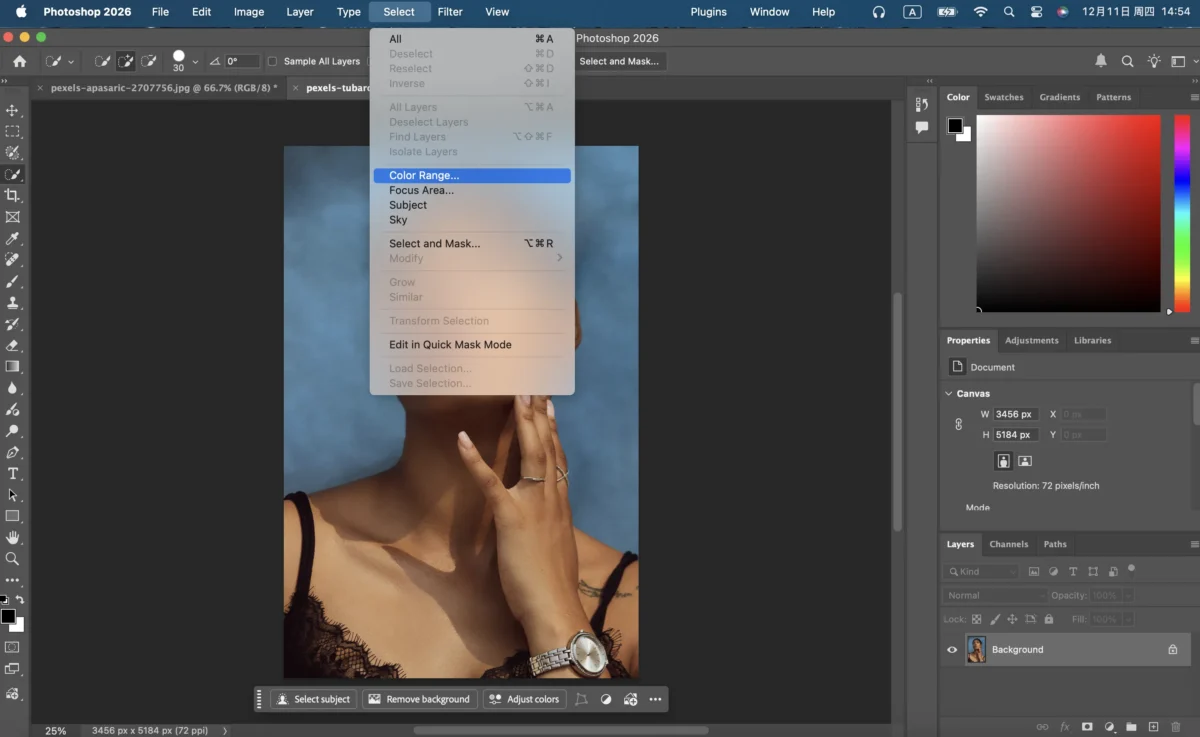
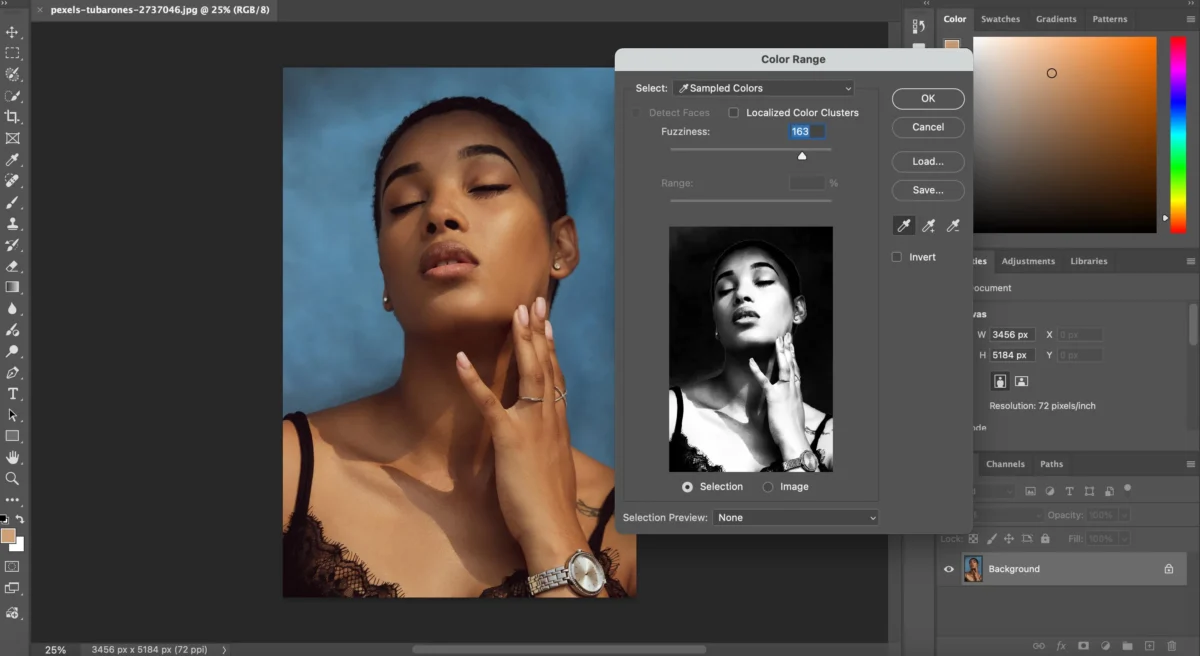
Use tools like Select > Color Range, the Quick Selection Tool, or the Lasso Tool to isolate skin areas, adjusting fuzziness or selection edges to avoid affecting hair, clothing, or the background.
Step 3 – Adjust the Color
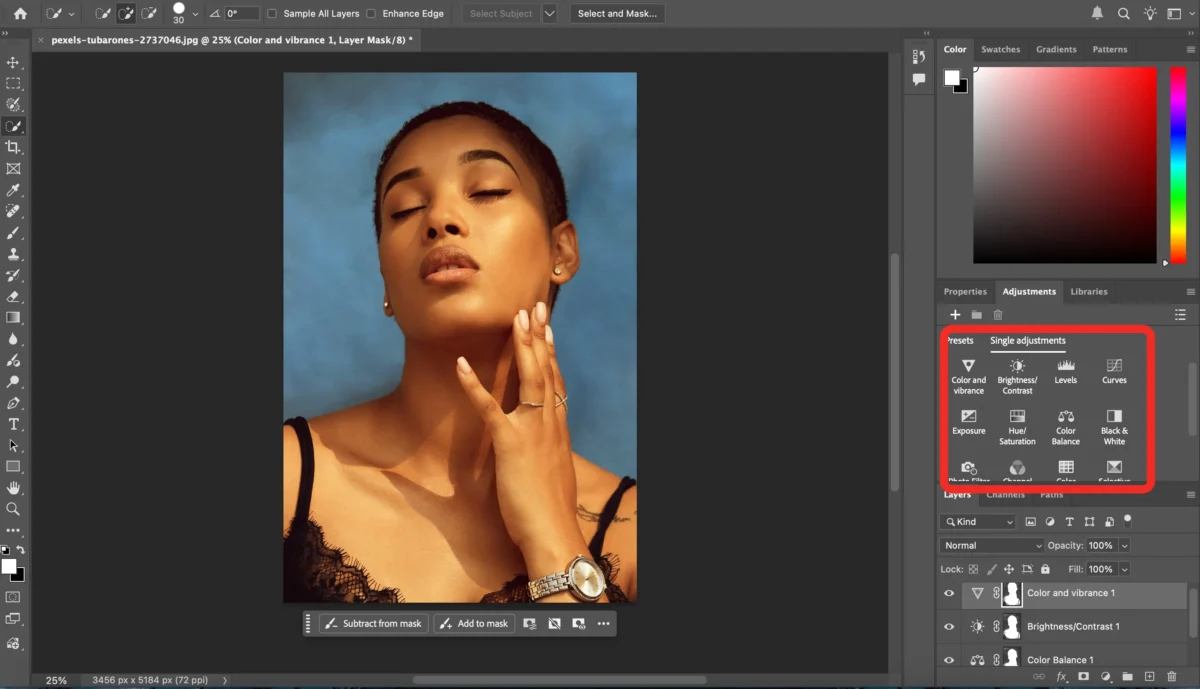
Apply color adjustments using Hue/Saturation, Selective Color, Color Balance, or Curves, making subtle changes until the skin looks natural and consistent.
Step 4 – Edit the Layer Mask
Refine the mask with a soft brush by adding or removing areas for precision and smoothing edges to ensure seamless blending of the edits.
Step 5 – Export the Photo
Once you’re satisfied, export the final image via File > Export > Export As. Use high-quality settings for the best results.
Common Challenges When Changing Skin Tone in Photoshop
While Photoshop is powerful, creators often face several challenges:
- Difficult skin selection due to complex backgrounds or lighting
- Over-saturation or unnatural tones when adjusting hue
- Uneven color between face, hands, and body
- Time-consuming workflow, especially for batch edits
- Steep learning curve for beginners
These issues can slow down editing and create inconsistent results across large photo sets.
Two Ways to Change Skin Tone in Evoto
Evoto simplifies skin tone adjustments with AI-powered features—making the process much faster and more consistent than manual Photoshop editing.


Powerful AI Photo Editor
Way 1: Use the Skin Color Changer Feature
This is the fastest and most direct way to change skin tone in Evoto.
Step 1 – Upload Photo
Import your photo into Evoto.
Step 2 – Use The Skin Tone Feature
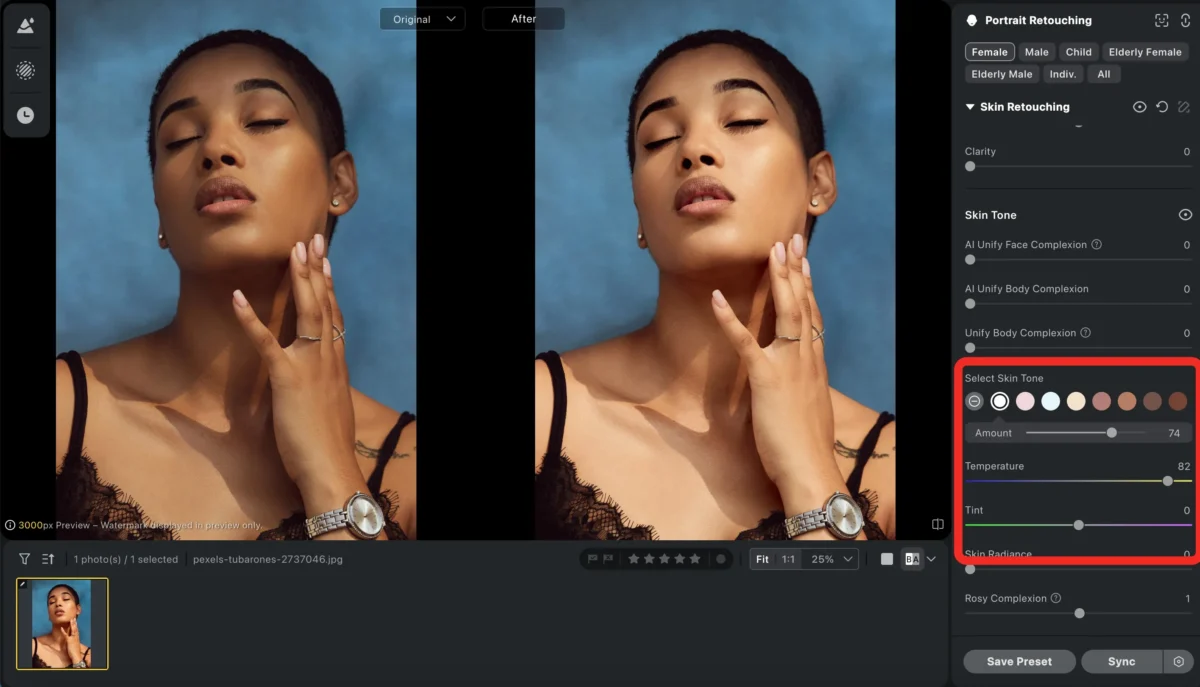
Navigate to Portrait Retouching > Skin Tone, where Evoto’s AI automatically analyzes all skin areas and applies your selected tone, allowing you to choose a preferred skin tone, adjust color, hue, and temperature, and control intensity for natural results.
Step 3 – Fine-tune (Optional)
Enhance the overall photo using Evoto’s additional features, such as AI background replacer, Body Editor, and Facial Expression Changer.
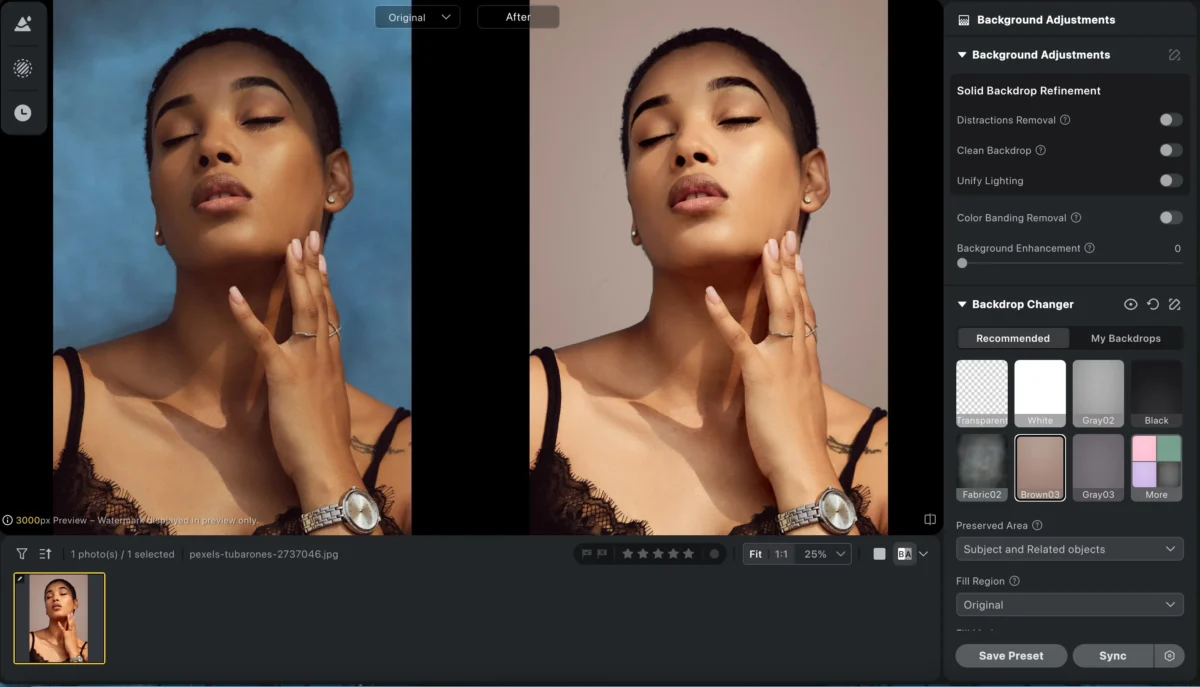
Step 4 – Export the Photo
Export the final image—or batch export multiple images at once.
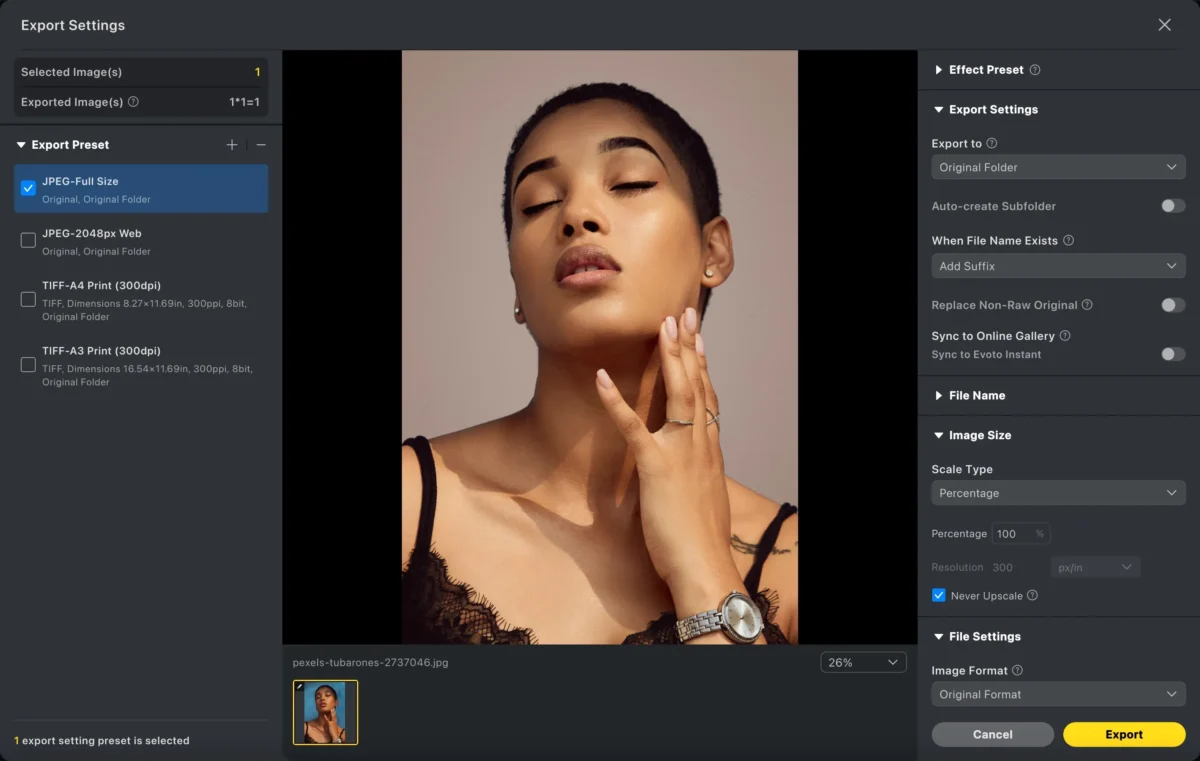
Way 2: Use the Automatic Masking Tool
This method gives you more precise, localized control.
Step 1 – Upload Photo
Import your image into Evoto.
Step 2 – Create a Automatic Mask
Go to Color Adjustment > Masking > Create Mask > All Skin, where Evoto’s AI instantly detects all skin areas.
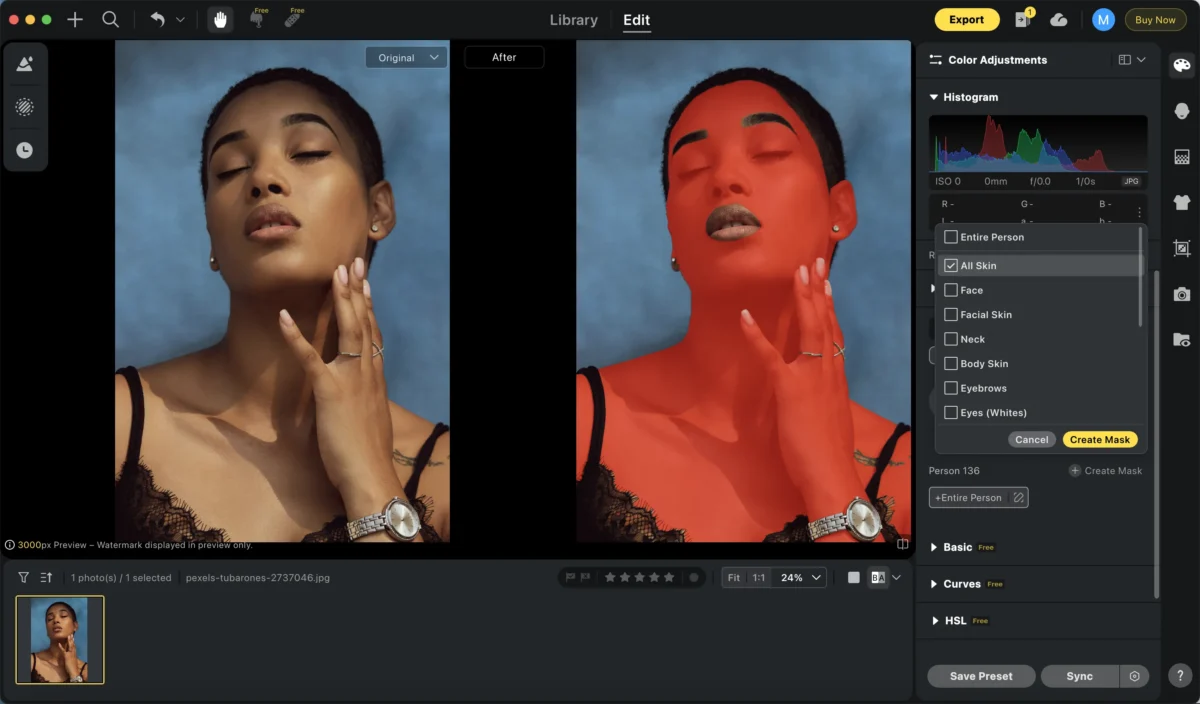
Step 3 – Adjust the Skin Tone
Adjust hue, brightness, and saturation, control intensity, and customize the exact skin tone appearance.
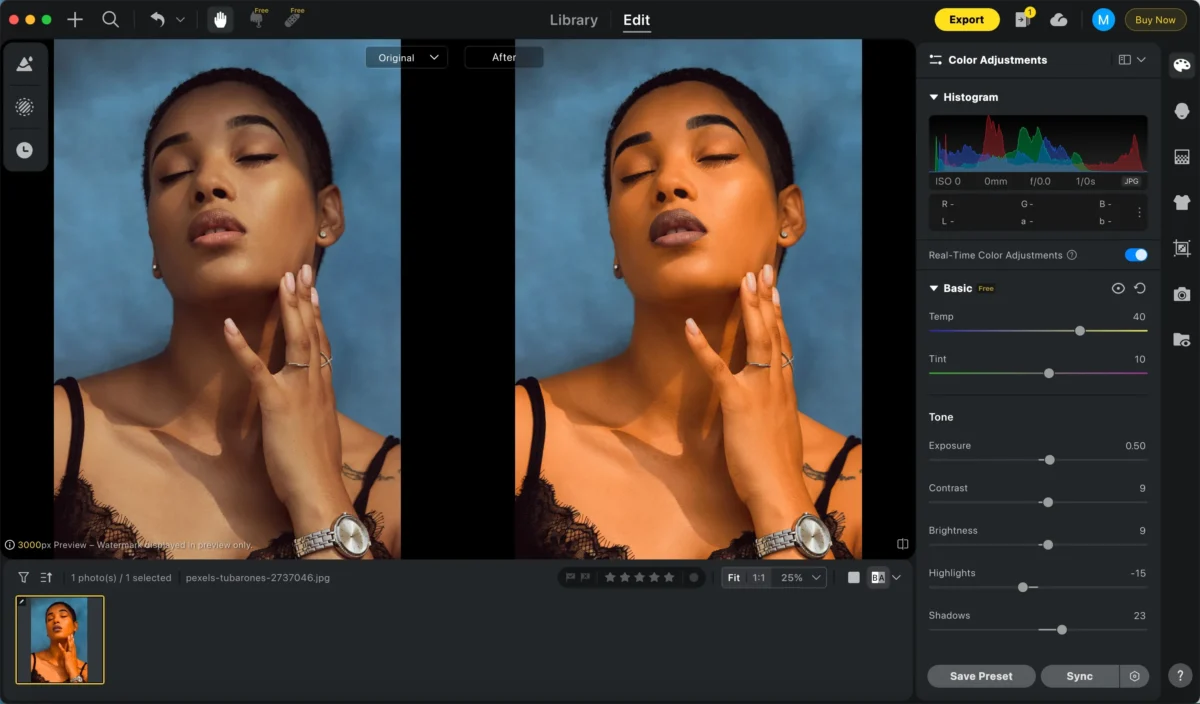
Step 4 – Fine-tune (Optional)
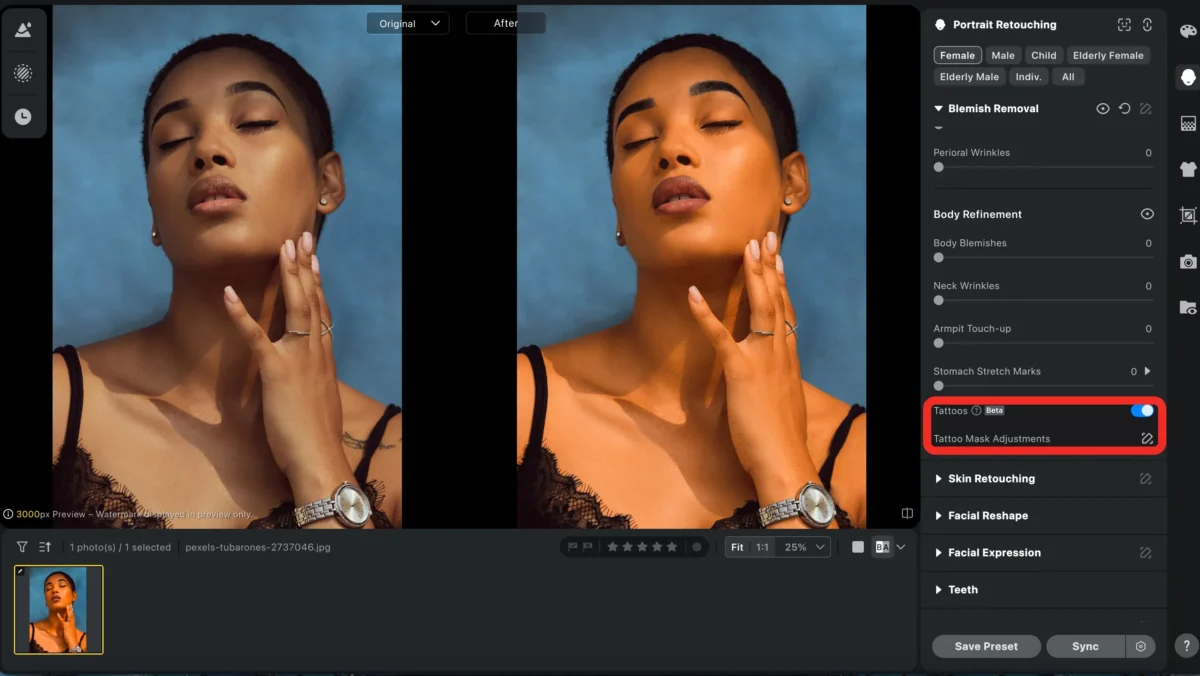
Use additional tools for full portrait enhancement, such as Remove Tattoo, Lipstick enhancement, and Teeth Fixer.
Step 5 – Export the Photo
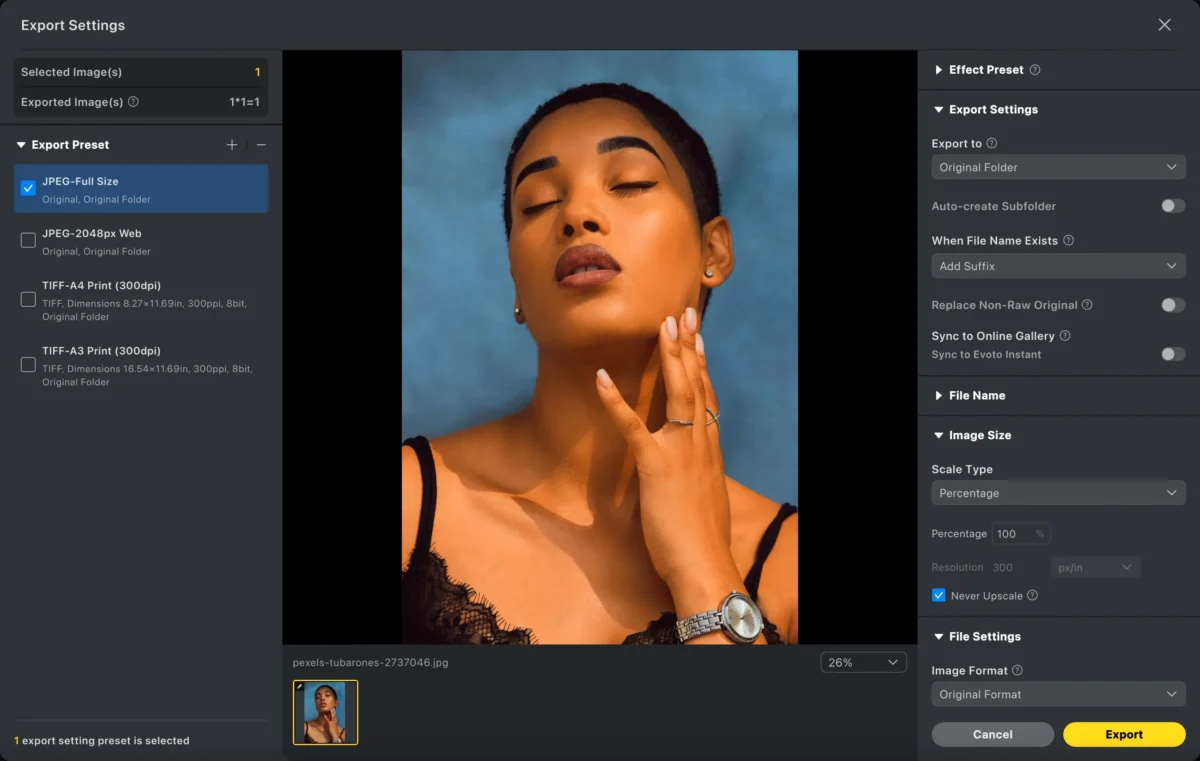
Export your final result or process multiple photos in bulk.
Powerful AI Photo Editor
Photoshop vs. Evoto: How Evoto Simplifies Skin Tone Editing
| Feature | Photoshop | Evoto |
|---|---|---|
| Skin Detection | Manual masking | Automatic AI detection |
| Difficulty | High for beginners | Very easy |
| Speed | Slow for batch editing | Instant batch processing |
| Workflow | Multi-step, complex | Streamlined and intuitive |
| Consistency | Manual adjustments vary | AI ensures uniform results |
Conclusion
Now you know how to change skin tone in Photoshop using a detailed, step-by-step workflow. Photoshop gives you complete control, but it can be slow and complex—especially for high-volume retouching.
If you want faster, more consistent results, Evoto’s AI-powered Skin Tone and Mask tools provide a modern, efficient alternative that saves time without sacrificing quality.
Try Evoto AI Photo Editor
Retouch photos with Evoto AI and make your photos best! Available on Windows, MacOS and iPadOS.



