

E-commerce photographers often face the time-consuming challenge of editing hundreds of product photos manually. Adjusting lighting, color balance, cropping, and backgrounds one by one is repetitive and inefficient. Inconsistent edits can hurt brand perception, reduce visual appeal, and slow down your product listings. This is where knowing how to edit multiple photos at once becomes a game-changer, allowing you to streamline your workflow while maintaining professional consistency.
Why Batch Editing Matters for E-commerce
Consistency is key in e-commerce. Buyers subconsciously trust brands with uniform product imagery. Differences in lighting, background, or cropping across listings can make even high-quality products look amateurish. By using bulk edit images or batch photo editing, e-commerce photographers can ensure uniformity across all product images.
Batch editing saves hours of manual labor. For example, when photographing a clothing collection, you can apply the same adjustments to exposure, contrast, and saturation to every image at once. This ensures that all products appear cohesive in online stores and marketplaces.
Traditional Editing vs AI Batch Photo Editor
Manual editing with Photoshop or Lightroom is slow and repetitive. Each image must be cropped, color-corrected, and background-adjusted individually. Even minor mistakes in alignment or exposure can create inconsistencies, requiring further adjustments.
With an AI batch photo editor like Evoto, you can automate repetitive tasks while maintaining professional quality. Features like automated subject detection, background removal, and clean background creation allow photographers to process hundreds of images simultaneously. This not only saves time but ensures consistent, high-quality results across your product catalog.


Powerful AI Photo Editor
How to Edit Multiple Photos at Once with Evoto AI
Here’s a step-by-step guide to editing multiple photos efficiently:
Step 1: Import Your Photos
Upload JPG, PNG, TIFF, or RAW files into Evoto AI. Organize your batch by product type, color, or collection to simplify the workflow.
Step 2: Apply Initial Edits or Presets
Adjust exposure, contrast, or color balance on one photo. Save your adjustments as a preset for bulk application to all photos in the batch.
Step 3: Batch Apply Presets
Select all images and apply your saved preset. Evoto AI ensures consistent brightness, saturation, and tone across your entire product set. You can also bulk crop photos, resize image, or apply other AI batch photo editor adjustments automatically.
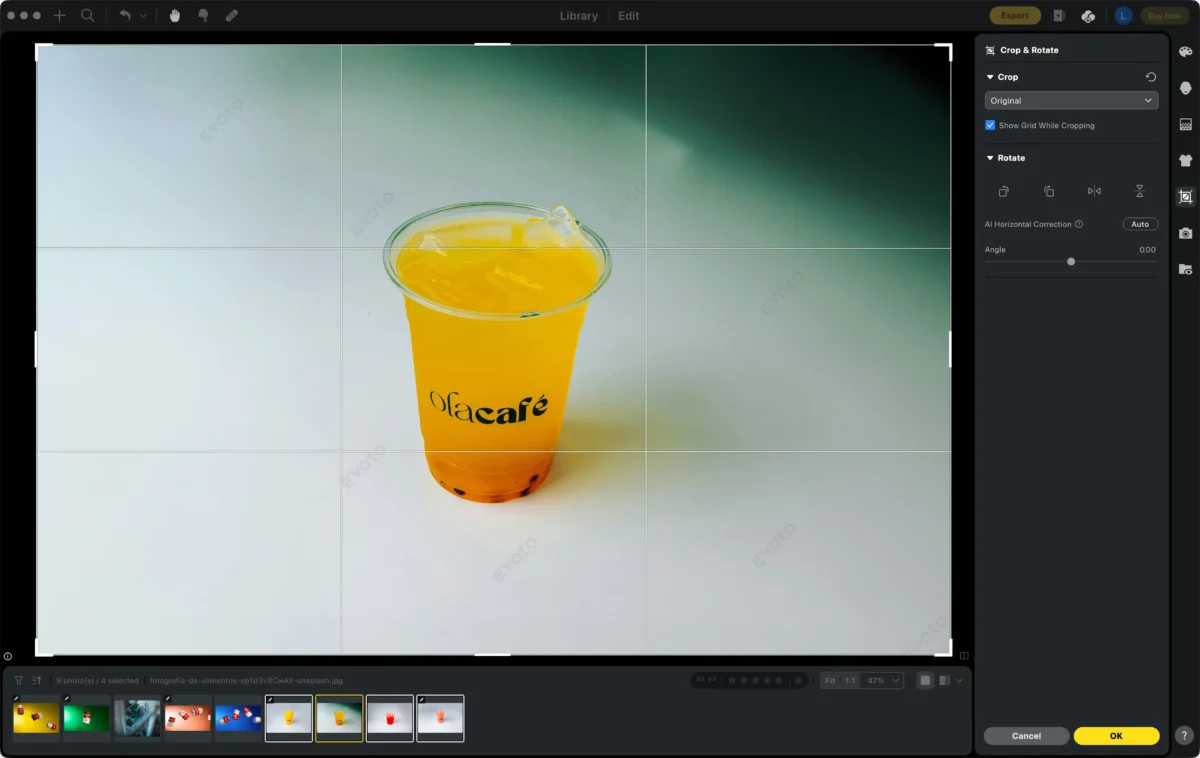
Step 4: Remove or Clean Backgrounds
Use Evoto’s background cleaner or Background Removal tools to instantly create clean, distraction-free product images. This ensures your listings look professional and uniform across platforms.
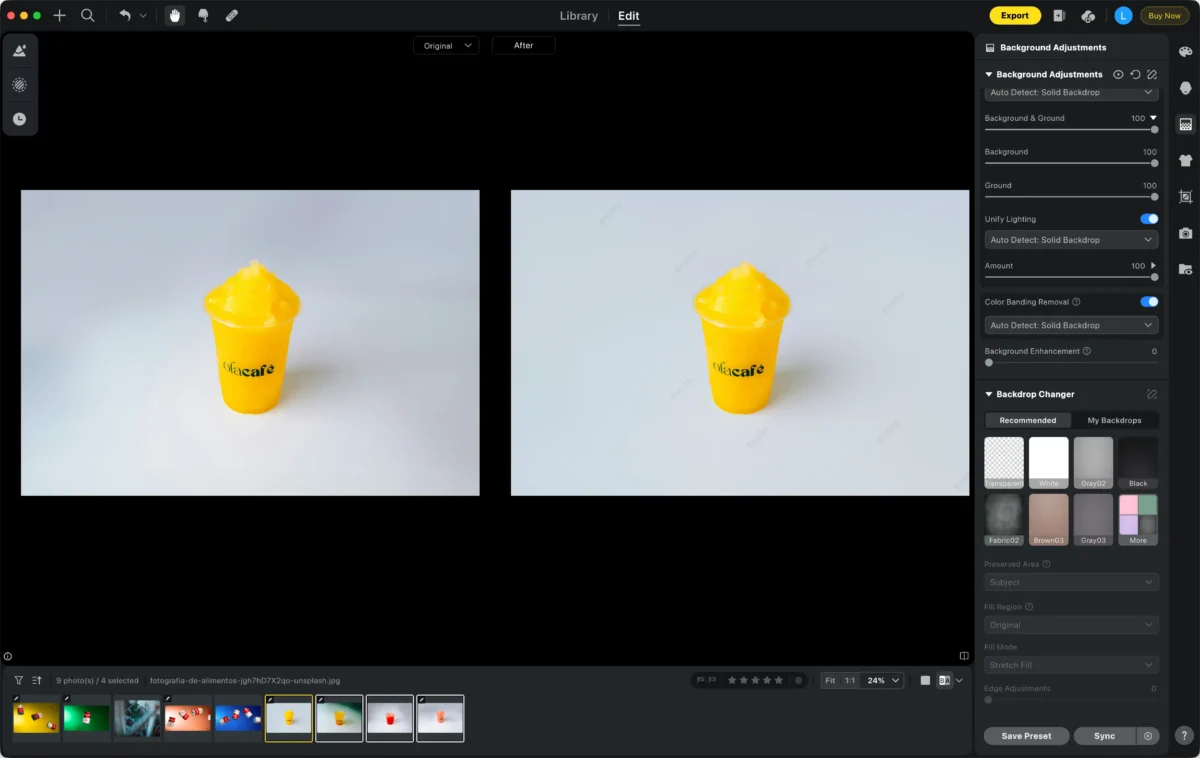
Step 5: Export Batch Photos
Once edits are complete, export all images in high-quality JPG or PNG. This accelerates uploads to online stores, marketplaces, or social media channels.
Read More: How to Take Photos of Clothes to Sell Online for Black Friday 2025
Key Features for E-commerce Success
Evoto AI is built for creative professionals and e-commerce photographers. Some essential features include:
- AI Subject Detection: Precisely isolates your product from the background for accurate edits.
- Sync Presets in Seconds: Apply the same adjustments to hundreds of photos instantly.
- Quick Bulk Adjustments: Brightness, contrast, cropping, watermarking—all in one click.
- Super-Easy Background Removal: Automated, precise, and consistent.
- High-Volume Workflow: Perfect for product photography, social media campaigns, and content creation.
Use Cases for AI Batch Editing
Product Photography
Apply consistent edits, resize images, remove or clean backgrounds, and prepare product photos for online stores efficiently.
Event Photography
Edit hundreds of event shots at once, including color grading, cropping, and watermarking.
Social Media & Content Creation
Maintain a unified style across multiple posts and campaigns, keeping brand aesthetics intact.
Portfolio Management
Batch edit headshots, stock images, or product photography to showcase professional work consistently.
Advantages of AI-Powered Batch Editing
- Efficiency: Hundreds of images processed in minutes.
- Consistency: Uniform tone, brightness, and background across all photos.
- Professional Output: AI enhances details while preserving quality.
- User-Friendly: Intuitive interface for beginners and advanced options for pros.
- Free Trial Available: Explore features without commitment.
Tips for Faster E-commerce Photo Workflow
- Create reusable presets for different product types.
- Organize folders, tags, and project groups for easier batch management.
- Preview edits before exporting to catch inconsistencies.
- Combine tethered shooting with batch editing for instant results.
Powerful AI Photo Editor
Conclusion
Mastering how to edit multiple photos at once transforms e-commerce photography workflows. AI-powered tools like Evoto streamline repetitive tasks, maintain consistent quality, and save valuable time. From background removal to bulk adjustments, Evoto ensures your product images look professional and cohesive, giving your online store a polished, high-quality appearance.



