

Editing a smile in a photo can transform the entire mood of an image. Whether it’s a portrait, a group shot, or a professional headshot, a natural and confident smile makes the subject look more approachable and polished. In this guide, you’ll learn How To Edit Smile In Photo using Photoshop and discover a faster, professional AI photo editing software alternative with Evoto.
Why You Might Need to Edit Smile in Photo
There are many situations where adjusting or enhancing a smile can improve the final result:
- Portrait photography: Create a more natural and friendly expression with a dedicated portrait editor.
- Group photos: Fix awkward or uneven smiles for any photography workflow.
- Professional headshots: Present a confident and approachable appearance using a high-end photo retouching workflow.
- Wedding or event photos: Correct expressions captured at the wrong moment with professional AI photo editing software.
- Social media images: Use a face editor to make photos look more lively and engaging.
Knowing How To Edit Smile In Photo helps you deliver better results without needing a full reshoot.
How To Edit Smile In Photo in Photoshop: Step-by-Step Guide
Photoshop remains a staple photo editing software, offering several tools to subtly adjust facial expressions, including the Liquify filter and manual retouching tools.
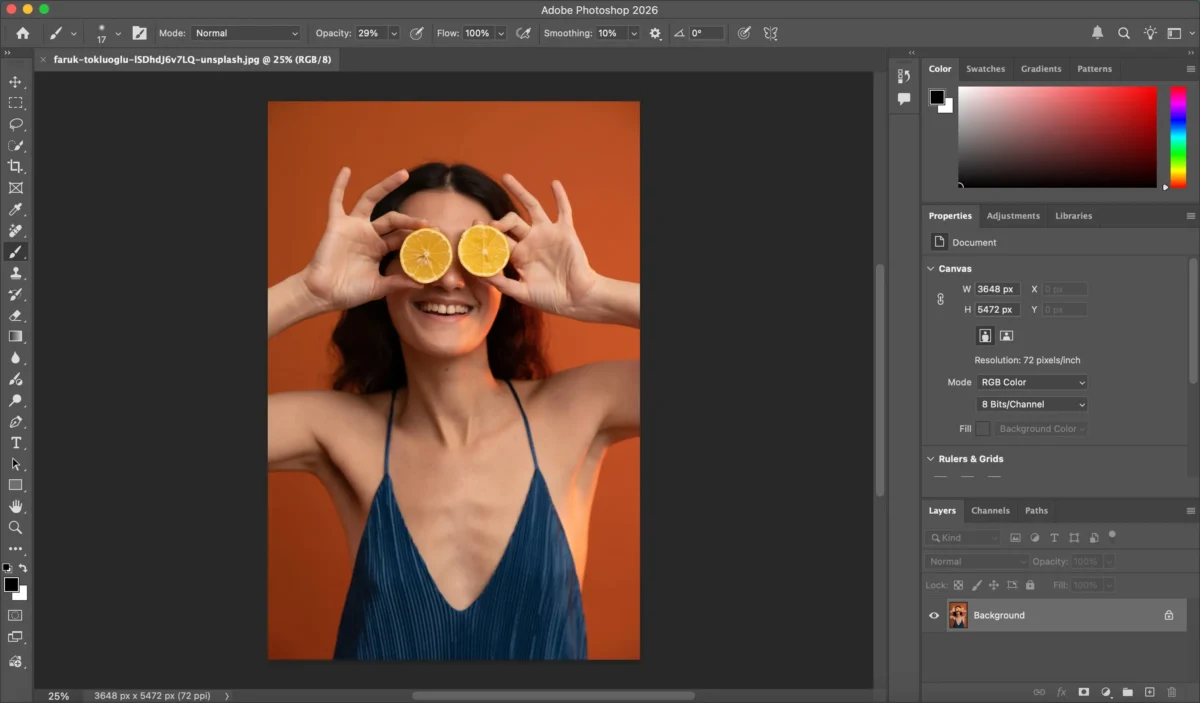
Step 1: Open the Photo
Launch Photoshop and go to File > Open to load your image.
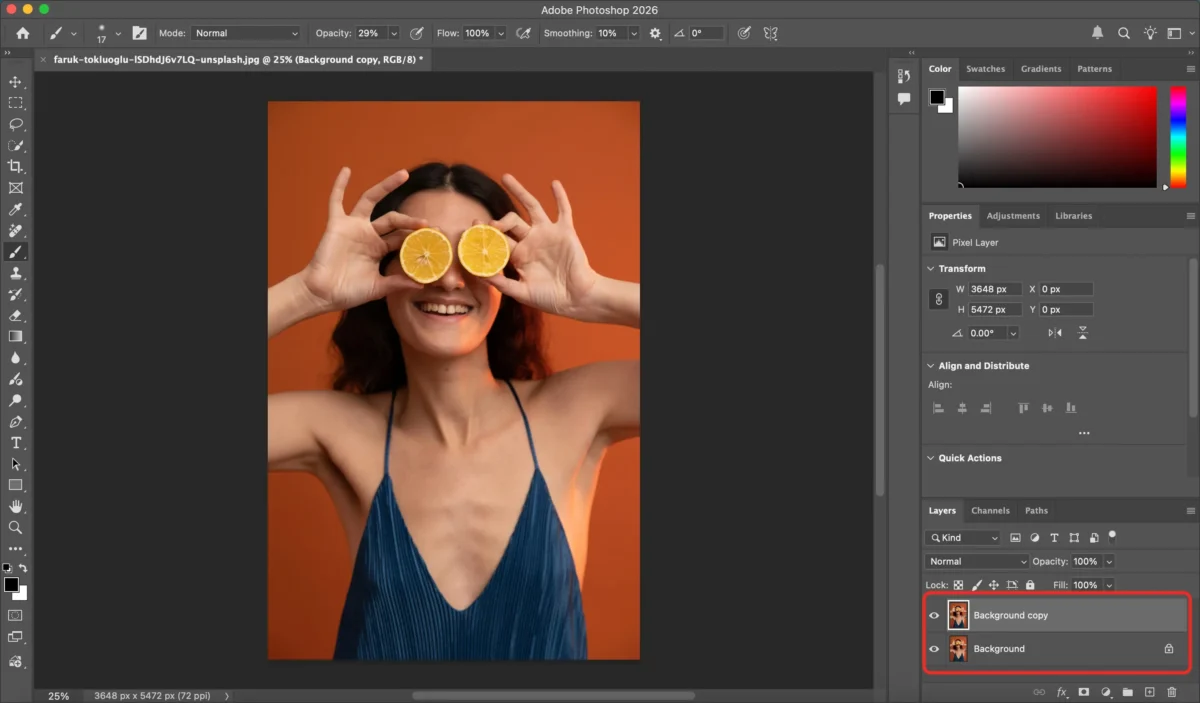
Step 2: Duplicate the Background Layer
Press Ctrl + J (Windows) or Cmd + J (Mac) to duplicate the original layer.
This allows non-destructive editing.
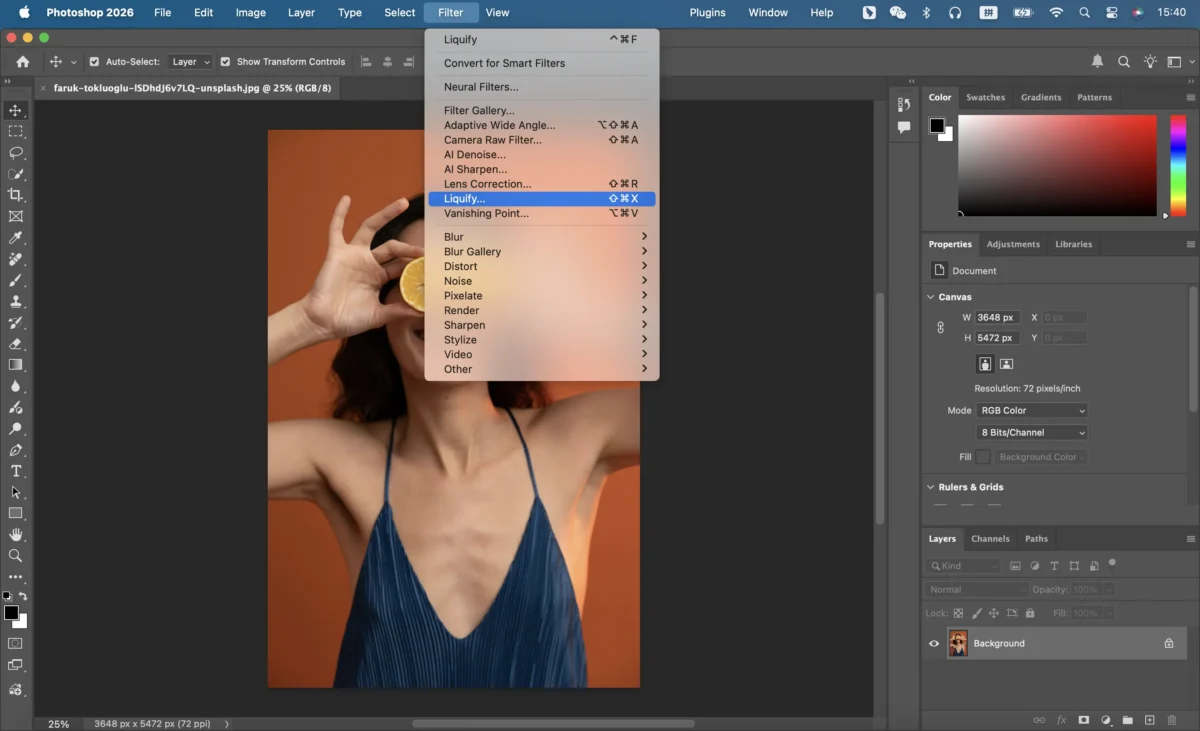
Step 3: Open the Liquify Tool
Go to Filter > Liquify.
This tool allows you to reshape facial features naturally.
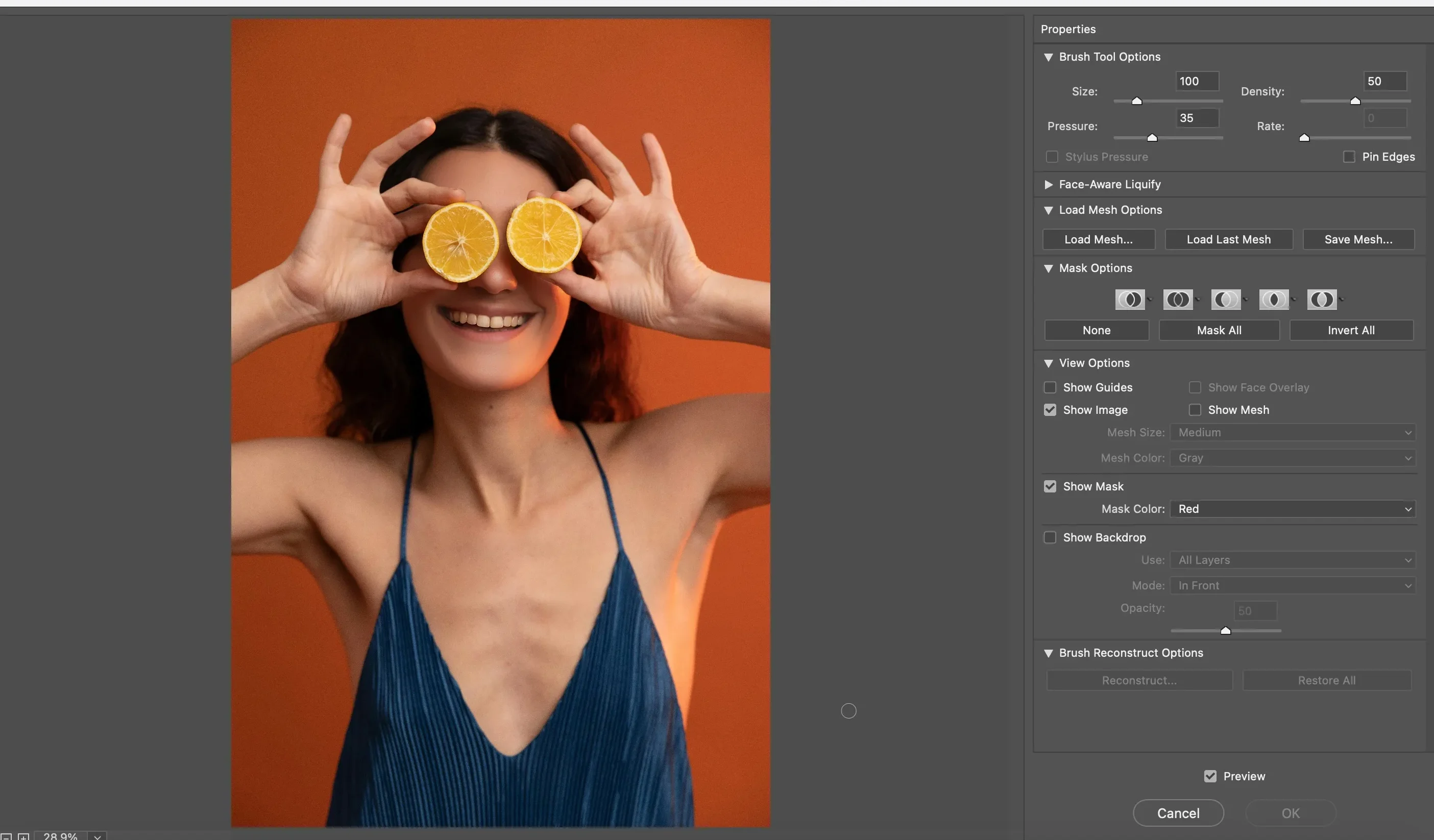
Step 4: Adjust the Smile
- Select the Face Tool in the Liquify panel.
- Photoshop will detect the face automatically.
- Use the Smile slider to gently lift the corners of the mouth.
For manual control:
- Use the Forward Warp Tool.
- Gently push the mouth corners upward to create a natural smile.
Step 5: Refine the Teeth and Lips
- Use the Dodge Tool to brighten teeth slightly.
- Use the Healing Brush to clean up small lip imperfections.
Step 6: Apply and Save
Click OK to apply changes.
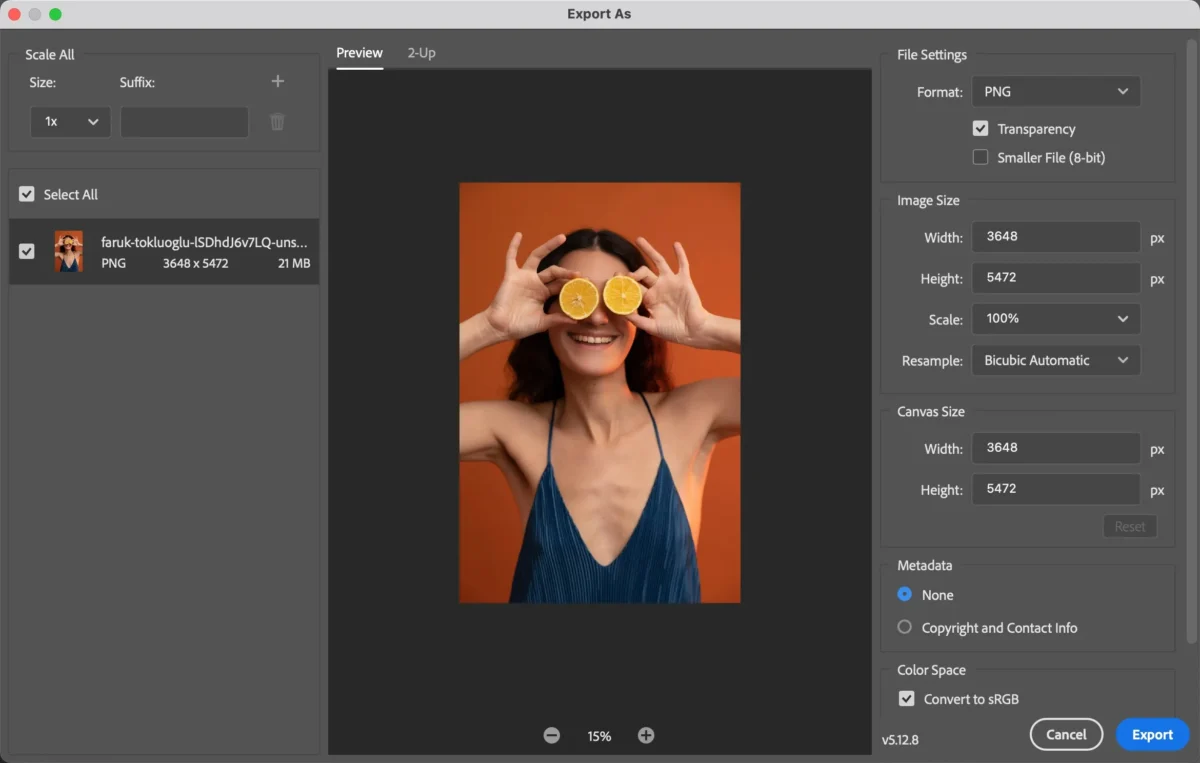
Export your edited photo via File > Export.
Limitations of Photoshop for Editing Smile in Photo
While Photoshop is powerful, it has several drawbacks when it comes to expression editing:
- Manual adjustments required: Takes time to learn and apply correctly.
- Risk of unnatural results: Overusing Liquify can distort facial features.
- Skill-dependent: Beginners may struggle with subtle expression changes.
- Not ideal for batch editing: Each image requires individual adjustments.
For photographers handling many portraits, this process can become slow and inconsistent.
How Evoto Simplifies Editing Smile in Photo
Evoto provides an AI-powered solution that makes How To Edit Smile In Photo much easier and faster.


Powerful AI Photo Editor
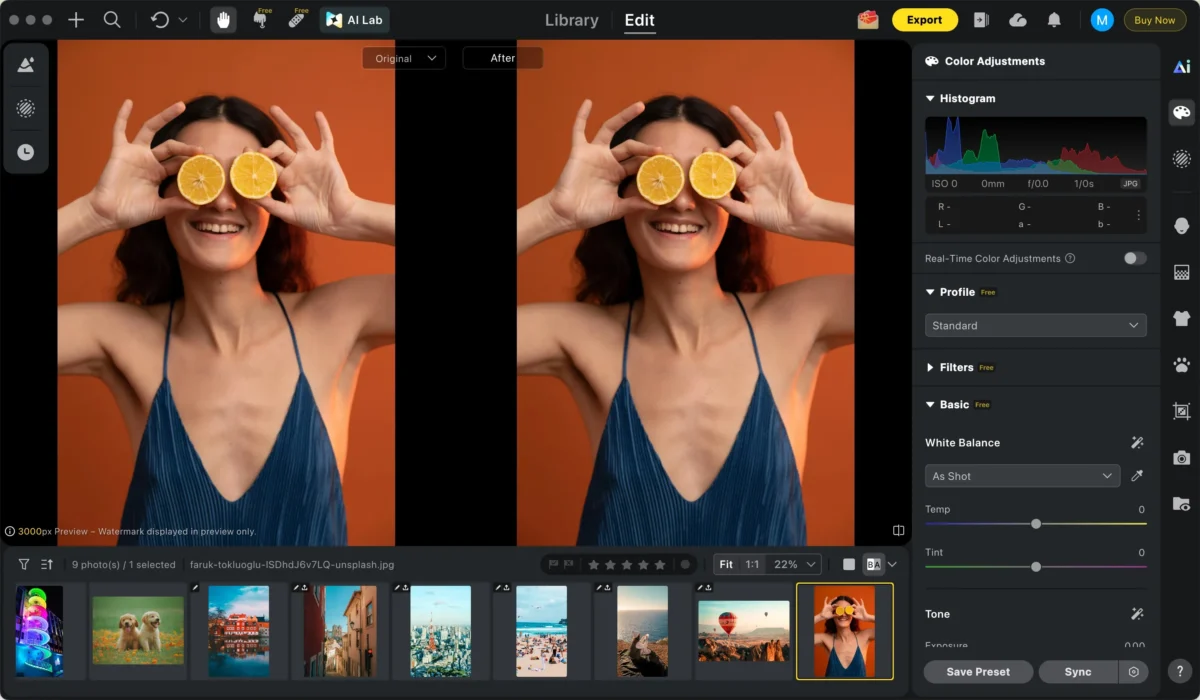
Step 1: Import Your Photo
Open Evoto and upload the photo you want to edit.. As a high-performance RAW photo editor, Evoto handles massive files with ease.
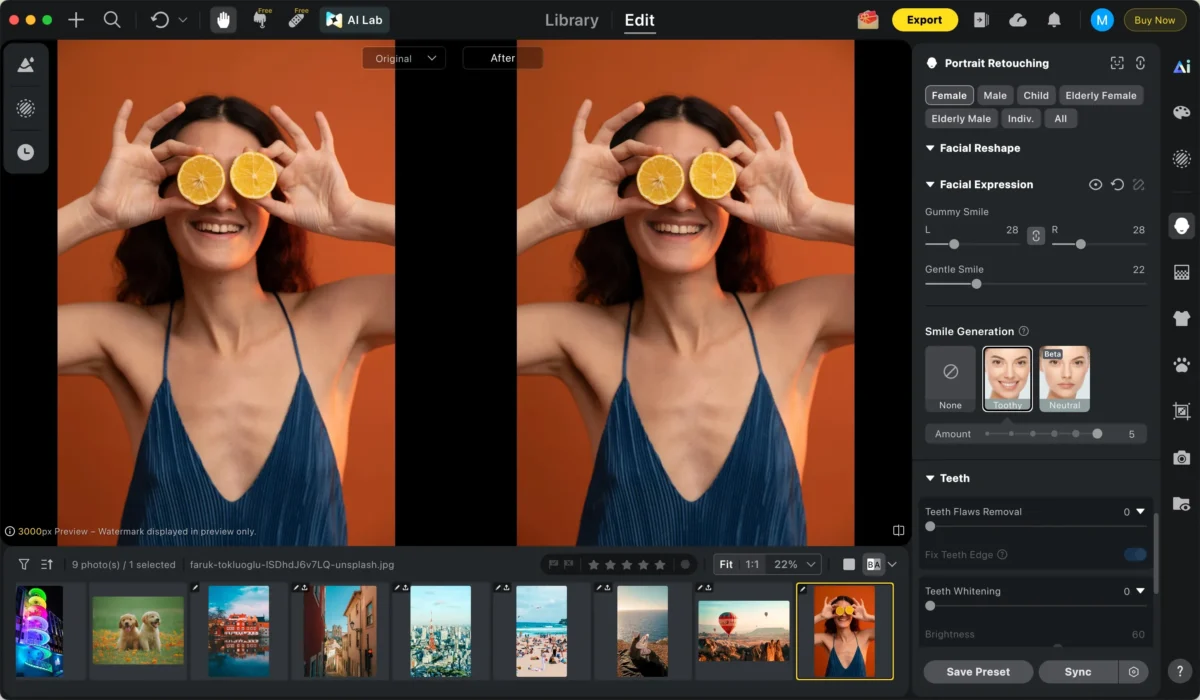
Step 2: Use AI Smile Adjustment
Go to the Portrait Retouching panel and locate the Smile Generation.
- Adjust the smile slider to enhance or correct the expression.
- The AI automatically preserves facial structure and natural proportions.
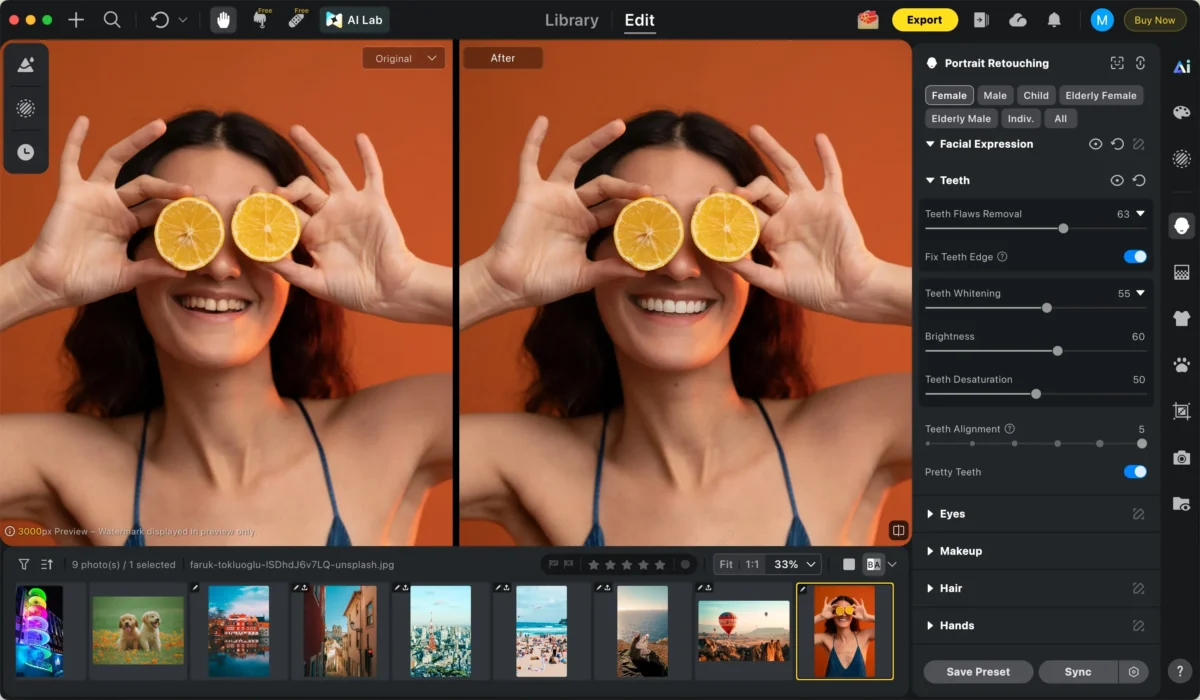
Step 3: Additional Enhancements (Optional)
You can further refine the portrait using:
Edit teeth:Enhances teeth by whitening, refining shape, removing braces, and correcting minor imperfections while maintaining a natural, realistic look.
Smooth skin: Use AI face retouching to soften texture while preserving pores. Gently soften skin texture to create a natural, flawless look while preserving important details like pores and facial features.
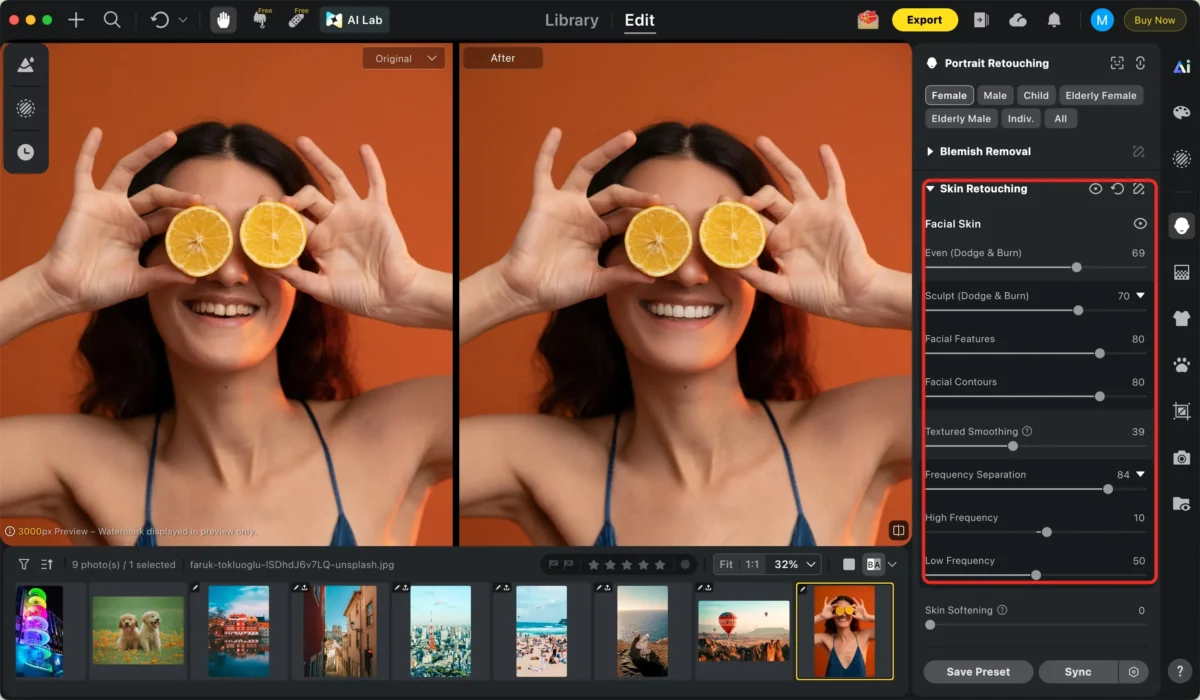
Change the Background: Instantly use the AI background remover or choose a professional AI studio backdrop. Instantly replace the background using a variety of built-in background options, or upload your own custom background for a perfect, personalized result.
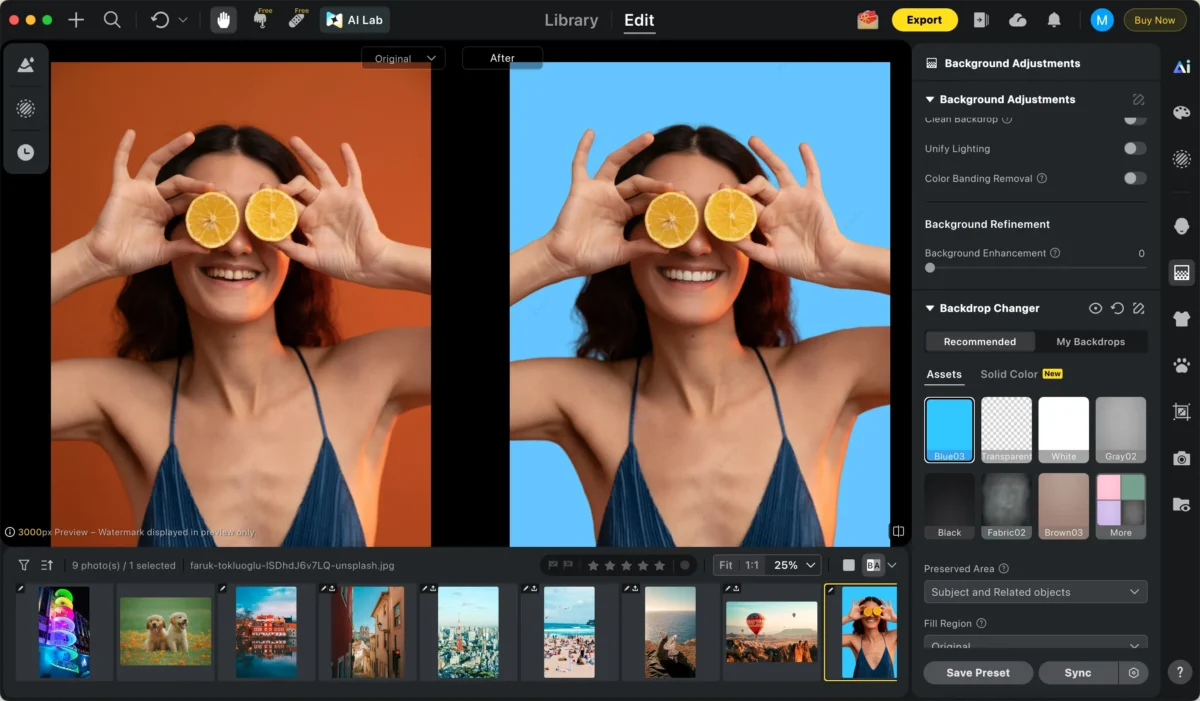
All changes are applied in real time.
Step 4: Batch Editing (Optional)
Apply your smile and skin settings to hundreds of images at once. This batch AI portrait retouching ensures consistency across your entire gallery in seconds.
Apply the same smile adjustment to multiple images at once using presets or sync settings.
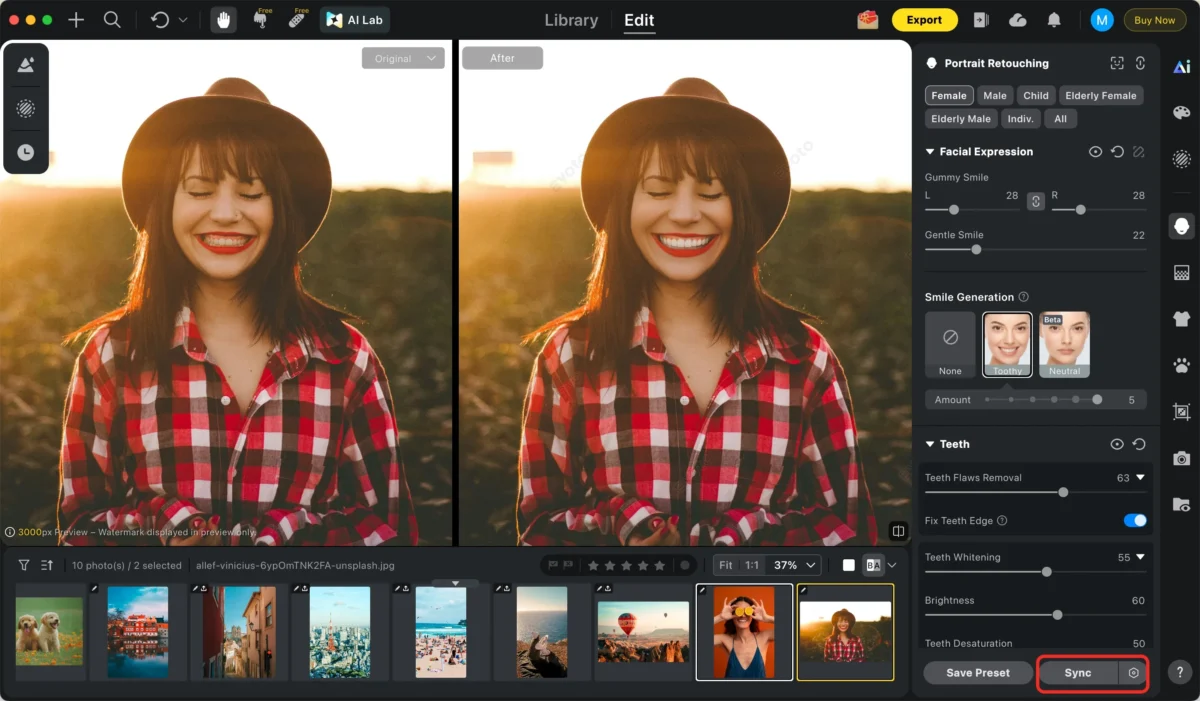
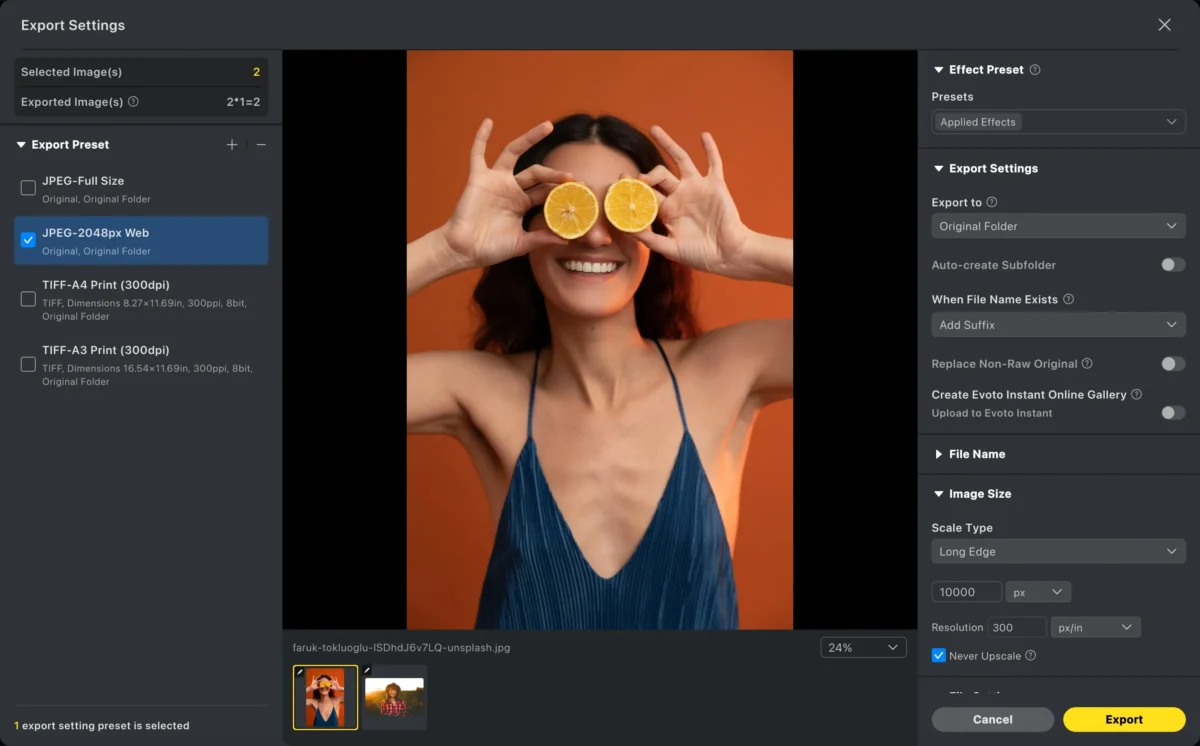
Step 5: Export
Export your final image in high resolution, ready for delivery or sharing.
Photoshop vs Evoto: Which Is Better for Editing Smile in Photo?
| Feature | Photoshop | Evoto |
|---|---|---|
| Ease of use | Complex, manual tools | Simple AI face retouching sliders |
| Speed | Time-consuming manual edits | High-speed AI photo editing |
| Natural results | Skill-dependent(Manual) | AI-optimized(Automatic) |
| Batch editing | Limited(Actions/Scripts) | Batch AI portrait retouching |
| Best for | Detailed manual retouching | Fast, consistent portrait edits |
| Photo Editor Workflow | Fragmented; requires separate steps for retouching, masking, and export. | All-in-one photo workflow; integrates RAW processing, retouching, and background swapping. |
Photoshop is ideal for advanced, manual control, while Evoto is better for quick, natural-looking smile adjustments at scale.
Conclusion
Learning How To Edit Smile In Photo can significantly improve portraits, headshots, and group photos. Photoshop provides precise manual tools, but the process can be slow and requires experience to avoid unnatural results.
Evoto offers a smarter alternative with AI-powered smile adjustments, real-time previews, and batch editing capabilities. If you want faster workflows, consistent results, and natural expressions, Evoto is a powerful tool to add to your photo editing process. It combines a face editor, background remover, and color grader into one all-in-one photo workflow.
Powerful AI Photo Editor



