

- To get a shareable inverted image file: Use an online image color inverter in Safari or Chrome on your iPhone. Upload the photo, tap invert, then download the result. No app install needed.
- To invert the whole screen (display only): Go to Settings > Accessibility > Display & Text Size and turn on Smart Invert or Classic Invert. This does not create a new file.
- Best for most photographers and creators: The browser-based tool gives you a full-resolution inverted photo you can save, share, or edit later. iOS Accessibility is better for reducing eye strain or previewing dark mode.
If you’ve ever searched for how to invert colors on iPhone, you’ve probably noticed two different goals in the results. Some people want to invert colors on a single photo and get a new image file — for example, to create a negative look or to restore a scanned film negative. Others want to flip the colors of the entire screen to ease eye strain or to preview a dark-mode design.
This guide will compare three practical ways to invert colors on iPhone and explain when to use each so you get the outcome you need.
We’ll cover iOS Accessibility settings (Smart Invert and Classic Invert), how to invert colors on a specific image using an online tool, and when a third option might make sense. You’ll also get a comparison table, tips to avoid common mix-ups, and short answers to frequent questions. For the color theory behind inversion (e.g. why greens turn magenta), see our guide What Are Opposite Colors? on the Evoto blog.
Why You Might Want to Invert Colors on iPhone
Inverting colors means replacing each color with its opposite on the color wheel. On a photo, that gives you a negative-like effect: lights become darks and darks become lights. On the screen, the same idea applies to the whole interface.
People look for how to invert colors on iPhone for a few main reasons:
- Creating or editing a single image — You have one photo you want to flip (e.g. for art, a negative effect, or restoring a film scan). You need a new file you can save or share.
- Reducing eye strain — You want the whole screen to use light text on a dark background. You don’t need a new image file.
- Testing dark mode — You’re designing an app or site and want to see how it looks with inverted colors on a real device.
The method you choose depends on whether you need an inverted photo file or a display-only effect. With that in mind, here are the three methods in order.
How to Invert Colors on iPhone: Method 1 — iOS Accessibility
Apple’s built-in option lets you invert colors for everything on the screen. It’s useful for accessibility and comfort, but it does not create a new image file.
Step 1: Open Display Settings
Open Settings on your iPhone, then tap Accessibility. In the Vision section, tap Display & Text Size. You’ll see options for text size, bold text, and color settings.
Step 2: Turn On Smart Invert or Classic Invert
Tap Smart Invert or Classic Invert to turn it on.
- Smart Invert inverts the display but keeps photos, some media, and dark-style elements closer to normal. Use it if you want a gentler effect.
- Classic Invert inverts the entire screen, including photos and app interfaces. Use it for a full flip.
The change applies immediately. To turn it off, repeat the steps and switch the option off.
Step 3: (Optional) Add an Accessibility Shortcut
For quick toggling, go to Settings > Accessibility > Accessibility Shortcut and select Smart Invert or Classic Invert. After that, a triple-click of the side button will toggle invert colors on or off. For more on these options, see Apple’s guide to display accommodations.
When to Use This Method
Use iOS invert color on iPhone when you want less glare and easier reading (light text on dark background) across the system, or a quick way to preview how an app or website looks with inverted colors (e.g. dark mode).
Limitation: This only changes how the screen looks. You do not get a new inverted photo file to save or share. If you need a file, use Method 2 below.
How to Invert Colors on iPhone: Method 2 — Online Image Color Inverter
When you need an inverted image you can keep, share, or edit later, use an online color inverter in your iPhone browser. You upload one photo, invert colors with one tap, and download the result. No app install is required. Evoto offers a free image color inverter that works in Safari or Chrome on iPhone — your images are only used for the current session and are not stored.
Step 1: Open the Tool and Upload Your Photo
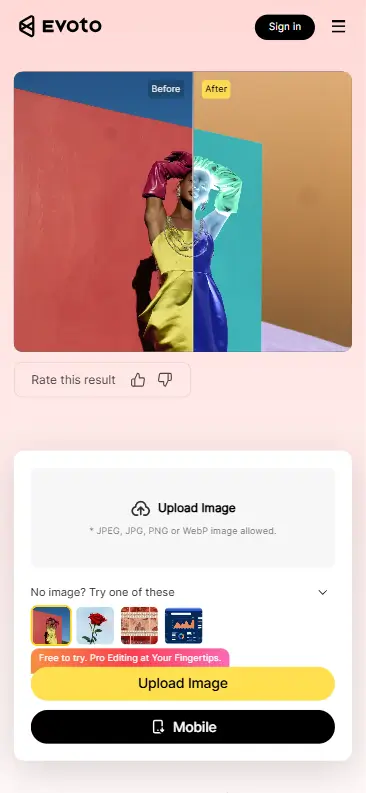
Open Safari or Chrome on your iPhone and go to the image color inverter page. Tap “Invert Color Now” on the upload area and select a photo from your camera roll (or drag your picture if you are using a computer). Most tools accept JPG, PNG, and WebP. Wait for the upload to finish; the preview area will show your image.


Step 2: Preview the Result
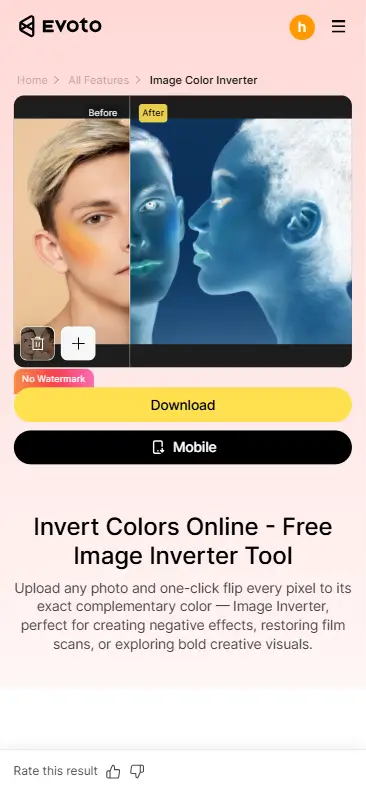
The preview updates immediately to show the inverted photo. Every pixel is replaced by its complement (e.g. red → cyan, green → magenta), so the image looks like a negative. You can review the result before downloading.
Step 3: Download the Inverted Image
Tap the “Download” button, and the file will save to your iPhone photo app at full resolution with no extra compression from the inversion step. You can share or edit it like any other photo. See the before-and-after image of the color reversion.
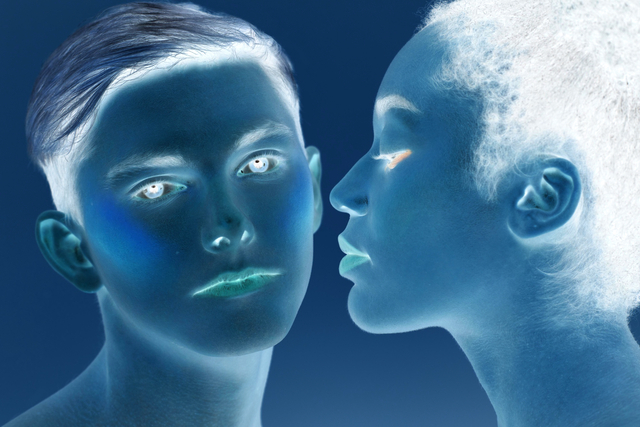
This is the option that best matches the intent behind how to invert colors on iPhone when the goal is to get an inverted photo file. For more on the science of inversion (e.g. why film negatives look orange and green), read Film Negatives in Photography: History, Science, and How to Recreate the Look.
How to Invert Colors on iPhone: Method 3 — Other Options (Shortcuts, Apps)
Beyond Accessibility and the browser, you may see mentions of the Shortcuts app or third-party apps that invert colors or apply filters.
- Shortcuts: You can build or use a shortcut that applies an invert effect to an image. This can work for automation, but setup is more involved than using a dedicated image color inverter in the browser. For a one-off or occasional inverted photo, the online tool is usually faster.
- Photo-editing apps: Many apps offer filters or adjustments that can mimic an invert. They’re fine if you already use them, but they often require installing and opening an app. If you only need to invert color on iPhone for a single image, a browser-based tool is often simpler.
For most people searching how to invert colors on iPhone for a file they can keep, Method 2 (online tool) is the most straightforward. Use Method 3 if you have a specific workflow (e.g. Shortcuts) or app you prefer.
Comparison: Which Method Should You Use?
| Goal | Best Method | Why |
|---|---|---|
| Get a shareable inverted photo file | Online image color inverter (Method 2) | One tap to invert, download at full resolution, no app install. |
| Reduce eye strain / dark screen system-wide | iOS Accessibility (Method 1) | Built-in, no uploads, instant. Does not create a file. |
| Invert one image without leaving your browser | Online tool (Method 2) | Same as above; works on iPhone Safari/Chrome. |
| Automate invert for many images | Shortcuts or desktop tool | Browser tool is best for single images; batch workflows may need other tools. |
Summary: For a single inverted image you can save and share, use an online color inverter on your iPhone. For system-wide invert colors (display only), use iOS Accessibility.
Common Mistakes and Troubleshooting
Mistake 1: Expecting a new file from Accessibility.
Smart Invert and Classic Invert only change how the screen looks. They do not create a new inverted photo in your Photos app. If you need a file, use the online tool (Method 2).
Mistake 2: Looking for “Invert” in the Photos app.
The built-in Photos app on iPhone does not have a one-tap invert colors option. Use a browser-based image color inverter or a third-party editor that supports inversion.
Mistake 3: Wrong export format.
After using an online tool, choose the format you need (e.g. JPG or PNG) before downloading so the inverted image is ready for print or web.
Troubleshooting: If the online tool doesn’t load, check your connection and try again or use a different browser (Safari vs Chrome). If the inverted photo looks off, ensure the original image is not already heavily edited or in an unsupported format. Most tools work best with standard JPG, PNG, or WebP uploads.
Get the Full Evoto Workflow
To download Evoto for desktop (Windows or Mac) or mobile, use the official installer: Download Evoto. You’ll get access to the image color inverter plus portrait retouching, batch processing, and more. Start with the free trial to test all features.


Powerful AI Photo Editor
Summary and Next Step
How to invert colors on iPhone depends on what you want: a new image file or a display-only effect. For an inverted photo you can save and share, use an online image color inverter in Safari or Chrome — upload, tap invert, and download. For system-wide invert colors (e.g. for comfort or dark-mode preview), use Settings > Accessibility > Display & Text Size and turn on Smart Invert or Classic Invert.
If you’d like to try the browser-based approach, use the free image color inverter linked above on your iPhone — no app install, and your images are only used for the current session. For full photo editing and batch workflows on desktop or mobile, try the Evoto AI Photo Editor.
FAQ
How do I invert colors on my iPhone for one photo?
Open Safari or Chrome and go to an online image color inverter. Upload the photo, tap the invert button, and download the inverted image. You’ll get a new file in your Photos app. This is the right approach when you need a shareable inverted photo.
Does iPhone have a built-in way to invert a single image?
The Photos app does not offer a simple “invert colors” action. Use an image color inverter in the browser or a third-party app that supports color inversion.
What’s the difference between Smart Invert and Classic Invert?
Smart Invert inverts the UI but keeps many photos and media closer to normal. Classic Invert inverts the entire screen, including photos. Both are under Settings > Accessibility > Display & Text Size and only affect the display; they don’t create a new image file.
Can I invert colors on iPhone without installing an app?
Yes. Use an online color inverter in Safari or Chrome to invert colors on image and download the result. No app install needed. For system-wide invert colors, use iOS Accessibility (Smart or Classic Invert).
Will inverting colors reduce my image quality?
No. Color inversion is a lossless operation. The inverted image from a proper tool keeps the same resolution as the original. Export in JPG, PNG, or WebP as needed.
Is it safe to upload my photo to an online inverter?
Choose a tool that states it does not store images after your session. Evoto’s image color inverter uses your photo only for the current request and does not use it for training or sharing. Always check the provider’s privacy policy.



